

A custom GPT is a version of ChatGPT that you can configure for a particular purpose using your own instructions, knowledge, and capabilities.
Custom GPTs are popular. OpenAI reported that weekly users of custom GPTs and Projects (personalized workspaces within ChatGPT for keeping conversations and files) grew by roughly 19 times during 2025. Custom GPTs and Projects have handled about 20 percent of Enterprise messages in recent months.
There is, admittedly, a small wrinkle in writing a guide to custom GPTs in 2026: They’re on their way out.
So yes, I’ll show you what a custom GPT is and how to build one. But more importantly, I’ll show you what to do with that workflow next.
What are custom GPTs?
A custom GPT is a version of OpenAI’s GPT model configured for a specific job. You give it its own instructions, preferred behavior or personality, knowledge files, and, if needed, access to tools. Instead of explaining the assignment from scratch every time, you set the rules once.
As OpenAI says, if you keep reusing the same prompt, uploading the same files, or rewriting the same instructions for colleagues, you already have the makings of a custom GPT.
For example, Amar Saurabh told Business Insider that he built a job-search GPT in under two hours after finding ordinary ChatGPT too generic. He fed it his résumé, LinkedIn profile, and work history, then used it for recruiter outreach, résumé tailoring, interview prep, and eventually salary negotiation.
He landed a lead product manager role at PayPal.
If you want a custom GPT, you have two options:
- Build-your-own GPTs: These are purpose-built assistants that you or your organization configure for a particular workflow, set of instructions, or body of knowledge.
- GPT Store GPTs: These are GPTs that their creators have published for other ChatGPT users to discover and use through OpenAI’s ChatGPT GPT Store.
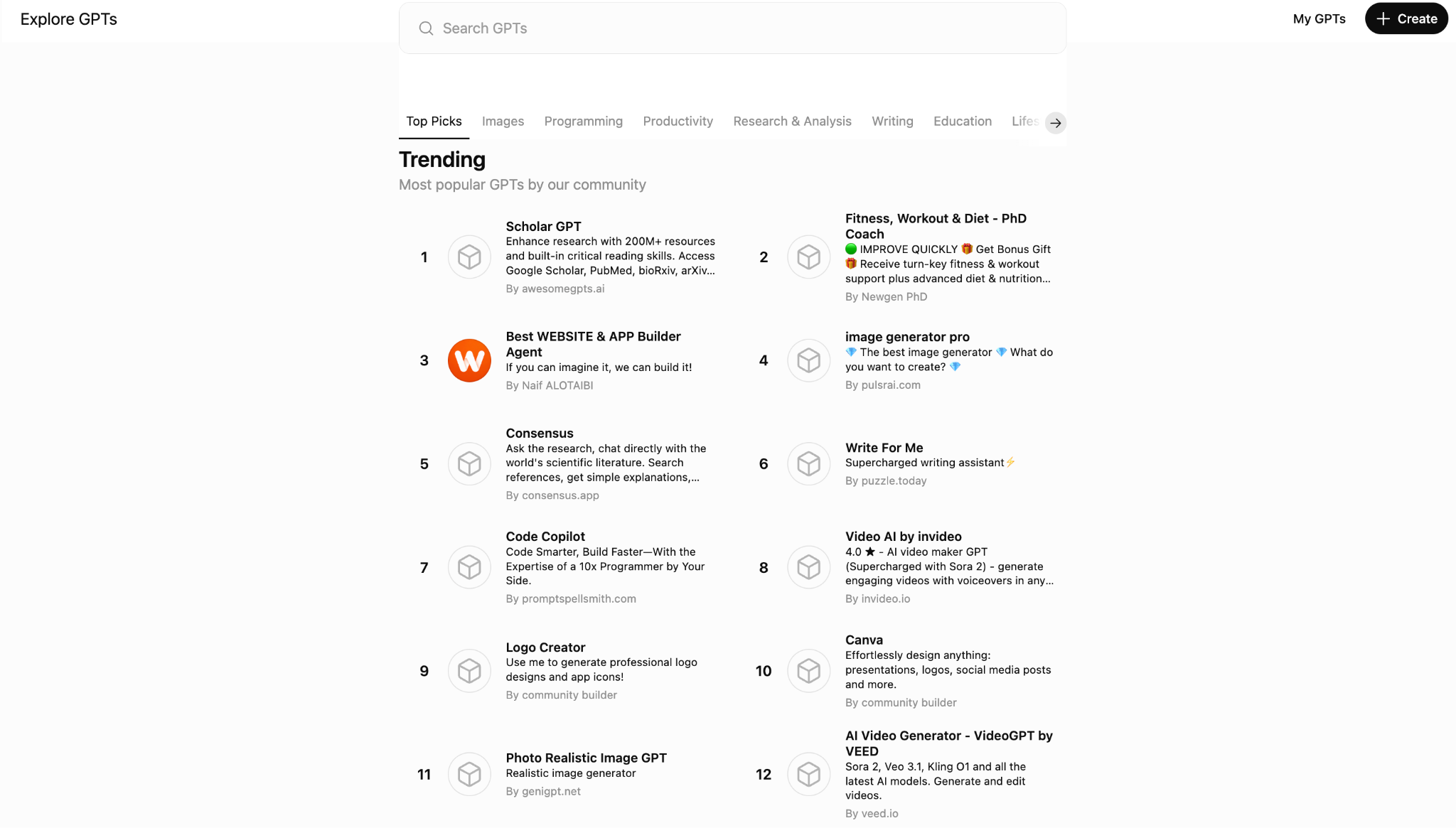
You can no longer create custom GPTs on ChatGPT accounts, including Free, Go, Plus, and Pro accounts. OpenAI now allows you to create GPTs only in Business, Enterprise, and Edu workspaces, where access is controlled by administrator settings. For now, personal-account users can still use custom GPTs, including public ones; they just can’t create new ones.
OpenAI has announced plans to retire custom GPTs and recommends moving the workflows behind them to plug-ins instead. OpenAI plans to stop new custom GPT creation for affected Enterprise workspaces on September 25, 2026, then retire existing GPTs on December 11, 2026.
Custom GPT vs regular ChatGPT: What’s the difference?
You can adapt a ChatGPT conversation as you chat. In a custom GPT, a narrower brief already determines how it should behave, what content to refer to, and what capabilities it should incorporate. OpenAI says those instructions apply whenever someone opens the GPT, while the GPT itself doesn’t inherit your saved memory, personal custom instructions, or previous conversations.
Here are the key differences:
| Regular ChatGPT | Custom GPT | |
|---|---|---|
| Is the purpose-specific setup built in? | No. You provide context as you chat, although memory and custom instructions can help. | Yes. Its instructions are applied to every conversation. |
| Does it use your ChatGPT memory? | Yes, when enabled. | No. Each GPT conversation starts fresh. |
| Can it keep reference files as a knowledge base? | No, not as a fixed, purpose-built knowledge base. | Yes. Creators can attach files as persistent GPT knowledge. |
| Is it shareable with others? | Yes, you can share chats. | Yes. Depending on workspace permissions, a GPT can be shared with people, by link, or publicly. |
| Can you create one today? | Not applicable. | Yes, but only in eligible Business, Enterprise, and Edu workspaces. Personal accounts can’t create new GPTs. |
How to create a custom GPT in 6 steps
Custom GPTs make the most sense when you catch yourself explaining the same thing to ChatGPT again. And again. And, somehow, again.
In the next six steps, we’ll follow a real example: Freelance writer Shweta uses a GPT to vet prospective clients before she spends time pitching them.
1. Define your goal, inputs, and outputs
Write down exactly what the GPT is supposed to do.
Take inspiration from Shweta: “I have just one GPT I use regularly to check if a company is a good fit for pitching my services. I give a company name or website, and it comes up with detailed feedback, with links and logic. Then, if I feel like it, I ask for help with finding emails and drafting pitches and content ideas.”
When written out, that becomes
- Goal: An assessment of whether a company is worth pitching for Shweta’s freelance services.
- Inputs: A company name or website, plus Shweta’s services, portfolio, ideal-client criteria, and pitching preferences.
- Outputs: A company-fit assessment with supporting links and reasoning, followed on request by relevant contacts, content ideas, and a draft pitch.
2. Open the GPT Builder
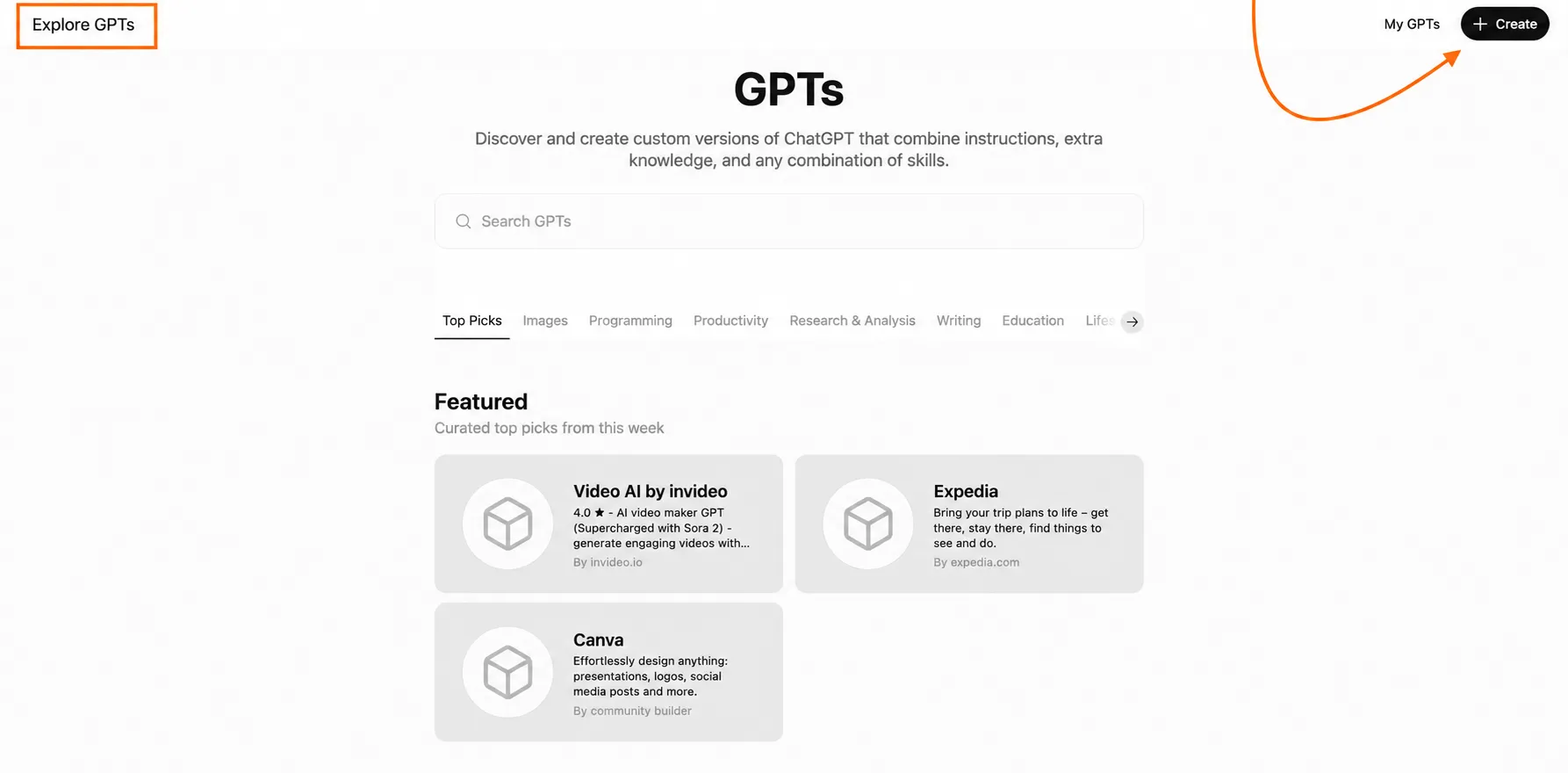
In ChatGPT, open the three-dot menu in the left-hand sidebar and select GPTs. That takes you to Explore GPTs, where you can browse public GPTs or start making your own.
For Shweta, the public directory is unnecessary. She already knows the job she wants done. Click Create in the top-right corner to open the GPT Builder.
3. Write your instructions
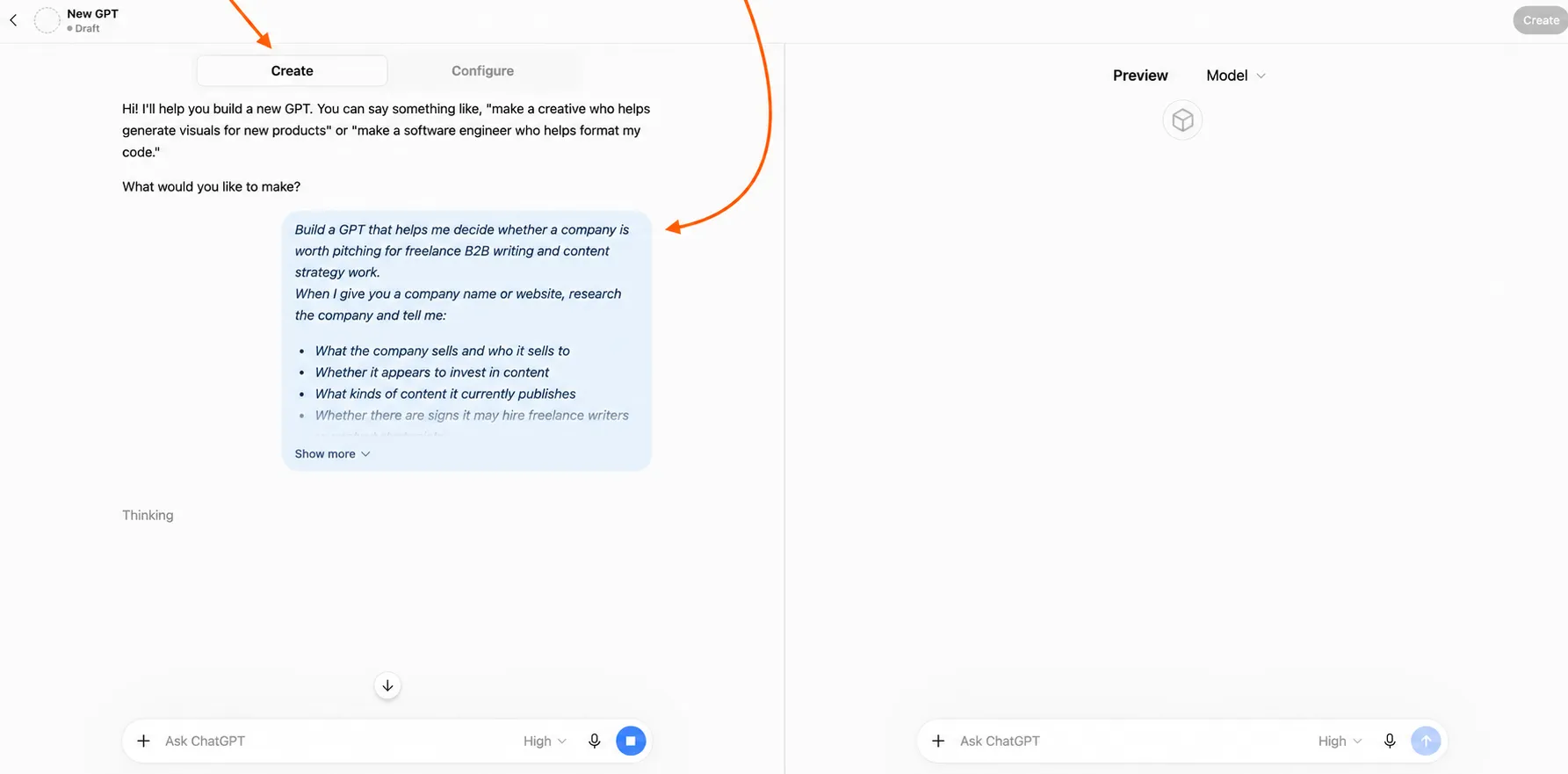
On the Create tab, ChatGPT will ask you what you want to make, and you write the job for your custom GPT in plain English.
For Shweta’s prospecting GPT, I’d write something like this:
Build a GPT that helps me decide whether a company is worth pitching for freelance B2B writing and content strategy work. When I give you a company name or website, research the company and tell me
- What the company sells and whom it sells to
- Whether it appears to invest in content
- What kinds of content it currently publishes
- Whether there are signs it may hire freelance writers or content strategists
- Any reasons it may not be a good prospect
Give me a clear fit assessment and support it with specific evidence and direct links. Separate confirmed facts from your interpretation, and say when something can’t be verified rather than guessing. Never invent names, email addresses, company facts, or content gaps.
After you submit the brief, the Builder starts packaging it into a usable GPT. In our example, it suggested the name “Content Prospect Scout,” wrote a one-line description, and generated conversation starters:
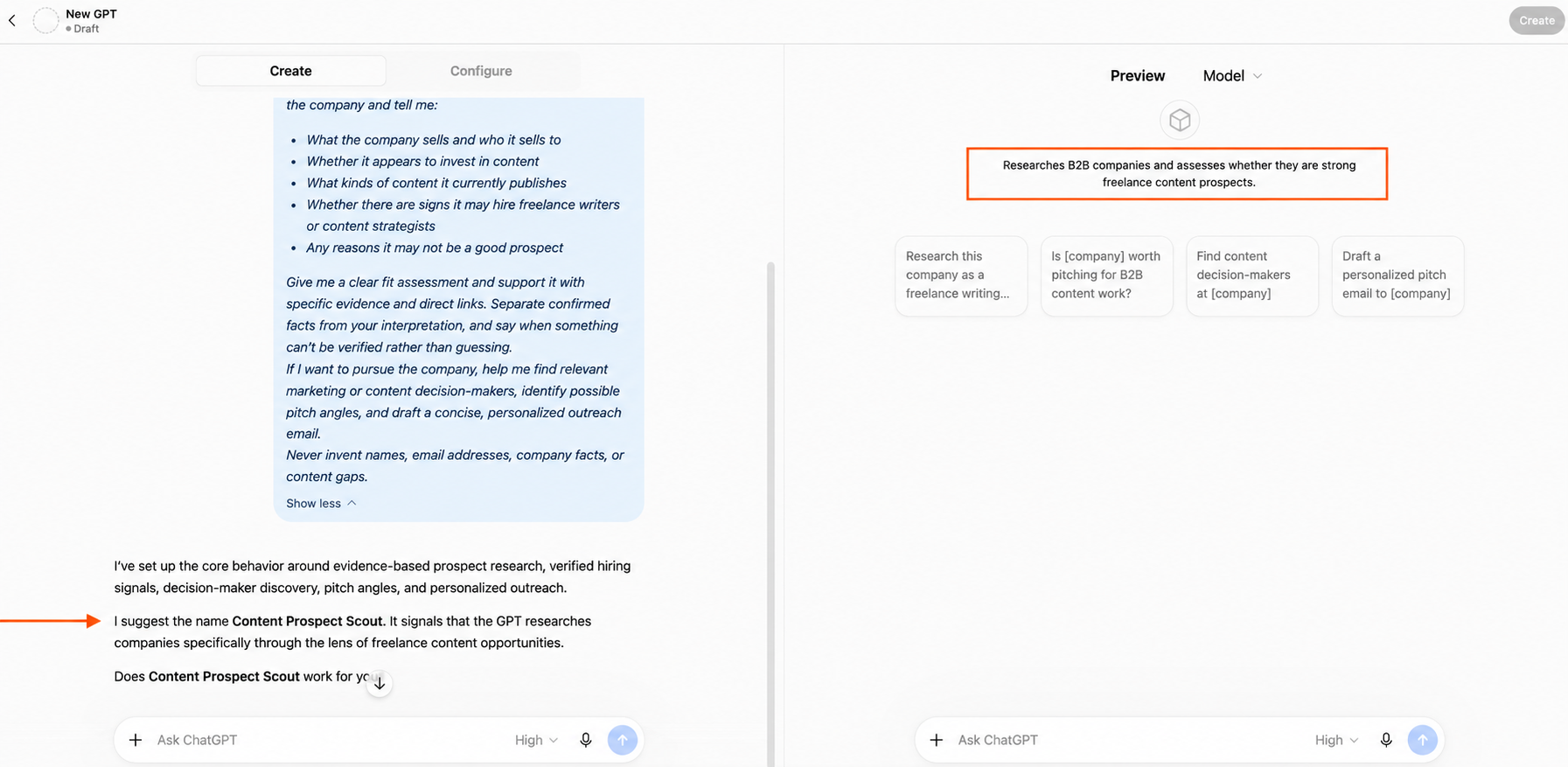
You don’t have to accept any of that as is, though. Change the name, rewrite the description, delete the prompts you’d never use.
4. Upload your knowledge files
Switch to Configure, scroll to Knowledge, and click Upload files. These are the reference materials the GPT can draw on without Shweta attaching them again every time she researches a company.
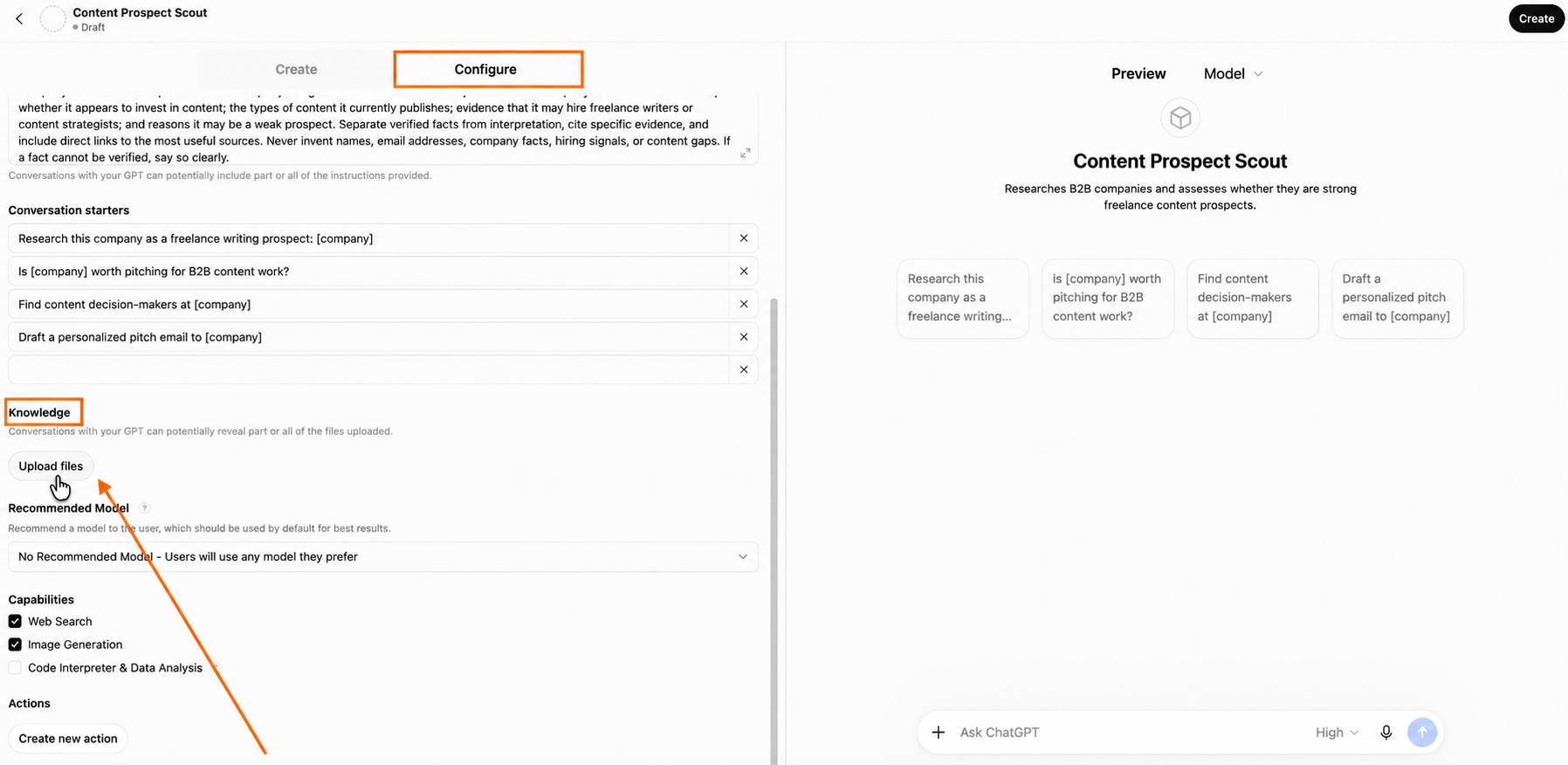
For her prospecting GPT, she might upload
- A one-page overview of her services and specialties
- Her portfolio or selected writing samples
- A document describing her ideal clients and deal-breakers
- A few examples of pitches that have worked well before
- A list of industries, company sizes, or project types she does and doesn’t want
Note: The knowledge files stay attached to the GPT until you delete the GPT, and OpenAI’s storage and data-use rules vary by plan. OpenAI says content submitted through ChatGPT Enterprise isn’t used to improve its models. Check the File Uploads FAQ before adding sensitive or confidential material.
5. Enable capabilities
Now decide what the GPT needs to do, beyond answering from its instructions and files.
Under Configure > Capabilities, switch on the tools that suit the job. OpenAI lists options such as web search, image generation, and Code Interpreter & Data Analysis; what appears depends on the account, workspace, and region.
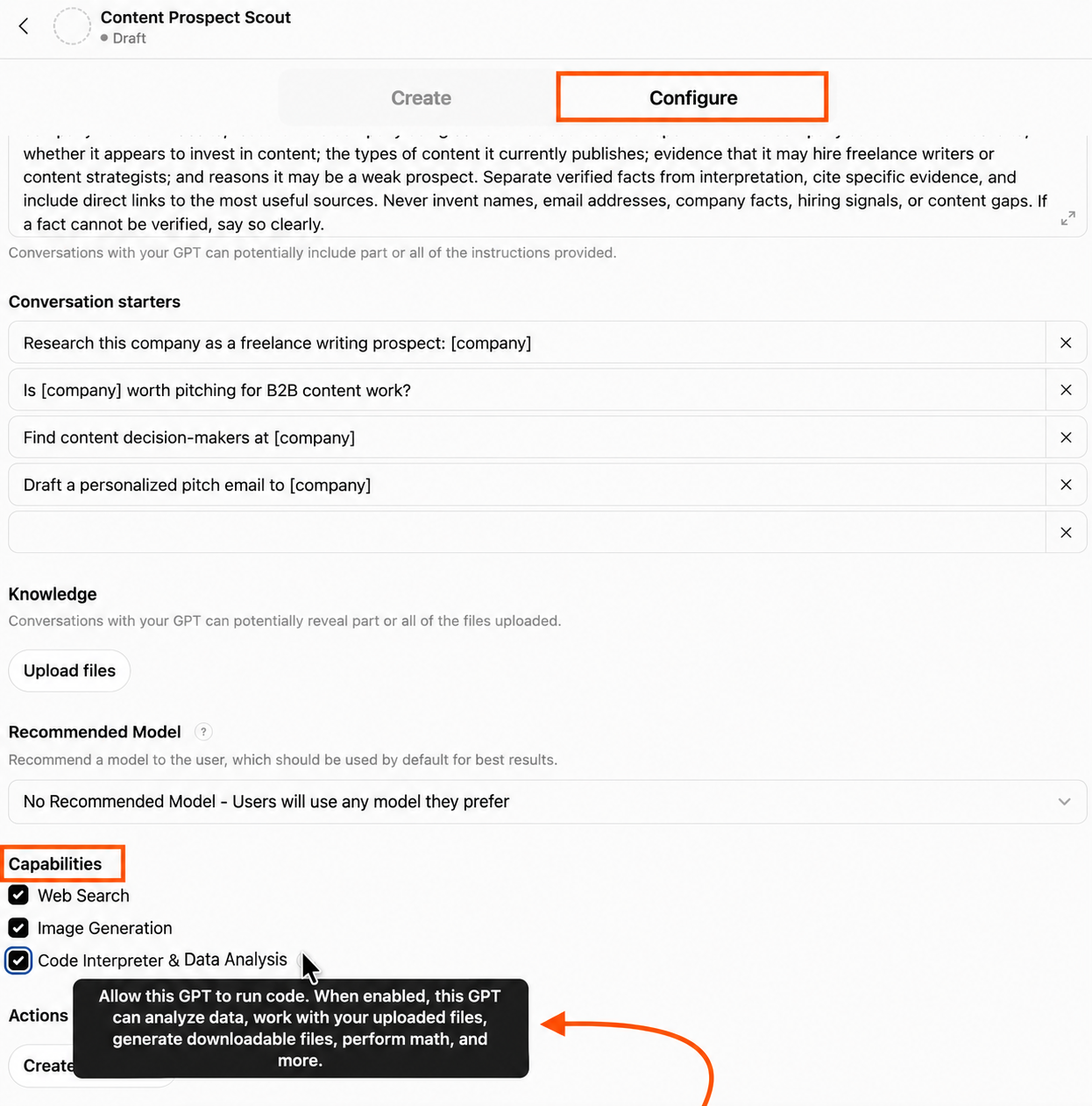
For Shweta’s GPT, “Web Search” is the important one.
A prospect research knowledge base sours quickly, so the GPT needs to check a company’s current site, content program, and other public information rather than relying on older knowledge.
There’s also Actions, which sits just below Capabilities. Actions let a GPT connect to external APIs that you define, so the GPT can retrieve data from or trigger something in another system. Actions are more involved. You need the API details, authentication, and an OpenAPI schema, so I wouldn’t add one merely because the button is there.
6. Test in Preview, then save and share
Use the Preview pane on the right to try the prompts you expect to use in real life. For Content Prospect Scout, that means giving it a real company and checking whether it does the things Shweta asked for.
A good test prompt could be: “Is HubSpot a good company for me to prospect?”
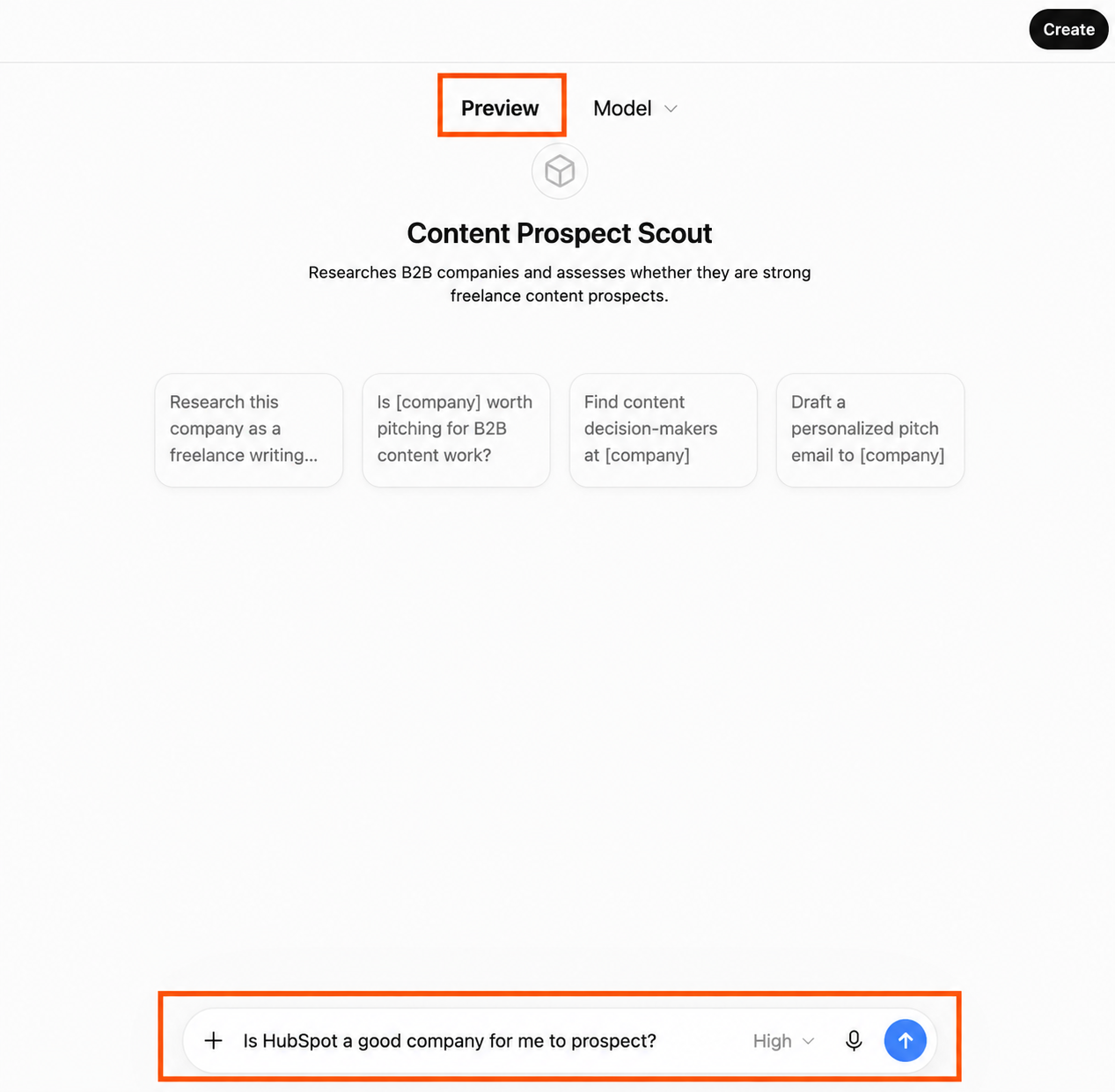
Once you’re happy with the result, click Create in the top right corner.
You can keep the GPT private, share it with specific people or your workspace, or make it more widely available. For Shweta, private is the best choice.
Custom GPTs vs ChatGPT apps: Which one do you need?
Now you know what a custom GPT is. Then you open ChatGPT and find apps. Or plug-ins. Or an app inside a plug-in.
What does it all mean?
- A custom GPT changes how ChatGPT behaves for a particular job: You give it instructions, knowledge, and capabilities, as described previously.
- A ChatGPT App connects ChatGPT to another product so it can work with that product’s data and actions. Since July 2026, OpenAI has made plug-ins the main way to discover these workflow capabilities; a plug-in can include one or more apps alongside other reusable functions.
| Custom GPT | ChatGPT app | |
|---|---|---|
| What’s the main job? | Configuring ChatGPT for a repeatable purpose | Connecting ChatGPT to an external product |
| Does it allow for custom instructions and knowledge? | Yes | Often not needed, as the external tools bring in the information |
| Does it work with live external data? | Only through configured tools/actions | Yes, where the app supports it |
| Can it take actions in another product? | Only through connected capabilities | Yes |
| Can it render interactive app experiences in chat? | Generally no | Yes, if the app supports them |
| What’s an example? | A GPT that evaluates sales prospects | Jotform creating and editing a form inside ChatGPT |

Jotform’s ChatGPT App is a good test of whether these things are really different. (They are.)
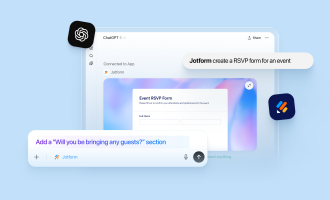
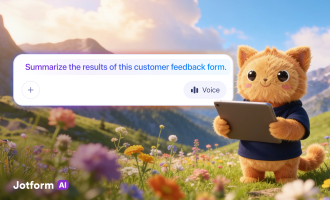
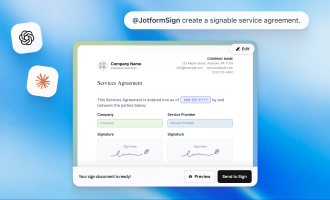
Ask a custom GPT for a customer feedback form, and it can give you the questions. But Jotform can build the form itself inside ChatGPT.
Then you keep going: Add a consent field, change the wording, move the email question, tweak the design. Once responses come in, ask which complaints keep repeating or where customers seem to be getting stuck.
Read more about the different use cases for the Jotform ChatGPT App.
How to connect the Jotform ChatGPT App
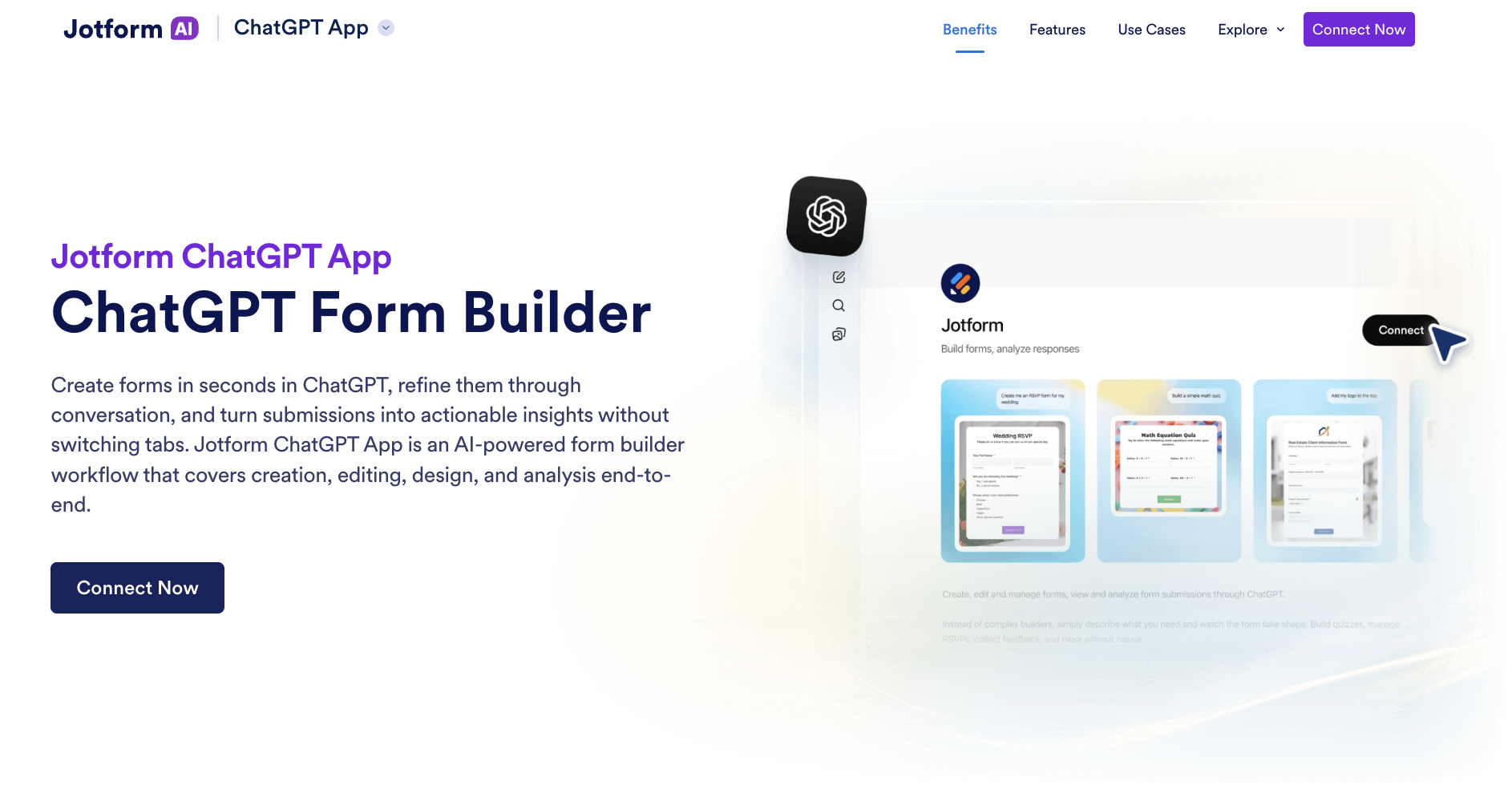
- Find Jotform: You have two routes in. From the Jotform ChatGPT App page, click Connect Now. Or do it from ChatGPT: Open Plugins (the label varies by account and rollout), search for Jotform, and open its listing.
- Connect your Jotform account: Click Connect, then Install plugin when prompted. Sign in to the Jotform account you want ChatGPT to work with and review the requested permissions before authorizing access. Once the connection is complete, choose Try in chat.
- Call Jotform into the conversation: In a ChatGPT conversation, type @Jotform and select it, or choose Jotform from the available tools menu. Then ask for what you want.
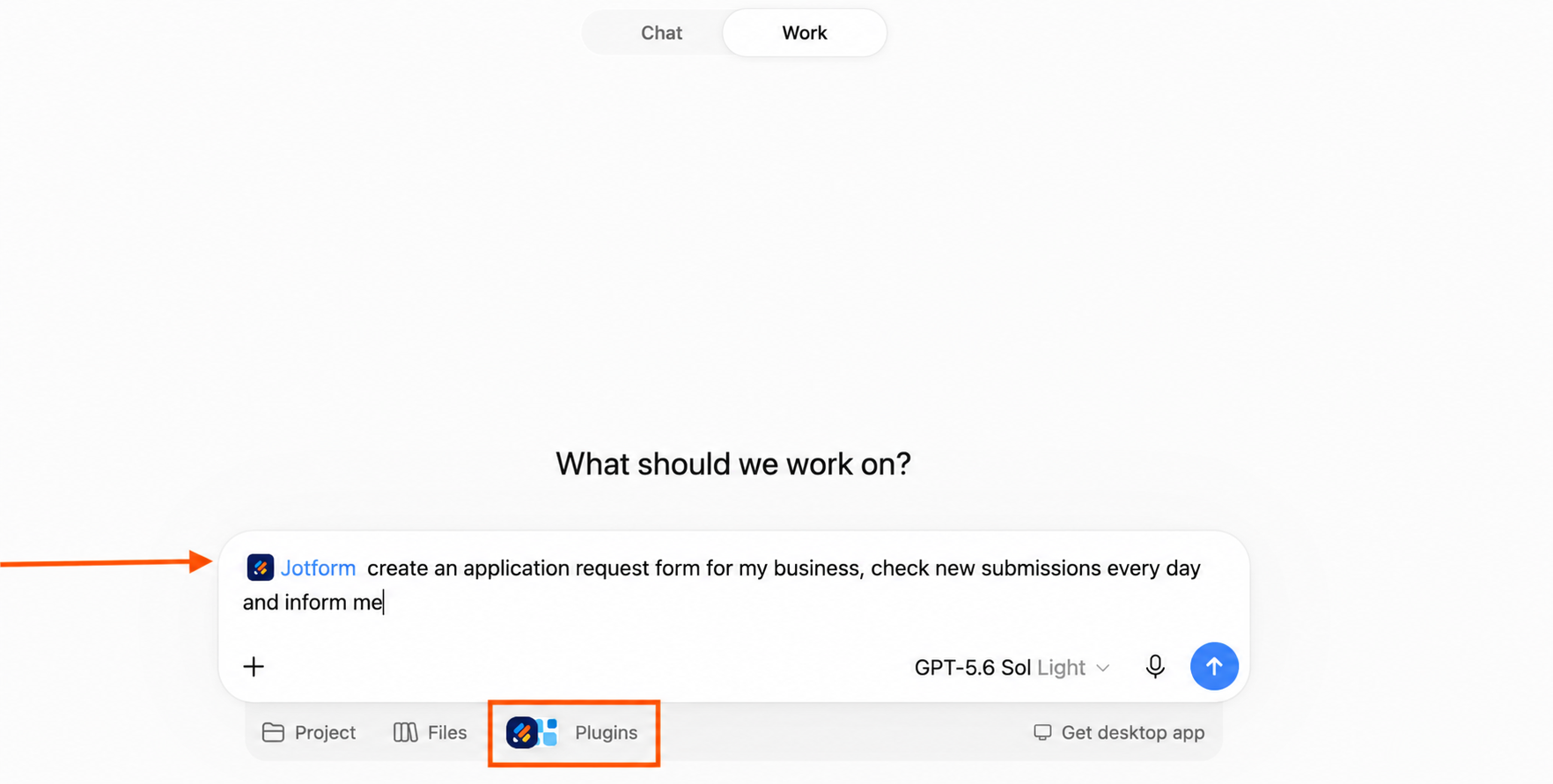
Jotform asks you to confirm the action before creating the form. Once it does, the result appears as a working form preview inside ChatGPT, where you can test it immediately or open it in Jotform’s Form Builder for more customization.
Read more: How to Enable and Use the Jotform ChatGPT App
Get ready to move your custom GPTs to plug-ins
OpenAI is building a migration flow that turns the pieces of your GPT into a plug-in. Your instructions become a reusable skill, while connected apps are added as apps inside the plug-in.
The reference files, examples, templates, and tools still need a human once-over after migration.
- Take stock before you migrate: Note what the GPT currently depends on: its instructions, knowledge files, integrations, and a handful of prompts you know produce good results. OpenAI specifically recommends recording them so you can check whether the plug-in still behaves the way you expect.
- Make sure the GPT is eligible to migrate: For the planned Enterprise migration, the GPT must be published, and you need to be either its creator or a workspace admin. OpenAI targeted September 17, 2026, for the migration to begin appearing in Enterprise workspaces but says the option may not arrive everywhere at once.
- Run the migration: Once migration is available, open the published GPT and select its migration option.
- Rebuild anything that doesn’t make the trip: Your custom actions do not migrate automatically. If your GPT calls an external API through an action, OpenAI says you’ll need to assess and rebuild that integration using a supported connector or custom MCP server.
- Put the plug-in through the same tests: OpenAI recommends checking whether the plug-in selects the right skill, follows your instructions, uses the expected reference material, produces the right output, and still has every tool or integration the workflow depends on.
- Share the plug-in, then retire the old workflow: The migrated plug-in is private at first. Once you’ve tested it, you can share it with the people who need it, subject to your workspace’s plug-in permissions.
GPTs don’t disappear immediately after migration. However, they do become read-only once retired, so any future updates will belong in the plug-in. At the moment, OpenAI is scheduling affected Enterprise GPTs to stop running on December 11, 2026.
So before you start re-creating your GPT piece by piece, see what’s already been built for you. ChatGPT Apps are already live, and they’re not part of the custom GPT retirement. Jotform, for example, can already create, edit, preview, and analyze forms inside ChatGPT.
Start there, with something whose retirement plans aren’t on the horizon.
What is a custom GPT FAQs
It can be, particularly when the same instructions, reference material, and workflow keep turning up in your chats. A few good custom GPT examples include prospect research, internal knowledge assistants, or repeatable content and support workflows.
But in 2026, there’s an expiration date to consider. OpenAI is retiring custom GPTs and moving reusable workflows toward plug-ins, so don’t build a new custom GPT for business without first checking whether a plug-in or ChatGPT app already does the job. For example, the Jotform ChatGPT App can create, edit, and analyze forms directly inside ChatGPT.
For a more autonomous workflow, read how to build an AI agent with ChatGPT. The broader Jotform AI toolkit covers AI agents, form building, workflow automation, and other AI-assisted work.
That question isn’t applicable anymore. You can still use GPTs you have access through a free ChatGPT account, including public GPTs. But creating new custom GPTs is no longer available on personal Free, Go, Plus, or Pro accounts.
So if you’re searching for how to make a custom GPT on a personal account and can’t find the buttons, don’t worry; the product is in transition.
Strictly speaking, you don’t train a custom GPT in the machine-learning sense. You configure it.
You give the GPT instructions, upload knowledge files, choose capabilities, and test the results until its behavior matches the job you have in mind. If you want it to work from company documents, policies, product information, or other proprietary material, Jotform’s guide to training ChatGPT on your own data covers the broader approaches available.
This article is for frequent ChatGPT users, marketers, educators, and business owners who have heard the term “custom GPT” but aren’t sure what it means, whether it applies to them, or how to build one — no coding background assumed.



























































































Send Comment: