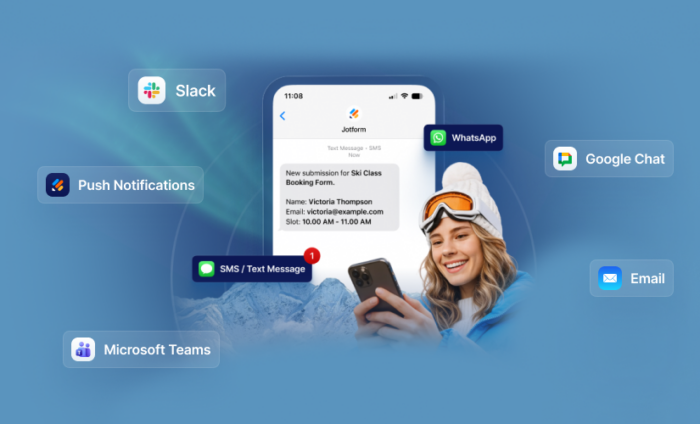

Get instant submission alerts in the channels you actually use, so you never miss what matters
Last year, almost 350 million form submissions came through Jotform (that’s million with an M), and the number is climbing every year.
It’s not news that we depend on our mobile devices. And it shouldn’t come as a surprise that getting alerts or important form submissions via email only won’t cut it.
Emails can be delayed, filtered, or lost amid all of the other notifications we get every day. Many of our workflows are time-sensitive, triggered by sales leads, patient intake, scheduling requests, approvals, and the like.
So if you miss submissions, you’re missing out on potential business.
This holiday, we’re delivering the gift of WhatsApp, SMS, and Mobile Notifications — a reimagining of Jotform’s already robust form notifications suite. Now there’s a unified hub within Jotform where you can manage all of your alerts.
You’ll benefit from multichannel notification options:
- Speedy WhatsApp notifications
- Globally supported SMS notifications with phone number verification
- Mobile push notifications via the Jotform mobile app
- Native messaging integrations with Slack and Microsoft Teams for channel or chat delivery
- Reliable old email 😉
You (and your teams) will be able to choose the best channel for each of your workflows.
Set up your new notifications
It’s easy to set up new notifications in Jotform — it should take you less than a minute.
Let’s walk through the setup and activation flow for each channel. First, open the form you’d like to get notifications for and head to the Notifications screen in the Form Builder Settings.
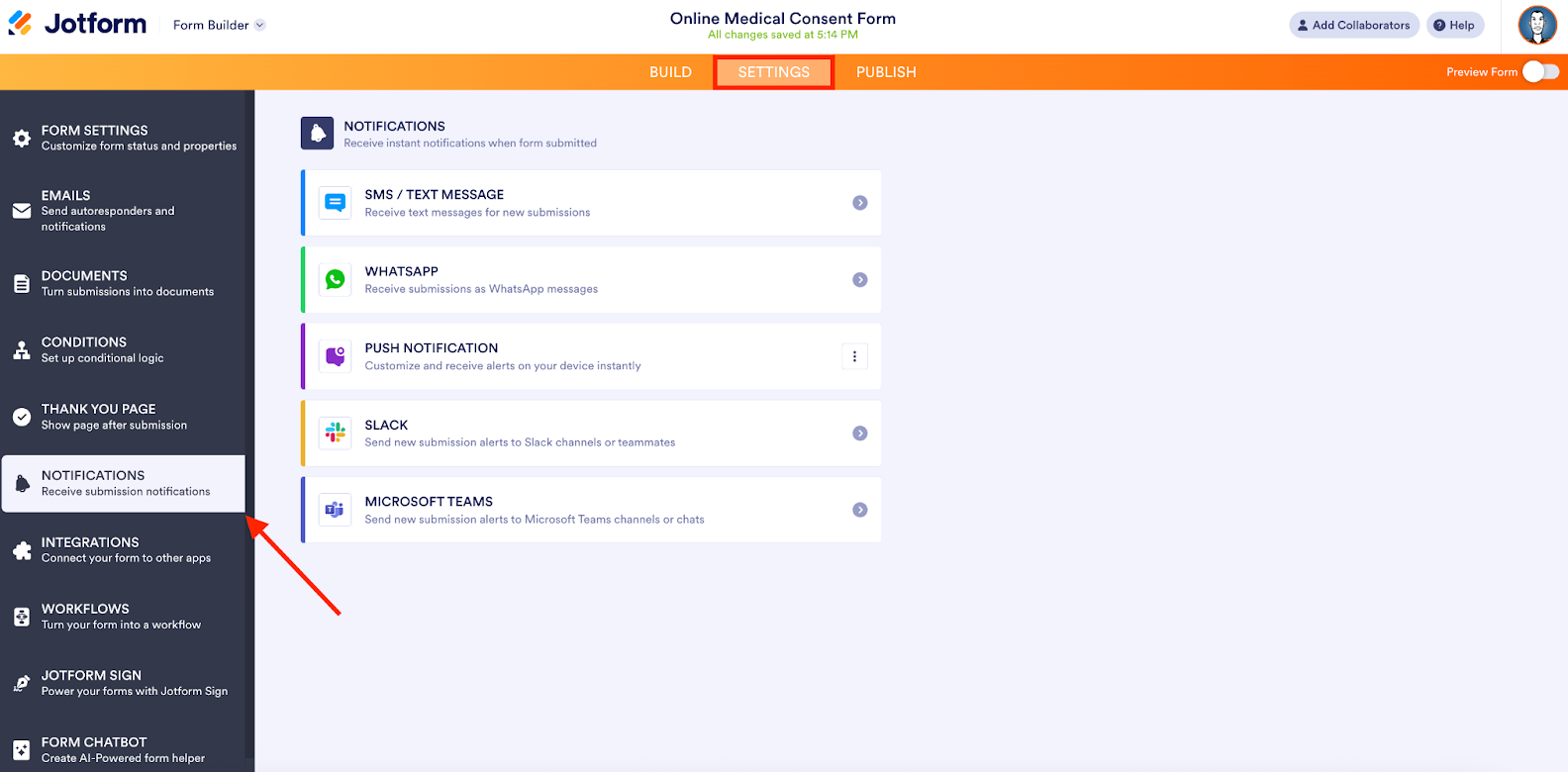
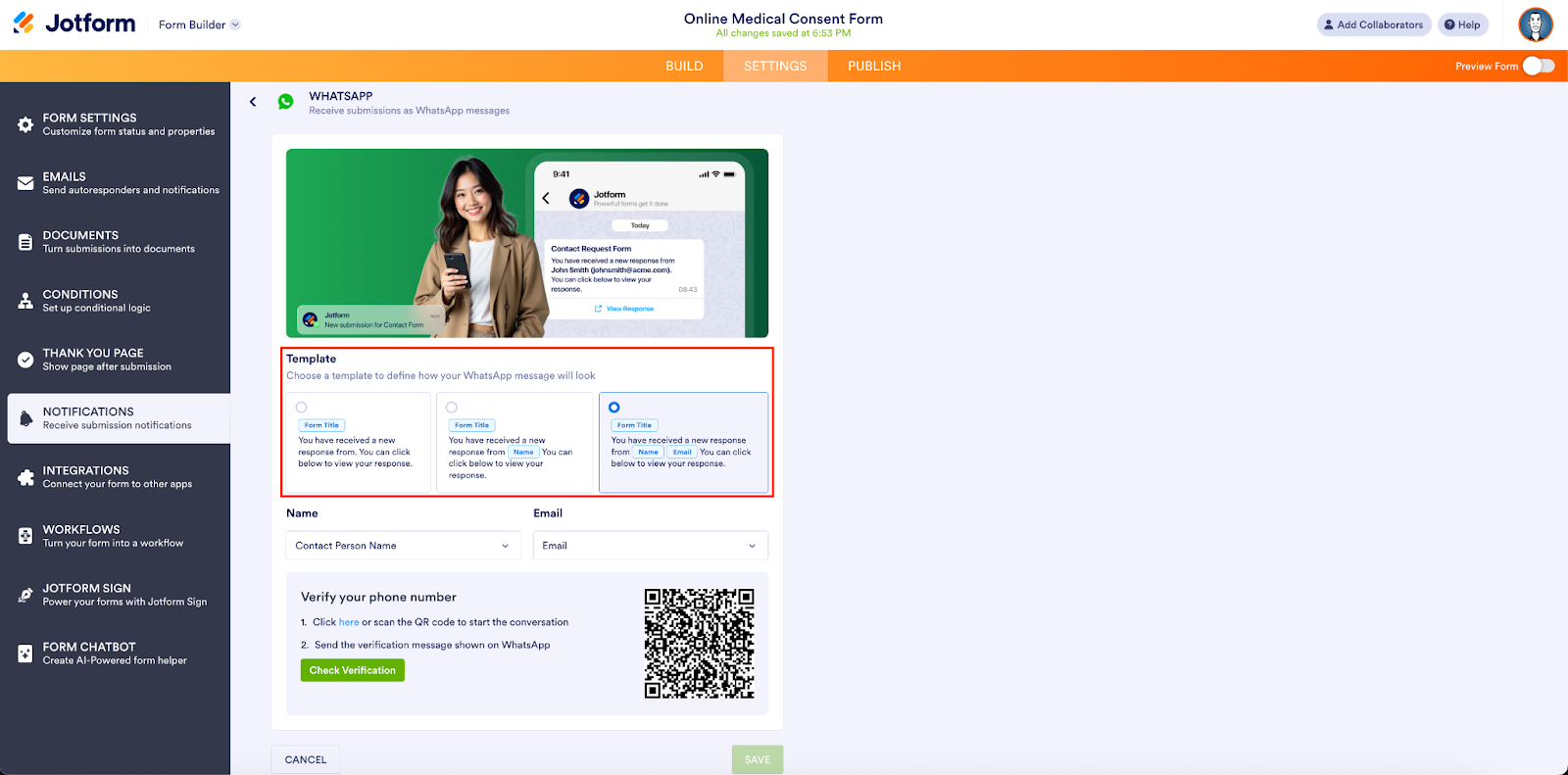
Click on the WhatsApp option and select the template you’d like to use for your WhatsApp message (Form Title; Form Title & submitter name; or Form Title & submitter name and email).
Next, click on the prompt to verify your phone number.
Click the button to start a WhatsApp conversation. (You can do this via the app or on the WhatsApp website.)
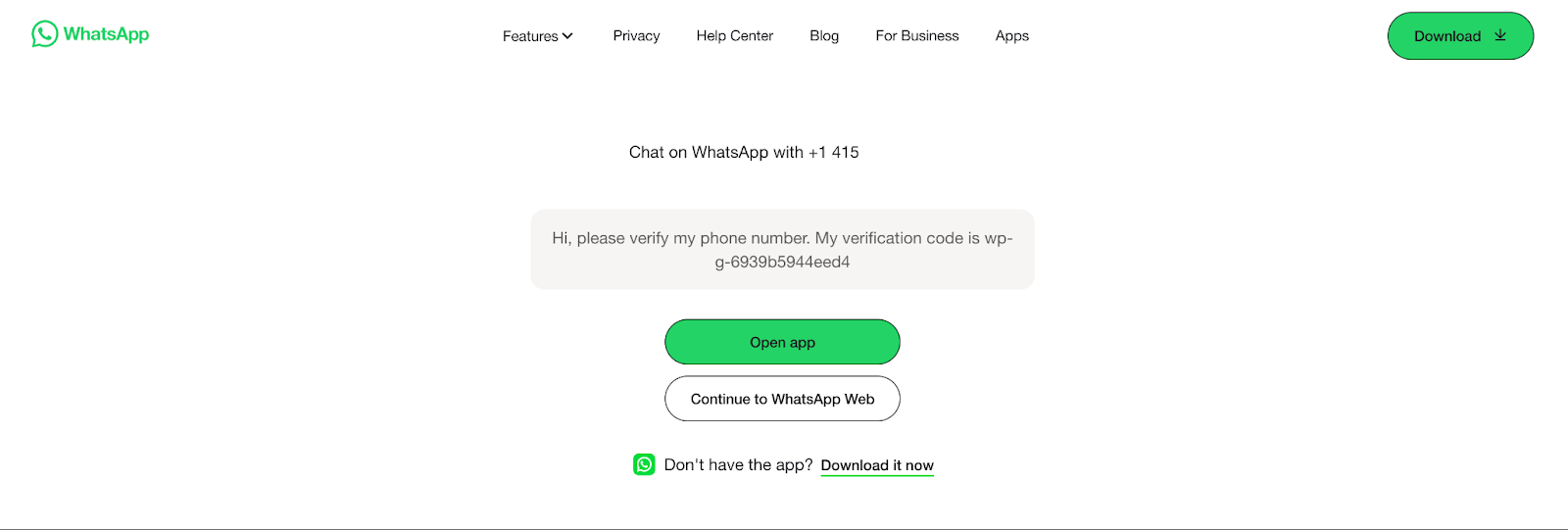
Enter the verification code as a message to Jotform. You’ll then receive a message that your phone number has been verified.
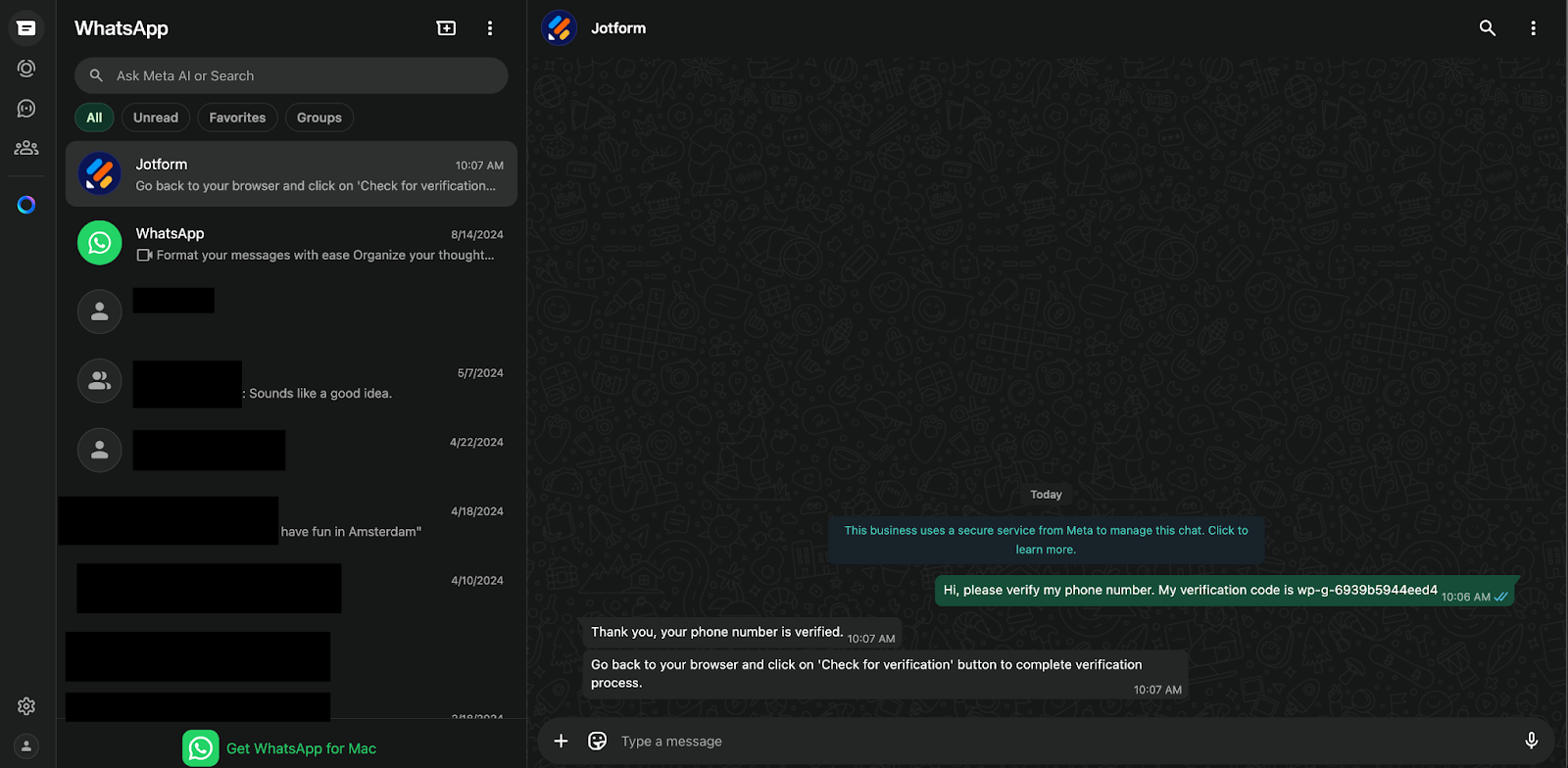
Back in the Form Builder (or Jotform app), click the Check Verification button to complete the verification process. You’ll see a confirmation note.
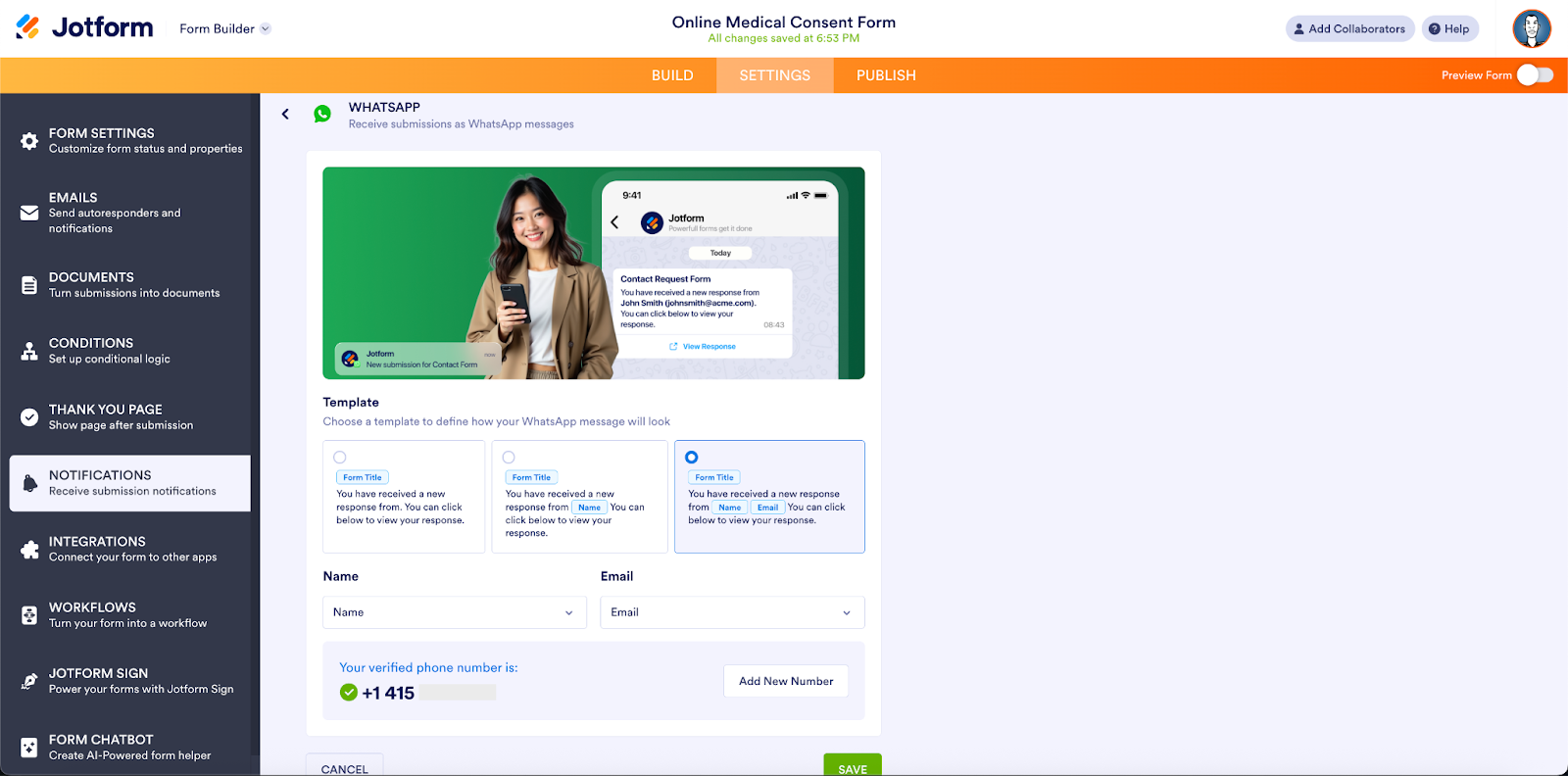
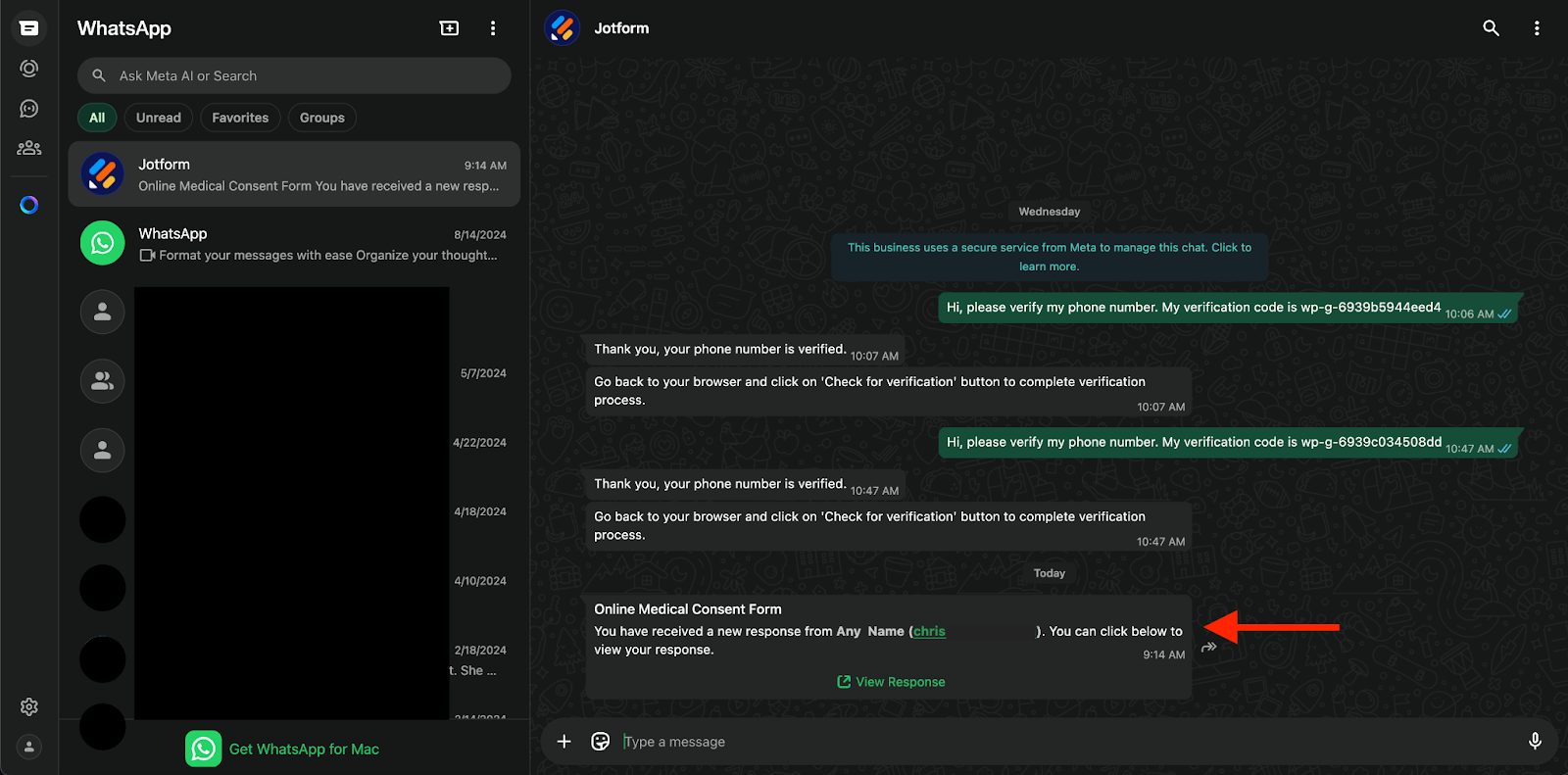
It’s as easy as that. Now, whenever you get a form submission, you’ll instantly be notified via WhatsApp.
Pro Tip
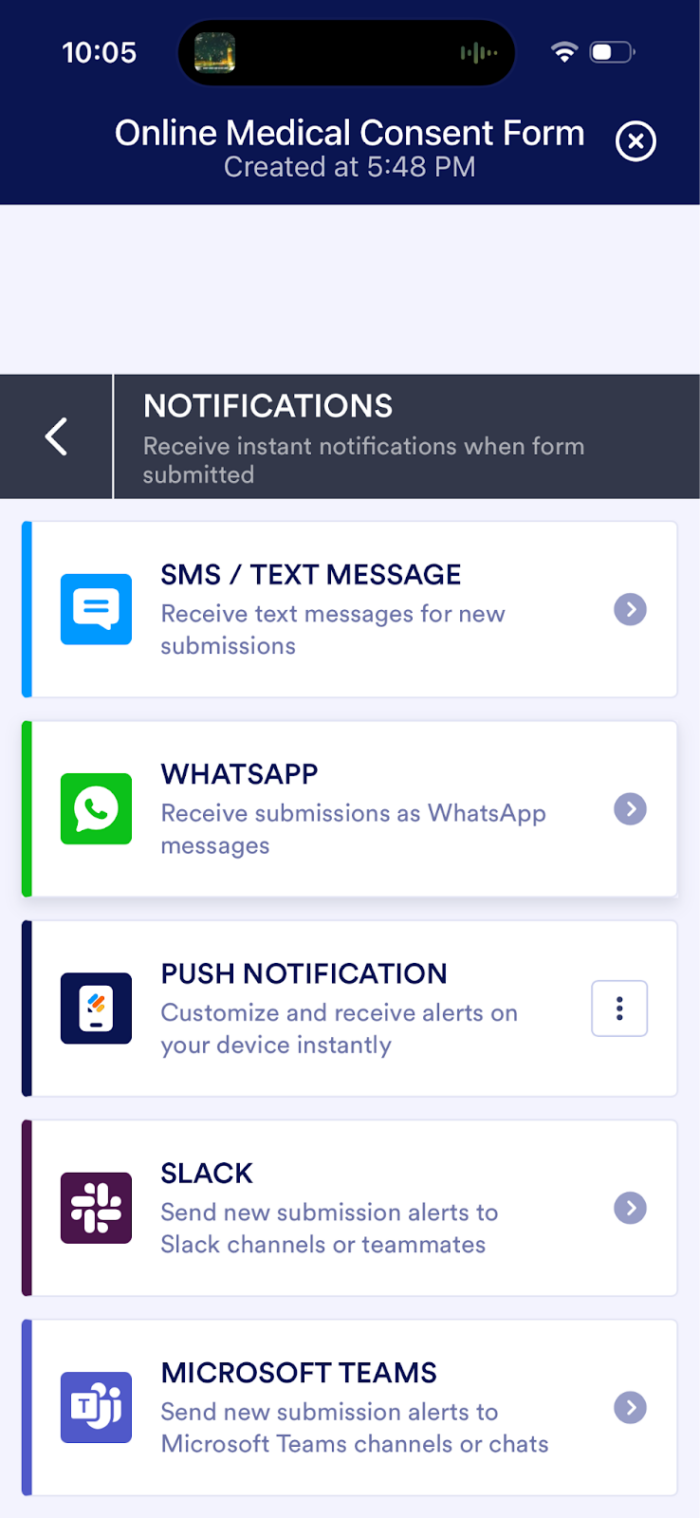
You can go through the same notification setup process on your mobile phone via the Jotform app.

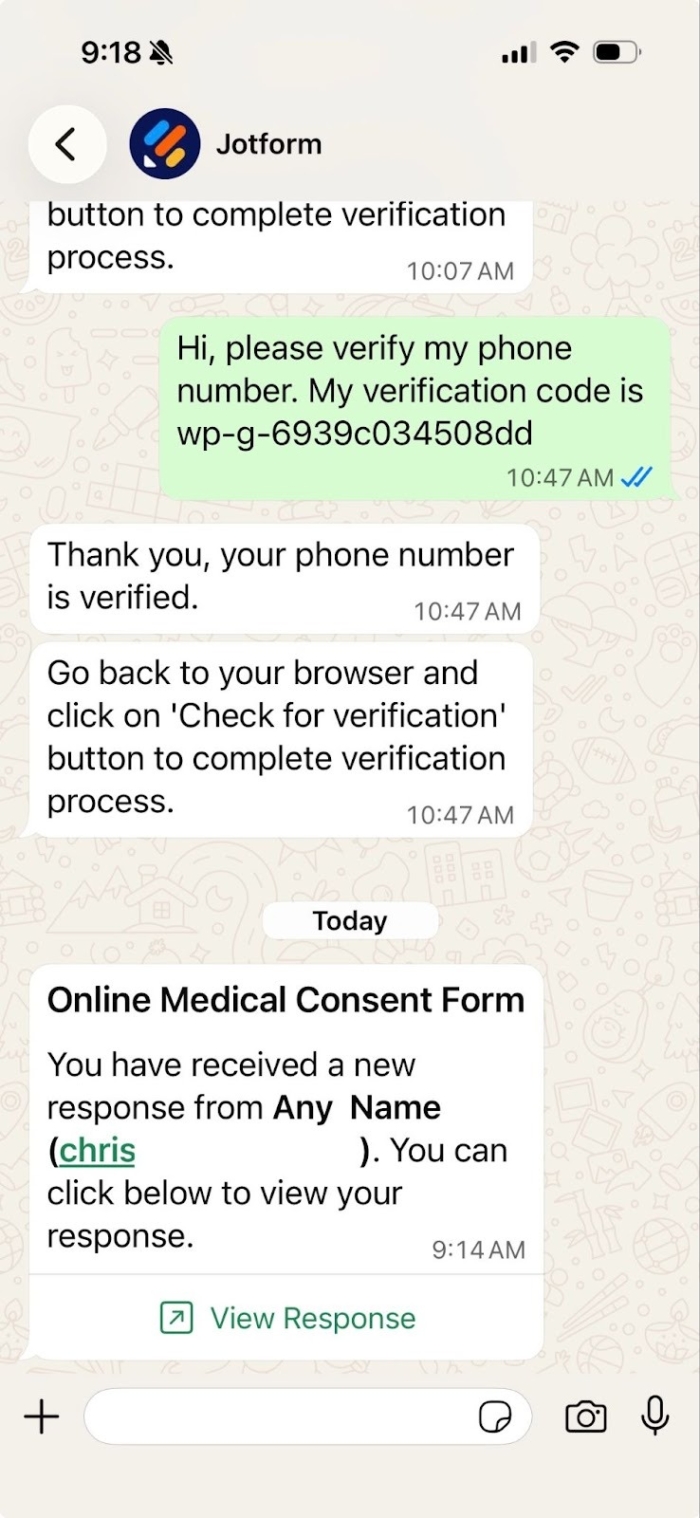
Why WhatsApp Notifications?
For many users around the world, WhatsApp is the app they check most frequently.
As a result, it’s a natural way to receive time-sensitive form alerts, especially for sales teams, service providers, and SMBs trying to stay on top of orders/inquiries on the go.
SMS verification
On the SMS/Text Message page, simply enter your phone number to receive a verification code.
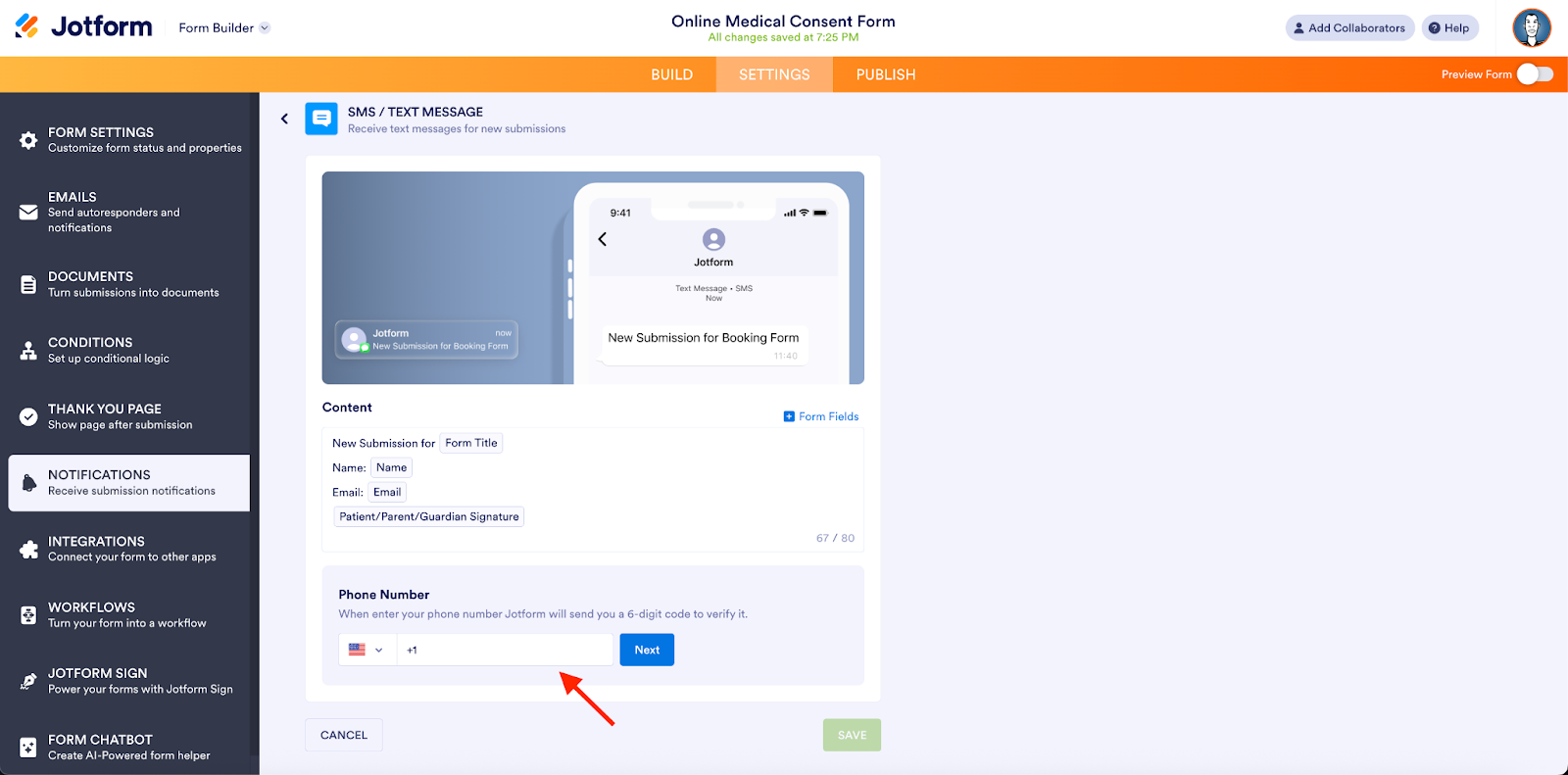
Enter the code sent to your phone, and your number will be verified.
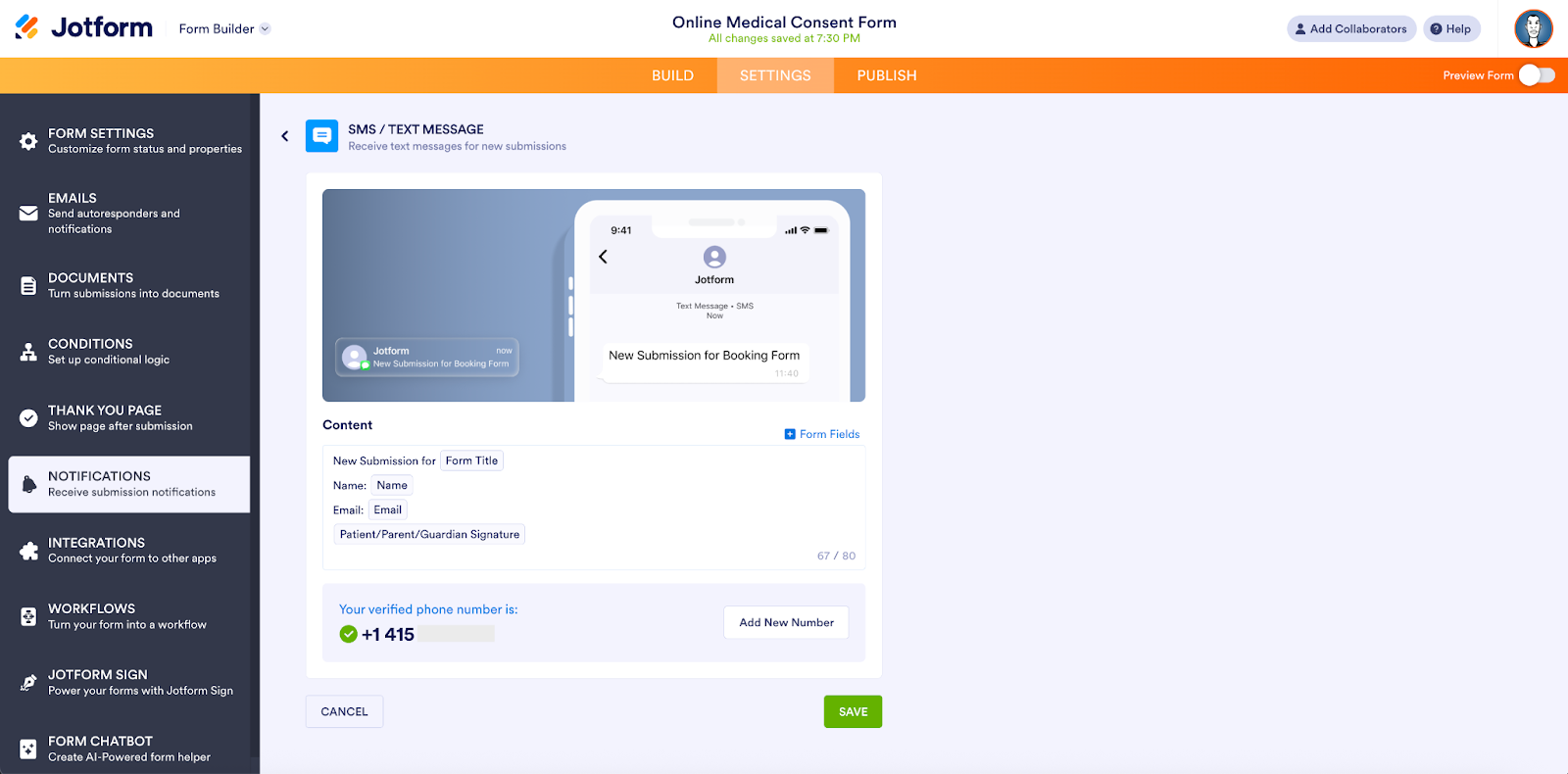
You’ll now receive form submissions as an SMS/text message to the phone number you verified.
Why SMS Notifications?
SMS is universal and highly reliable, perfect for cutting through inbox noise. Plus, it works on just about any phone. SMS notifications are best for after-hours or on-call alerts, such as healthcare follow-ups and recruiter responses to highly qualified candidates.
Did you know…
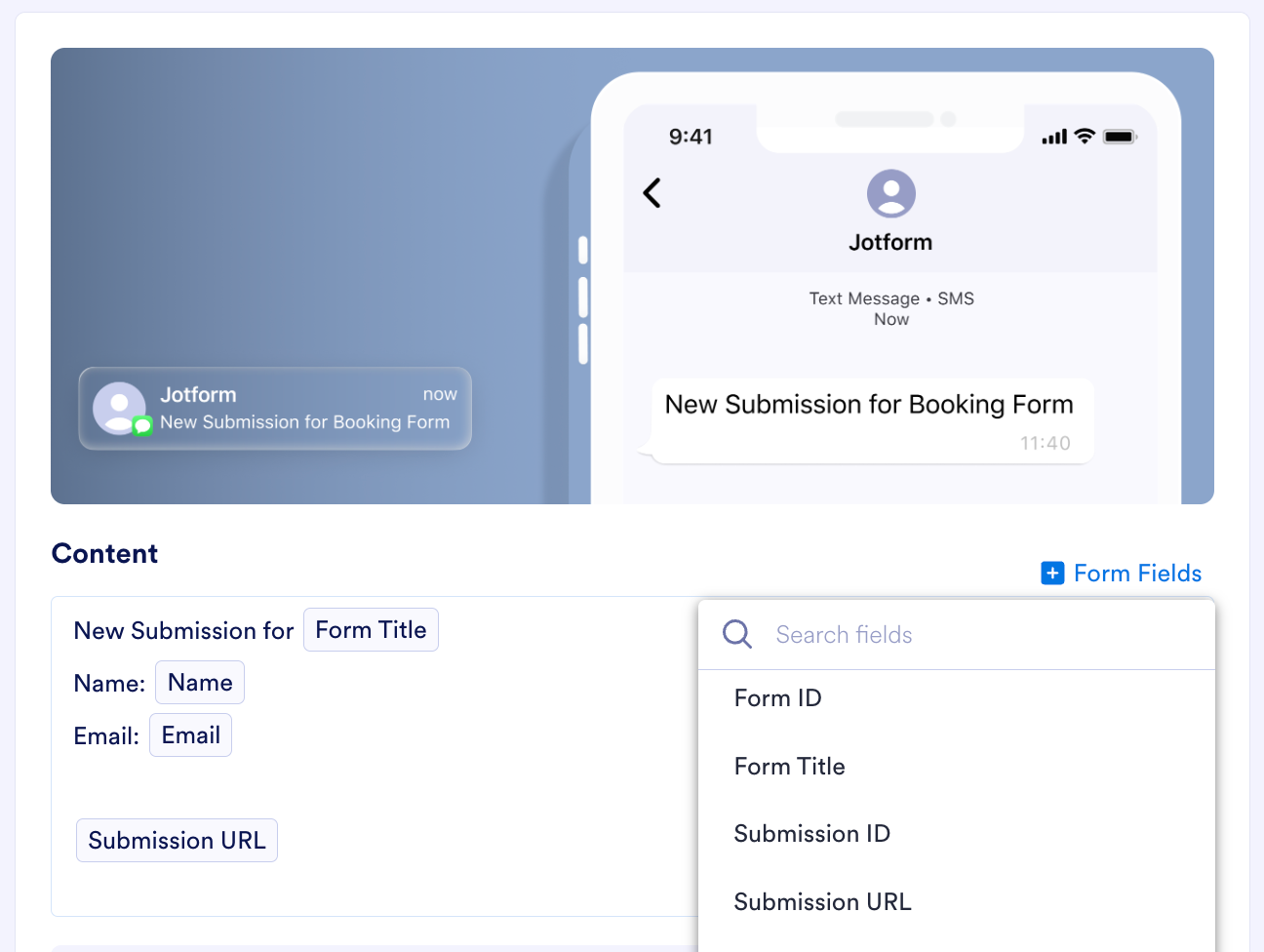
You can choose which form fields you’d like to include in your notification? Doing so will help make your alerts more useful. Simply select the fields you’d like to include from the dropdown in the Content section when you’re setting up your notification channel.
Enabling mobile push notifications
To enable push notifications, simply scan the QR code with your mobile phone. Once you’ve downloaded the Jotform app, click the Save button.
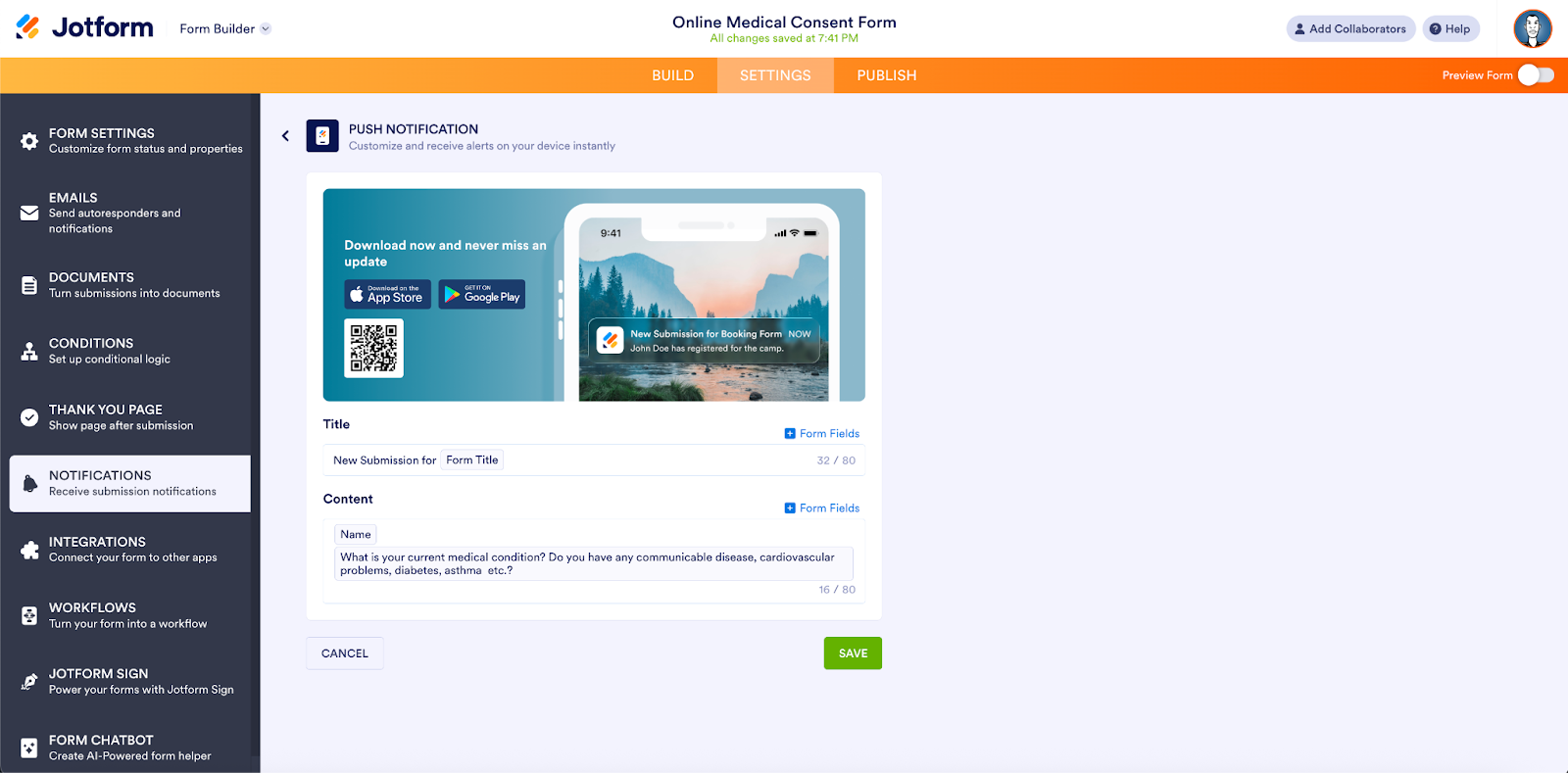
Note: Even if you’ve already installed the Jotform mobile app, you’ll need to enable push notifications from the setup screen. This ensures the device registers properly and allows us to send real-time notifications for that specific form.
Download the Jotform mobile app from the App Store or Google Play. You’ll receive push notifications whenever your forms are submitted.
That’s it; there’s no coding or third-party automation required for you to stay up to date on your mobile device.
Stay up to date in channels (or chats) for your team
We’ve previously written about our native integrations with Slack and Microsoft Teams. You can now access and set up these channels in the Notifications hub.
Sending form submissions to your Teams channels, chats, and/or calendar in MS Teams — or automatically sending submissions to your channels or teammates via chat in Slack — provides immediate visibility for your entire team without the need for extra tools.
Product compatibility
It’s helpful to know how new Jotform features, like WhatsApp and SMS/text notifications, work with your current products.
We’ve created this handy compatibility overview so you can see where the current notification options apply across the Jotform ecosystem (as of December 2025).
Form Settings | Form Integration | Table Action Button | Workflow Integration | Sign Integration | HIPAA Compatible | |
|---|---|---|---|---|---|---|
| Push Notification | ||||||
| Text Message / SMS | ||||||
| Slack | ||||||
| Microsoft Teams |
Enable SMS/WhatsApp notifications on your most important forms
Do your customers, clients, patients, partners, or other stakeholders rely on instant feedback? If so, it’s critical to set up form submission notifications for the communication modes you use every day.
The new Form Notifications hub instantly delivers submission notifications to the place you’ll see them first, whether that’s WhatsApp, SMS/text, Slack/MS Teams, or Jotform app push notifications. You won’t miss any submissions, and you’ll be able to respond faster.
Along with the flexibility to get notifications on your most trusted channel, you’ll see stronger team coordination, giving you a better mobile (and team collaboration) experience.
As always, we invite you to give us feedback on the new form submission notifications channels. And let us know which channels you want next!





















































Send Comment:
1 Comment:
December 16, 2025
I'd like to send a Jotform test through SMS, as many of my clients like to take my test on their phones. Is that service available to input a list of cell phone numbers where I want my Jotform sent to? Right now I create a Group Send with the Jotform Link and just before they take the test, I send the Group send SMS message from my iPhone. It's really a pain because I can loose the Group Send, then I have to redo the whole Group Send all over again while the client is waiting.