
Positive customer reviews build trust with potential customers by showing the value of your company’s products or services. But if you want to display Trustpilot reviews on your Wix website, you’ll need a workaround.
Wix doesn’t have a built-in feature for automatically pulling in Trustpilot reviews. But you still have a few options: You can embed Trustpilot reviews on Wix using a dedicated tool from the Wix App Market, add a third-party widget, or simply copy and paste testimonials directly onto your site.
In this article, we’ll walk you through each method step by step, so you can start adding powerful social proof to your website.
Option 1: Use the Trustpilot app from the Wix App Market
Using the Trustpilot Reviews app from the Wix App Market is one of the quickest ways to display Trustpilot reviews on Wix. However, this app has both free and paid plans. You’ll likely need a paid Trustpilot Business plan to access all features.

Follow these steps to install the Trustpilot Wix integration:
- From your Wix dashboard, go to Apps > Wix App Market.
- Type “Trustpilot Reviews” into the search bar and press Enter on your computer keyboard. You’ll see several apps that let you embed Trustpilot reviews on Wix. Select the official one labeled “By Trustpilot.”
- Click Add to site.
- Wix will redirect you to your Trustpilot account. Accept the terms and conditions by checking the relevant box, then click Connect.
- Click Add to site to grant Trustpilot access to your Wix website.
You can also connect the app directly to your website from your Trustpilot Business account. In Trustpilot Business, go to Integrations > Ecommerce > Wix. Next, accept the terms and conditions, then click Connect. You’ll be redirected to log into your Wix account and select a site (if you have more than one). From there, click Add to site to complete the integration.
With your Wix store and the Trustpilot app connected, you can send review invitations automatically after every purchase. But to use the app to display Trustpilot testimonials on your website, you must set up a TrustBox widget in your Trustpilot Business account and then add it to Wix:
- In your Trustpilot Business account, go to Share & promote > Website widgets > All widgets. Choose and customize the TrustBox widget you want to add to Wix.
- Click Get code to copy the code you’ll embed on your website.
- Log into your Wix account. Hover over the site you want to add testimonials to, then click Edit site.
- At the top left of your screen, click the down arrow. From the dropdown menu that’ll appear, select the site page in which you want to display Trustpilot testimonials.
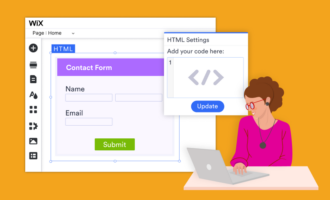
- Click Add elements (the + symbol) on the vertical menu on the left side of your screen, then go to Embed code > Custom > Embed HTML.
- Paste the TrustBox widget embed code into the HTML box that appears, then click Apply.
- Drag and drop the embedded widget to the exact place you want reviews to appear on the web page before publishing the changes.
Why this option works
Using the official integration from the App Market to add Trustpilot reviews on Wix is a great option for several reasons:
- Coding-free solution: You can connect Wix with the Trustpilot Reviews app and display testimonials on your website, even if you don’t have advanced technical skills.
- Automated review updates: The TrustBox widget can automatically retrieve your most recent Trustpilot testimonials and display them on your Wix website, so you don’t have to do it manually.
- Automated review invitations: With the official Trustpilot Reviews app from the Wix App Market, you can automatically email review invitations to customers immediately after a purchase or at a later time (days, weeks, or months after the purchase). This makes it easy to consistently collect customer feedback.
However, some features of the Trustpilot Reviews app are limited to expensive, tiered plans.
Option 2: Manually add Trustpilot reviews on your Wix website
If you want to display Trustpilot reviews on Wix without using third-party tools, the manual approach can be a good option. It’s also ideal if you only need a few cherry-picked testimonials. However, the reviews won’t update automatically when customers submit new reviews. You’ll need to update them yourself over time to keep them current.
Here’s how to add Trustpilot reviews to a Wix website manually:
- At the top-left of your Wix site editor, select the web page that needs testimonials and go to the specific section where you want to display them.
- Go to Add Elements > Strip > Testimonials, then choose your favorite review template.
- Remove the text in the template and replace it with a Trustpilot review. You can add multiple testimonials and present them as a slide show on your Wix website.
- Finally, publish the changes for the reviews to appear on your live site.
When manually embedding Trustpilot reviews on your site, include customers’ names to enhance credibility.
Why this option works
While the manual approach is tedious and time-consuming, it’s still beneficial in several ways:
- Gives you full control of the testimonials that appear on your site: You hand-pick Trustpilot reviews that best represent your brand or highlight specific strengths that will grab the attention of potential customers.
- Allows you to add reviews from different sources: You can use Trustpilot reviews together with testimonials from other popular platforms, such as Google and Facebook.
- Enables you to embed Trustpilot reviews on Wix without relying on third-party apps: You don’t have to pay for any third-party tool to add Trustpilot testimonials on your website.
Enhance your Wix website with no-code widgets
Adding customer reviews from Trustpilot to your Wix website is a great way to display social proof and boost conversions.
Jotform comes with a range of other review widgets and Wix forms to enhance your site’s functionality. For example, if you want to showcase testimonials from platforms like Google, Facebook, Yelp, Tripadvisor, or Etsy, Jotform offers a dedicated widget for each.
Explore all of Jotform’s Website Widgets to see how they can help you improve trust, engagement, and conversion on your Wix website.
This article is for Wix website owners, ecommerce teams, small business marketers, and anyone who wants to display Trustpilot reviews on their Wix site to build trust and improve conversions without complex coding.























Send Comment: