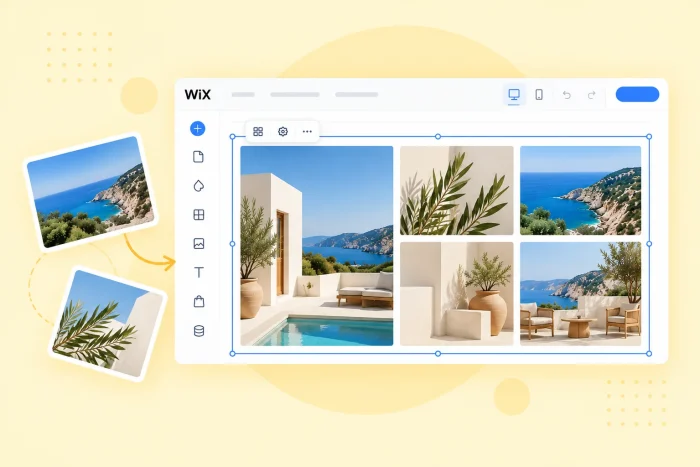
Words can change people’s minds in minutes, but photos can do it in seconds. That’s why visuals matter so much on your website, whether you’re a photographer selling your services, a real estate agent walking buyers through a listing, or an online store showing every product angle. In any of these cases, a clean, responsive gallery will keep visitors looking and will build confidence in what you offer.
Wix has native tools for this, most notably the Wix Pro Gallery. The layout is responsive on mobile, and you can connect it to a CMS collection to display items dynamically. However, there are some sticky spots for power users. Wix says a pagination bar isn’t available on the Pro Gallery by itself (a Load More button is the native alternative), and the CMS route means building collections and datasets before you show a single photo.
If you want more layout control, such as masonry grids, category filters, or panoramic rows, you generally have two paths: a gallery app from the App Market, or an embedded gallery widget.


Option 1: Install a dedicated Wix App Market gallery
The usual first move is the App Market. Install an app like POWR’s Gallery and manage your photos in its own dashboard. Elfsight offers a similar photo gallery you embed from its site. You get ready-made styles and no code, but each tool has its own plan structure, so read the fine print before you upload a full portfolio.
Set it up
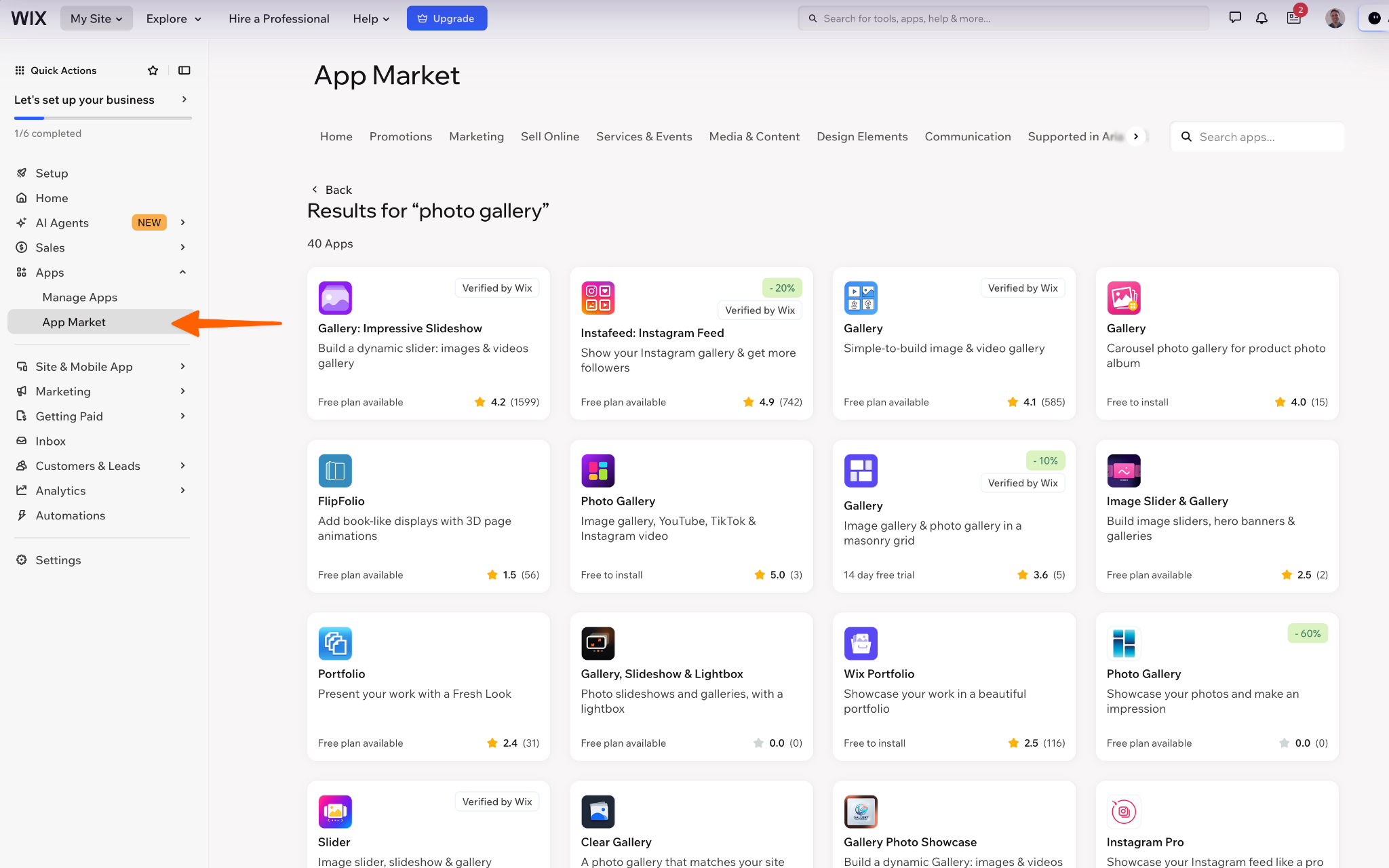
- Find the app. Open the App Market from your Wix editor and search for “photo gallery.”
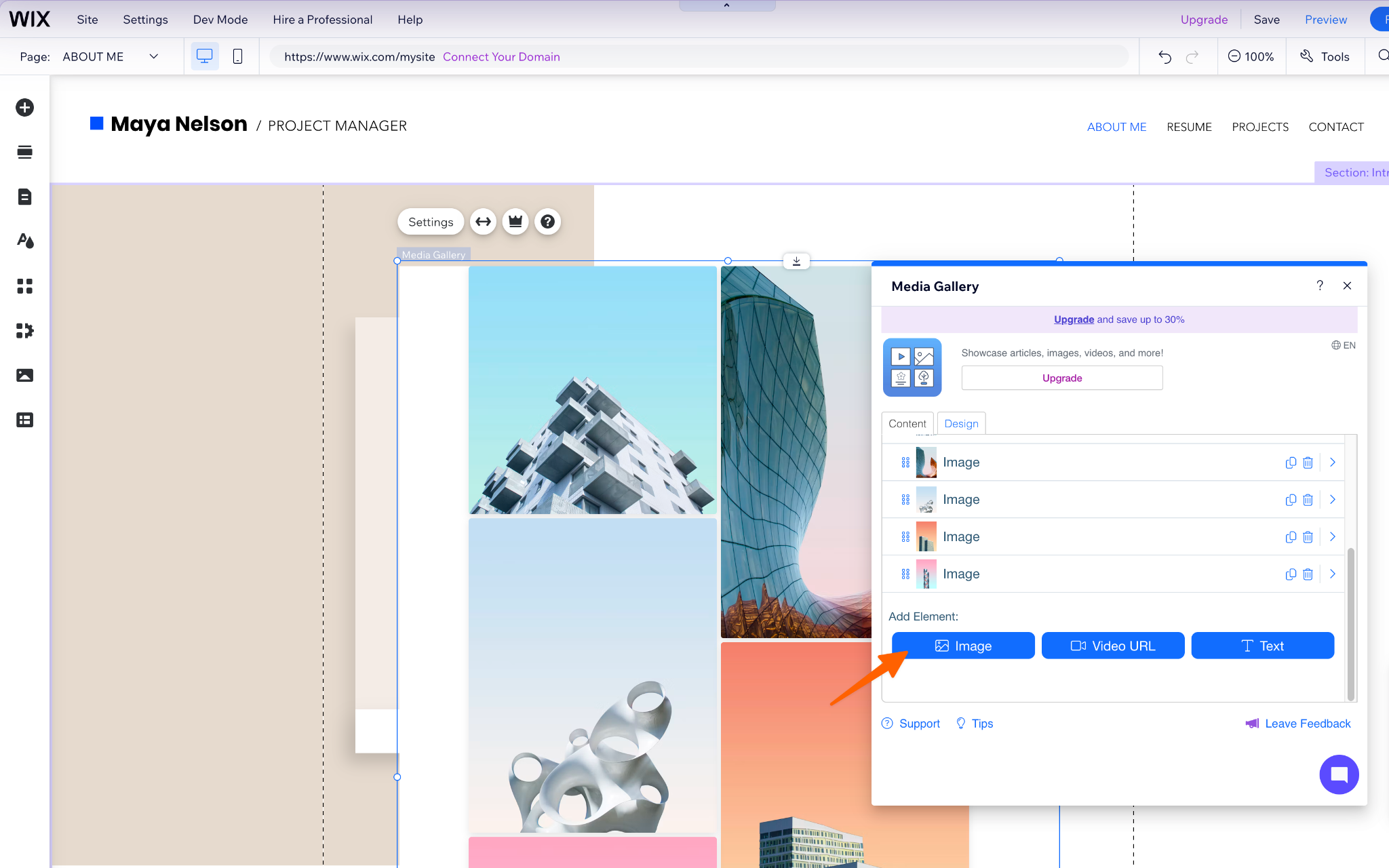
- Add it to your page. Install the app, then open its settings panel to upload your photos.
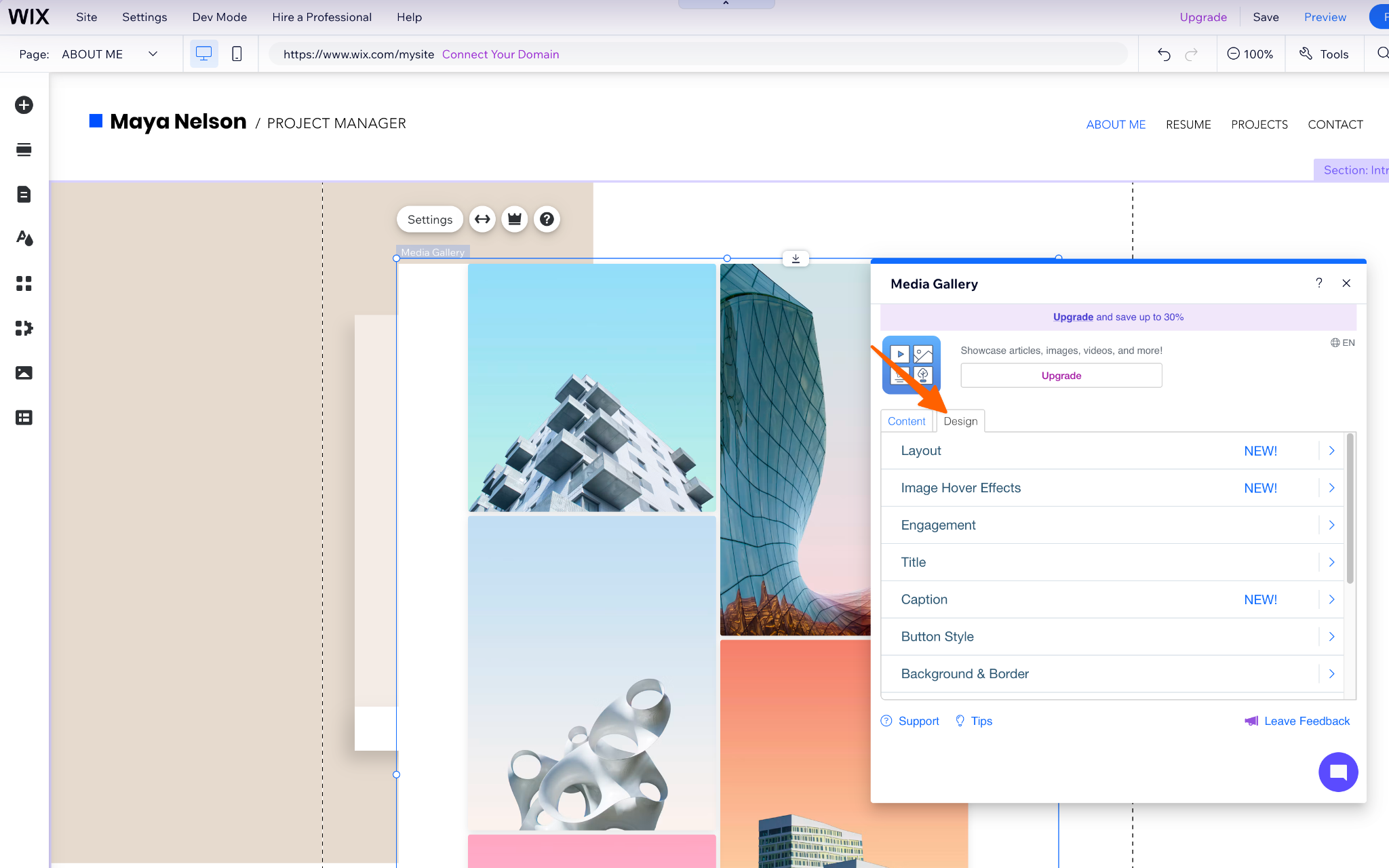
- Pick a style and publish. Choose a layout, adjust spacing and captions, then publish your site.
What to watch for:
- Branding on free plans. POWR’s listing offers a free plan, and removing POWR branding requires the paid Starter plan.
- View limits. Elfsight’s free Photo Gallery plan covers one widget and 200 views a month, carries Elfsight branding, and temporarily deactivates the app when you pass the limit. A high-traffic portfolio burns through 200 views quickly.
- Page weight. Large images count toward Largest Contentful Paint, and Google rates 2.5 seconds or less as good. Whichever tool you choose, compress photos before uploading.
Option 2: Add a free, customizable photo gallery widget (recommended)
The Jotform Photo Gallery Widget takes a different route. You build the gallery in a visual editor, copy the embed code, and paste it into your Wix page with the standard Embed HTML element. You manage photos in the widget builder instead of Wix Media Manager, and you can get started without an app subscription.
Building the gallery starts with your photos, and from there it’s mostly point-and-click. You don’t need any code, and you can change your layout or style as often as you like before anything goes live on your site. Here’s how it works:
Set it up
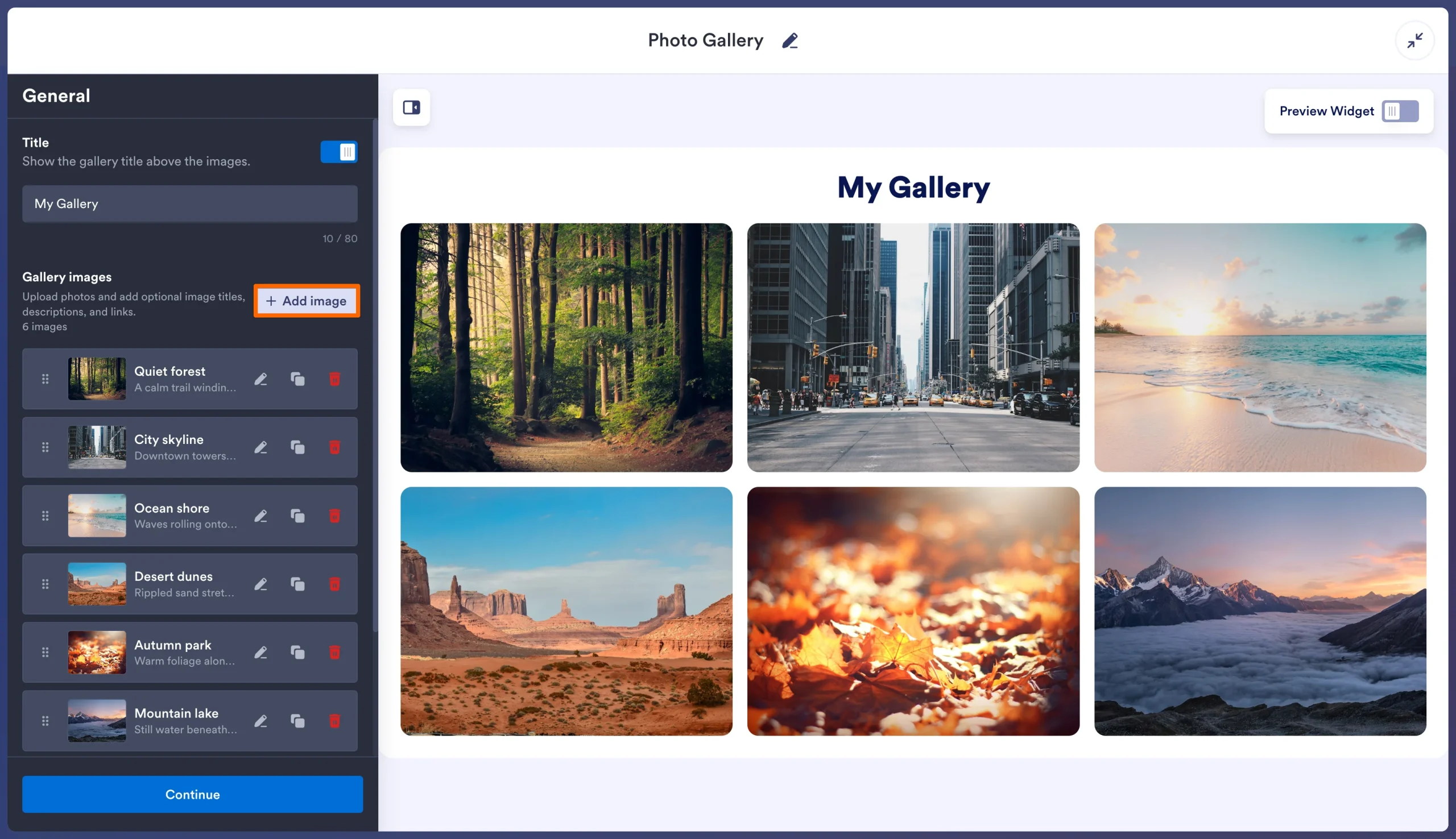
- Add your photos. Upload images, import from Google Photos, or paste image URLs. Then fill in titles, categories, and alt text.
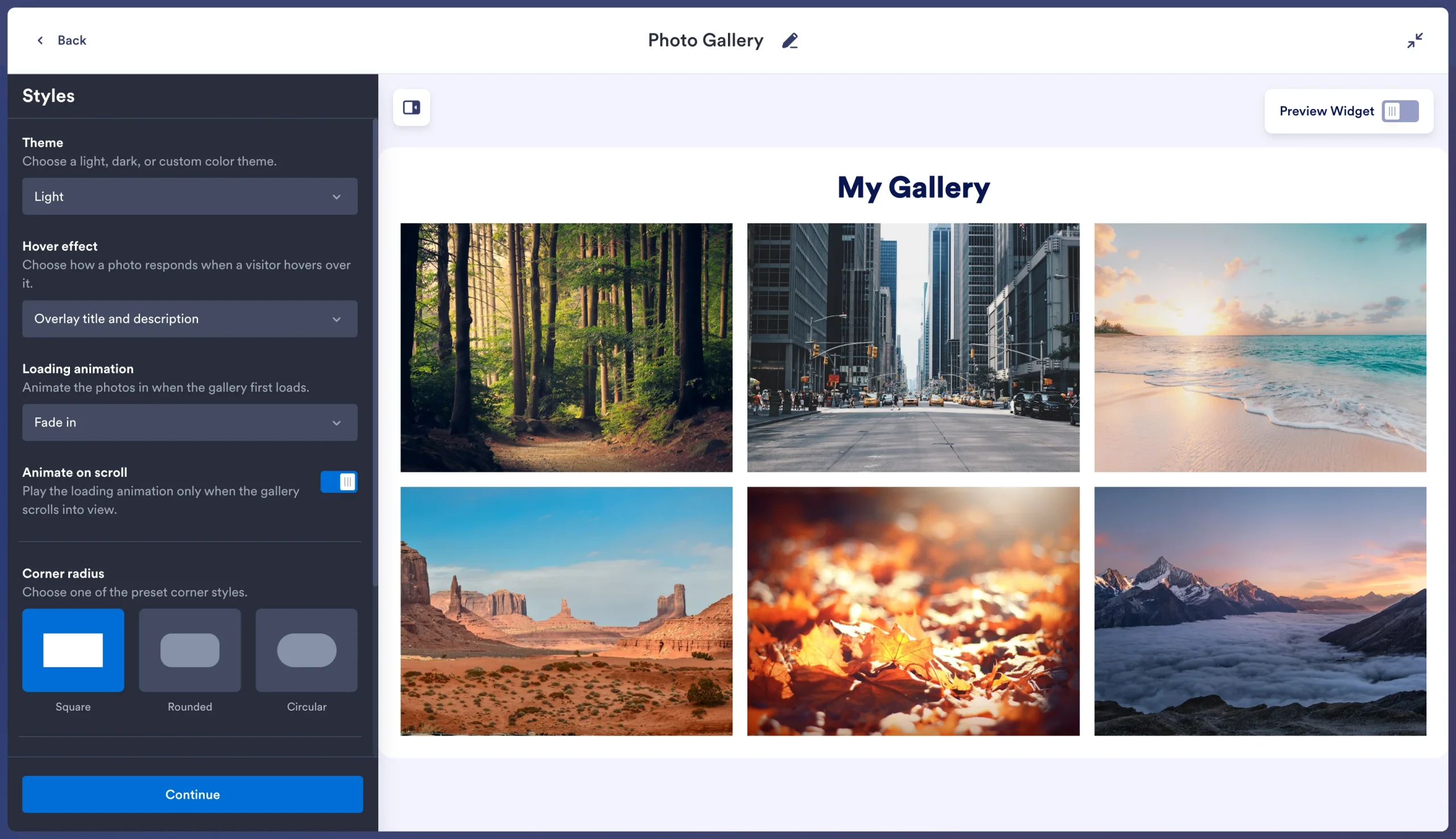
- Choose a layout and style it. Pick a layout. Then adjust columns, spacing, popup behavior, and colors. Turn on filters if you added categories.
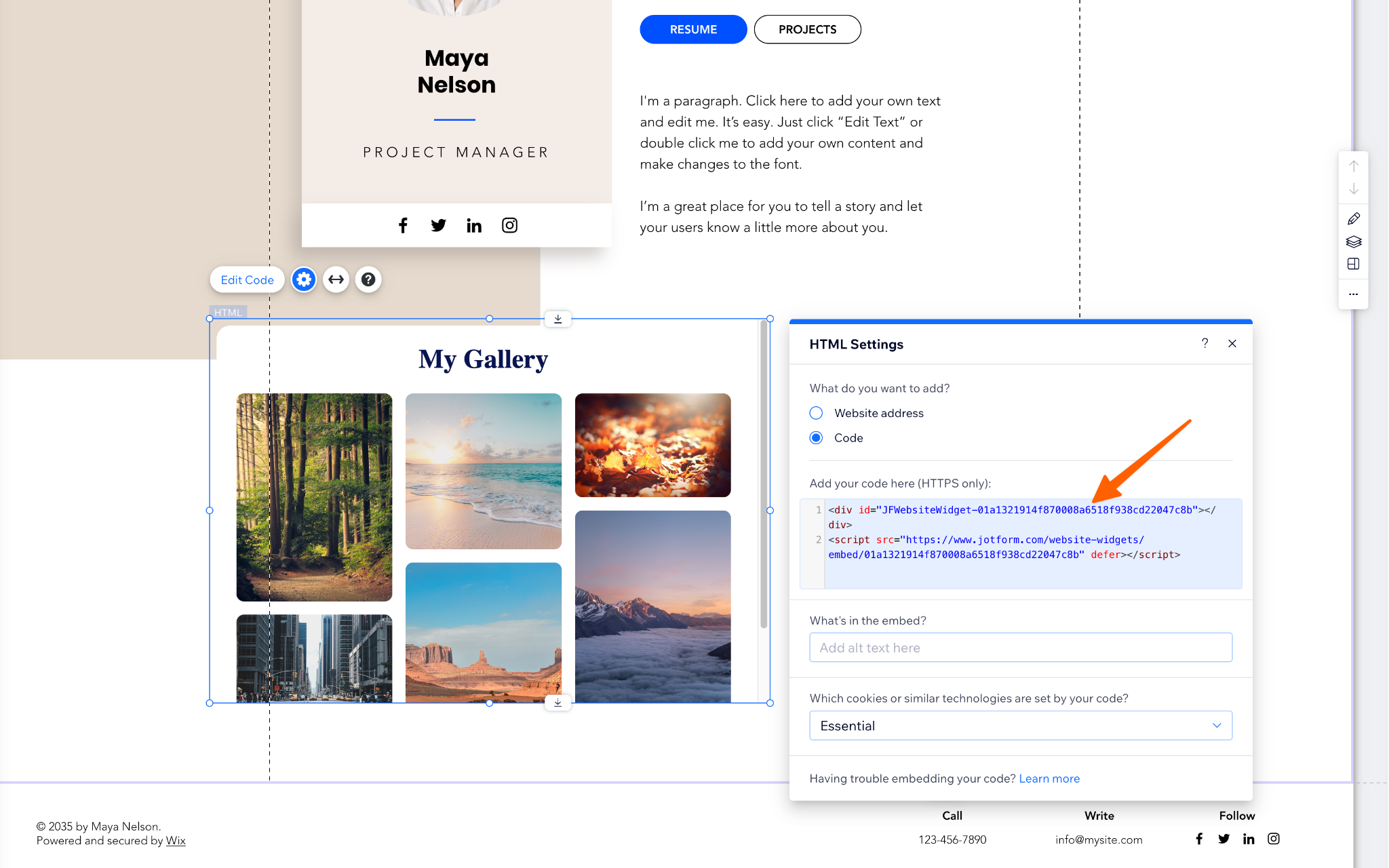
- Embed it in Wix. Copy the embed code. In the Wix editor, open Add Elements, choose Embed Code, then Embed HTML, click Enter Code, and paste the snippet in. Stretch the element to the width you want, and publish.
Pro Tip
Wix notes that embedded code with fixed dimensions won’t respond to screen size. Check your mobile view in the editor before you publish.
Where it fits
| Use case | Suggested layout | How to set it up |
|---|---|---|
|
Photographers |
Vertical Masonry |
Add a category to each photo (Weddings, Portraits, Events) and turn on filters so visitors can browse by shoot type. |
|
Real estate agents |
Panoramic or Slider |
Build one gallery per listing page. Use titles for room names and link photos to a virtual tour or inquiry page. |
|
E-commerce brands |
Grid or Thumbnails |
Show product angles with a popup view, or set the click action to redirect each photo to its product page. |
Photographers can pair the gallery with Jotform’s photography forms and contracts for bookings and signed agreements.
One limit to keep in mind: Each gallery holds up to 16 photos. That suits a curated portfolio, a single listing, or a product page. For a large archive, use a separate widget for each category page, or use the Pro Gallery connected to the CMS.
Supercharge your Wix site with smart, serverless widgets
For most Wix sites, an embedded gallery widget is the better choice, giving you masonry layouts, category filters, and popup browsing without CMS setup or another app subscription. Plus, you manage everything in one place.
Use the Pro Gallery only if you’re displaying a large archive that needs the CMS. If you just want your best work to look sharp, start with the Jotform Photo Gallery Widget.
The same embed method works for every widget in Jotform’s free website widgets directory. These four pair well with a gallery:
- Instagram Feed: keeps the page fresh between portfolio updates. (Setup guide)
- Google Reviews: puts client praise next to the work it describes. (Setup guide)
- YouTube Gallery: adds the walkthroughs that photos can’t show.
- Back to Top: makes long gallery pages easy to navigate. (Setup guide)
Spend your budget on the work, not on fees to display it. When you’re ready to turn visitors into clients, the Jotform Wix integration adds contact, booking, and payment forms. If you’re still building your site, start with our Wix website builder guide.
This article is for Wix site owners, photographers, real estate agents, and e-commerce brands who want to display a beautiful, fast-loading image grid or masonry layout without hitting native platform limits or paying recurring App Market fees.
























Send Comment: