You’ve put a lot of work into your Wix site, and steady traffic is a good sign that it’s paying off. But traffic matters only if visitors take action. If your latest offer, an important announcement, or a signup form is easy to overlook, visitors might leave without ever noticing it.
A popup helps you put those things in front of visitors without redesigning your entire site. You can use one to promote a special offer, share an update, or collect newsletter signups and contact requests.
In this guide, we’ll show you how to add a popup on Wix using its built-in tools, set it to open when someone clicks a button, and use Jotform for Wix if you want to collect information with more advanced form features, all without writing a single line of code.
How to add a popup on Wix with built-in tools
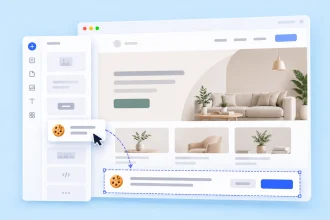
Wix’s built-in popup feature (also known as a lightbox) lets you create popups without extra add-ons. Follow these steps to set one up:
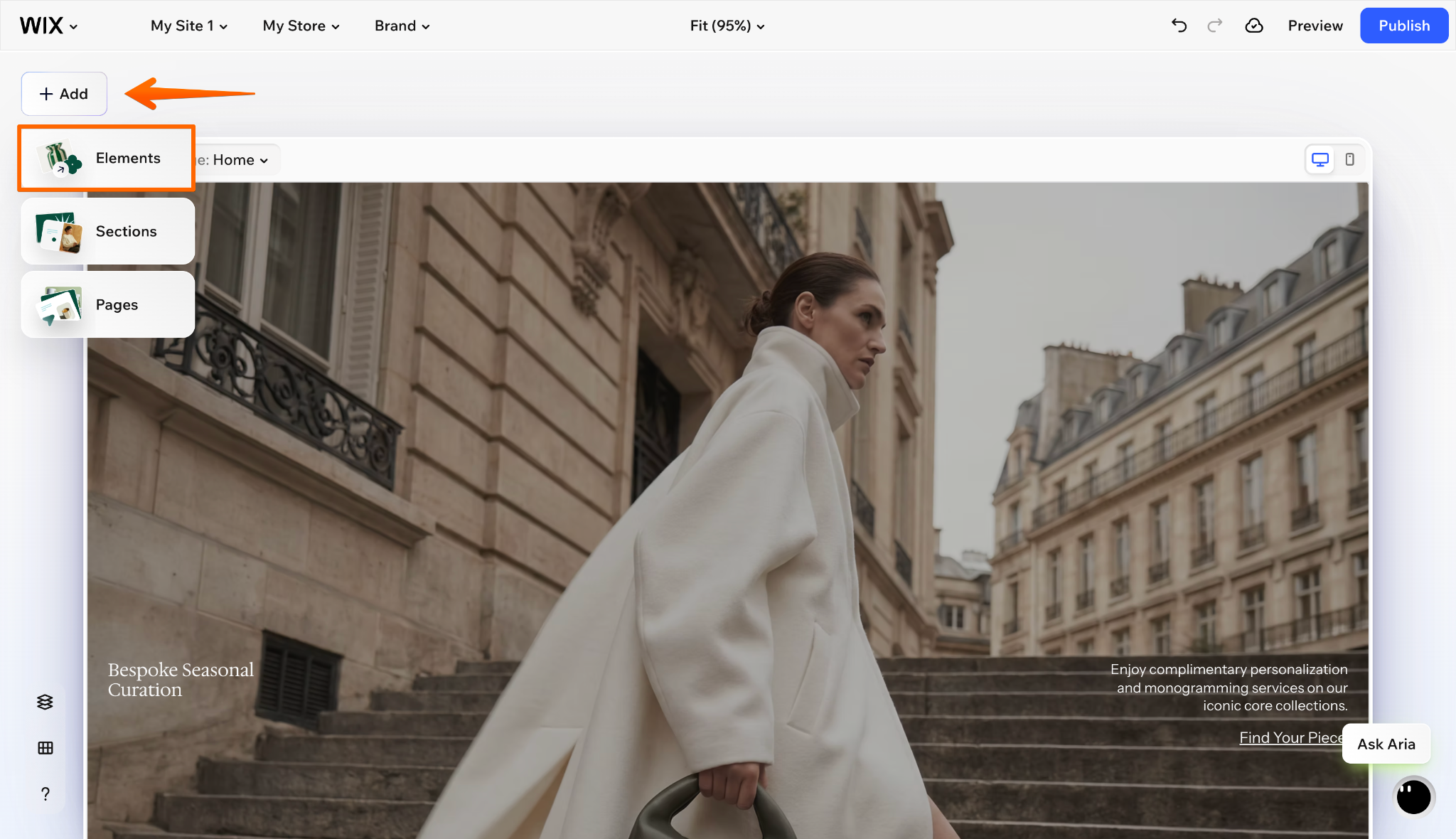
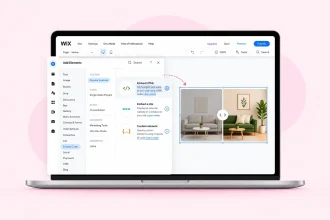
- In the Wix Harmony Editor, click + Add at the top left and select Elements.
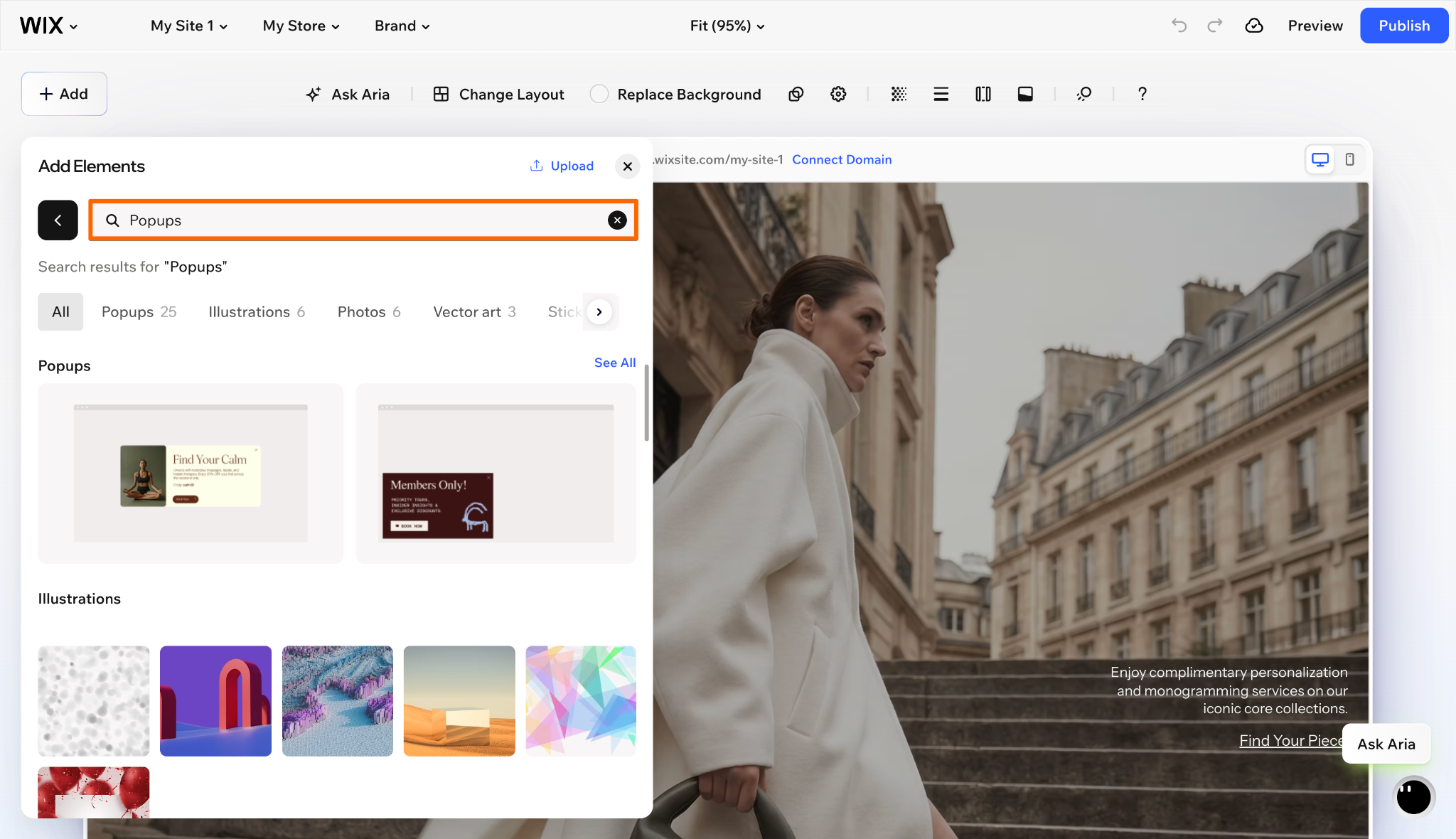
- In the left side panel, use the search bar to find Popups under the main element categories. Browse through the available layout options, choose a template that fits your goal, and drag it directly onto your website.
- Click the Page dropdown at the top left and select your popup.
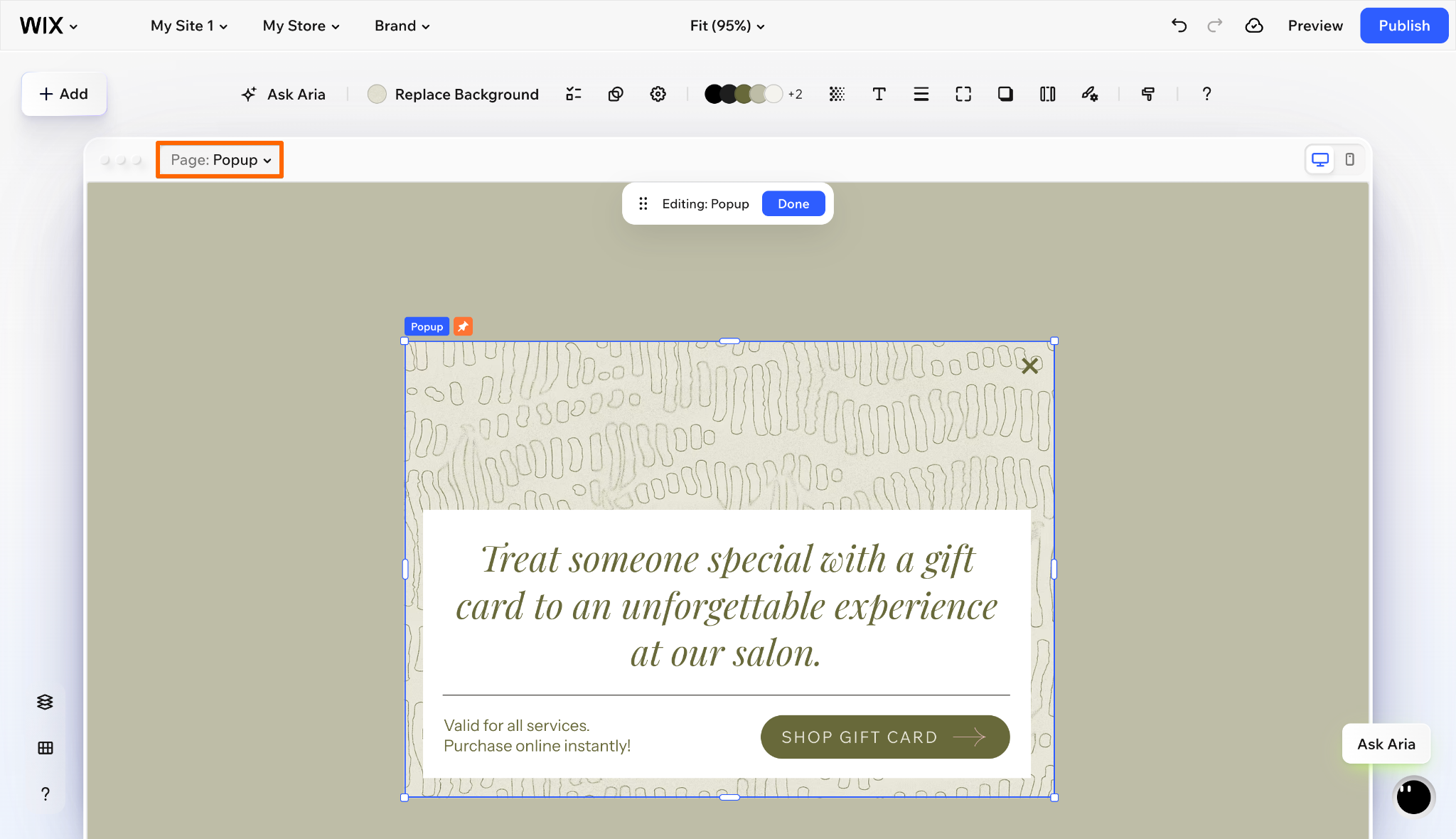
- Customize text, images, buttons, colors, and background styling using All Design Options.
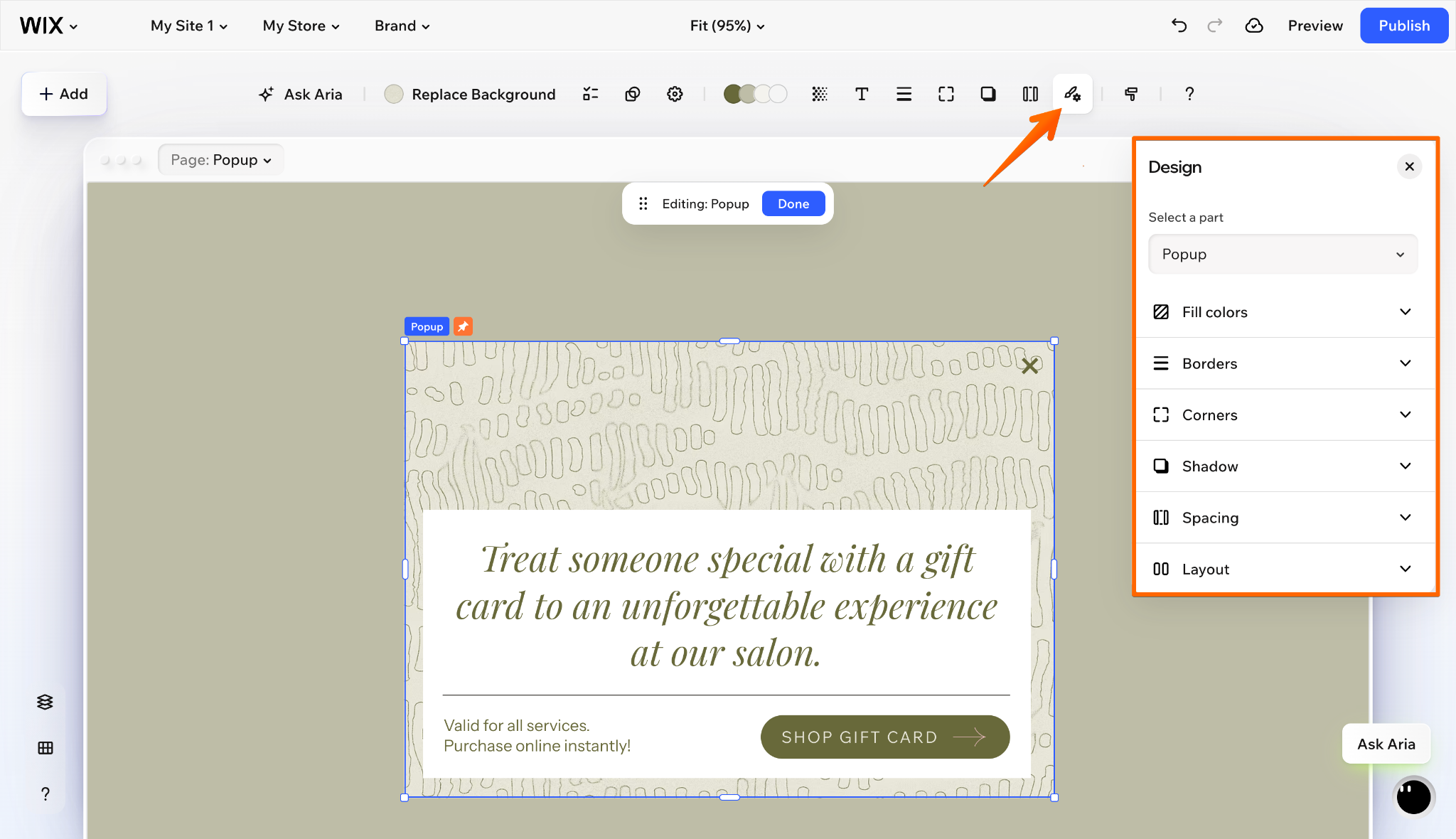
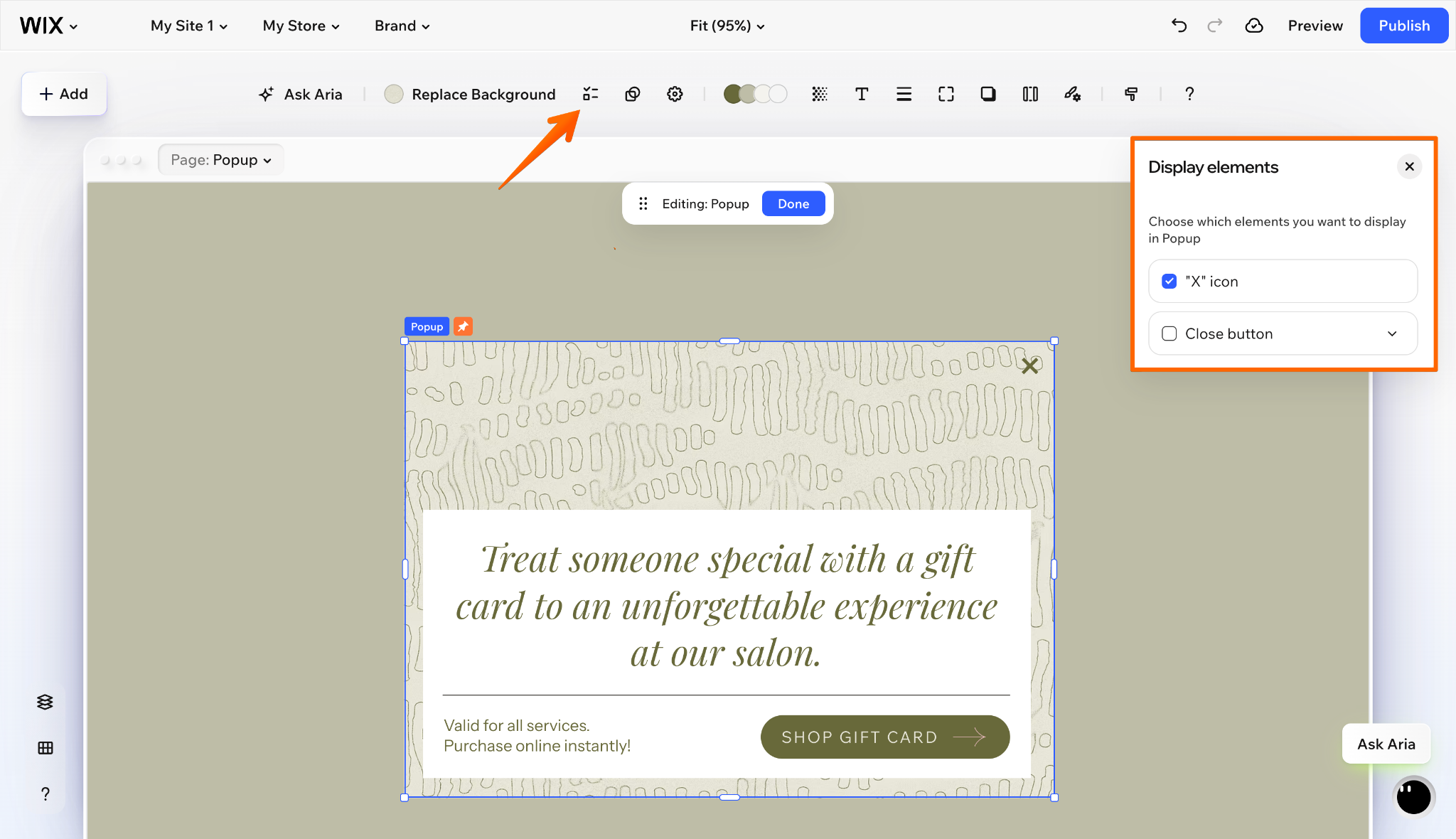
- Use Display Elements to enable an X icon or a Close button.
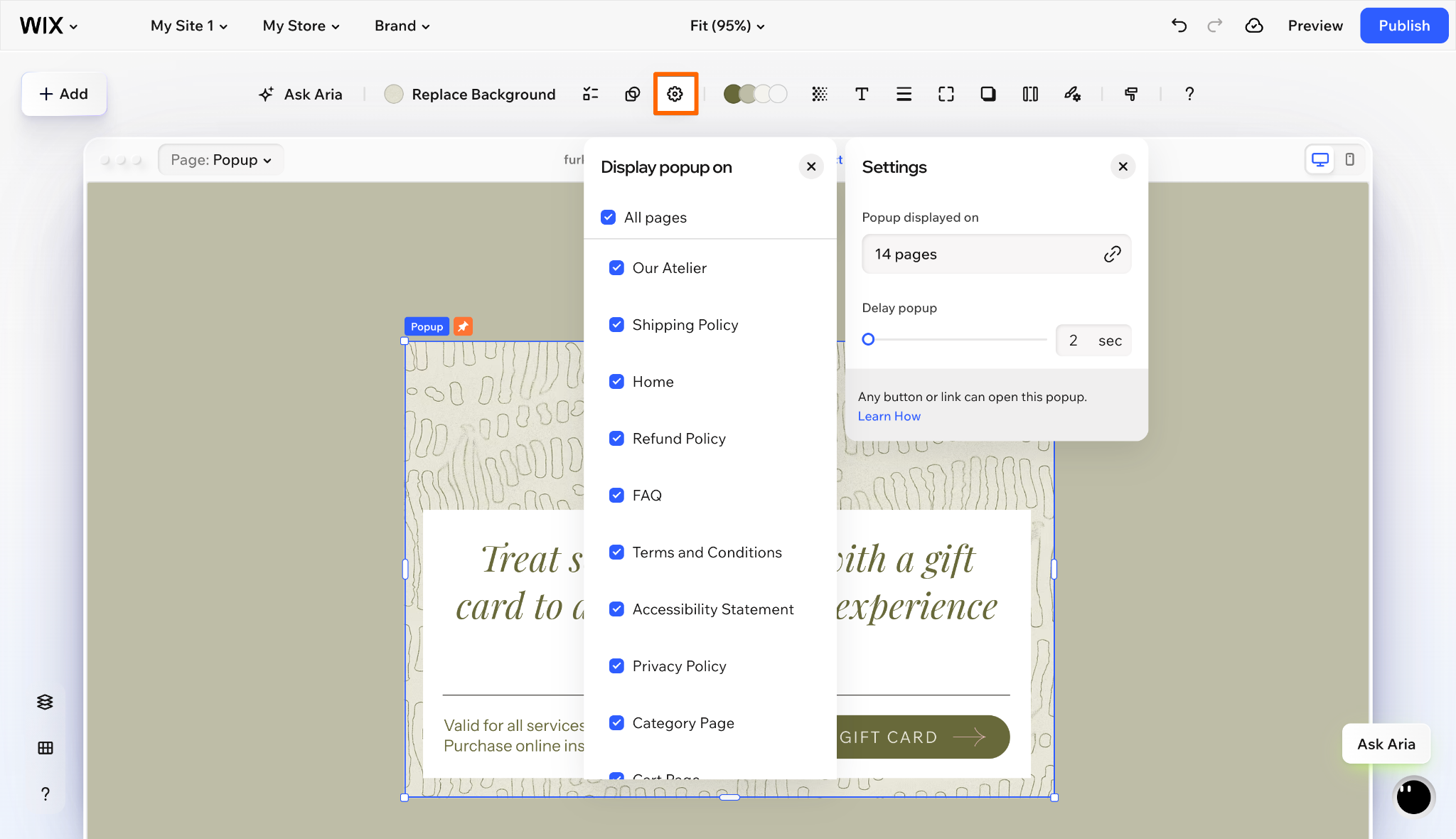
- Select the popup, click Settings, and choose where it appears under Popup displayed on. From here, you can also adjust the delay to set how long Wix waits before displaying the popup.
- Click Preview to check how your popup looks on desktop and mobile. Make sure the content is easy to read and visitors can close it without any trouble. Once everything looks good, click Publish and check it on your live site.
That’s it! Your popup is ready to highlight an announcement, promote a discount, or draw attention to something visitors might otherwise miss.
How to open a Wix popup on button click
Want visitors to open your popup when they’re ready instead of interrupting their browsing experience? Here’s how to set it up in the Wix Harmony Editor:
- Select a button on your page. If you don’t have one yet, click + Add → Elements → Buttons to add one.
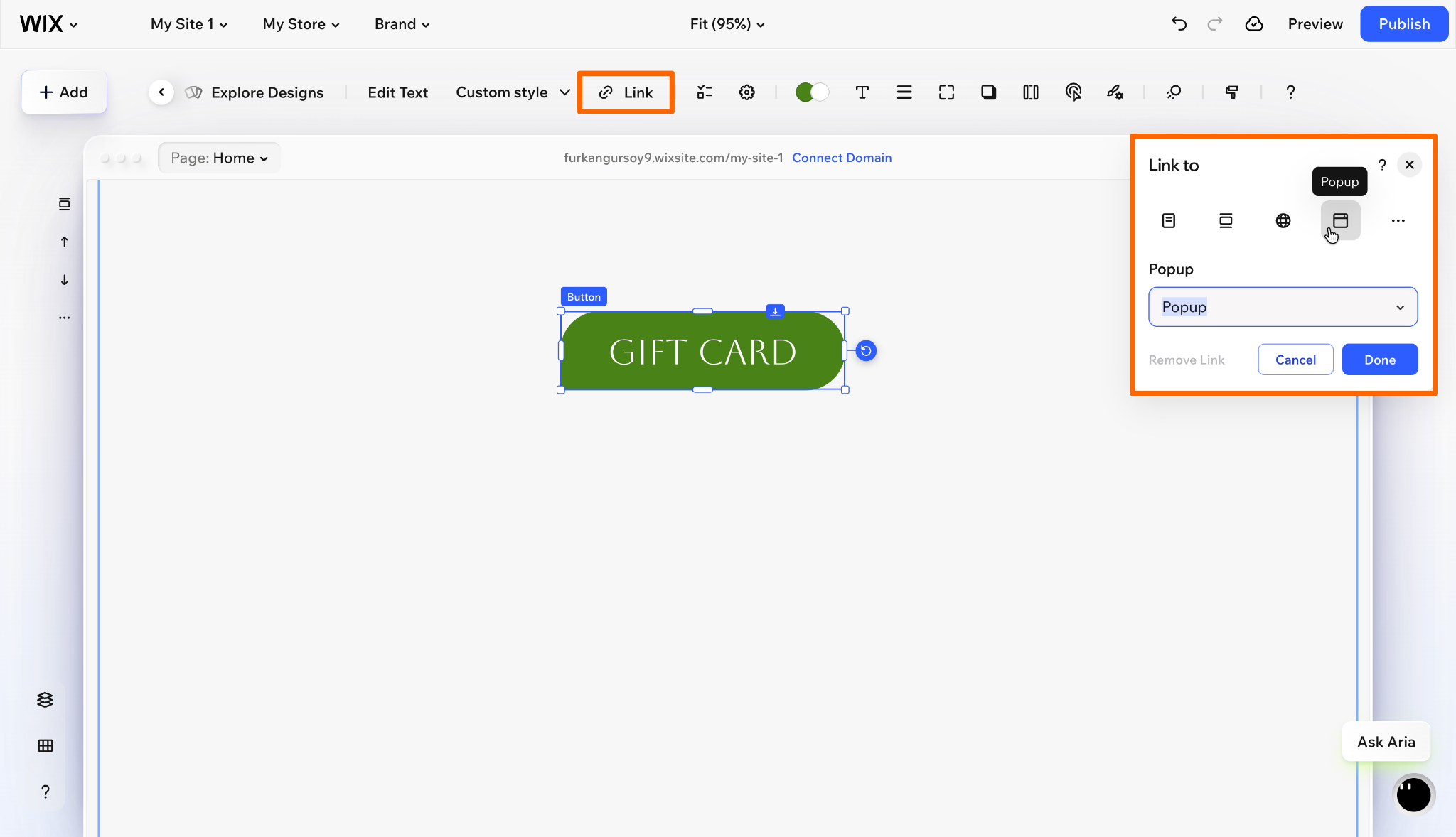
- Click the Link icon on the action bar above the button. In the panel on the right, select Popup, choose your popup from the dropdown, and click Done.
- Select your popup from the Page menu, click the gear icon to open Settings, then click Select pages and make sure no pages are checked.
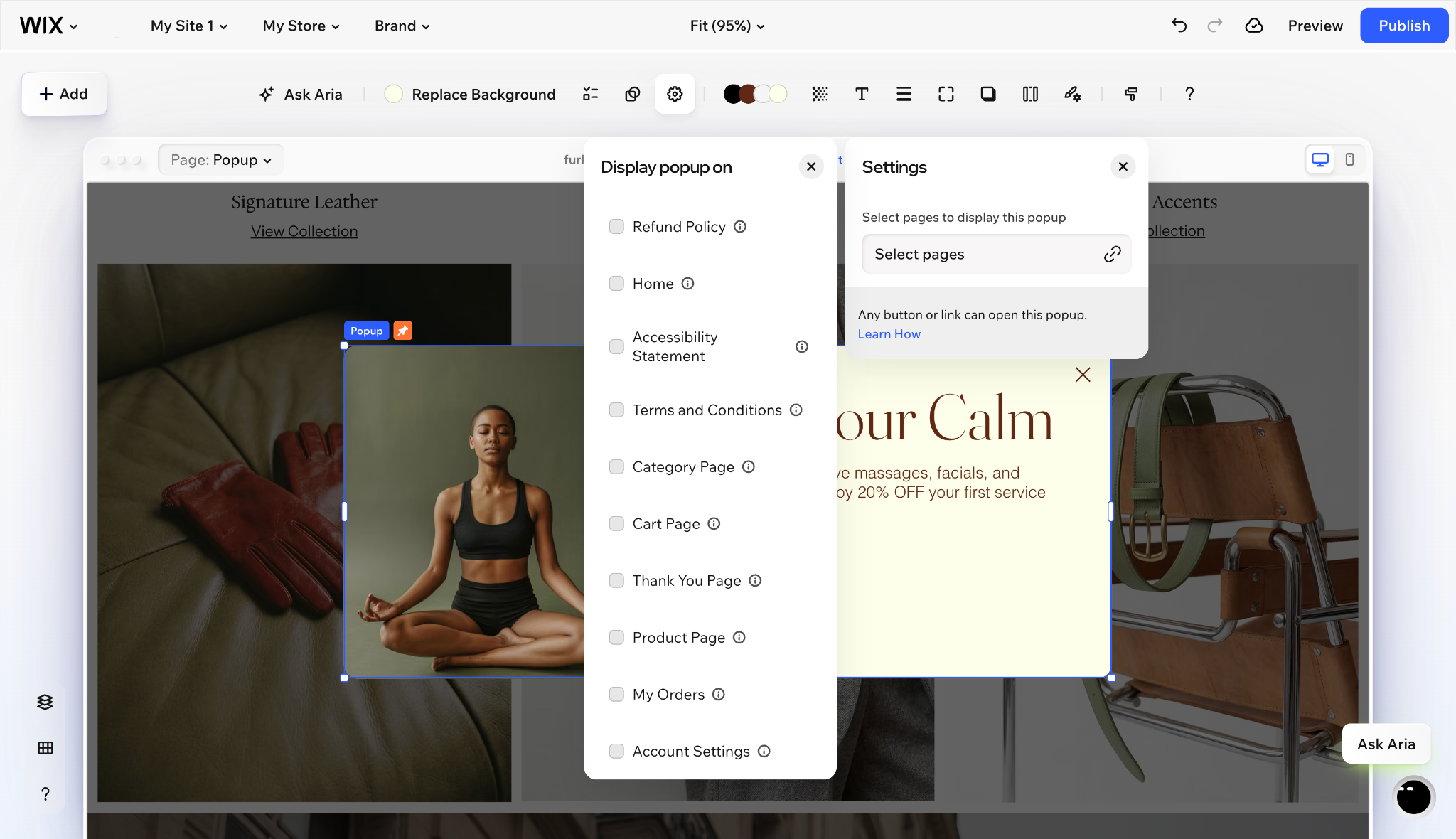
- Click Preview to test the button and confirm that it opens the correct popup.
You’re done! You can use the same approach to open a popup from other elements, including text and images.
Pro Tip
Want more control over your popups? With Jotform Popup Widget, you can trigger popups when visitors scroll, click, or are about to leave your site. You can also create slide-ins, floating offers, and fixed bars. Just customize your widget and add the generated embed code to your Wix site.
That takes care of how visitors open your popup. But if you want to use it to collect newsletter signups, contact requests, or other information, Jotform for Wix gives you more control over the form inside the popup.
Turn your Wix popup into a lead capture form with Jotform
With Jotform for Wix, you can add a signup or lead capture form to your popup and collect contact details, registrations, and other information right on your website. You can build and customize everything inside the Wix Harmony Editor without dealing with embed codes.

Here’s how to set it up:
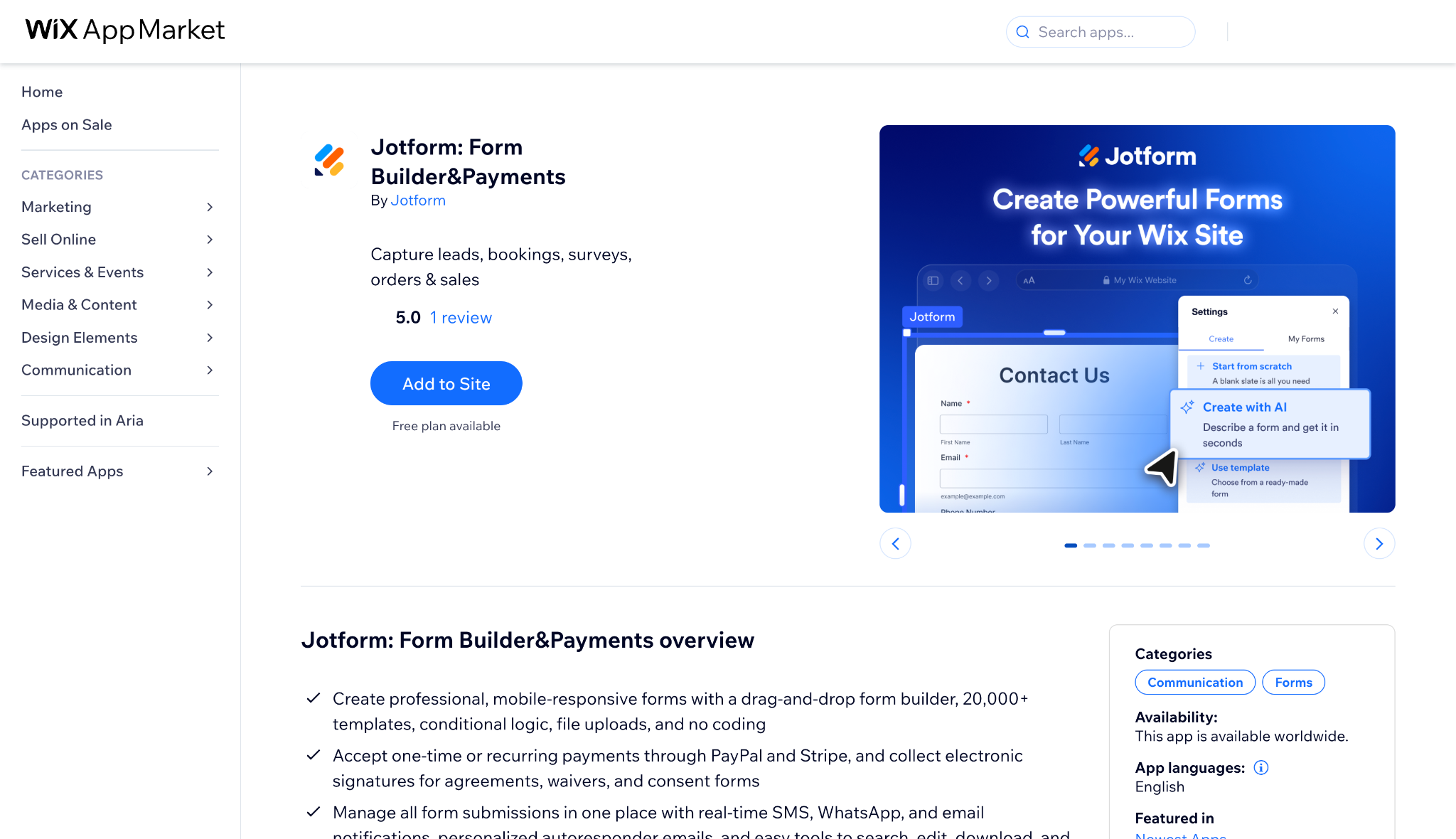
- Install Jotform for Wix from the Wix App Market by clicking Add to Site and following the prompts.
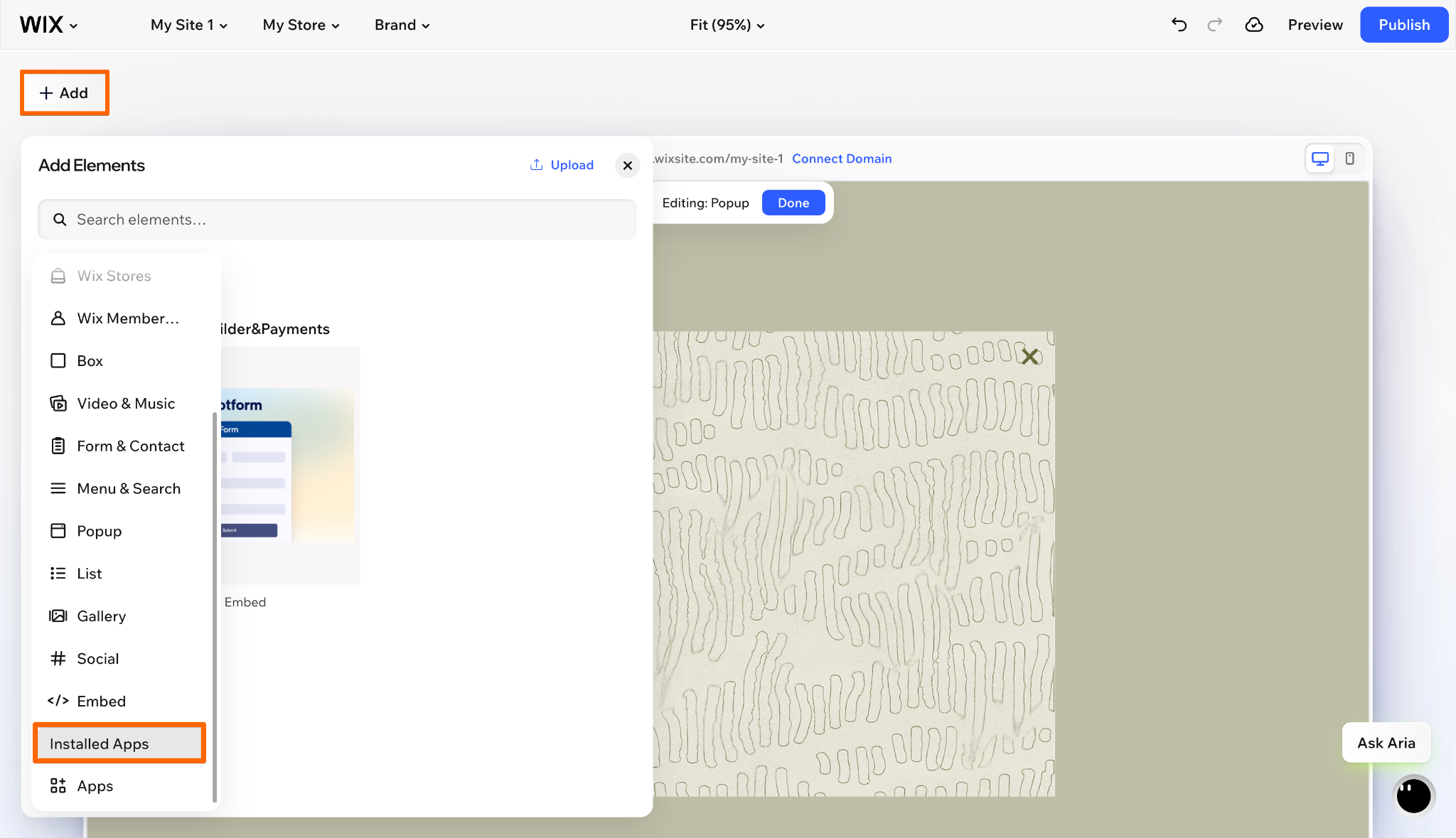
- In the Wix Harmony Editor, click + Add, select Elements, then choose Installed Apps. Drag the Jotform app into your popup.
- Click the gear icon on the top bar to open Settings. From here, you can click Create new form or select one of your existing forms from the list below.
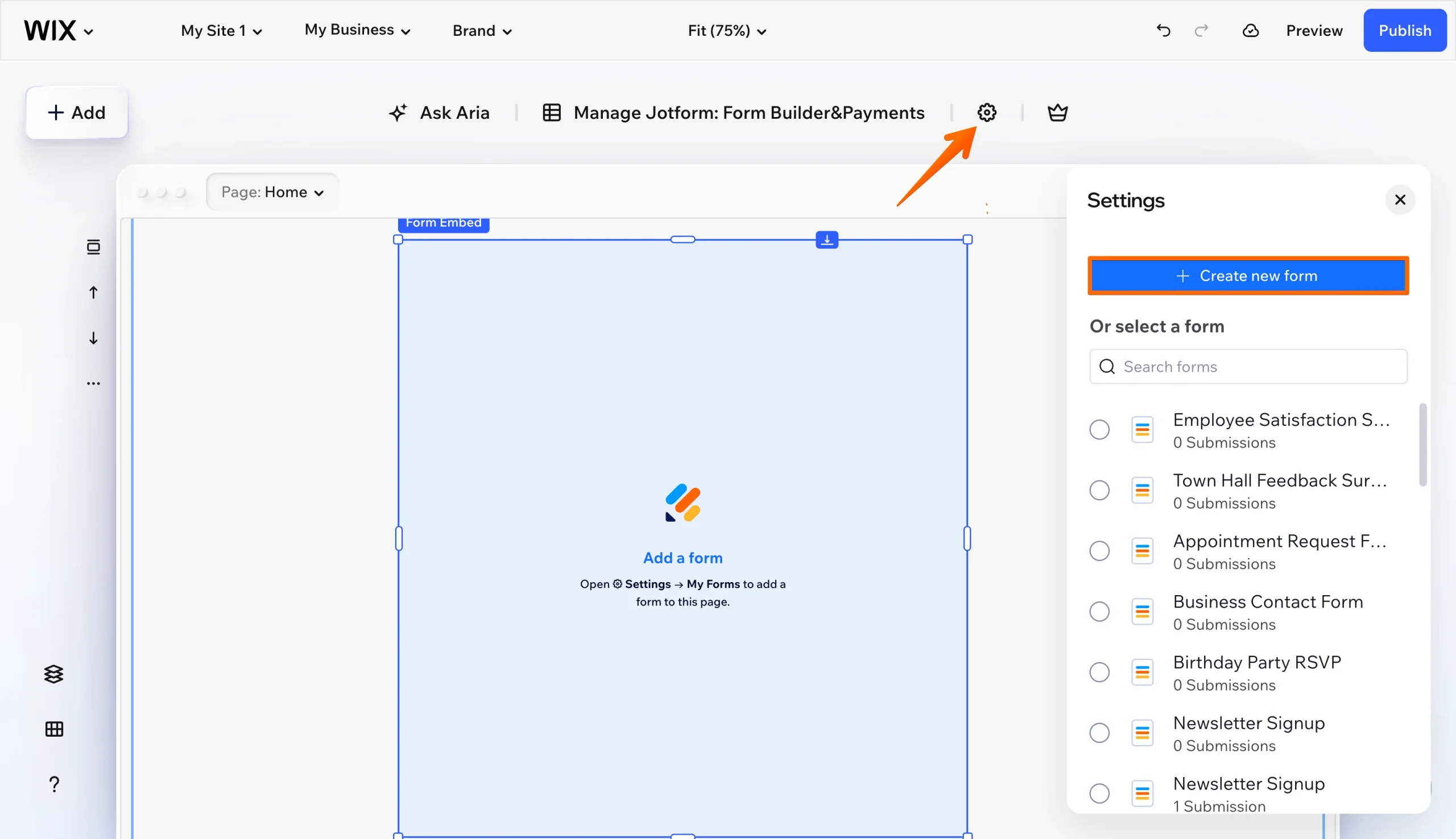
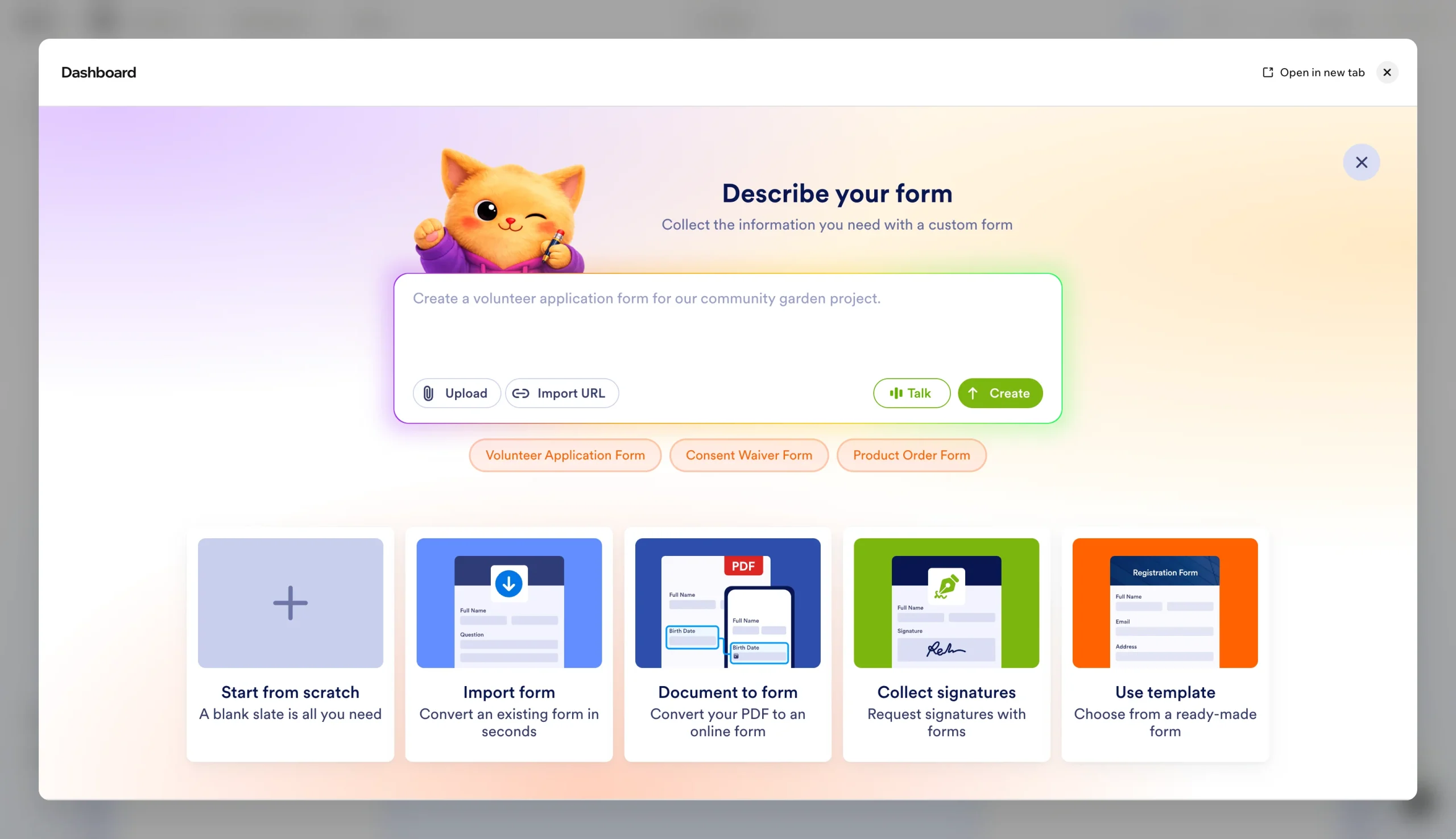
- Once you click Create new form, you’ll be taken to Jotform’s form creation screen, where you can:
- Create with AI: Describe the form you want and let AI generate it for you.
- Start from scratch: Build a custom form from scratch.
- Use template: Pick from 20,000-plus form templates, including lead capture and newsletter signup.
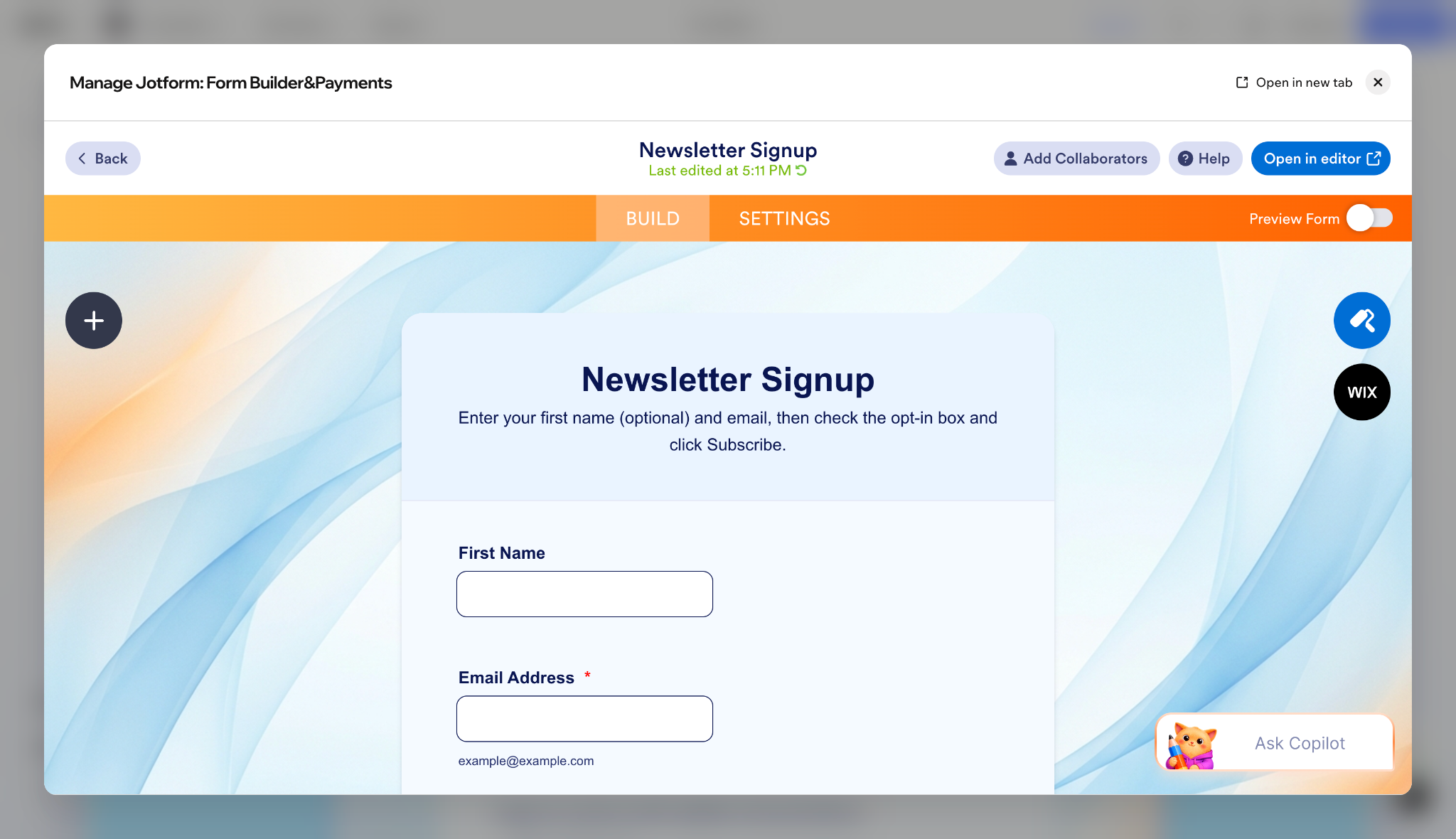
- After you create your form, you can customize it in Jotform Form Builder. From here, you can add or edit fields using Add Element, customize its appearance with Form Designer, connect integrations, set up form notifications, or use Ask Copilot to make further changes.
- Once your form is ready, return to the Wix Harmony Editor and resize it to fit your popup. Preview the page on desktop and mobile, submit a test response, and click Publish when everything works as expected.
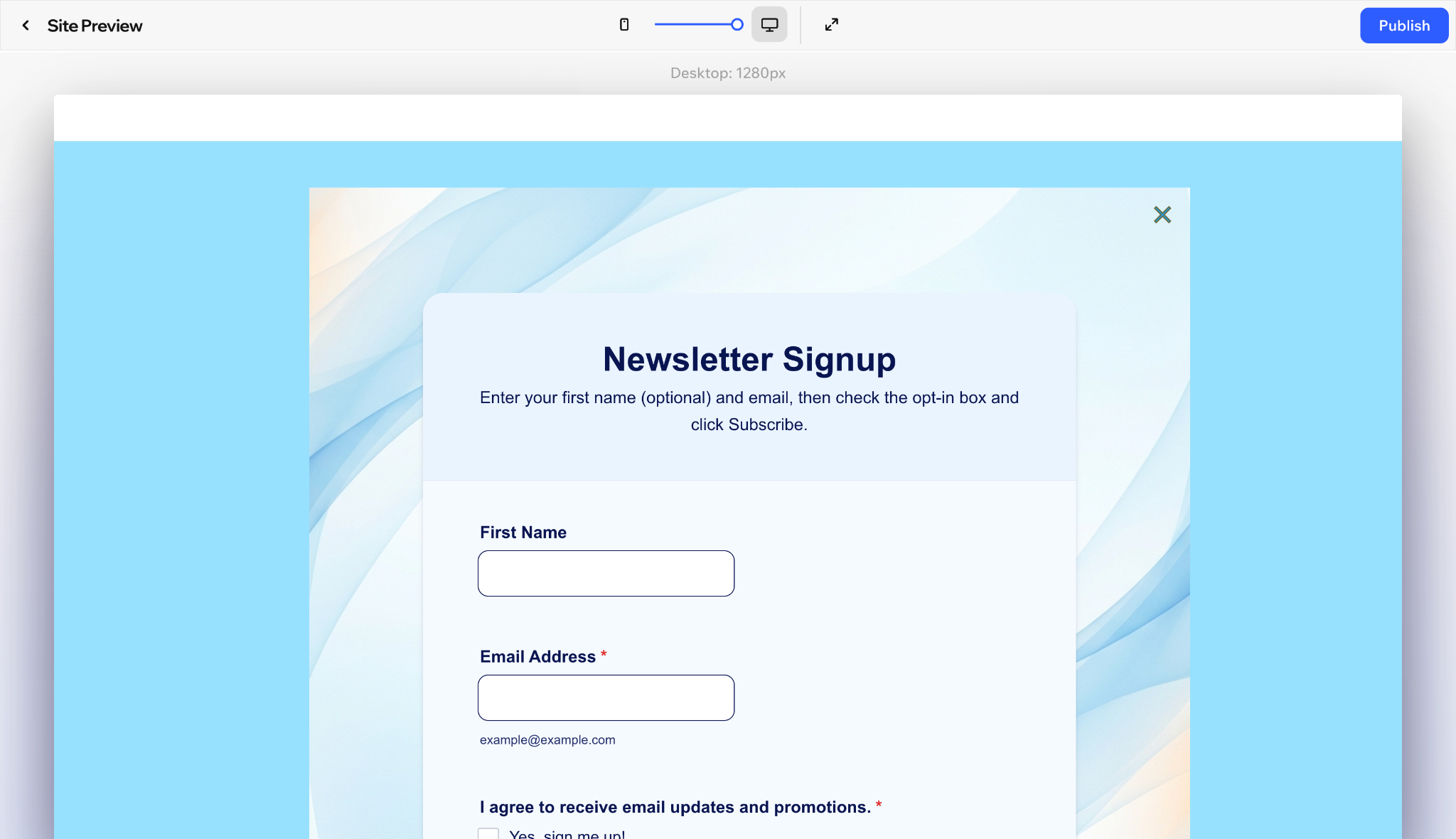
Your popup form is now live and ready to collect responses without the need for you to copy or paste an embed code.
Create Wix popups that turn visitors into leads
Wix’s built-in tools give you what you need to create a popup, customize its appearance, and decide when visitors see it. If you want to collect information rather than just display a message, Jotform for Wix gives you more flexibility with form fields, templates, and conditional logic.
Whether your popup opens automatically or when someone clicks a button, the goal is to make it easy for visitors to take action.
Explore Jotform for Wix to create forms that help you make the most of every visit.
Wix popup FAQs
Start by checking your popup’s Settings to make sure the popup is assigned to the correct page. If you’ve added a delay, give the popup enough time to appear. For popups triggered by a button, confirm that the button links to the correct popup. You should also test it in Preview and on your published site.
Yes, but Wix allows only one popup to open automatically on a page. You can still create additional popups and link them to different buttons or other clickable elements. For example, you could have one popup for a special offer and another for newsletter signups.
Yes. The Wix Harmony Editor automatically adjusts your site’s layout for smaller screens, but it’s still worth checking that your popup and its elements display correctly. Use the mobile preview to check the layout, buttons, and closing options. If you’re using the older Wix Editor, you may need to enable popups separately for mobile visitors.
No. Wix popups don’t have their own URLs, so you can’t share a direct link to one. Instead, share the page where your popup appears or add a button that visitors can click to open it.
This article is for Wix website owners, marketers, and small business teams who want to create popups, trigger them with buttons, collect leads through forms, and improve visitor engagement without coding.


















Send Comment: