
Your calendar shapes your day. It helps you stay on track and manage your time. If you choose the right calendar, your schedule works for you. If you don’t, it works against you.
When it comes to digital calendars, two options stand out: Google Calendar and Outlook Calendar. Both support productivity, collaboration, and workflow automation but work in different ways. Understanding these differences can help you decide which one fits your needs. Let’s compare the features and integrations in Google Calendar and Outlook.
Feature comparison table
Here’s a quick comparison of Google Calendar and Outlook Calendar.
 Google Calendar |  Outlook Calendar | |
|---|---|---|
| Interface | Clean, minimalist, intuitive | Feature-rich and structured |
| Integration | Google Workspace (Gmail, Meet, Tasks) | Microsoft 365 (Teams, Outlook Email, Word) |
| Collaboration | Real-time sharing, guest invites | Shared calendars, RSVP tracking, team scheduling |
| Automation | Gmail event triggers | Advanced scheduling suggestions |
| Platform support | Web, iOS, Android | Web, iOS, Android, Windows |
| Pricing | Free and paid Google Workspace plans | Included with Microsoft 365 subscriptions |
Now, let’s uncover the strengths and unique features of Outlook Calendar and Google Calendar.
Google Calendar: Strengths and unique features
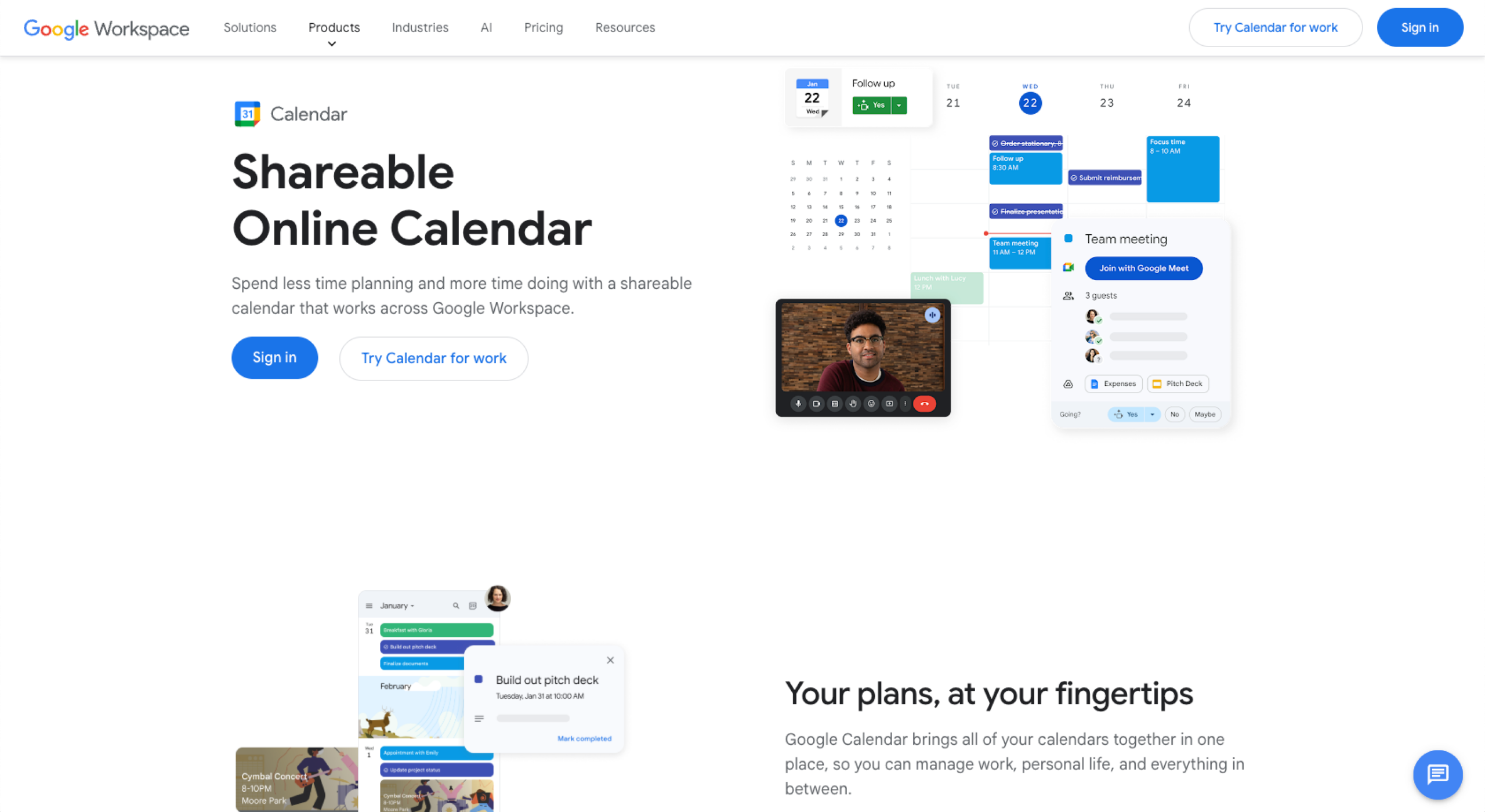
1. Simplicity and a user-friendly interface
Google Calendar is the go-to for simplicity. Its clean interface feels intuitive and is perfect if you live in the Google ecosystem. Even if you’re not tech-savvy, you can manage your schedule easily. Creating events takes seconds.
Type “Lunch with Harry at noon Tuesday,” and the calendar parses the details automatically. This feature saves time and reduces errors.
2. Seamless integration with Google Workspace
One of its best traits is how it works with the Google ecosystem. It connects directly with Gmail, Google Meet, and Google Tasks. Schedule a meeting, and a Google Meet link appears instantly.
Emails with flight details or reservations turn into events automatically. This automation happens without switching apps. If you rely on Google’s ecosystem, these features feel like magic.
3. Real-time collaboration and easy sharing
Collaboration is another strength. You can share calendars with colleagues or friends easily. Real-time updates keep everyone in sync. Color-coded events help you organize tasks visually. For instance, you could use blue for meetings and green for personal tasks. Red could highlight upcoming deadlines.
Also, cross-device syncing allows you to access your calendar on all your devices, including your phone, laptop, or tablet.
4. Free for personal use
Google Calendar’s pricing appeals to many. It’s free for personal use. Google Workspace plans, starting at $7 per user per month, include advanced features at a price small businesses and individuals find affordable. The platform’s accessibility makes it a top choice.
Outlook Calendar: Strengths and unique features
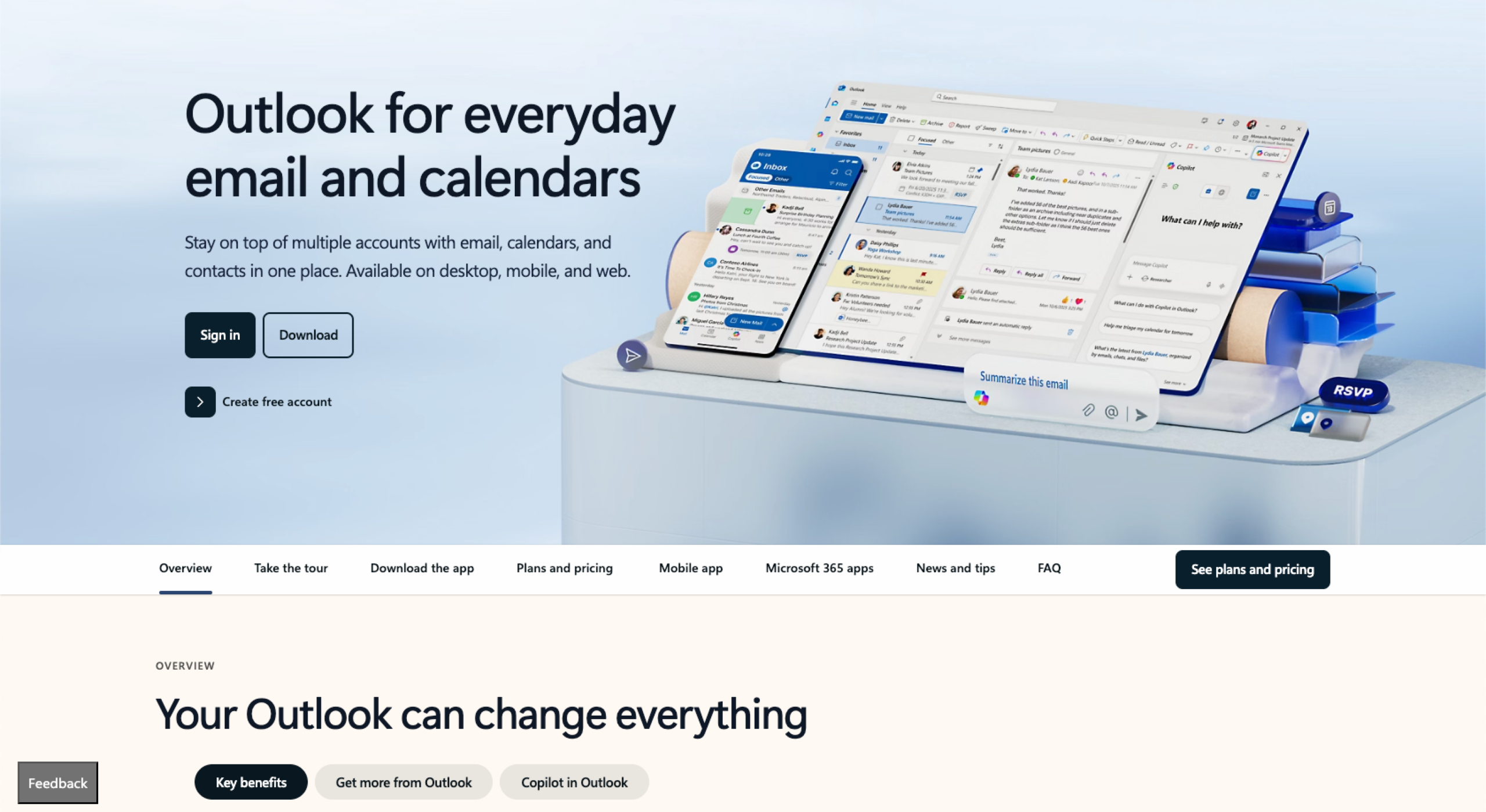
1. Deep integration with Microsoft Office apps
Outlook Calendar does well in the Microsoft 365 environment. The interface is feature-rich and packed with tools. If you already use Teams, Outlook Email, or Word, this calendar fits right in.
2. Advanced meeting scheduling and task management
Dragging an email into Outlook Calendar to create an event keeps the context intact for attendees. The Teams integration also lets you schedule meetings with built-in video links.
Task management in Microsoft To-Do ties your schedule to actionable items. Shared calendars within departments allow managers to delegate tasks directly from events.
Advanced scheduling features also set Outlook apart. Recurring events can be set with precision. For instance, meetings on the last day of each month adjust automatically so you don’t have to manually set meetings on the 30th or 31st of the month.
3. Ideal for internal scheduling
For internal scheduling, Outlook Calendar allows you to create shared calendars across departments. You can also manage meeting rooms and resources.
4. AI-driven scheduling suggestions and RSVP tracking
Meetings sync with Outlook Email and Teams. The Scheduling Assistant finds the best time for everyone. The AI-powered suggestions find optimal meeting times and suggest ideal time slots based on your team members’ habits.
RSVP tracking shows who’s attending to ensure there is no confusion over attendance. These tools suit teams needing tight coordination.
5. Included with Microsoft 365 subscriptions
Outlook Calendar comes with Microsoft 365 subscriptions. Business plans range from $6 to $22 per user per month. The bundle includes Word, Excel, PowerPoint and Teams.
Usability and ecosystem fit
Google Calendar
Google Calendar is best for users who value simplicity. Its straightforward design suits solo users and small teams, and you don’t need tech expertise to master it.
Cross-platform access gives users flexibility to use it on Android, iOS, or any browser. If you live in Google’s ecosystem, it’s a natural fit for Gmail, Drive, Docs, and Meet. Your events sync no matter what platform you use.
Outlook Calendar
Outlook Calendar targets Microsoft loyalists. Its feature-rich environment suits enterprises and offers powerful tools for complex scheduling.
While the interface can overwhelm new users, it performs well in organizations using Teams or Outlook Email. If your team relies on Microsoft 365, Outlook integrates naturally.
Your ecosystem matters. Google Calendar integrates seamlessly with other Google tools, while Outlook does well in Microsoft environments.
Consider your devices too. Google works anywhere, while Outlook is most effective on Windows. Both sync across platforms, but your primary tools should guide your choice.
Jotform’s integrations with Google Calendar and Outlook Calendar
Digital calendars are most useful when they update automatically. That’s where Jotform comes in. Our platform connects seamlessly with both tools to simplify scheduling and boost productivity. Whether you use Google Calendar or Outlook Calendar, Jotform’s integrations will streamline your workflow.
Google Calendar integration
Google Calendar is a powerful tool that helps teams and individuals effectively manage events. Jotform’s Google Calendar integration automatically syncs form submissions to your calendar, which streamlines your workflow.
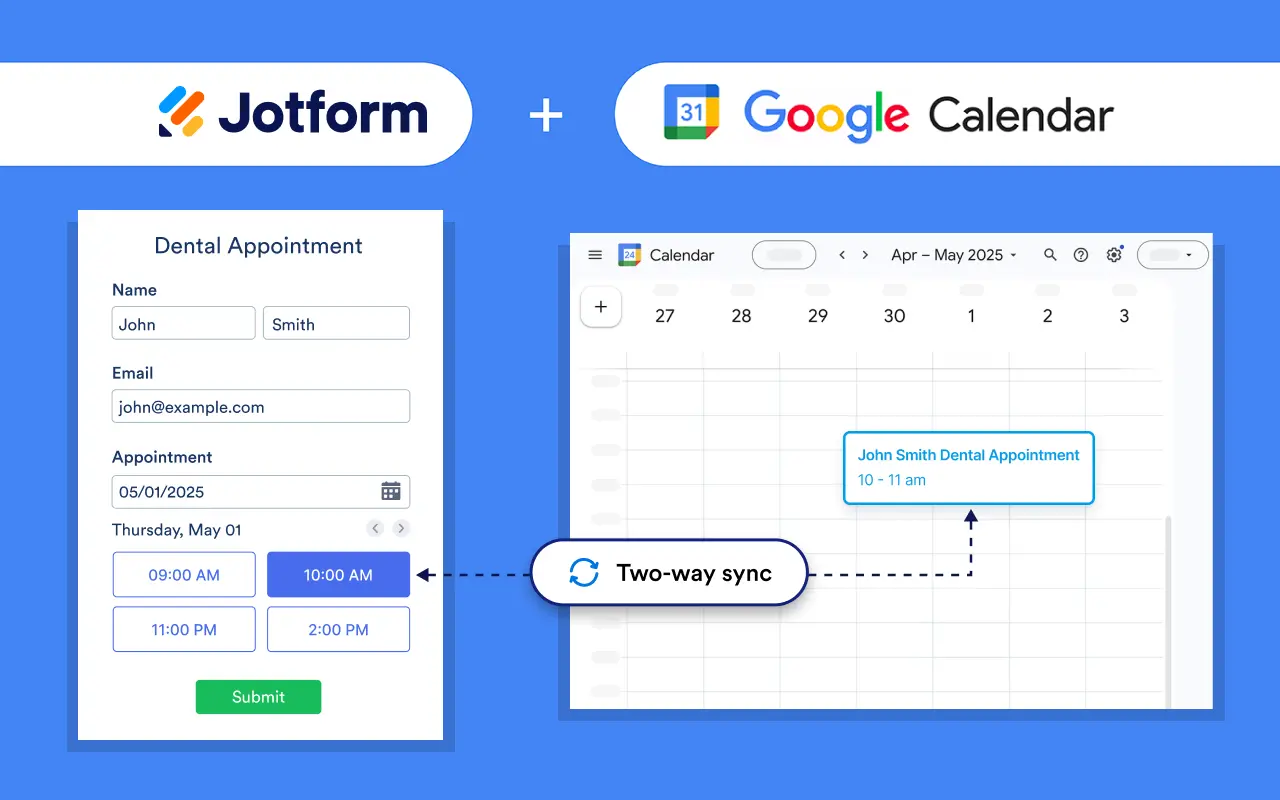
Key features of our Google Calendar integration include
- Automatic event creation: Form submissions instantly trigger the creation of new events in your Google Calendar. For instance, when a client submits a booking form, our platform automatically generates an event with all the relevant details.
- Customizable event details: Each new event can include a title, start time, end time, description, and location. This allows your calendar to capture all the necessary information directly from the form submission.
- Real-time syncing: Reminders and updates synchronize instantly, keeping your calendar current and accurate.
- Two-way sync: Changes made to either the calendar event or the form submission automatically update in both systems.
This integration is ideal for managing appointments, deadlines, orders, and any time-sensitive tasks. Jotform’s automation eliminates manual data entry, saving you time and reducing the risk of errors.
Outlook Calendar integration
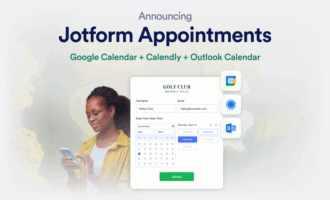
You can also use Jotform’s integration to manage your Outlook Calendar. Each form submission becomes an event on your Outlook Calendar. When you collect appointment details through a form, the submission populates your calendar instantly, keeping your schedule organized. It’s ideal for teams coordinating meetings or consultations. No need to juggle multiple tools, and your Microsoft 365 environment stays cohesive.
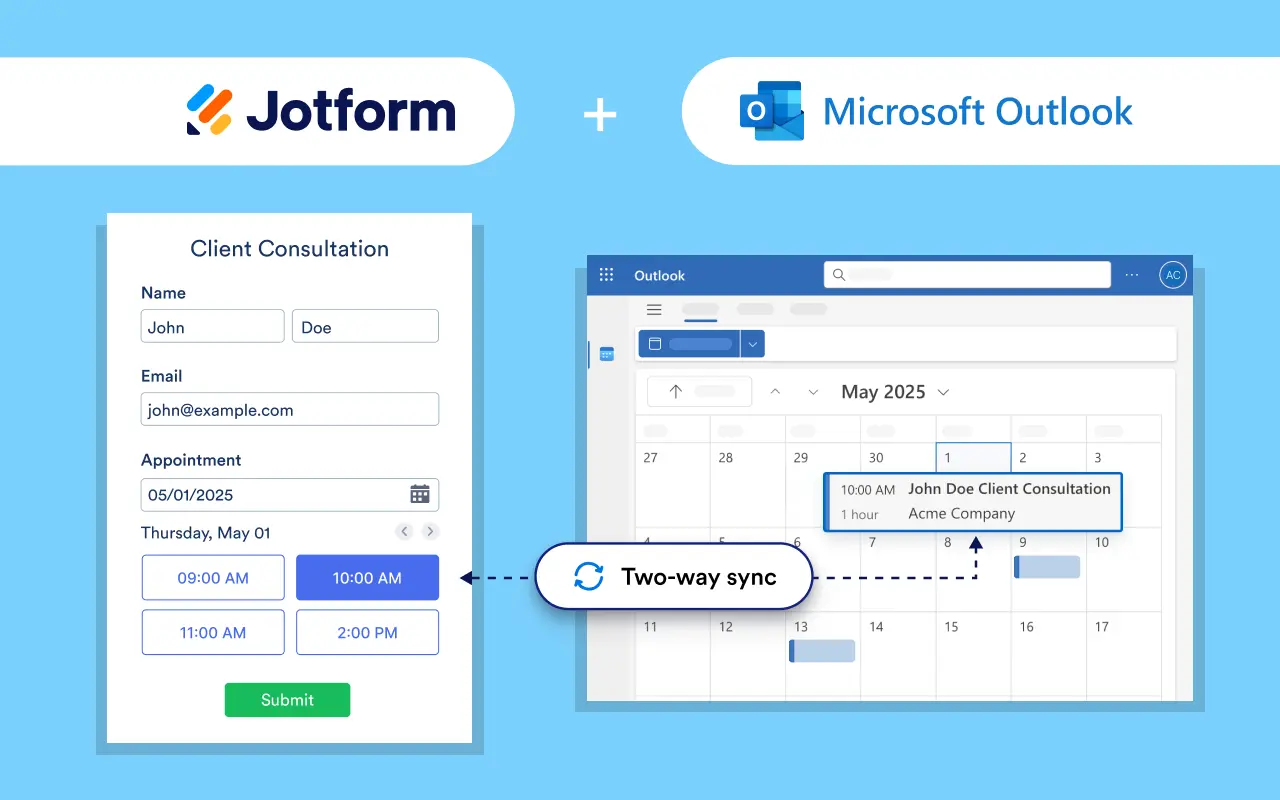
The Outlook Calendar integration also offers other key capabilities, including
- Preventing scheduling conflicts and double booking: The integration checks your calendar in real time and hides any previously booked time slots.
- Editing and cancellation: Jotform’s Outlook Calendar integration also adds flexibility with edits and cancellations. Our integration makes instant updates to the related event. This means you don’t have to send follow-up emails or track changes when you edit or cancel an event.
- Contact creation via Zapier: The integration allows you to automatically create contacts in Microsoft Outlook for new Jotform submissions.
Benefits of both integrations
Jotform’s calendar integrations provide a seamless solution for efficient scheduling and time management. Whether you’re managing personal appointments or coordinating team meetings, Jotform’s automation capabilities improve your workflow across platforms.
Key benefits of Jotform’s calendar integrations include
- Real-time calendar updates: Form submissions automatically create events in your Google or Microsoft Outlook Calendar. That way, your schedule is always current and there’s less risk of double bookings or scheduling conflicts.
- Centralized data management: Each form submission captures important details, such as names, times, and appointment specifics, storing them in one place. This eliminates the need to search through emails or other tools for information.
- Task automation: Save time and reduce administrative workload by creating calendar events without manually interacting with your calendar. This allows you to focus on high-priority tasks.
- Cross-platform compatibility: Jotform’s integrations work with any cross-platform calendar, providing flexibility for users operating in different environments.
- Error prevention: Automated event creation and two-way calendar synchronization prevent scheduling errors.
- Better time management: Jotform’s integrations support effective time management strategies by reducing repetitive administrative tasks.
With Jotform, your appointment data remains centralized, and scheduling becomes effortless. Our integrations provide a cohesive experience, keeping your scheduling process organized across platforms.
For professionals and teams seeking to improve their workflows, Jotform’s automation is a step toward better time management and reduced administrative overhead.
Choosing the right calendar: Key considerations
Your needs dictate the best choice, so think about your tools. Start with platform preferences. Do you use Android or Windows? Do you use Gmail and Google Docs? Do you use Outlook and Word?
Whether Google Calendar or Outlook Calendar is the best choice depends on device compatibility. Google feels universal, but Outlook is optimized for Microsoft environments.
Collaboration matters too. Google Calendar simplifies sharing with anyone. You can invite guests easily, even non-Google users. Outlook, on the other hand, may be better for internal teams.
Shared calendars and RSVP tracking reduce confusion in the workplace. If you work solo, Google’s simplicity may be enough. Teams, however, may need Outlook’s features.
Integration requirements also play a role when choosing the right calendar. Google Calendar syncs with Google Workspace effortlessly, while Outlook blends with Microsoft 365. Jotform’s automation tools enhance both by streamlining appointment scheduling across platforms.
Third-party apps matter too. Does the calendar you are considering integrate with apps such as Zoom and Slack?
Personal or organizational use shapes the decision. Individuals love Google’s free tier, and small businesses appreciate its affordability.
Enterprises lean toward Outlook for its advanced tools. Microsoft 365’s cost fits organizations that require a full suite.
Real-world scenarios can help clarify the choice. A freelancer may pick Google Calendar because it’s free and syncs with Gmail for client bookings. A corporate team may choose Outlook because its integration with Teams streamlines internal meetings. This context determines the winner when it comes to Outlook vs Google Calendar.
Automate your calendar today to improve your operations
Choosing between Google Calendar and Outlook Calendar isn’t about better or worse. It’s about fit.
Love simplicity and Google apps? Go with Google. Its clean interface and Google Workspace integration suit individuals, and small businesses love its collaboration tools.
Need Office integrations? Outlook wins. Outlook delivers power and precision. Enterprises benefit from features such as Microsoft 365 integration and advanced scheduling.
No matter what you choose, don’t waste time on manual scheduling. Jotform’s tools sync your forms with either calendar and can help you avoid mistakes and save time to focus on core business tasks.
Sign up for free today and simplify your schedule.
This guide is for operations managers, IT admins, team leads, and independent professionals evaluating Google Calendar versus Outlook Calendar to streamline scheduling and align their workflows with either Google Workspace or Microsoft 365.

























































Send Comment: