Key takeaways
- Google Docs has no native “form mode”: Unlike PDF editors or dedicated form builders, Google doesn’t allow you to “lock” a document so that users can only interact with specific fields.
- Tables and interactive chips are the best native “hacks”: Using invisible table borders prevents your layout from “jumping” when users type. @dropdown or @date chips add functionality, but both require giving users Editor access to work.
- Sharing is the biggest hurdle: To fill a Doc, users usually need edit access, which means they can accidentally delete your questions, break your formatting, or see other people’s data.
- Templates require manual work: Since there’s no “Submit” button, you must ask every user to go to File > Make a copy to prevent them from overwriting your master template.
- For real data collection, use Jotform: If you need secure responses, mobile-friendly fields, or a spreadsheet of your data, Jotform is the best solution in the market.
At some point, probably every Google Docs user has tried to turn a Google Doc into a fillable form — and on the surface, it seems like a perfectly reasonable idea. The word processor is so easy to use that it’s natural to think you can just drop in a few fields, share the link, and collect responses seamlessly.
Unfortunately, this isn’t the case. While you can create a document that somewhat mimics a form, Google Docs wasn’t designed for it. And if you do try this method, you’ll have to accept its shortcomings, like the risk of field deletions, unintentional data exposure, and extra manual work to maintain a template.
In this article, you can see for yourself how to create a fillable form in Google Docs with two hacks, one using Google’s own layout tools and another with an add-on. If you’d like to try a more efficient, professional option for data collection, we’ll also introduce you to Jotform, a leading form builder that’s just as easy to use as Google Docs.

2 ways to create a fillable form in Google Docs natively
Google Docs doesn’t naturally have a “Form Mode” but you can mimic the experience using layout tools such as tables, checkboxes, and dropdown menus. Note that if you want to protect your Google Docs fields from being accidentally changed by respondents, you’ll have to adjust the Sharing settings to “View only.” However, this will require respondents to print out the form and fill it out manually.
Already created your Google Doc?
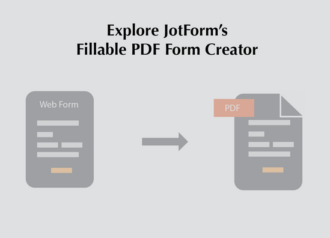
The easiest way to create a fillable PDF from a Google Doc you’ve already built is to use Jotform Smart PDF Forms. Simply upload your document, and it becomes fillable in seconds. The best part is that your respondents don’t need a login to fill out your Jotform form — they just click, fill, and submit.
Using tables to make Google Docs fillable
Follow these instructions to make Google Docs fillable forms by using tables:
- Create a new Google Doc and type the form title at the top. Click Insert from the top menu bar, and then Table in the dropdown menu.
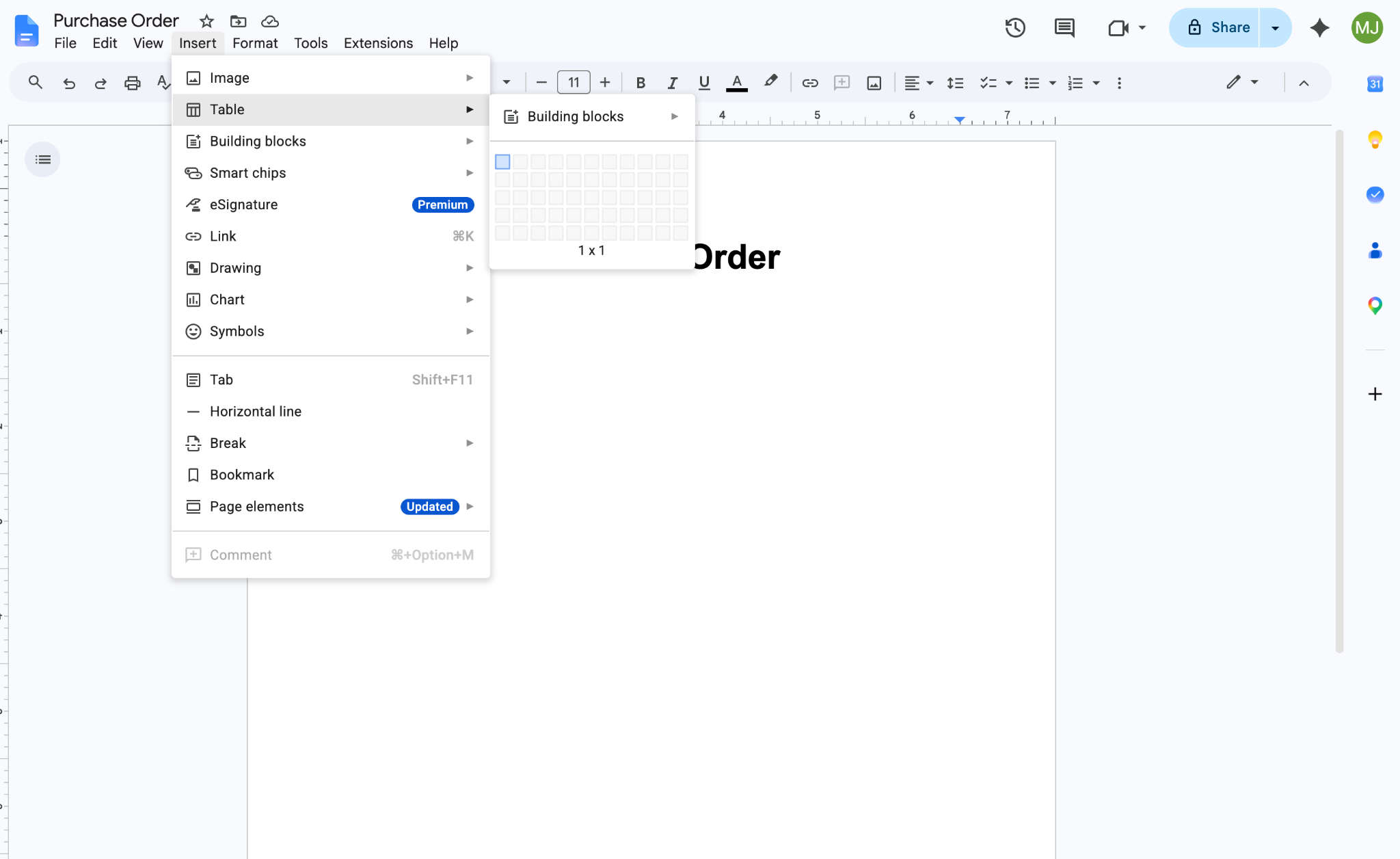
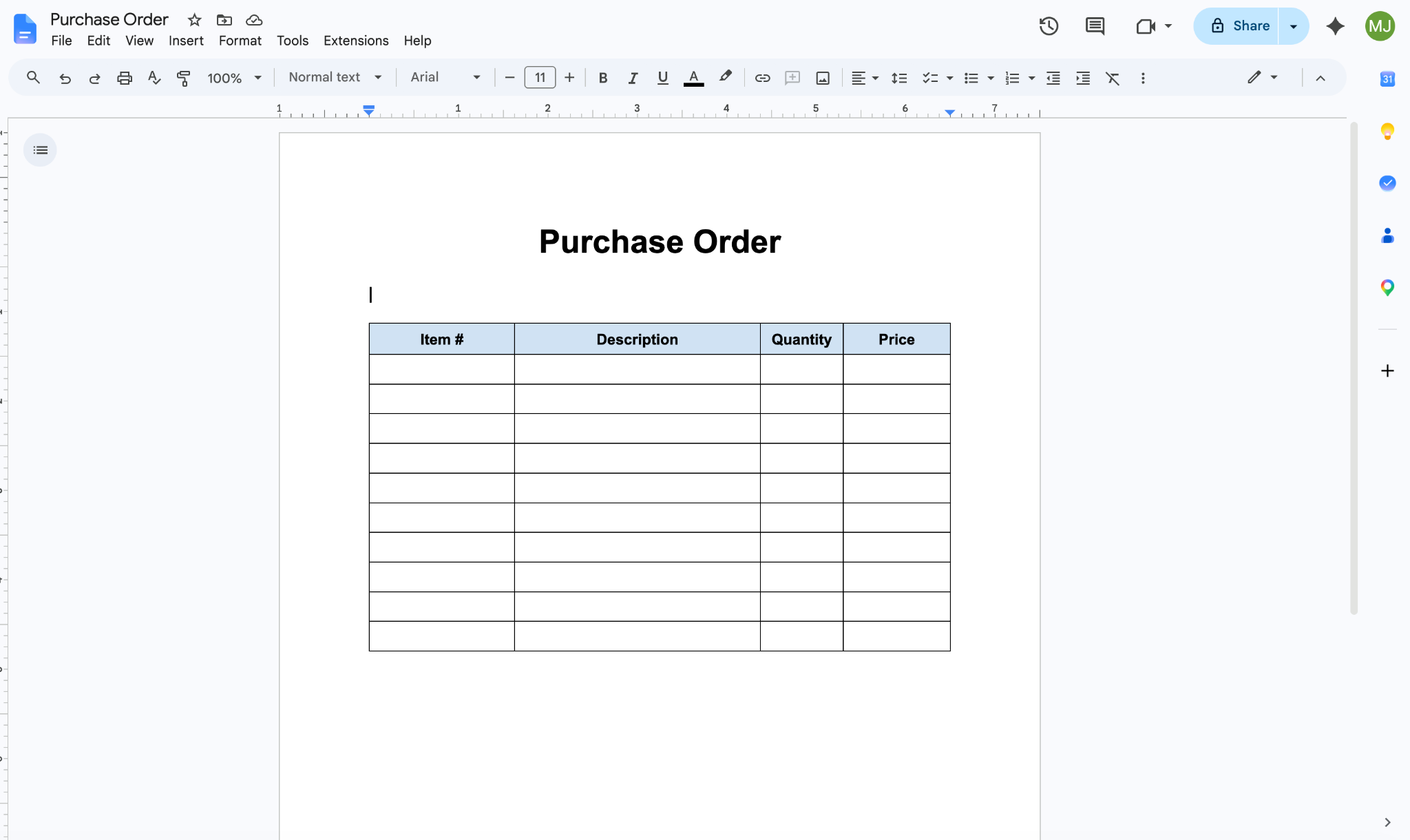
- Choose the number of rows and columns you want to include in the table. Don’t forget to include an extra row for field labels. In this example, we’ll create a table with 10 rows and four columns (Item #, Description, Quantity, and Price).
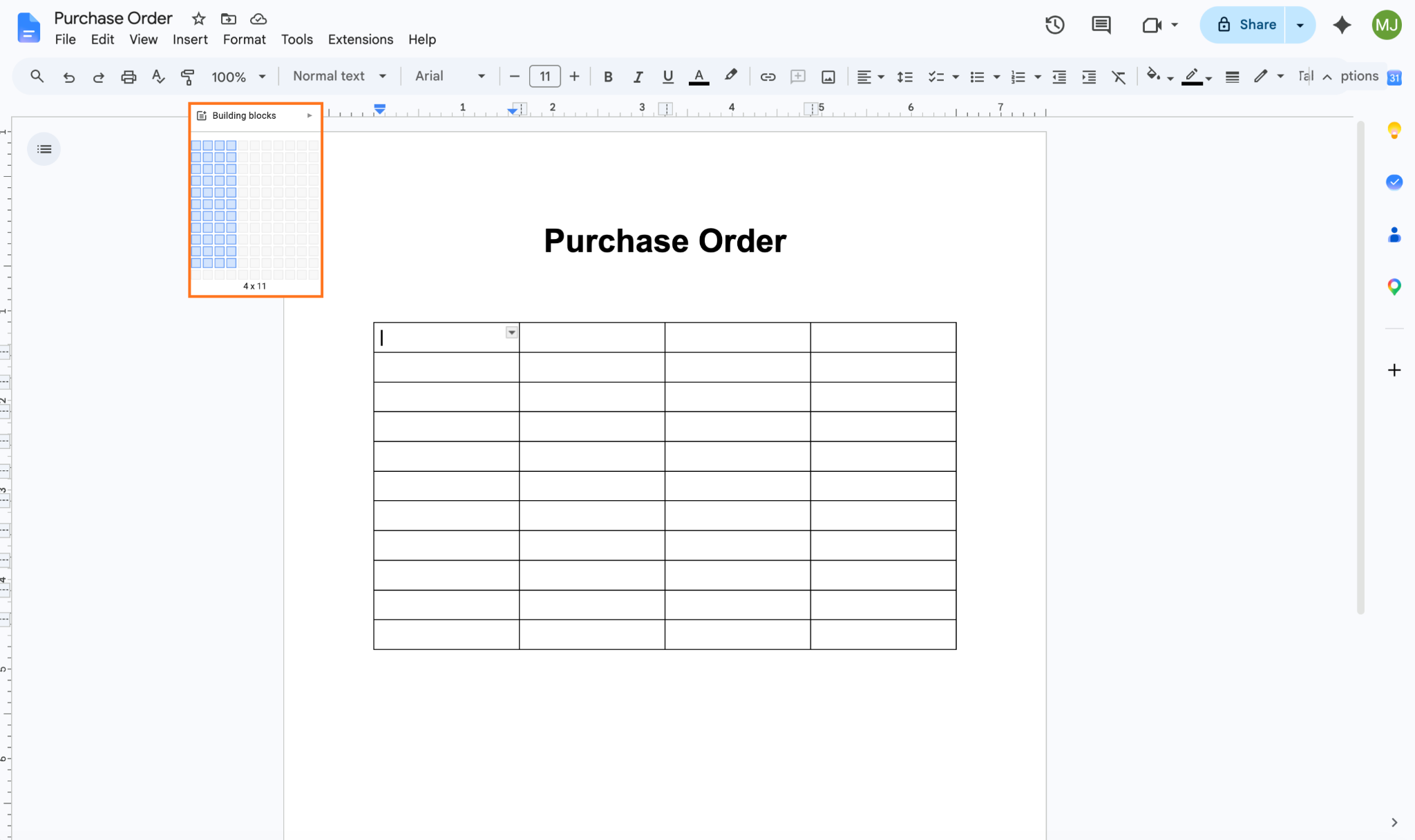
- Type your field labels in the top row and use the layout options in Google Docs to change the appearance as desired. For example, you may want to bold and center the labels, change the background color of the cells, and adjust the column sizes to match the information requests.
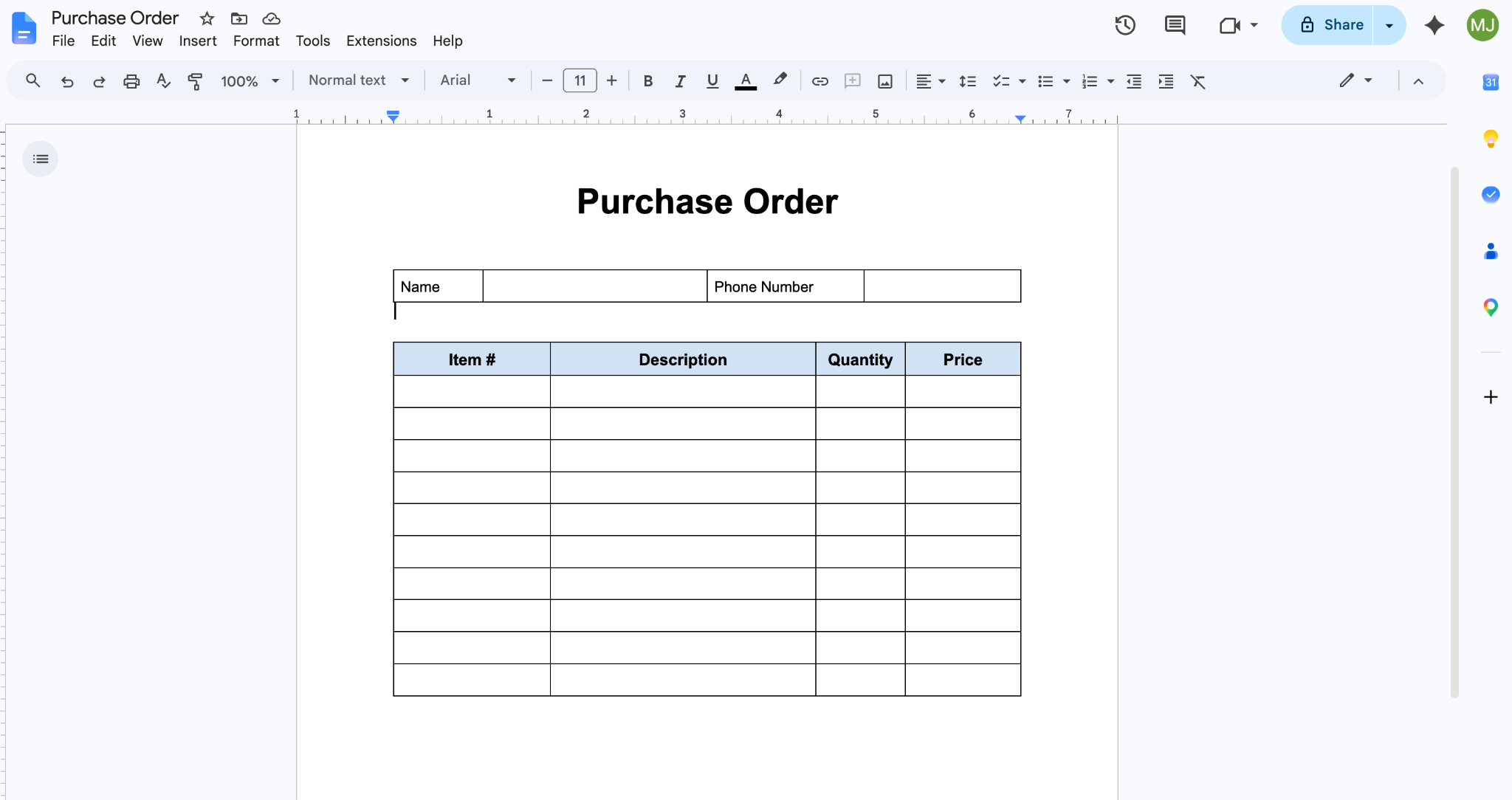
- You can also use tables to create a field that appears as an underline for other sections of the form, such as Name and Phone Number. To do this, create a new table with the appropriate number of cells (in this case, four: the labels Name and Phone Number, and response fields for each).
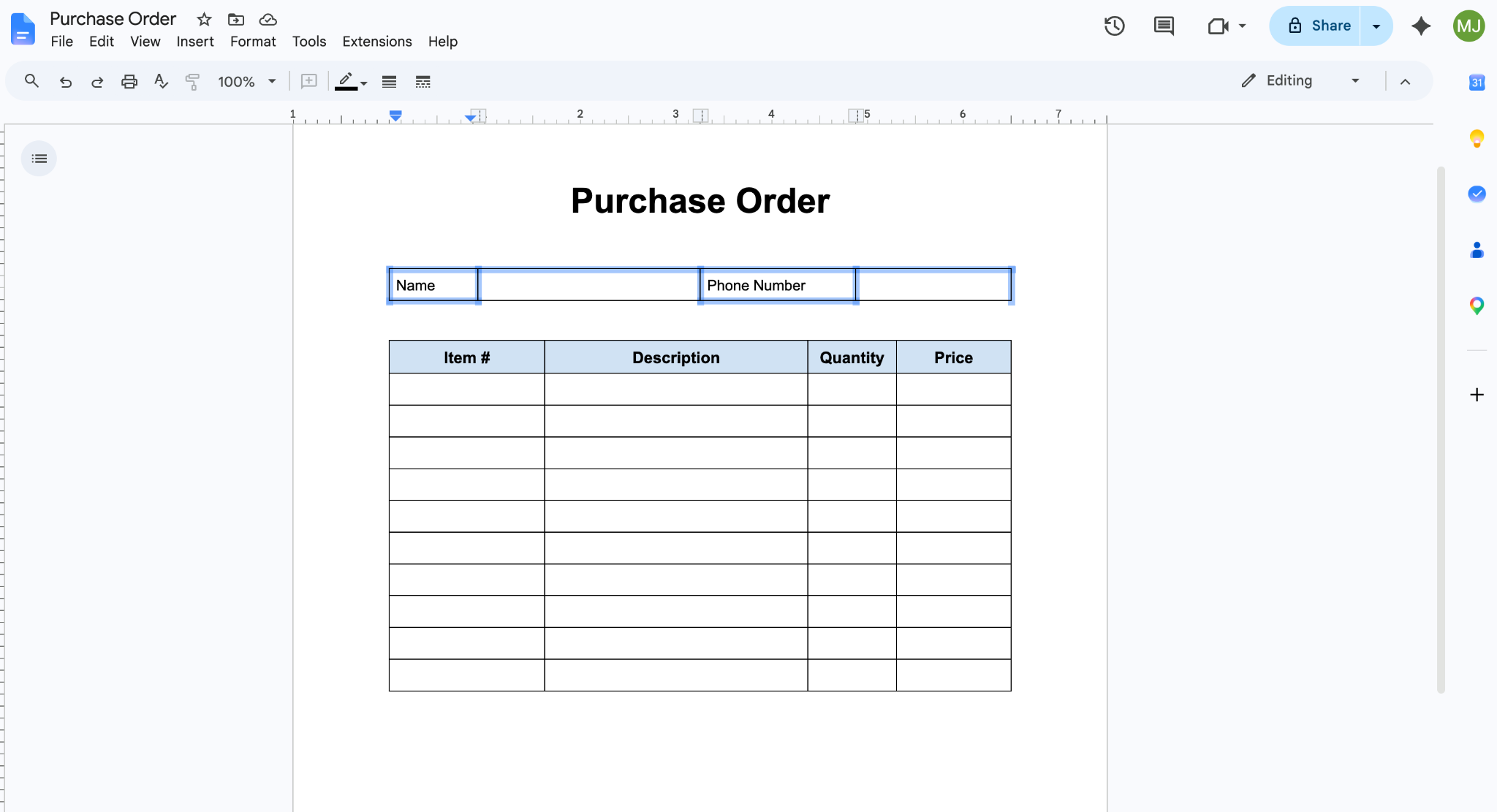
- Remove all the borders except for the lines that will act as underlines for the required information. To do this, click on one border, hold the Shift key of your keyboard down, and continue to select the other borders you want to remove.
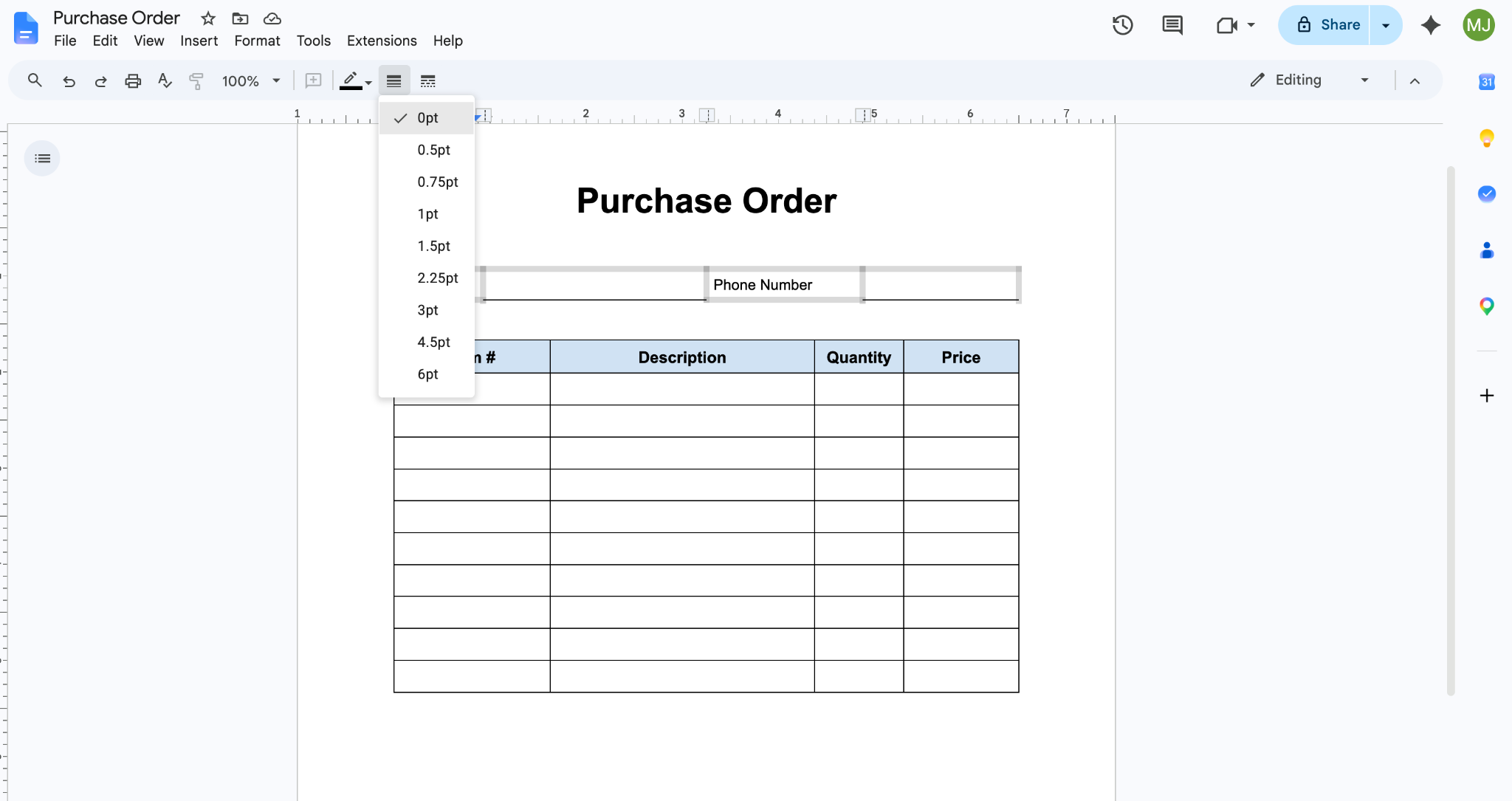
- Click Border Width in the top menu bar (three vertical lines) and select 0 point from the dropdown. The selected borders will disappear.
- Add your logo at the top and any finishing touches, and your document is complete.
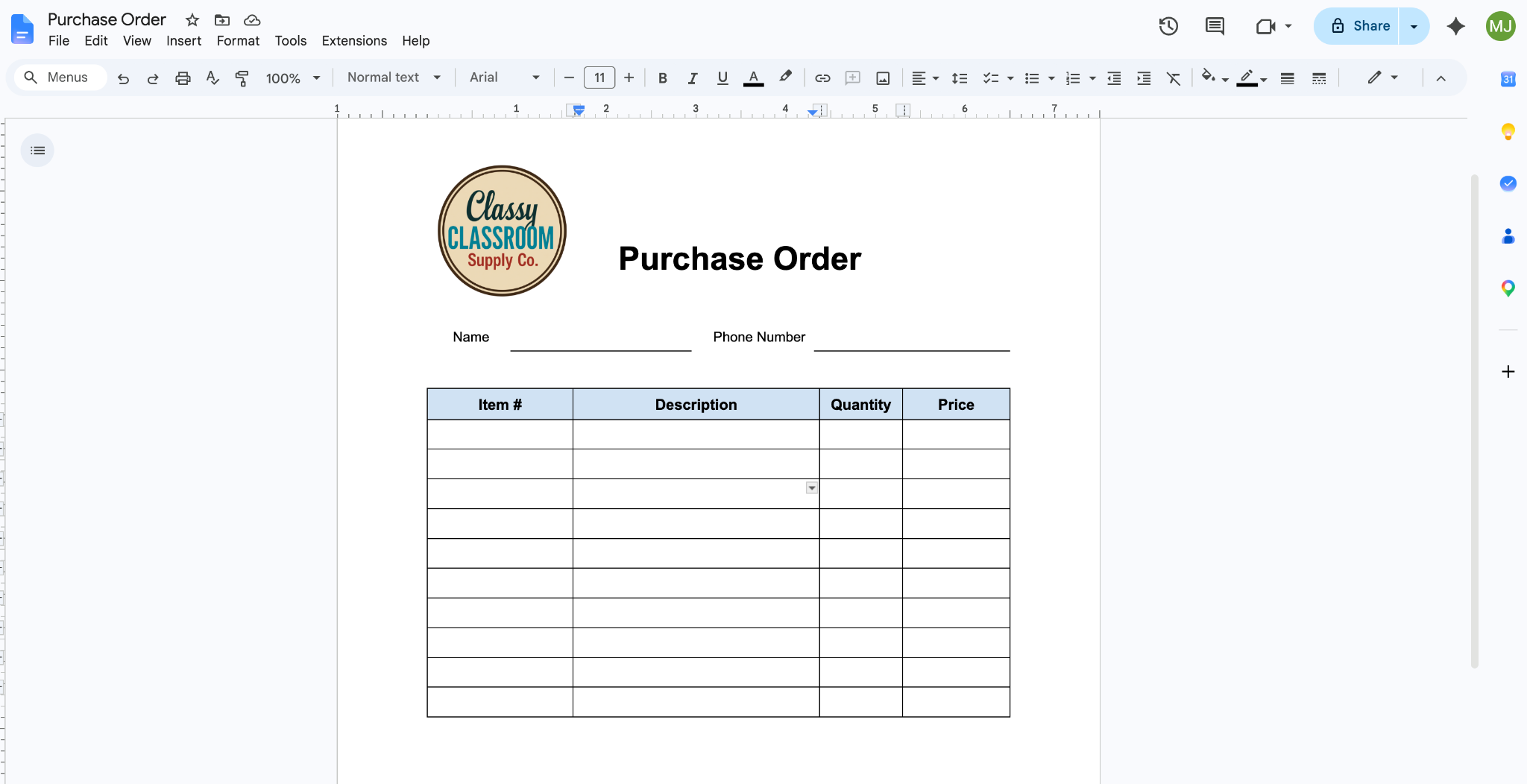
It’s important to understand that this form does not act as a Google Docs form template. You must either provide every user with a new copy of the form and give them “Edit” access so they can type, or ask them to make a copy themselves to prevent them from overwriting your original document. Giving edit access is a tricky thing because it means anyone could accidentally delete parts of your form, break your formatting, or see other people’s data.
Alternatively, you can choose to restrict editing in Google Docs by choosing a “View only” setting, but in that case your form will have to be printed and filled out manually.
Inserting dropdowns and checkboxes to make Google Docs fillable
You can further refine your document with the use of the Google Docs dropdown menu tool and checkboxes. To use these elements, follow these instructions:
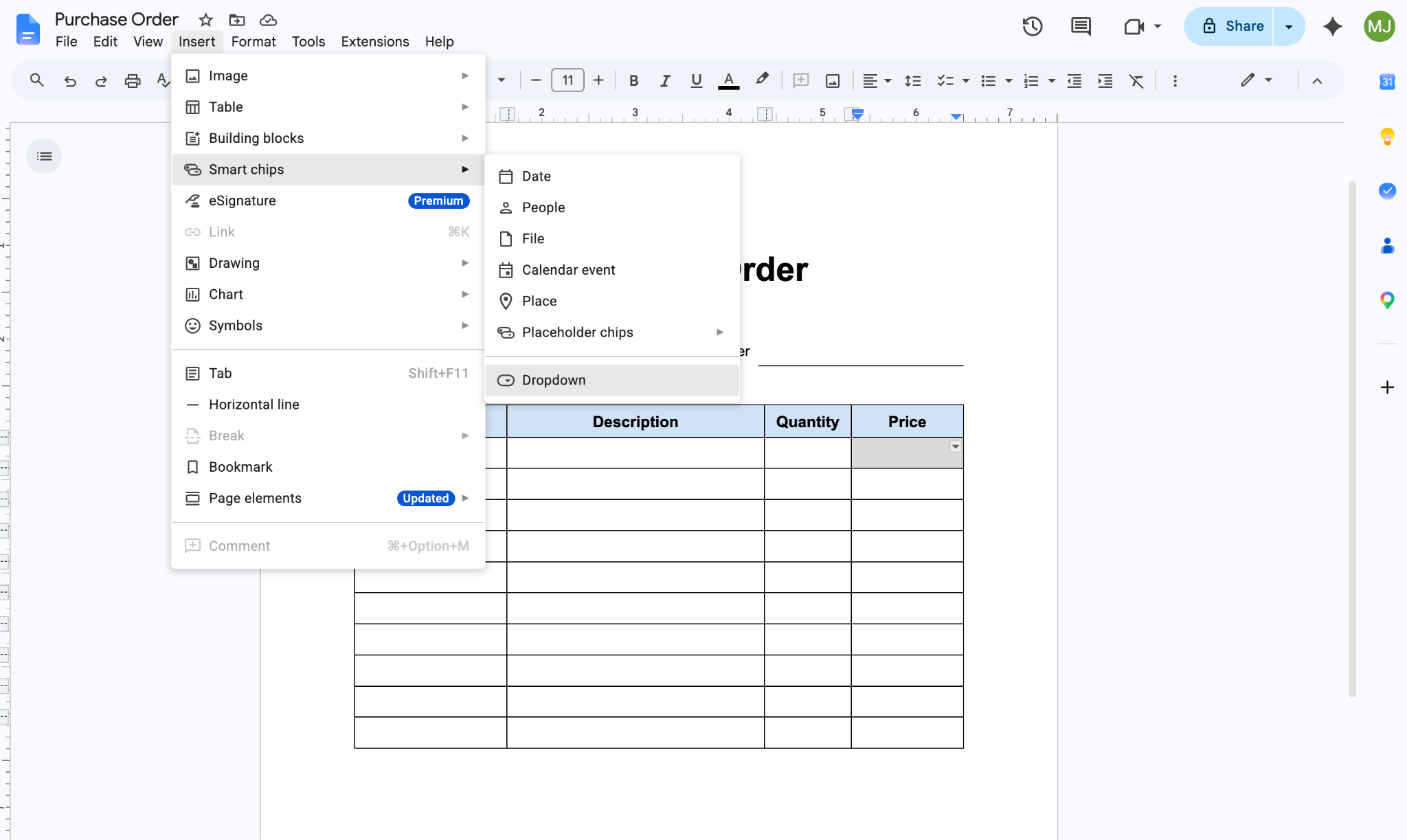
- Click inside the field where you want to use a dropdown menu, then click Insert in the top menu bar. Navigate to Smart chips and then Dropdown.
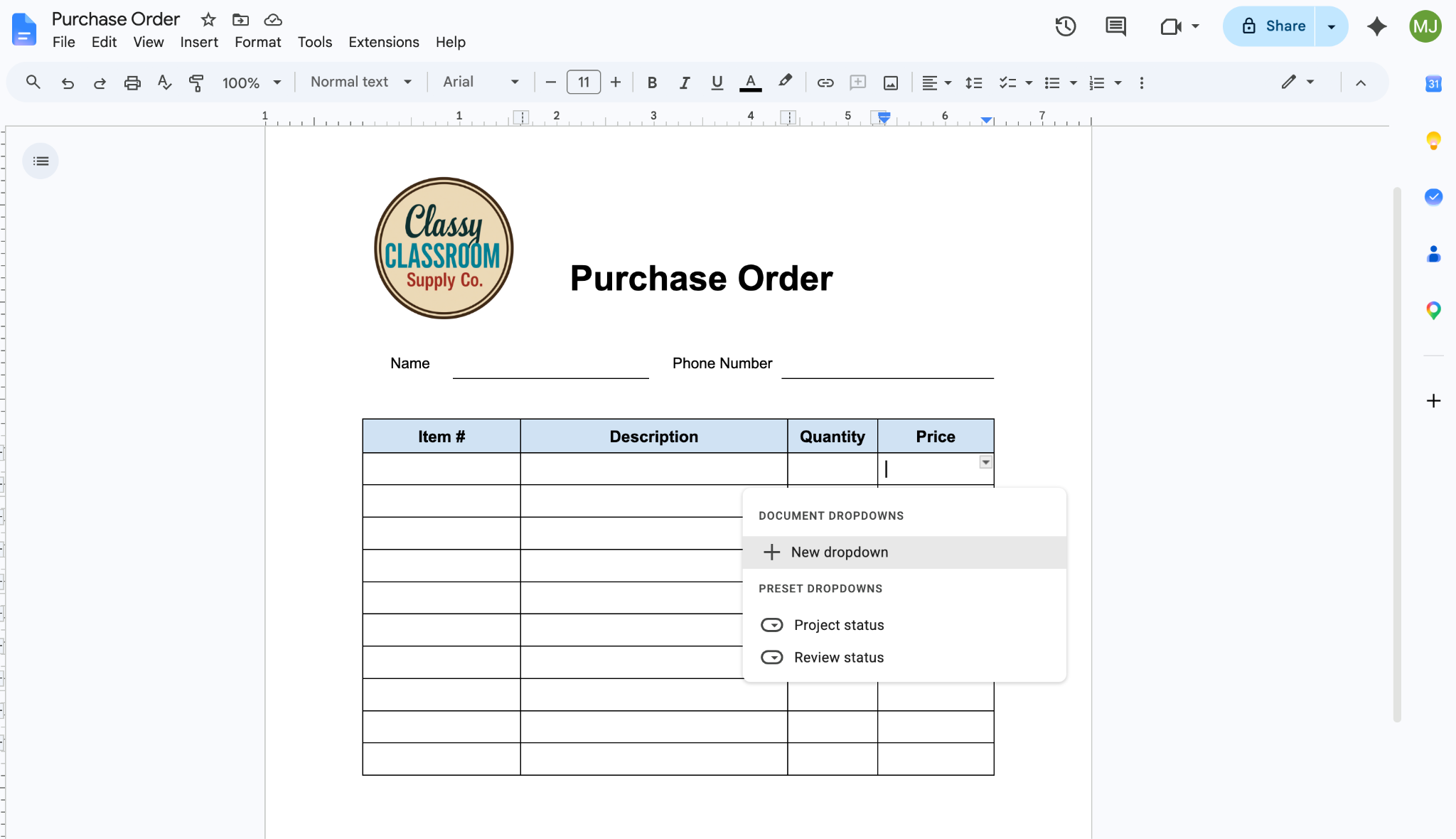
- Click New dropdown.
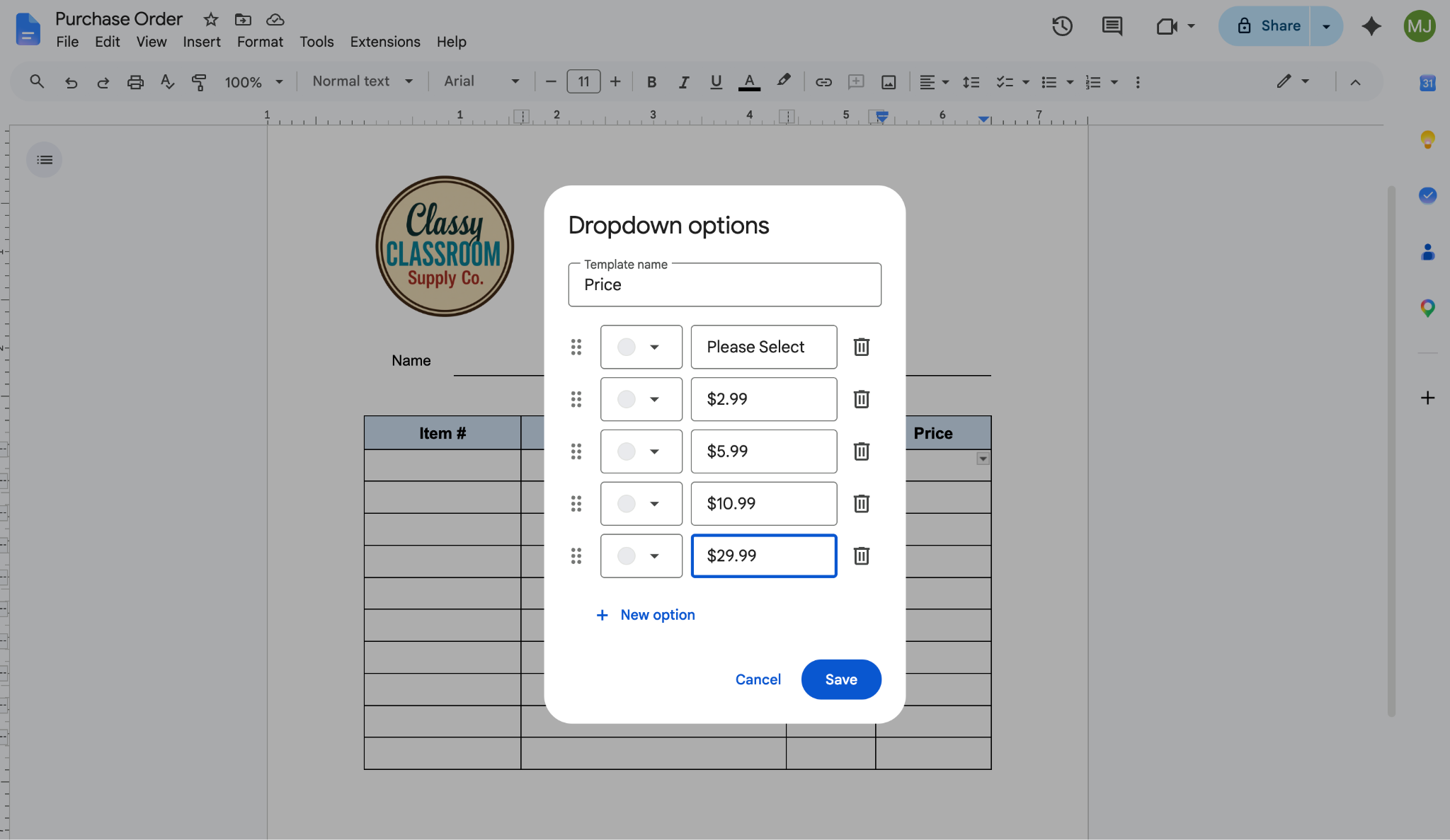
- Fill in the template name with the column name. Then fill in “Please Select” as the first option, followed by as many dropdown choices as you need. Click Save. Your form will now present respondents with the preset menu of choices for that column.
- To add checkboxes, first type the information on your form that will accompany the checkboxes.
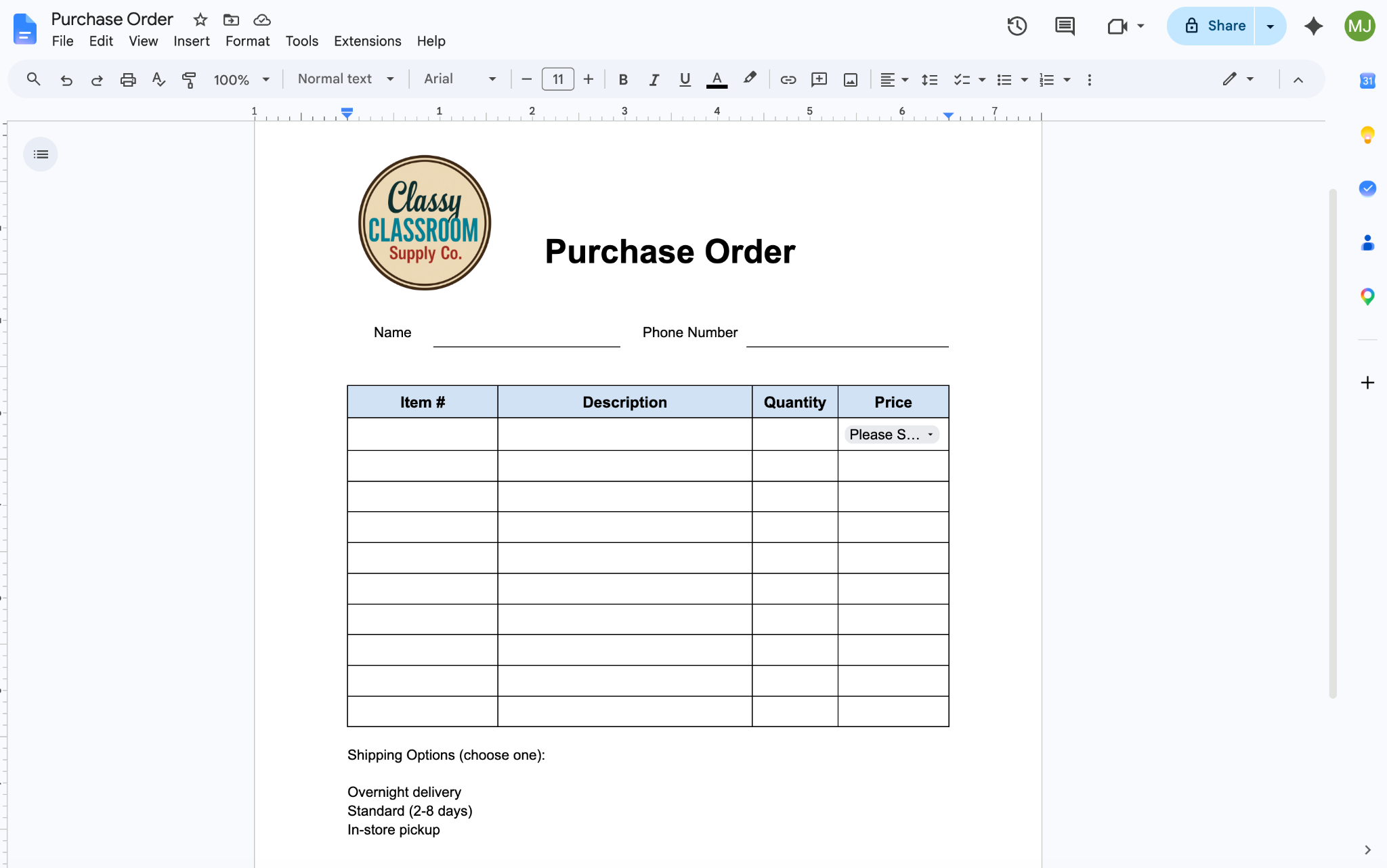
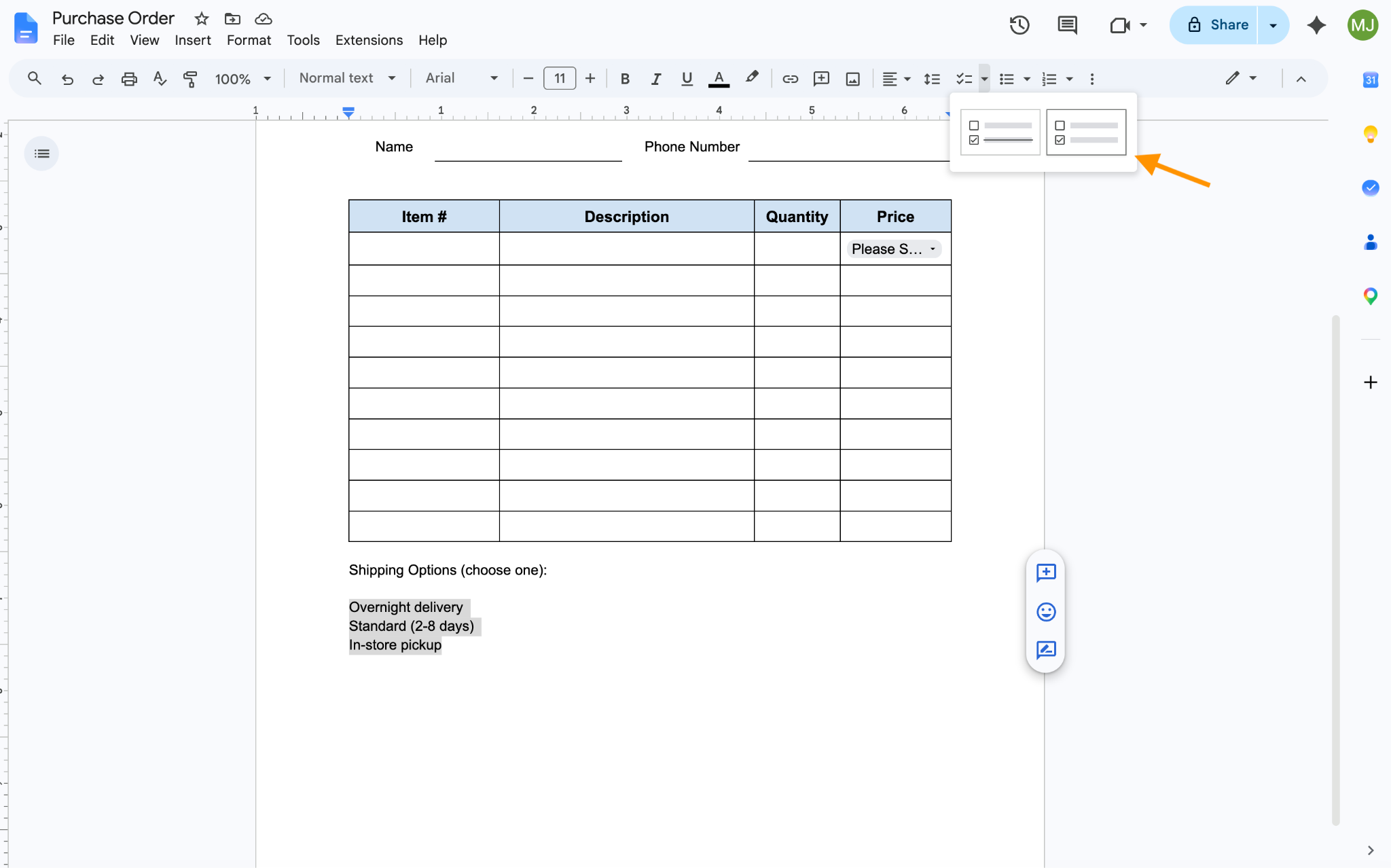
- Select the text that you want to become accompanied by checkboxes. Click the arrow next to the Google Docs Checklist icon (the two checkmarks in the top menu bar). When the two options appear, click the one on the right.
Your form will now include checkboxes for respondents to use as needed.
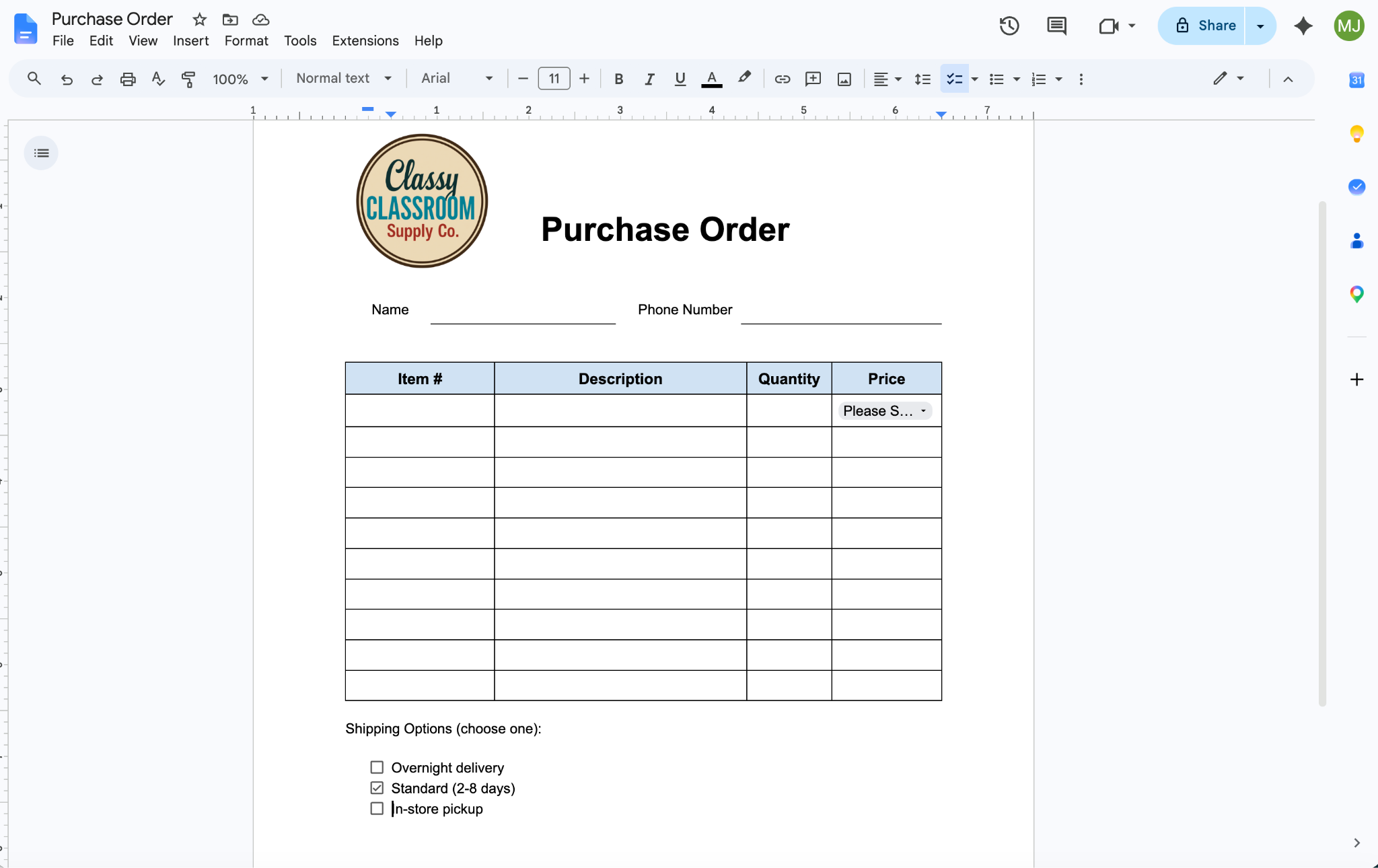
Again, while this mimics the form experience, you’ll need to give each respondent “Editor” access to permit responses, which could lead to accidental form changes. Additionally, you’ll need to provide each respondent with a new version of the form in order for it to be truly fillable online.
Pro Tip
Wondering if you can create a form from a Google Sheet? To find out, read how to create a fillable form in Google Sheets.
How to make your Google Doc a fillable form with add-ons
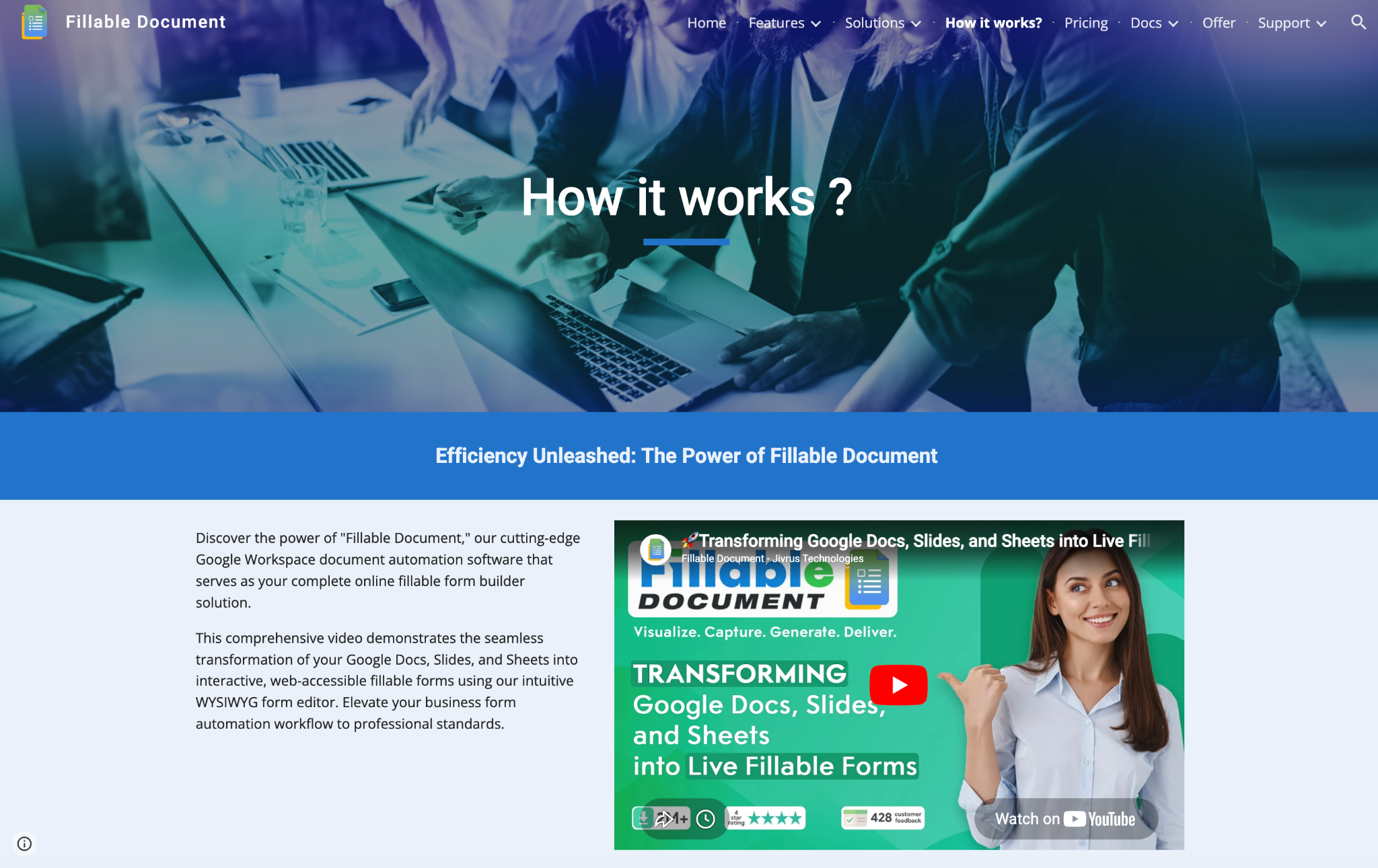
Another option to make Google Docs fillable is to use an add-on — a third-party product that extends the functionality of Google Docs. There are several fillable document creators available in Google Workspace Marketplace (an online store for Google Apps); the directions below feature one called Fillable Document. Note that the process may vary depending on the add-on you use.
Here’s how to use Fillable Document, a Google Docs form add-on, to make Google Docs fillable:
- In Google Workspace Marketplace, search for “Fillable Document” and click the Fillable Document add-on in the results.
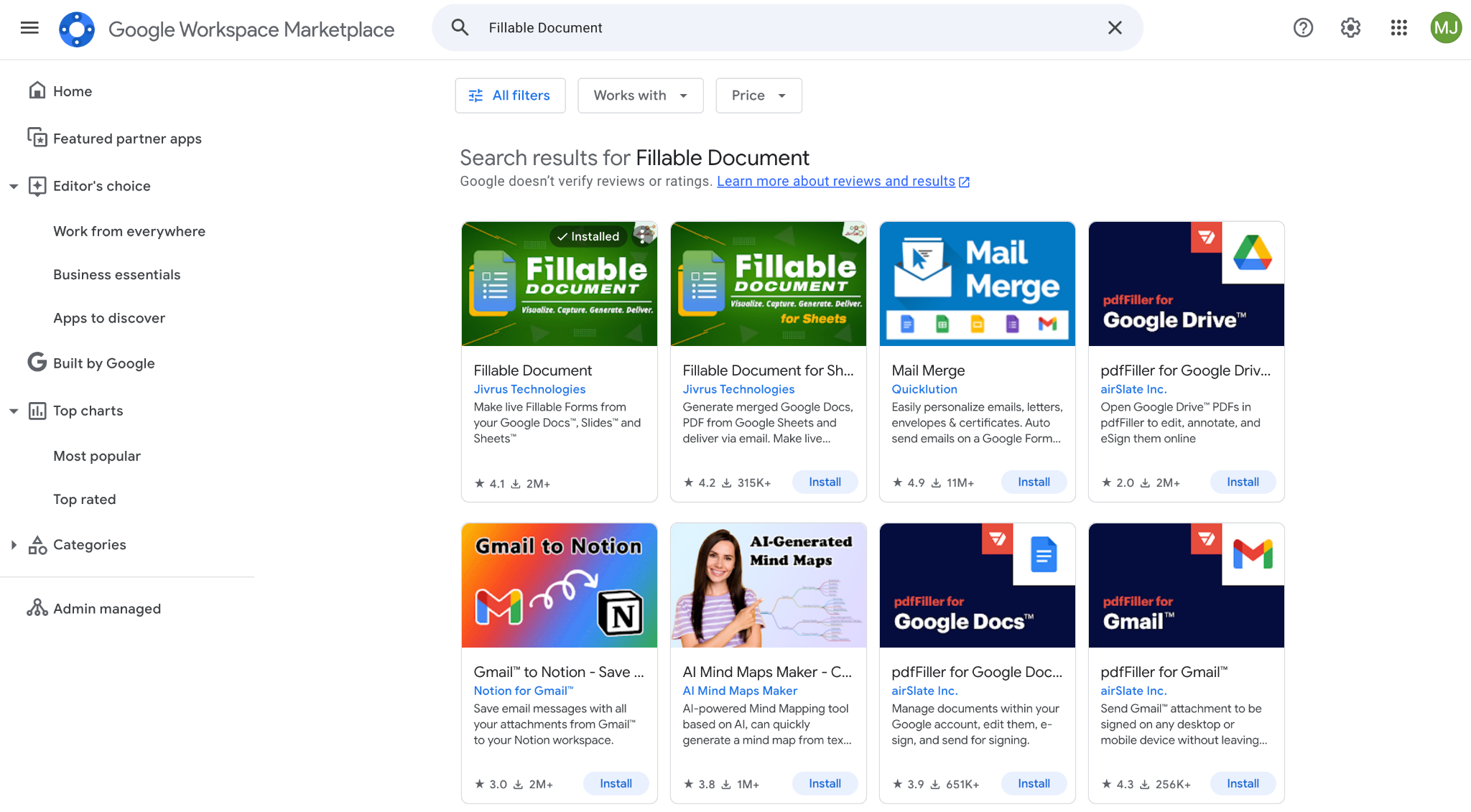
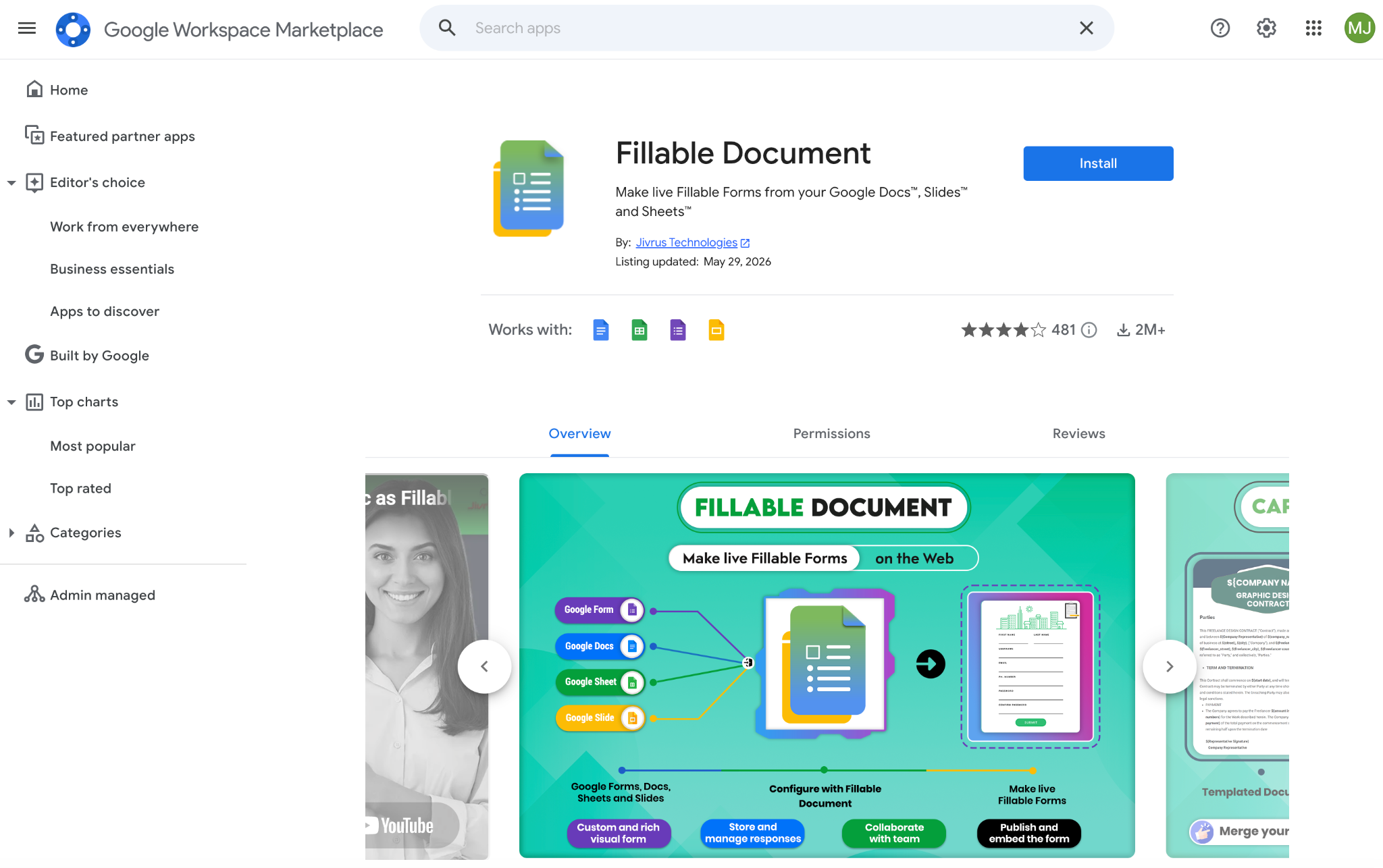
- Click Install. Sign into your Google account and give the add-on the necessary permissions.
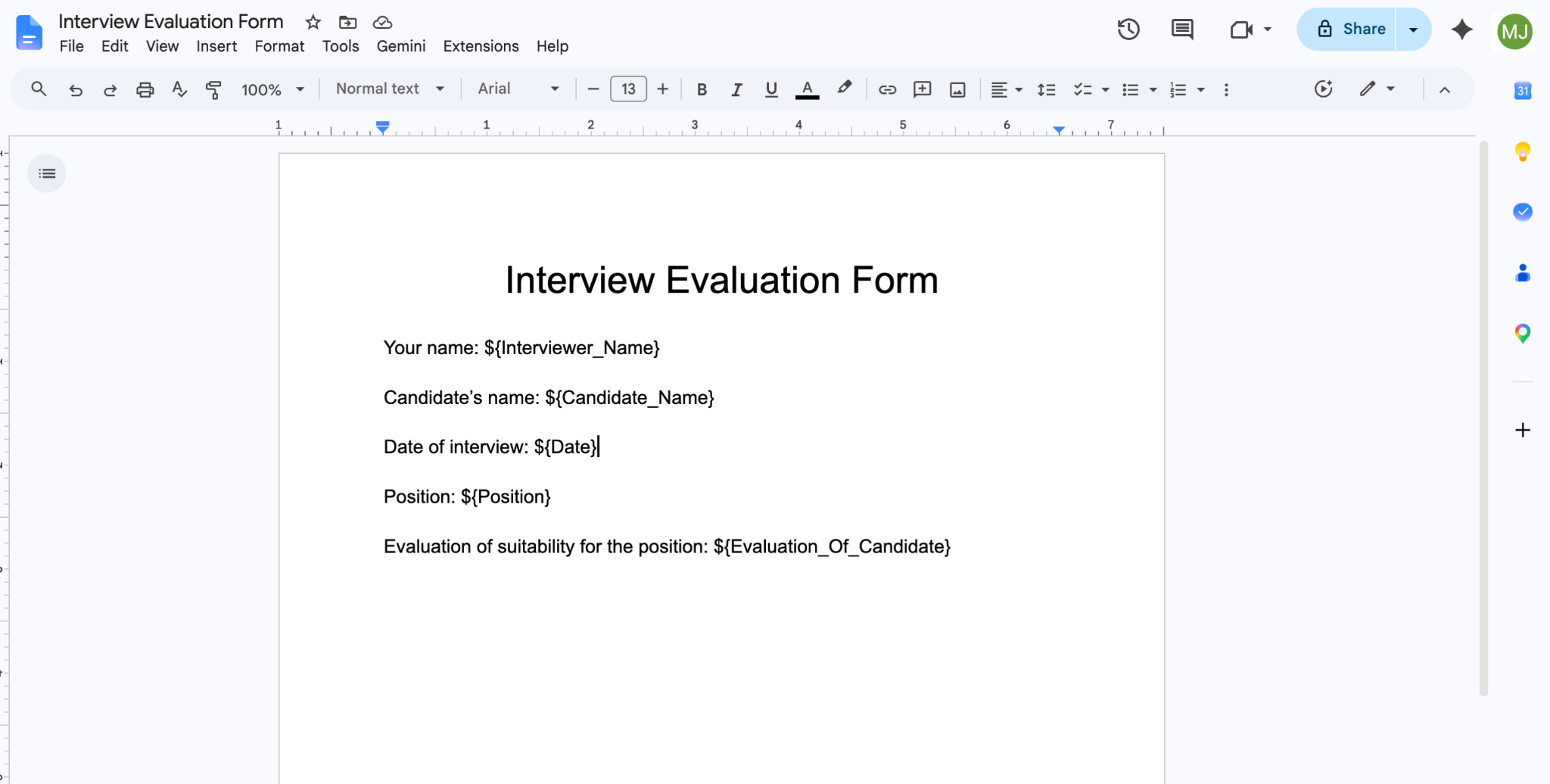
- First, set up your Google Docs template. Open or create a document that contains the necessary form field elements. Replace any existing responses with the formula required by the add-on. Fillable Document uses a format of ${ } (dollar sign and curly brackets). If necessary, include an underline to indicate spaces between multiple words.
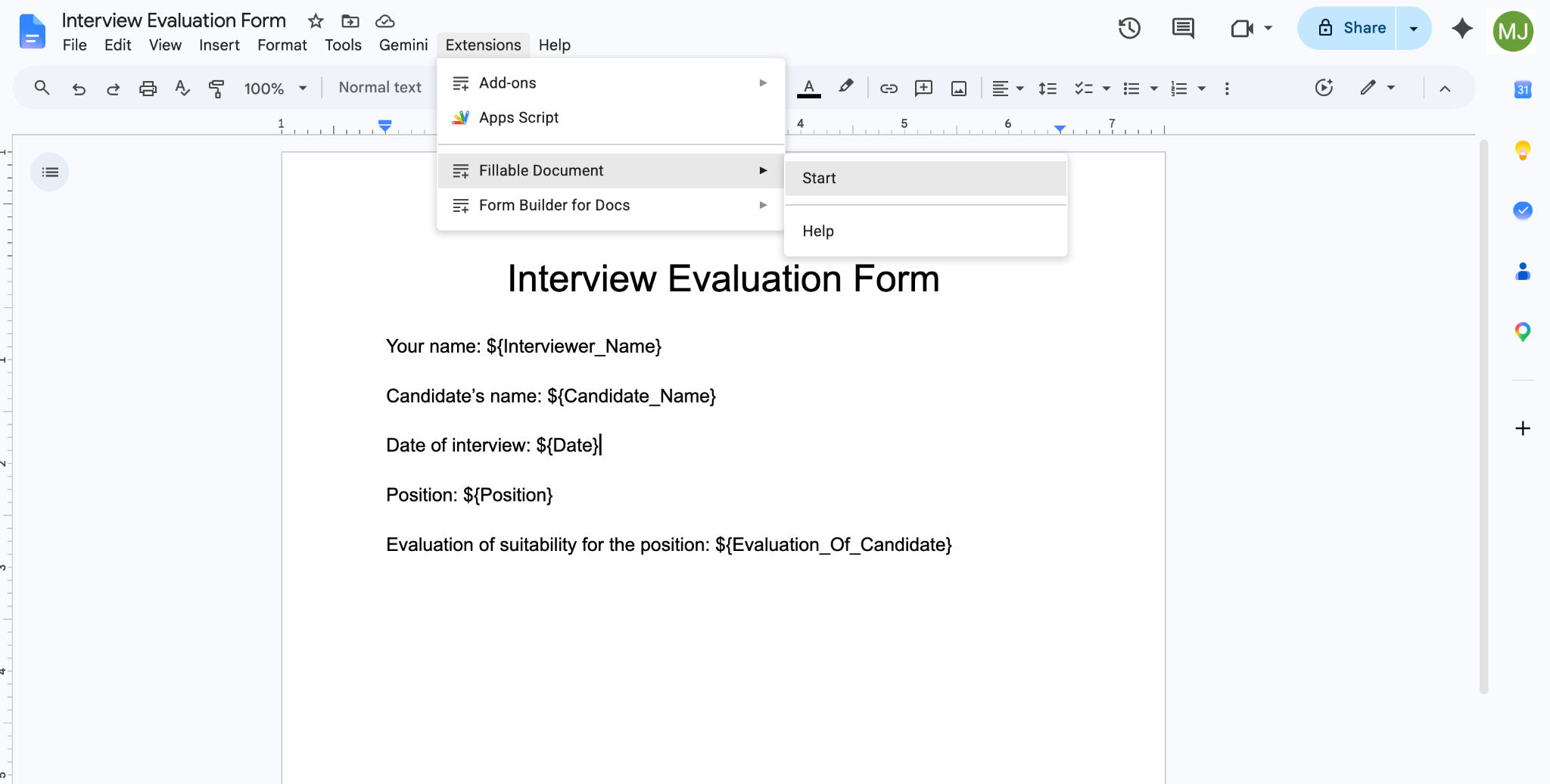
- Click Extensions from the top menu bar, then Fillable Document, then Start.
- In the Fillable Document box at the right, click Start Setup.
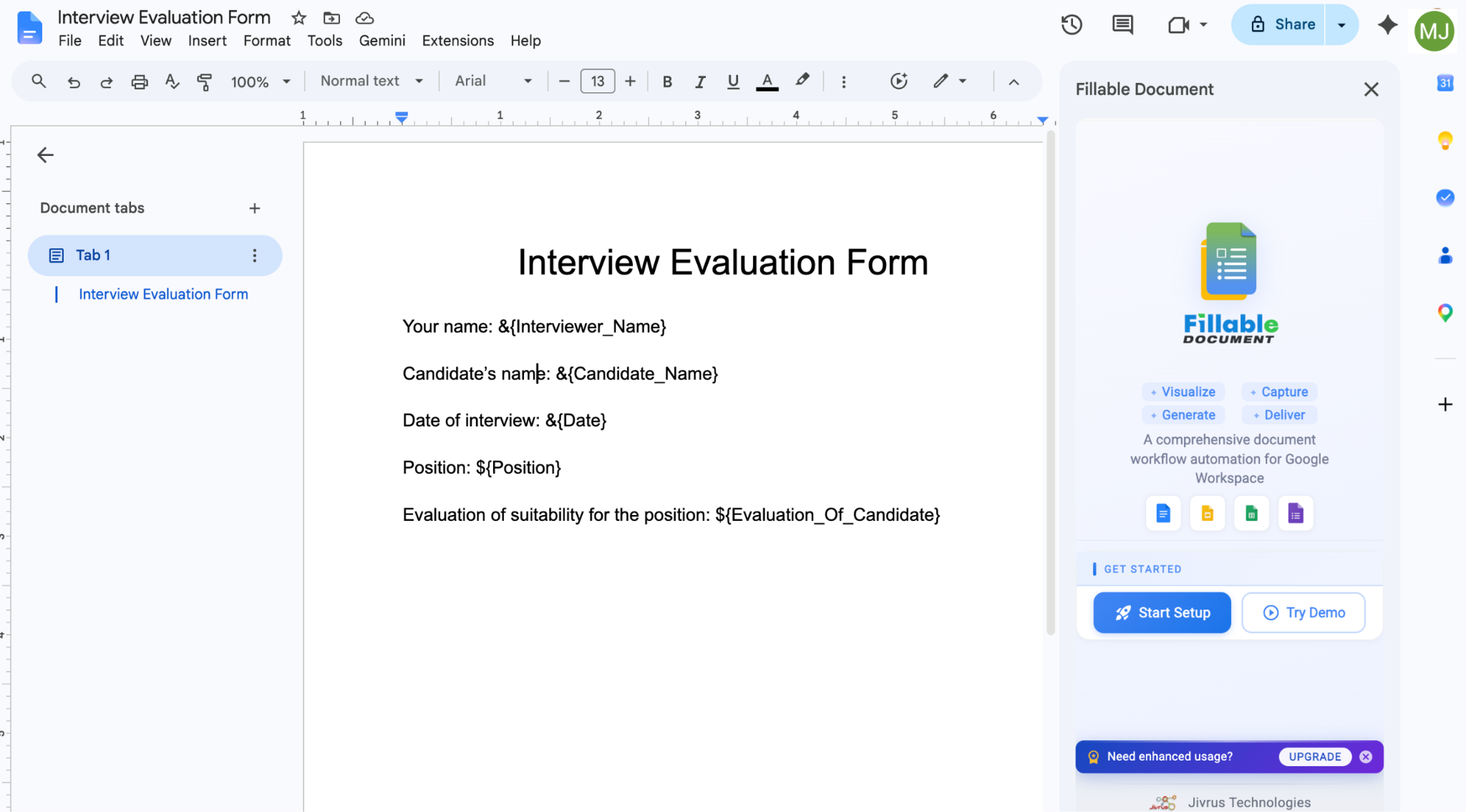
- Click Automatic Setup and the add-on will automatically configure a spreadsheet and a destination folder for the collected data. When setup is complete, scroll down and click Explore Now.
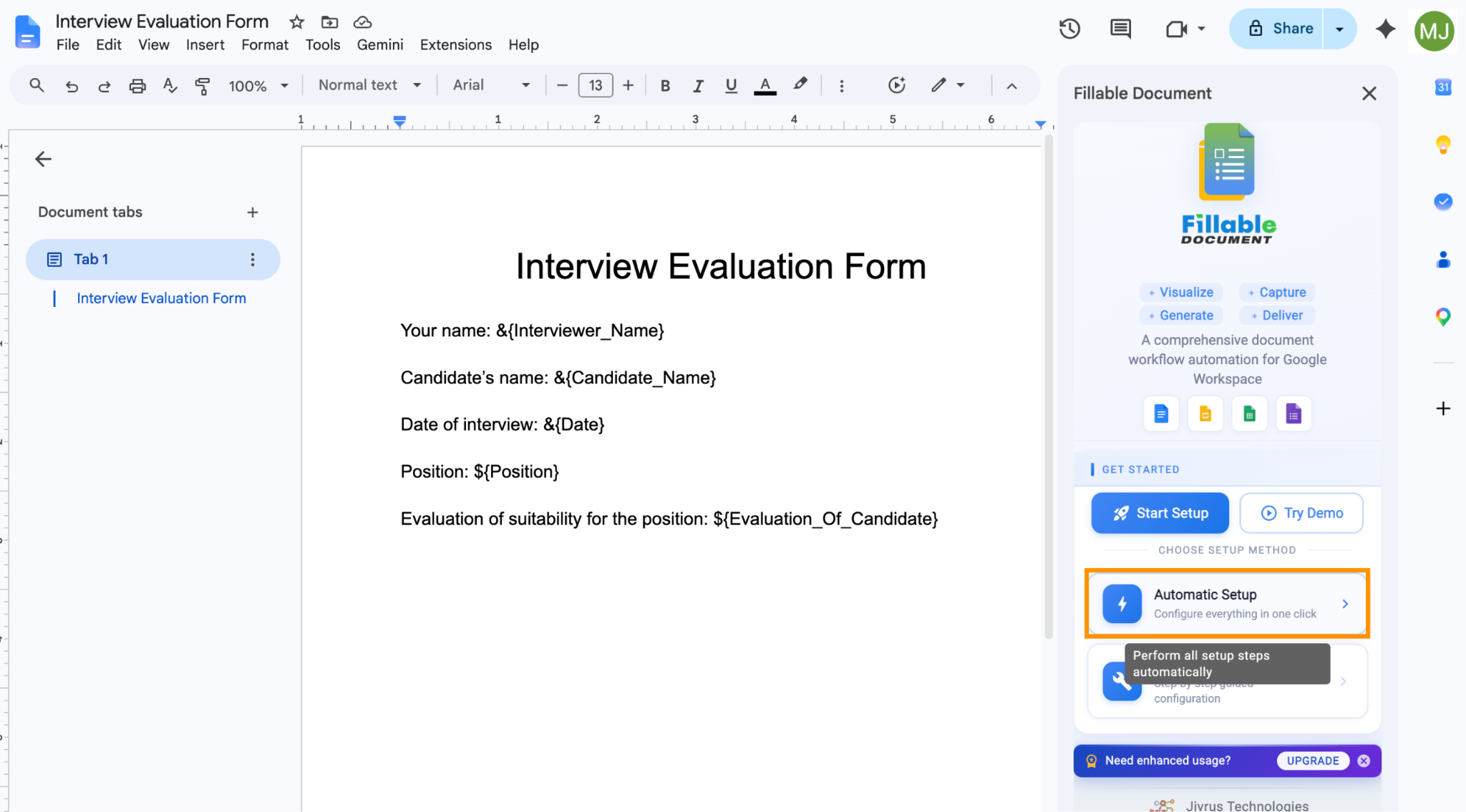
- In the Fillable Document box, check that all your desired fields are present. You can add or delete fields as needed. Click Document Template and then click on your named form document. Fillable Document automatically creates a Google Doc and PDF; if you’d like additional formats, click on them. Similarly, if you’d like to share the document with someone, click Share.
Scroll down and click Save.
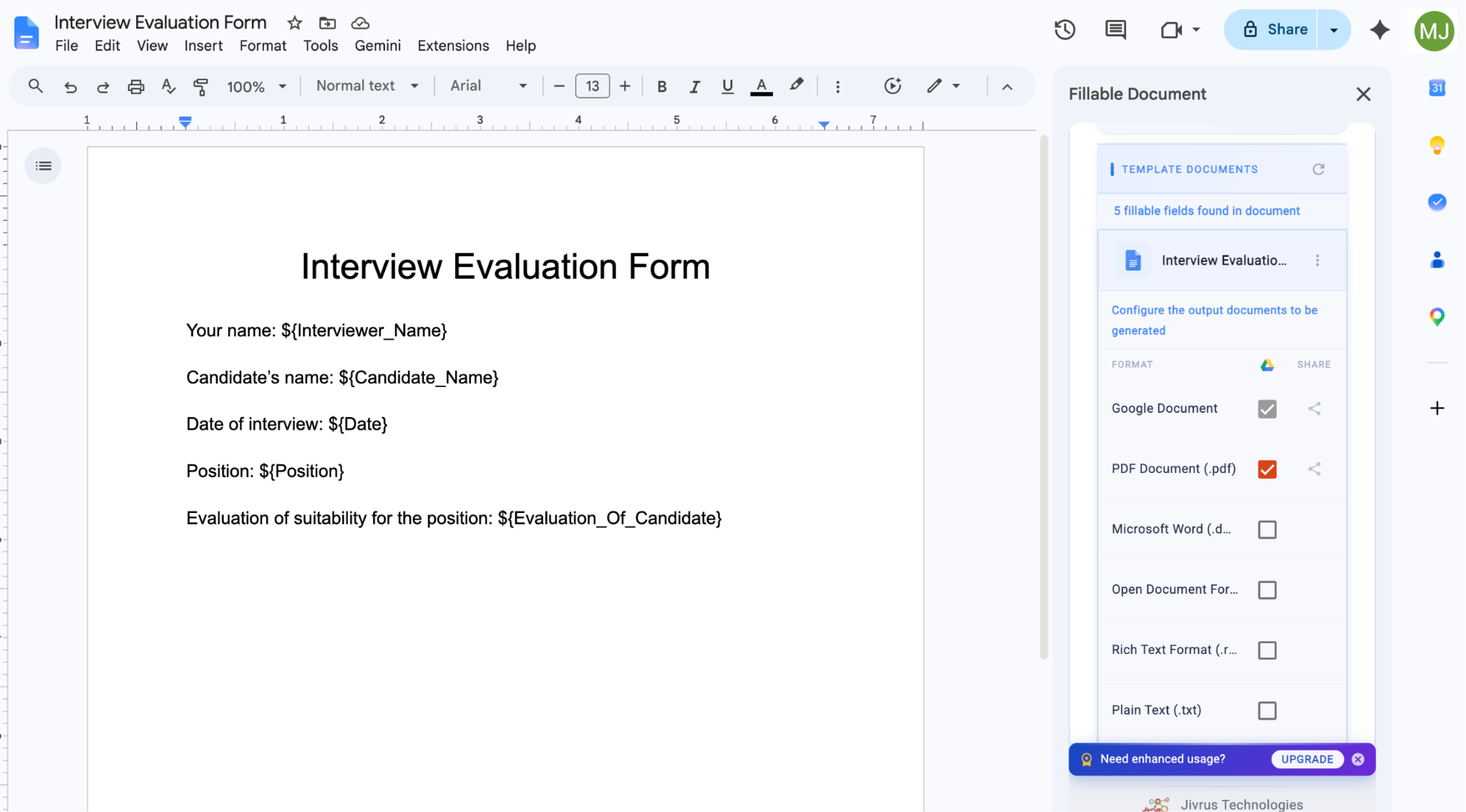
- In the Storage section, rename the Google Sheet as desired and then click Save. You can also explore the other available components in the Fillable Document box and change the folder and document name, as well as add collaborators.
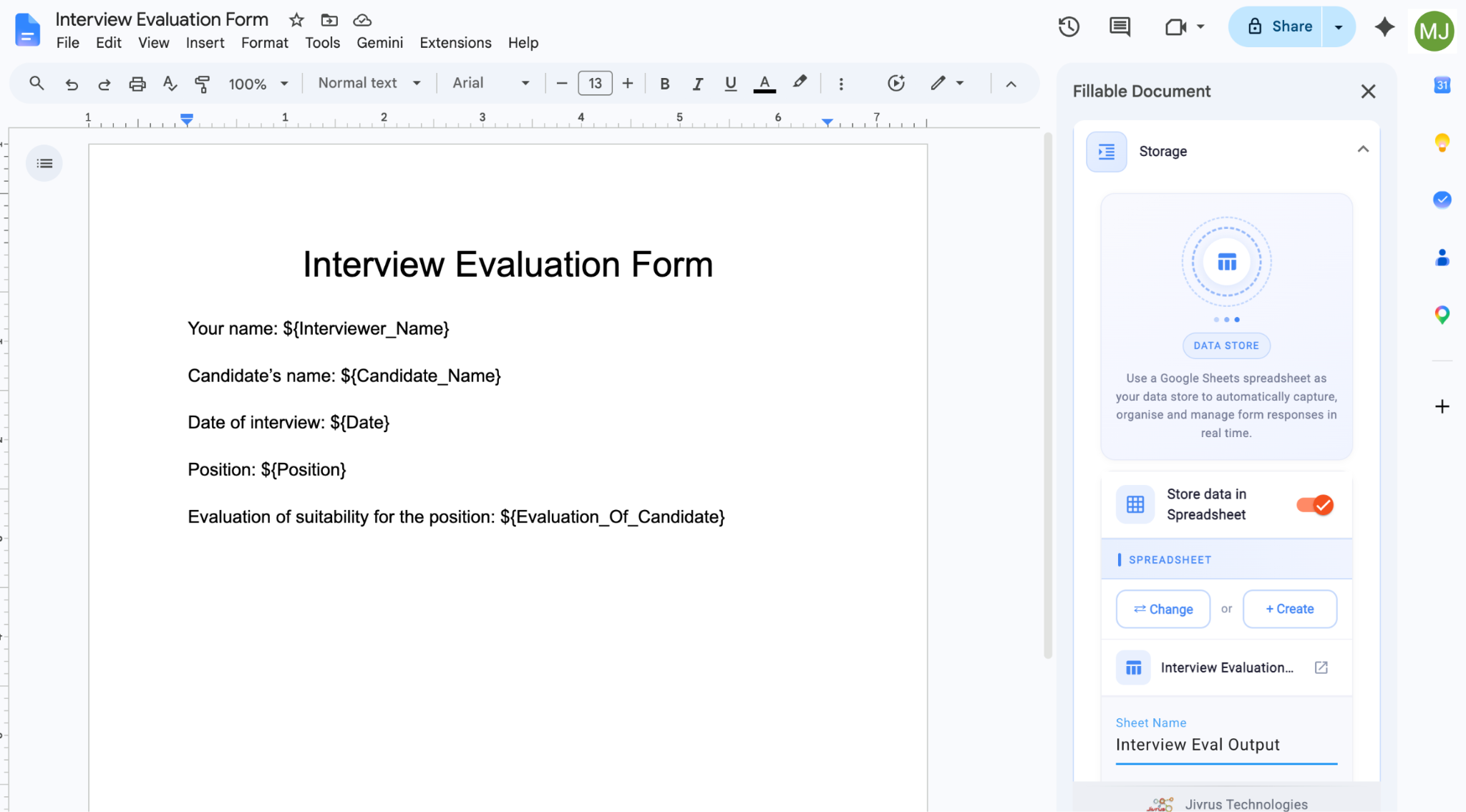
- When ready, click on Launch Pad and then Web Form to generate your fillable form.
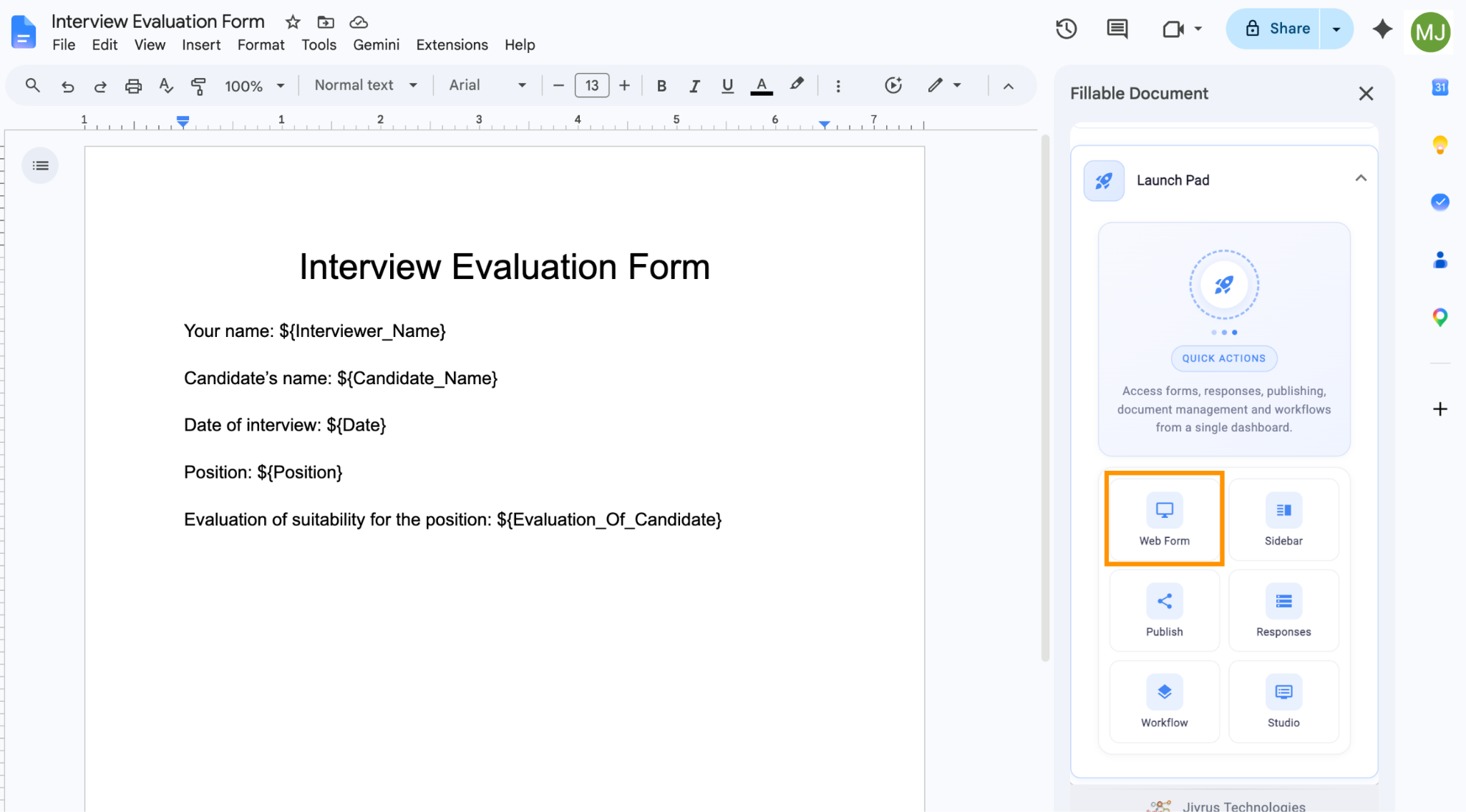
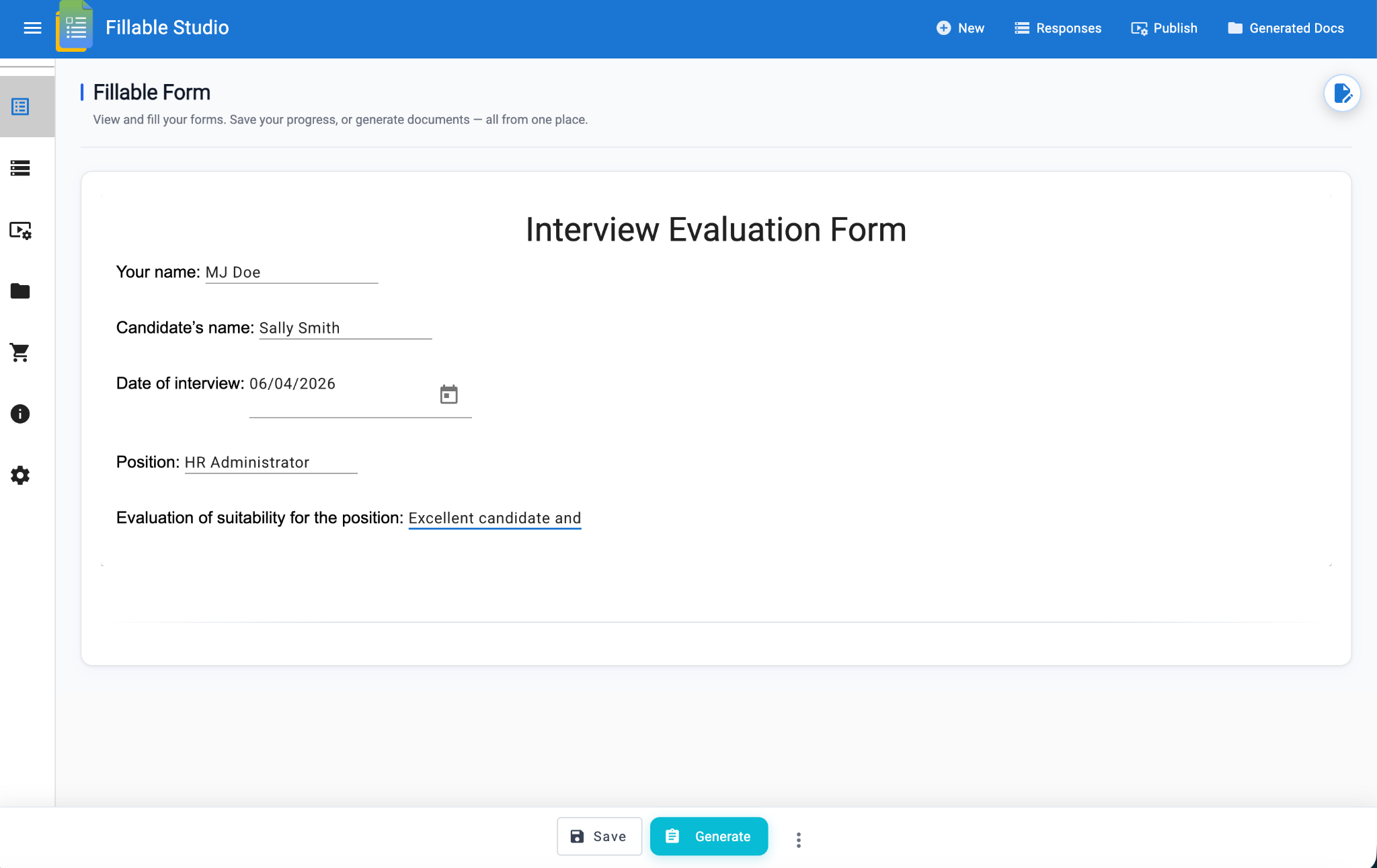
- Test it by filling out the form and clicking Generate. The completed form will appear.
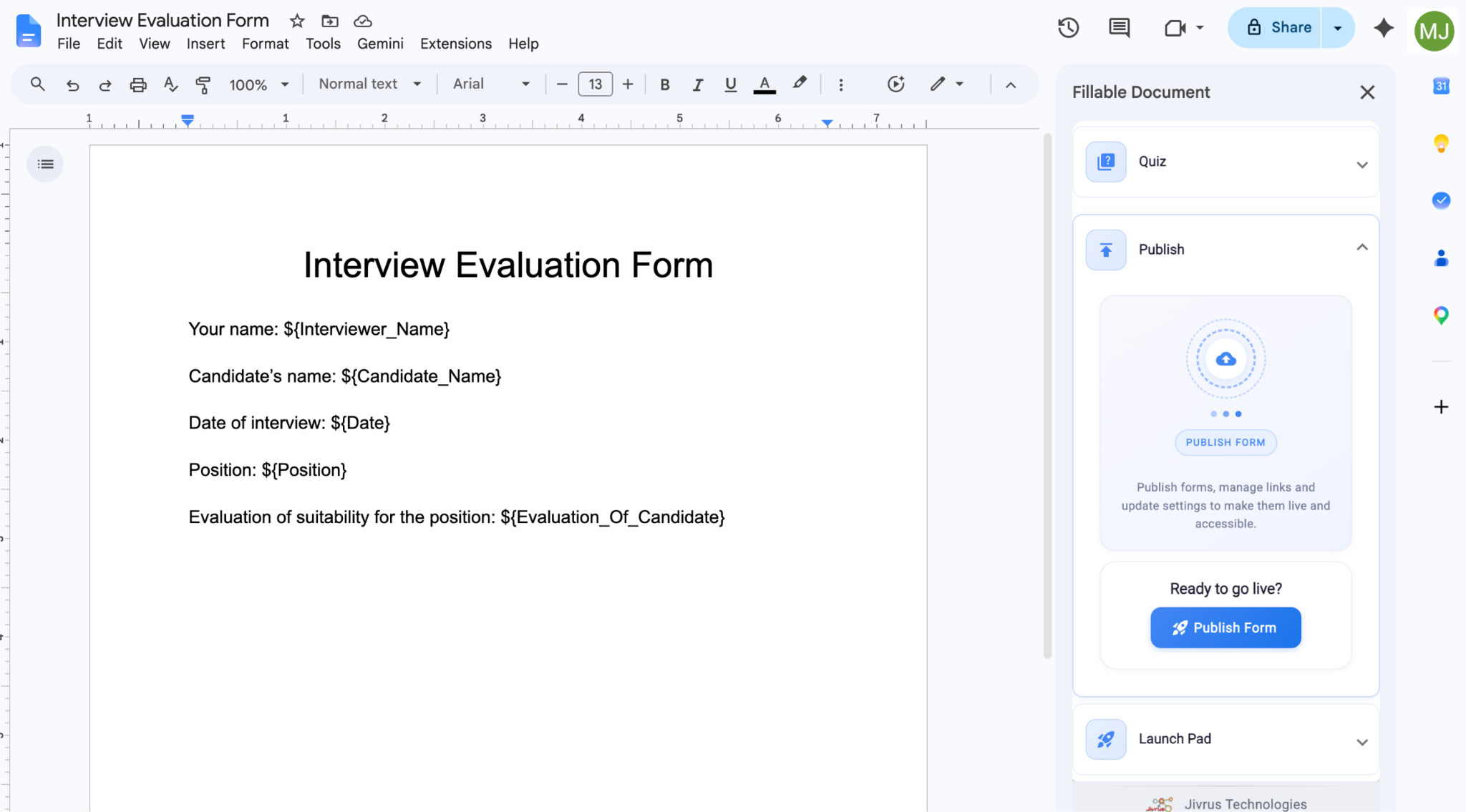
- If you’re happy with the result, return to the document and click Publish, then Publish Form. Complete the settings as prompted and click Save. You’ll then have a link you can pass on to others to fill out the form.
While the linked spreadsheet for data storage is a benefit of this method, it’s difficult to produce an attractive-looking form.
Additionally, the process of creating the form is time-intensive, and add-ons tend to be buggy. I experienced my share of issues while creating this direction set, primarily around the initial setup. I also found that it’s crucial to allow the add-on access to all the suggested items in Step 2; if you try to be selective, there’s no coming back from this mistake.
Need to gather responses? Jotform is built for it
Now that you know how challenging it is to successfully create forms in Google Docs, why not try a much easier option? Jotform is the number-one online form builder on G2 according to thousands of users.
If you’ve already designed your form in Google Docs, don’t worry — you don’t have to start over. Simply upload the document to Jotform Smart PDF and it becomes a real, database-connected form in seconds.
Why Jotform beats Google Docs
Not only does Jotform make form creation easier for you, but it also offers a better experience for your respondents.
Consider this: Unlike a Doc, where “Editors” can see everyone else’s cursors and delete or change your questions, Jotform offers a private, locked-down experience. You won’t have to worry about changing sharing settings, unintentionally exposing other people’s data, or constantly checking to make sure form content hasn’t been altered. There’s no risk of respondents “breaking” the structure while filling out a form, and every form you create in Jotform is secure and easily shared.
Plus, why copy-paste from 50 different Google Docs “forms” when Jotform puts every response into a single, organized spreadsheet? You can either integrate your forms with Google Sheets to sync automatically, or use Jotform Tables to collect, analyze, and share the collected data right within Jotform.
Jotform is as easy as it gets when it comes to online forms:
- Form creation is a cinch: Jotform has an intuitive drag-and-drop user interface that makes building forms quick and easy.
- It has more than 2,000 free PDF templates and 20,000 free form templates for any use case: Take advantage of Jotform’s many customization options to transform templates into beautiful, professional forms that reflect your brand identity.
- It has advanced form features: Conditional logic, answer piping, and auto-submitting make your forms engaging and intuitive for respondents.
- Jotform is mobile-friendly by default: Without any coding, you can create responsive HTML inline forms that automatically adjust to any device.
- Respondents don’t need to log in: Your audience simply clicks the link and starts answering questions.
- It integrates with most business tools: Jotform has the most integrations in the industry, including over 40 payment integrations without any additional commissions. You keep 100 percent of the money you collect, excluding the transaction fees charged by your chosen payment processor.
Why waste time using workarounds and add-ons only to create minimally functional forms? Skip Google Docs and switch to Jotform. You’ll save time and get better results — and you can start today for free.
FAQs about fillable Google Docs
If you’ve already created a form in Google Docs and just need it to be “fillable,” save it as a PDF and then upload it to Jotform Smart PDF Forms. It becomes fillable in seconds. Your respondents don’t need to log in; they just click, fill, and submit.
Yes. Using Jotform Smart PDF Forms, you can convert any non-fillable PDF to fillable in seconds. The resulting form will be mobile-friendly, and you can automatically sync your fillable PDFs to the cloud services you use daily such as Google Drive, Dropbox, and Box. (Learn what a PDF is here and read more about Smart PDFs here.)
Jotform is one of the easiest ways to create a form online. You can start for free, and forms are quick and easy to set up. It also has a wide range of tools and features that allow you to make forms that are highly engaging for respondents before sharing the forms and their data easily.
No, Google Docs does not have a native fillable form feature. There are workarounds you can use to overcome this limitation (like inserting tables or installing add-ons), but even these tactics have shortcomings related to data privacy and form integrity. The best option is to use a dedicated form builder like Jotform.
This article is for small business owners, HR professionals, teachers, and admins who need to collect information using the familiar interface of Google Docs. It should validate their desire to keep things in a document format while clearly explaining the technical limitations of a word processor, providing step-by-step “hacks” for native tools, and ultimately positioning Jotform as the professional solution for data integrity and security.























Send Comment: