
TL;DR
Ready to build a website, but don’t know how to code? Start with these essentials:
- You no longer need coding skills to create a professional website. Jotform AI Website Builder gives beginners one of the easiest ways to create a website from a prompt, customize it visually, add forms or payments, and publish without touching code.
- The fastest path is to choose one goal for the site, generate or select a layout, edit it, and publish it.
- Most beginners don’t need a complex custom website. They need a clean, mobile-friendly site with the right pages, clear messaging, and one strong call to action.
- The biggest mistakes are trying to build too much too early, choosing the wrong structure, and publishing without forms, payment options, or contact paths.
According to Clutch’s 2025 State of Small Business Websites report, 83 percent of small businesses now have a website — up from 64 percent in 2018. This growth is fueled mainly by the rise of no-code tools and AI integrations that allow anyone to build a web presence without knowing how to code.
No-code web design tools are handling the technical work that used to require in-depth knowledge of HTML, CSS, and JavaScript. Now, instead of learning programming, all you need to build a functional website is a clear idea of the site, the right no-code website builder, and a simple iteration plan.
This article will show you how to make a website without coding in 2026. We’ll cover the steps to plan your build strategy, the right no-code tool to use, and the kinds of changes you can expect to make. Once you’ve finished reading, you’ll be able to build an online presence — whether that’s a portfolio site, a service business site, or a simple online store — in just a few hours.
Can you create a website without coding skills?
Yes, you can create a website without coding skills. This means using an AI website builder or a no-code platform that lets you design complete production-ready pages visually rather than starting with code.
Here’s what that looks like in a practical sense:
- You won’t write or edit source code at any point. The platform automatically translates your visual choices into production-ready HTML, CSS, and JavaScript.
- You use AI-generated layouts based on a prompt, or pick a pre-built template with modular drag-and-drop blocks and adjust it from there.
- The platform you choose handles hosting and publishing for you, allowing you to go live with a single click.
- Mobile responsiveness and page structure are built in. Layouts adapt to phones, tablets, and desktops without manual setup, and the underlying site structure follows accessibility and basic SEO conventions by default.
With these no-code tools, the hardest part of building a website isn’t learning design or programming skills. The real challenge is deciding on the purpose of your website and communicating it to the no-code website builder you choose.
But what you get in return is speed. No-code tools dramatically reduce design and development time, allowing you to test ideas quickly, launch faster, and maintain your site without ongoing technical support.
How to create a website without coding skills
1. Decide the kind of website you need
The first step is to decide on the kind of website you need. Before evaluating no-code platforms, think about the purpose of your site. Everything else — like page count, design theme, copy, and calls to action — follows from this decision.
You can start by writing down your answers to the following questions:
- What kind of business, service, or project will the website represent?
- Who are your visitors, and what do you want them to do when they arrive? Read, buy, book, subscribe, or contact you?
- How many pages do you realistically need? Three, 10, or somewhere in between?
- What message or core idea should every page reinforce?
- What are your visual preferences?
Try to write specific, well-defined answers, as these will become your prompt later on if you use an AI website builder.
Depending on your answers, the type of website you need will fall into one of a few common categories, including
- Small business website with a homepage, an about page, services or products, and a way to contact you. These are common for restaurants, salons, local agencies, and brick-and-mortar businesses.
- Portfolio website built around project examples, case studies, or visual work. This category tends to be used by photographers, designers, writers, and developers to showcase what they do.
- Service business website centered on inquiry forms, scheduling, and clear service descriptions — a good fit for consultants, coaches, contractors, and freelancers who book client work.
- Event website focused on registrations, details, and updates for specific events like weddings, conferences, workshops, and one-off launches.
- Personal brand website anchored around your name, story, and what you offer. This website works best for authors, speakers, creators, and anyone building an audience around themselves.
- Simple online store designed around product listings, a cart, and checkout. Ideal for side projects, small product lines, and creators selling a limited catalog.
Picking a type up front means the templates, prompts, and page structure you generate later will fit your website’s needs from the outset — saving you time on a redesign later.
2. Choose a no-code or AI website builder
With a clear vision of your site in mind, it’s time to choose a no-code or AI builder designed to handle the entire website creation process. This is a critical decision because the tool you choose determines how you design pages, how much you’ll need to learn before you can publish, and how easy it’ll be to make changes later.
The right choice, especially for beginners, is a tool that handles design, editing, and hosting without requiring you to install software, configure servers, or learn how the underlying web stack works. That’s why many gravitate toward template-based, drag-and-drop website builders that remove much of the technical setup.
AI-powered tools like Jotform AI Website Builder take things further by generating a complete, production-ready website from a simple prompt. For someone without coding skills or design experience, it simplifies the web design process — you can describe your site in plain language and have a working structure and layout ready in minutes.
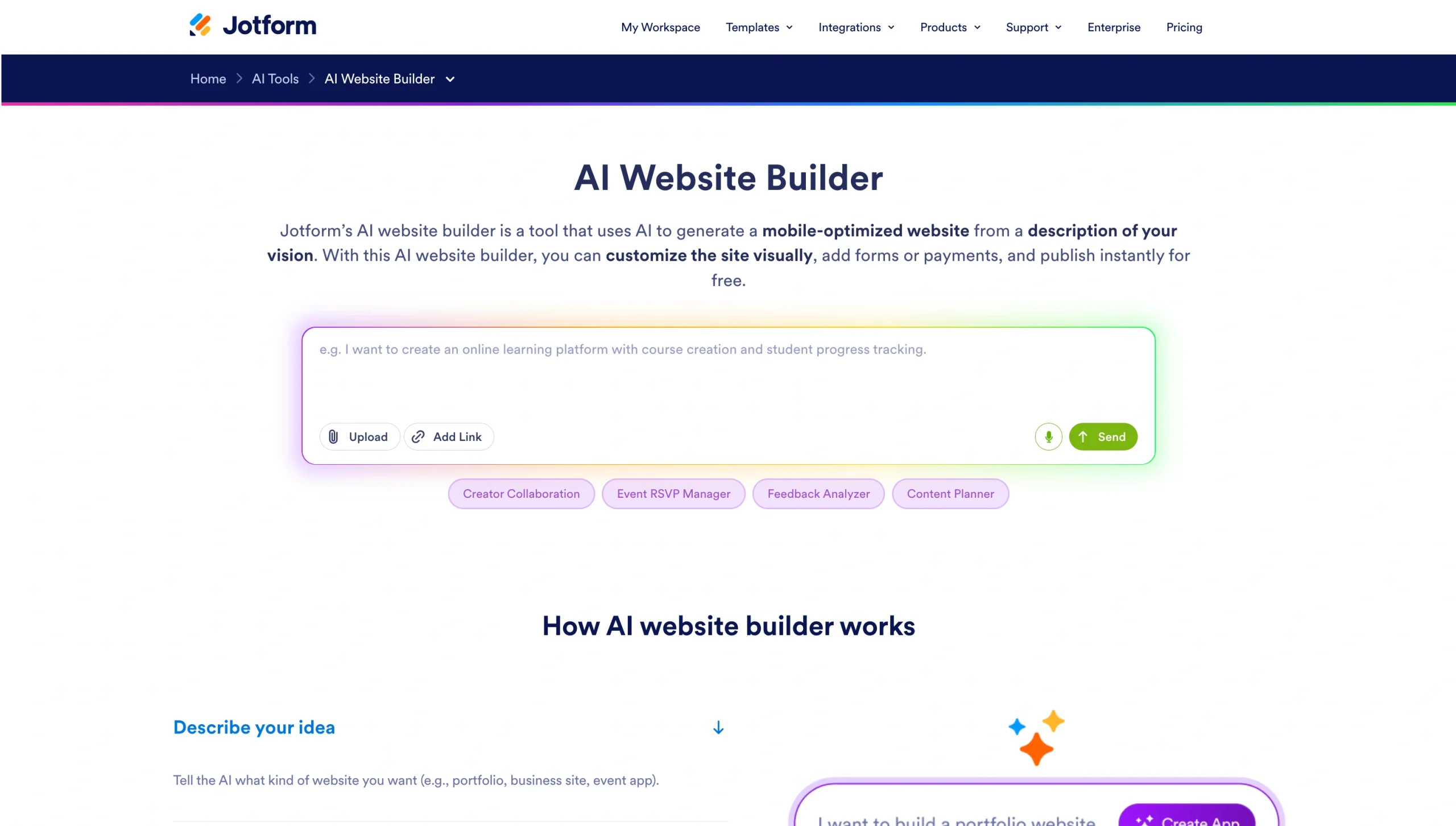
3. Start with AI or a ready-made layout
You have two practical starting points when creating a website without code: an AI-generated site based on a prompt or a ready-made template. Both give you a working structure you can begin editing almost immediately.
Whichever one you choose, you’ll want to avoid starting from scratch unless you have some design experience. Creating a website with AI or a template benefits you in the following ways:
- It reduces design fatigue: You don’t have to learn spacing conventions, typographic hierarchy, or color theory to produce a professional-looking first draft — the starting layout already follows them.
- It speeds up the design process: Essential sections and elements are already in place, so you’re editing rather than figuring out what to add.
- It gives you a framework for content: You know what sections exist and the kind of copy each one expects, instead of guessing at what to put where.
- It moves your focus to the message: You can spend more time figuring out positioning, offer, and calls to action instead of page structure.
For most beginners, the AI-generated route is the faster path because the structure already maps to your specific needs — if you give the builder a strong, well-defined prompt to work from. A weak prompt produces poor results on the first try.
If you’re building a website for your coaching business, for instance, the difference between a weak prompt and a strong one looks like this:
Weak prompt:
“I want a modern website suitable for an experienced coach.”
Strong prompt:
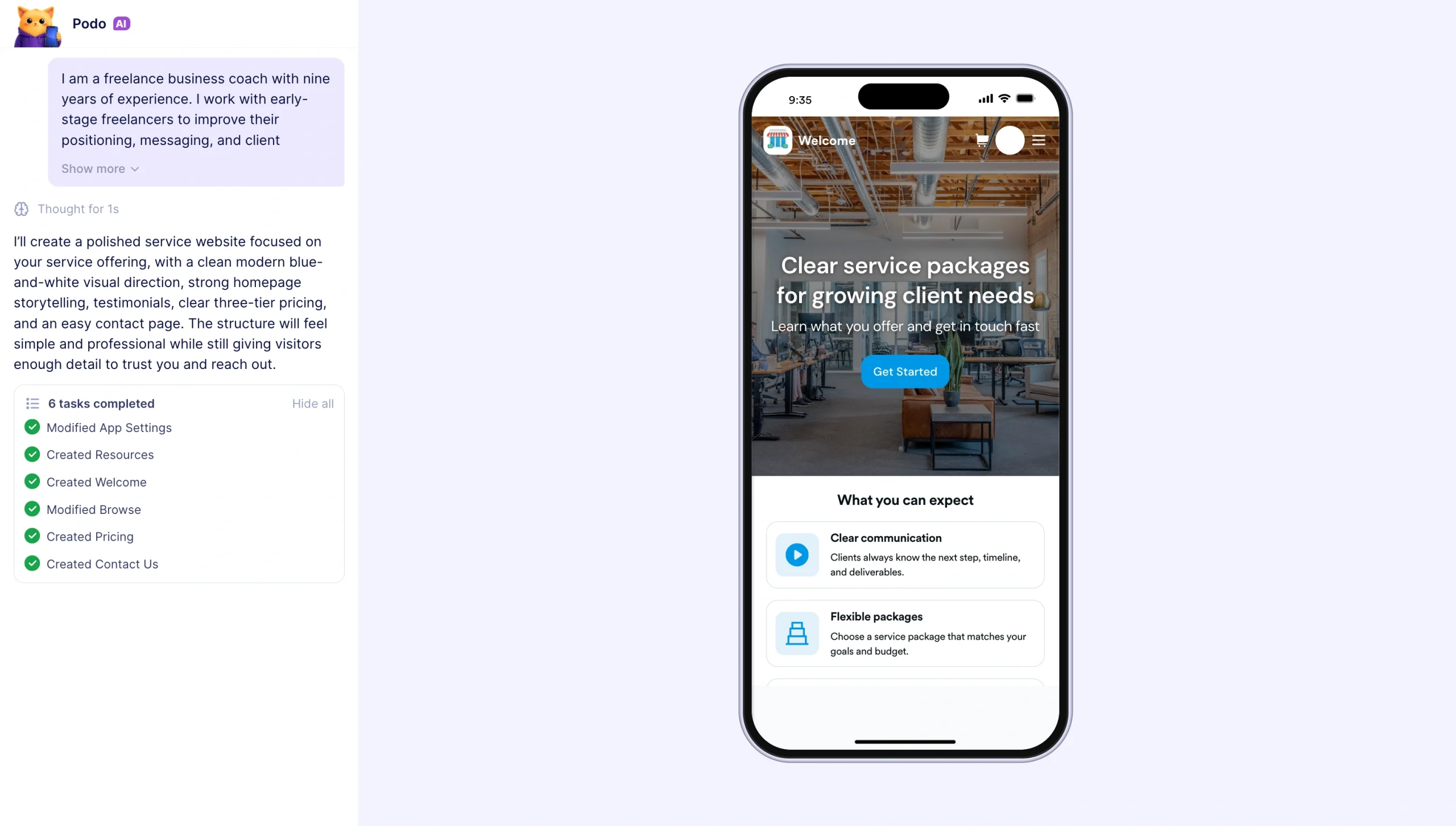
“I am a freelance business coach with nine years of experience. I work with early-stage freelancers to improve their positioning, messaging, and client acquisition flows. I need a simple website with a homepage that explains my service, a testimonials section, and a pricing section that shows the three service packages I offer. I also need a contact page with a form and my contact information. Keep the design clean and modern with blue and white colors.”
Give Jotform AI Website Builder a detailed prompt like this, and you’ll get back a ready-to-edit first version with sections, headings, and placeholder copy already in place.
Alternatively, if you struggle to write detailed, specific prompts, you can start with no-code website builders that offer ready-made templates with editable layouts. The trade-off here is that the layout is generic rather than tailored to your needs, so it’ll require more customization than an AI-generated site.
4. Customize the pages visually
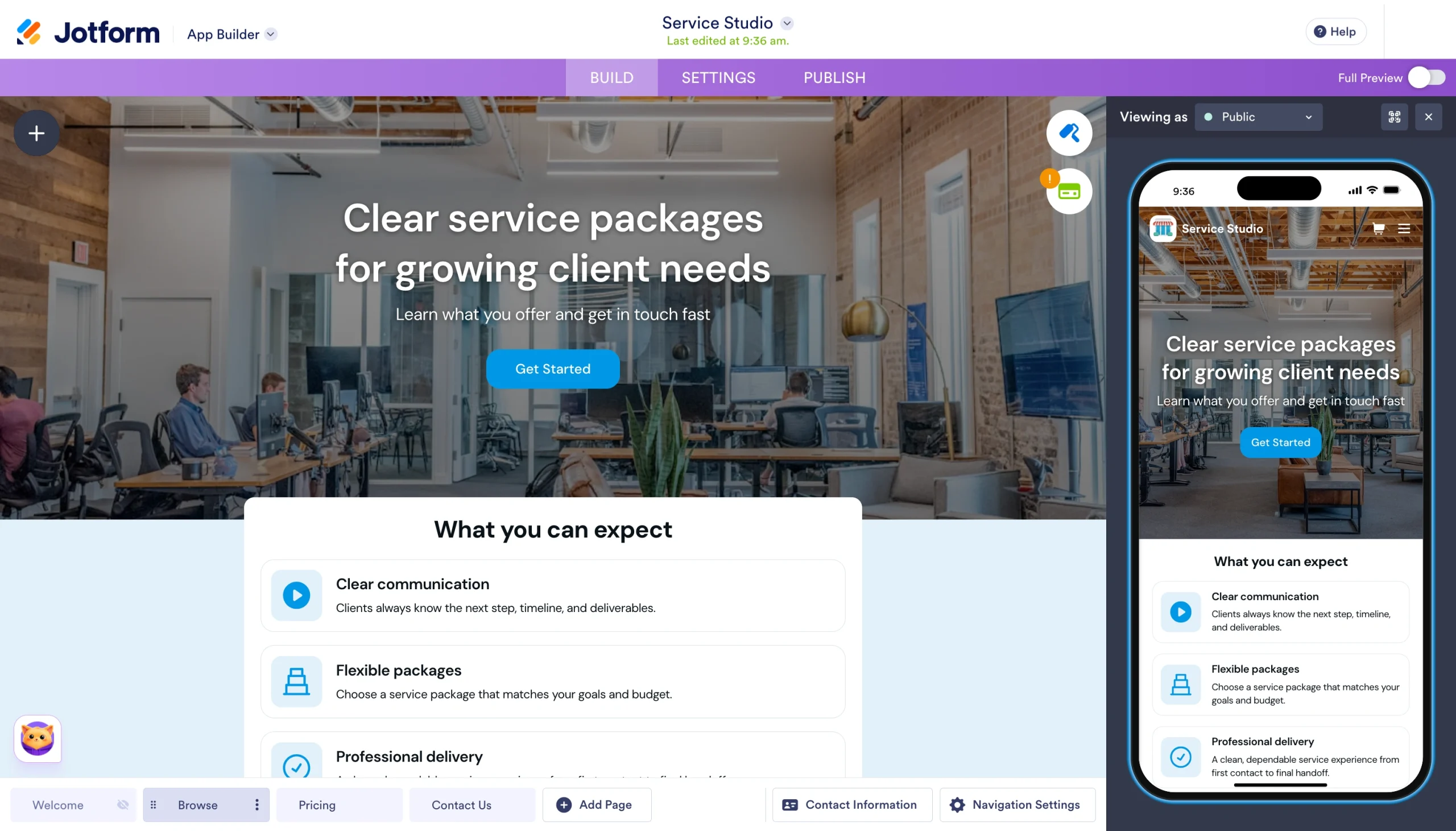
The first AI-generated version or template layout is only a starting point. The next step is to customize the draft in your chosen platform’s visual drag-and-drop editor. Here are the types of changes you can expect to make:
- Replace placeholder text: Both the template and the AI-generated website contain generic copy. Going through and rewriting text in your own voice — the way you describe your services or talk to customers — is the most important change you’ll make at this stage.
- Add your logo and brand colors: Upload your logo to the header and footer, and set your brand colors to apply consistently across buttons, headings, and accents. Most editors let you save these as a palette you can reuse across pages.
- Upload your own images: Stock or AI-generated visuals work as placeholders, but real photos of your work or products make the site feel more like yours. Swap them in wherever the layout calls for an image.
- Rearrange sections: If the AI or template puts testimonials at the bottom but you’d rather lead with them, drag the section up. The same goes for any block — about, pricing, contact, FAQs — that you want closer to or further from the top.
- Edit buttons and calls to action: Default button copy like “Learn more” or “Get started” is rarely what you want a visitor to do. Rewrite each button to reflect the specific action you’re asking for, like “Book a free consultation,” “See pricing,” or “Send a sample request.”
- Adjust typography and spacing: Change font type, size, alignment, and spacing between sections to personalize how pages look and feel.
With the drag-and-drop editor in AI website builders like Jotform, customization is visual and approachable even without design experience. Once you adjust the section or text you want to edit, you’ll see the change take effect immediately on the page.
5. Add the pages and sections your website actually needs
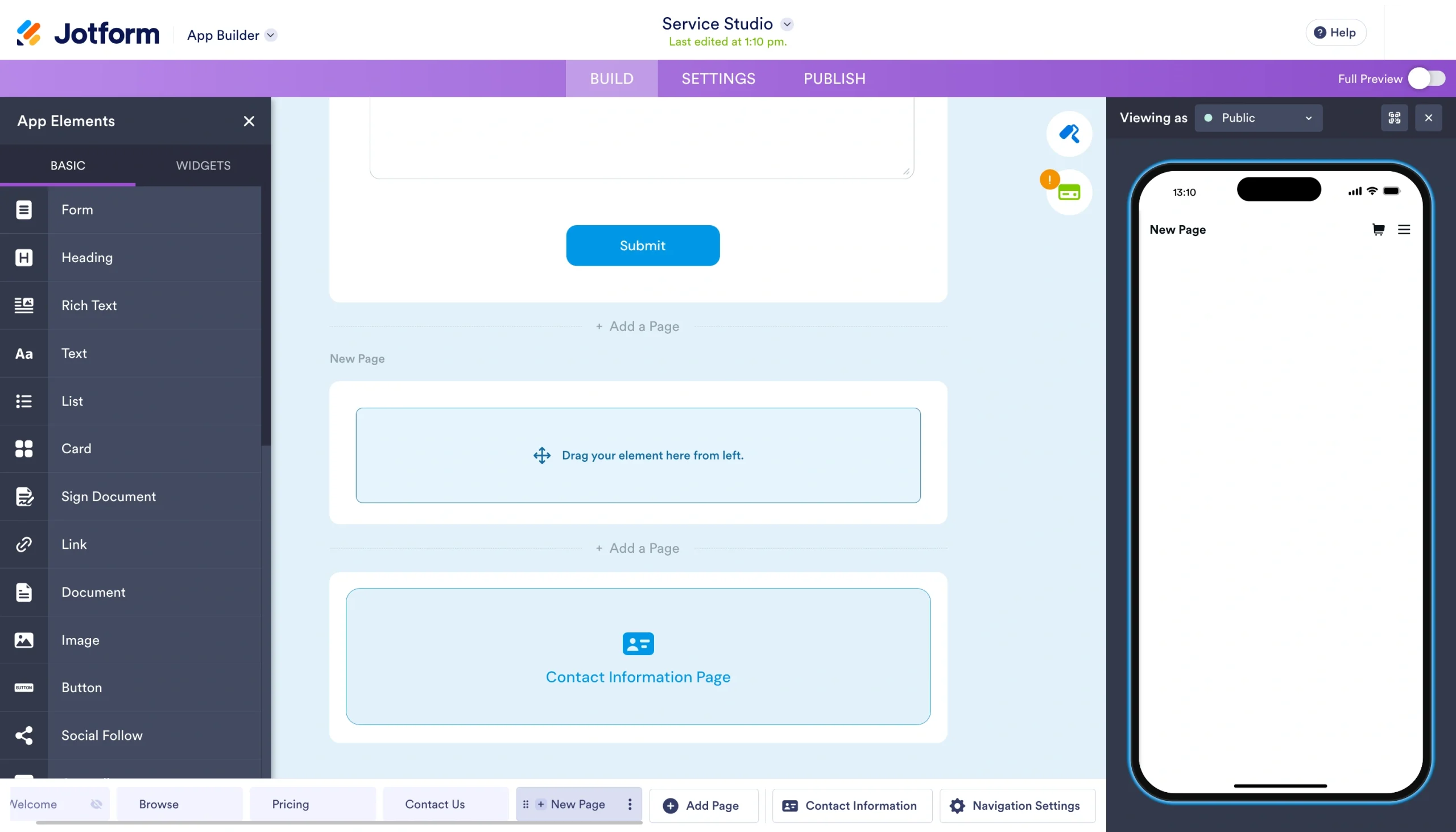
Most no-code website builders let you add or remove pages and sections in a few clicks. What you need depends on the type of site you’re building and what you want visitors to do. Your first website will typically include some version of these pages:
- Home: The entry point to any website. This page should make it clear who you are, what you offer, and what you want a visitor to do next.
- About: This page should include background information on you, your business, or your work. The about page is useful for visitors who want to know who’s behind what they’re looking at before they buy or book a service.
- Services or products: A full list of what you offer, with enough detail — and ideally pricing — for a visitor to decide whether to take the next step.
- Contact: This should contain a way for visitors to get in touch, usually via a form or email. Relevant business details such as location, hours, and phone number also belong here.
- FAQs: Includes answers to questions visitors ask before buying, booking, or signing up, saving you from answering the same questions over email.
- Testimonials or proof: Quotes, reviews, case studies, or logos of past clients to show that other people have worked with you and had a good experience.
Not every website needs every page mentioned above. A simple event website might only need a homepage and a registration section. A portfolio might be a single page with project examples and a way to get in touch. The right structure is the one that helps visitors understand your offer and act on it in as few pages as possible.
6. Add forms, payments, or contact paths
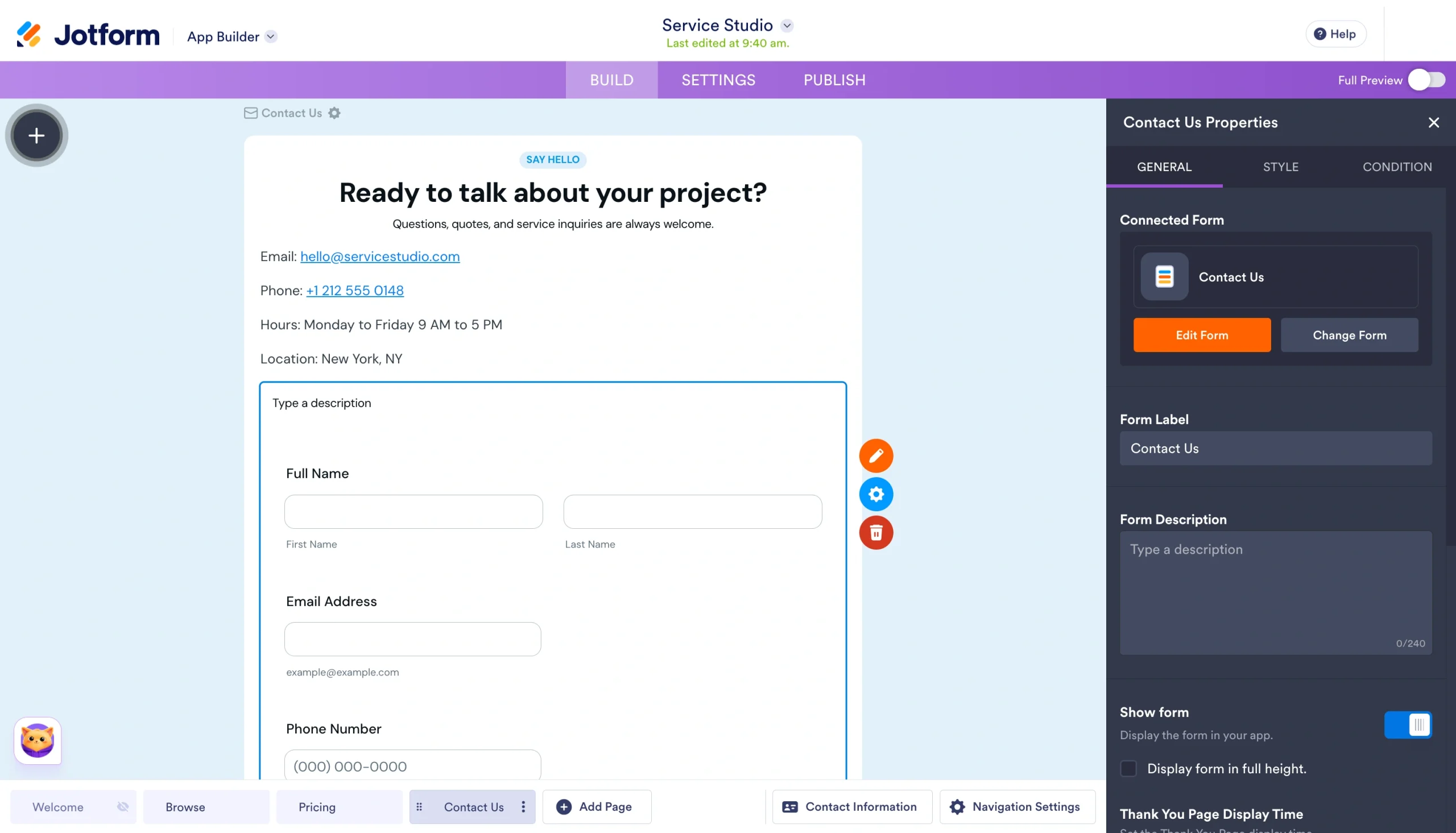
Today, a static website that looks professional isn’t enough. You need a site that serves as a functional business tool, helping you accomplish tasks and move your work forward. Once the important pages are in place, start setting up the actions you want the website to handle:
- Collect inquiries through a contact form that routes new messages to your inbox.
- Capture leads with a newsletter signup or gated download.
- Accept registrations for events, classes, or memberships.
- Sell products through a checkout-enabled store or order form.
- Book appointments with a scheduling form that syncs to your calendar.
- Receive payments or donations through integrated payment processing.
While most no-code builders let you add a basic contact form on a page, things get more involved when you need conditional logic, file uploads, recurring online payments, integrations, or automated follow-up actions.
Jotform AI Website Builder stands out from other no-code web design tools thanks to its native integration with Jotform’s smart forms, payments, and workflows. This means the forms on your website can connect to Stripe and PayPal, send automated follow-up emails when a submission comes in, and update spreadsheets or other systems as part of a workflow. Your website can then start serving as a business tool as soon as it goes live, collecting inquiries, processing payments, or booking appointments without additional setup or third-party services.
Pro Tip
If you need help deciding on the right form for your business website, Jotform offers more than 20,000 form templates to choose from.
7. Check mobile layout before publishing
Mobile devices account for 58 percent of all web traffic, which means most visitors will view your website on a smartphone. Thankfully, modern no-code website builders automatically shrink headers and stack sections to make websites responsive on these devices, eliminating the need to design separate mobile versions. Still, it’s worth switching to the mobile preview in your editor before publishing and reviewing the following:
- Headline length: A line that fits cleanly on a desktop screen may wrap awkwardly or get truncated on a phone. Shorten anything that breaks at the wrong word or pushes other content off-screen.
- Button placement: Buttons should be reachable with a thumb, not buried inside dense paragraphs. Ensure the main call to action stays near the top of each page, where a visitor can tap it without scrolling.
- Image cropping: Responsive layouts often crop images to fit narrower aspect ratios, which can cut off heads, products, or important details. Check everywhere a face or product image lands close to an edge.
- Form usability: Input fields should be easy to tap, with enough space between them to avoid accidentally tapping the wrong one.
- Overall readability: Body copy should be large enough to read without zooming and provide sufficient contrast against the background.
8. Publish your website and share it
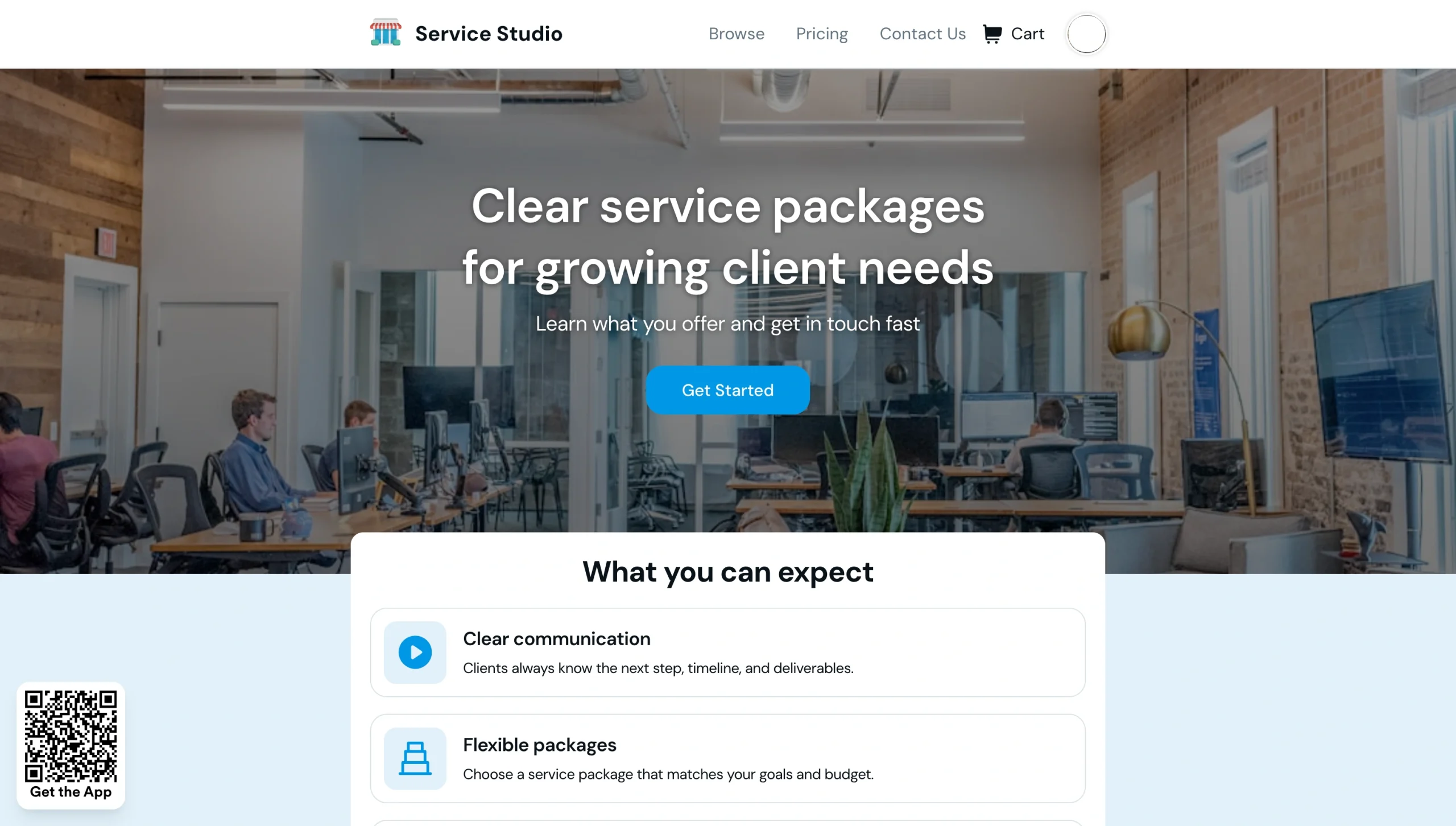
Once the content, structure, and calls to action are in place, your website is ready to go live. Modern no-code web design tools make this easy by providing
- A live URL: This is your default web address that anyone can visit — usually something like yoursite.yourbuilder.com.
- Option to connect a domain: If you’ve bought a custom domain like yourbusiness.com, most builders walk you through pointing it to your new site. This custom domain replaces the default URL.
- Sharing options: Once it’s live, you’ll often have options to post the URL on social media, include it in your email signature, generate a QR code for printed materials, or run it through paid ads to drive traffic.
The entire process no longer requires manual server management, file uploads, or DNS account setup. You can publish in one click from within your editor.
Pro Tip
After building your no-code website, a Jotform custom domain can make your forms feel more professional by keeping form links aligned with your brand instead of using a generic URL.
What to include on your first website
You’ve seen how to build a website without programming. As you build your first one, try to avoid complexity as much as possible. Your first no-code website doesn’t have to be huge — it just needs to be clear.
Most beginner websites work well with a few pages, as long as they include
- A clear headline that a visitor can read within a second or two of landing
- A short explanation of what you offer below the headline
- One strong call to action for the most important action you want a visitor to take
- Contact information or a form for visitors to reach you
- Testimonials, reviews, or credentials that build trust
- Clean navigation, whether it’s a multi-page site with a menu or a single page that scrolls
Common mistakes beginners make when building a website without coding
Even with no-code website builders doing the heavy lifting, you can still make mistakes that negatively impact your site’s performance and user experience. Here are the most common pitfalls to watch out for:
- Starting without a clear goal: Avoid picking a tool or building anything before deciding and writing down the purpose of every page on your website. Lack of adequate planning produces a generic website that doesn’t achieve any results.
- Writing vague homepage copy: Usually, AI-generated copy is vague and says nothing about what your business does. Replace every AI-generated text with specific, clear copy that adequately describes your business and its offerings. Specificity is what separates a website that converts from one that doesn’t.
- Adding too many pages too early: Depending on the type of website you’re building, the basic home, about, services/products, and contact pages might be sufficient. Build the essentials first and only expand when there’s a reason to.
- Forgetting mobile usability: A huge percentage of traffic to small business websites is mobile, but editing mostly happens on desktop. As you customize, don’t forget to preview changes on mobile view and confirm that everything looks polished.
- Publishing without forms, payments, or contact options: A website that can’t take a booking, process a payment, or route a question to your inbox isn’t a business tool. Make sure the actions you want visitors to take work before you publish or share the URL.
- Overcomplicating the design instead of focusing on clarity: Fancy animations, gradient overlays, and unusual layouts can make a small business website look good, but they can also make the site harder to read and slow down load times. Stick to clear typography, simple contrast, and a predictable layout that’s both functional and easier to manage.
While avoiding these mistakes won’t make the final product perfect, it’ll give you a useful first version to improve. A simple website that’s live will always outperform an ambitious one stuck in endless revisions. So, focus on launching first, then refine your website as real users interact with it.
Create your website with Jotform, no coding required
If you want to go from idea to live website as fast as possible, Jotform AI Website Builder offers the easiest, most reliable path. The tool removes friction from the entire website design experience by combining AI speed with no-code simplicity and the reliability of Jotform’s ecosystem.
Getting started is simple. Enter a prompt into the AI website builder describing your business, project, or portfolio, and it’ll generate a complete mobile-optimized site with pages, sections, copy, and imagery. From there, you have full control over the layout, and you can customize the text, colors, buttons, and sections using the visual drag-and-drop editor.
Jotform AI websites include forms, product listings, scheduling, and payment integrations by default — just specify the functionality you need in your prompt. Once set up, your website integrates with more than 40 payment gateways, including Stripe, PayPal, and Square, and connects to over 150 tools so that leads, payments, and form submissions flow directly into the systems you already use. Web hosting and publishing are built into the website builder, too, allowing you to launch portfolios, service businesses, event websites, and simple stores immediately — even without a custom domain name. Plus, the tool turns your website into a responsive Progressive Web App (PWA) that delivers an app-like experience to your visitors.
For beginners and first-time website builders, cost and time to launch are usually the biggest barriers. Jotform AI Website Builder solves this by allowing you to get a working site live in minutes, and for free. The AI website builder is included in your Jotform monthly subscription, and you can access it on the Starter plan.
If you need a fast, professional website without the hassle of learning how to code or hiring a developer, try the Jotform AI Website Builder. It’s one of the simplest ways to get online and start driving real results, whether that’s bookings, leads, or payments.
FAQs about creating a website without coding
The easiest way for a beginner to build a website is to use an AI website builder like Jotform, which generates a complete draft site from a written prompt and lets you customize it visually with a drag-and-drop editor. The initial structure, hosting, and publishing are handled for you.
A simple website can be built in under an hour with Jotform AI Website Builder. Since the AI generates the structure in seconds, most of the time goes into editing copy and uploading images.
No. Most no-code builders give you a free default URL — something like yoursite.builder.com — that goes live the moment you publish. A custom domain — like yoursitename.com — is optional. You can buy one through the builder or transfer one you already own once your site is up and you’re ready to invest.
Most first websites need a homepage, an about page, a services or product page, and a contact page. A simple event website or single-page portfolio can work with even fewer sections as long as the core information is easy to find.
Yes, no-code web design tools like Jotform AI Website Builder include payment processing through integrations with Stripe, PayPal, Square, and similar providers. This way, you can sell products, accept donations, or take service payments directly through your site.


































Send Comment: