
When you add an announcement bar to your Squarespace website, you’re adding a place to notify visitors about upcoming events, deals, and sales. You can use this simple add-on to increase clicks, boost sales, and keep visitors informed without disrupting the browsing experience.
You can use the announcement bar to promote a flash sale or advertise a product you’ve just launched. Announcement bars are also great for advertising free shipping and sharing coupon codes with your audience. A well-designed banner creates a sense of urgency that drives conversions and reduces bounce rate.
Want to add a website announcement bar? Squarespace gives you a few paths to achieve this, including a built-in feature available with certain plans. However, the native option does not allow for much customization or length, so you may prefer other options in many cases. The good news is that you don’t have to waste any more time searching for phrases like “Add sticky banner Squarespace” online.
Our guide unpacks how to embed announcement bar widget Squarespace add-ons. You’ll see a breakdown of the traditional option, as well as the easier and more cost-effective alternative.

Option 1: Install a premium Squarespace marketing extension
When adding a custom announcement bar, Squarespace users typically use a third-party marketing aggregator app. Common options include Hello Bar, Elfsight, and SmartBar, all of which include advanced marketing features. Most platforms follow a similar setup process:
Step 1: Pick your platform
Create an account with your preferred marketing platform and choose an announcement bar template that fits your campaign. The aforementioned platforms serve as a good starting point for researching your options. Compare what each platform brings to the table to make sure you are getting enough bang for your buck.
Step 2: Set up the banner
Customize your banner by adding promotional text and CTA buttons. You can also add other elements, such as a countdown timer, colors, and branding. Most platforms let you configure when and where the banner appears across your website. Make sure to customize the presentation of the banner so it fits your brand.
Step 3: Embed it on your site
Copy the generated embed code and add it to your Squarespace website according to the provider’s installation instructions. Many third-party providers offer powerful marketing tools, but they increase your software costs.
While some providers offer limited free plans, you’ll have to pay for the more advanced features. For example, Elfsight’s free plan limits popups to 200 views, while Hello Bar’s free plan limits popups to 5,000 views. Both platforms add a watermark to popups on the free plan. Adding multiple widgets drives up your software costs and erodes your marketing budget.
Option 2: Add a free, customizable announcement bar widget (recommended)
A free hello bar Squarespace widget is the better choice. If you want advanced features without another monthly subscription, use the Jotform Announcement Bar Widget. Our hosted solution lets you create a professional announcement bar through a user-friendly visual editor and embed it into your Squarespace website.
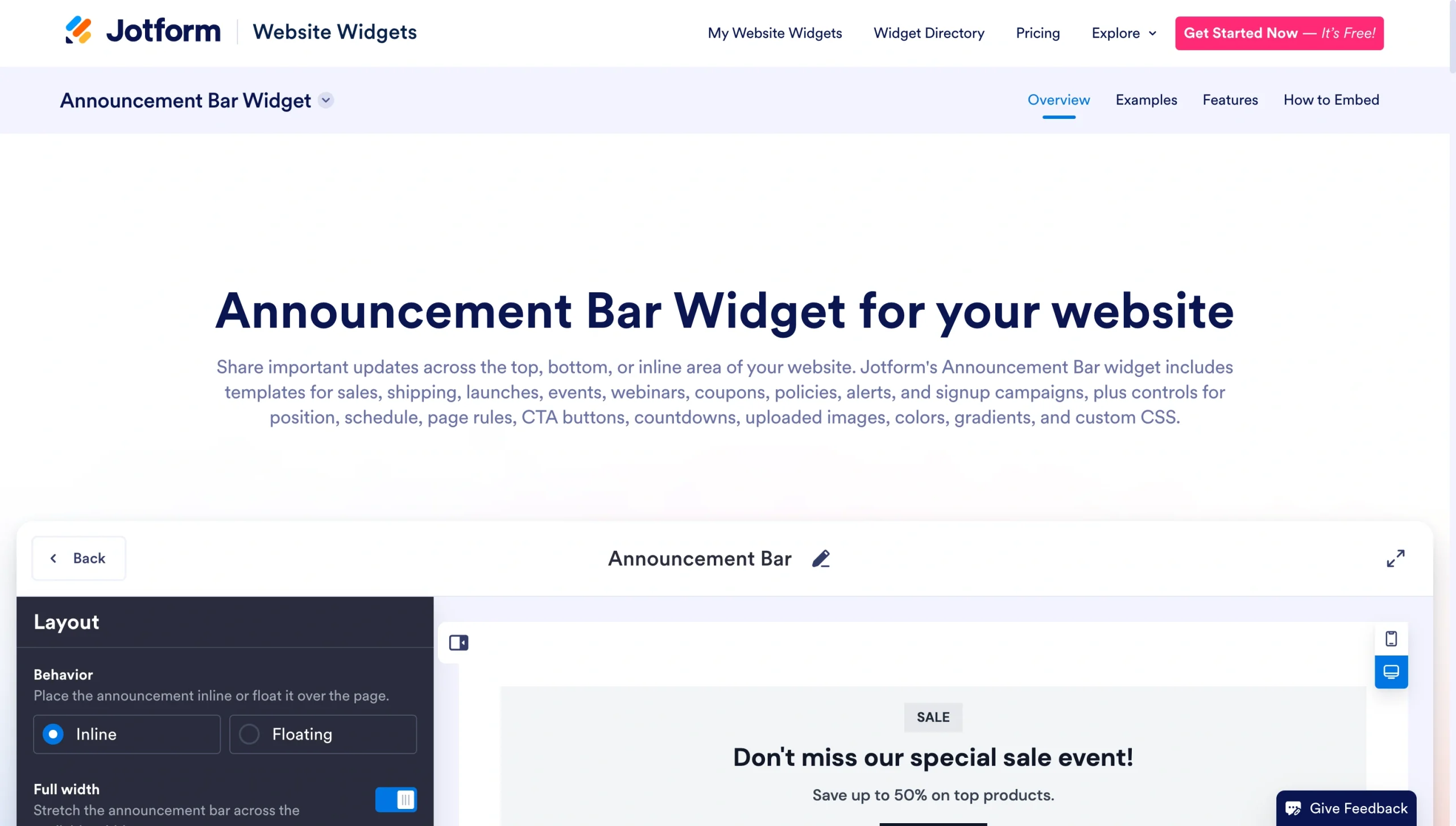
Here’s a step-by-step breakdown of adding a Squarespace promo banner alternative:
Step 1: Open the widget and pick your elements
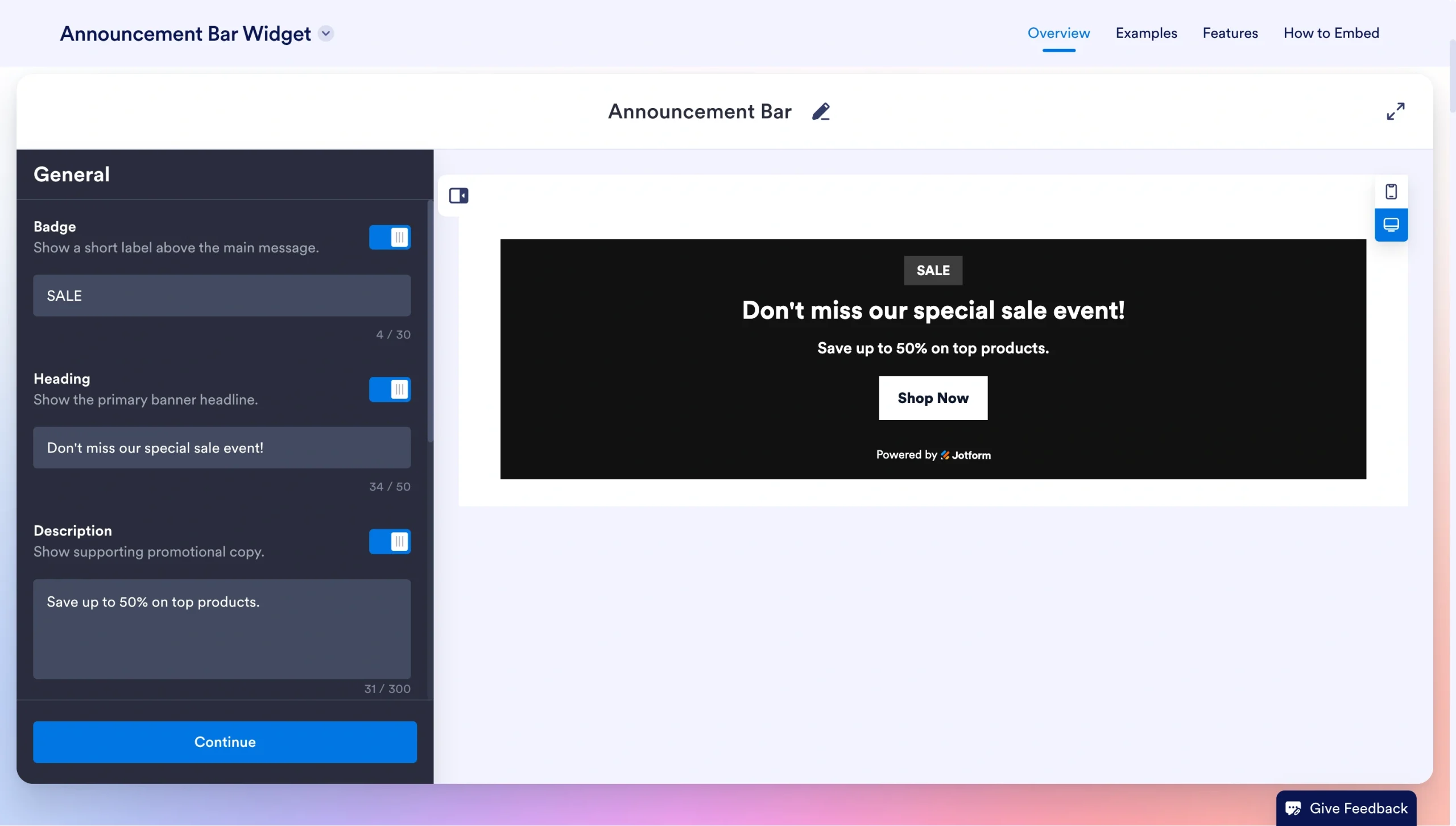
Open the Jotform Announcement Bar Widget and create your banner. Add your promotional message and CTA button. Our widget allows you to add other elements, such as a countdown timer or a coupon code. You can easily go back and adjust the elements of your widget for your next campaign or sale.
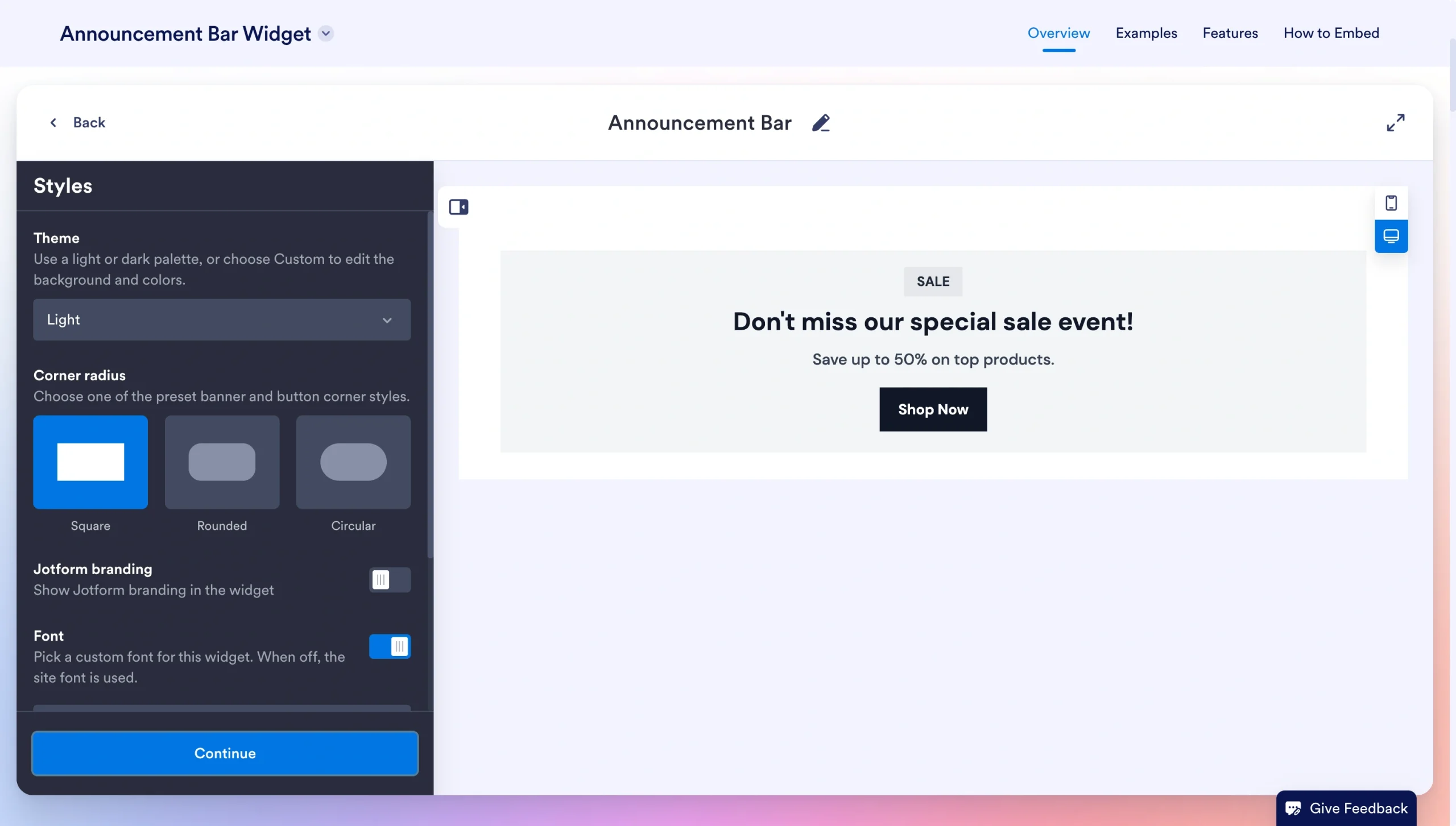
Step 2: Set your preferences
Customize the appearance to match your website. You can adjust elements such as the colors, fonts, and button styles. The banner should feel like a seamless part of your website, not an add-on. Jotform makes it easy to achieve that integrated look.
Step 3: Copy your code to your site
Click on the Try it on your website for free button and copy the generated code.
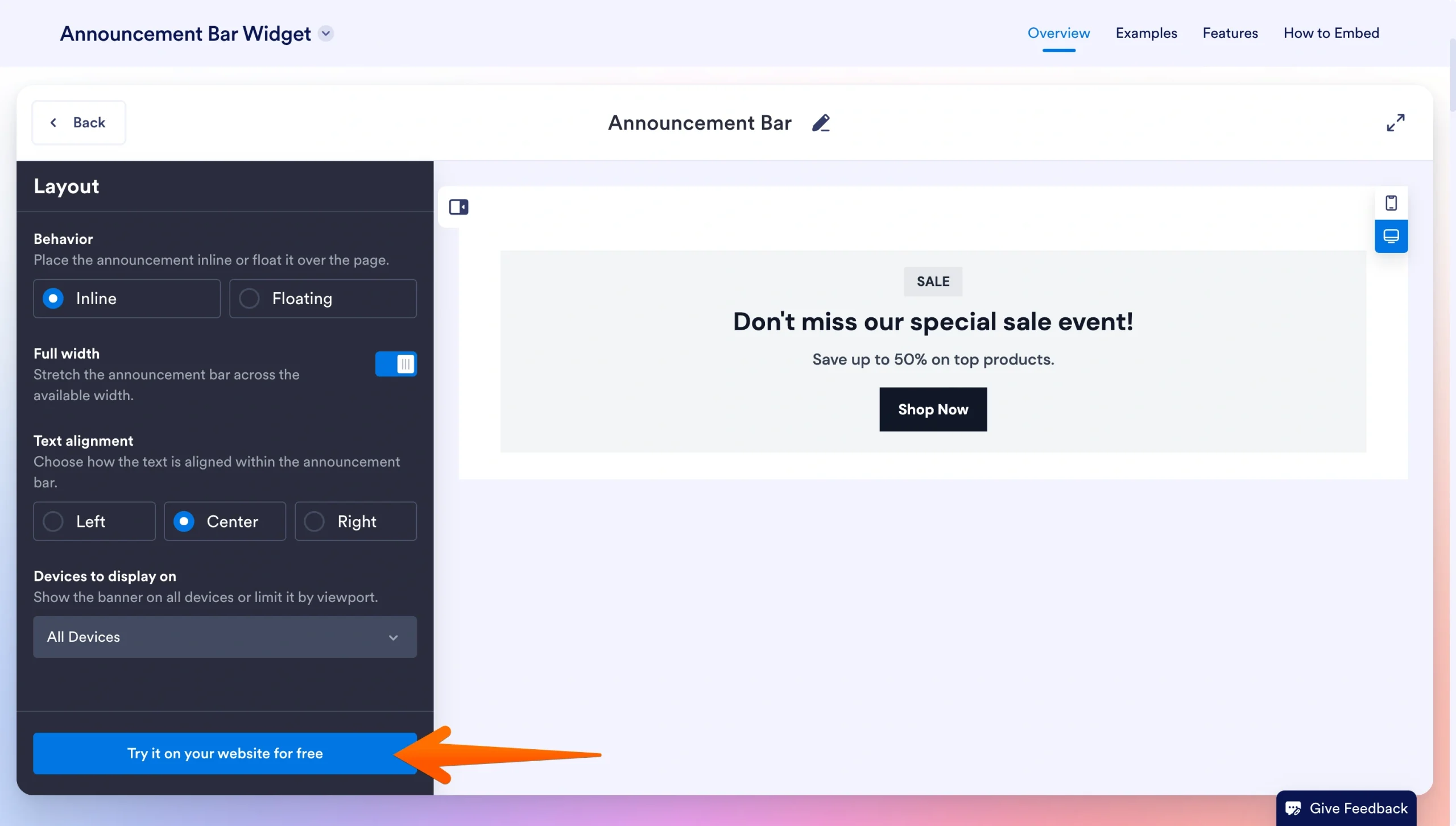
Paste it into a Squarespace Code Block. Publish your changes to display your announcement bar. That’s all there is to it.
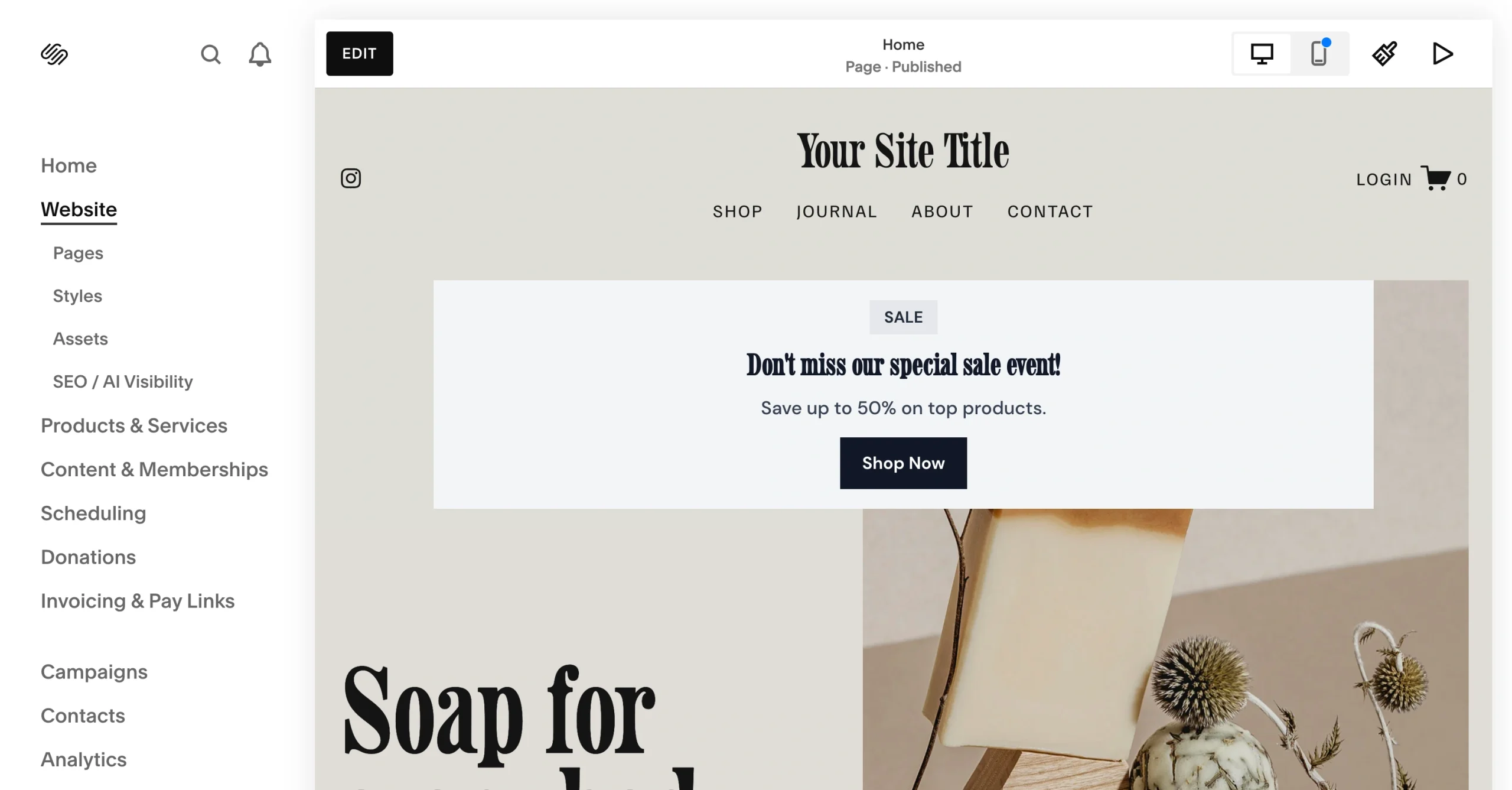
Jotform gives you more control over your announcement bar without another recurring software expense. You can create eye-catching promotions and display countdown timers to prompt site visitors to act now. Squarespace requires a Core, Business, or Commerce plan to support custom code blocks. Once you have the right plan, you can add Jotform Website Widgets effortlessly.
Supercharge your Squarespace site with smart, serverless widgets
An announcement bar represents just one way to improve your Squarespace website. By adding the right widgets, you can increase engagement and improve conversions while helping visitors more easily navigate your site. Widgets are also low-cost, both financially and from a data perspective, so you can add key features without slowing your site.
Jotform Website Widgets include dozens of tools that help Squarespace users:
- Collect leads
- Promote products
- Improve the customer experience
Don’t bust your budget by paying for multiple premium apps when you can embed lightweight widgets that run outside your server environment and seamlessly integrate with your website.
Depending on your goals, add widgets such as:
- Contact Us Widget that captures leads without leaving your website
- Countdown Widget that creates a sense of urgency and prompts users to act now
- Popup Widget that encourages people to sign up for your newsletter
- Feedback Widget to collect customer opinions
- Appointment Booking Widget that simplifies scheduling
- Social Feed Widget that showcases your latest content
Choose the widgets that support your goals and connect you with your audience on your terms. Jotform Website Widgets boost your engagement and simplify your website management.
If you’re still learning about making a website, adding flexible widgets gives you an easy way to improve functionality without rebuilding your entire site or purchasing expensive software.
Unnecessary subscriptions wreck your marketing budget. The Jotform Announcement Bar Widget creates attractive, high-converting promotional banners without the limitations of native tools or the costs of many third-party platforms. See what the right Jotform Squarespace integration can do for you.
This article is for Squarespace site owners, e-commerce stores, and creators who want to display feature-rich promotional banners (with countdown timers or coupon codes) without upgrading to expensive plans or paying for premium aggregator apps.












































Send Comment: