
Want to streamline real-time communication with your team, prospects, and customers? SMS (short message service) notifications are a dependable choice. These text messages are used across industries for business-related communication, IT notifications, and even form alerts.
This communication channel offers fast, reliable delivery and has incredibly high open rates (98 percent), making it ideal for important notifications, such as appointment reminders, order updates, and service alerts. Whether you’re trying to expedite internal processes, get the attention of prospects, or build trust with customers, you can achieve your goals with the right SMS notification.
In this article, we’ll explore how to send an SMS notification using no-code SMS delivery tools such as Jotform, showing you how easy it is with step-by-step instructions. But first, we’ll explain what SMS notifications are and the methods used to them.
What is an SMS notification?
SMS notifications are text messages sent to a user’s mobile phone over a cellular network. They do not contain any photos, audio, or video. They’re simply text.
The messages are appealing because they tend to command attention. In addition to having a 98 percent open rate, about 90 percent of SMS messages are read within three minutes of receipt. This makes them ideal for sending important, and even urgent, communication.
The only requirement for receiving an SMS message is a mobile phone connected to a cellular network. No apps are required. This is one of the major differentiators between SMS messages and push notifications, which require the user to download a specific app. SMS notifications can work even when there is no internet signal on the mobile phone. Unlike push notifications, which users cannot respond to, SMS messages allow two-way communication.
Some businesses choose email as the preferred method of communication. While they do allow two-way communication, emails have a much lower open rate (between 20 and 25 percent). Plus, users must have an email app and an internet connection to receive emails on their mobile phones. These are potential communication barriers you don’t have to worry about with SMS messages.
Marketers, customer service representatives, and HR reps can use SMS notifications to send
- Appointment reminders
- Verification codes
- Order updates
- Purchase receipts
- Emergency notifications
- Service alerts
- Staff coordination and internal notices
- Payment reminders
- Billing notifications
- Event communication
- Form submission notifications
Pro Tip
Does your business use forms to collect data (for example, for purchases, contact and registration information, support calls, and new patients)? Make sure your team is notified of each form submission with Jotform. With Jotform, you can set up SMS notifications for form submissions with ease. Follow the step-by-step instructions later in this article.
How to send an SMS notification: Different methods
If you want to send an important message to a wide audience, some of whom may not have an internet connection, SMS is a better option than push notifications or email.
Wondering how to send an SMS notification? You’ve got several manual and automated options. Keep in mind that manual options may require a considerable amount of time. In contrast, automated options send trigger-based messages, keeping workflows running smoothly.
Here are six ways to send SMS notifications:
- Manual text messages from a phone: If you need to message a handful of people, you can do it manually from a mobile phone. This method is useful only for sending a low volume of messages because it is time-consuming and labor-intensive.
- Shared inbox with a business SMS app: With a shared inbox in a web app, your team can manually send and reply to SMS messages. This setup could be useful for customer support, appointment reminders, and administrative notifications. These apps usually offer useful features such as message templates and message histories. Examples include Textline and SlickText.
- SMS marketing platforms: If you need to send mass messages for marketing purposes (for example, promotions or reengagement campaigns), use an SMS marketing platform like Textmagic or Textedly. With these tools, you can automate outreach to a large group.
- CRM or customer support tools: Platforms such as HubSpot and Salesforce offer integrations to automate SMS messaging using your CRM. This method works well for sending automated sales follow-ups and pipeline communication based on specific triggers.
- API-based delivery: Ideal for automated messages and large-scale delivery, tools such as Twilio and Bird send SMS messages based on custom automated workflows. You’ll need a developer to integrate an SMS provider into your backend software.
- No-code tools: Several of the previously mentioned options require coding and technical expertise. Tools such as Jotform enable you to set up automated SMS notifications for form submissions without any coding. These types of tools are easy to use and help streamline internal workflows.
Jotform: Built-in SMS notifications with no coding required
If you need to set up SMS notifications for new form submissions, try Jotform.
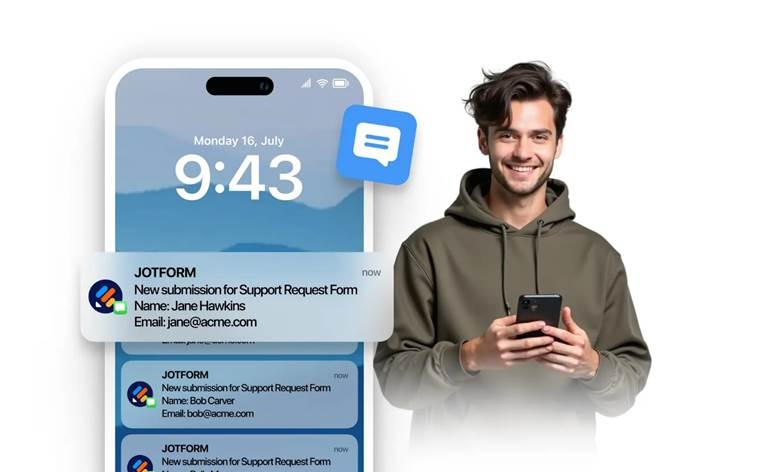
Jotform’s new multichannel notification system enables you to receive real-time form notification alerts through SMS, push notifications, WhatsApp, Slack, and Microsoft Teams. Instead of relying on email alone, you can choose the channels your clients use most often and set up form submission notifications in seconds.
The result? Faster follow-up times, stronger team visibility, and a more reliable way to manage time-sensitive form submissions.
Jotform’s SMS feature offers the following benefits:
- Quick, hassle-free setup: With no coding required, you can set up Jotform SMS notifications in just a few minutes. It’s even easier than setting up Google Forms SMS notifications.
- Customized messages: Choose which form details (such as contact name or form ID) appear in your SMS notification.
- Streamlined workflows: From customer service requests to invoices, no important submissions fall through the cracks when your team gets SMS notifications.
Step-by-step: How to send an SMS notification using Jotform
Jotform’s no-code solution for sending SMS alerts instantly upon form submission doesn’t require APIs, external tools, third-party apps, or technical expertise. Follow these step-by-step instructions to set up SMS notifications in Jotform:
Enable SMS notifications and verify your phone number
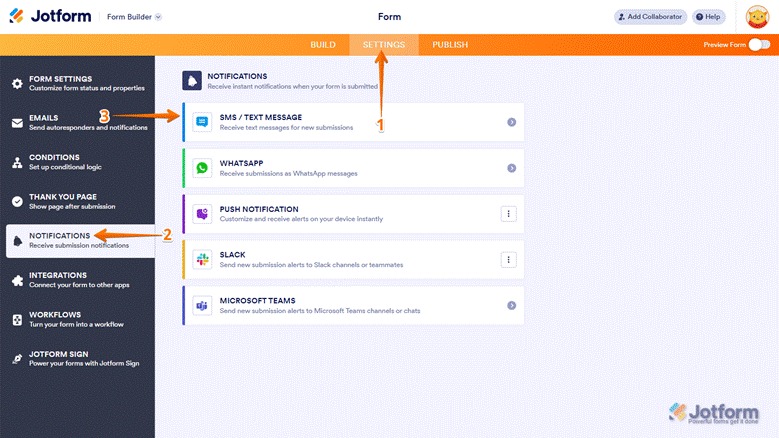
- Go to the form for which you want to enable SMS notifications. Click Settings.
- Click Notifications in the left menu.
- Select SMS/Text Message from the list of available notification channels.
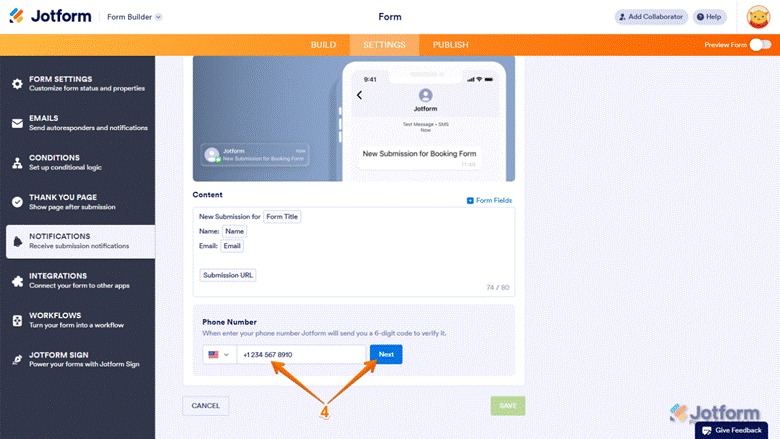
- Under the Phone Number section, enter your phone number to verify it. Click Next.
- Enter the verification code that is sent to the phone number you entered. Click Next.
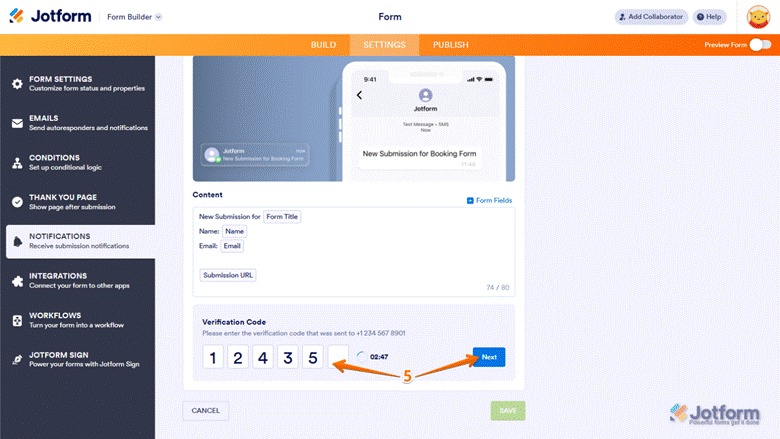
Your number is now verified and will appear as an available option for all your forms. It will automatically be selected for this form.
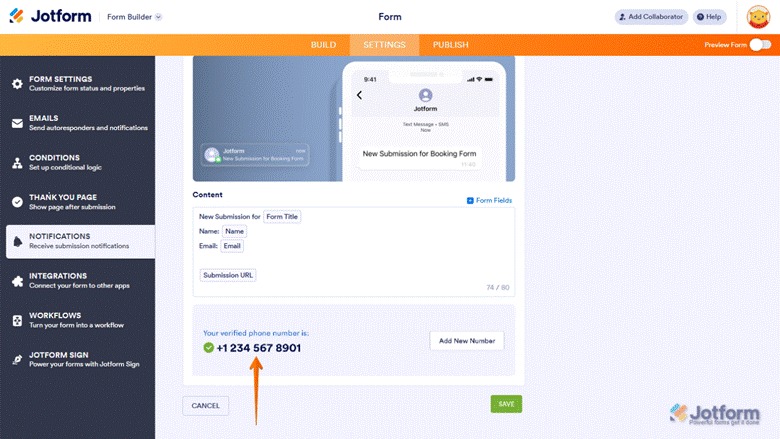
Customize your SMS message
- On the same screen, in the Content section, you will see the form fields Jotform will automatically include in the SMS message.
You can edit, reorder, or delete these fields to customize the message you will receive. Note that there is a limit of 80 characters.
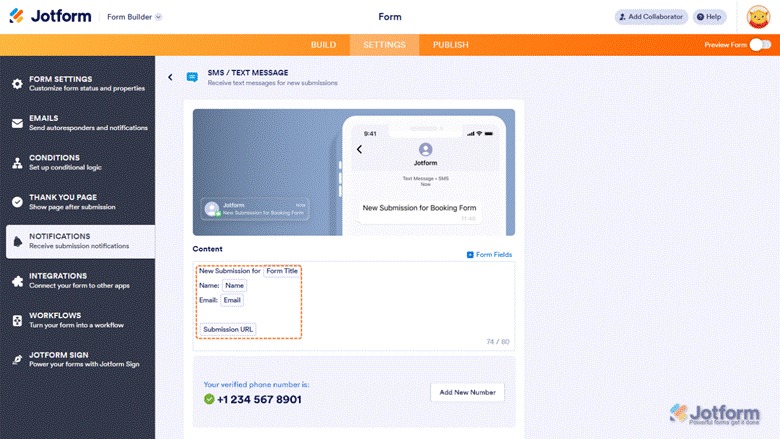
Save and test the SMS notification
- Click Save.
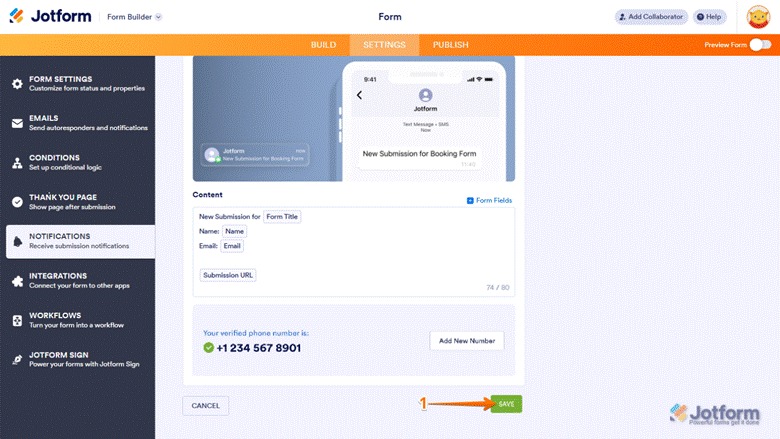
- To test the SMS notification, submit a test entry on your form. If the SMS notification is set up correctly, you will receive a text message with the fields you selected.
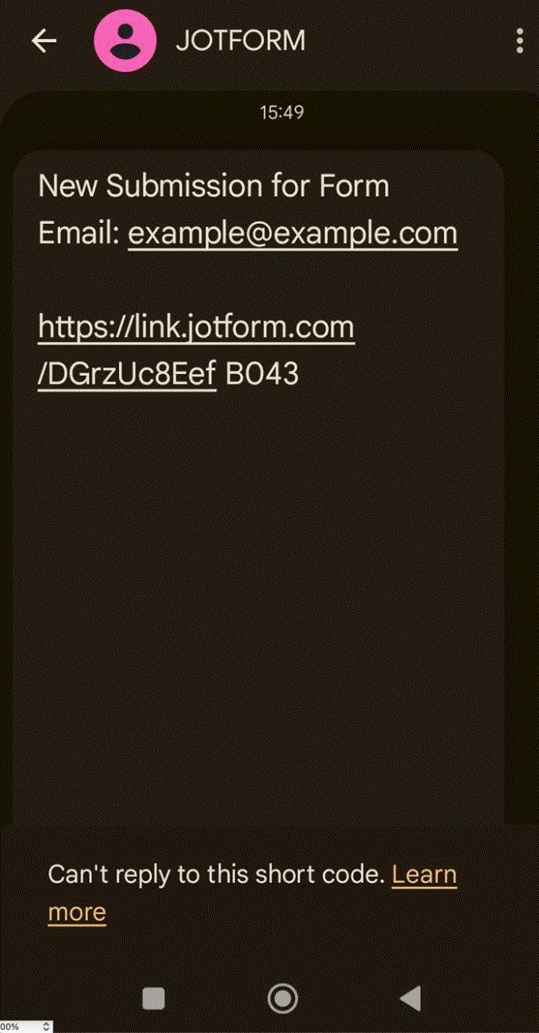
If there is an issue with the notification, check that your phone number is verified and that you have selected the correct number to receive SMS notifications. You may also need to check whether your mobile network allows international SMS messages.
Find the best way to send SMS notifications today
In mobile-first environments, SMS notifications are a must for reliably sending urgent communication. They are useful for reminding customers about appointments, enabling clients to request service, and streamlining workflows, including those involving form notifications.
Jotform simplifies SMS delivery with a native, no-code setup. All you have to do is verify your phone number and customize your message, and you’re ready to receive SMS notifications whenever a form is submitted.
If receiving form submission notifications is important to your workflows, then upgrading from email-only alerts to multichannel alerts with Jotform is the way to go. Explore how easy it is to set up SMS notifications with Jotform today.
This article is for website operators, content managers, marketing teams, and anyone who wants to streamline real-time communication by learning how to send SMS notifications using no-code tools for submissions, workflows, or time-sensitive updates.



















































Send Comment: