
There are several reasons why you may want to add audio to a Google Form, like testing listening comprehension, adding voice feedback, or offering spoken instructions for accessibility. Many people prefer to listen rather than read, and sound can completely change the way people engage with your Google Form.
The problem is this: There’s no native functionality in Google Forms to support audio upload. However, clever workarounds exist. In this article, we’ll show you how to add audio to Google Forms with creative solutions so you can still give your form respondents a multimedia experience.
How to add audio to Google Forms: Four methods
If you’re wondering how to use Google Forms with audio files when no native functionality exists, you’ve got to think outside the box. You can add audio to Google Forms in a few different ways.
1. Use Google Drive and sharable links
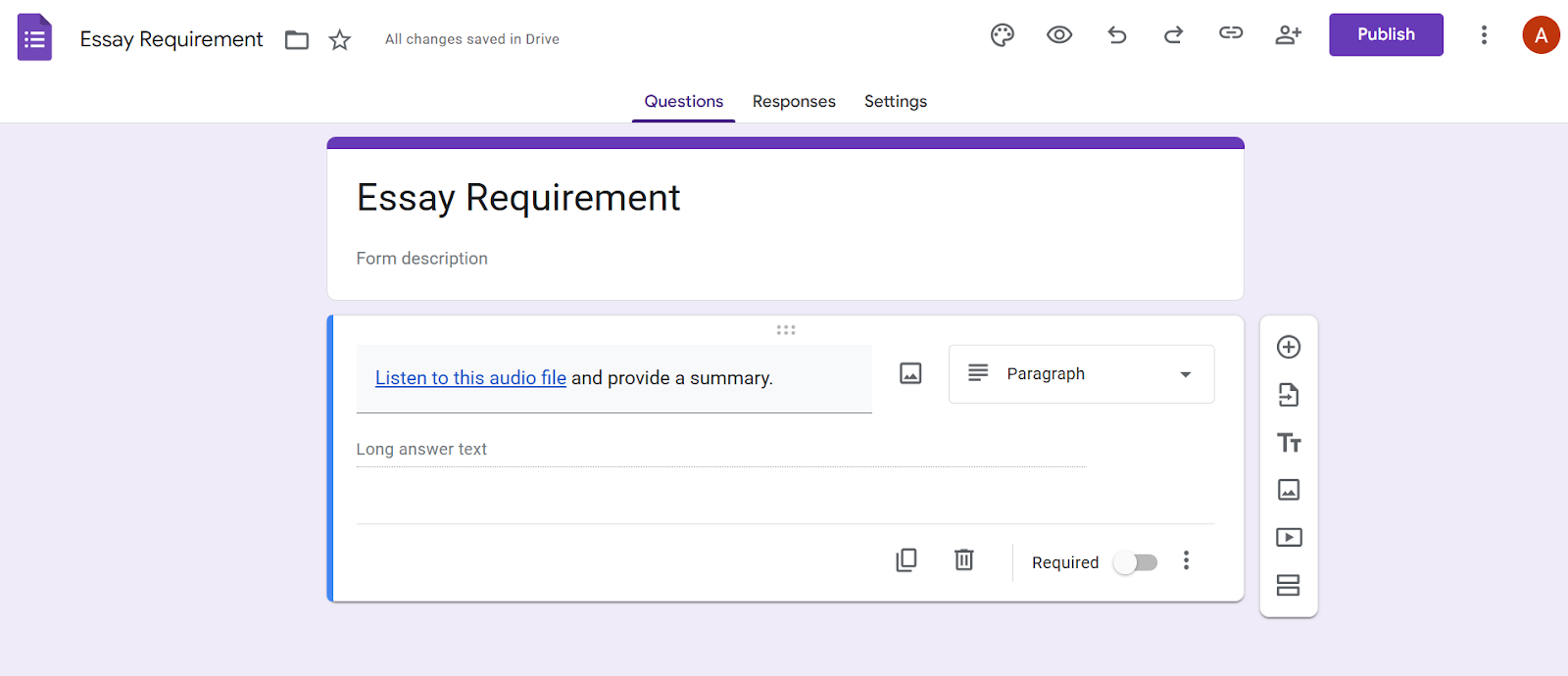
Upload an audio file to Google Drive in MP3 or WAV format, and then insert a link to that audio file into your Google Form. While the audio file won’t be embedded within the form, the form will link to it so that respondents can listen. Be sure to adjust the Share setting to give access to anyone who might click on the file.
2. Embed audio via a YouTube video or podcast
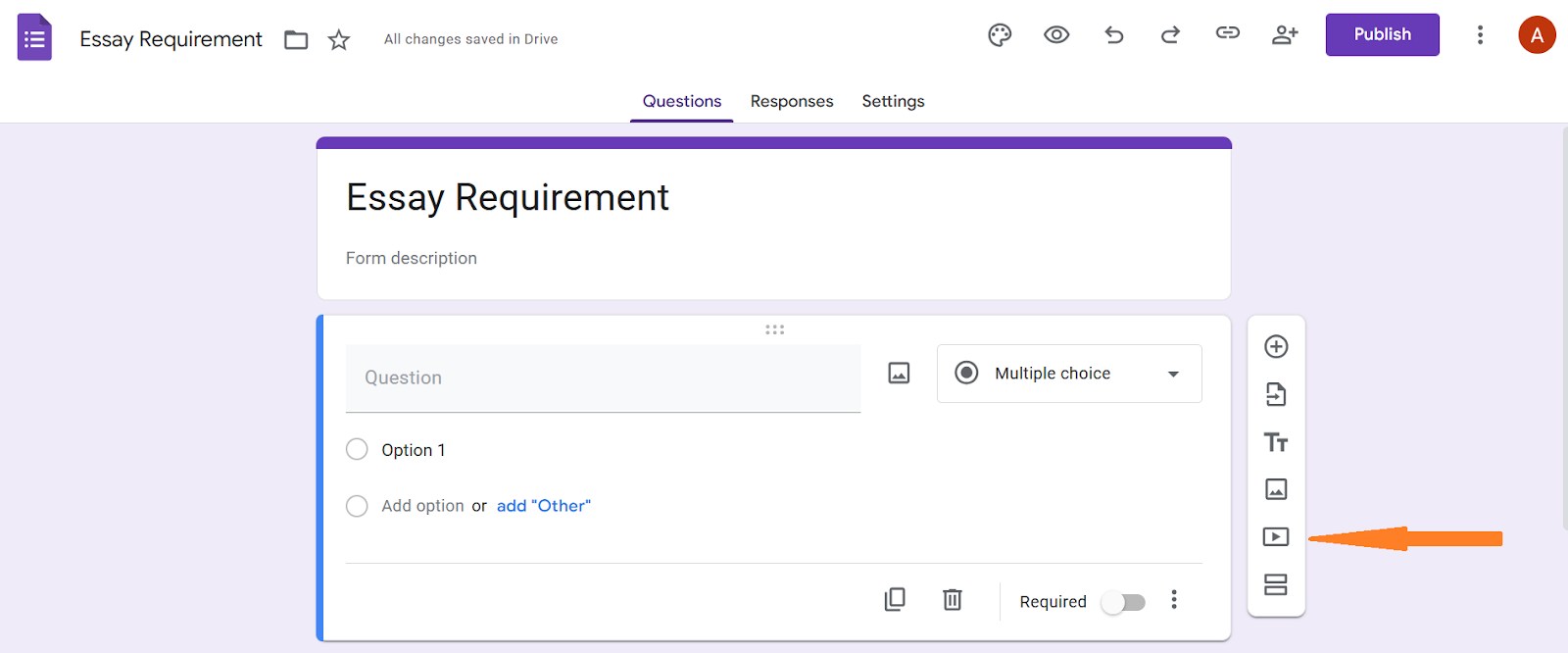
Google Forms enables you to add a YouTube video via the play button in the left-hand side tool bar. Upload your audio (or podcast) to YouTube and then insert that video into your Google Form. This is a great use of Google Forms multimedia.
3. Choose a third-party add-on for Google Forms
Use a third-party add-on like Mote Chrome Extension to increase the functionality of Google Forms audio. These tools can support the use of audio for quizzes, accessibility purposes, and student learning.

4. Upload an image with an audio link
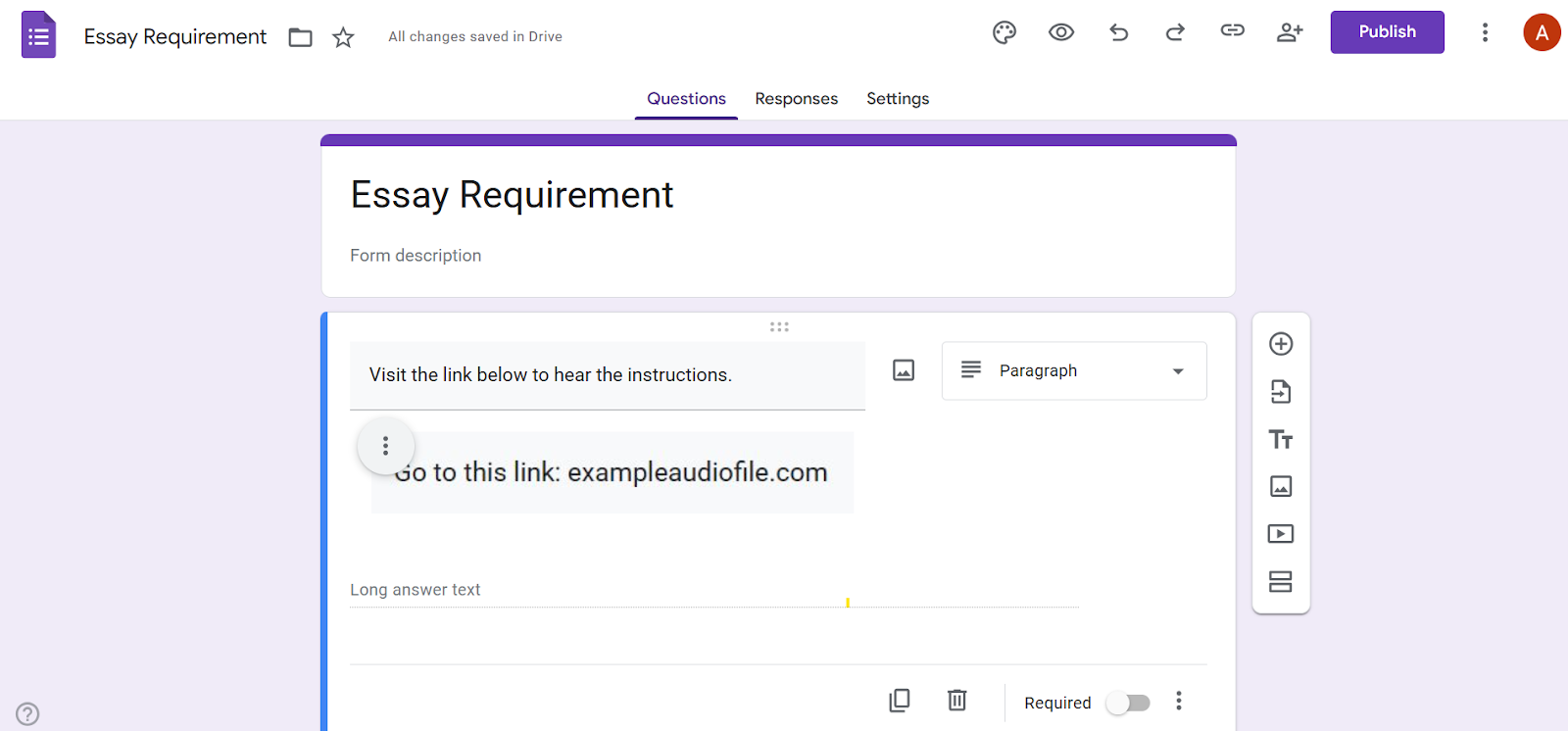
Create an image with the URL of an audio file and upload the image to Google Forms. In the instructions for the question, tell respondents to visit the link. It’s important that the link is easy to navigate to in order for this option to work well.
Common issues and limitations
There’s no upload button on Google Forms for audio files, which is a major limitation for some people. Sound isn’t supported on the platform, so you can’t have audio-based questions or accept audio-based answers.
While you can upload sound files to Google Drive so you can play audio in Google Forms, you may run into file format or link accessibility issues. For example, the link may only be accessible to certain people or the file format may require a certain program to play it.
On some devices, audio files may open in separate tabs, which can disrupt the flow of work. School or corporate networks may not allow third-party extensions to extend Google Forms functionality. All in all, inserting audio in Google Forms isn’t easy or without its challenges.
A better way: Adding audio with Jotform
Since it’s not possible to create a Google form and add audio to it natively, you may be looking for an alternative form builder that enables audio. Enter Jotform.
A highly sophisticated form builder, Jotform enables you to add audio to your forms in a few different ways:
- Add an audio file: Using the Upload field from the form builder, insert the audio file of your choice into the form.
- Add a voice recording: The voice recorder widget lets form users record their voice into the forms.
- Add background music: You can even have background music while someone is filling out a form. Just host the MP3 file and HTML file on your web server or upload the music to SoundCloud or Spotify. Then, copy and paste the link to the audio in your form. Users can then press play to listen.
Plus, Jotform offers other advanced form functionality like conditional logic, white labelling, conversational forms, and so much more.
Embed audio into your forms with Jotform
With no voice recording in Google Forms or native way to upload audio, and only complicated workarounds like adding links to audio files or using third-party tools, a better solution is to upgrade your form builder.
Jotform offers multiple ways to include audio files, voice recordings, and background music in your forms — no finicky workarounds needed. What’s more, Jotform is free to use, just like Google Forms, so there’s nothing standing in your way. Give Jotform a try and see how easy it is to use audio in your forms.
FAQs: Adding audio to Google Forms
Write your question text in the Google Form, and then link the question to the audio file in Google Drive using the Google Forms link icon.
There’s no native functionality for embedding audio in Google Forms. You can link to an audio file, but you may run into accessibility, device, and playback issues.
This article is for educators, content creators, and digital form designers, as well as website operators and marketing teams, who want to enhance user engagement and accessibility by learning how to add or embed audio in Google Forms despite its native limitations.









































































































Send Comment: