

To Do List Templates

Weekly To Do List Template
Track weekly employee tasks with this free online spreadsheet. Customize in seconds. Works on any device. Easy to download, print, and share. No coding.
Go to Category:List Templates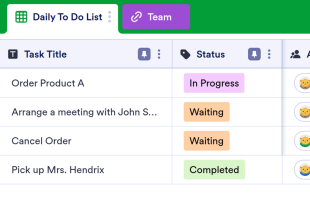
Daily To Do List Template
Keep track of daily action items with this free online spreadsheet. Easy to share with team members. Customize, download, and print with ease. No coding.
Go to Category:List Templates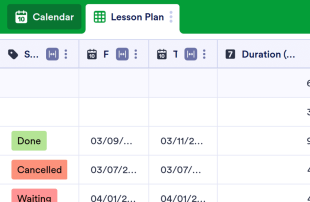
Yearly Lesson Plan Template
Create and track your yearly lesson plan with Jotform. Great for teachers and professors. View information in a spreadsheet or calendar. Customize without coding.
Go to Category:Education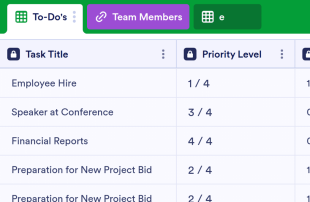
Prioritized To Do List Template
Keep track of urgent action items with this free online spreadsheet. Perfect for teams or individual use. Easy to customize and share. No coding required.
Go to Category:List Templates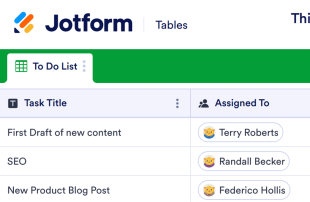
Things To Do List Template
Keep track of your tasks and to-dos with this free online table. No coding required. View in spreadsheet or calendar format.
Go to Category:List TemplatesAbout To Do List Templates
To Do List Templates are specialized table templates designed to help users organize and manage records efficiently. These templates are perfect for handling category-specific information submitted through Jotform Forms, such as task requests, project updates, event registrations, or feedback forms. Whether you're an individual form owner, a team in a corporate environment, or a department within an organization, To Do List Templates offer a structured way to manage various submissions. They ensure that all collected information is stored in a systematic manner for easy access and management, transforming raw submissions into organized records ready for action.
Jotform Tables serve as the core space where submissions from connected Jotform Forms automatically appear. Each response from a Jotform Form becomes an entry in the associated table, viewable in formats such as Table View or Detail View. This seamless flow allows users to search, filter, group, or categorize submissions using different column types, ensuring that no detail is overlooked. While manual entry and CSV or Excel import are available for existing data, the primary focus remains on the automatic and continuous population of the table with new form responses, streamlining the data management process.
Why Use To Do List Templates?
- By using To Do List Templates, form owners can eliminate the tedious task of manually transferring data from forms to spreadsheets. This saves time and reduces potential errors in data entry.
- These templates keep all form responses together in one place, making it easier to track submissions and ensure that no response is overlooked in the process.
- With the ability to search and filter entries, users can quickly locate specific records, which is particularly beneficial when dealing with large volumes of form submissions.
- Reviewing complete submission details becomes straightforward, as each entry contains all the information from the original form submission, allowing for thorough analysis and decision-making.
- Coordinating follow-up actions is simplified, as users can assign tasks based on submission data, ensuring timely and effective responses to requests or feedback.
- Tracking changes and reporting on collected data is enhanced through the use of revision history and Report View, providing insights into submission trends and patterns over time.
Common Problems Solved by To Do List Templates
- Manually copying submissions into spreadsheets can be time-consuming and prone to errors. To Do List Templates address this by automatically populating tables with form responses.
- Scattered responses across different platforms can lead to lost or overlooked submissions. These templates centralize all data in one table, ensuring easy access and management.
- Locating specific records can be challenging without a proper system. With search and filter capabilities, users can swiftly find the information they need.
- Inconsistent review processes can lead to missed details. To Do List Templates provide a structured approach to reviewing entries, ensuring that every submission is given due attention.
- Handling uploads or attachments can be cumbersome. Uploads View allows users to manage and review files effectively, providing context to each submission.
Matching Form Submission Use Cases
- When a Jotform Form collects category-specific information, the connected table auto-populates with submissions, ensuring a seamless transition from form to record.
- Reviewing submissions is facilitated by Table View and Detail View, which allow users to examine each entry thoroughly and make informed decisions based on complete data.
- For teams managing submissions, access settings and assignees ensure that the right people are responsible for specific entries, promoting accountability and collaboration.
- Reporting needs are met with Report View, which compiles data into comprehensive reports, offering insights into submission trends and outcomes.
- When additional data needs to be integrated, linked tables and action buttons provide a way to connect related information, enhancing the overall data management experience.
How to Use To Do List Templates with Jotform Forms
- Start by selecting a category-relevant Jotform Tables template or create a table connected to an existing Jotform Form. The form will collect specific information, and new responses will automatically appear in the connected table.
- Configure the table for submission review by naming columns, choosing appropriate column types, and selecting views like Table View, Detail View, or Calendar View to suit your needs.
- Manage submissions by utilizing search, filters, grouping, formulas, and access settings. Assign tasks to team members, track changes with revision history, and execute actions using linked tables or action buttons as necessary.
Top Use Cases for To Do List Templates
- For Form Owners: Form owners benefit from reviewing incoming responses directly in the connected table, where they can edit submission data and check details or uploads with ease. Jotform Tables keep records organized, ensuring that every piece of information is accessible and manageable. Owners can use various views to analyze data and make informed decisions, maintaining control over the collected information.
- For Teams: Authorized team members can efficiently find submissions and maintain entries within Jotform Tables. They can coordinate responsibilities using assignees and leverage access settings to ensure the right team members have the necessary permissions. With revision history, teams can track changes and updates, supporting shared work and collaboration across projects.
- For Managers: Managers use Jotform Tables to monitor collected data and review patterns specific to their category. They can check progress and ownership of tasks, ensuring accountability and consistent follow-up. By utilizing Report View and other relevant views, managers gain oversight of the data landscape, allowing for better strategic planning and resource allocation.
Summarizing To Do List Templates
By leveraging To Do List Templates, users can efficiently collect and manage information through Jotform Forms, transforming submissions into structured records within Jotform Tables. These tables support various organizational needs, from reviewing submissions to generating comprehensive reports, ensuring that all collected data is utilized effectively. Jotform Tables provide a robust framework for managing submissions, enhancing productivity, and supporting informed decision-making.
Frequently Asked Questions
1) Is it free to use To Do List Templates with Jotform Tables?
Jotform offers a Starter plan, which includes access to To Do List Templates. This plan provides users with the opportunity to explore Jotform Tables and experience the benefits of organizing submissions without any initial cost. Users can use this plan to determine if the features meet their needs before considering any advanced options.
2) How do submissions from Jotform Forms appear in To Do List Templates?
When a Jotform Form is connected to a To Do List Template, every submission automatically appears as an entry in the linked table. Each form response is auto-populated into the table as a new row, ensuring that submissions are immediately available for review. This process continues with each new form response, providing a seamless integration between the form and the table.
3) Can I edit, search, filter, group, and calculate data in To Do List Templates?
Yes, you can edit submissions and utilize various tools to organize your data. Columns and column types allow for detailed data management, while search and filter functions enable quick access to specific records. You can also group data and perform calculations using formulas, providing a comprehensive approach to data management within the table.
4) Can I export the data inside the tables as CSV or Excel?
Exporting data as CSV or Excel is a straightforward process within Jotform Tables. This feature allows you to add existing information alongside your connected-form submissions, providing flexibility in data management. Exporting ensures that you have access to your data in multiple formats for further analysis or sharing outside of Jotform Tables.
5) Which Jotform Tables views can I use with To Do List Templates?
With To Do List Templates, you can utilize various views such as Table View, Detail View, Calendar View, Report View, and Uploads View. Table View offers a comprehensive look at all entries, while Detail View provides in-depth analysis of individual submissions. Calendar View helps with time-based submissions, and Report View is useful for compiling data insights.
6) Can teams collaborate on submissions in To Do List Templates?
Teams can collaborate effectively using To Do List Templates, thanks to features like access settings, which control who can view or edit the table. Assigning tasks to team members ensures clarity in responsibilities, while real-time tracking and revision history provide insights into changes and updates. These features support a collaborative environment for managing submissions.
7) Can I connect To Do List Templates to related data or other applications?
Yes, you can connect To Do List Templates to related data through linked tables or integrate with other applications using action buttons. These integrations allow you to enhance your data management capabilities, ensuring that all relevant information is interconnected and accessible within your workflow.
8) Can I create reports, PDFs, and manage files from To Do List Templates?
You can create detailed reports using Report View, which compiles data into actionable insights. PDF generation allows you to produce documents from your data, and Uploads View helps manage any files associated with submissions. These capabilities ensure that you can fully utilize and document the data collected through your forms.