
Key takeaways
- Gemini is Google’s built-in AI for Sheets: Open it from the Ask Gemini side panel or pull it into any cell with the AI function to build tables, write formulas, clean data, and analyze results.
- You need an eligible plan: Using Gemini inside Sheets requires a qualifying Google Workspace or Google AI plan. Free personal accounts cannot access the side panel.
- Gemini works on data that’s already in your sheet: This tool is powerful for analysis, but it can’t collect or standardize your data for you.
- Jotform AI Data Assistant is the simpler option for form data: It runs the same conversational analysis as Gemini on your submissions across Jotform Tables and Inbox for free — no Workspace subscription required.
Building spreadsheets by hand is time-consuming and labor-intensive, even in solutions like Google Sheets. That’s why Google has incorporated Gemini, its AI solution.
Using Gemini, you can turn your Google Sheets creation process into a conversation. Simply describe what you want, and it builds the table, writes the formula, or summarizes your data.
But before you try integrating Gemini into your spreadsheets, it’s important to understand what you need to use it, how to open it, the prompts worth trying, and where it falls short — as well as why a simpler option may be more worth your time.


What you need to use Gemini in Google Sheets
Although Gemini is a useful feature for Google users, it’s not available to everyone. You must meet a few requirements before you can access this AI assistant in your spreadsheets, including
- An eligible plan: Gemini in Google Sheets is only supported by certain paid work and school Google Workspace accounts and personal Google AI plans. Free Google accounts can’t access this particular set of AI features.
- Smart features set to on: Google users have the ability to enable and disable smart features like Gemini in their accounts. In a Google Workspace account, this is typically done by an administrator.
- Access to the web version or an Android device: Gemini features for Sheets were originally only available in the web version. However, a recent Google update made these tools available on Android devices as well.
- A native Sheets file: For optimal performance, Gemini requires a native Sheets file. If you’re importing an Excel file, convert and save your spreadsheet as a Sheets file before trying to use AI features.
- A supported language: Although Gemini is available in a wide range of languages, it’s not adapted to every language. Before you try to use Gemini features in Google Sheets, check to see if your preferred language is supported by Gemini.
Note that Google also requires users to be 18 years of age or older to use Gemini features in Google Workspace. If you meet all these requirements, you should see the Gemini star icon in your interface.
How to access Gemini in Google Sheets
Once you’ve determined that you’re able to access Gemini, you can then decide how to use Google Sheets with Gemini in the way that best suits your preferences. There are three key methods for accessing Gemini in your spreadsheet interface:
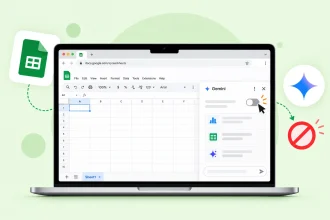
- The Gemini side panel: When you open a Google Sheets spreadsheet, you can click on the Gemini icon in the top-right corner to open a conversation with the AI assistant. Through custom prompts or one of Gemini’s pre-generated suggestions, you can use this conversational AI to edit and build your document.
- The AI function: By typing in “=AI(“your instruction”, [optional range]),” you can quickly perform cell-specific tasks like text generation, summarization, data categorization, and answer retrieval. This function does have a number of limitations, including a cutoff that applies AI functions to only the first 350 selected cells per prompt.
- Enhanced Smart Fill: As you’re typing data into your Google Sheets cells, you may be prompted to use AI to fill in incomplete rows. This function detects the relationship between column pairs to automatically predict the remaining values. However, this function is only available on the web version of Google Sheets.
These three core functions offer AI assistance from overarching to highly granular tasks. Now that you know how to access Gemini, let’s explore what you might use it for.
6 ways to use Gemini in Google Sheets
Your prompts will determine how you use Gemini in Google Sheets, and knowing how to prompt Gemini effectively can unlock automations that handle many of the core tasks typically performed in Sheets.
As you experiment with Gemini, try these example prompts. Keep in mind that Gemini will show a preview card before making final changes so you can apply or undo actions based on results.
1. Create a table or full spreadsheet from a prompt
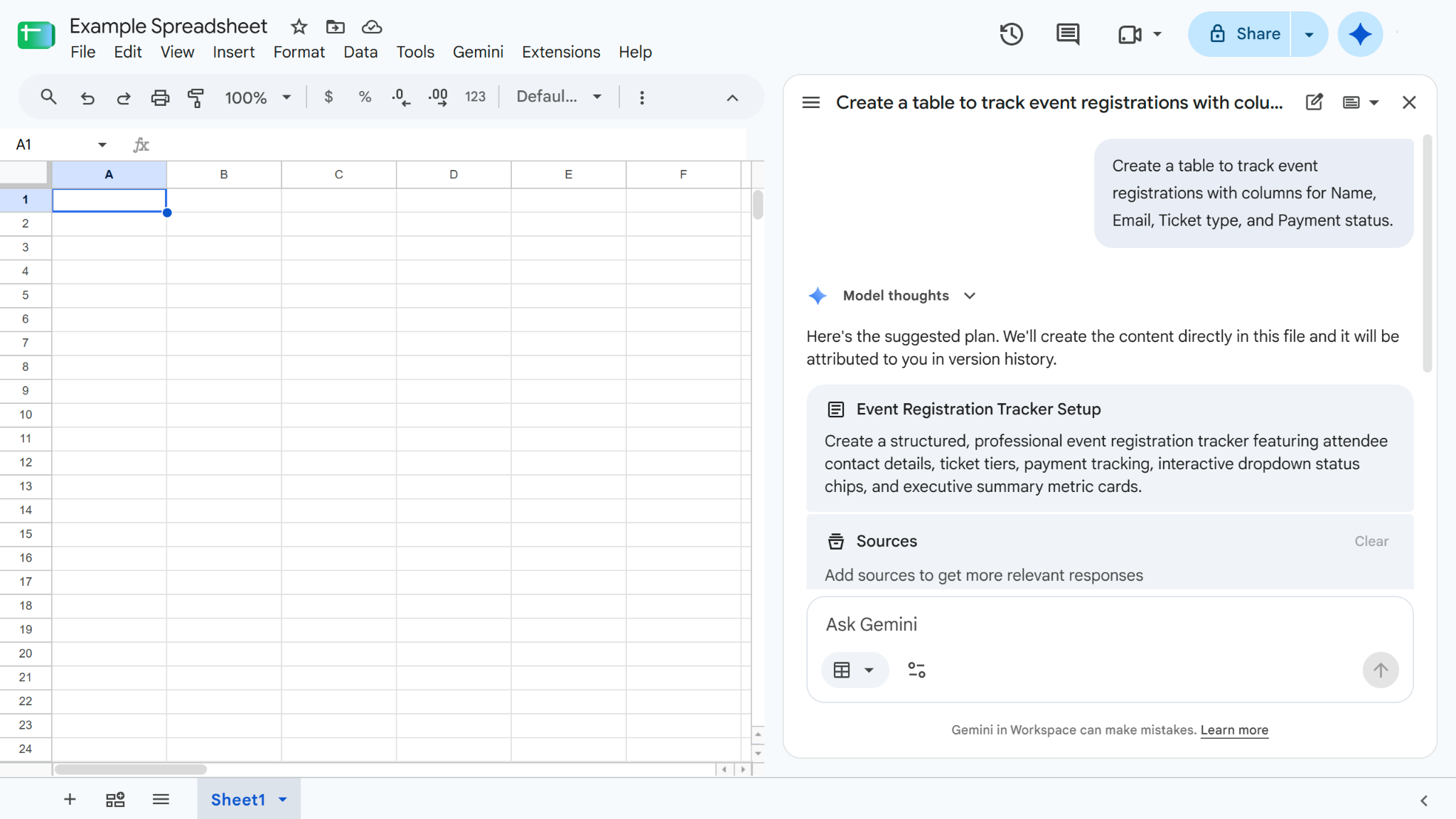
To create a table or full spreadsheet, open the Gemini side panel and enter a prompt similar to: “Create a table to track event registrations with columns for Name, Email, Ticket type, and Payment status.”
After you enter this prompt, Gemini will provide the steps it must take to create your table for your review and approval. Once you approve, it’ll go to work.
2. Generate formulas in plain language
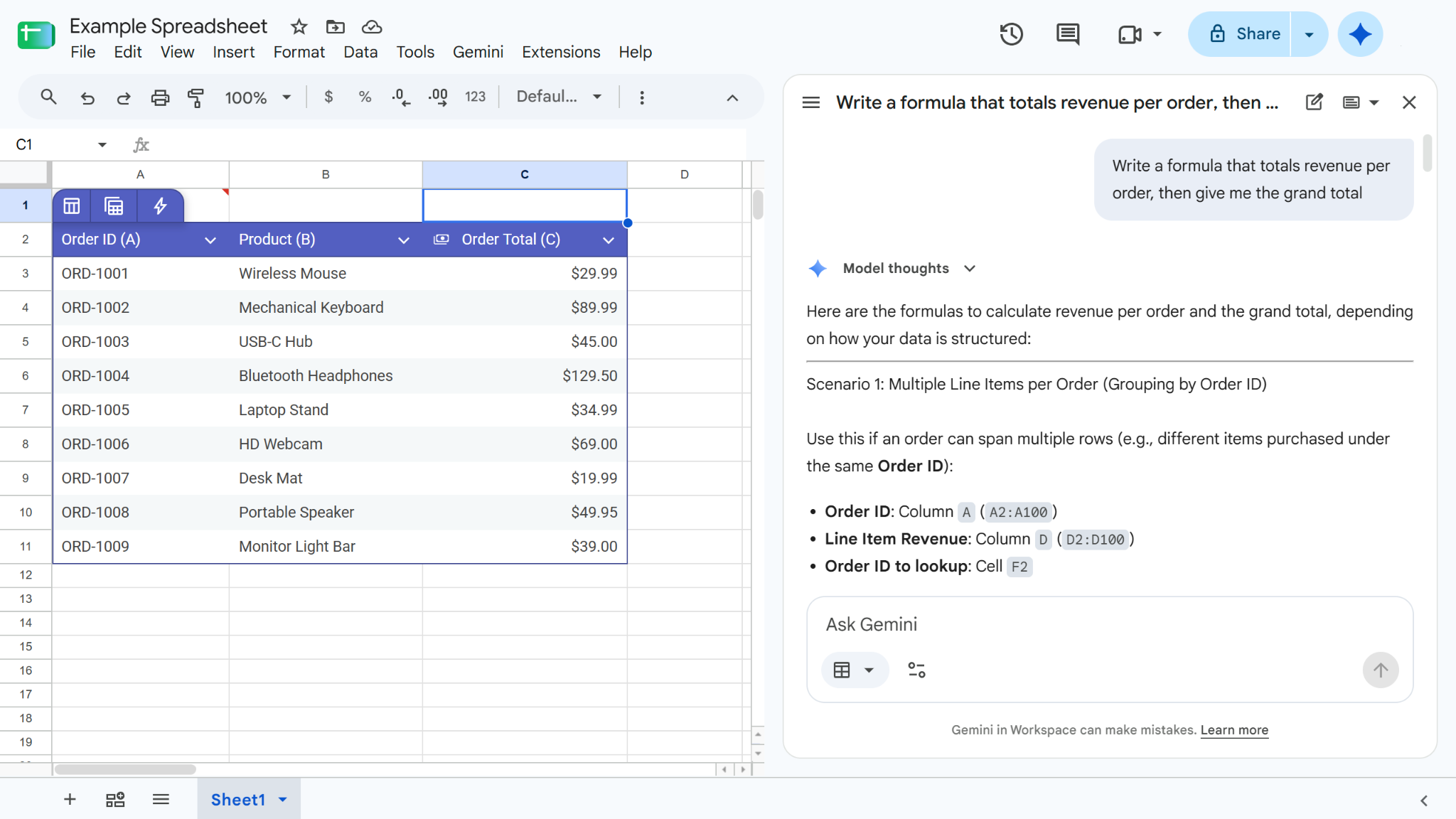
Formulas are an integral part of data management through Google Sheets. Gemini can make using them more efficient than ever through two methods:
- Enter a prompt into the Gemini side panel, such as “Write a formula that totals revenue per order, then give me the grand total.” Gemini will generate options based on your spreadsheet for you to insert or copy.
- Start in a cell by typing “=” and using the AI function to complete and edit formulas.
Make sure you double-check the effectiveness of any formulas generated by Gemini, as it can still make mistakes that could affect your data’s accuracy.
3. Categorize or summarize text with the AI function
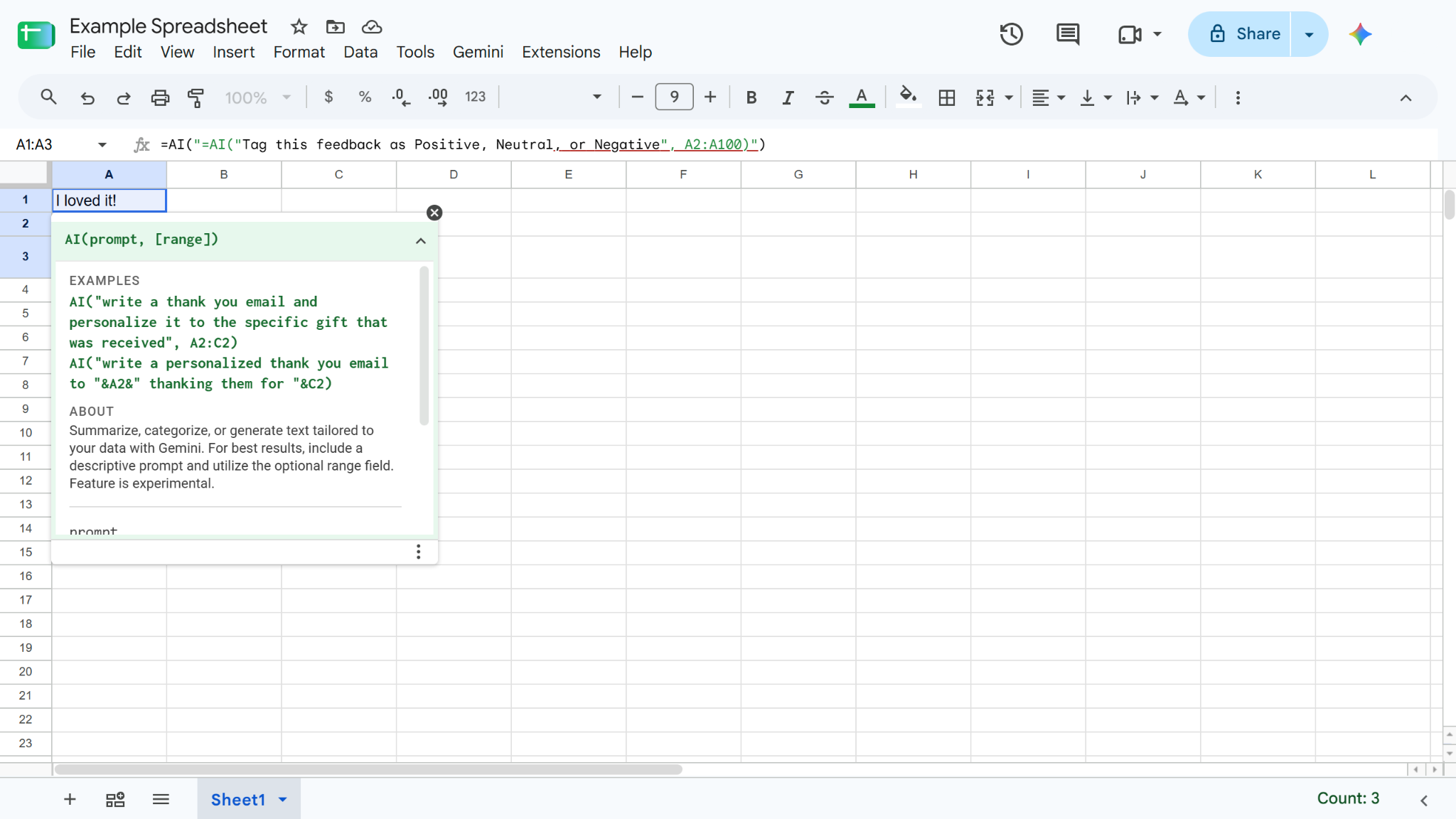
Rather than analyze each data cell yourself, you can use the AI function to quickly sort your entries into buckets or provide summaries. For example, try using a prompt like “=AI(“Tag this feedback as Positive, Neutral, or Negative”, A2:A100)” to categorize a range of responses from a recent survey using AI tools for data analysis.
4. Clean and reshape your data
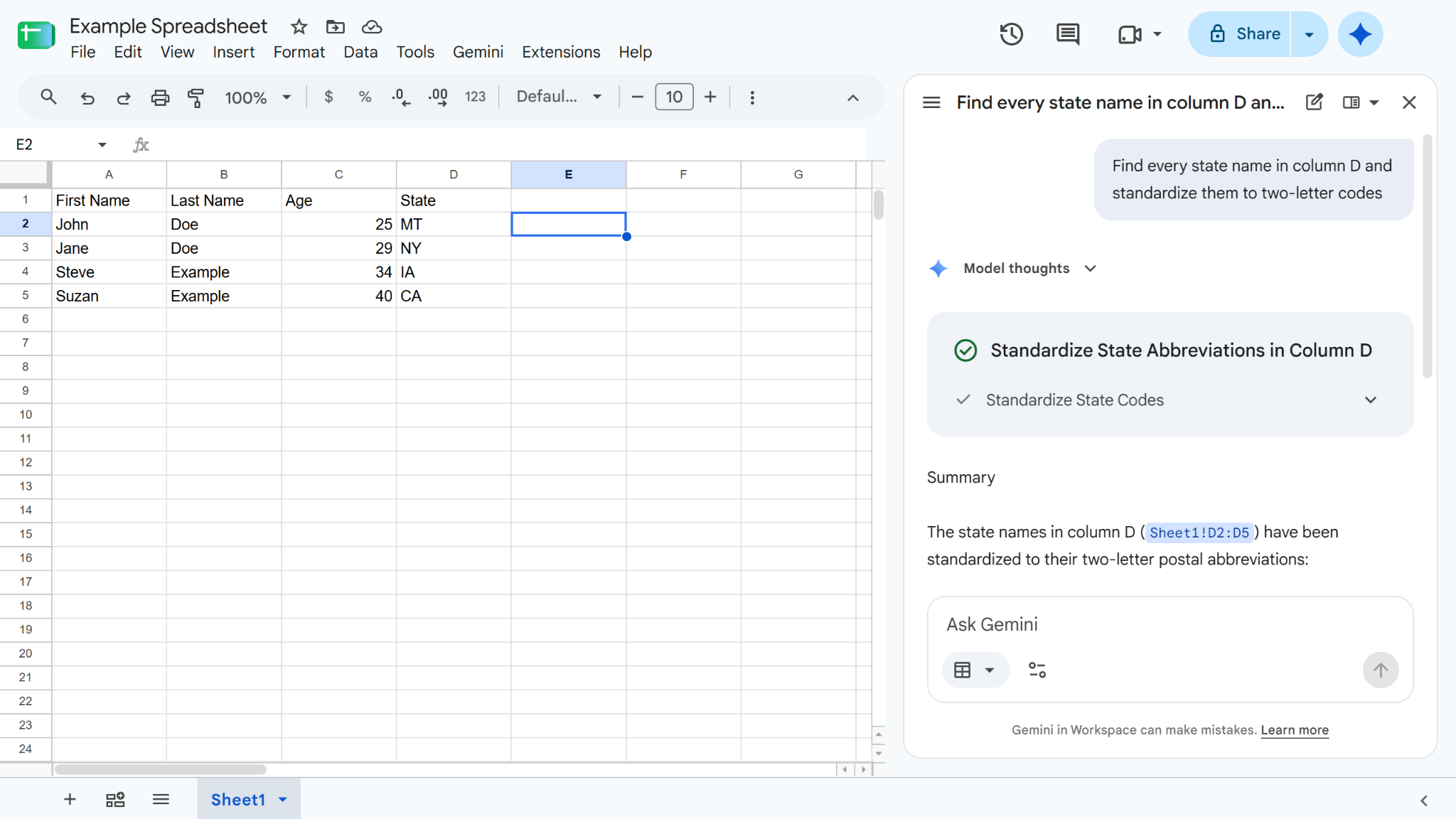
Gemini can also be used for more basic functions like housekeeping. For example, if you’re surveying users and requesting their home state, the full names of each state can push other important columns out of view. To tidy up this data, enter a prompt like “Find every state name in column D and standardize them to two-letter codes” in the Gemini sidebar. Gemini will use its find-and-replace and cleanup actions to reorganize your entries.
5. Add dropdowns, filters, and conditional formatting
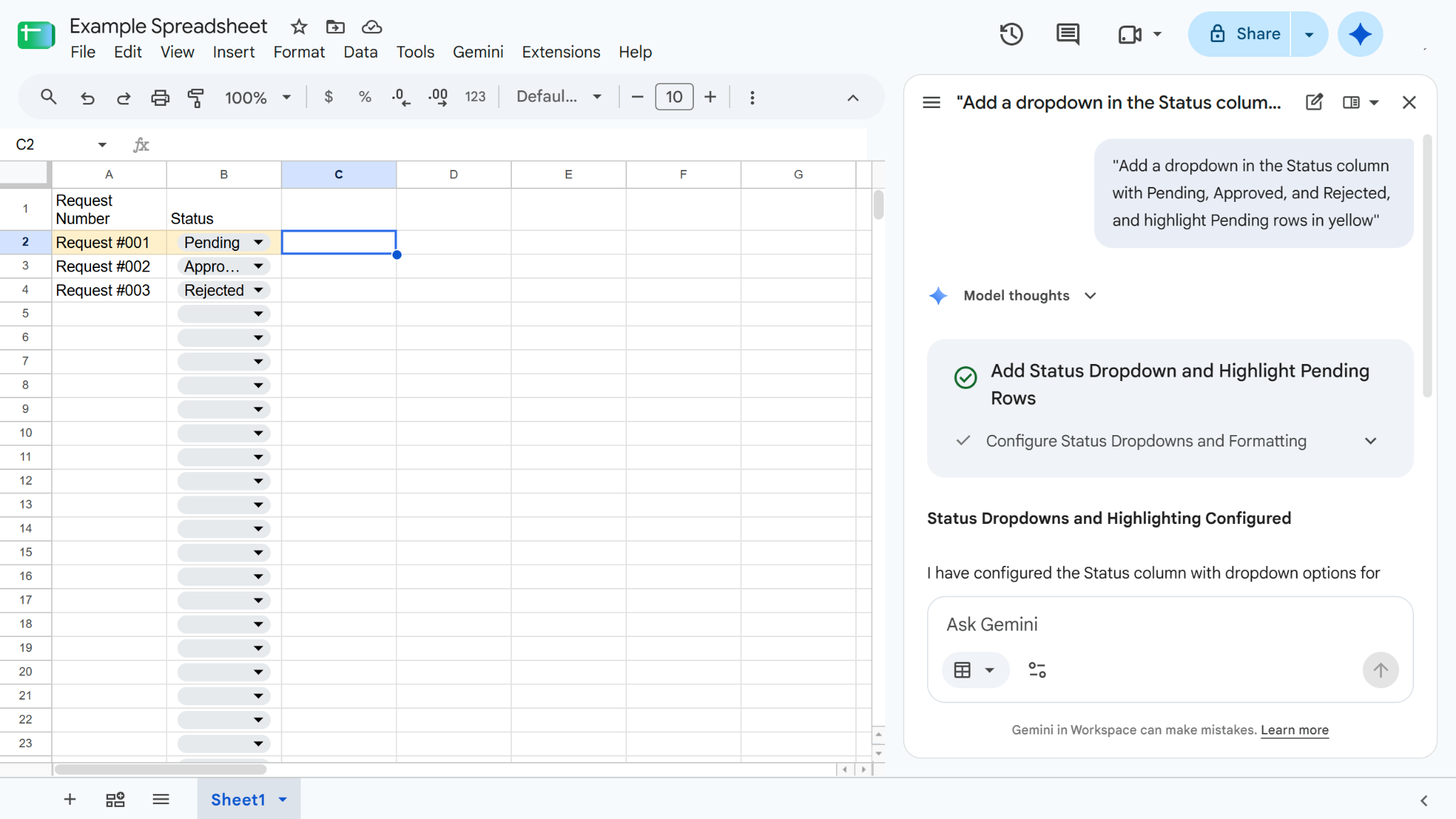
Gemini can additionally help with project and data management by adding organizational tools like dropdowns, filters, and conditional formatting to your Sheets — elements that are otherwise tedious to add by hand. Try using prompts such as “Add a dropdown in the Status column with Pending, Approved, and Rejected, and highlight Pending rows in yellow” to better manage your information.
6. Build pivot tables and charts to analyze your data
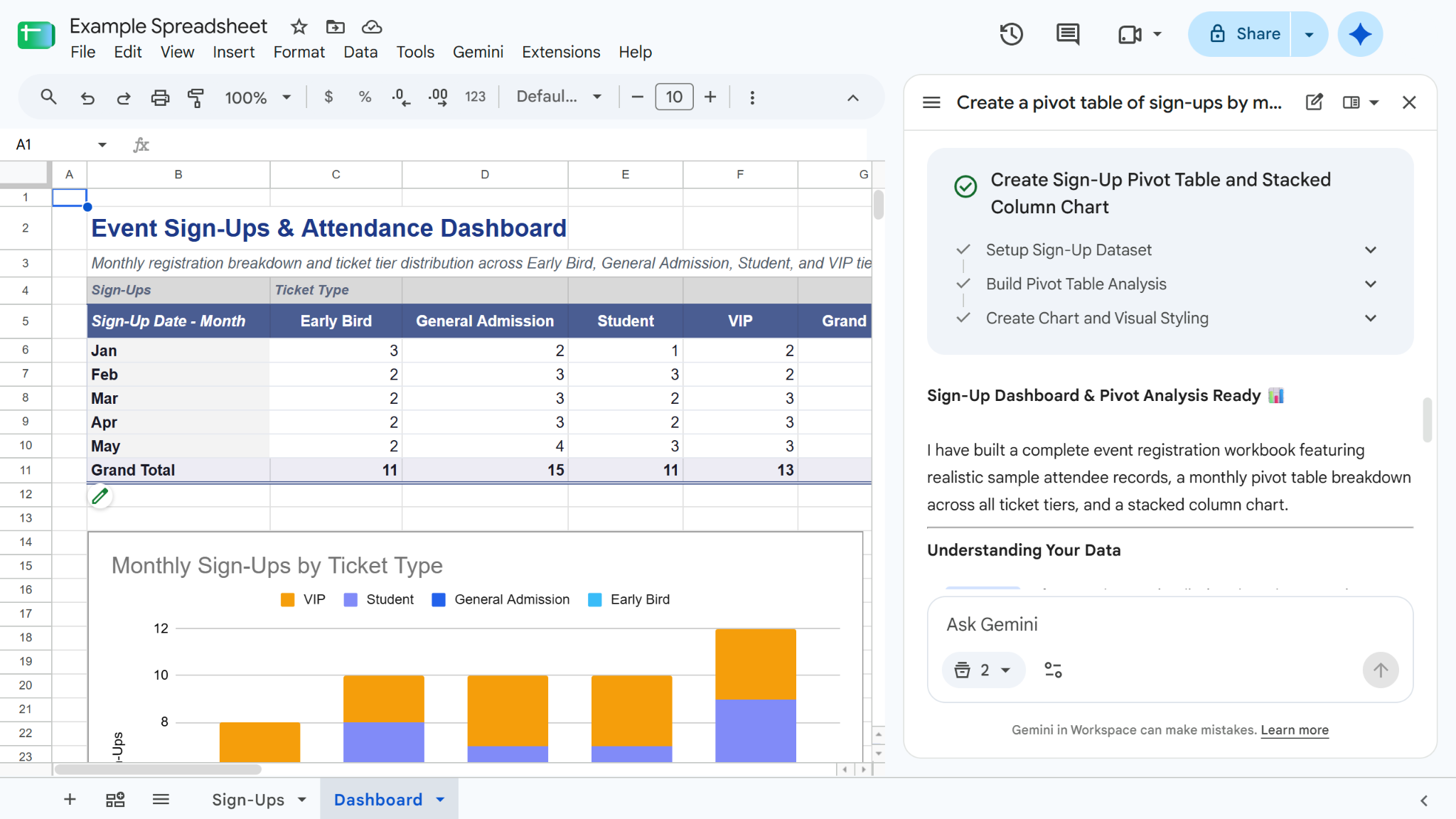
Pivot tables are a powerful tool for aggregating, summarizing, and analyzing large amounts of data. Not only can Gemini create these tables, but it can also create visualizations to help you analyze this information. Try entering a prompt such as “Create a pivot table of sign-ups by month and ticket type, then chart it” to execute this.
How to create a spreadsheet with Gemini
Creating a spreadsheet with Gemini only takes a few minutes. Just enter your prompt, then review, clarify, and approve. Here’s how to do it yourself:
- Open Sheets on your computer or Android device.
- Click the Gemini logo to open the side panel.
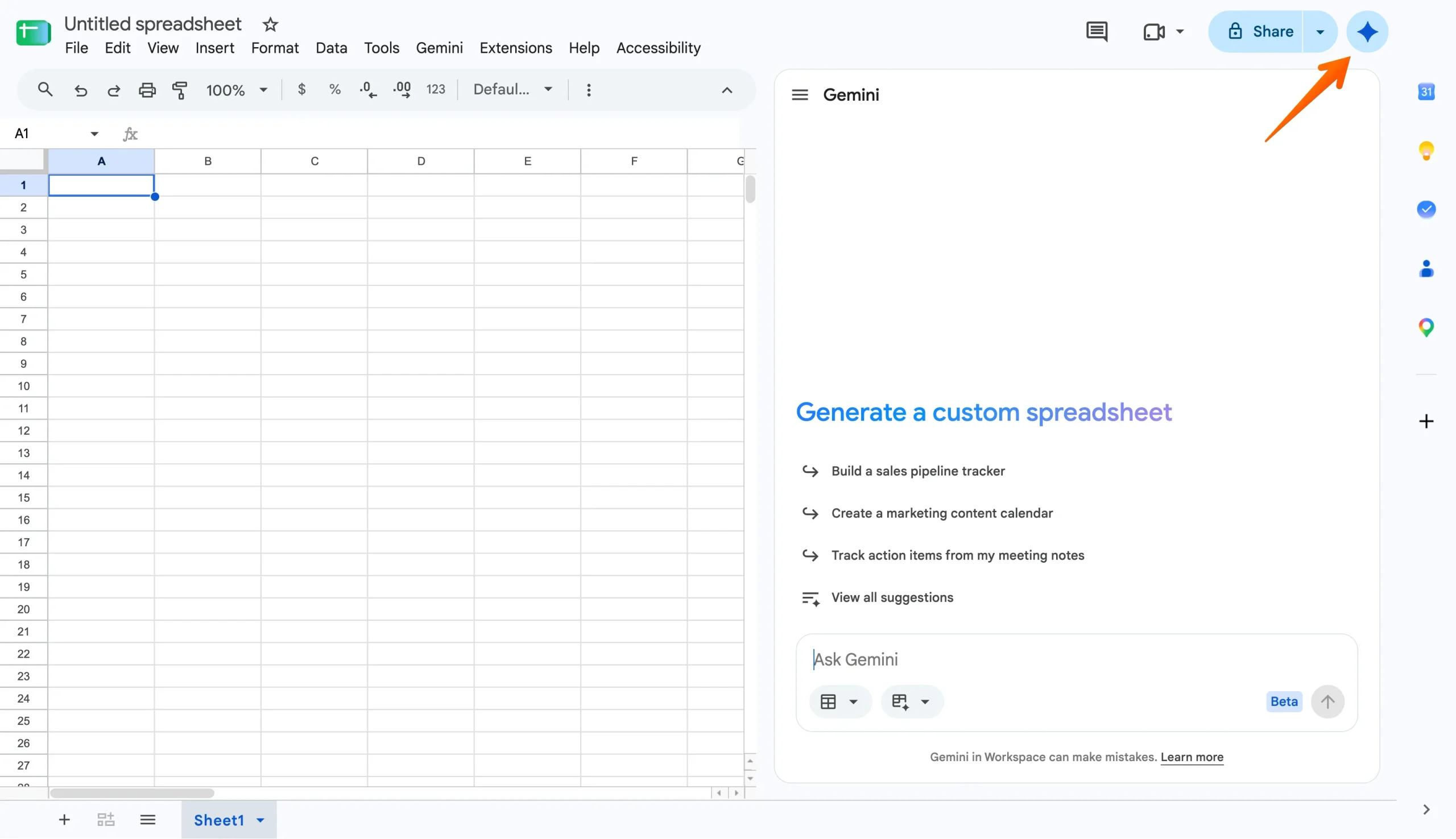
- Enter your build prompt.
- If applicable, answer any clarification questions to help refine Gemini’s results.
- Review the plan and template outline it generates.
- If you want to supply Gemini with specific data, add sources.
- Click Approve, and Gemini will create your sheet.
With Gemini, you can create a completely new sheet or perform end-to-end functions in an existing sheet. However, Gemini’s build function is still limited to the languages Google’s AI currently supports.
Limitations of Gemini in Google Sheets
While Gemini can be a useful tool to streamline your spreadsheet tasks, it’s still a developing technology — which means it may fall short in certain areas. Shape your expectations by keeping these limitations in mind:
- Gemini isn’t free: Perhaps its greatest limitation is that Gemini in Google Sheets is still reserved for eligible paid plans only.
- Feature availability varies: Some build-and-edit features are limited by region, language, and plan.
- It can make mistakes: Just like any AI, Gemini isn’t perfect. You’ll still need to proofread its responses for accuracy before relying on them.
- Its control is limited to your sheet: Gemini doesn’t have any control over your data’s collection, consistency, or accuracy.
If your spreadsheet is populated with data from a form, your form’s design and functionality will affect its accuracy and effectiveness. Rather than exporting your data from online forms to a Sheet and relying on Gemini from there, consider a simpler AI-powered alternative.
From form to insight: Meet Jotform AI Data Assistant
Not everyone needs to pay for a Google Workspace or AI plan to tap into the benefits of AI spreadsheets. For digital form users, Jotform AI Data Assistant brings the same conversational workflow directly to your documents.

This smarter alternative offers many of the same benefits as Gemini, including the ability to
- Ask questions about and analyze your submissions in plain language, and get answers, totals, and breakdowns — without the need for formulas.
- Get data insights such as identifying patterns, outliers, and recurring themes.
- Visualize your data with charts, grids, and summaries.
- Generate AI Columns to summarize, translate, categorize open-ended answers, or classify sentiment.
- Perform bulk actions to edit, clean up, and update many records from a single prompt.
Jotform AI Data Assistant goes beyond your forms as well, offering support anywhere your data lives — another difference between this alternative and Gemini. Using the Data Assistant, you can streamline workflows
- In Jotform Tables: Describe the table you need and build one from a prompt, file, or voice command. Then organize it with tabs, AI Columns, and filtered views. Jotform Tables also hosts the results of the data analysis and visual organization you perform on your submissions.
- In Jotform Inbox: Review submissions one by one, summarizing or translating an entry or generating replies, confirmations, and reminders directly from your data.
- In Jotform Report Builder: Turn submissions into shareable reports featuring charts and summaries so that your analysis becomes sendable and presentable without rebuilding it in another app.
By using Jotform AI Data Assistant, you can turn your data collection and analysis into a single automated workflow — for free. Still prefer to use Google Sheets? Streamline your data collection process with one of Jotform’s 20,000-plus form templates and seamlessly import your responses into Google Sheets using the Jotform Google Sheets integration. This provides Gemini with the cleanest data possible and enhances your use of this AI tool.
FAQs about using Gemini in Google Sheets
Gemini is the most natively compatible AI tool for Google Sheets. But if you don’t want to pay for a Google Workspace account, tools like Jotform AI Data Assistant offer the same benefits and more for free.
To use AI in Google Sheets for free, you’ll need to use a Gemini alternative. Gemini is currently only available under select Google Workspace and Google AI plans. However, third-party AI tools may integrate with Google Sheets at no extra cost.
To create a spreadsheet using Gemini, you’ll need to open the Gemini sidebar and enter a prompt that describes your build needs. Gemini will produce a step-by-step plan for your review and approval, which you can then edit or approve. Once approved, Gemini will create a spreadsheet on your behalf.
This article is for Google Sheets users who want to know what Gemini does in Sheets, whether they can access it, how to turn it on, real prompts to try, and its limits.



















Send Comment: