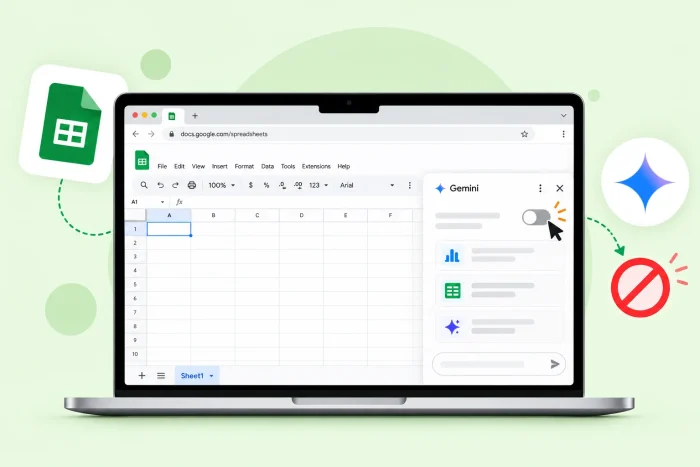
Key takeaways
- Turn off Gemini in Google Sheets: Open a Google Sheet and click the Gemini button. Disable the Smart Features in Google Workspace toggle.
- Have a work or school account? Your Gemini options may be controlled by the system administrator. Ask if they can disable Gemini for you through the Admin console.
- Know the consequences: Turning off Gemini stops it from providing in-sheet assistance when you’re working. It may also disable some non-AI features.
- Want to analyze data on your own terms? Try Jotform AI Data Assistant. It gives you the analysis you’re looking for, with no need for a special side panel or a paid Google Workspace subscription.
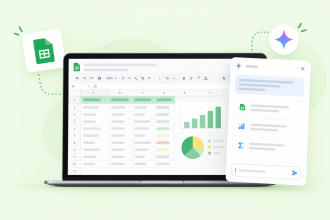
For the umpteenth time today, Google Gemini has interrupted your Sheets workflow. It jumps in when you’re filling in a cell, making suggestions you don’t need and cluttering your screen with its side panel. Is there a way to turn off Gemini in Google Sheets so that you can focus on your tasks?
Yes, there is. Turning Gemini off requires only a few steps, but the actual process depends on whether you have a personal or work account. This guide explains both scenarios, including what disappears when you turn off Gemini. We also explore a less intrusive alternative — the Jotform AI Data Assistant — that you can use for data analysis without committing to Gemini.
Why turn off Gemini in Google Sheets?
Google has rolled out its Gemini AI tool to many of its products. And while Gemini has some useful features, not everyone finds it a must-have. Common reasons why people turn it off include:
- Too much clutter: Gemini fills up a side panel in every Google Sheet. This takes up extra space you may not want to give up, especially on a small screen.
- Too distracting: A suggestion from Gemini can appear anytime. If it frequently interrupts your workflows, turning it off will stop the unwanted popups.
- Privacy concerns: Gemini may collect data from your spreadsheet or AI conversations.
- Work or school policies: Some companies actively discourage or ban AI use. Disabling Gemini in Sheets helps you stay compliant with current policies.
Whatever your reason for wanting to turn off Gemini in Google Sheets, there is a way to do it.
How to turn off Gemini in Google Sheets
Try these steps to disable Gemini in Google Sheets for your personal account:
- Log into Google and open a Google Sheet.
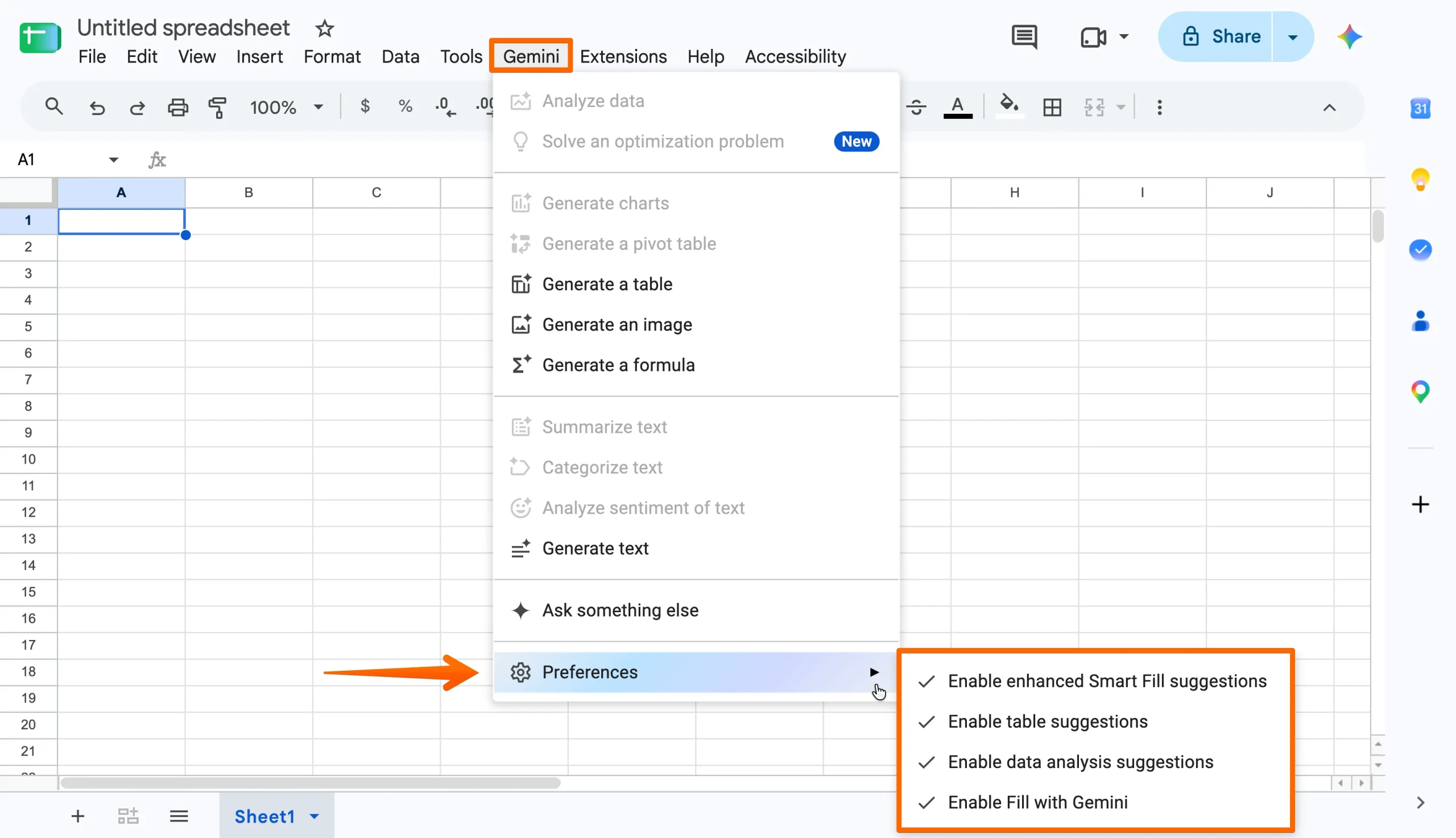
- Locate and click on the Gemini menu. Click Preferences to view the Gemini suggestions options. Disable the ones you want to turn off. If there is a Smart Features setting in your Gemini menu for Google Workspace, disable it too.
- Other automated suggestions are located in the Tools menu. To access them, click Tools > Suggestion controls. Disable the ones you want to turn off.
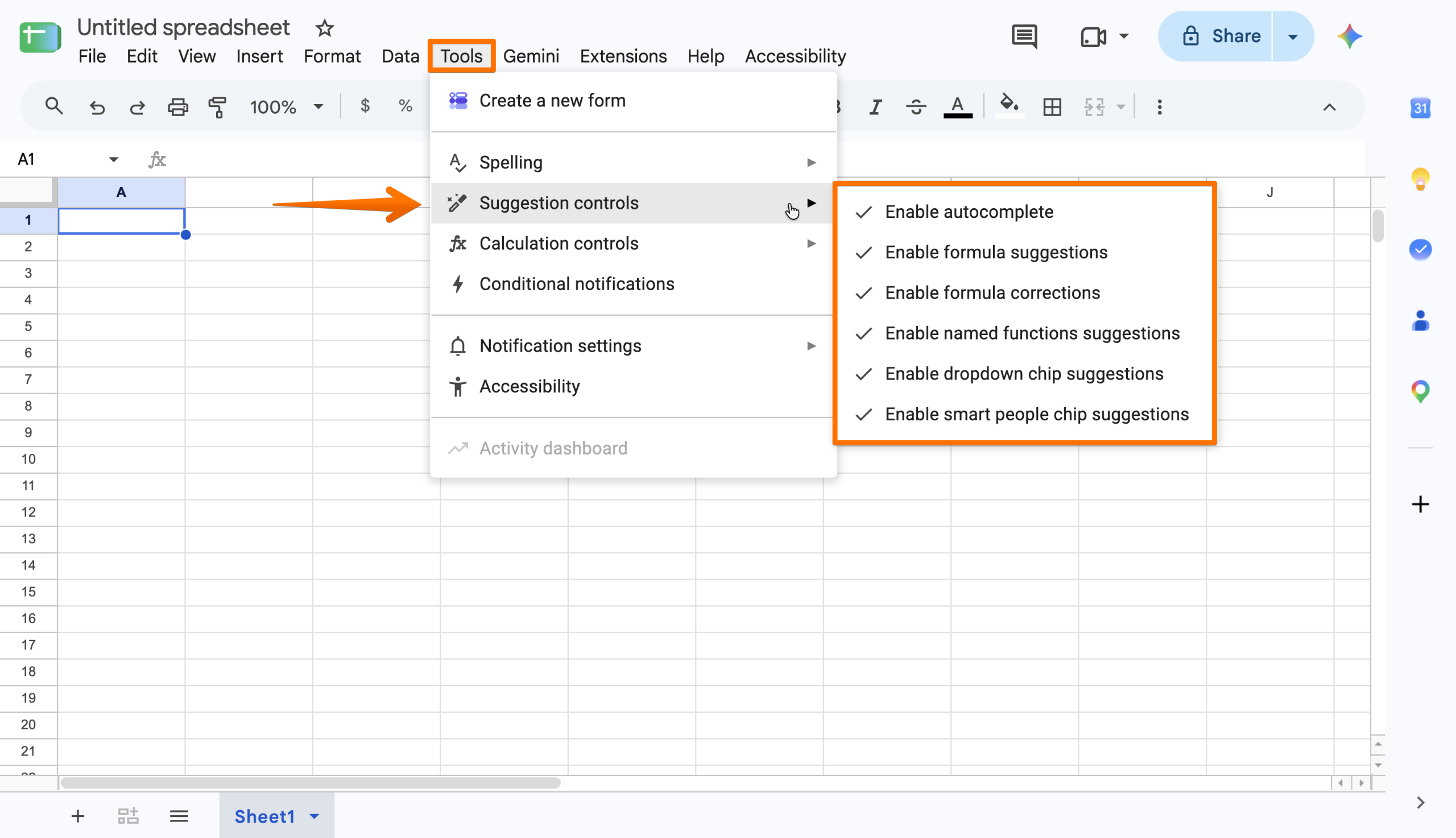
- Google automatically saves your new settings.
Any changes you make to Google’s Smart Features apply to all your Google Sheets. If you decide to turn off the Smart Features for Google Workspace, it will affect other apps you use, including Google Docs and Drive.
Pro Tip
Using a work or school account? Gemini features will be controlled by your organization’s administrator. Ask them to click Menu > Generative AI > Gemini for Workspace in the Admin console and make the necessary changes. Some businesses arrange settings by user and role, which allows them to turn off Gemini for your account without affecting anyone else.
The trade-offs of turning off Gemini in Sheets
Disabling Smart Features in Google Sheets stops Gemini prompts from creating new formulas and interpreting your data in the side panel. However, it can also stop other non-AI features from working. That’s because the Gemini setting is so broad.
Some people find that the Gemini feature they like the most is its AI data analysis. If you’re in the same boat, there is another data management tool worth trying: the Jotform AI Data Assistant.
Analyze your data on your terms with Jotform AI Data Assistant
With the Jotform AI Data Assistant, you get the best of both worlds: AI-powered analysis without Gemini piping in every time you enter data. There’s no side panel or suggestions with every action. You simply activate the AI Assistant when you need it, and leave it alone when you don’t.

What’s more, while Gemini’s Google Workspace features require a paid subscription, the Jotform AI Data Assistant is free. You can use it as a standalone tool or set up a Jotform-Google Sheets integration for all-in-one use, no exports required.
Features available with the Jotform AI Data Assistant include
- Natural language conversations: Let Jotform analyze your data with your direction. Request totals, averages, and breakdowns without the use of formulas.
- Genuinely useful insights: Have Jotform review data for anomalies and recurring patterns to discover what needs your attention now.
- Categorized AI columns: Ask Jotform to classify data by sentiment, product type, form response, or another element.
- Instant visualizations: Turn your data into a chart and summary right in the chat.
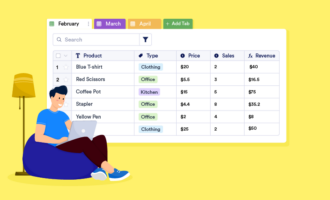
The AI Data Assistant works across Jotform Tables to organize and filter responses from online forms and Jotform Inbox to review submissions from online surveys. Collecting and analyzing are performed in one place, instead of on separate platforms.
Jotform offers a free plan with access to all features, including the Jotform AI Data Assistant. Create an account today to explore how Jotform can support your workflows.
Make sense of your responses right where you collect them
Turning off Gemini in Google Sheets is pretty simple, and you can always re-enable it if you start missing its suggestions. Just keep in mind that you may need an admin’s help if you’re using Google Sheets with a work or school account.
If data analysis is your key reason for using Gemini, consider the Jotform AI Data Assistant. It offers similar benefits, without the hassle of a side panel that clogs up your workspace. Give it a try for free today.
FAQs
You’ll need a paid subscription to use Gemini in Google Sheets. It’s available for personal and professional accounts.
Open the Gemini app from your Google Workspace. Click Settings > Activity and turn the Keep activity option off.
Pressing the Ctrl and K buttons opens up a menu to apply a hyperlink to specific text in your Google Sheet.
This article is for Google Sheets users, business professionals, educators, Workspace account holders, and anyone who wants to turn off Gemini for a cleaner, less intrusive spreadsheet experience while still keeping access to useful data analysis tools.


















Send Comment: