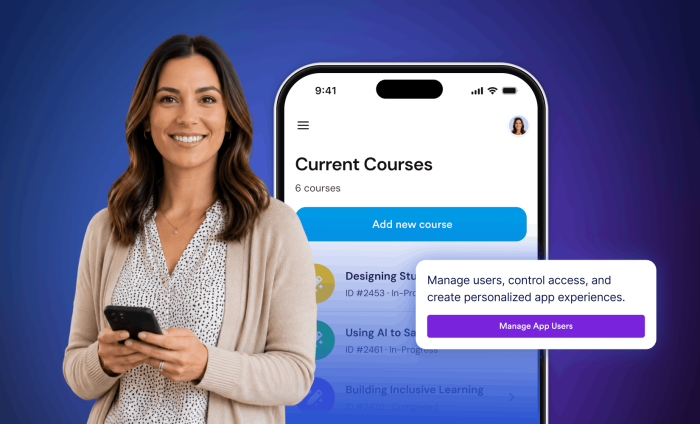
Are you looking for an easier way to organize and share resources with your teachers and school staff? Look no further. Jotform Apps is here to help.
Make professional development easy to access
Teachers face many barriers in taking professional development — cost, lack of time, few relevant courses. Don’t let difficulty accessing available PD opportunities be one of those barriers.
One of the best ways to share professional development resources with teachers is by creating an app. And Jotform makes app building simple.
How to create an app with Jotform
There are several ways to build an app within Jotform. You can start from scratch using the Jotform App Builder, use a template, or ask Jotform AI to build an app for you. Whichever you choose, you won’t have to do any coding.
Watch this video to see how to create an app using a template.

Using the Jotform AI App Builder is, as you might have guessed, very easy. Just go to the builder and input a prompt that describes the app you want to build. In no time, you’ll have a serviceable professional development app for your school.
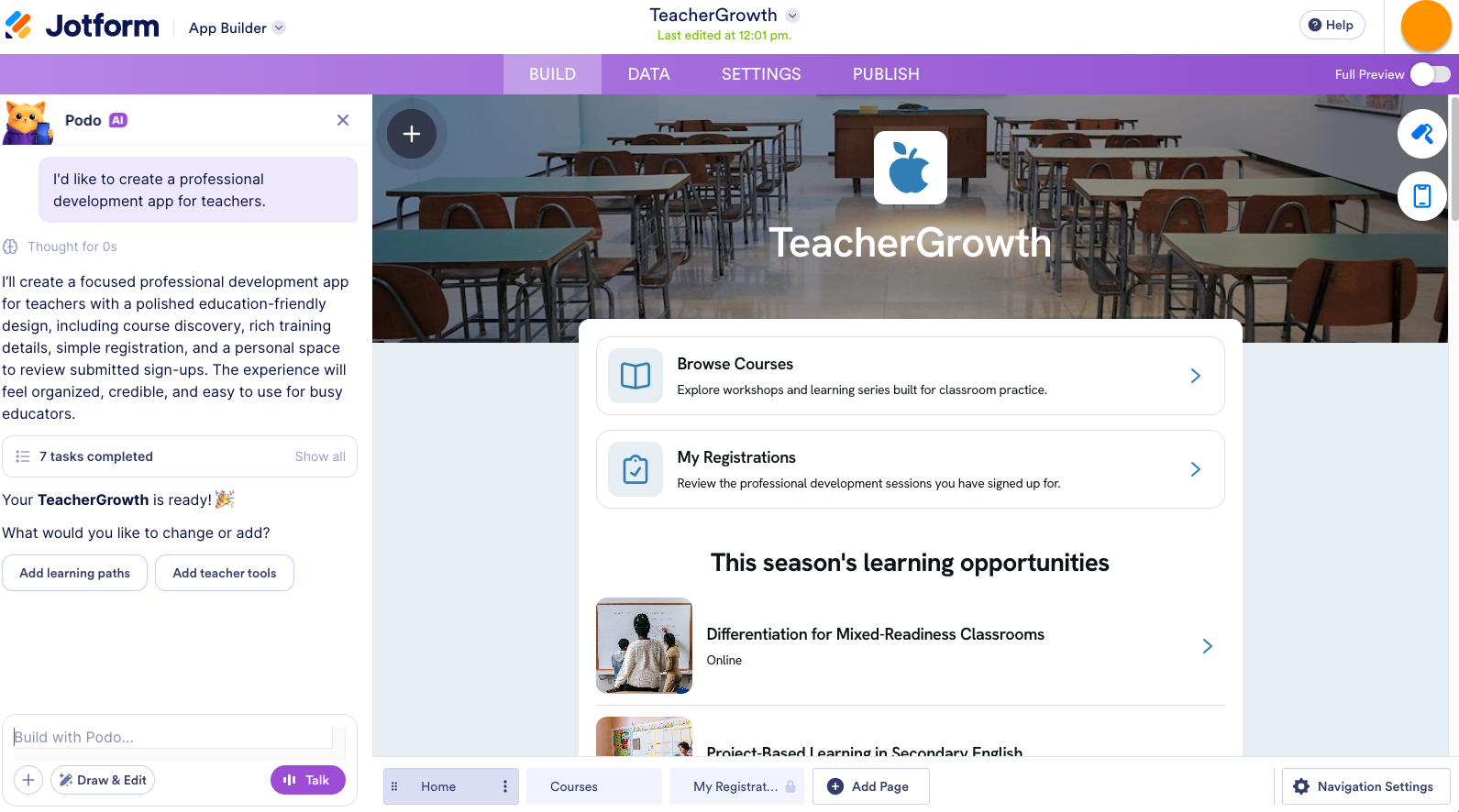
You can refine your app using the AI chat.
If you’d like to create an app from scratch, using the Jotform Apps Builder, select Start from scratch in your Jotform Workspace.
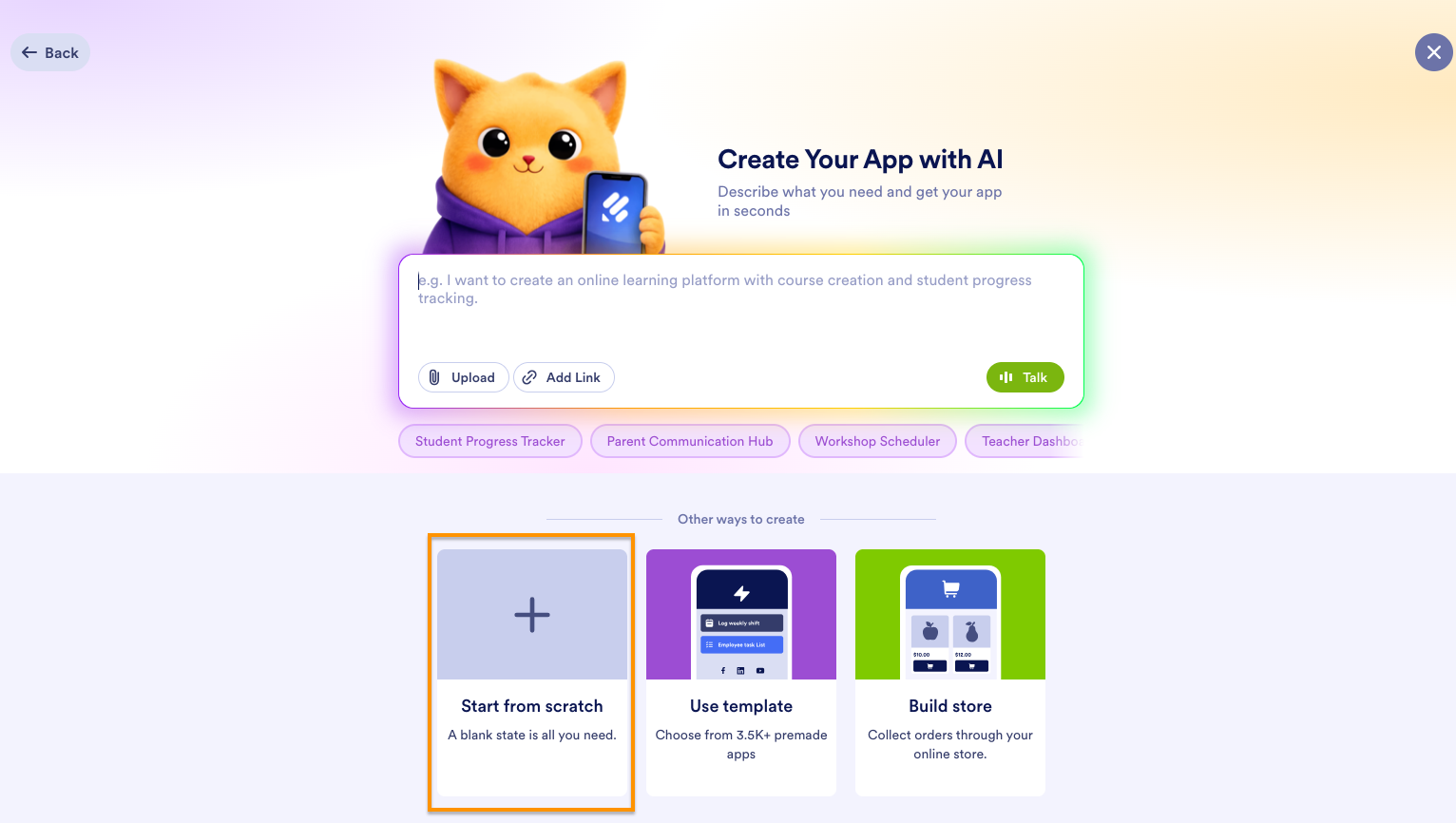
On the next page, close the AI chat window and click the + icon on the left to open the App Elements panel.
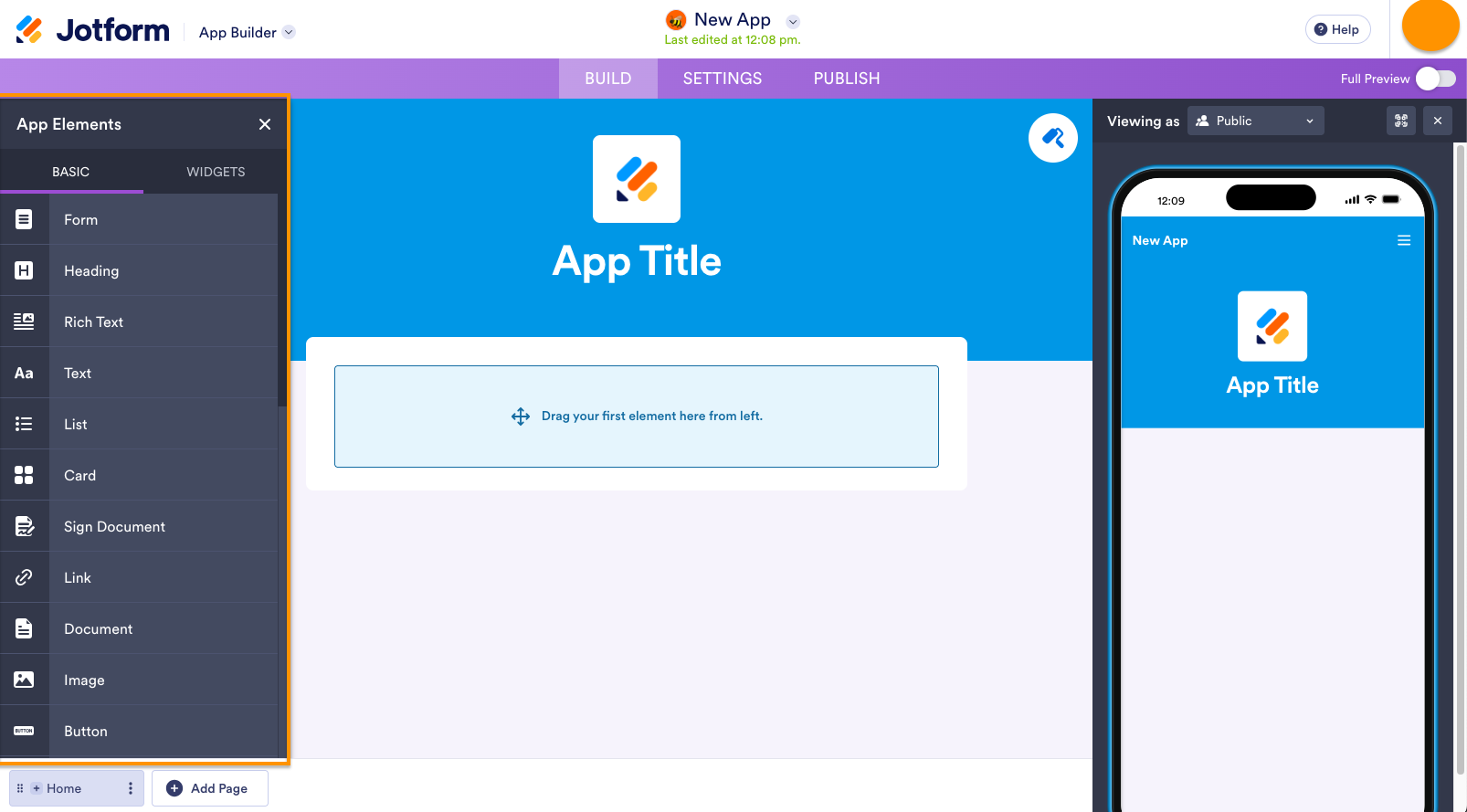
Drag and drop elements from the panel to create your app. You can include forms, e-sign documents, images, testimonials, and more.
The App Designer
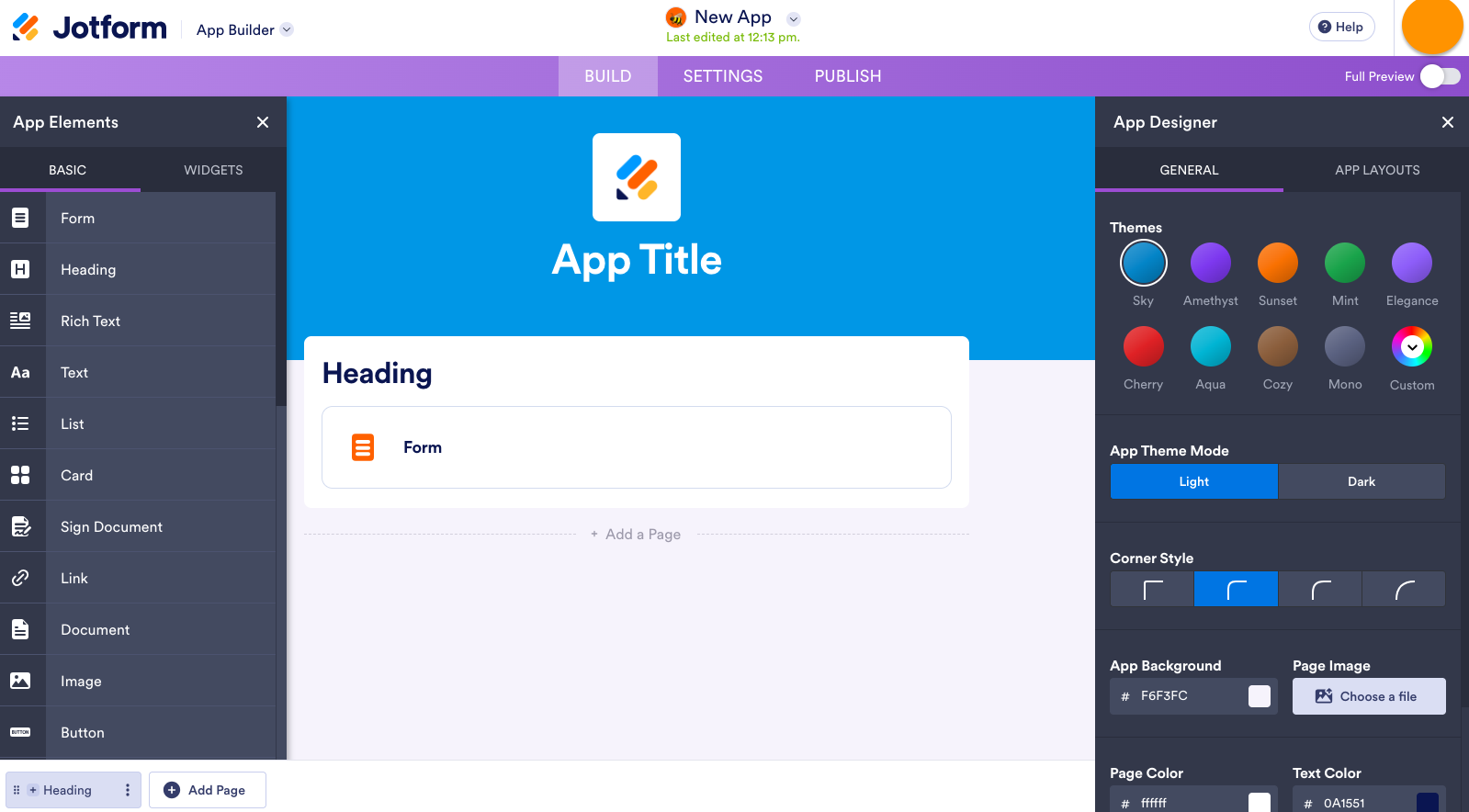
To refine the design of your app, click on the paint brush icon to open the App Designer. Here, you can change the app’s colors, corners, background, image, font, and layout. Make sure the app fits your district or our school’s branding.
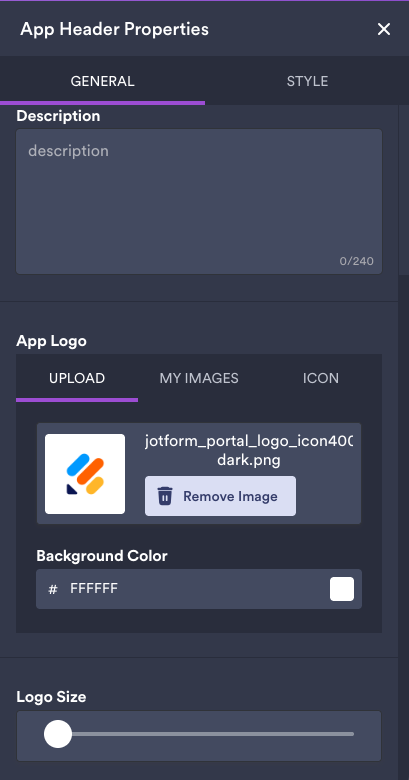
In the Header Properties, you can change the app title and description. You can even upload your institution’s logo.
Share your app with teachers
It’s simple to enable and share your app. In the top banner of the App Builder, click on Settings.
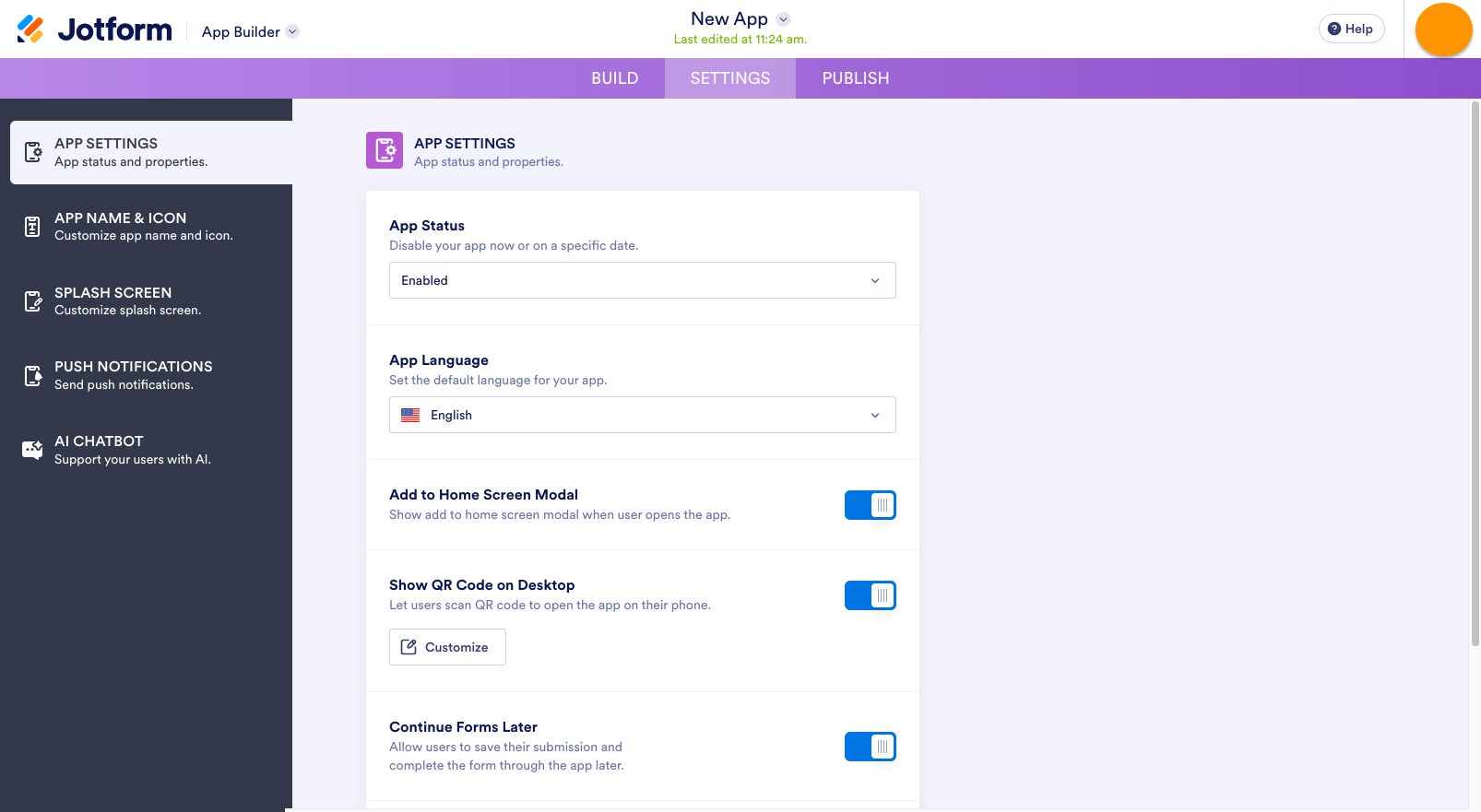
Here, you can enable or disable the app. You can also customize the app name, icon, and splash screen.
You can set up push notifications as well, so your teachers and staff will get notifications from the app when there’s something new or an action they need to take.
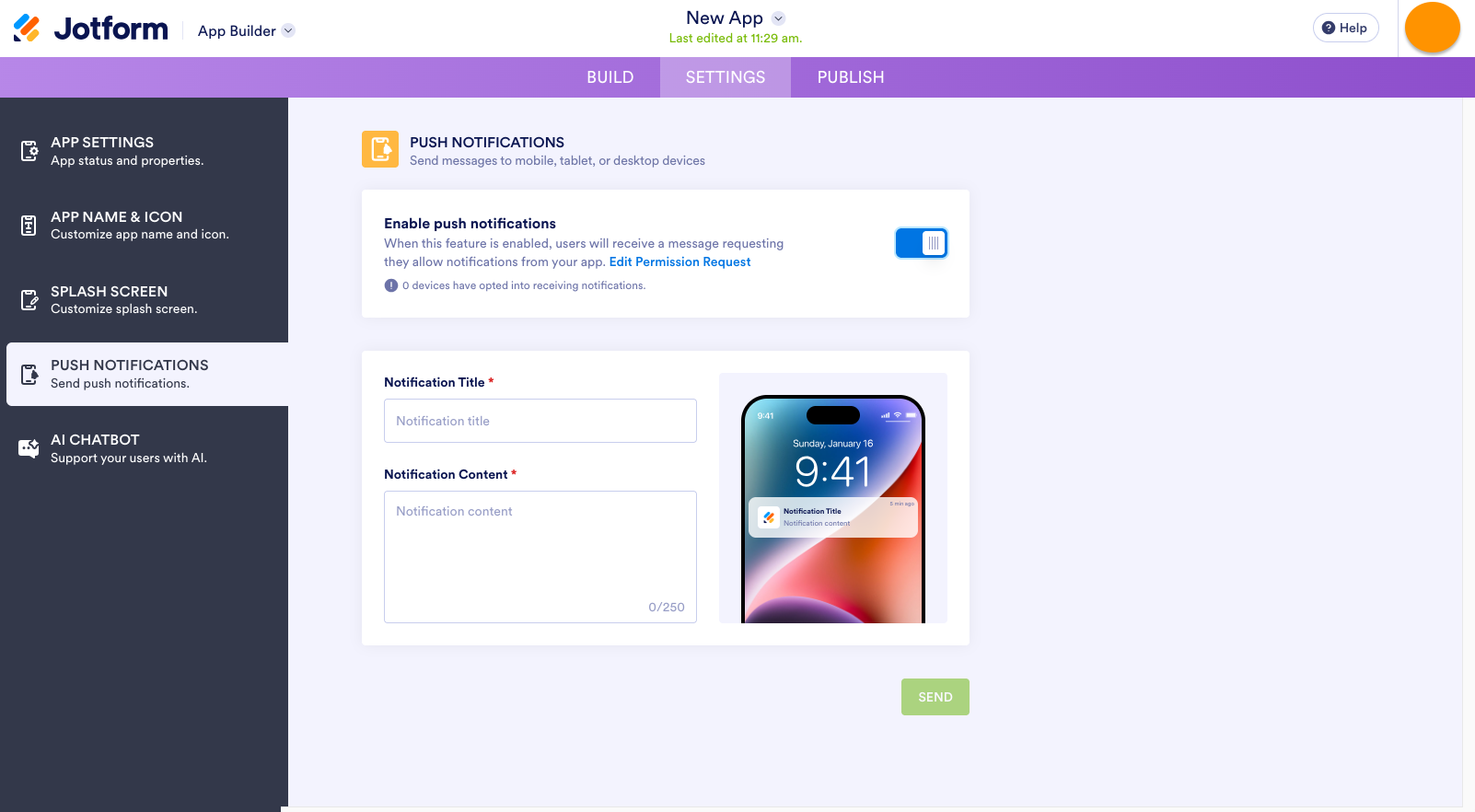
In the Publish tab, you can easily change the app settings.
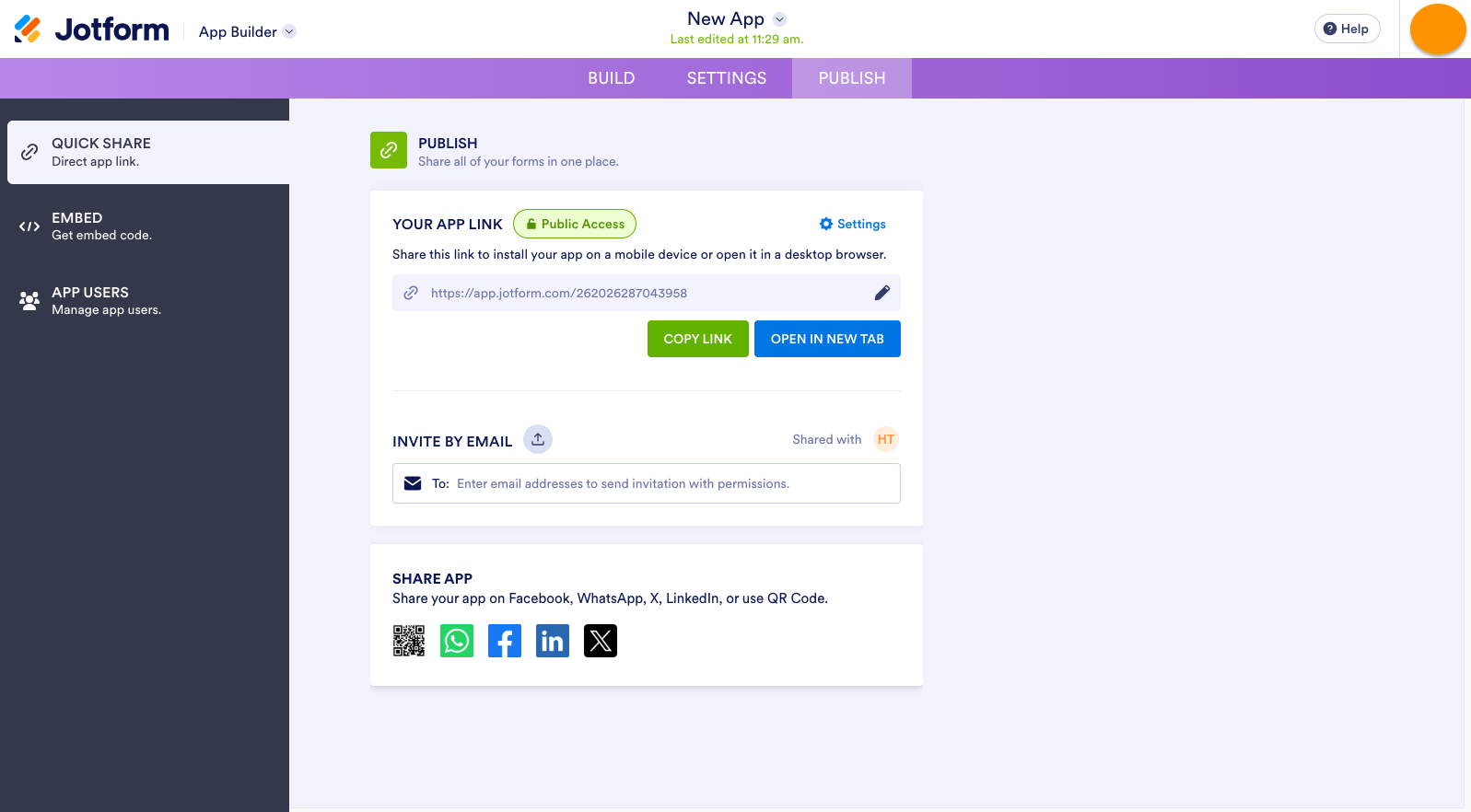
Just click on Public Access if you want to make the app private or restrict access to people who work at your school.
You can copy the automatically generated link for your app and post it on your portal, invite users by email, or even share it in social spaces. There’s also an embed code you can copy to add the link to your website.
Support your teachers by connecting them to the professional development resources they need.
























































































Send Comment: