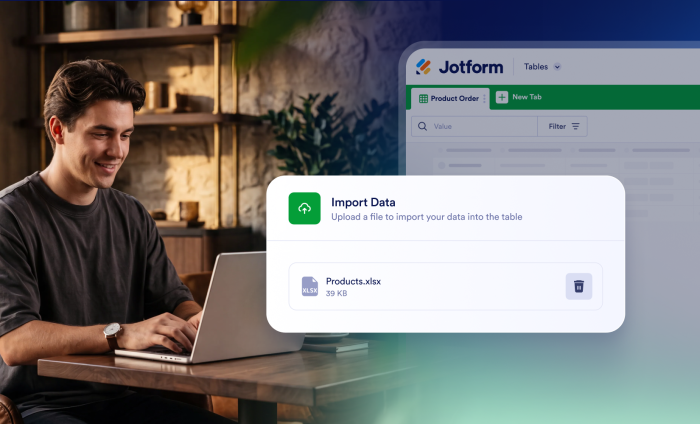
Managing data across spreadsheets, external tools, and multiple forms can get messy. Jotform Tables provides a way to centralize data in one place. But in the past, moving external data into a Jotform table meant creating a new table or copying and pasting rows one by one into an existing one. Not anymore.
With Jotform’s new data import feature, you can now seamlessly bring data from other sources directly into your existing Jotform Tables.

Why we built this feature
Our users manage complex data ecosystems. Whether your data lives in external tools, legacy spreadsheets, or a variety of different Jotform forms, you shouldn’t have to jump through hoops to centralize it.
We built this feature to save you time, eliminate errors from manually copying and pasting data, and keep your established table structures intact.
What you can do with it
This new feature isn’t just a simple file upload tool. It’s an intelligent mapping system designed to keep your data clean. With this update, you can
- Merge data effortlessly: Bring external CSV or Excel files directly into an active Jotform Table.
- Target any column: Import data into columns automatically generated by form field labels as well as custom columns you create manually.
- Automatically match data to columns: Our system automatically checks your file’s column names and data types to suggest the perfect match.
- Customize data mapping: Want to change where imported data goes in the table? You can manually adjust how data is mapped before finalizing the import.
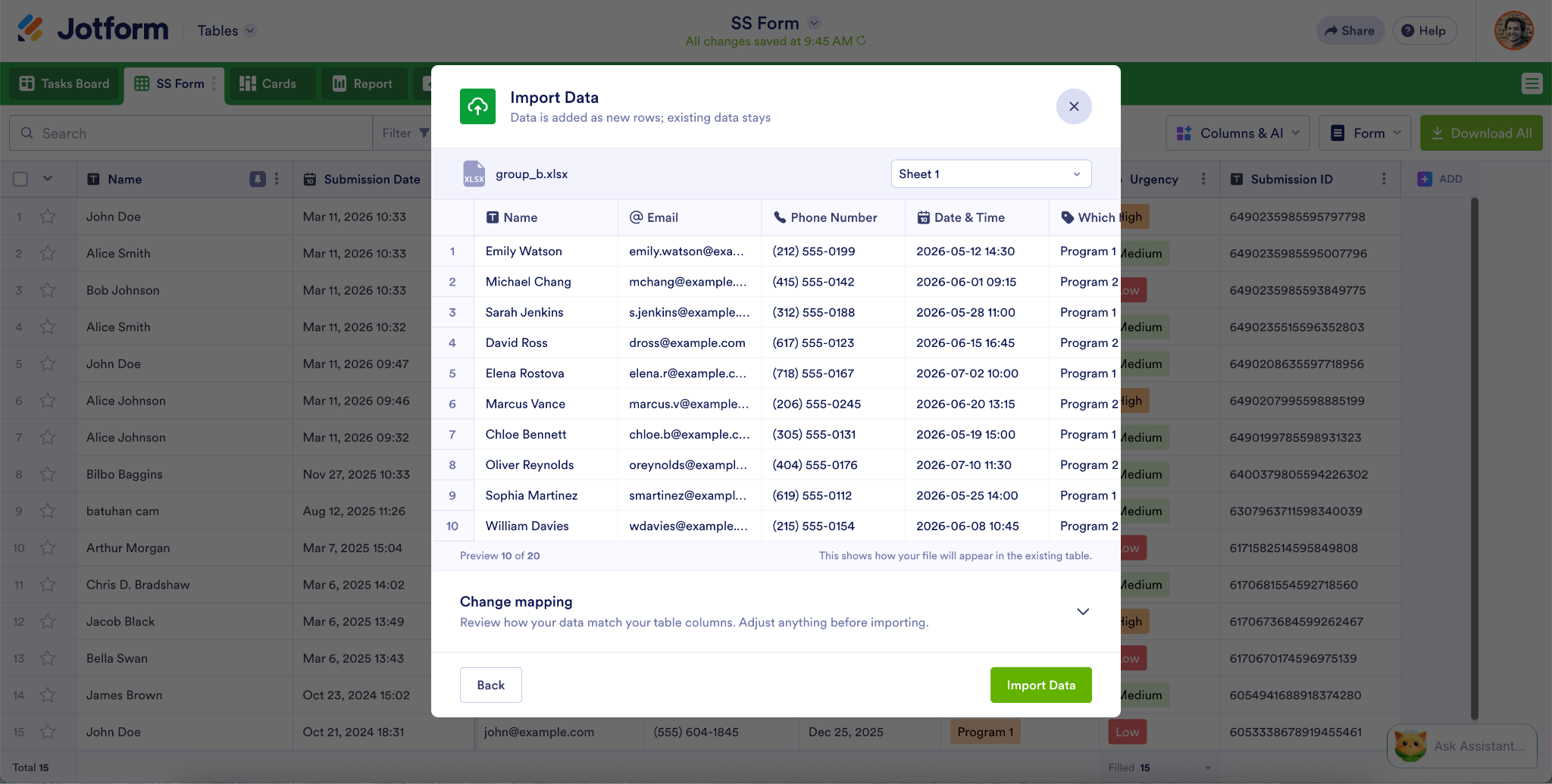
- Preview data: Get a preview of how your imported data will look in your existing table before you complete the import.
Supported field types
To ensure data integrity, the import tool supports a wide variety of field types, including
- Full Name, Email, Address, and Phone
- Short Text and Long Text
- Date and Number
- Dropdown, Single Choice, and Multiple Choice
How to find and use the data import feature
Ready to try it out? You can import data to tables in just a few clicks. Here’s a step-by-step guide to follow.
- Open the table: Navigate to the Jotform Table you want to update.
- Access the menu: Click on the table tab’s context menu (the dropdown arrow or three dots next to the tab name).
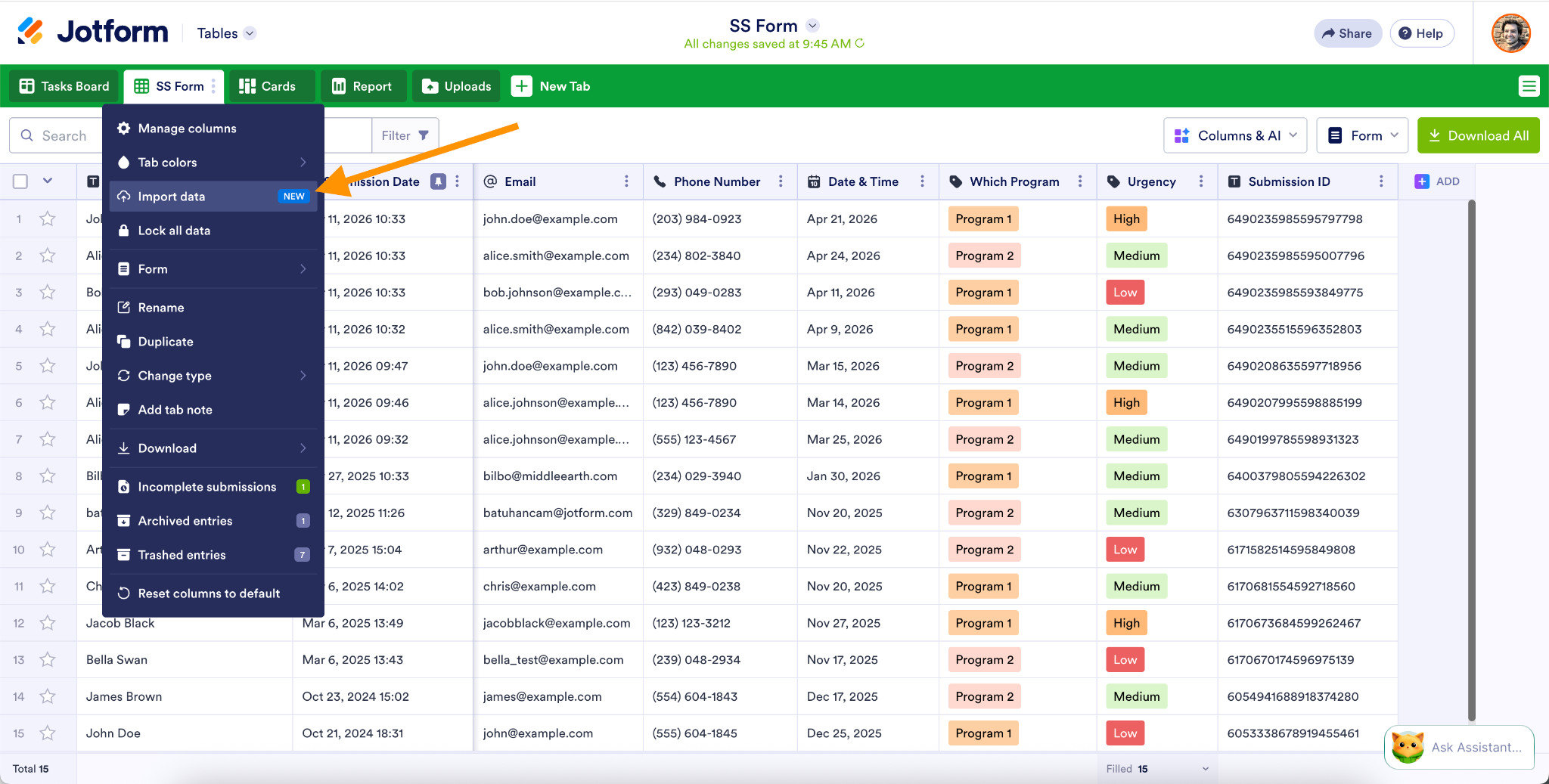
- Upload your file: Select an import option to upload your CSV or Excel file.
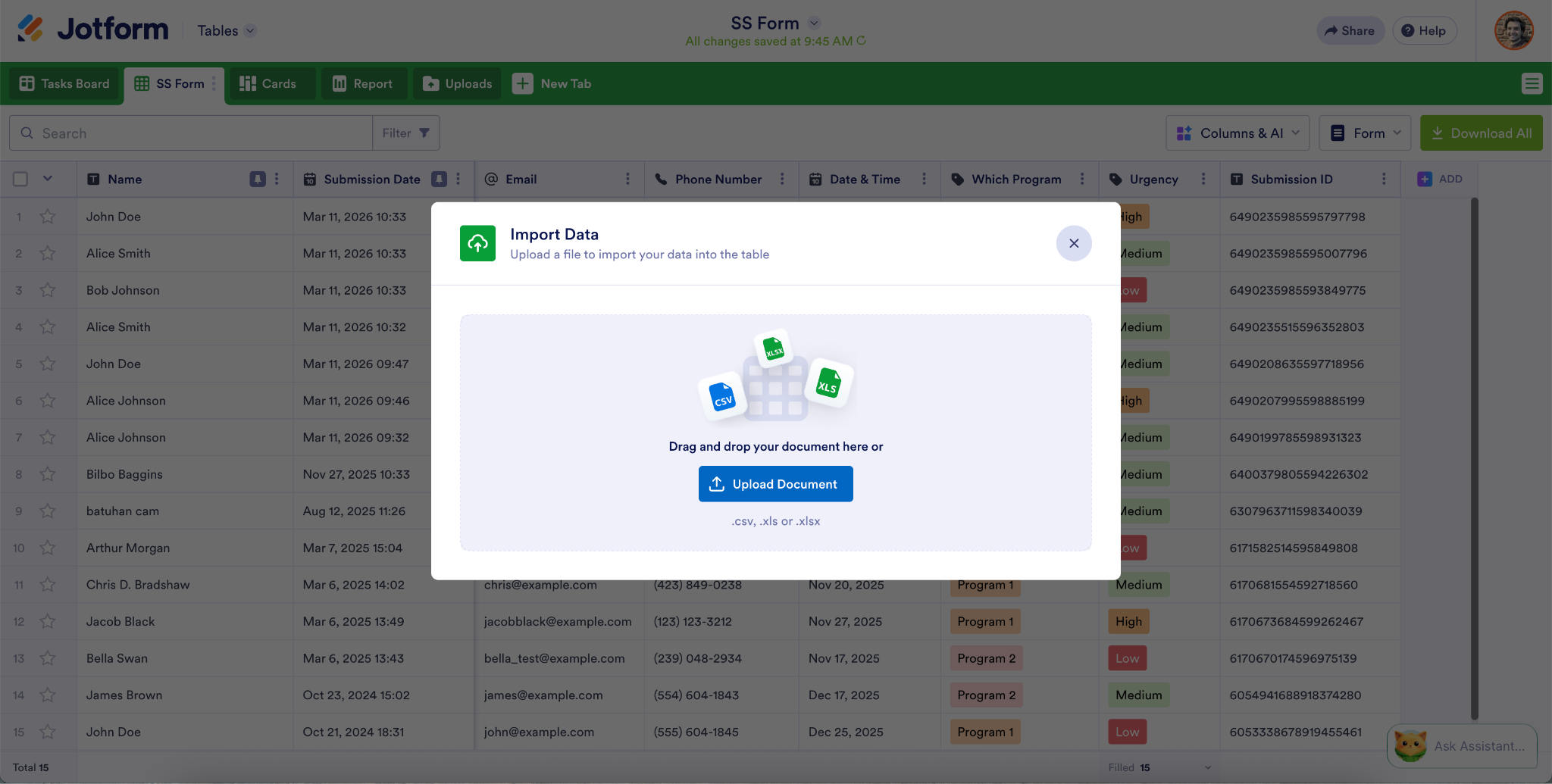
- Map and preview: Review the auto-matched columns and make any necessary adjustments under Change mapping. Check the preview to make sure the imported data is appearing correctly, and then click Import Data.
Streamline your data workflow today
Stop wasting time rebuilding tables and manually copying data. With the new Import to Existing Table feature, your data now moves as fast as your business does.
Ready to see it in action? Log in to your Jotform Enterprise account today, open your Tables dashboard, and merge your external files in just a few clicks.




































































































Send Comment: