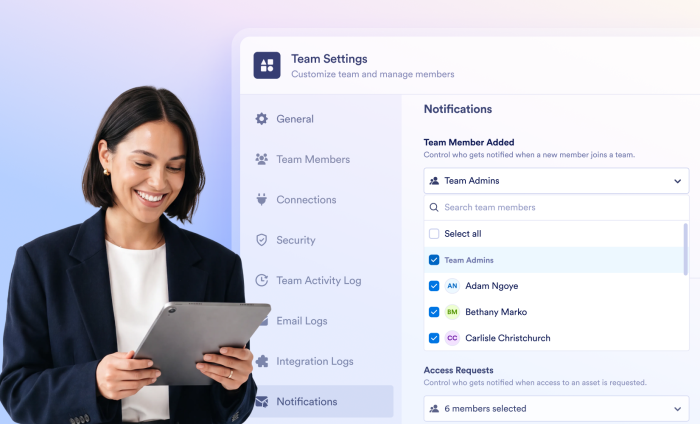
Staying in the loop just got easier. The new Team Notifications feature for Jotform Enterprise allows you to tailor who receives updates about team activities, so notifications reach exactly who needs them. You’re now in control of who gets notified about what on your Jotform Teams.
The ability to customize notifications in Teams has been one of our Enterprise customers’ most-requested features. Now, Team Admins can decide exactly who gets notified about specific team events. No more one-size-fits-all alerts. Just the right information for the right people.
Team admins can now select notification recipients directly from Team Settings > Notifications. You can assign notifications to individual team members or to specific roles. For example, if you want all managers to receive access-request alerts, you can set that up with a couple of clicks.
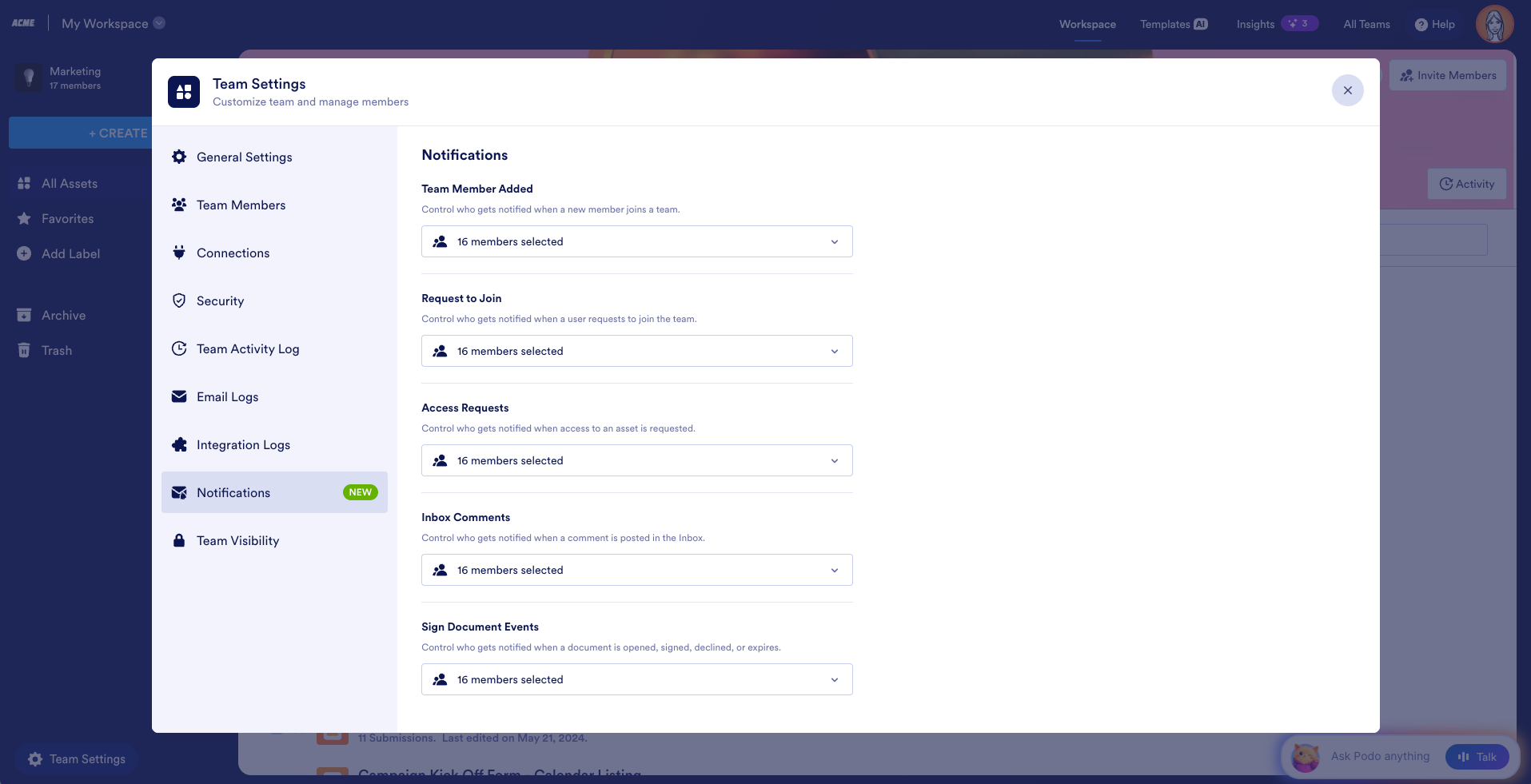
What you can configure
Here’s a list of the events you can manage notification recipients for:
- Team member added: Recipients are notified when a new member joins the team.
- Request to join: Recipients are notified when someone asks to join your team.
- Access requests: Stay on top of access requests for assets before they create bottlenecks.
- Inbox comments: Make sure the right people see comments posted in Jotform Inbox.
- Jotform Sign document activity: Track when a document is opened, signed, or declined or when the signing period expires. This now includes Sign automation-enabled forms, which can be managed in the same place as your other Sign document notifications.
Get started
Setting up notifications takes less than a minute. Here’s how to do it.
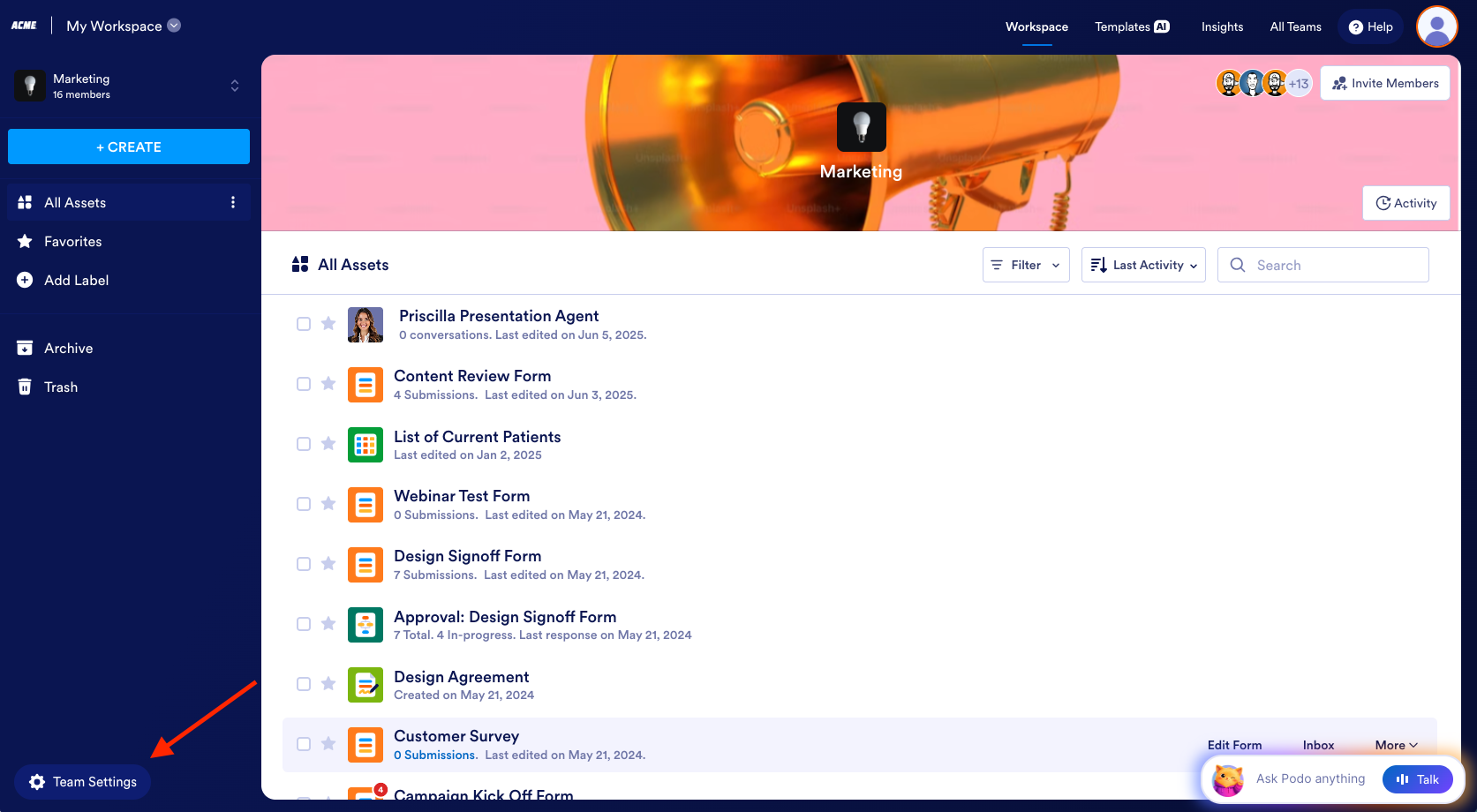
- From a Team workspace, click the Team Settings button in the lower left.
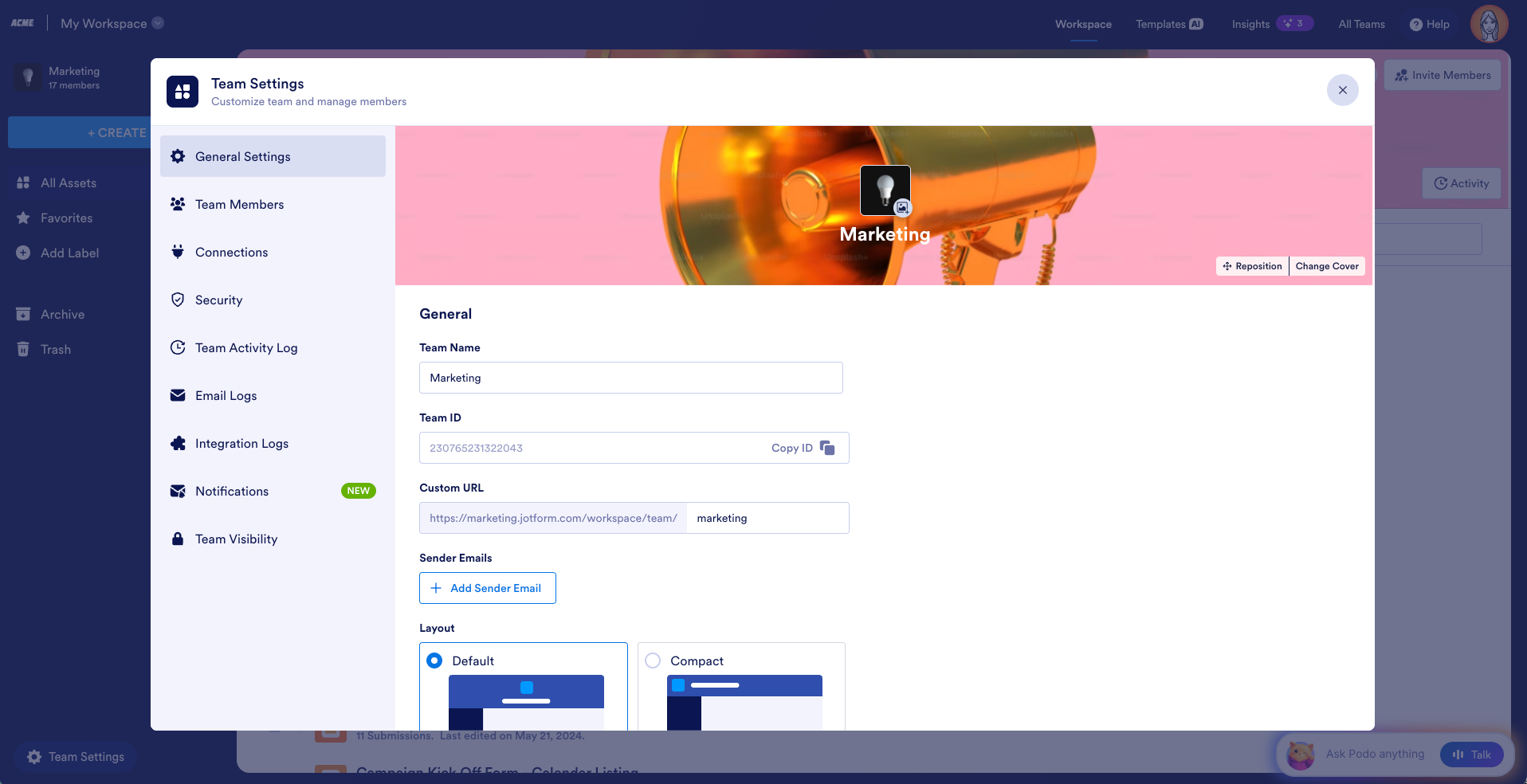
- Click the Notifications tab in the left panel.
- For the events listed (e.g. a new member joins your team), select who should be notified — either individual team members or specific team roles.
- Click Save Changes.
That’s all there is to it. For a detailed walkthrough, check out our how-to guides:
- How to manage Team Notification recipients
- How to manage Inbox comment notification recipients in Teams
More control over form notifications
This update pairs well with another recent improvement: added flexibility for form submission notifications.
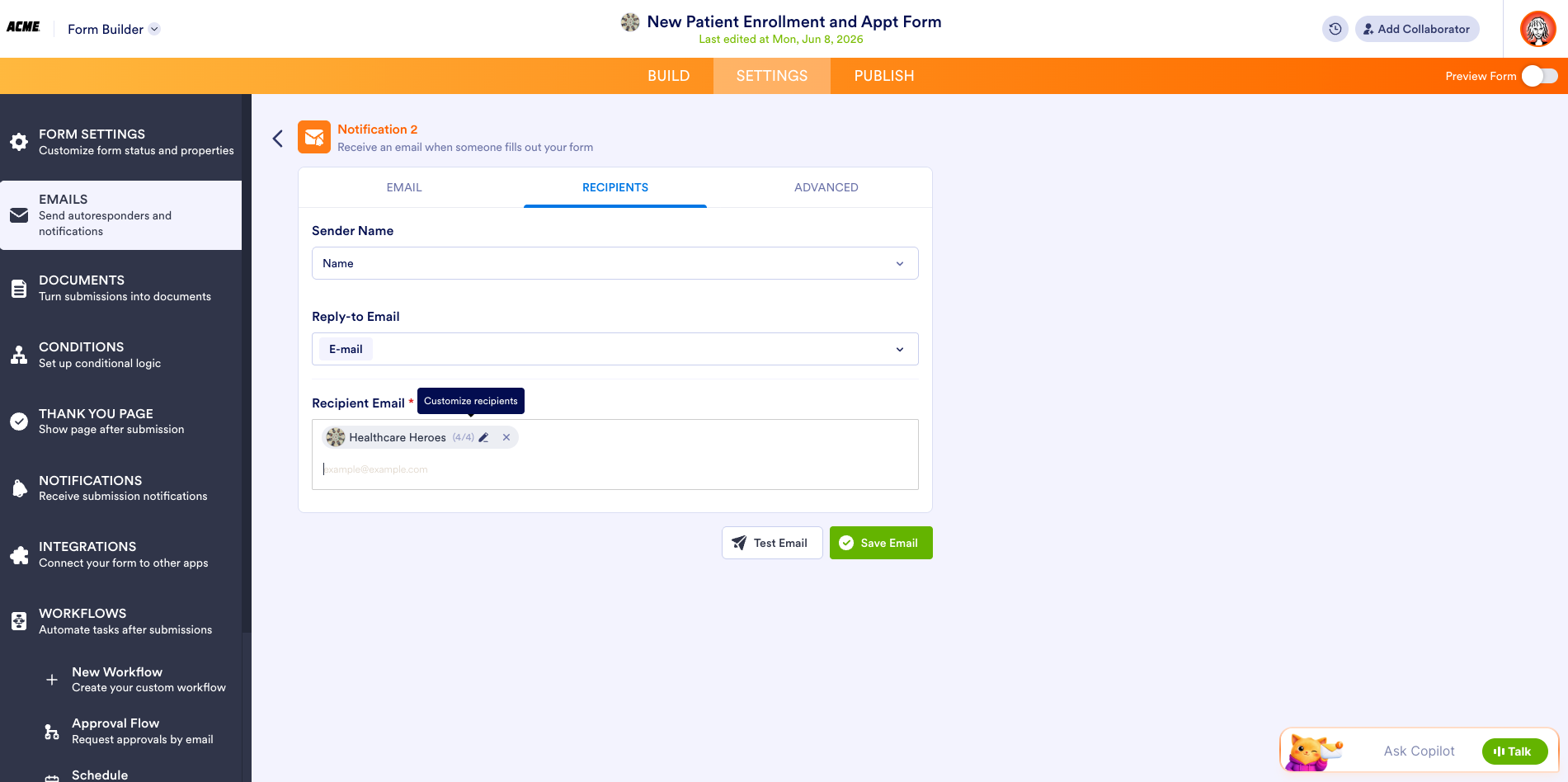
Previously, notifications could only be sent to an entire team or to individual email addresses. Now, from the Form Builder, you can select a team and then choose exactly which members of that team receive notifications for a specific form — so team members only get alerted about form submissions that are relevant to them.
You can manage this under Settings > Emails in the Form Builder. See the full how-to guide.
Benefits across industries
Team Notifications unlock meaningful efficiency gains for virtually every industry that relies on coordinated workflows.
In healthcare, clinic administrators can ensure only the right department heads are alerted when staff request access to sensitive patient intake forms — keeping compliance tight without burying frontline workers in irrelevant pings.
Legal and professional services firms can assign document-signing notifications to the specific partners or paralegals responsible for each matter, so no signature deadline slips through the cracks.
For e-commerce and operations teams, routing access request alerts to managers by role means new hires get provisioned faster without creating approval bottlenecks during peak seasons.
Educational institutions managing enrollment or consent forms can configure inbox comment notifications so counselors and administrators stay in the loop on the submissions that actually concern them.
And in real estate agencies, where multiple agents collaborate under a single team account, Sign document activity alerts can be sent to the agents and coordinators tied to each transaction — cutting down on noise while ensuring nothing critical goes unnoticed.
In closing
The Team Notifications feature isn’t just a way to tidy up your inbox — it’s a way to build smarter, more accountable team workflows.
When the right people get the right alerts, decisions get made faster, assets don’t sit in approval limbo, and important tasks don’t fall through the cracks simply because a notification went to the wrong person. Whether you’re managing a five-person startup or a sprawling enterprise team, this kind of precision control scales with you.
—
Discover additional Teams features today.




















































































Send Comment: