Jotform connects with hundreds of the world’s most popular platforms, helping organizations automate workflows without switching between systems. Now, educators can add Canvas to that list.
Canvas by Instructure is the most widely used learning management system in North American higher education, supporting millions of students and educators. Now, Jotform connects directly with Canvas to automate the administrative work that happens before learning begins.
The integration solves an important challenge that many institutions still face.
Every semester, schools process hundreds or even thousands of registrations before classes start. New learners submit applications. Employees register for training. Continuing education participants sign up for courses.
Too often, teachers and administrators have to manually create Canvas accounts, enroll learners, and move information between systems. Now, Jotform automates that work. This helps schools scale their programs while giving educators more time to focus on what matters most: teaching and learning.
Did you know?
Canvas by Instructure is the market leader in North American higher ed, commanding a 50 percent market share by student enrollment. It also supports more than 11 million students and educators across U.S. K–12 schools.
Available integration actions
The integration automates two of the most common administrative tasks educators perform before instruction begins.
- Create new students: Automatically generate new student accounts in Canvas instantly upon form submission.
Instead of submitting an IT ticket, waiting for approval, and manually creating student accounts, the integration securely creates a new Canvas user the moment someone submits a public-facing online form. External learners get immediate access, while staff spend less time on administrative work.
- Enroll users to a course: Automatically enroll existing Canvas users into specific courses based on their form selections.
Existing Canvas users, including students, faculty, and staff, can enroll in specific courses via online form. Once they submit the form, the integration automatically places them in the right Canvas course, eliminating manual roster updates and giving everyone faster access to the training or coursework they need.
Use cases and benefits
From student onboarding to professional development, Jotform’s Canvas integration helps automate many of the administrative tasks that happen before learning begins. Here are a few common ways schools and universities can use the integration to streamline workflows and improve the experience for learners and staff.
| Scenario | How it works | Benefit |
|---|---|---|
| Onboarding new users | New students, continuing education participants, or guest learners submit a registration form. The integration automatically creates their Canvas account, eliminating the need for manual account setup. | Faster access to Canvas |
| Course registration | Existing Canvas users select a course via online form. When they submit it, the integration automatically enrolls them in the appropriate Canvas course. | Faster access to courses |
| Faculty and staff training | Employees register for professional development or compliance training with an online form. Existing Canvas users are enrolled in the appropriate Canvas course automatically. | Simplified training administration |
| Certificate and continuing education programs | Public registration forms create Canvas accounts for first-time participants and enroll returning users in the courses they select. | Reduced administrative workload |
| Managing high-volume registrations | Whether it’s orientation, semester enrollment, or a campus-wide training initiative, every form submission automatically creates a new Canvas account or enrolls an existing user in the appropriate course. | Easier scaling during peak enrollment |
How do I set up Jotform’s Canvas integration?
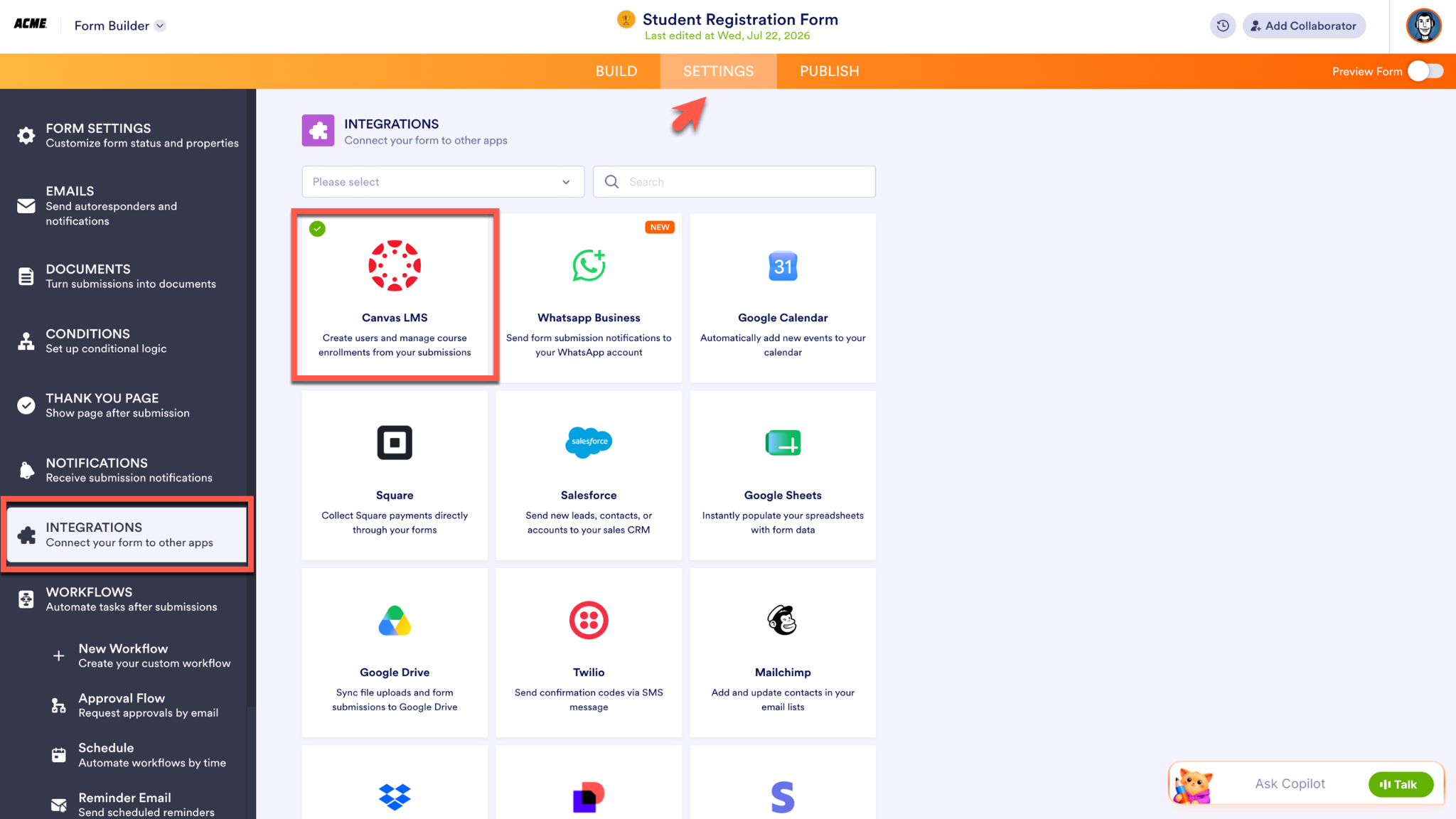
To integrate Jotform and Canvas, access the Settings in the Form Builder, select Integrations from the menu on the left, and search for Canvas by Instructure.
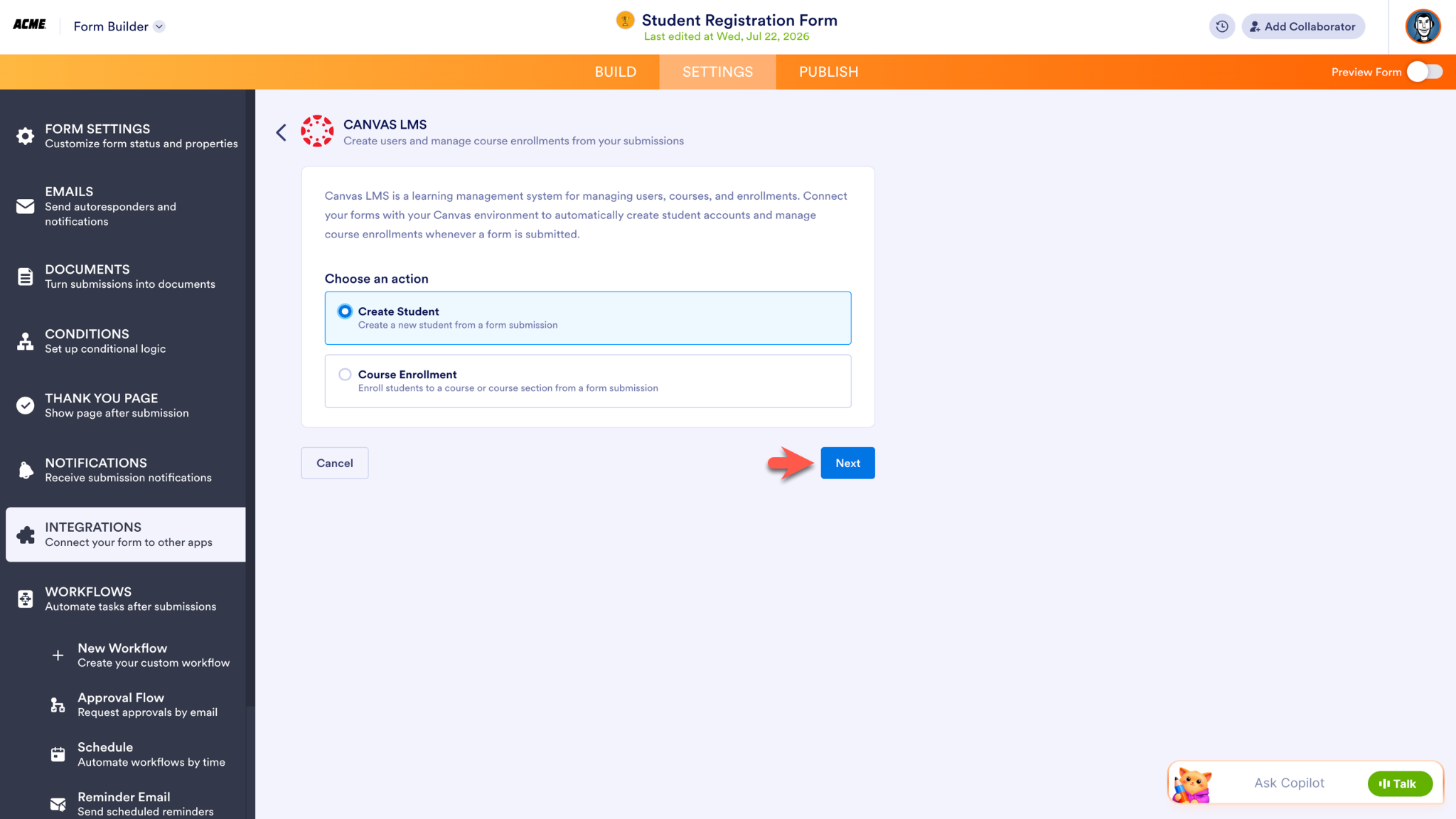
Choose what action the integration will perform: Create Student or Course Enrollment. Click the Next button to continue the setup process.
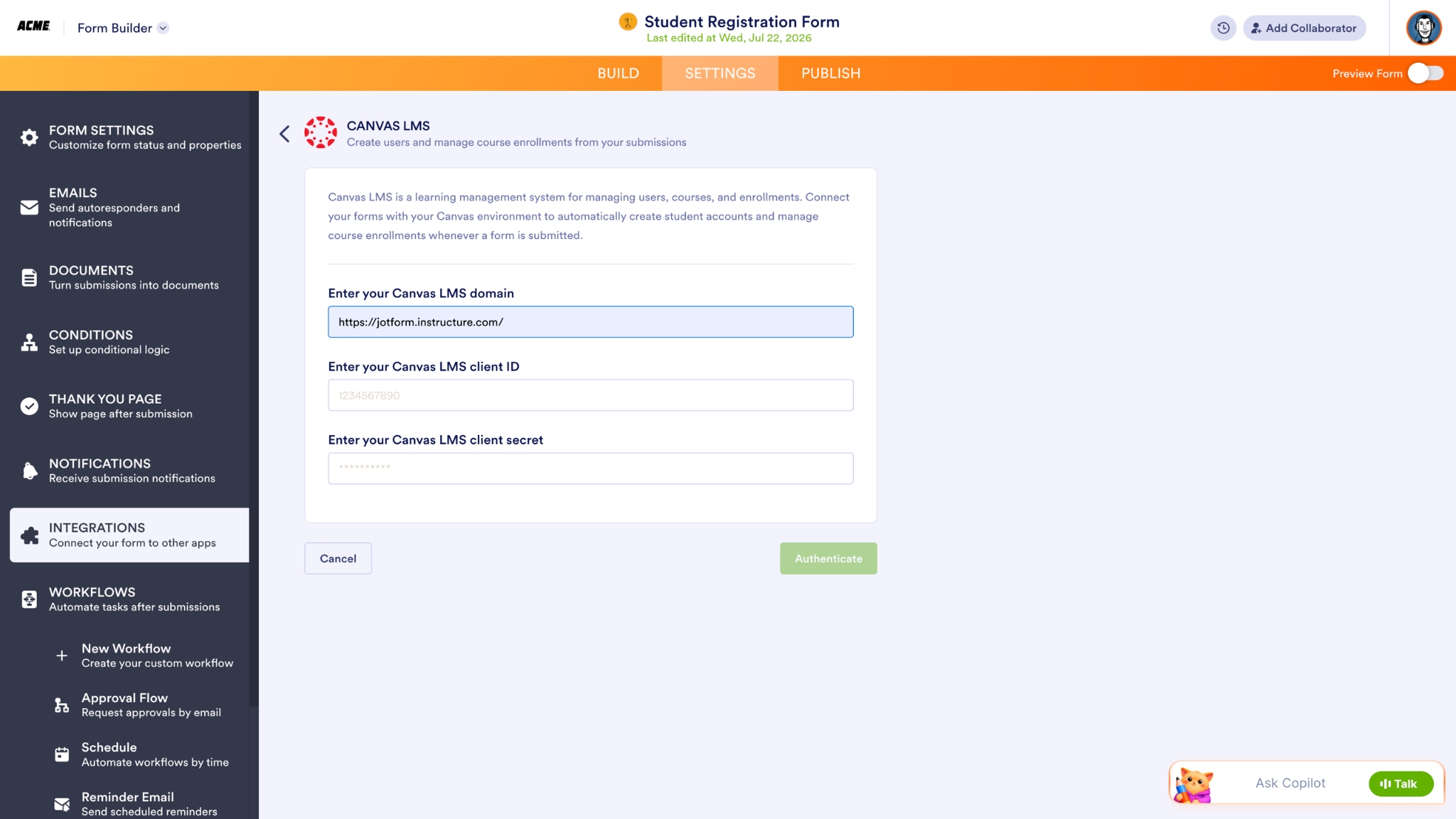
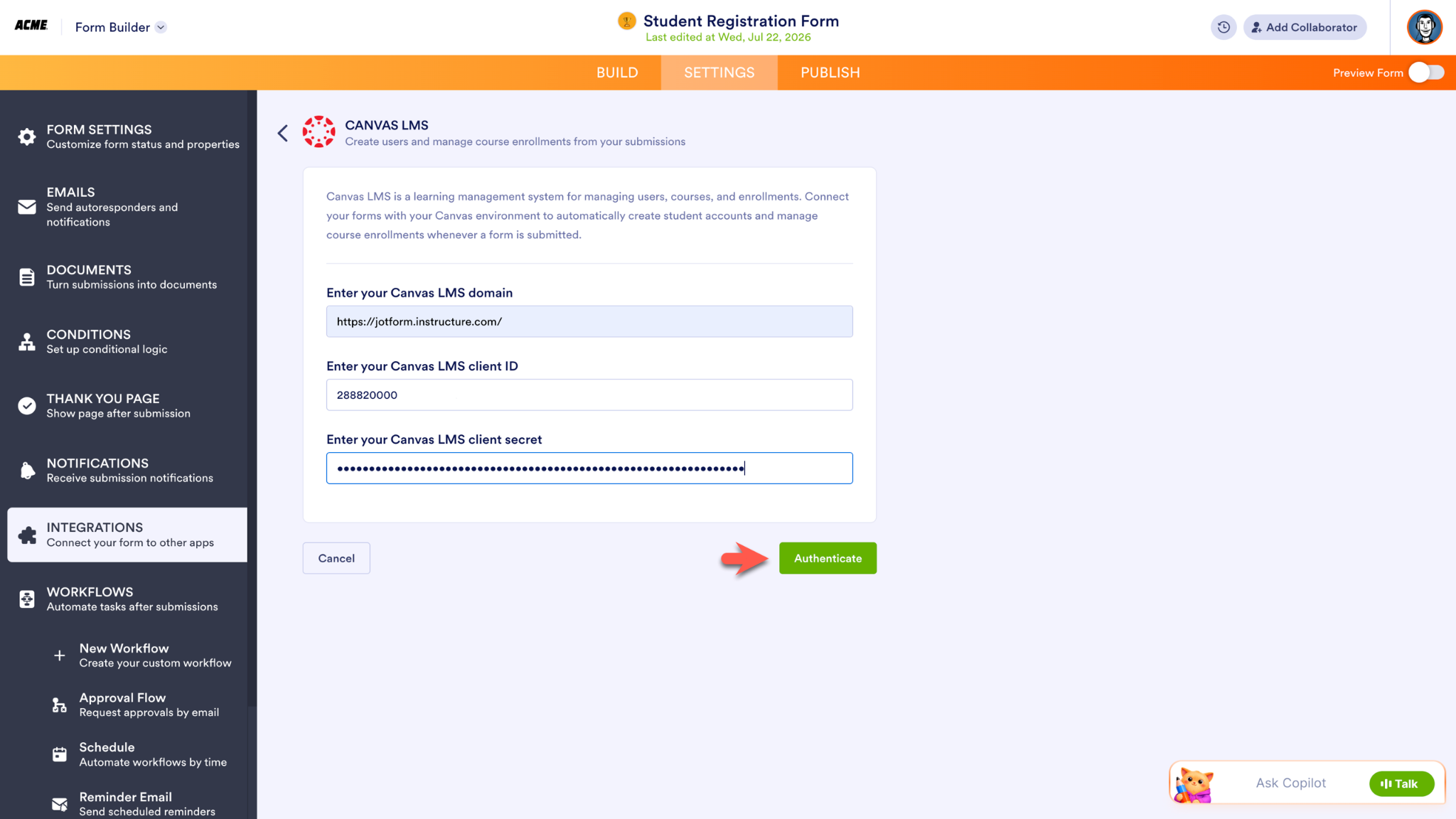
The following screen will ask for the specific Canvas account information: Your school’s Canvas LMS domain, your Canvas LMS client ID, and your Canvas LMS client secret. Enter your Canvas LMS domain before gathering the remaining information from your Canvas account.
To access the Canvas LMS client secret and Canvas LMS client ID, login to your Canvas instance as an administrator and go to the Admin menu. Select your account, click Developer Key, and then select API Key from the dropdown.
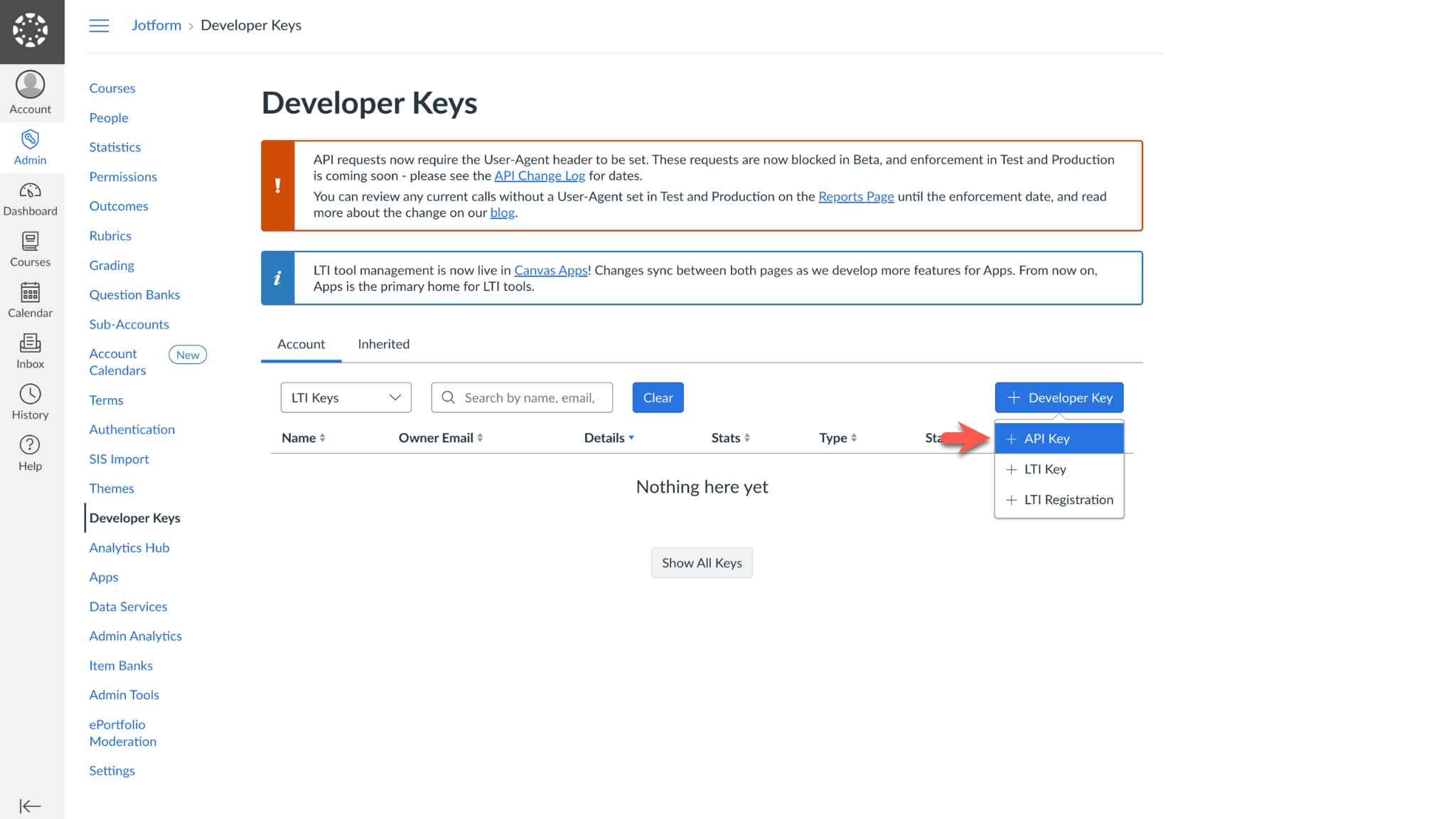
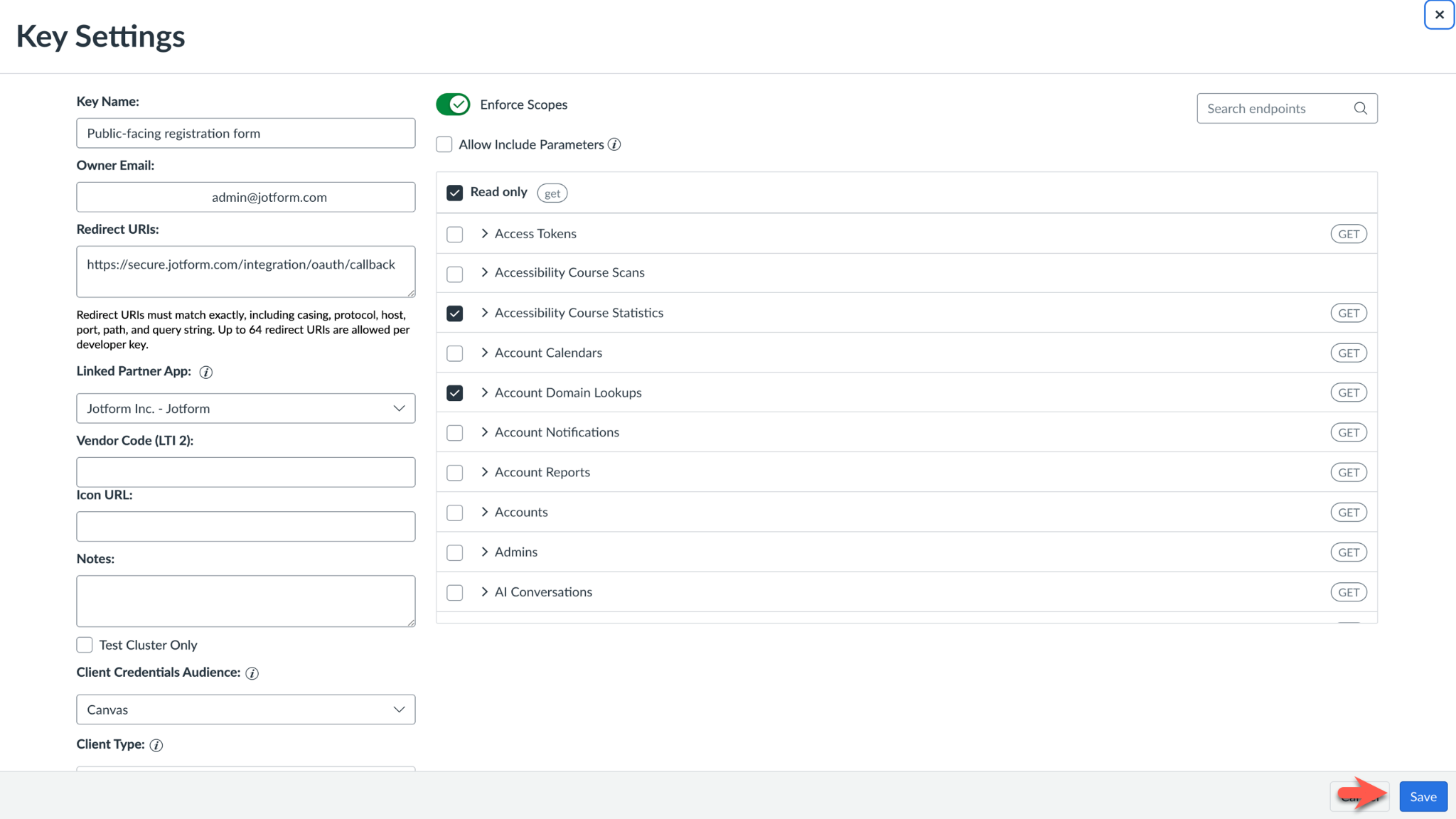
Next, fill out the Key Settings. Give your integration a name that’s easy to remember. In the Redirect URIs section, enter https://secure.jotform.com/integration/oauth/callback. Enter the email account associated with your Canvas account into the Owner Email field.
While filling out your settings for the new Developer Key, you can choose to limit the Scopes related to that key. When your Scopes are set, click Save.
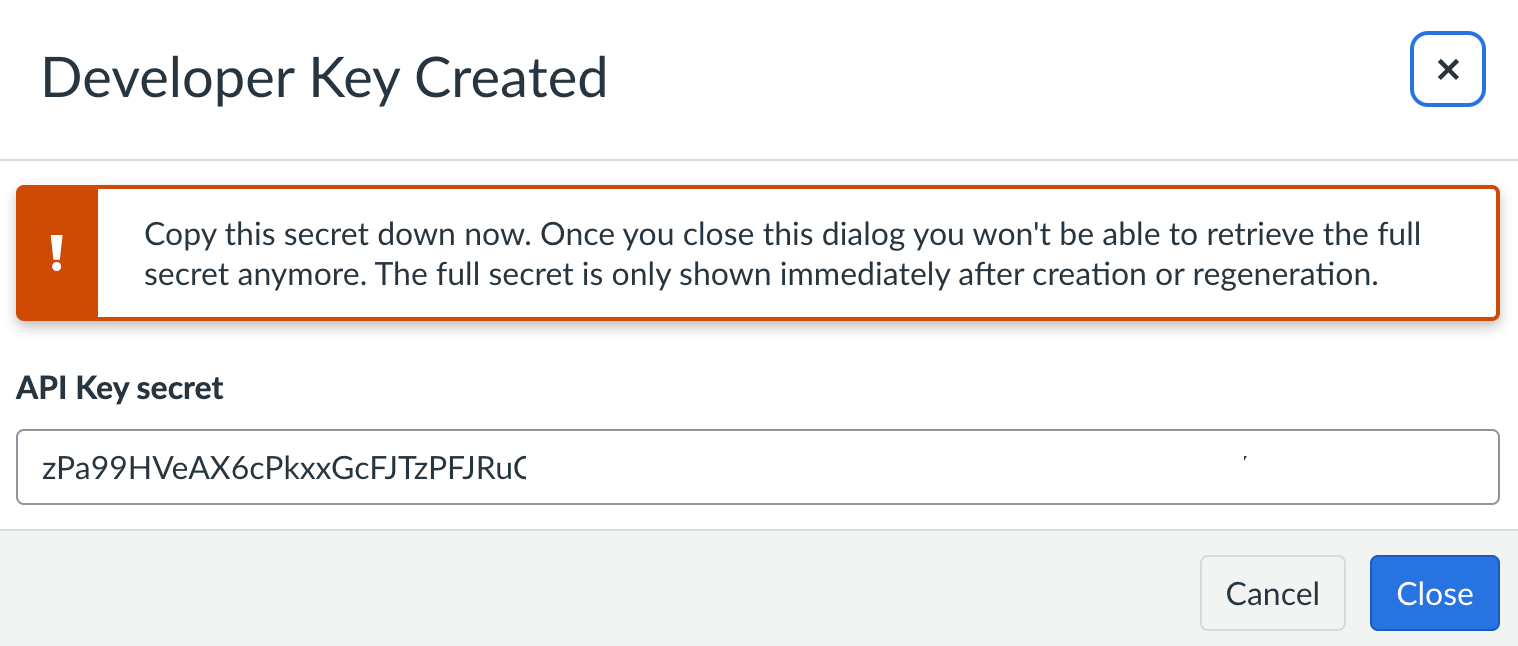
The following screen will state that the developer key has been created and reveal your Canvas LMS client secret. You can copy the client secret and paste it into the Jotform Canvas integration setup page right away or generate a new one when you retrieve the Canvas LMS client ID in the next step.
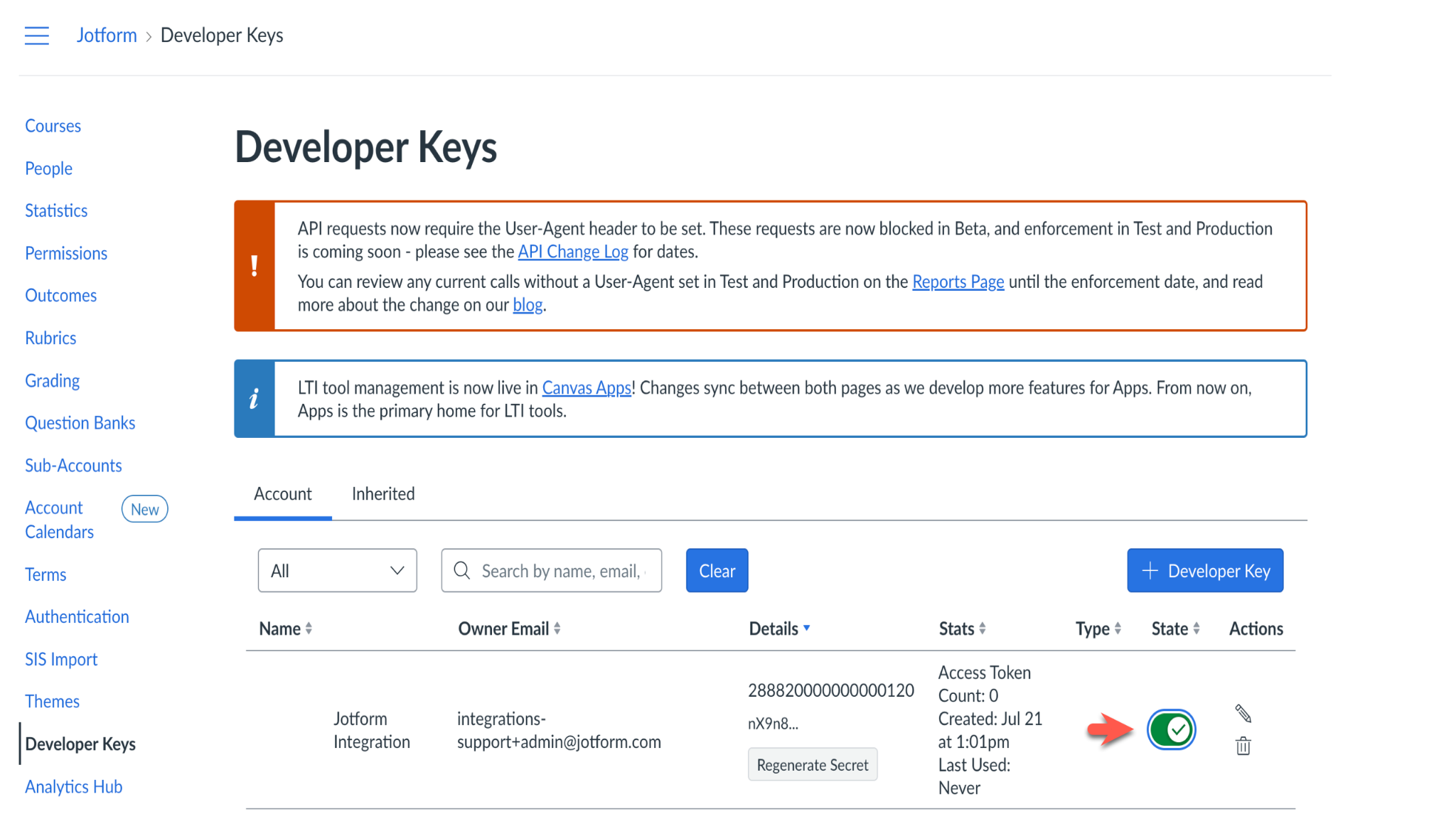
Once you close the popup that says Developer Key Created, you’ll be directed back to the Developer Keys page. The Canvas LMS client ID, which is the final piece of information needed to set up the integration, is the number listed in the Details column.
If you still need to copy and paste the Canvas LMS client secret, click the Regenerate Secret button before returning to the Jotform integration setup page. The button is below the Canvas LMS client ID in the Details column. Before moving on, slide the State button to the on position.
Paste both credentials into your Jotform integration settings underneath your Canvas LMS domain, and click Authenticate to complete the connection.
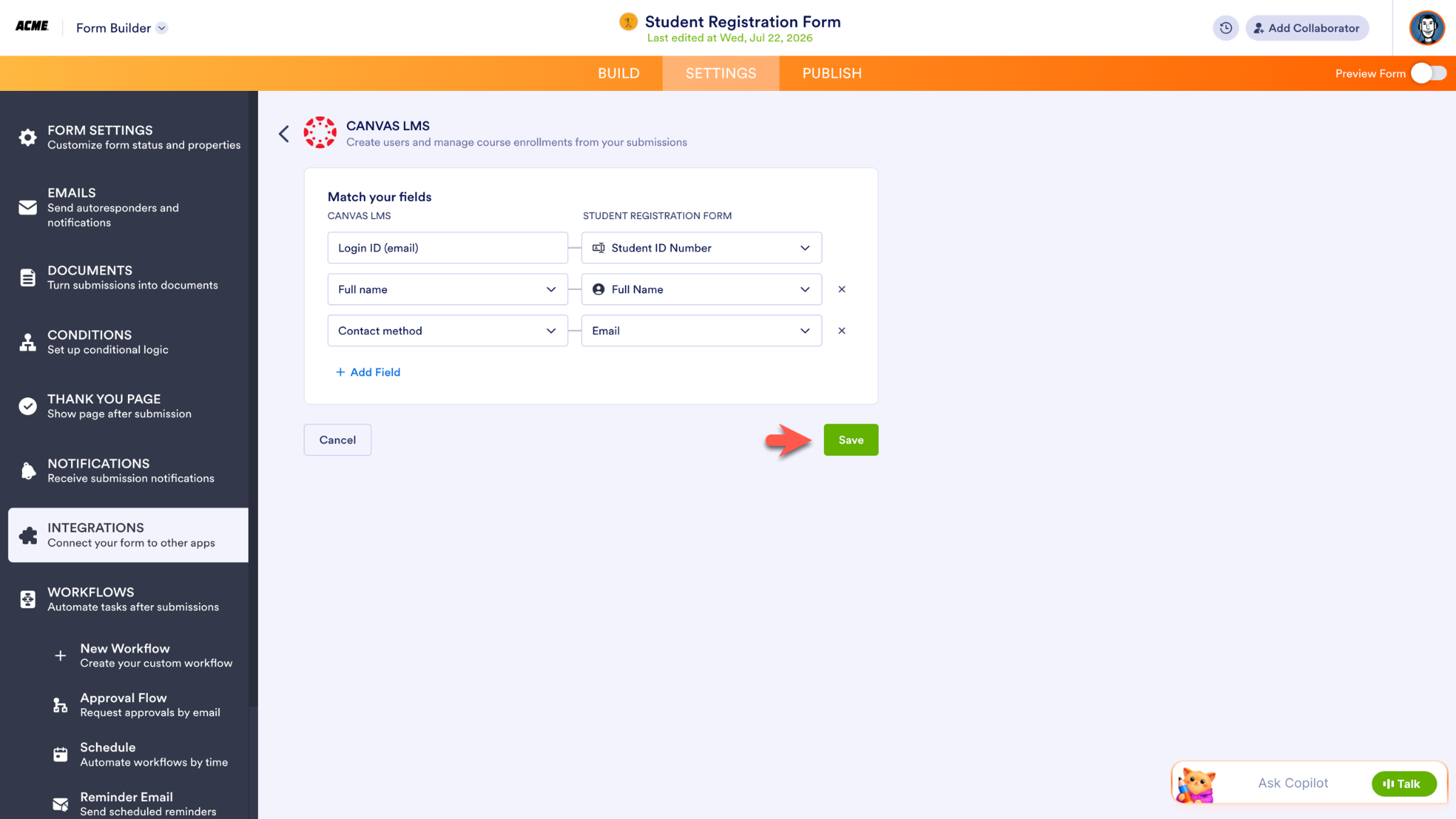
After the integration is authorized via a popup screen from Canvas, you can match fields in the Jotform Form Builder. Click Save to enable the integration.
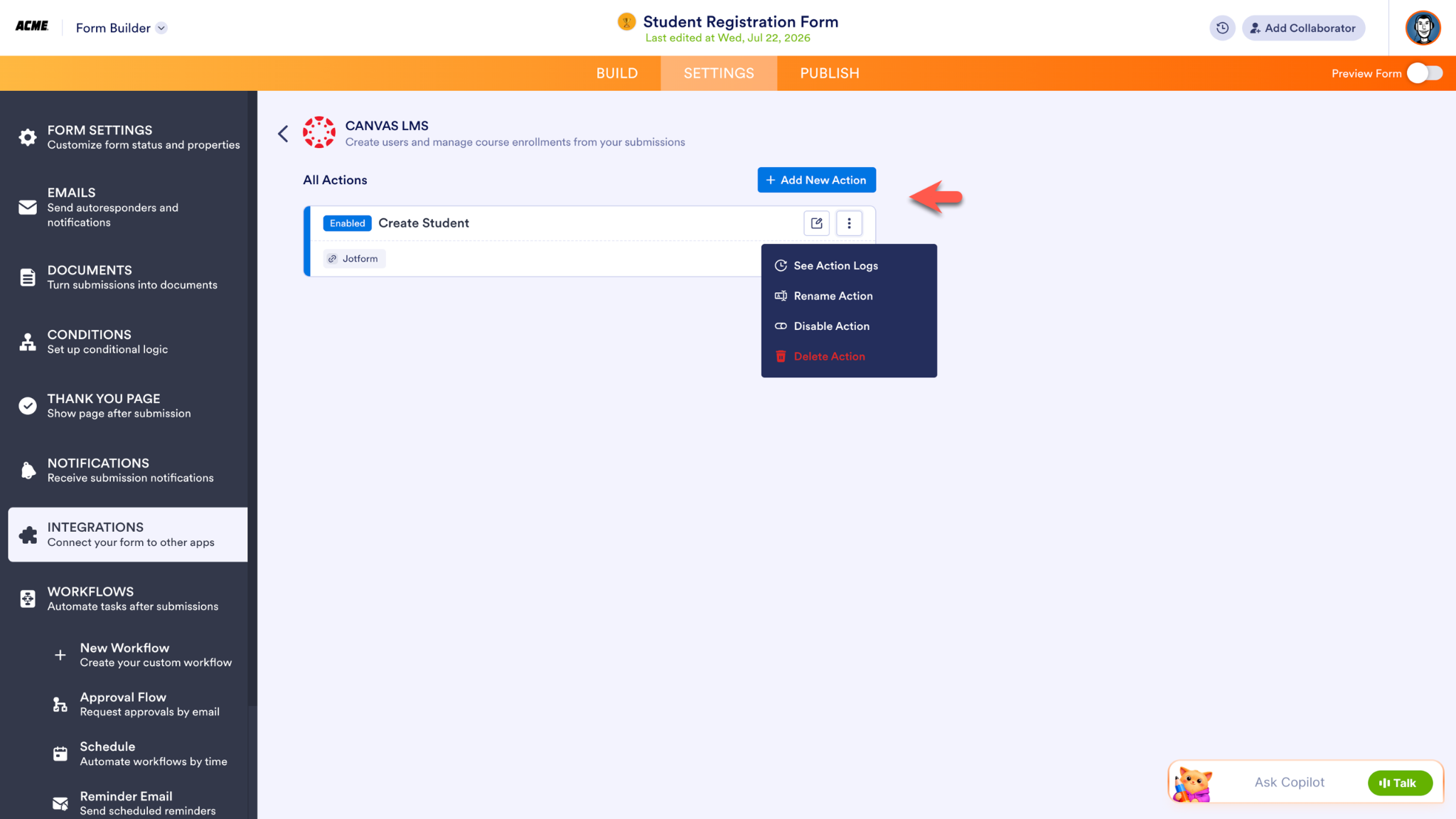
To add another action to your form, click the Add New Action button on the following screen. To edit your integration, click the pencil icon. Further actions are accessible via the more options menu (the icon with three vertical dots).
From registration to learning
For many institutions, Canvas is the center of teaching and learning. Jotform extends that experience by connecting the forms people fill out before they ever log in, whether it’s a program application, event signup, registration form, or employee training request.
Together, Jotform and Canvas remove friction from the path to learning. Instead of spending time moving information between systems, educators can spend more time supporting students, and learners can start engaging with coursework sooner.



























































































Send Comment: