
Gemini is a conversational AI chatbot from Google that’s integrated into many of Google’s apps. Available in certain levels of business, enterprise, and AI plans, it helps users complete a number of tasks, from writing content and summarizing information to analyzing insights.
The goal of Gemini is to help users supercharge their productivity and creativity. By simply providing the chatbot with prompts, you can expedite workflows that would normally take considerably longer if you were to do them on your own.
For example, Gemini can create a form based on your prompt within seconds, generating questions and designing the form structure. It can even analyze the form responses. If you were to do all these tasks manually, it might take you an hour or more.
In this article, we’ll show you how to use Gemini in Google Forms with step-by-step instructions. We’ll also introduce you to another AI-powered form builder that offers highly sophisticated features: Jotform. But first, let’s look at how Gemini enhances your use of Google Forms.
Pro Tip
If Gemini isn’t available on your plan, skip the wait and use Jotform’s AI-powered form builder to generate, customize, and automate forms in minutes and integrate them with Google Sheets, Drive, and Calendar.
How Gemini enhances Google Forms functionality
Using Gemini AI in Google Workspace apps like Google Forms is a great way to increase your efficiency. Gemini’s functionality enhances two key Google Forms workflows:
- Form creation: Gemini can craft questions and build forms. If any of the questions Gemini has created for the form don’t align with your goals, you can click the Bad suggestion option and provide your reasoning. While Gemini can’t edit the form, it can create a new form based on a new prompt.
- Response analysis: Using Google Forms AI features, you can generate summaries of between 3 and 200 open-text responses. This ability enables you to interpret large amounts of data quickly.
Gemini boosts productivity by streamlining tasks that would take much longer to complete manually. For instance, when it comes to analyzing open-text responses without the help of AI, it could take hours to read through user answers, identify patterns, and determine conclusions. Gemini, however, can review hundreds of answers and provide insights within seconds.
Google Forms AI capabilities can come in handy across industries. In education, teachers can prompt Gemini to create quizzes for students. In business, HR leaders can ask AI to summarize answers from employee exit interviews, helping them identify ways to enhance the employee experience. And in e-commerce, store owners can use Gemini form creation to build brand research surveys and learn more about customer perceptions of their business.
How to use Gemini in Google Forms: Step-by-step guide
Ready to put the Google Gemini integration to work in Google Forms? You’ll find two sets of instructions in the section that follows: one for autogenerating a form and another for analyzing responses to open-text questions. (If you’re looking for fundamentals on how to use Google Forms, how to create a Google Form, or how to customize Google Forms, check out our related guides.)
Note: Keep in mind that Gemini is not available in all versions of Google Forms. It is being rolled out gradually and is currently only available in certain enterprise, business, and AI plans. If you don’t see Gemini available in your Google Forms app, it’s possible you don’t have the right plan or that it hasn’t been made available on your plan yet.
How to autogenerate a form in Google Forms with Gemini
Step 1: In the Google Forms app, open a new form.
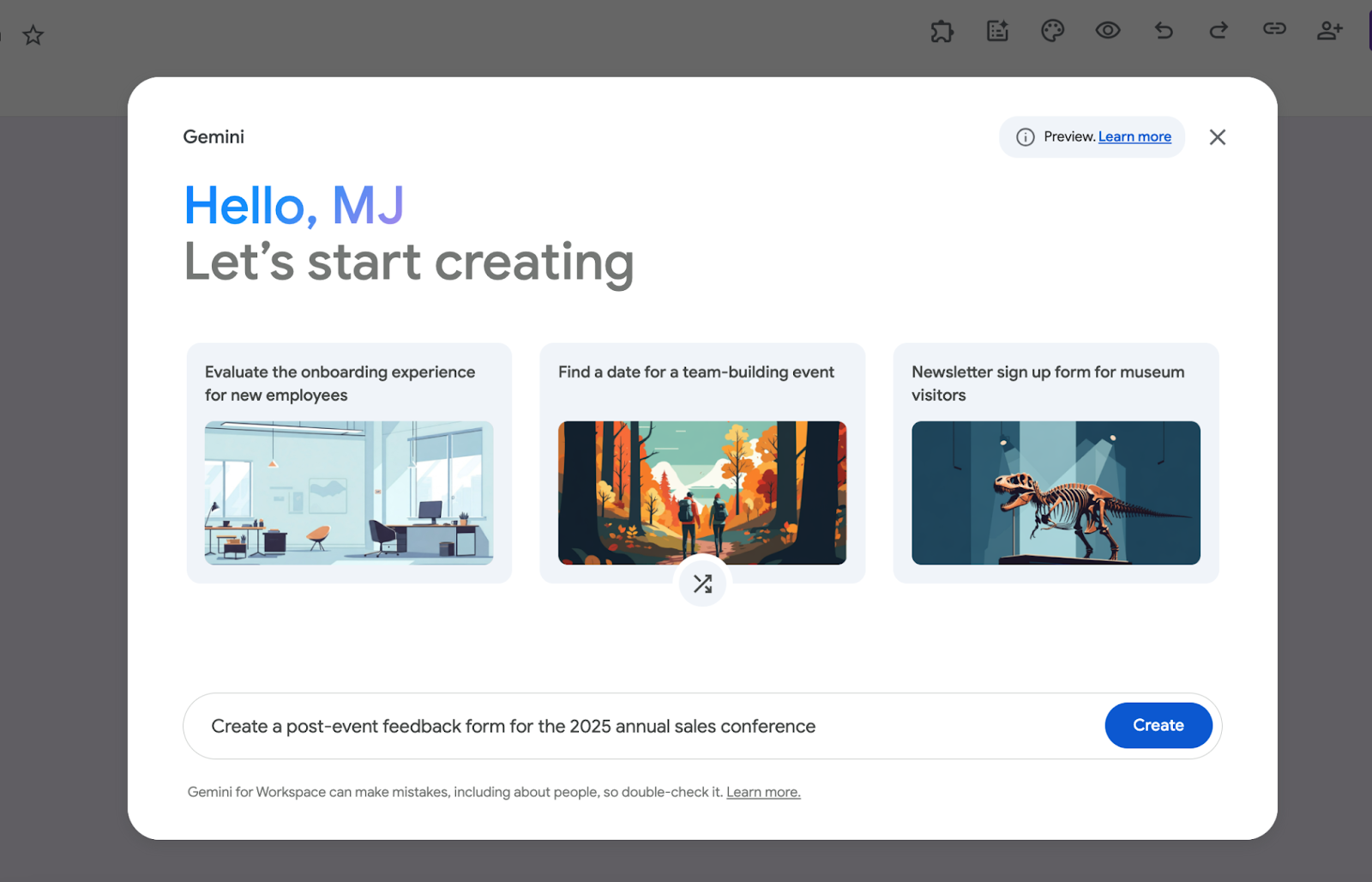
Step 2: A Gemini pop-up window will appear. Enter a prompt in the window that clearly describes what you want Gemini to do. For example, “Create a post-event feedback form for the 2025 annual sales conference.”
Pro Tip
If you’re having trouble coming up with a prompt, click Help me create a form in the toolbar. Gemini will provide a list of suggested prompts that you can choose from.
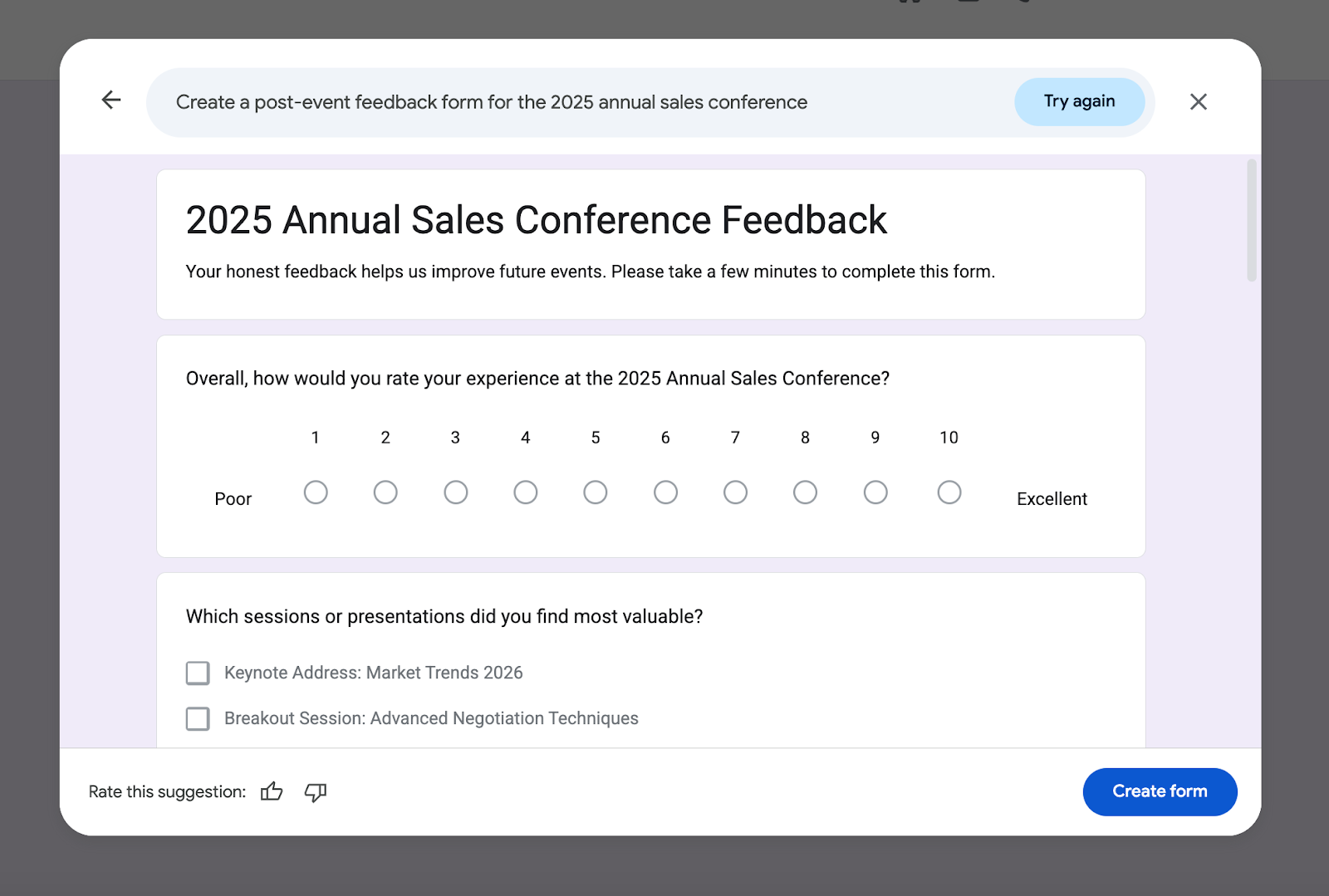
Step 3: Click Create. Gemini will create the form.
Pro Tip
If the generated form is not quite what you hoped for, you can edit your prompt at the top of the draft to try again. Simply click on the prompt, edit it, and click Recreate. Gemini will then create a new draft of the form. Keep in mind that if you recreate a form, you don’t have the ability to go back to the previous version.
Step 4: Once you are happy with the form, click Create form to finalize it.
How to analyze responses in Google Forms with Gemini
Step 1: In the Google Forms app, open the form whose responses you want to analyze.
Step 2: Click Responses. Gemini will automatically provide a summary for each open-text question. Note: These summaries are not saved in Google Forms. You can copy and paste them to save the information in another document or simply generate the summaries again later as needed.
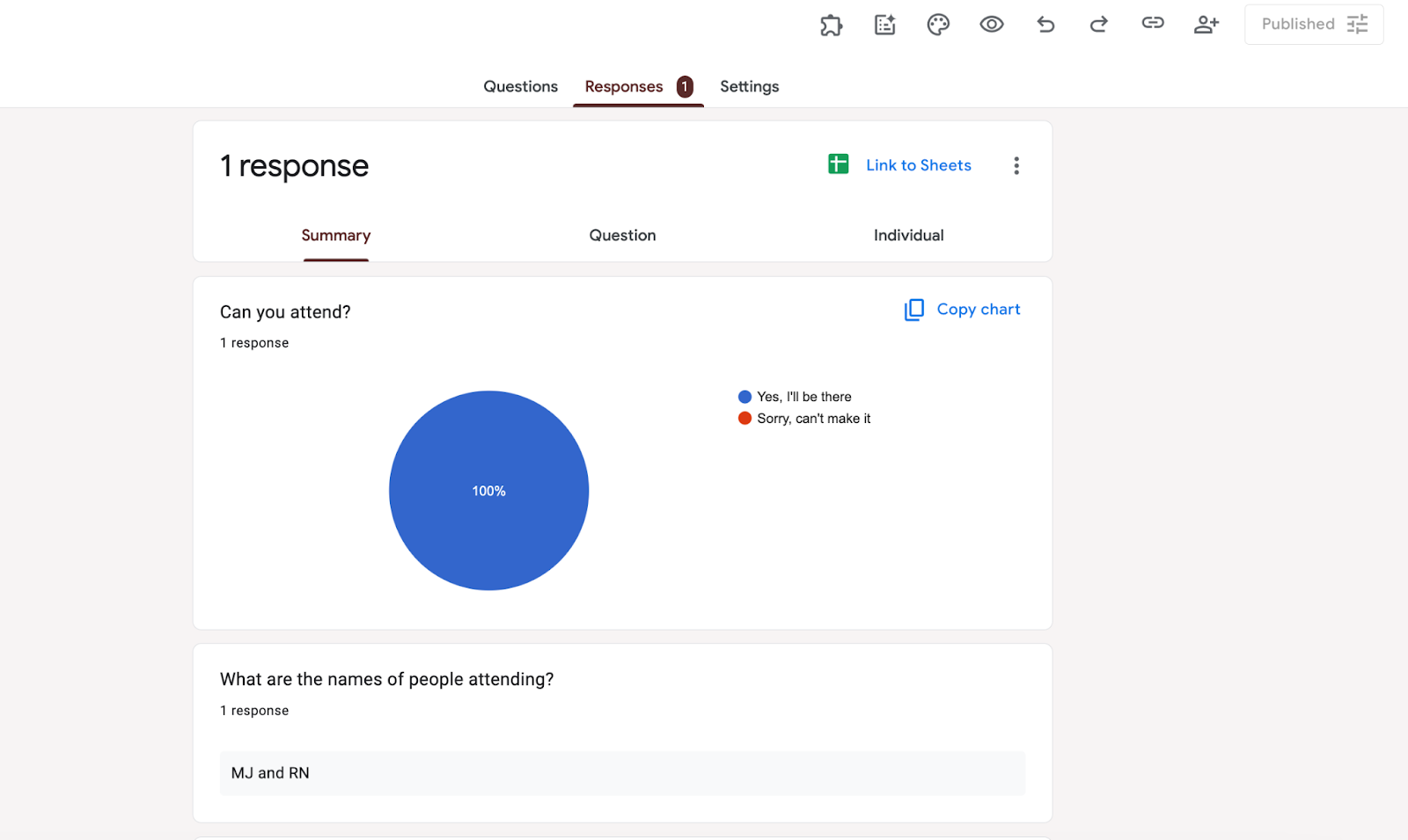
Step 3: If you want to generate a new response summary, click Retry.
Pro Tip
If you get additional responses, you can refresh the summary to include them. Click Refresh with latest responses.
Important note
One of the best Google Forms tips for using Gemini is related to privacy and data control considerations. Gemini works off your prompts only and does not scan files in your Google Drive to create forms. To maintain privacy, do not include any confidential information in your prompts. You may also want to tell respondents that their answers could be summarized by AI, and as a result, they should avoid putting any confidential information in their responses.
Create forms in seconds with Jotform AI Form Generator
Using Gemini in Google Forms enhances productivity, but unfortunately this tool is not currently available for all Google Forms users.
If you don’t have access to Gemini or are looking for a more sophisticated AI form building tool, check out Jotform’s AI form builder. This powerful Google Forms alternative helps you create, design, and customize forms, streamlining your manual workflows and saving you time.
Here’s how easy it is to autogenerate a form with Jotform:
Step 1: Visit the Jotform AI Form Generator page.
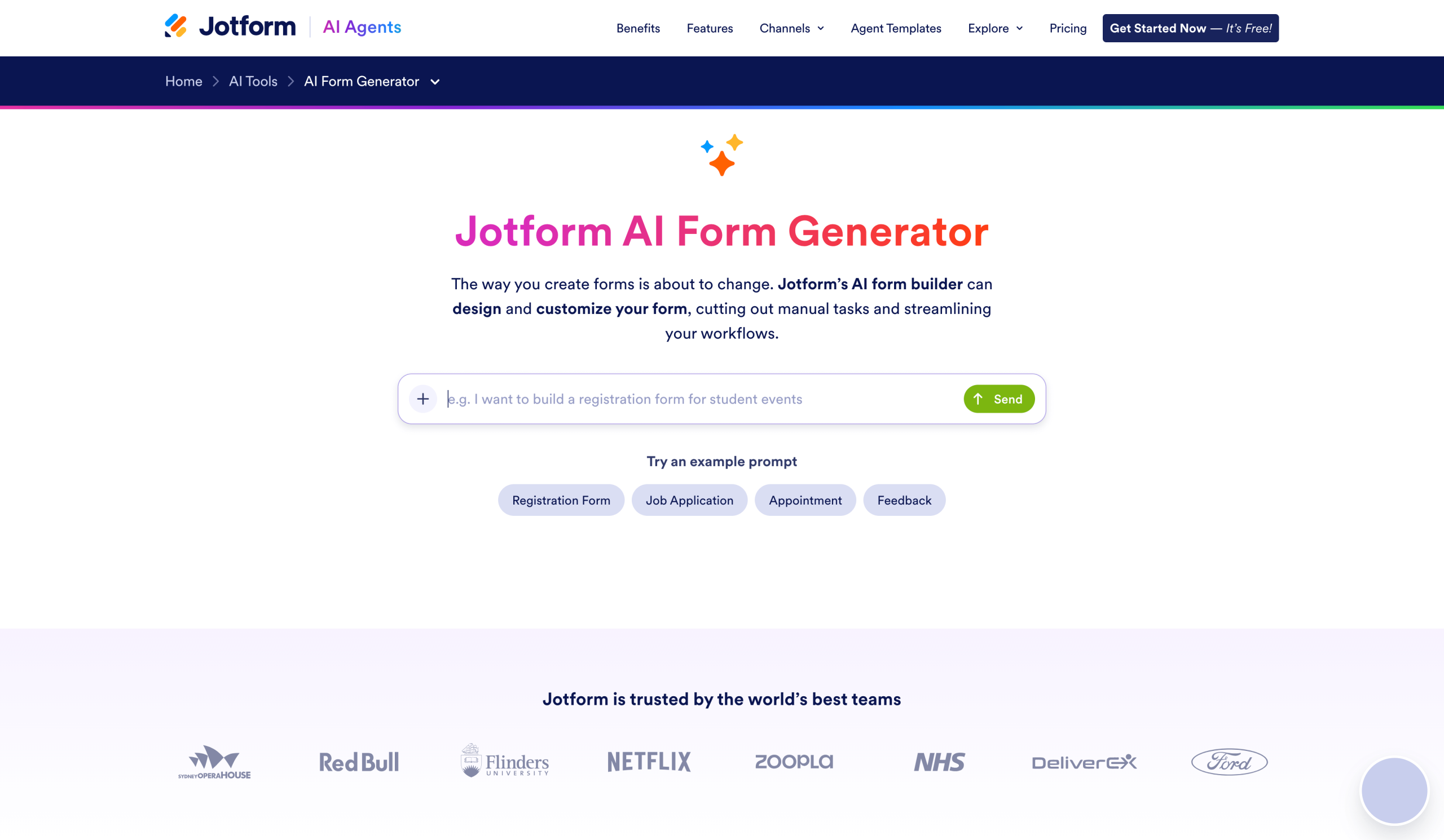
Step 2: Type in your own form prompt or click on one of the sample prompts provided.
Step 3: Click Send. It’s that simple! Jotform will create the form and open it up in the intuitive form builder.
Step 4: Edit your new form yourself by using the Form Elements tools or by entering prompts into the Form Copilot.
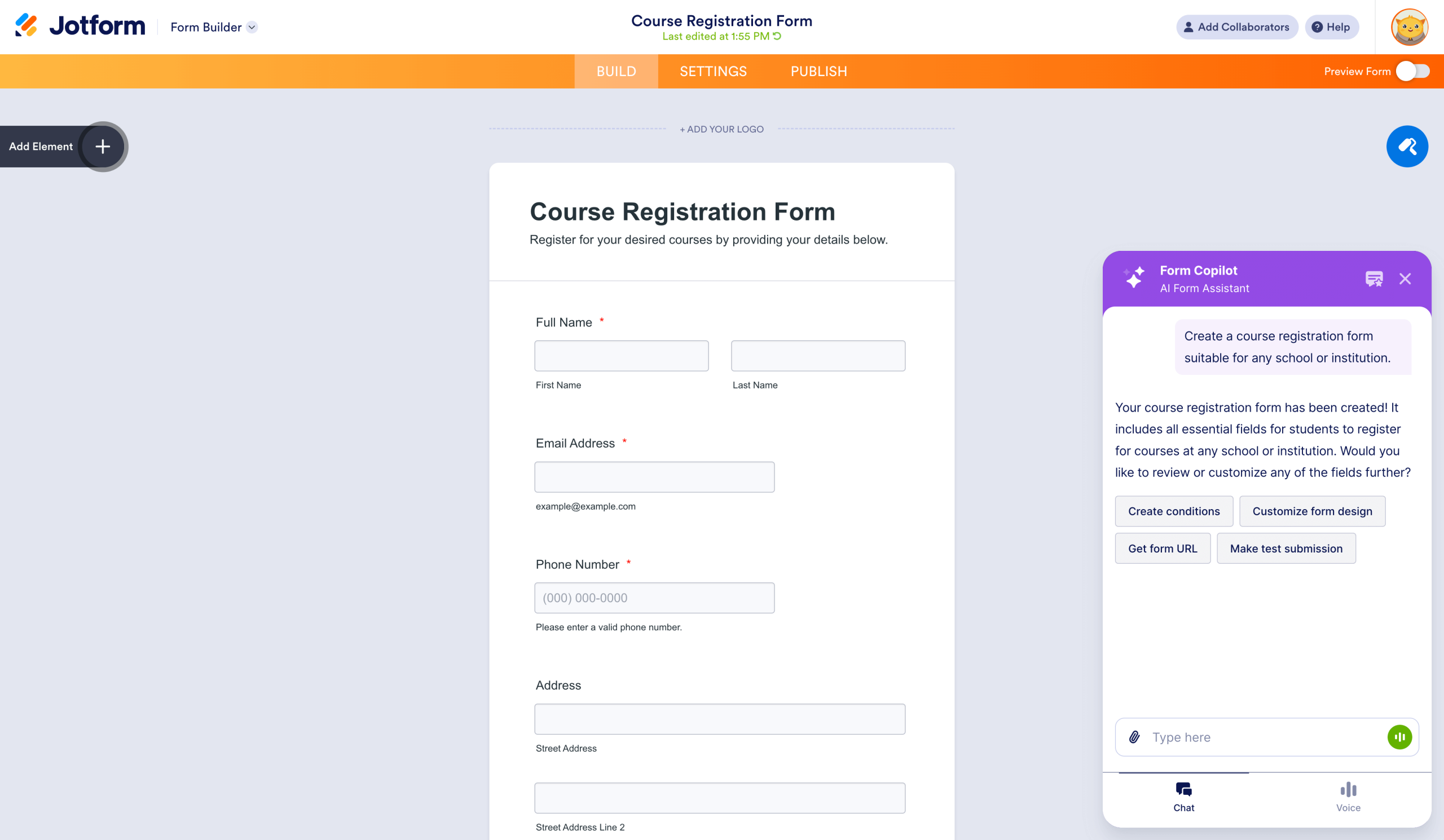
In addition to its AI form builder, Jotform offers several other sophisticated tools for AI-powered data collection:
- Jotform AI Agents: These advanced AI agents enhance form interactivity and automation. Available to use as standalone tools or on Gmail, WhatsApp, Messenger, and several other channels, Jotform AI Agents help you respond to customers at scale. Check out the Jotform AI Agent templates for access to over 7,000 ready-to-use agent templates for a range of industries and use cases.
- Jotform AI Quiz Generator: Jotform’s quiz generator tool can auto-create a quiz based on material from a presentation or document. Simply enter a prompt or upload a file, and Jotform will develop the quiz in seconds. You can then customize it using the form builder.
- Jotform’s AI tools: Explore the dozens of AI tools Jotform has to offer, ranging from an AI Store Builder to an AI Cover Letter Generator. Each tool is highly intuitive, easy to use, and fully customizable.
With more AI tools, templates, features, and integrations than Google Forms, Jotform stands out as a leading alternative — but that doesn’t mean you have to stop using Google! Jotform integrates seamlessly with Google Drive, Google Sheets, and Google Calendar to help you collect better data while maintaining your existing business workflows.
Jotform not only offers more advanced form builder features than Google Forms, it also integrates with other apps in the Google Workspace. So if you’re looking for an alternative to Google Forms but still want to utilize all Google has to offer, Jotform has you covered.
Jotform: The future of AI in form creation
Gemini, Jotform’s AI tools, and other products are transforming the future of forms. With automated form creation and response summaries, you can increase your productivity immensely while enhancing form generation and data analysis.
Tools like Jotform AI Form Generator and Jotform AI Agents are taking AI-assisted tools to the next level, providing support across multiple channels. From online forms and chatbots to messaging platforms and websites, Jotform’s AI tools can supercharge workflows well beyond forms. Explore Jotform’s many AI tools today to see how they can enhance productivity and streamline your processes.
FAQs
If Gemini is available for your plan, it will automatically be enabled in all your Google apps. You do not have to enable it manually.
Gemini is integrated in Google Docs to provide AI-powered writing assistant capabilities. It helps users draft, enhance, and summarize content.
This article is for Google Workspace users, marketers, educators, HR teams, and business professionals who want to use Gemini in Google Forms to automate form creation, analyze responses faster, and boost productivity with AI-powered workflows.







































































































Send Comment: