
Whether you’re collecting data for work, school, or another project, it’s important to know where your forms, responses, and uploaded files are stored. Clear file organization helps you quickly find and access the information you need. The Google Forms–Google Drive integration plays a key role here. It automatically stores your forms and uploaded files in Google Drive, making it easy to keep everything in one place.
While the native integration is easy to use, it also has limitations that can hinder file organization, making it frustrating if you manage a high volume of forms and uploads.
In this article, you’ll learn how the Google Forms–Google Drive integration works, what limitations to expect, and how tools like Jotform offer more sophisticated automation and organization for teams that need more flexibility.
How to put a Google Form in Google Drive
The Google Forms–Google Drive integration is automatic, which means you don’t need to connect the tools manually. Here’s how to put a Google Form in Google Drive:
- Go to Google Forms.
- Click on Blank form or choose a form template.
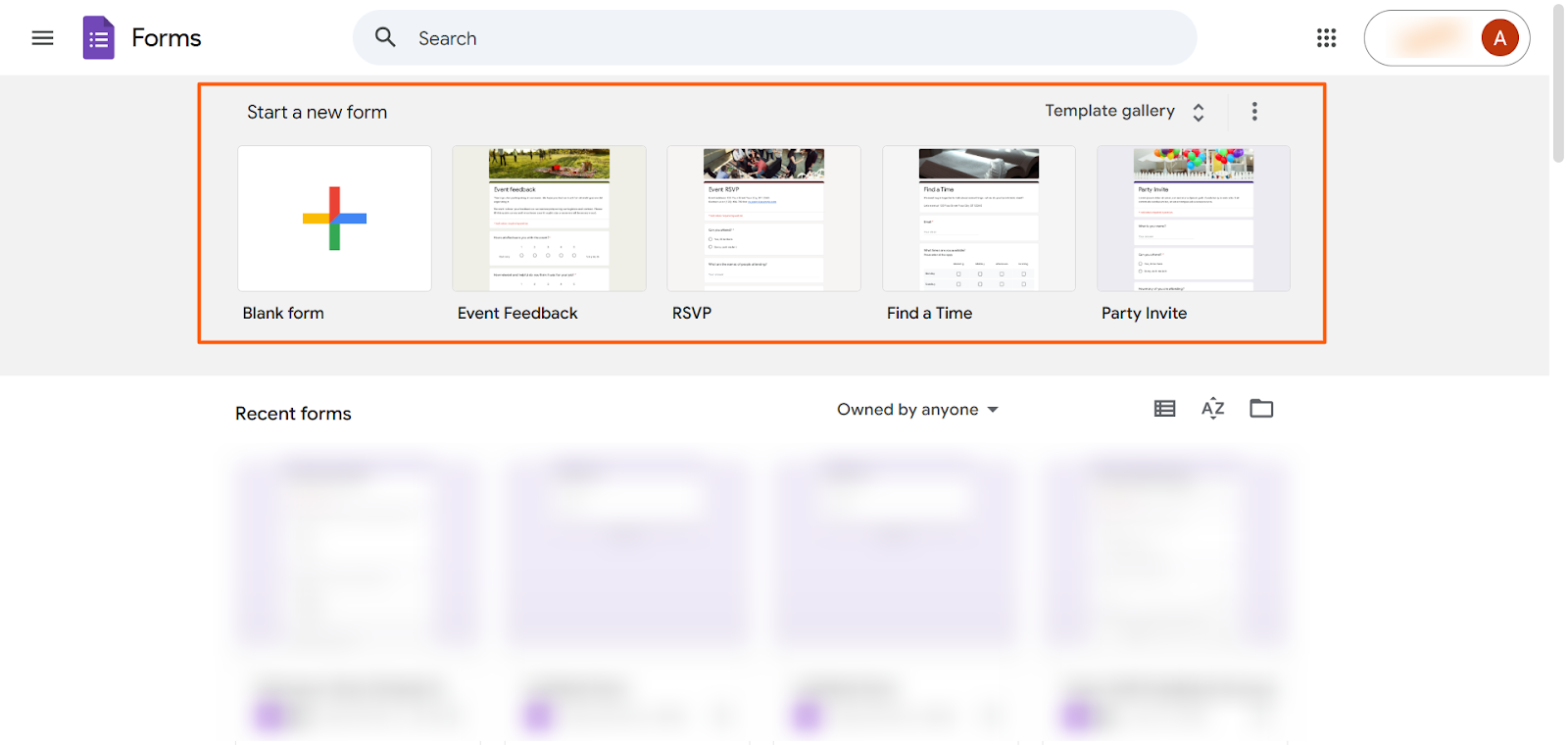
Once the Google Form is created, it automatically appears in Google Drive. You don’t have to take any further actions other than working on your form. (For common use case tutorials, check out our article: How to use Google Forms.)
However, there are several limitations to keep in mind with the Google Forms–Google Drive integration:
- Forms are not automatically organized: New forms appear in Google Drive, but you’ll have to manually move them into their respective folders.
- Responses may appear in Google Sheets: If you choose to export responses to a spreadsheet, Google Forms creates linked Google Sheets files in your Drive, but they are not automatically put into folders.
- File uploads are saved in generic folders: If your form allows file uploads, those files are stored in a generic folder in your Google Drive. Users must also sign in to upload files.
- There are no advanced workflows: This integration doesn’t have any way for your form files to go into specific folders.
The Google Forms–Google Drive integration is good for basic data storage and collection. However, it falls short as a data management or workflow management system because it lacks advanced automation and organization features. Not to mention, Google Forms is a fairly basic form builder, which means it doesn’t offer the advanced design and layout options many users need when creating sophisticated forms for business or educational use. That’s where Jotform comes in.
Pro Tip
If you use another form builder such as Gravity Forms or Cognito Forms and want to connect it with Google Drive, consider using Jotform instead. Jotform offers a seamless native Google Drive integration you can count on, unlike other form builders.
The smarter way to integrate Google Forms and Google Drive with Jotform
If you’re looking for a seamless Google Forms to Google Drive workflow, switching from Google Forms to Jotform is a good option.
As a leading Google Forms alternative, Jotform offers all the same features as Google Forms, along with advanced capabilities such as conditional logic and deeper integrations with tools like Google Drive. Jotform is ideal for creating and organizing many types of forms, including onboarding forms, internal requests, purchase orders, and more.
Google Forms users who want to make things simpler have two options:
- Migrate your Google Forms to Jotform and use Jotform’s Google Drive integration.
- Stay in Google Forms and install Jotform’s AI Form Builder add-on for faster content import and export.
Migrate your Google Forms to Jotform and use the Google Drive integration
If you’ve already created your forms in Google Forms, you don’t have to start from scratch. Simply use Jotform’s migration tool to transfer your forms quickly without copying and pasting.

Looking for the best alternative to Google Forms?
Jotform’s full-featured form-building solution is mobile-friendly and has the most integrations in the industry. Use it to collect payments, automate workflows, gather leads, and more.
Many teams migrate their Google Forms to Jotform for several reasons:
- More sophisticated form features: Jotform’s intuitive user interface offers advanced features such as conditional logic and 10,000-plus form templates.
- Advanced automation and workflow control: Jotform gives you flexible file handling and structured folder creation, so your forms are neatly organized from the start.
- More user flexibility: Google Forms requires users to sign in before uploading files, while Jotform allows file uploads without sign-in restrictions.
After migrating your forms, you can use the Jotform Google Drive integration to automatically export form submissions, store uploaded files, and organize folders.
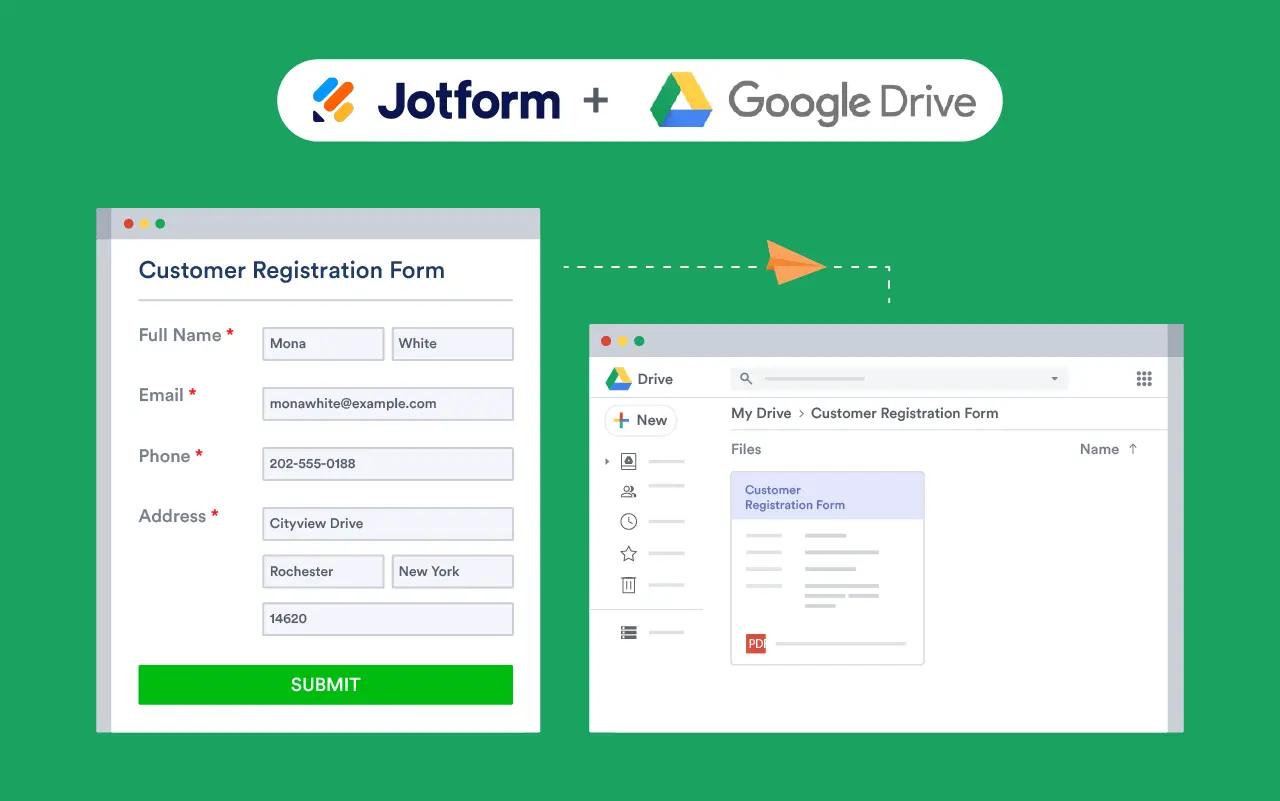
Use the AI Form Builder add-on for import/export in Google Forms
Committed to staying with Google Forms? If that’s the case, you can still learn how to import questions into Google Forms more efficiently. Jotform’s AI Form Builder add-on, available in the Google Workspace Marketplace, is by far the best solution.
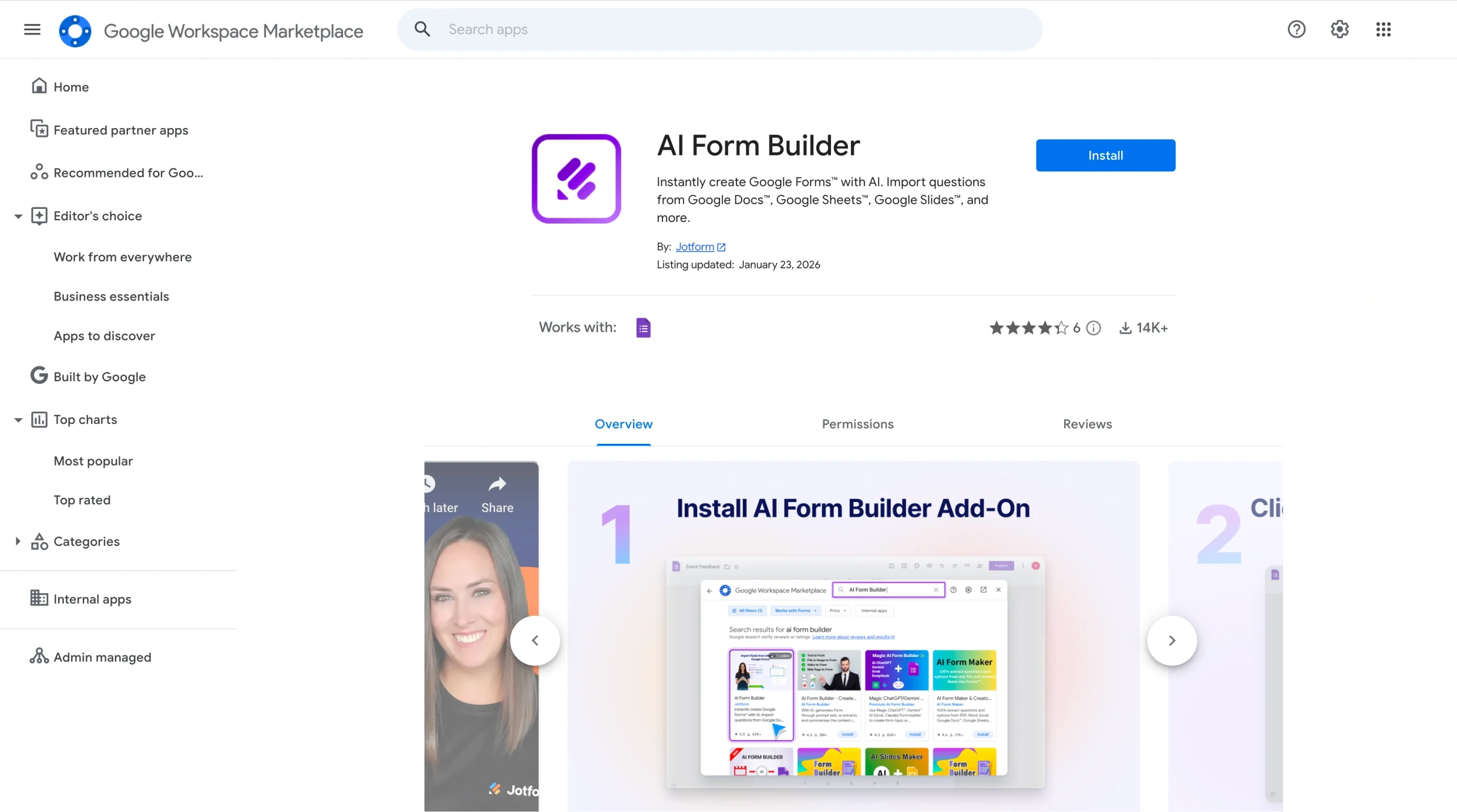
This tool allows you to import and export questions using AI, and enables you to quickly move questions and fields between your Google Workspace files without having to copy and paste.
- To import content from Google Drive to Forms: All you have to do is install and open the add-on, select Import, and choose a file from Google Drive (such as a Doc, Sheet, Slide, or Form). The tool converts your content into Google Forms questions. You can then review, edit, or regenerate the questions as needed.
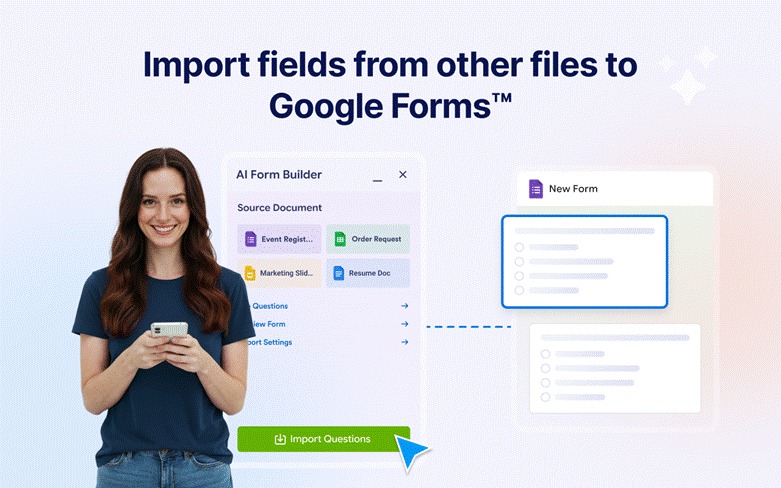
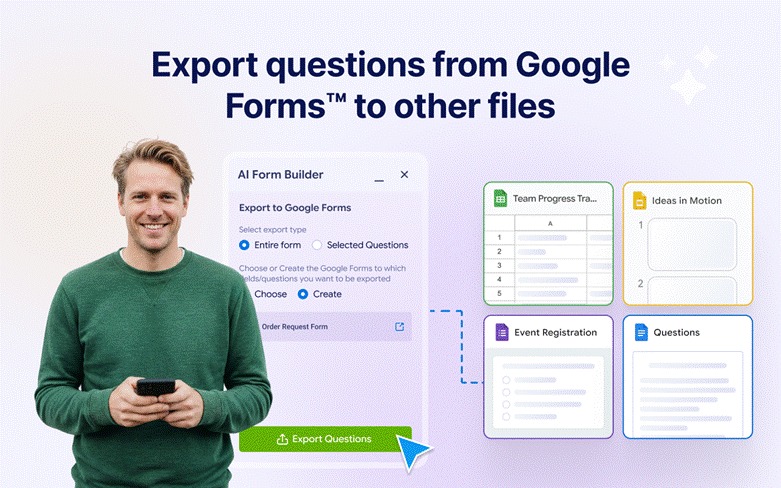
- To export content from Google Forms to Drive: Once you install and open the add-on, select Export. Then choose a Google Drive destination, such as Docs, Sheets, or Slides. The AI then formats the form content into tables, slides, or summaries automatically.
Which option should you choose?
Here’s how to decide which option best fits your needs:
- Choose the Jotform migration and Google Drive integration option if you want automation, advanced user experience, conditional logic, and structured workflows.
- Choose the AI Form Builder add-on with Google Forms if you want faster import and export content without leaving Google Forms.
Choose a solution that grows with you
The Google Forms–Google Drive integration is simple, fast, and free, but it has limited automation and organization capabilities. In addition, Google Forms lacks advanced features such as conditional logic, which many teams rely on for more complex workflows.
Jotform allows form creators to build more flexible, scalable workflows without using plug-ins or scripts. Plus, it’s easy to migrate your Google Forms to Jotform and use the Jotform Google Drive integration to automate organized file storage.
If you simply want a better way to import and export questions into Google Forms, the AI Form Builder add-on lets you quickly create and move questions using AI. There are many Jotform Google integrations that can enhance your use of Google products!
Don’t let Google Forms limitations hinder your data collection efforts. Explore Jotform’s many features today and see how it can enhance your form building capabilities far beyond what Google Forms offers.
Frequently asked questions
You can use the Jotform AI Form Builder add-on, available in the Google Workspace Marketplace. It uses AI to convert content from your Google Drive files into Google Forms questions.
Yes, the Google Forms API is free. Because it is a shared service, Google has usage limits to ensure fair usage.
Yes, you can import data into Google Forms using the Jotform AI Form Builder add-on. It uses AI to convert content from your Google Drive files into Google Forms questions.
This article is for digital teams, educators, and professionals who want to connect Google Forms to Google Drive for automatic response storage and file management, while exploring smarter, more flexible alternatives like Jotform’s AI-powered form tools.









































































































Send Comment: