
In online forms, bullet points break up long sections of text, highlight important points, and capture a respondent’s attention. Whether you’re creating a survey, quiz, poll, or other type of form, being able to format your text is an important feature to have. However, if you’re using Google Forms, you may find it challenging to add bullet points in certain parts of the form.
The good news? There are several workarounds.
In this article, we’ll show you how to add bullet points in Google Forms and discuss some of the text formatting options available in the software. We’ll also introduce you to another form builder that takes visually appealing forms to another level: Jotform.
Does Google Forms allow bullet points?
Yes… and no. When you create a Google Form, you have limited formatting abilities with bullet points. You can add bullets in certain areas of the form with built-in features, but in others, you have to get creative.
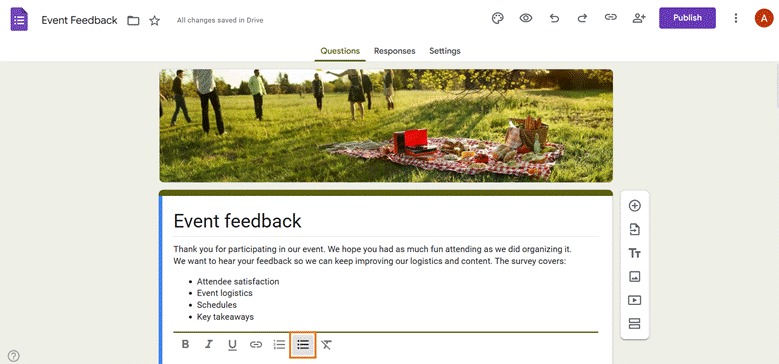
Where you can add bullets: The only field that has built-in functionality for bullet points is the form description. Simply type in your text and click the bulleted list icon to add in bullet points.
Where you need a workaround: Google Forms does not support the addition of bullets in form questions or in the form title. To add bullets in form questions or the form title, you’ll need to use some creative workarounds that we’ll show you later in the article.
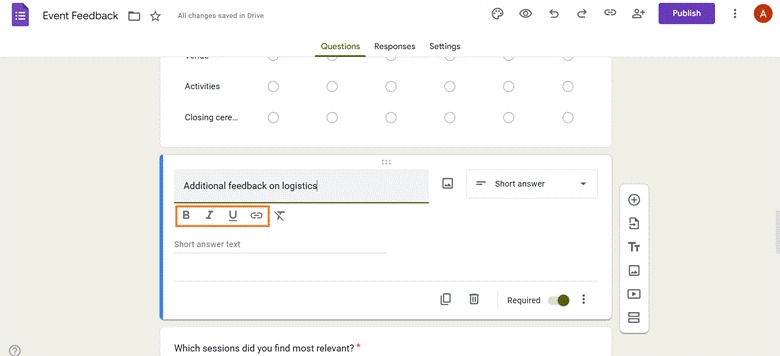
In all fields in Google Forms, you can use formatting options such as bold, italics, underline, and links.
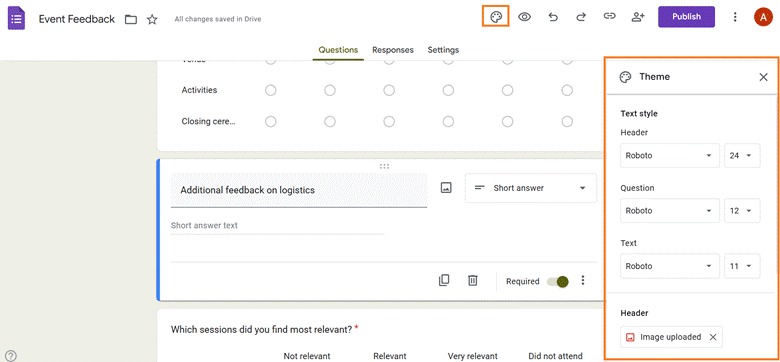
You can also control the font and font size through the Customize theme icon.
How to add bullet points in Google Forms
Since Google Forms formatting options are limited when it comes to bullet points, what are the workarounds? Try one of these Google Forms tips to create an effect that looks similar to bullet points:
- Keyboard shortcuts: Try adding bullet points into a question field in Google Forms using a keyboard shortcut. On Windows use Alt + 0149 on the numeric keypad or Ctrl + Shift + 8. On a Mac, use Option + 8. You can also try the Unicode for bullets, which is U + 2022.
- Copy and paste: Create a bulleted list in another application, such as Google Docs or Microsoft Word. Copy and paste the list into a Google Forms question.
- Line breaks: An easy way to overcome the limitations of Google Forms text formatting is to use line breaks for a similar effect. Press Enter after each line where you would normally add a bullet. This works best in the Google Forms paragraph style question format.
- Numbered lists: Since you cannot create a bulleted list in Google Forms, you can opt for a numbered list for step-by-step procedures. However, you have to copy and paste it from another source into your question.
Create visually appealing forms with Jotform
It’s not easy to use Google Forms if you want to add bullet points to your form title or questions. However, formatting the text within your forms is key to increasing readability and encouraging engagement. After all, respondents may not want to read through dense chunks of text which can be broken into easy-to-read sections with bullet points.
Enter Jotform, a great Google Forms alternative. This form builder comes with all the same features as Google Forms, plus a whole lot more. With more than 20 question types, hundreds of widgets, advanced conditional logic, and tens of thousands of form templates, Jotform is a sophisticated choice for when you want your forms to be more readable and look more appealing.
Plus, it’s easy to add bullet points to your forms. All you have to do is select the Paragraph field and click on the bullet points icon.
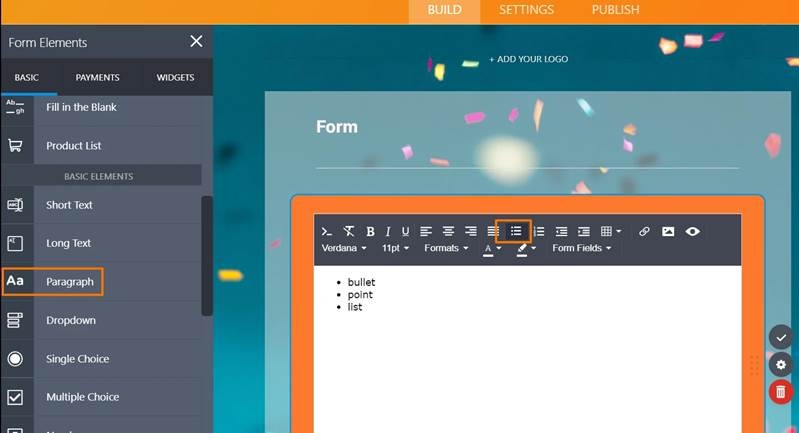
Not only that, but Jotform enables you to fully customize your text formatting and list styling, and use AI-powered tools to simplify layout design, field formatting, and response collection. The result? Visually appealing forms that capture people’s attention and help you gather valuable data.
Take control of your form formatting
While Google Forms has built-in functionality only to add bullet points in the form description field, you can add bullet points in other fields with keyboard shortcuts or by copying and pasting from other applications. You can also use line breaks or numbered lists based on your needs.
Form readability directly affects response quality and engagement. You can elevate your forms with the right formatting — and for that you’ll need Jotform. With this form builder, you can add bullet points, change the form layout, and create stunning forms that respondents enjoy filling out. Explore what Jotform has to offer today.
FAQs: Adding bullet points in Google Forms
Copy and paste bullet points created in other applications, or use keyboard shortcuts to add bullet points to Google Forms questions and title fields.
Bullet points do work in both question and description fields in Google Forms, but you need to use workarounds to add them to the question fields.
This article is for Google Forms users, educators, survey creators, and anyone who wants to add bullet points or improve text formatting in their forms to enhance readability, organization, and visual appeal.









































































































Send Comment: