
From event feedback and incident reports to school projects and contests, there are several reasons to collect photos using Google Forms. First and foremost, with a photo submission form, you can easily collect photos for free and integrate the submissions with your Google Drive.
In this article, we show you step-by-step instructions for how to collect photos in Google Forms. Plus, we introduce you to another form builder that offers advanced photo collection capabilities: Jotform.
Can you collect photos in Google Forms?
Yes! Using the File upload question type, you can enable respondents to upload a photo to an online form in Google Forms.
However, there are some limitations you should be aware of:
- Google sign-in: Each respondent must be signed into their Google account in order to upload images in Google Forms. If they don’t have a Google login, they won’t be able to upload files.
- File size: Google Forms has a file size cap of one terabyte, and you can configure the file size limit from the Settings tab. Keep in mind that all photos collected will be stored in your Google Drive, so having too many large files may be an issue depending on your available storage space.
- Number of files: Google Forms has an upload limit of 10 files per form, but you can choose to set the file upload question limit to less than 10 when you create your question (more details on that in the section that follows).
- File types: Google Forms accepts a wide range of file types, including documents, spreadsheets, presentations, images, and PDFs, as well as audio, video, and drawing files.
How to create a photo upload question in Google Forms: Step-by-step instructions
Ready to collect pictures from users? Follow the instructions below to create a File upload question for your Google Form. (If you want to know more about how to create a Google Form or how to use Google Forms, check out our guides.)
Step 1: Open the Google Form you want to add a photo upload question to.
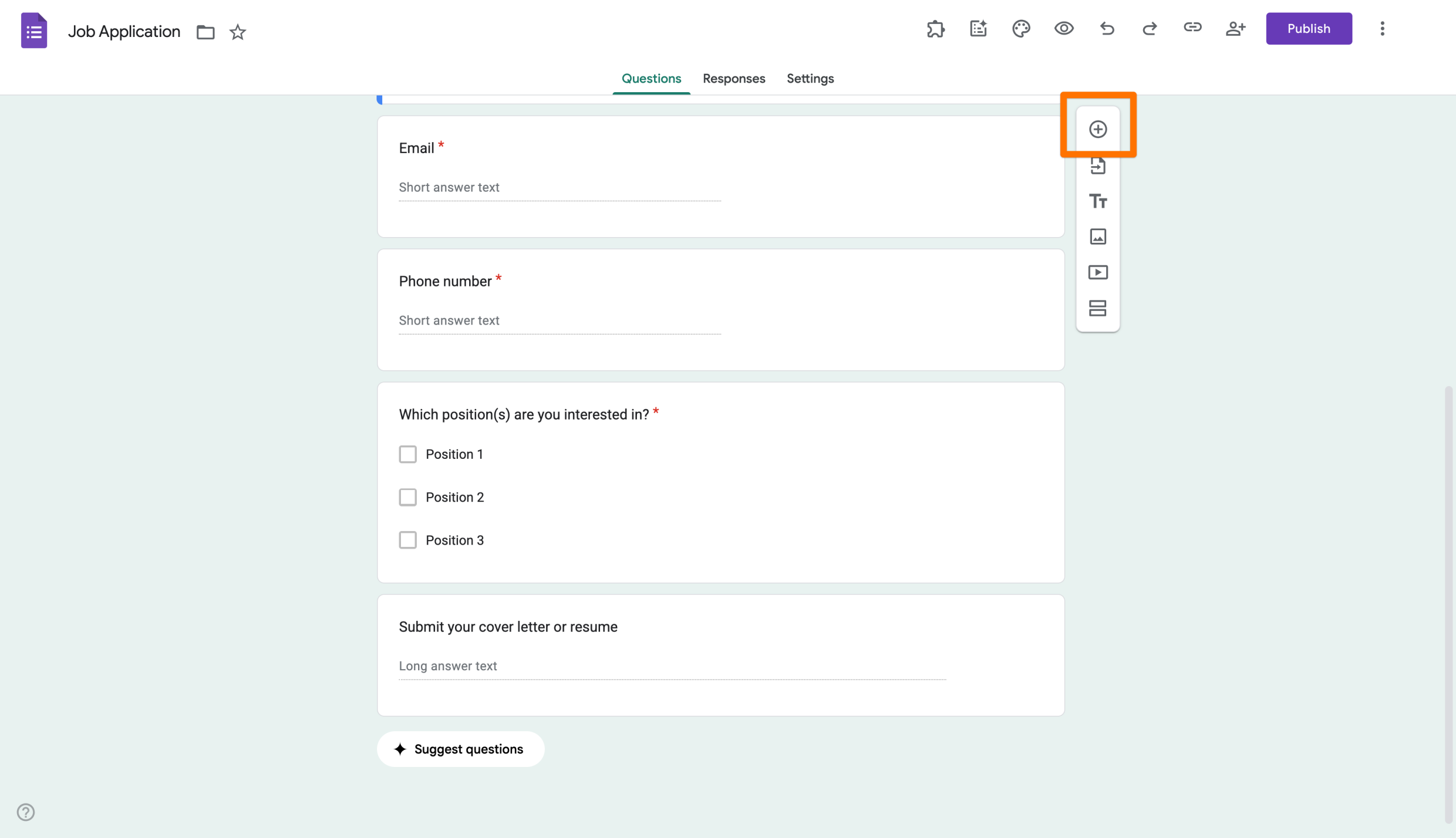
Step 2: Click the Add question icon (the plus icon on the right) and add a question field to your Google Form.
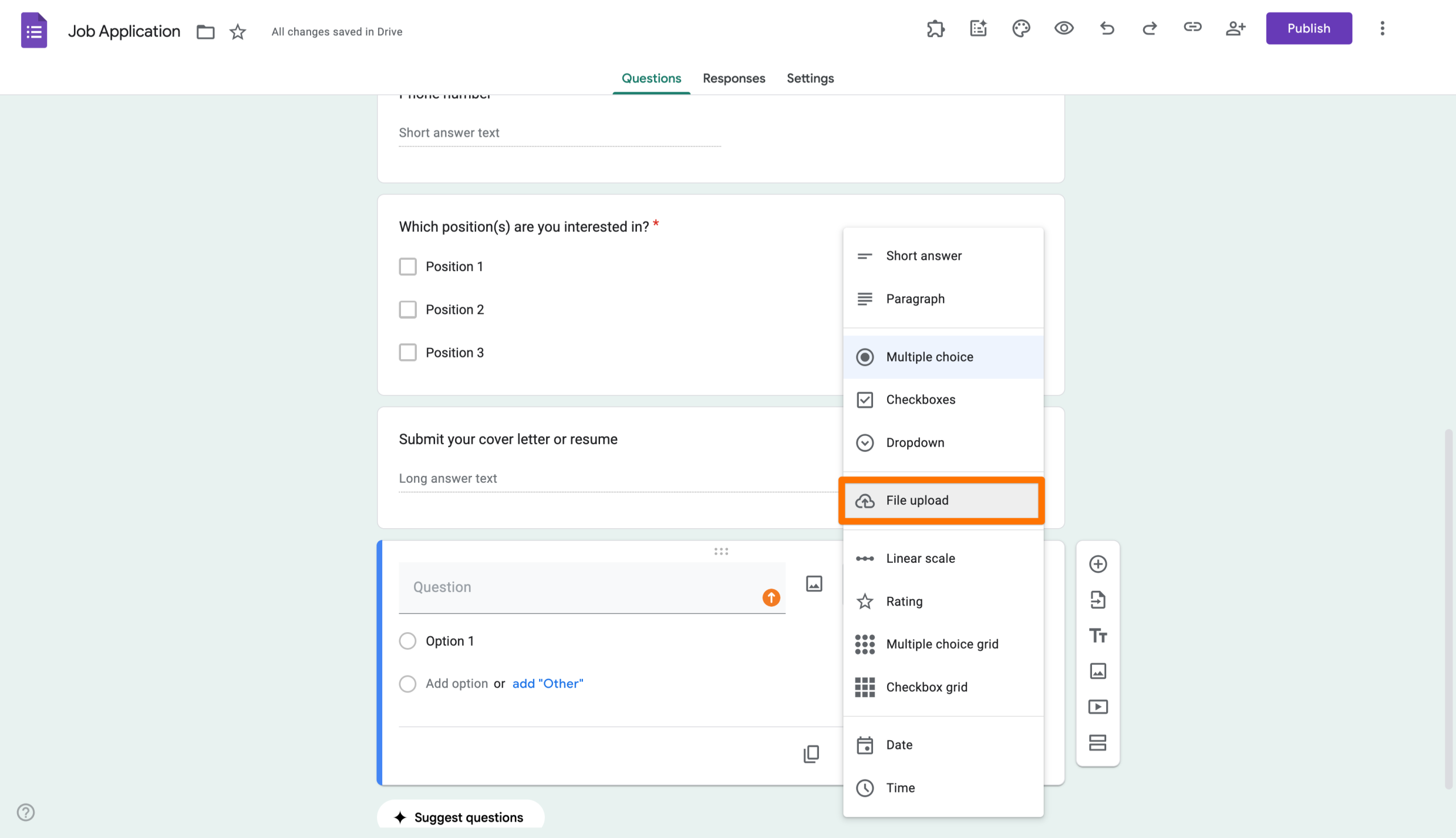
Step 3: Select File upload from the question type dropdown.
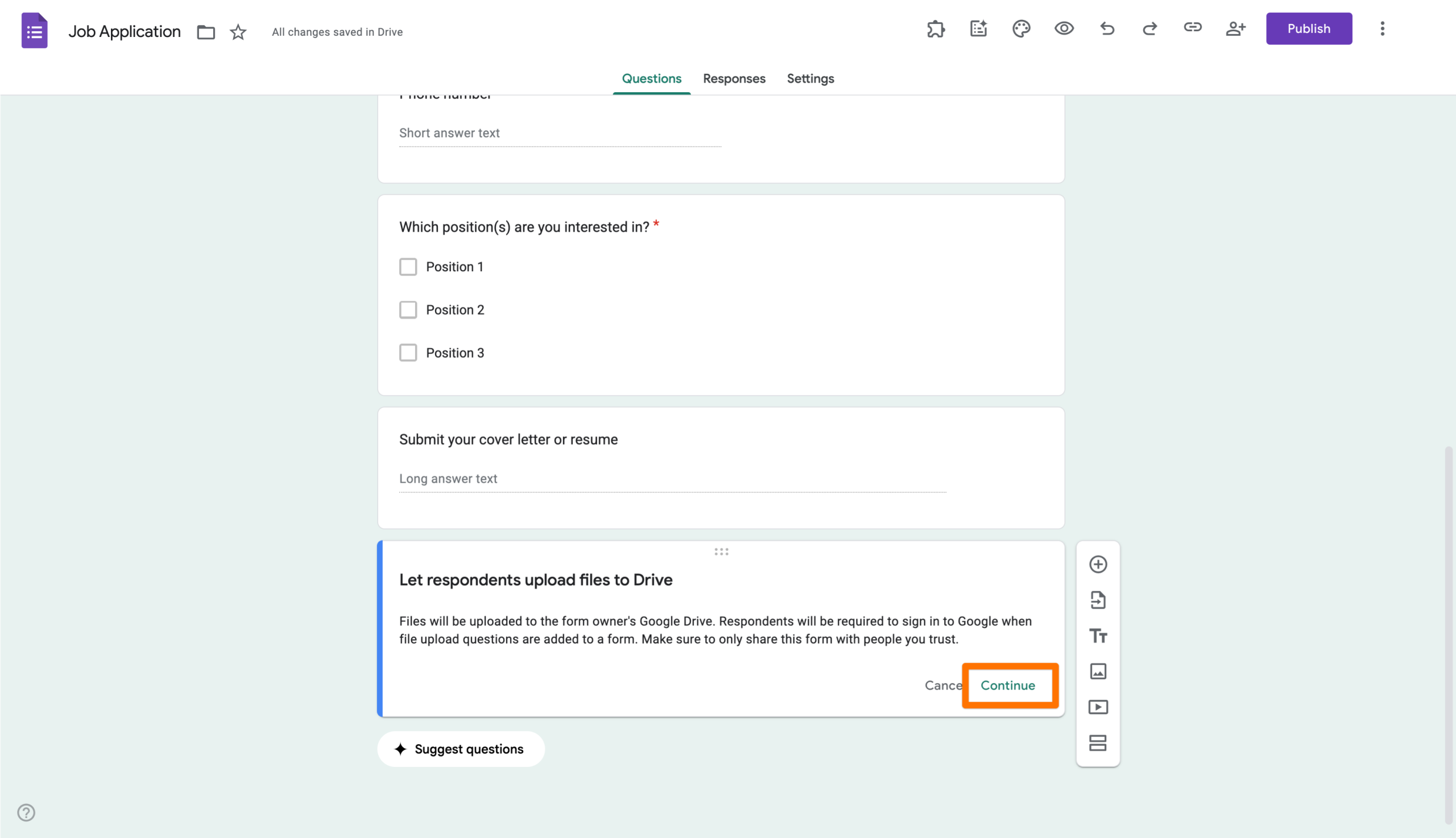
Step 4: Read the note about this particular question type and click Continue.
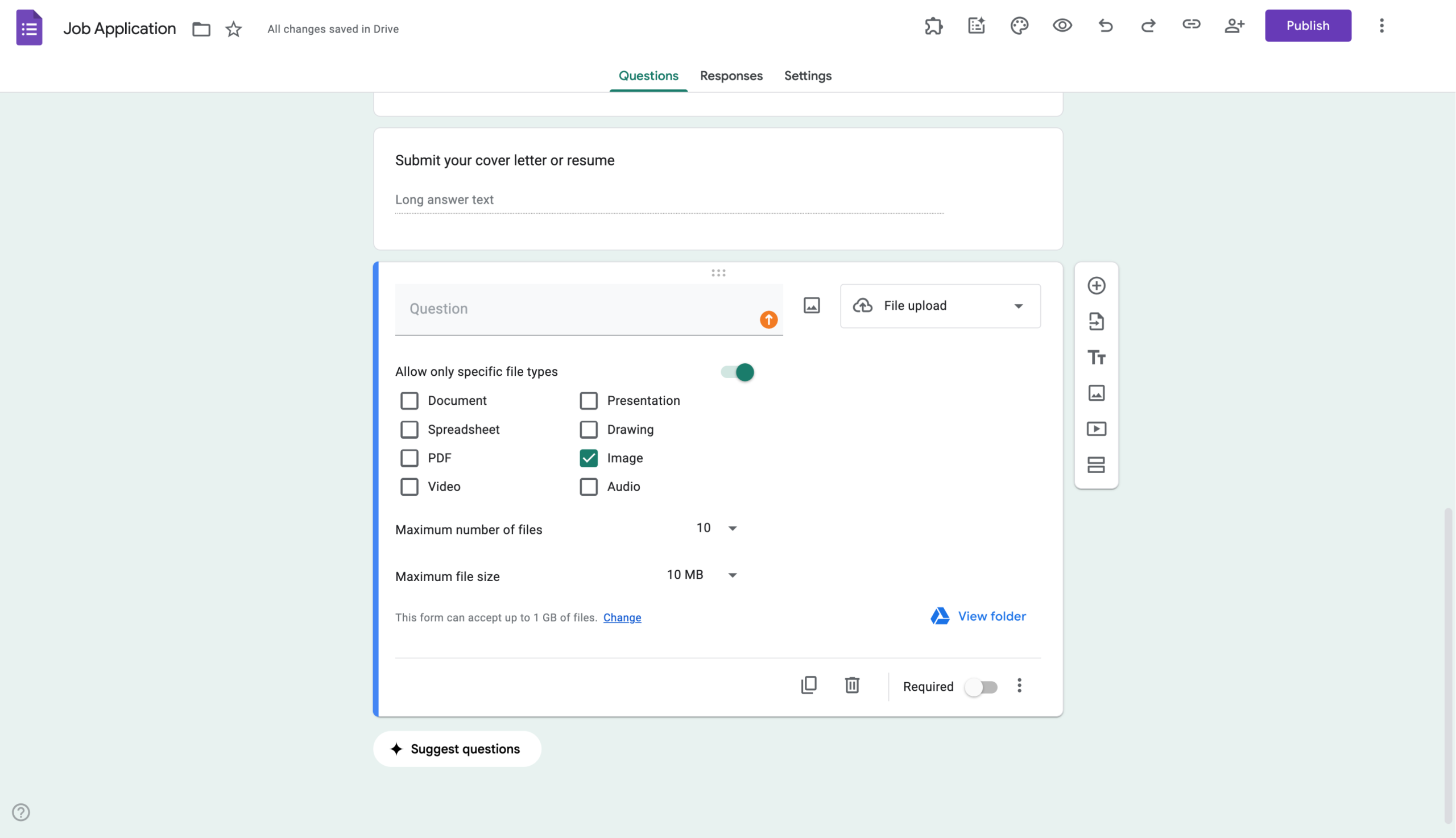
Step 5: Configure your Google Form image upload settings. You can
- Type in your file upload question or direction.
- Select specific file types.
- Set a maximum number of files — in this case, images.
- Set a maximum allowable file size.
Step 6: Complete the rest of your form.
Once you send the Google Form with the photo upload question to your respondents, they will see an upload button in Google Forms where they can add their photos. All files collected through the form will be added to your Google Drive photo collection.
Pro Tip
Want to know how to do another image-related task? Check out our guide for how to change the Google Form header image size.
Jotform: Simplify photo collection with the right tools
Google Forms offers basic functionality for collecting photos from form respondents. But what if you’re looking for something more sophisticated — like photo form templates or taking photos and instantly adding them to forms?


Jotform is an excellent Google Forms alternative that offers a number of ways you can collect photos within your forms:
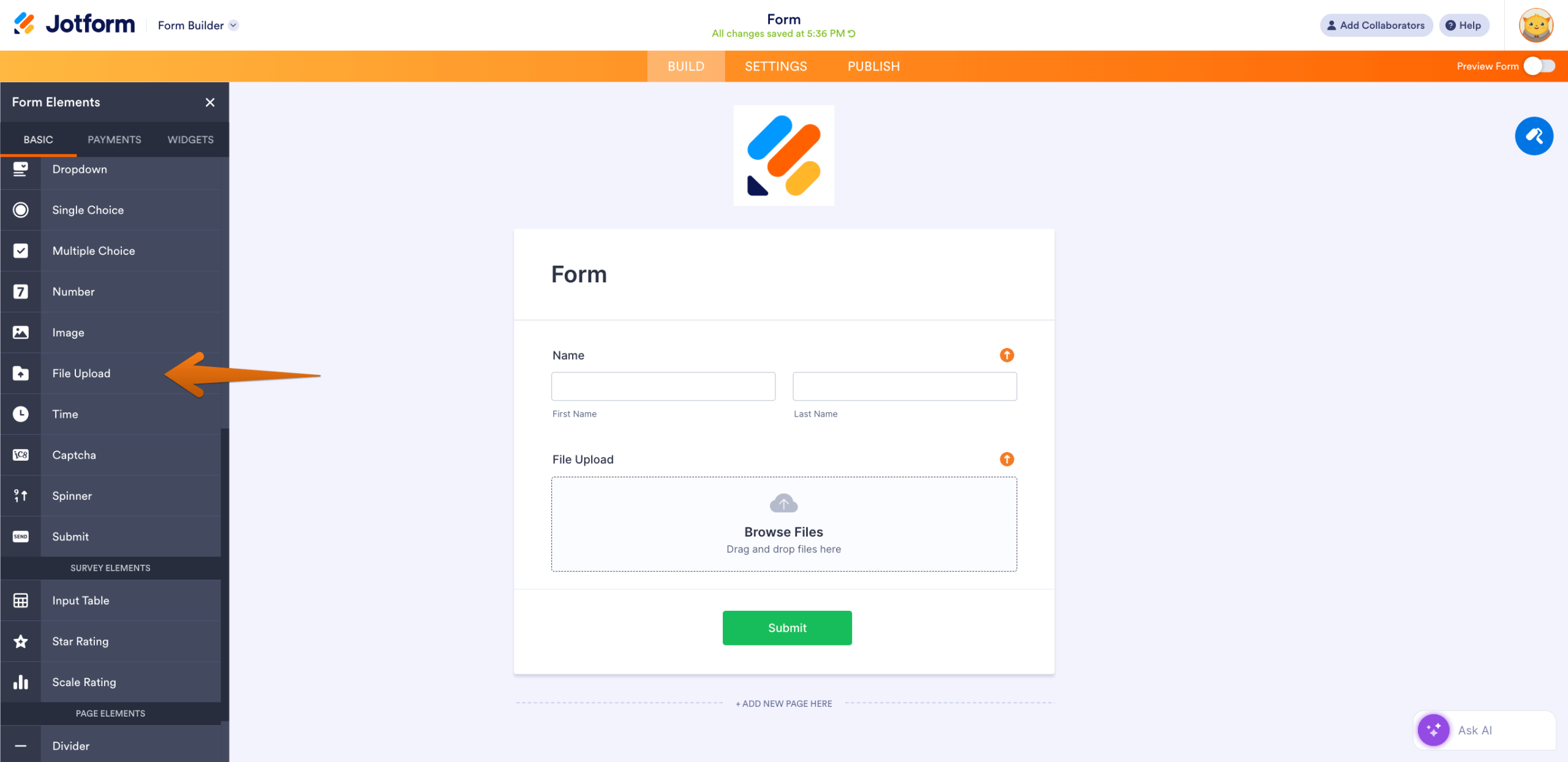
1. Add a photo upload field to any form
Simply add a File Upload form element to any form so you can collect photos or other types of files from respondents.
2. Use a photo upload form template
In this case, all the work has already been done for you! Simply customize your photo upload template and you’re ready to go.
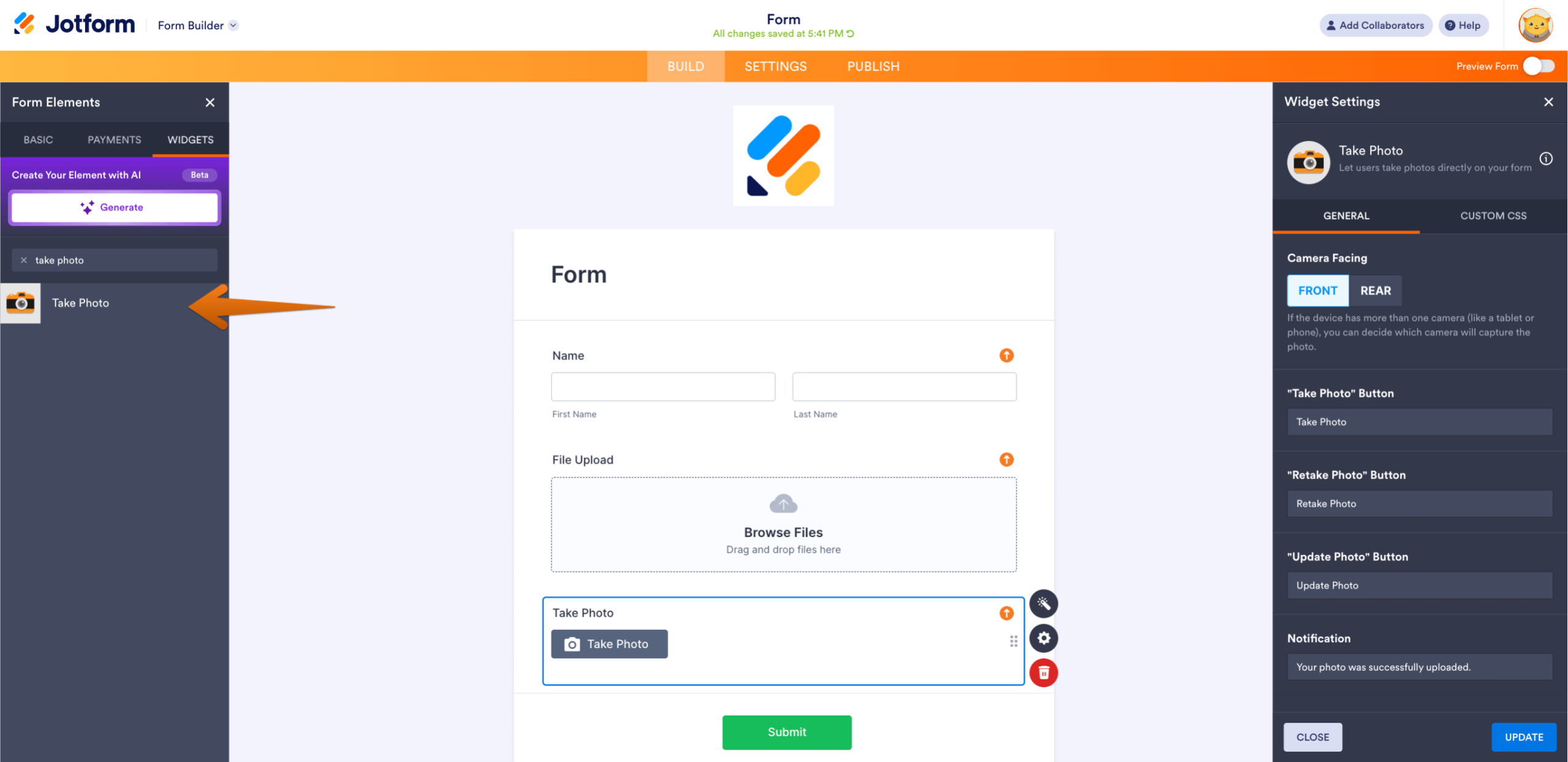
3. Enable respondents to take a photo in the moment and add it to their form
Use a Take Photo widget in your form to let respondents snap photos instantly and add them to the form.
4. Enhance your photo collection with Jotform’s many photo widgets
From Image Gallery to Image Upload Preview, there are dozens of Jotform photo widgets you can add to your forms.

Using Jotform is easy for both you and your respondents. Unlike Google Forms, Jotform doesn’t require respondents to log in when uploading photos, removing a potential barrier. Plus, every photo uploaded to your form is stored in your secure Jotform account for free, so you can access them any time.
Start collecting photos with Jotform today
Now that you know how to collect photos in Google Forms, you can see that this basic form builder comes with some limitations. Not only do respondents need to be logged in to submit photos, but there is only one way to collect photos: through the file upload question type.
If you want a more sophisticated form builder with multiple photo upload options, try Jotform instead. While Jotform offers a file upload option like the one in Google Forms, it also gives you several more ways to collect photos. You can use a photo upload form template, enable respondents to take photos and upload them to the form, or even include one of Jotform’s many photo widgets.
Jotform is available with a free plan, so start exploring the photo upload options in the form builder today!
This article is for Google Forms users, educators, event organizers, and anyone who wants to collect photos or image files through online forms for submissions, projects, or feedback in an organized and secure way.









































































































Send Comment:
1 Comment:
February 12, 2026
عايزه الصور القديمه