
If you’re a data analyst, educator, field researcher, event planner, or anyone else who wants to collect and visualize location-based data, you can likely see the value in combining Google Maps, a web-mapping platform, with Google Forms, a data-gathering tool.
Unfortunately, a Google Forms–Google Maps integration isn’t as simple as it should be, and you might need to get creative. In this article, we’ll show you workarounds for how to integrate Google Maps into Google Forms. We’ll also explore another form building tool that provides more flexibility when it comes to using maps in forms: Jotform.
How to integrate Google Maps into Google Forms: Key workarounds
Whether you’re doing field research, planning international events, creating geography quizzes, or doing something else, you may need to display Google Forms data on a map or ask form respondents to pinpoint a location on a map.
Google Forms doesn’t offer an easy way to do this, but there are a few different workarounds you can try below. (If you’re looking for foundational information on how to use Google Forms or how to create a Google Form, check out our helpful guides.)
Workaround 1: Add a Google Maps link to your Google Form
If you want form respondents to view a location on a map (such as for a test) or get directions to a location (such as for an event), try this option.
- In Google Maps, look up the specific location.
- Click Share. Copy the shareable link that Google Maps provides.
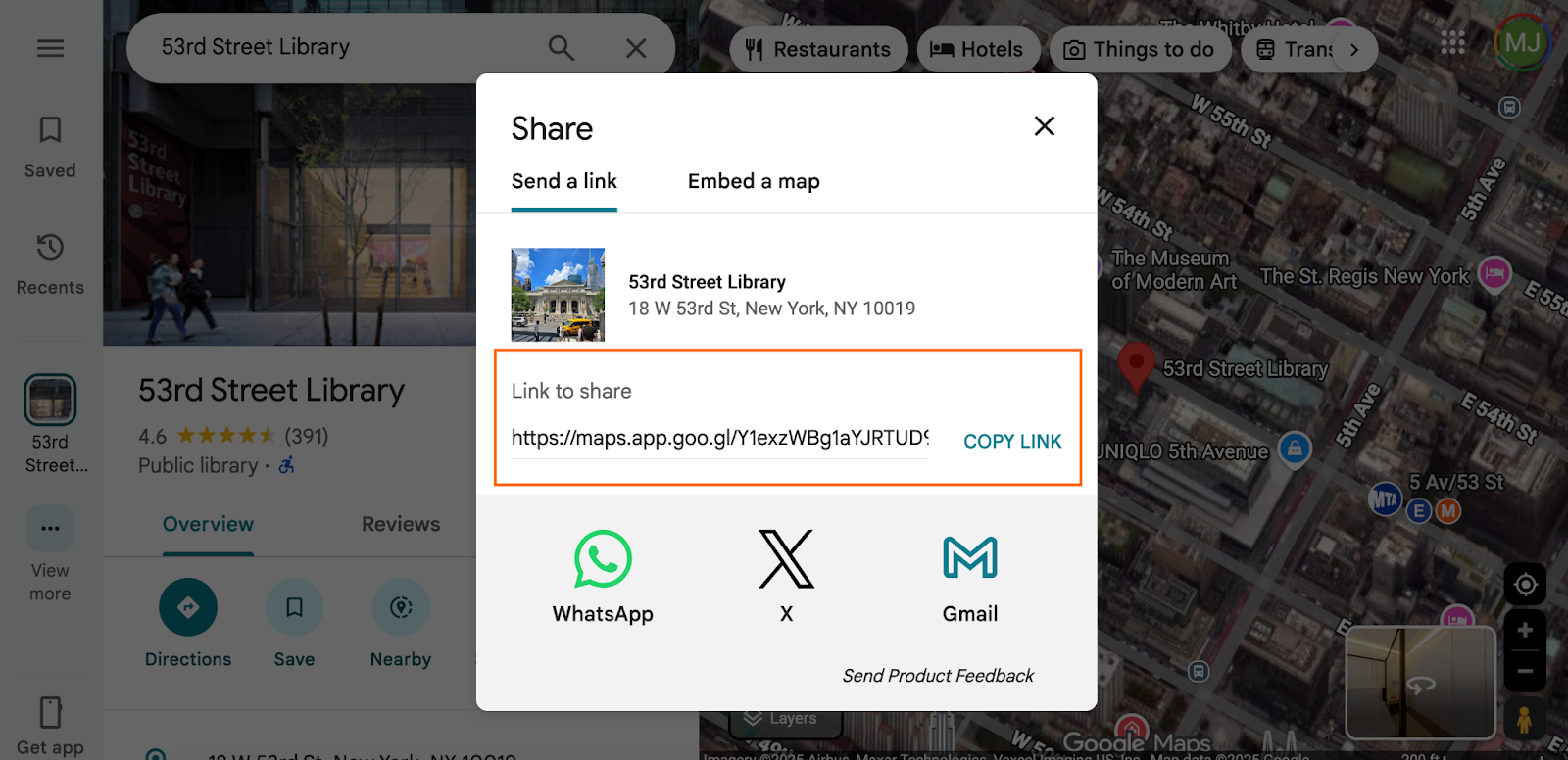
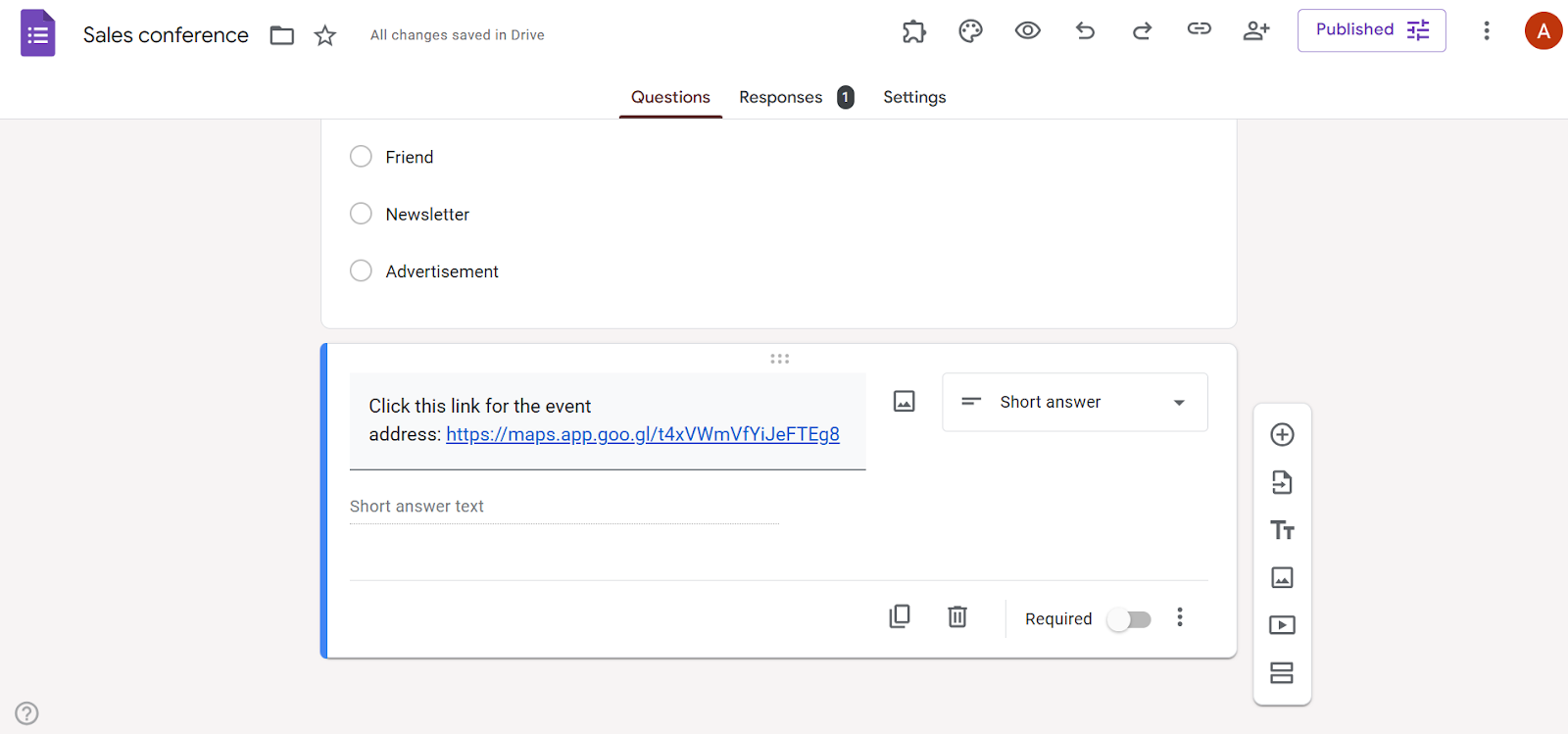
- Paste it into a question description or section description in Google Forms.
- Provide instructions for form respondents to click the link and open it up in a new browser tab to view the location.
Workaround 2: Collect addresses in Google Forms and open them in Google Maps
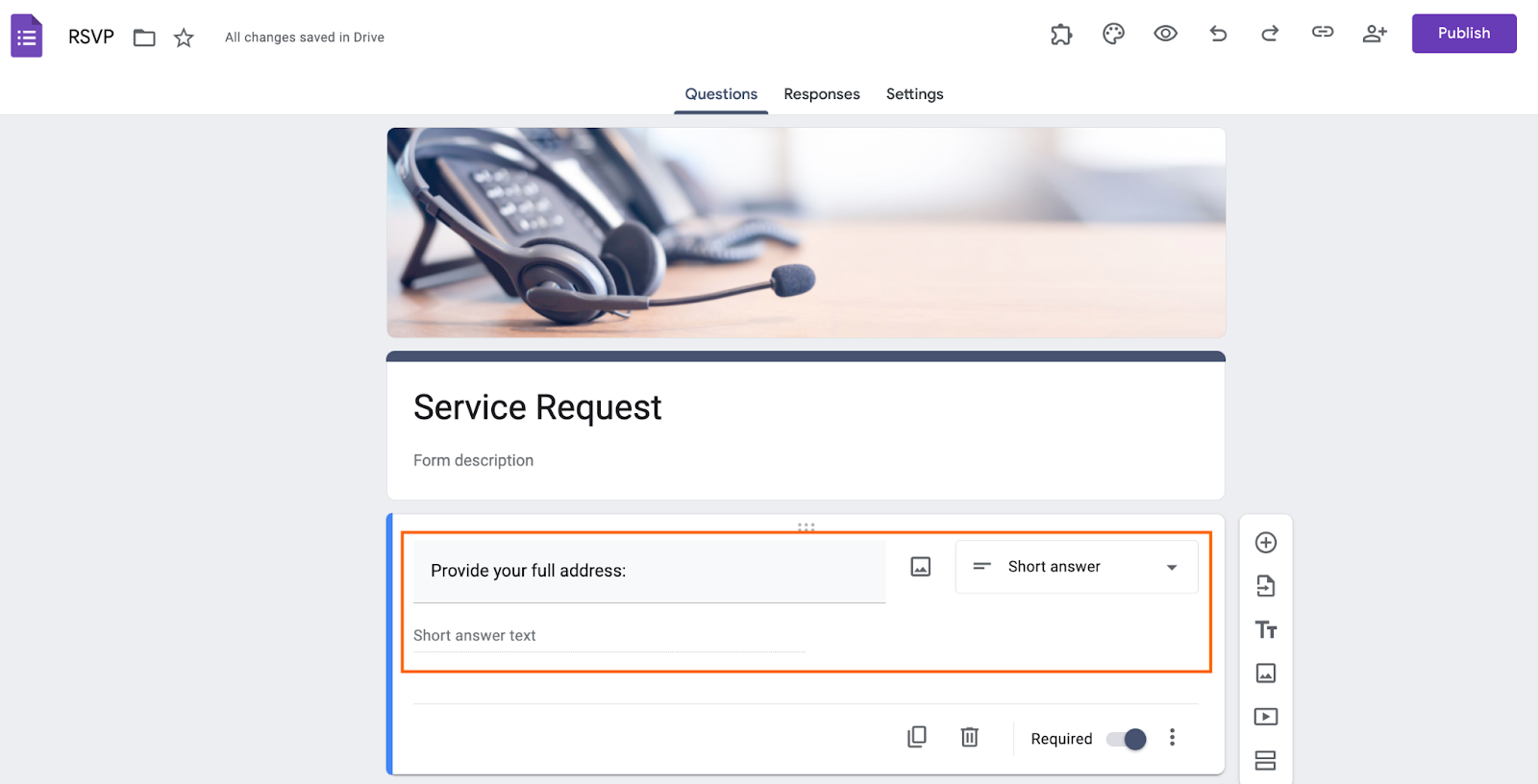
This is a good option if you want to map service requests or delivery locations, for example.
For this workaround, include a short answer field in your Google Form for respondents to submit addresses (since there is no Google Forms location field). When you have all the addresses, you can manually open them up in Google Maps.
Workaround 3: Ask respondents to drop a pin in Google Maps
This option can work for various research or data collection scenarios.
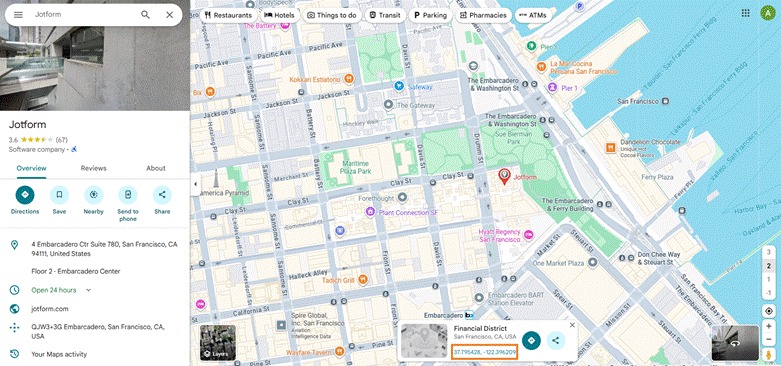
While you can’t embed a Google Map in Google Forms and ask respondents to pinpoint their address on the map, you can ask respondents to open a Google Map, drop a pin, and paste the link or exact coordinates in a short-answer question in Google Forms.
Workaround 4: Use Google My Maps instead of Google Maps
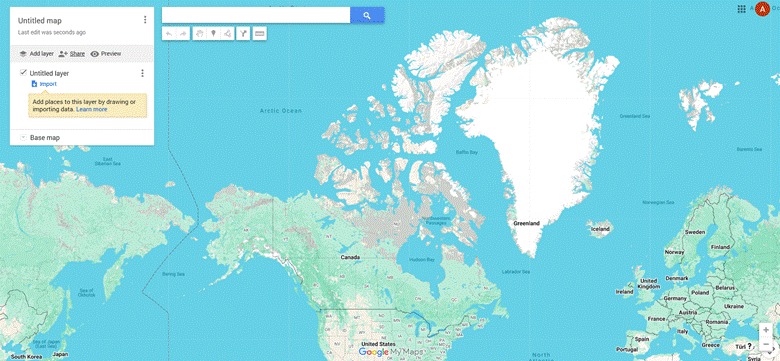
Google My Maps is a custom mapping tool that is part of the Google ecosystem but is distinct from Google Maps. The last workaround involves collecting location data through Google Forms, exporting it to Google Sheets, and then importing the sheet into Google My Maps to create a custom map with the location data you collected.
This method can be a bit complex and time consuming, but it can work for many types of Google Forms map questions.
Add a Google Map geolocation marker with Jotform
As you can see, there’s no easy way to visualize Google Forms data in Google Maps, a limitation that can be frustrating for data analysts, educators, field researchers, marketers, and other professionals. It’s a good thing Google Forms isn’t your only option!
Enter Jotform, an excellent alternative to Google Forms. This sophisticated form builder comes with a Google Map Geolocation widget that lets you easily gather location data from form respondents (with their permission, of course) and display it on a map.
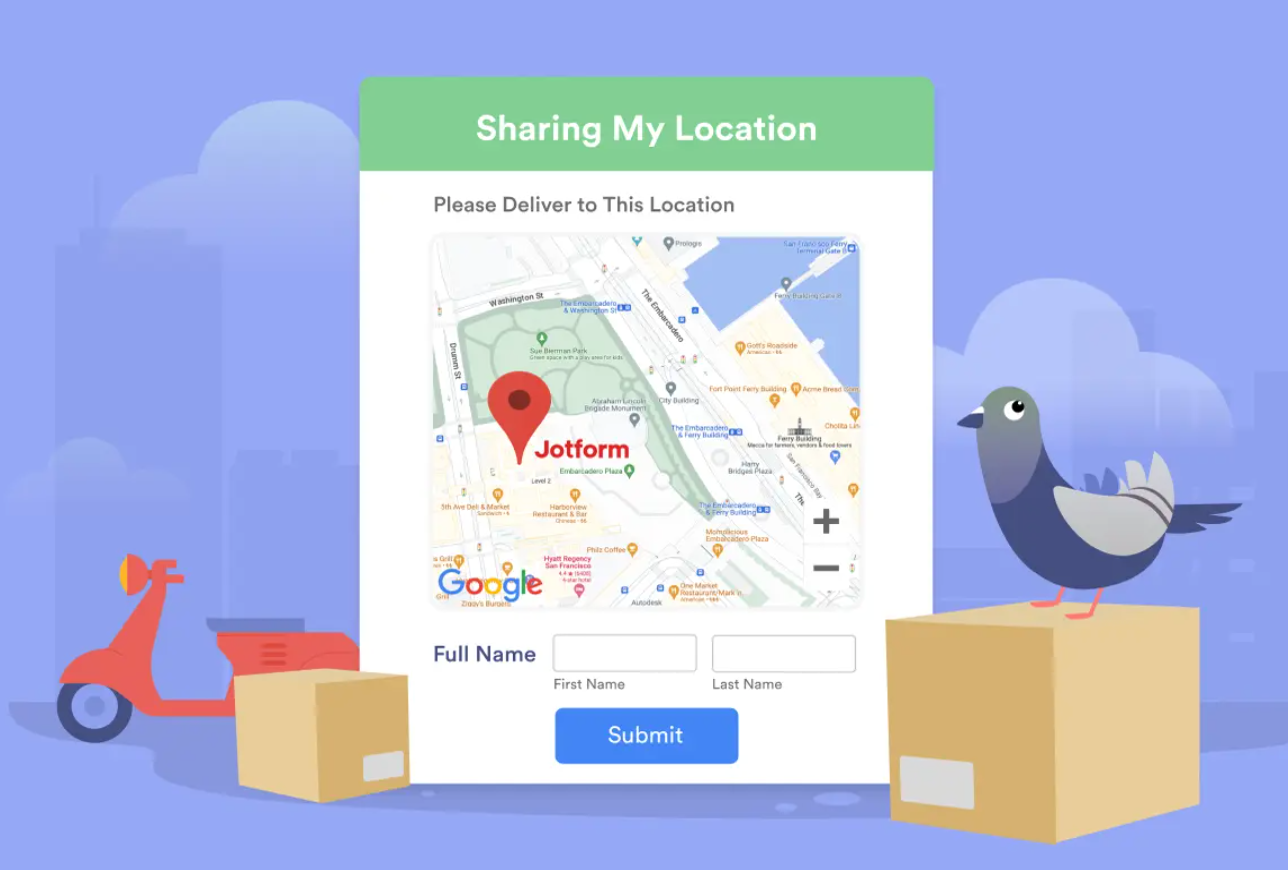
Here’s how to use the Google Map Geolocation widget with Jotform:
- Open the form you want to add the Google Map Geolocation widget to in the Jotform Form Builder.
- Select Add Form Element.
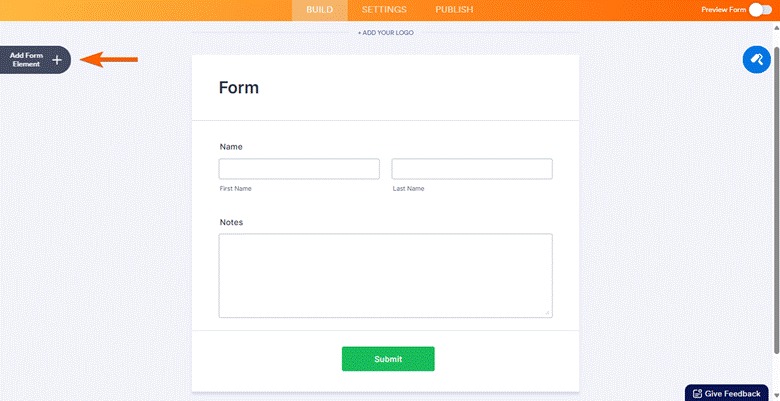
- Click the Widgets tab.
- Search Geolocation and click on it.
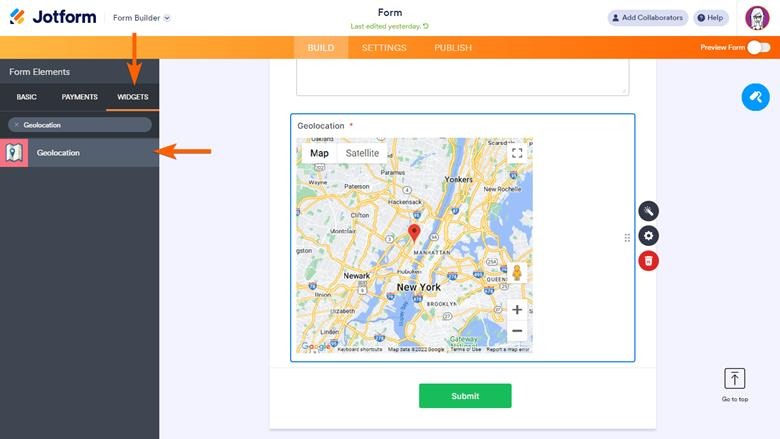
- In the Widget Settings menu, enter your Google Maps API Key. (Here’s how to get a Google Maps API Key if you need help!)
- Configure the rest of the options based on your needs. Click Update Widget.
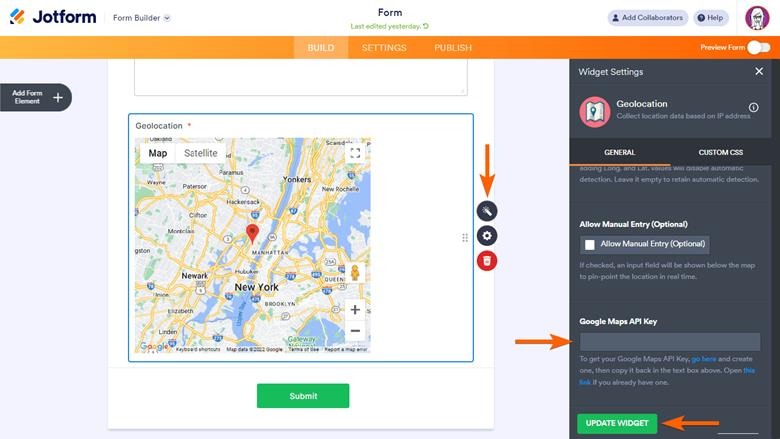
- Once you’ve configured the widget, use the following URL to add the location link to your notification email. Replace {tag} with your geolocation’s unique name:
https://maps.google.com/maps?q={tag}When form respondents fill out the form, the widget will capture their longitude and latitude. You can view or export the data instantly for analysis or to display on a map.
Other Google Maps widgets you can use with Jotform
Unlike Google Forms, there are several ways to use Google Maps with Jotform. Check out these other Google Maps widgets you can easily embed in your forms, surveys, polls, and quizzes.
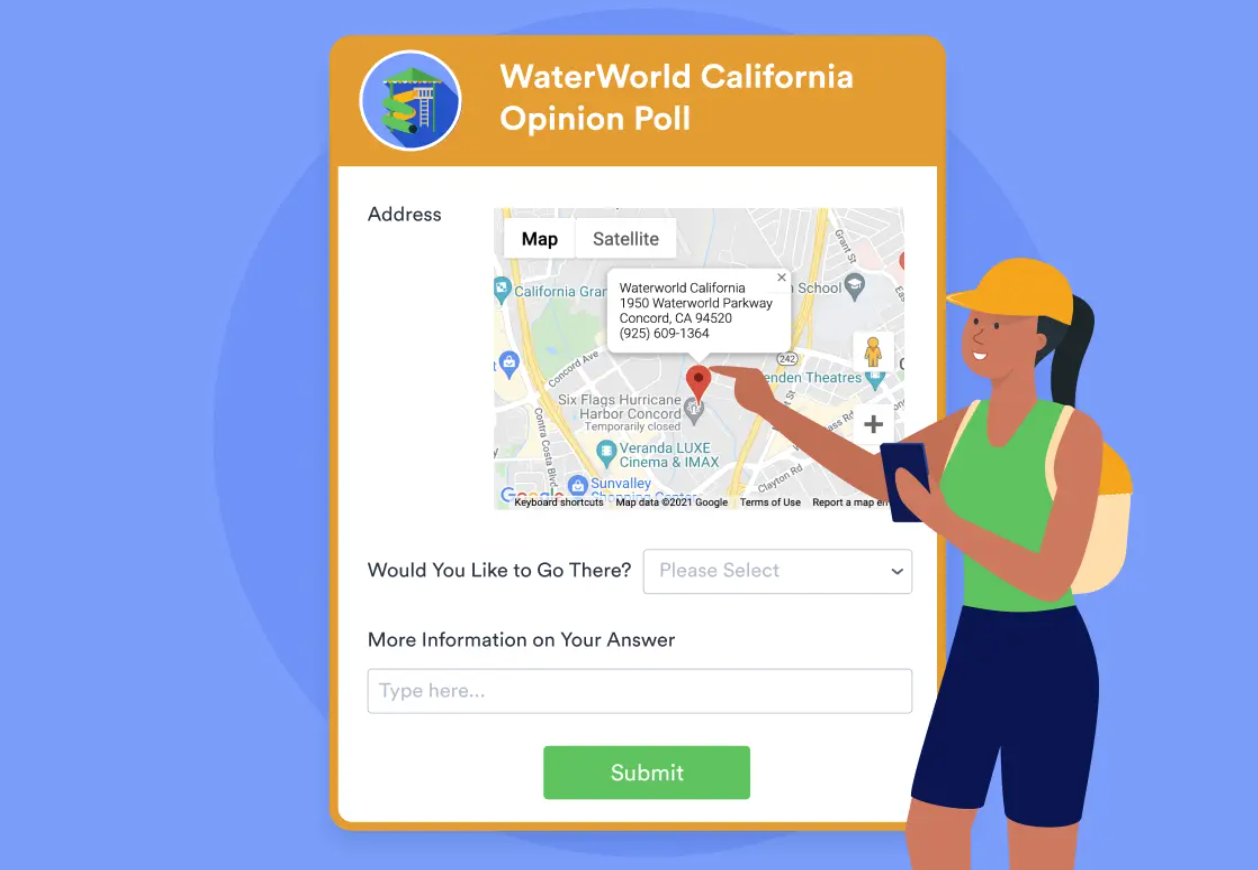
Show Map Location widget
Do you want to add a location in Google Maps to your form? The Show Map Location widget lets you do just that so you can embed an interactive map within your form.
All you have to do is add the latitudinal and longitudinal coordinates and the address text, and include your Google Maps API key. Form respondents will be able to see the location on the map while they are filling out the form. Use it for displaying the location of your business or event.
Address Map Locator widget
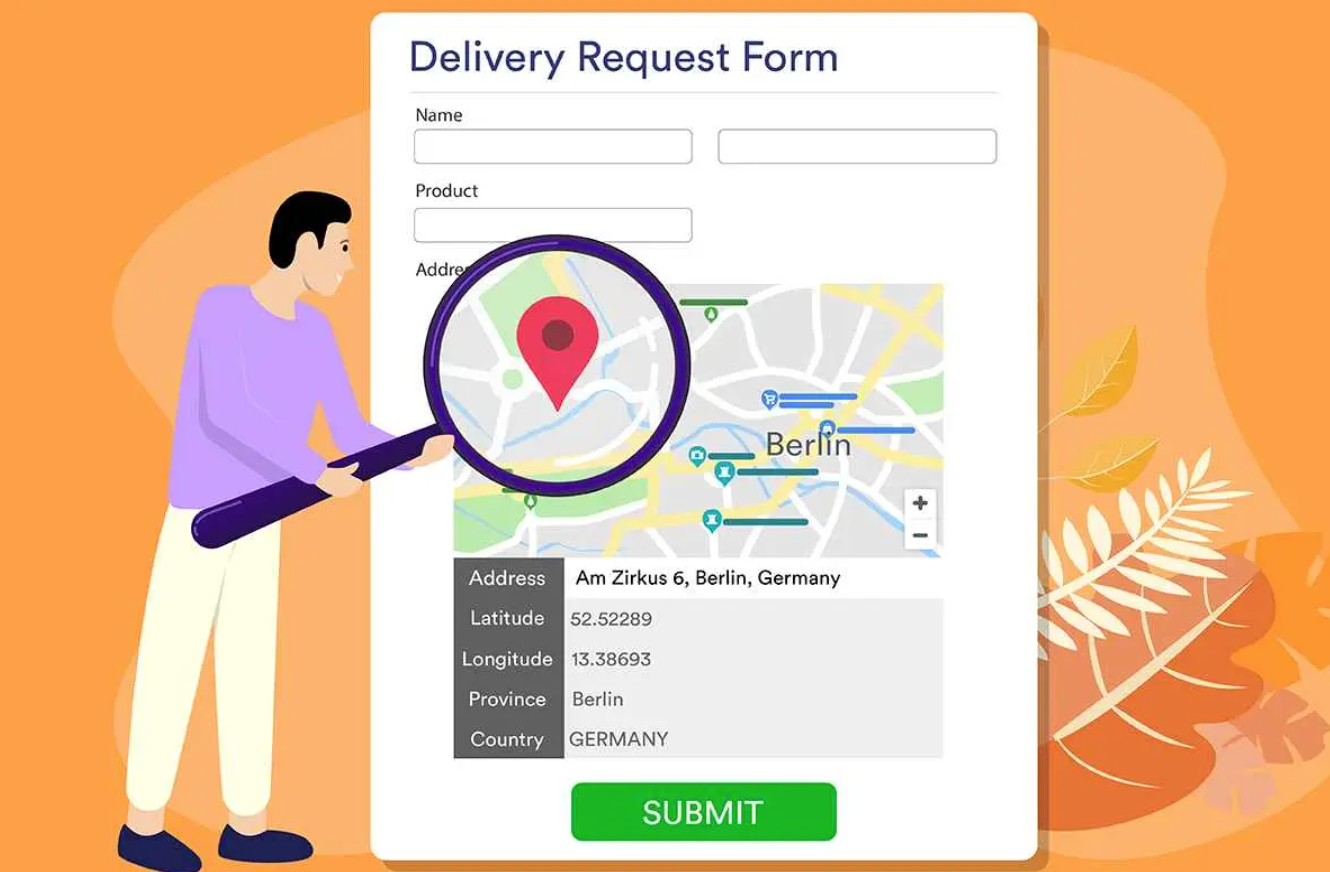
If you’re looking to collect accurate addresses through your online form, the Address Map Locator is the widget for you. Simply drag and drop the widget into your form. The form respondent can allow their location to be read by their browser, and the widget will then automatically collect that information.
This widget is great for gathering locations for incident reports, sales reports, property acquisitions forms, traffic management submissions, and more.
Get Visitor Location widget
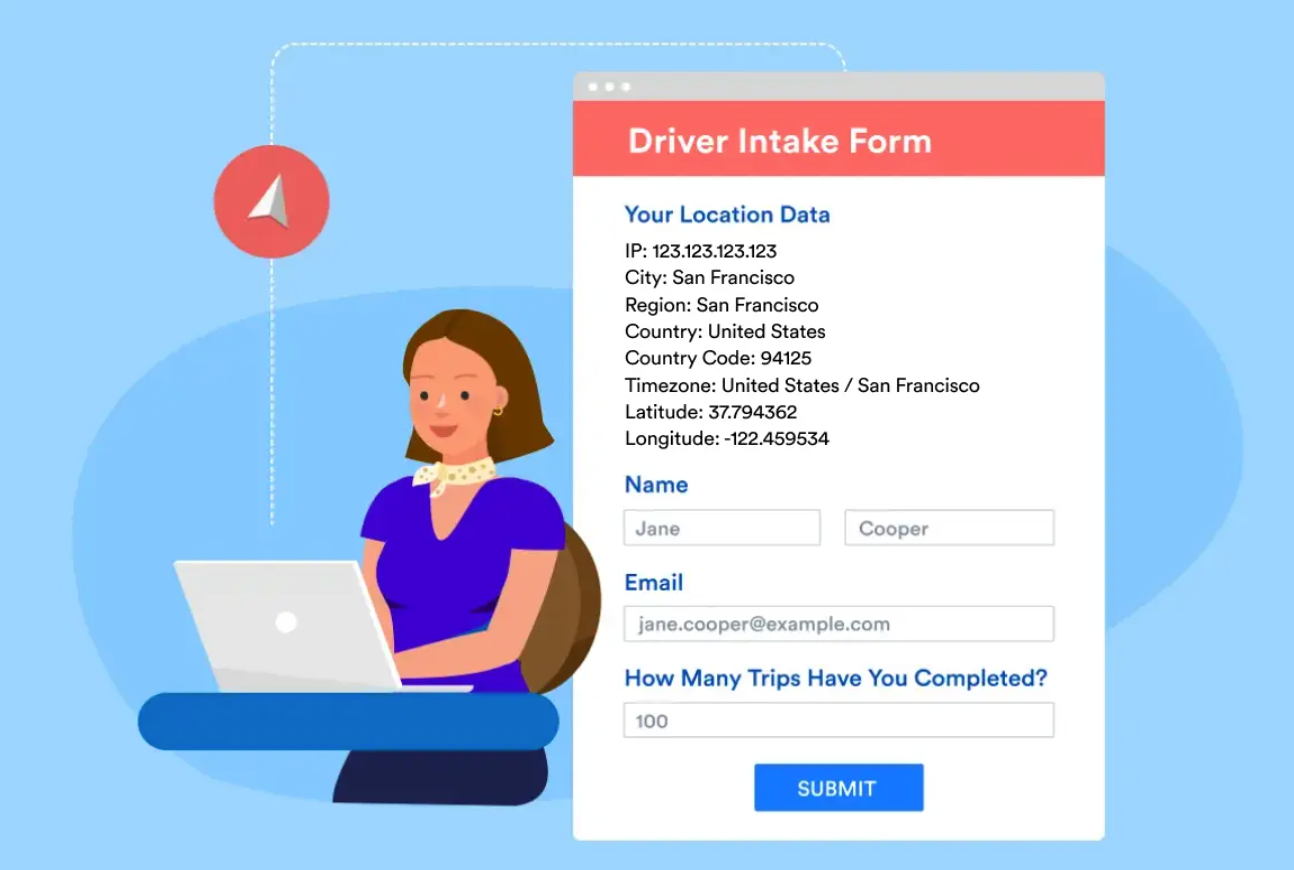
Do you want to get IP-based location information about your form respondents? The Get Visitor Location widget lets you collect IP-based location information about form users, including their geographical coordinates, ZIP code, time zone, and more. You can hide or reveal this field to form respondents.
It’s ideal for capturing locations for newsletter or event signups, getting a location stamp for contracts and agreements, and more.
Want to use Google Maps within your forms? Jotform is the answer!
Even though there is no native Google Forms–Google Maps integration, that doesn’t mean you have to stop using Google Forms when you want to integrate location information. If you need basic Google Forms geolocation functionality, you’ll often have to rely on manual workarounds or external tools.
You can try a number of workarounds, including adding a Google Maps link to your form and asking form respondents to open it in another window, asking respondents to drop a pin on Google Maps and provide the coordinates in your form, or using Google My Maps and Google Sheets to create a custom map with the collected Google Forms data.
But if you’re looking for a simpler, more integrated solution, turn to Jotform. It has multiple built-in Google Maps widgets so you can easily capture form respondent data and visualize it on a map, show location data on a map in your form, and more. Each Google Maps widget is easy to use and comes free with Jotform. No complex coding or workarounds required!
Give Jotform a try today and see how intuitive it is. Whether you’re mapping form data or showcasing your location on a map, Jotform is here for you.
Frequently asked questions
Google Forms does not have built-in GPS. You can use a workaround, such as asking form respondents to share a link to their location in Google Maps. If that doesn’t work for you, try another form builder like Jotform, which offers several built-in Google Maps widgets.
Google Maps offers the embed HTML code for free. Simply go to a Google Maps location, click Share, and click Embed a map. Note that you cannot embed a Google Map within Google Forms.
This article is for anyone who wants to collect, capture, or visualize location data with online forms, and is exploring ways to connect maps with form responses for research, events, education, or everyday location-based workflows.








































































































Send Comment: