
You collect form responses in Tally, but your real work happens in Google Sheets. That’s where you build reports, track leads, share updates with teammates, and make decisions.
Without a live Tally Forms Google Sheets integration, you end up exporting CSVs, copying rows, and fixing columns by hand.
The good news? Tally does have an integration option for Google Sheets that’s free for all users. The bad news? A lot of teams still face roadblocks when they’re trying to connect Tally to Google Sheets properly, or they end up feeling limited by the native setup over time.
Here’s the easy guide to setting up the integration, and figuring out when upgrading to a better form builder might be the smarter route.
How to connect Tally Forms to Google Sheets
The fastest way to set up a working Tally Forms Google Sheets integration is to use Tally’s native connector. It’s free, straightforward, and doesn’t really demand much effort.
1. Create and publish your Tally Form
First, you need a form. Like most online form builders, Tally only allows you to use integrated tools with published forms. Drafts won’t sync.
2. Connect Google Sheets to Tally Forms
From your Tally workspace, open the form you want to sync and click on Integrations. Click Connect under Google Sheets, and sign into your account. If you manage multiple accounts, double-check you’re using the right one during this step.
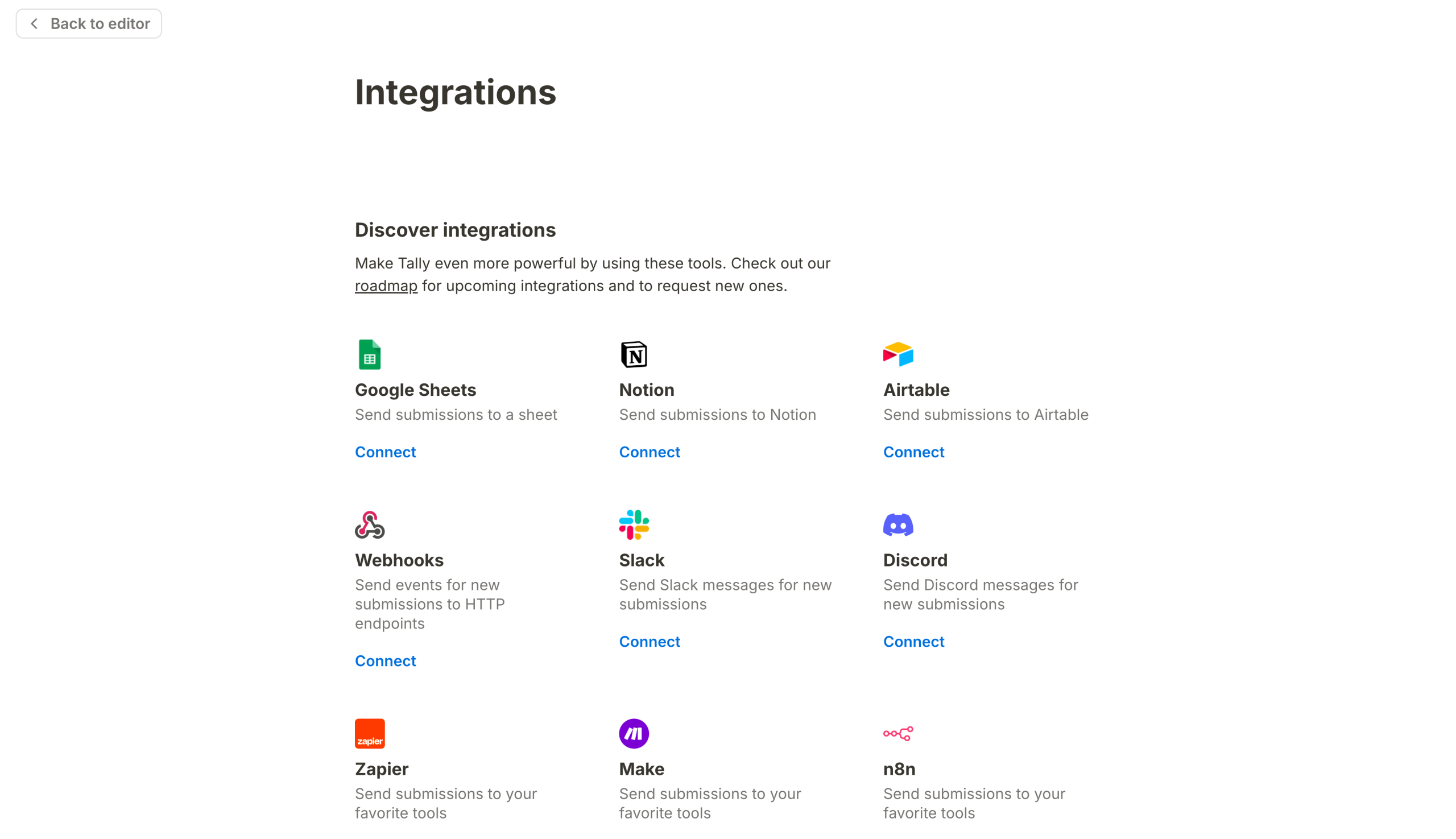
3. Define the details

Enter a Connection Name for the integration. Use a clear name — it helps later if you run more than one Tally Forms automation workflow. Next, decide where you actually want the responses to show up. You can use a spreadsheet that’s already sitting in your Google Drive or let the form create one automatically and move on.
You can also enable Export existing submissions. That’s helpful if you want past responses added as rows right away.
4. Save your changes and review your spreadsheet
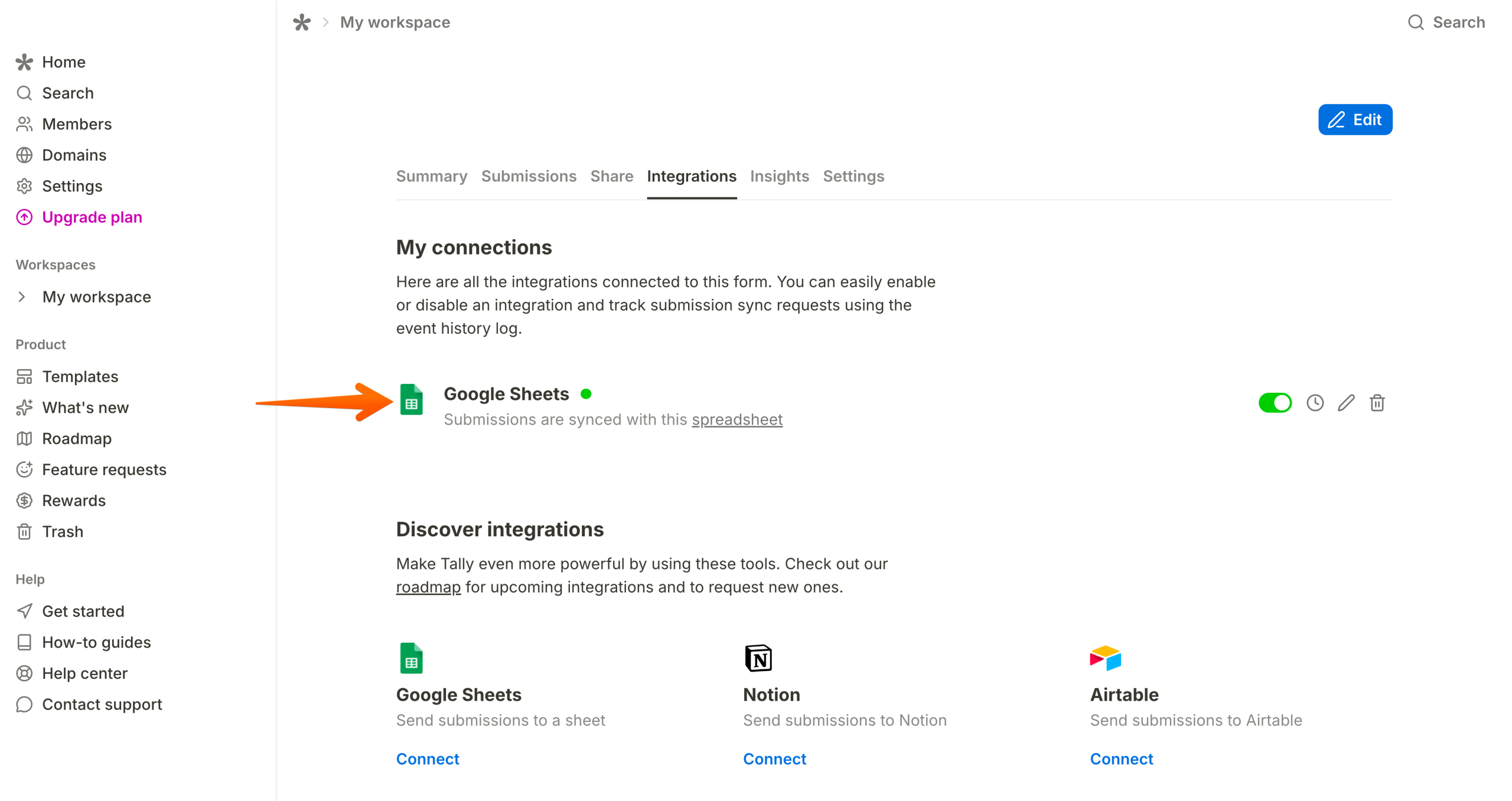
After you click Save Changes, Tally will show you a direct link to the connected spreadsheet in your dashboard. You can also move your spreadsheet to another folder and change columns without breaking the integration.
5. Test the connection
Send in a test response yourself and check the spreadsheet. If a new row shows up, everything’s connected. This is also the moment to add any extra columns you’ll need later, like when the form was submitted or notes your team might add.
With your integration in place
- Each submission adds one new row to your spreadsheet.
- Each form question becomes a column header.
- One form can send data to multiple Sheets if needed.
- You can reorder or delete columns, and new rows will still come through.
This setup is simple, but it does what it promises: It helps you send Tally form responses to Google Sheets with minimal effort.
Where the Tally Forms Google Sheets integration falls short
The native Tally Forms Google Sheets integration works, but it’s far from perfect. This is why some companies start reconsidering how they evaluate the best online form builders, after trying to tape Sheets and Tally together for a while:
- Submission times default to UTC: Every response lands in Google Sheets with a UTC timestamp. If you’re working across regions or reporting by local business hours, you’ll need to add formulas to convert times. It’s manageable, but it’s one more manual step you’ll repeat across Sheets.
- No routing before data hits Sheets: All submissions go to the same place. You can’t route rows based on answers, like sending enterprise leads to one Sheet and self-serve signups to another, without adding outside tools. The native setup doesn’t give you that control.
- Limited data prep: Tally writes responses as-is. You can’t clean fields, combine values, or apply rules before the row is added. Any fixes happen after the data lands, which slows things down when multiple people rely on the same Sheet.
- One-way sync: New rows only. You can’t update existing records, match entries, or prevent duplicates. If someone submits the form twice, both rows stay.
- Basic troubleshooting: Logs exist, but they’re minimal. When something looks off, you’re often left checking submissions one by one.
Why Jotform is a great alternative to Tally for Google Sheets
Tally works well when your goal is simple: collect responses and see them show up as rows. If you’re reviewing submissions as a team, flagging rows, running approvals, or pulling the same spreadsheet into weekly reporting, the gaps in the Tally setup start to matter. You end up fixing data after it lands instead of preventing issues before they happen. That’s why many teams end up switching to a different form builder, like Jotform.

Jotform gives you something different. It’s built for teams who treat Google Sheets as part of an ongoing process. You shape the data before it reaches the spreadsheet, and you have more options once it’s there. Less cleanup. Fewer side conversations. Fewer “don’t touch column D” messages.
- People can submit forms without creating an account.
- Forms validate inputs before submission, so you’re not fixing broken rows later.
- Conditional logic keeps spreadsheets cleaner by collecting only what’s relevant.
- You can start from one of 10,000-plus templates instead of rebuilding common forms.
- Embeds are simple, whether the form lives on a site or an internal page.
- Google Sheets, Drive, and Calendar connections are native.
- You can collect payments using more than 40 gateways like Stripe, PayPal, and Square.
When to choose Tally Forms or Jotform
Tally with Google Sheets makes sense if
- You’re running one or two straightforward forms.
- All responses belong in one spreadsheet.
- You don’t need routing or approvals.
- You’re mostly working on your own.
Jotform with Google Sheets is usually the better call if
- Several forms feed shared Sheets.
- More than one person touches the data.
- You want checks in place before rows appear.
- Payments or branching logic are involved.
How to integrate Jotform to Google Sheets


Integrating Jotform with Google Sheets is straightforward. The real difference compared to Tally isn’t in the number of setup clicks — it’s in how clean and predictable the data feels once it hits the Sheet.
Here’s how it works:
- Open your form in the Jotform Workspace. This is the main workspace where you edit questions, logic, and settings.
- Click on Settings at the top of the form editor.
- Select Integrations. Jotform keeps all external connections here.
- Choose Google Sheets. This starts the Jotform Google Sheets integration flow.
- Click on Authenticate and choose the account where the spreadsheet should live. If you use more than one Google Workspace, slow down here and double-check.
- Adjust your settings by giving the Sheet a clear name and picking exactly which fields you want sent over, like email addresses, phone numbers, or file uploads.
- Select whether to create a new spreadsheet or send submissions into an existing Google Sheet.
- Send a test submission by filling out the form yourself and confirming that a new row appears immediately.
That’s it. No extra tools required.
What’s different about Jotform’s integration with Google Sheets
If you’re managing submissions beyond raw rows, Jotform gives you a couple of useful layers on top of Sheets:
- Jotform Tables let you review, filter, and edit submissions before or alongside Google Sheets.
- Jotform Workflows let you add approvals, notifications, or assignments before data moves downstream.
- Jotform’s Action Logs help you keep track of everything happening in your workflow.
Why teams switch from Tally to Jotform for spreadsheet-heavy workflows
With a Tally Forms Google Sheets integration, data arrives but it often needs cleanup. Columns drift. Duplicate rows sneak in. Someone edits the spreadsheet mid-review and things break quietly. You spend time fixing instead of using the data.
Teams move to Jotform when they want fewer surprises. You get richer data at the point of entry, which means fewer broken columns and less follow-up. Validation happens before anyone hits submit, and conditional logic keeps Sheets focused on what actually matters.
Automation is another reason. Instead of forms dumping rows and stopping there, Jotform submissions can trigger reviews, approvals, or assignments. Sheets stay part of the flow, not the entire system.
Collaboration improves, too. People trust the data because it’s shaped before it lands. Fewer “don’t touch this column” messages. Fewer Slack pings asking what a field means.
Once Google Sheets becomes operational, not just a log, that’s when a stronger setup starts to pay off. If you’re ready to find out what that feels like, you can try Jotform for free.
This article is for teams using Tally Forms with Google Sheets who want cleaner data, fewer manual fixes, and better workflows, and are evaluating when upgrading to a more powerful form builder makes sense long-term.


































































Send Comment: