
Digital marketers, customer relationship management (CRM) managers, and cross-functional business teams all share the same pressure: They must respond to form submissions before a warm lead or urgent request goes cold.
The good news is that HubSpot’s form-submission notifications can help your team stay on top of new activity. These automatic alerts email your team whenever someone fills out a form, so they always notice new contacts and inquiries in your CRM.
The bad news is that because these alerts rely on email, they’re easy to miss in crowded inboxes and don’t always keep pace with the real-time workflows of modern sales, support, or operations teams.
If your team spends most of their day in messaging apps and on smartphones, email-only alerts just aren’t enough. You need a faster, more reliable alternative, like Jotform’s multichannel notifications system. Jotform sends instant alerts through push, SMS, WhatsApp, Slack, and Microsoft Teams messages that quickly reach your team.
Your team may be deeply integrated in HubSpot, so we’ll explain how its form-submission notifications work. You can then decide whether to use a more flexible notification system, like Jotform.
How to set up HubSpot form-submission notifications
When someone completes your HubSpot form, you want your team to see it fast so they can follow up while interest is still high.
HubSpot automatically emails your team. They’ll see new opportunities as they come in and can move high-intent contacts into the right workflows before interest fades.
To update HubSpot’s default form alerts to a specific form, follow these steps:
- In your HubSpot account, go to Marketing > Forms, and either create a new form or hover over an existing one. Click Edit.
- In the form editor’s left panel, click the Settings icon. Then open the Submission Settings tab.
- Under Real-Time Submission Notifications, select Notify Contact Owner if you want the record owner to receive alerts.
- Use Add Users to Notify to choose any additional HubSpot users or teams that should receive an email each time a form is submitted.
- Click Review and Update (or Update) to save your changes.
Each user must also turn on notifications in their personal settings for those emails to actually arrive. They can do this by going to Settings > Notifications > Email & Desktop and enabling Form Submissions for the channels they prefer.
If you need more tailored alerts (for example, you could route enterprise leads to sales and route support tickets to your help desk), you can build a simple contact-based workflow that enrolls contacts who submit a given form and sends notification emails to the right people.
If your team needs to move faster than email allows, you may want a notification system that works outside of your inbox.
Pro Tip
If your team captures leads with Jotform, its HubSpot integration can automatically create or update records in HubSpot. Those submissions will trigger the same notification and follow-up workflows you already rely on.
Meet Jotform’s multichannel notification system
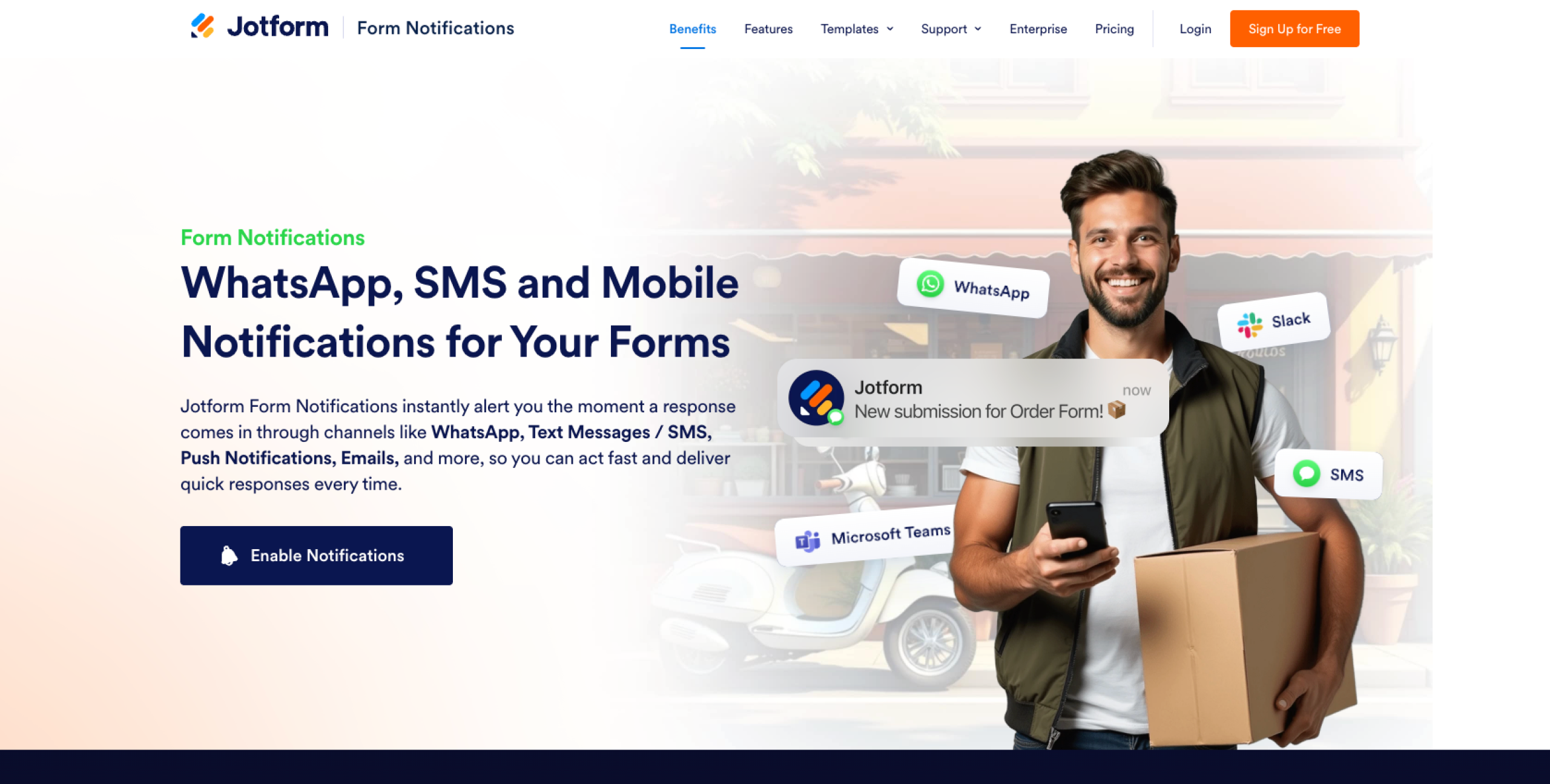
If your team prefers to work in WhatsApp or Slack, or they simply prefer to handle matters on their phones, using email-only alerts almost guarantees they’ll miss something important.
With alerts buried in an overflowing inbox, your team won’t see them until hours later. By the time they finally open those emails, the lead will have gone cold. Sales, support, and patient care teams live this reality every day.
This is where Jotform’s real-time notifications system comes in. It’s an all-in-one solution that eliminates the constraints of HubSpot’s email-based alerts. It meets your team where they already work, so every form submission appears in the channels they check in real time.
Instead of working in multiple tools, your team can use Jotform’s Form Builder to manage everything in one notification hub. For each form, you can choose the delivery channels that make sense (push notifications, SMS, WhatsApp, Slack, or Microsoft Teams) and turn them on in Form Settings or via form integrations in under a minute.
You can also map specific form fields to your alerts and see previews before you enable the alert, so every notification highlights the details your team actually needs. A simple verification flow (a phone number for SMS messages, QR code for WhatsApp, mobile app link for push notifications) keeps your channels secure and your operations painless.
These notifications can benefit users in multiple ways:
- Small-business owners who spend their day serving customers, not checking inboxes, can get instant phone notifications instead of digging through email threads.
- Healthcare teams can route urgent patient-intake forms to WhatsApp or Teams so nurses and coordinators see them immediately, even during a busy shift.
- HR teams reviewing applicants on the go can lean on mobile push or SMS notifications to keep hiring pipelines moving.
- Sales or customer success teams can post group notifications of form submissions in Slack or Microsoft Teams so the right rep jumps on every new opportunity.
And because Jotform Form Notifications are built into the platform, they connect directly to other Jotform products you already use. So there’s no need to manage alerts with extra tools.
Jotform Workflows can automatically route, approve, or escalate submissions that arrive via Slack or Microsoft Teams, while Jotform Mobile Forms makes push alerts and on-the-go follow-up seamless. If you need more control over what your team sees, you can customize notifications in Jotform Mobile Forms so the right details appear in every alert.
Set your notifications to fit your workflow easily
HubSpot’s form-submission notifications are a good fit if your team mostly works via email and doesn’t need to respond at the moment. But for fast-moving sales, support, HR, and operations teams, email-only alerts can slow response times and make it easier to miss high-intent leads or time-sensitive requests.
Jotform offers a more flexible, multichannel notification system for those real-time workflows, sending instant alerts through push notifications, SMS, WhatsApp, Slack, and Microsoft Teams so your team sees updates in channels where they already work.
Try Jotform’s multichannel form notifications to improve speed, visibility, and overall workflow efficiency.
FAQs
“Form submission” simply means a visitor has filled out a form and clicked Submit, and their information has been sent to your system. That action creates a record you can track, route, and follow up on.
In HubSpot, form submissions create or update records in your CRM, usually as contacts (and sometimes associated companies or deals). Once you have the record, you can segment, score, and enroll them in lists or workflows.
When someone submits a form, HubSpot captures their responses, stores the answers on that person’s contact record, and triggers notifications or workflows based on your settings. That chain of events turns a simple form into a follow-up task, email sequence, or internal alert your team can act on.
This article is for digital marketers, CRM managers, and business teams who want to understand HubSpot form submission notifications and explore faster, more reliable alternatives like Jotform’s multi-channel alert system.



















































Send Comment: