

How to create Google Forms with AI
- If you have paid Gemini, use native Google Forms AI — If you have a paid Google Workspace plan with Gemini, open a blank form and click the Help me create a form sparkle icon to generate questions.
- If you don’t have paid Gemini, install AI Form Builder— AI Form Builder add-on lets you create Google Forms with AI, regardless of your Gemini subscription.
- Better yet, switch to Jotform — For unrestricted access without add-ons, use Jotform’s AI Form Generator to instantly build complete, formatted forms from text or PDFs.
In an era where chatbots write essays and algorithms drive cars, manually typing out survey questions one by one can feel tedious and outdated. Businesses already use AI to hold real-time conversations with customers, analyze performance metrics, and streamline complex workflows.
But if surveys and quizzes are central to your operations, the question remains: Can AI create Google Forms for you?
The answer is evolving. Google has recently integrated Gemini AI to help with form generation, though these features are often restricted to specific Workspace plans. This post will explore how to use Google Forms AI, clarify who can use it, and introduce a more robust alternative for automated form building.


How do you create Google Forms with Gemini AI?
If you use Google Forms, here’s how you can currently take advantage of its AI capabilities:
- Create a form from a prompt or files — Use the built-in AI form generator to draft a new form instantly, either by entering a text description or by scanning existing Google Docs, Sheets, Slides, or PDFs.
- Suggest new questions — Once you have added at least two questions, you can generate and insert relevant follow-up questions with a single click.
- Summarize responses — AI can analyze long open-text answers to automatically identify key themes and trends, saving you from having to read every individual response.
How do you make Google Forms without Gemini AI?
Google has started rolling out native Gemini AI features to Workspace users with specific plans. However, if you are using a free personal account or a standard business plan without the AI add-on, you won’t see those built-in tools.
Fortunately, you can still use AI to generate forms. Simply visit Google Workspace Marketplace and download the AI Form Builder add-on. This smart sidebar tool lets you seamlessly integrate AI into your Google Forms.
Here’s how to set it up:
- Open the AI Form Builder add-on inside Google Forms.
- Create your form from scratch by prompting AI.
- OR choose to Import (bring data in) or Export (send data out),
- Select your source file (Doc, Sheet, Slide, etc.),
- Review and start over anytime.
AI Form Builder streamlines your entire form-making process. You can either generate forms from scratch with AI or upload a document and tweak it with AI.
Core capabilities of AI Form Builder:
- Pull content from Google Docs, Sheets, Slides, Drive files, or even other Google Forms
- Send your form data back into Docs, Sheets, Slides, or even Jotform.
- Simply describe your form (e.g., “Create a 5-question feedback survey”) and it builds it for you.
- Shuffle questions or pick a random set to keep quizzes fresh and prevent cheating.
- Understand whether your text should be a multiple-choice question, a list, or a header automatically with AI.
If you are looking for a way to use AI creating Google Forms but don’t want to pay for a Gemini subscription (or simply prefer to work inside a Google Form), try AI Form Builder today!
How easy is it to generate forms with Jotform AI?
Jotform is one of the best Google Forms alternatives, because creating a form with Jotform is incredibly simple: With its integrated AI form builder, Jotform allows you to create forms from text prompts. So, instead of manually dragging and dropping individual fields, you can simply describe your requirements in plain English, and the AI will instantly construct the logic and layout for you.
Here’s how Jotform AI simplifies the form building process:
- Type a prompt, get a form: Generate a form for free instantly with relevant fields, sections, and basic validation just by describing your goal.
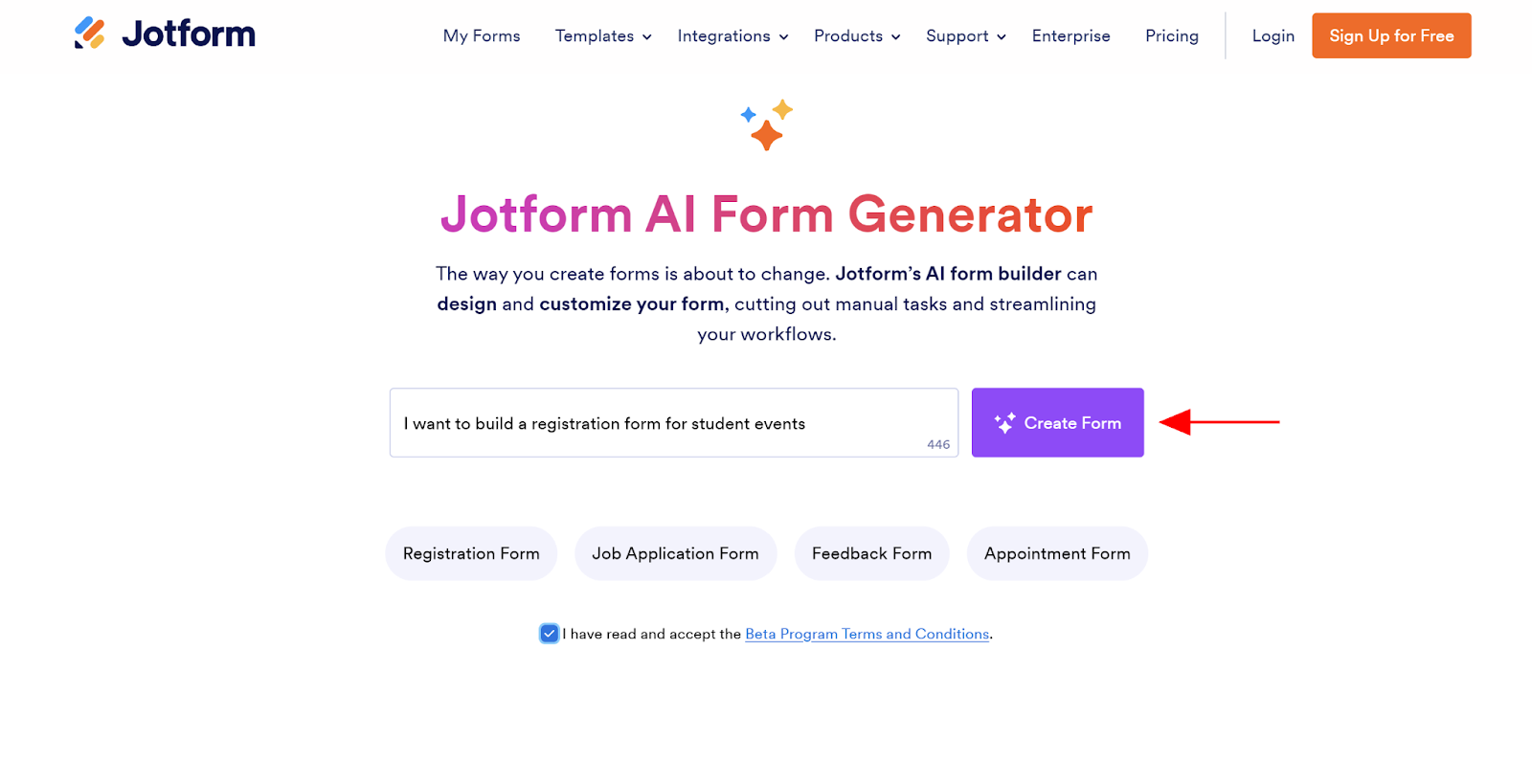
- OR Start from files: Upload existing PDFs or documents to convert old static forms into fully editable, digital versions.
- Customize your form with AI: Refine your form conversationally. You can simply tell the AI to make any content or design changes you need.
- Share instantly: Once generated, you can immediately preview, publish, embed, and send your form to respondents.
How can you use AI with Jotform?
Jotform puts powerful, accessible AI tools directly into your hands, allowing you to go from an idea to a live form in seconds. Here are some examples:
- AI Agents: Use Jotform AI Agents to help manage form responses, interact with customers, and offer personalized customer experiences at scale.
- AI Form Generator: Create a ready-to-use form from a simple text prompt with Jotform’s AI Form Generator.
- AI App Generator: Realize your app idea with professional mobile and web apps for your business in minutes.
- AI Quiz Generator: Turn your documents into compelling quizzes with one click.
- AI PDF Summarizer: Translate long PDFs into quick takeaways so you can digest the information faster.
- Ask AI: Ask anything to Jotform’s AI and get your answers in seconds.
The best thing is, you don’t need an admin to flip a switch or a premium license to unlock Jotform’s AI features. You have all the tools you need to get the job done, right from the start.
What else does Jotform offer?
Collecting data is just the beginning. Jotform also provides everything you need to act on that information, from automation to analysis.
Here’s a closer look at what all you can do with Jotform:
- Form & app building: Jump-start your project with thousands of form templates or build professional apps to gather data using file uploads, calculation widgets, and essential form fields.
- Workflows: Streamline your operations with approvals, conditional routing logic, instant autoresponders, and scheduled follow-up emails.
- Secure online payments: Turn your forms into revenue generators by collecting payments for products, subscriptions, and donations.
- Jottform Sign: Automatically generate documents and collect e-signatures on desktop and mobile devices for free.
- Jotform Tables: Collect, organize, and manage data in an all-in-one workspace. Share in one click for seamless collaboration.
- 150+ integrations: Sync submissions seamlessly with your existing tech stack using Jotform’s extensive library of integrations, covering everything from customer relationship management (CRM) systems and Google Sheets to cloud storage and chat tools.
Whether you’re collecting a single signature or managing a global workflow, Jotform handles the heavy lifting. It’s the only platform you’ll ever need to manage your data from start to finish.

Frequently asked questions about Google Forms AI
If you have a paid Workspace account, your administrator must enable Smart features and personalization from the Google Admin console. Once enabled, you will see a sparkle icon labeled Help me create a form when you open a new blank form.
Yes, but not in all cases. Native Google Forms AI can reference Google Docs or PDFs stored in your Drive to generate questions. However, if you don’t have Gemini, you will need a third-party add-on to do this. Alternatively, Jotform allows you to upload a PDF directly and can instantly convert it into an editable digital form.
No. While Gemini can generate quiz questions and answer options, it does not currently create an answer key or assign point values. You must manually configure the correct answers and scoring settings after all your questions have been generated.
No. Google’s native AI builds linear questions but does not generate complex Go-to-section-based-on-answer logic. For advanced branching, you’ll need to set up paths manually or use a more robust form builder tool like Jotform.







































































































Send Comment: