When you’re working on a Google Form that has several stakeholders, you want them all to be able to receive email notifications when the form is filled out. For example, if you’re planning a work event with colleagues, you might like the whole team to be made aware of each RSVP.
Instead of one person manually forwarding responses to the group, it’s helpful to have an automated way for each stakeholder to receive notifications. While Google Forms doesn’t have a built-in way for you to send notifications to multiple email addresses, there are some clever workarounds you can explore.
In this article, we’ll describe a few methods you can use to send a Google Form notification to multiple emails — one within the software itself and others using add-ons and third-party tools. We’ll also introduce you to a more sophisticated form builder that offers better control over email notifications: Jotform.
Use Google Forms’ built-in response notifications
You can’t currently send Google Form response notifications to multiple emails because the software functionality simply isn’t there. The only person that will automatically receive email notifications when a form is filled out is the form creator. This becomes a problem when you’re working with collaborators.
In cases where everyone wants to be notified, collaborators can take a manual approach and configure the settings to receive notifications themselves. As the form creator, you can’t configure these settings for them. What you can do is ensure they’re properly set up as collaborators for your form by selecting the appropriate access status for each collaborator email address.
Once you’ve done that, here’s how collaborators can trigger Google Forms email notifications:
- Open the Google Form.
- Click Responses.
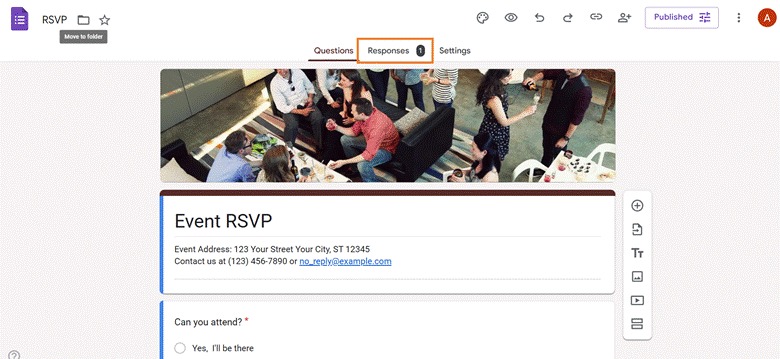
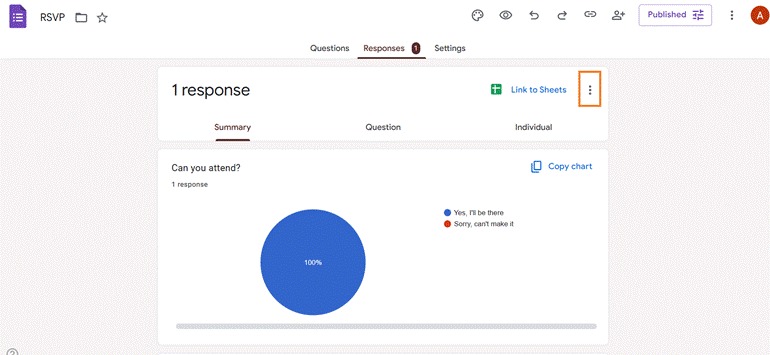
- Click the three-dot icon in the upper right.
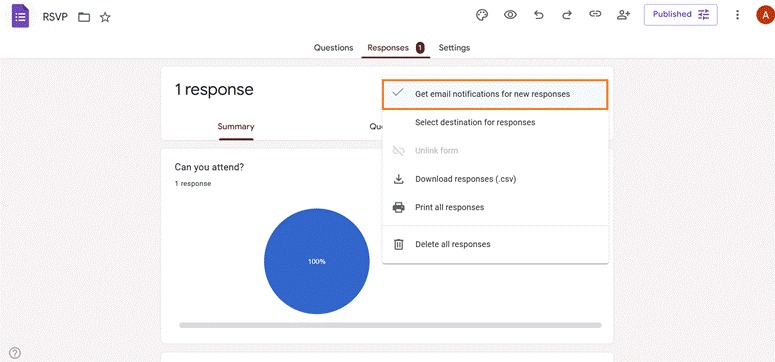
- Click Get email notifications for new responses.
Pro Tip
Want to learn more about Google Forms? Take a look at these guides: How to create a Google Form, and How to embed Google Forms in an email.
Use the Form Notifications add-on
If you don’t want your collaborators to have to trigger form notifications themselves, try the Form Notifications add-on available in the Google Workspace Marketplace.
This add-on enables you to automate email notifications for
- Form respondents: You can configure messages to be delivered to respondents as they submit their Google Form. For example, you can send a thank-you message once a respondent submits a form RSVPing to an event.
- Form owners and editors: As the creator and owner of the form, you can configure messages to be delivered to you or other form collaborators based on predetermined response thresholds. For example, you can send an automated notification to yourself once your form has received 10 responses.
Here’s how to get email notifications from Google Forms using the Form Notifications add-on:
- Go to the Form Notifications add-on in the Google Workspace Marketplace. Click Install.
- Choose your Gmail account and follow the prompts to log in.
- Form Notifications will request access to your Google account. Click Allow.
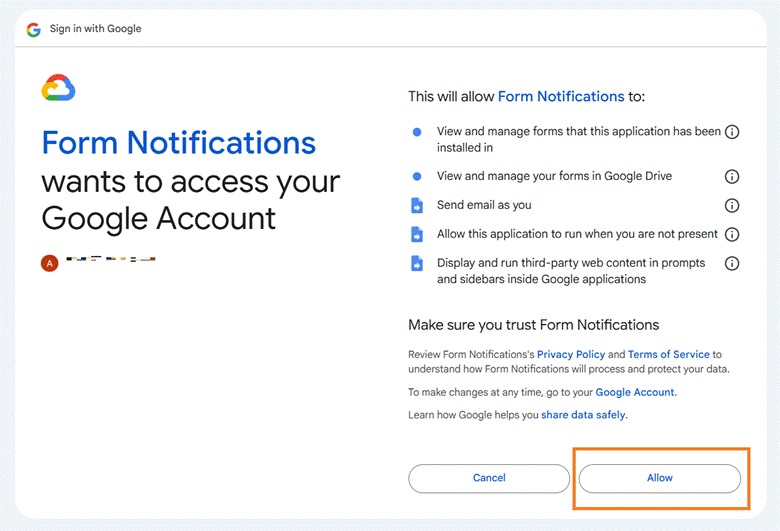
- To complete the installation, click Done.
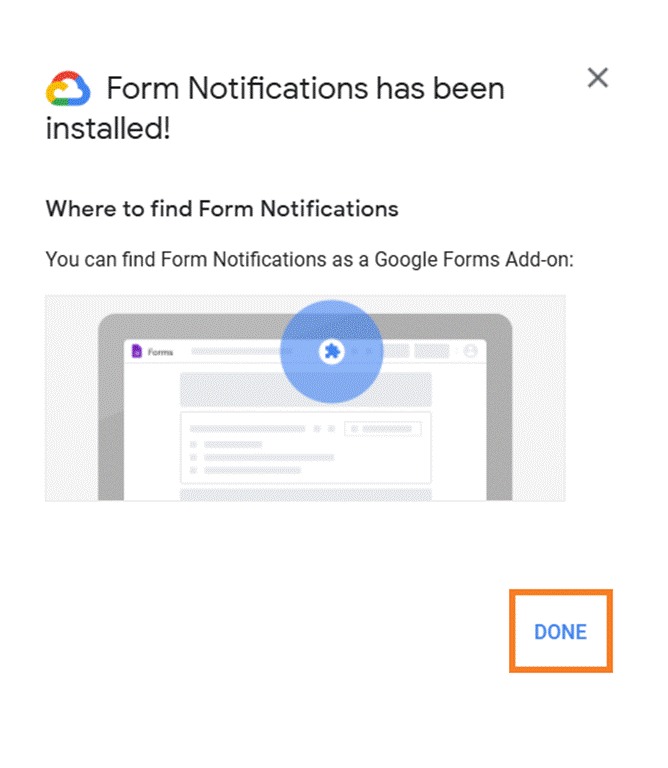
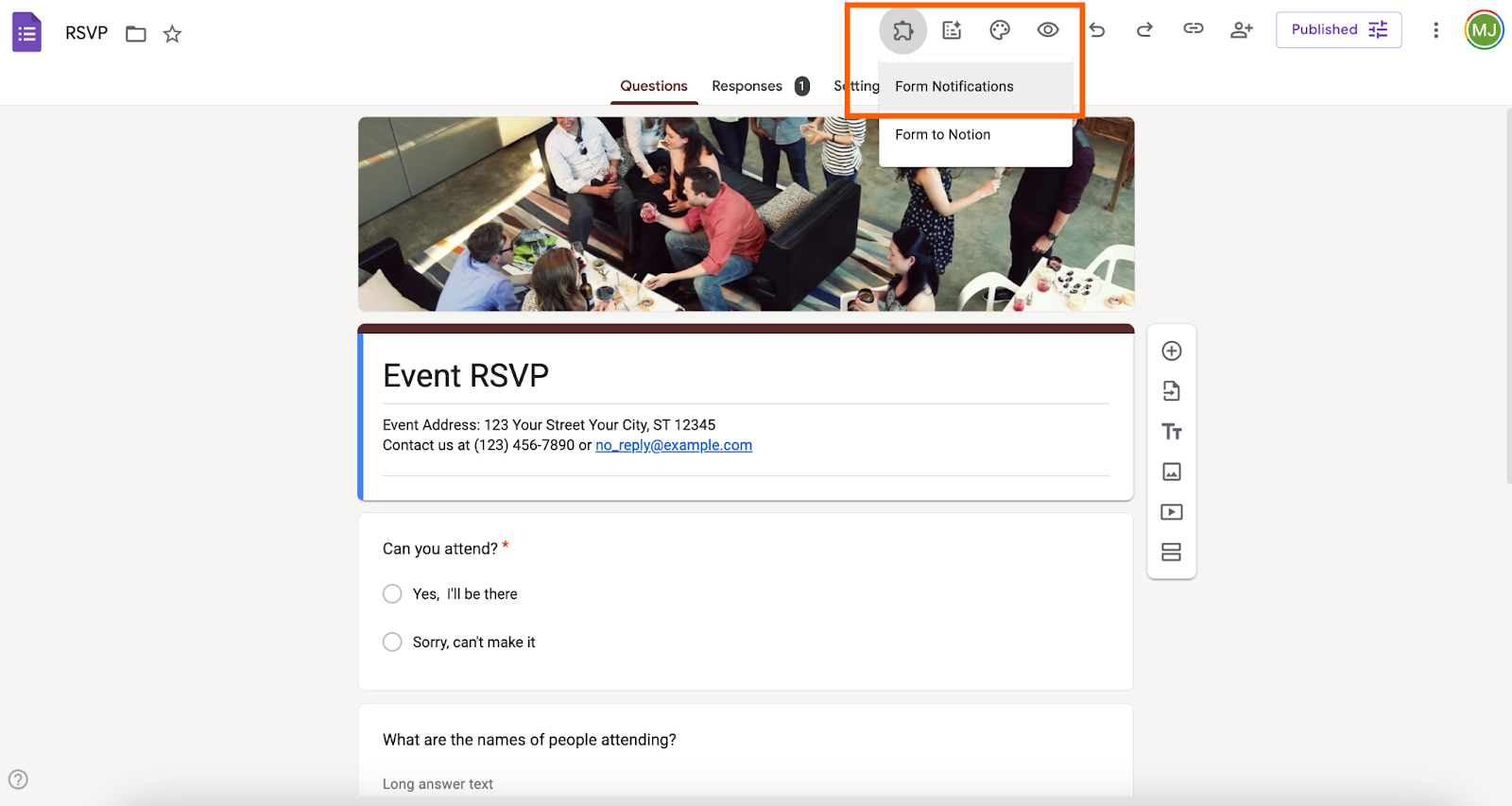
- You can now find the Form Notifications add-on via the add-ons icon in the top toolbar of Google Forms. Click on the jigsaw puzzle piece icon, then click Form Notifications.
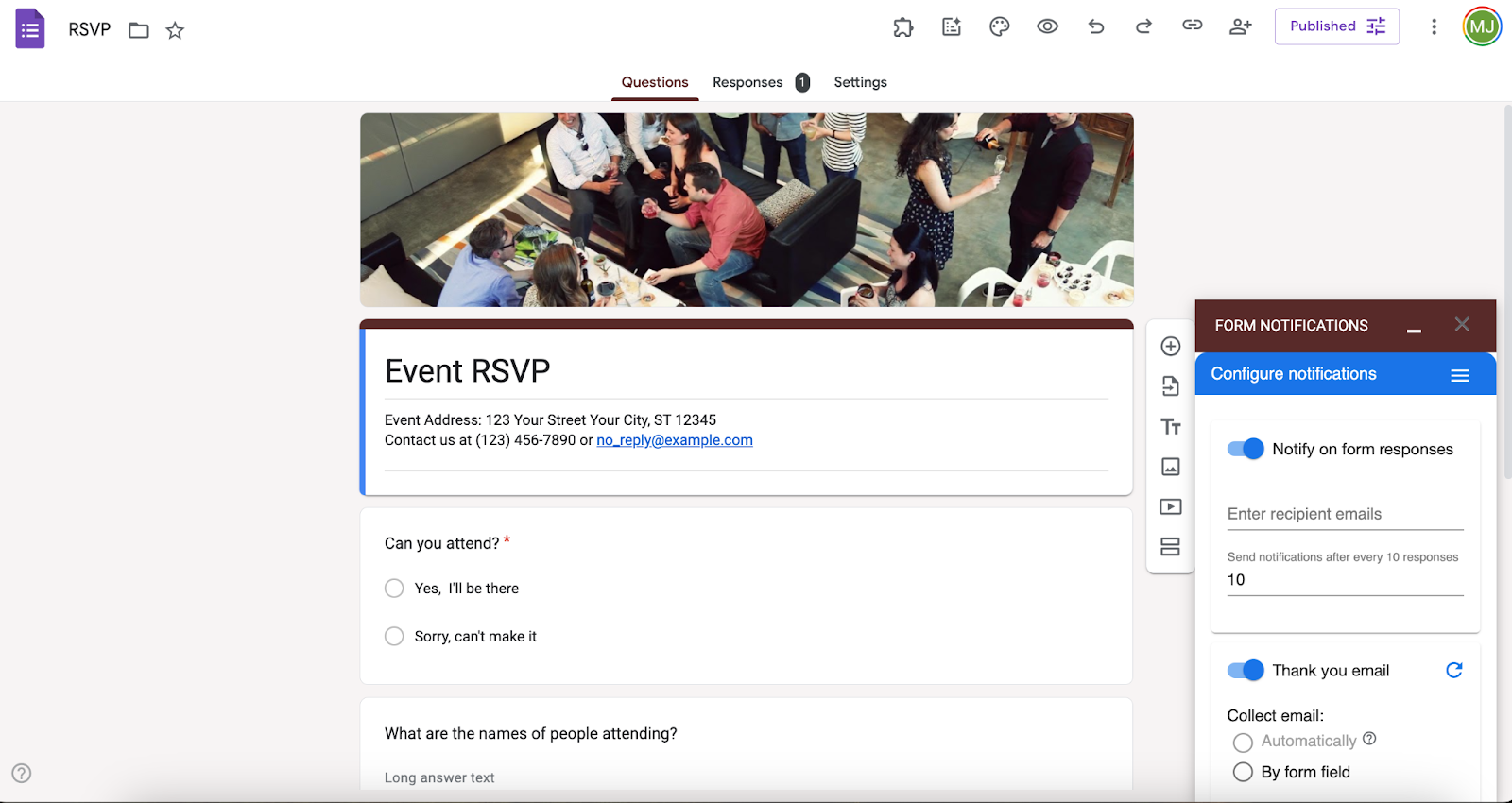
- When you open the Form Notifications add-on, you’ll have two options:
- Notify on form responses: When you toggle this on, you can configure the notification after a specific number of responses, like one or 10. Click Save configuration when you’ve set it up.
- Thank-you email: When you toggle this switch, you can set the Email, Email Copy, Subject, and Message Body fields, and set specific conditions for sending the email. Again, click Save configuration when you’ve set it up.
Note: This may not be the best way to send Google Form response notifications to multiple emails because many users have reported that the add-on doesn’t always work well. Users tend to have difficulty installing it and getting it to work consistently on Google Forms.
Integrate Google Forms with third-party tools
Another option for getting email notifications from Google Forms to multiple people is to try third-party tools. Options like Zapier, Make, or Pabbly extend the software’s functionality.
When using an add-on, typically a form respondent fills out the form and a notification is sent to Gmail — ideally to multiple stakeholders. Some third-party tools go further and allow you to create segmented notifications, update your customer relationship management platform, send Slack messages, and more. This is especially helpful for busy teams that require automated workflows to get more done in a limited amount of time.
Be aware that setting up third-party tools to create automated workflows can be a complex process. While many of these tools are user-friendly, you do need to have some advanced technical knowledge to get things going. Plus, you need to know what to do in case the automated workflow doesn’t go according to plan.
What’s more, many third-party tools can be costly. While most have free trials or free plans, those options come with usage limitations. You may have to upgrade to a paid plan as a result, which can impact your budget.
Send email notifications to multiple recipients with Jotform
There’s no easy way to send a Google Form notification to multiple emails, but that doesn’t mean you’re out of options. Jotform is a leading Google Forms alternative that offers native functionality for sending response notifications to multiple email addresses — no workarounds, add-ons, or third-party tools required.
Here’s how to send notifications to multiple recipients in Jotform:
- In the Jotform Form Builder, click Settings.
- Select Emails from the options on the left side.
- Hover your mouse over Email Notification and click the Pencil icon.
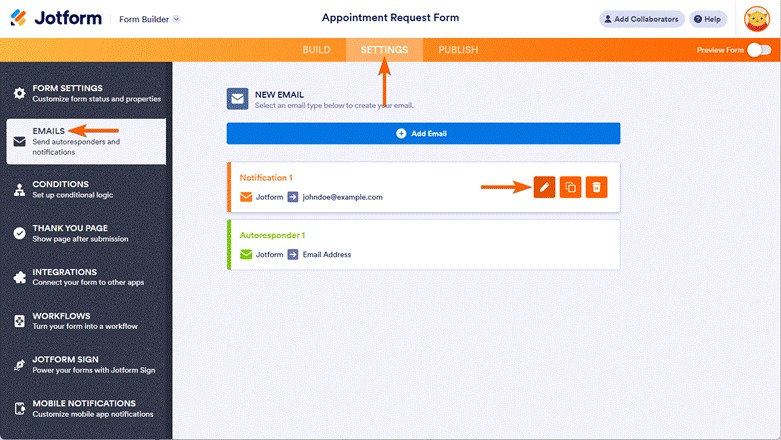
- Click Recipients.
- Add your recipients’ email addresses in the Recipient Email box. You can add up to 10.
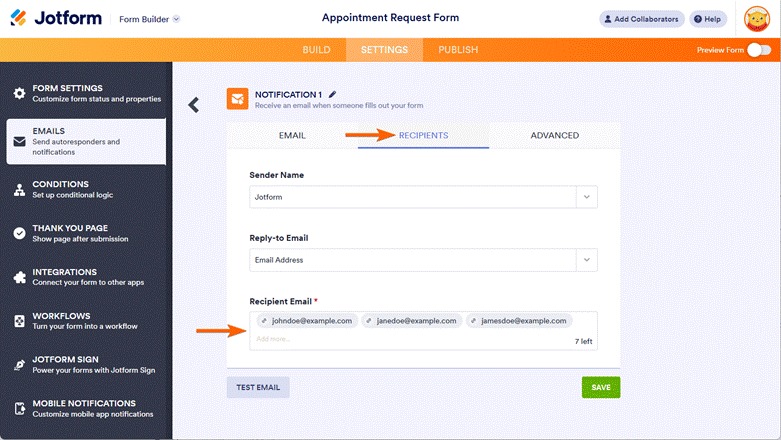
- Click Save.
In Jotform, it’s easy to send form response notifications to multiple email addresses without any headaches. Plus, the tool lets you customize notification rules, autoresponders, and more, making it ideal for complex email workflows and multi-user environments.
Jotform offers a number of other features and benefits that users love:
- More than 20,000 ready-made form templates for a range of industries and business use cases
- 40-plus secure payment gateways like PayPal, Stripe, and Square
- Seamless integrations with Google Drive, Sheets, and Calendar so you can use Google tools without disrupting your workflows
- Simple form embed codes to easily add them to websites
Form creators appreciate how easy and intuitive Jotform is to use, while form respondents enjoy the frictionless experience (boosting completion rates) — no logins required.
Best of all, Jotform offers a free plan, so there’s nothing stopping you from trying it out today. See how easy it is to build forms, send response notifications to multiple email addresses, and more with Jotform.
This article is for form creators, internal teams, project managers, and anyone who wants to receive Google Form notifications at multiple email addresses without relying solely on Google Forms’ default limitations.
Frequently asked questions
If you’re a collaborator on a Google form, navigate to the Responses tab. Click the three-dot icon. Click Get email notifications for new responses.
To automate email notifications from Google Forms to anyone other than the form creator, you’ll need to use a workaround, add-on, or third-party tool. Google Forms doesn’t have the native functionality to complete this action.
Google Forms will only send an email notification to the form creator. If you need to send response notifications to additional emails, you must use a workaround, add-on, or third-party tool.







































































































Send Comment: