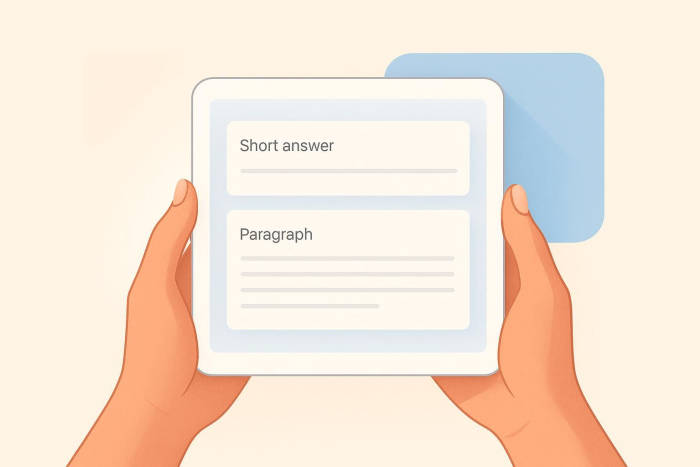
Confused about Google Forms’ short-answer and paragraph fields? They may seem like similar options, but their slight differences will change the way your respondents answer a question — so it’s important to get it right.
In brief, short-answer fields allow space for just a few words, while paragraph fields can accommodate long blocks of text. Knowing when to use each can help you get exactly the sort of answer you’re looking for, whether it’s a quick fact or a deep insight. In this article, we’ll take a closer look at the key differences between these two types of fields and when to use each for any kind of form: quizzes, surveys, feedback forms, and more.
Pro Tip
Need conditional follow-ups, answer piping, file/photo uploads, or payments? Use Jotform Form Builder to create smarter forms and collect cleaner data with less manual work.

The Google Forms short-answer field: What it is and when to use it
How long is a “short” answer in Google Forms? There is no set built-in word limit for short-answer questions. However, when you create a Google Form, you may include a word or character limit to help define acceptable responses.
So, why use the short-answer field at all if there are no actual word limits set by Google? Its primary purpose is to convey the type of response that is expected. The short-answer field displays a short line in the input box, indicating that respondents should provide a few words or a sentence at most. Setting this expectation up front is helpful to respondents and also ensures you get the precise information you need.
Short answers can include anything from names and email addresses to phrases or short sentences. Here are some examples of questions that call for short-answer responses:
- On feedback forms: What’s one improvement you would make to next year’s event?
- On quizzes: What is the main difference between an animal and a mammal?
- On surveys: Where do you work and what’s your job title?
- On a project planning form: What additional resources do you need for this project?
- On an employee satisfaction survey: Do you feel you need additional training for your job, and if so, what kind?
Note: You cannot currently use Google Forms to create multiple-choice questions with short-answer options.
The Google Forms paragraph field: What it is and when to use it
Like the short-answer field, Google does not put a cap on response lengths in the paragraph field. In general, Google can handle responses that are tens of thousands of characters long — much longer than most forms would typically require. Again, it’s up to you to set maximum response lengths as part of the form-building process.
The paragraph field presents as a long line to respondents, indicating that a detailed answer is expected. This gives respondents plenty of room to convey their thoughts and ideas. It also gives you a substantial amount of information from which to glean insights, or if you’re an educator, to check students’ understanding of specific concepts.
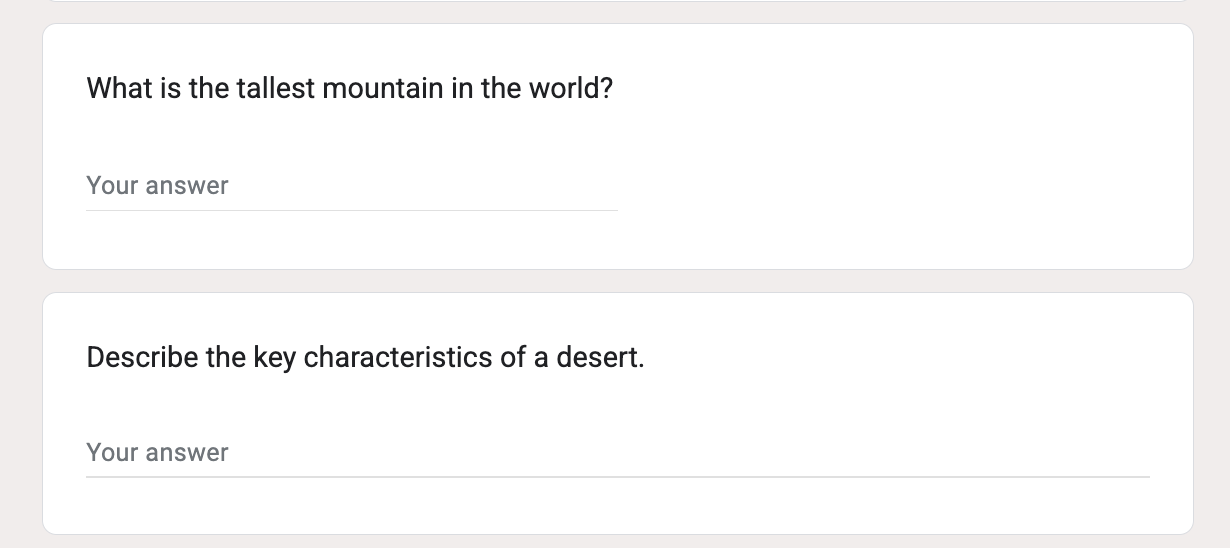
The response line for a paragraph field (bottom) is longer than that for a short-answer field.
Here are examples of questions that might call for paragraph-length responses:
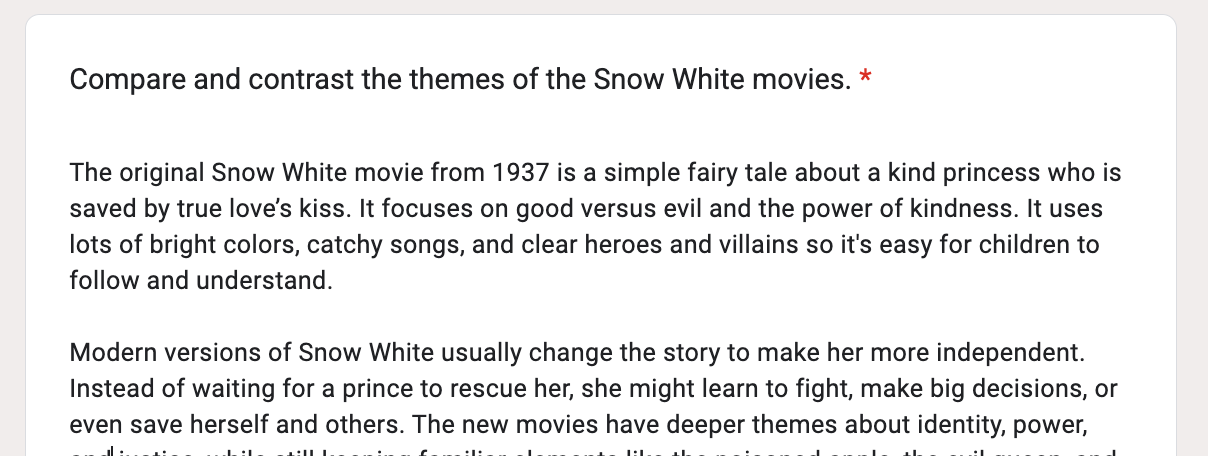
- On tests: Compare and contrast the themes of the two films shown in class.
- On customer feedback forms: Tell us about the product features that are most useful for you and why.
- Client intake forms: Describe the problem you’re experiencing that’s brought you here.
- Internal team forms: Tell us about the software you use for your job, including what you use it for and how effective it is.
Text will appear to you exactly as respondents enter it, including paragraph breaks.
Short answer vs paragraph in Google Forms: How do they differ?
The main difference between short-answer and paragraph fields in Google Forms is the type of answers they invite — quick facts for short answers vs long, thoughtful responses for paragraphs. What you decide to use depends on the kind of information you want from each question. If neither of these question types is appropriate, consider a Google Forms fill-in-the-blank question.
Here’s a brief summary of the differences between these Google Forms question types:
Short Answer | Paragraph | |
|---|---|---|
| Character limit | Set by form creator; commonly contains between 50 and 300 characters | Set by form creator; commonly left uncapped |
| Display format | Short response line | Long response line |
| Input validation support | For numbers, email addresses, lengths, custom patterns (e.g., a 10-digit number), and term-matching | For email addresses, lengths, and term-matching |
| Suitable for data collection? | ||
| Suitable for qualitative feedback? |
Go beyond Google Forms with Jotform
If you frequently use forms and are looking for ways to integrate them into your workflows more seamlessly, consider switching to Jotform. It’s just as familiar as Google Forms — Jotform form fields are very similar to those of Google Forms — and it’s even easier to use!
A popular online form builder, Jotform is a great Google Forms alternative. It’s a user-friendly, full-featured solution that’s perfect for collecting payments, automating workflows, gathering leads, and more. Jotform is also mobile-friendly and has more integrations than any other form-building solution, so it slips easily into any workflow.
Here are a few of the reasons why people love Jotform:
- You can use it to create any type of online form, including surveys, quizzes or tests, polls, application forms, registration forms, and more.
- Its drag-and-drop interface makes form creation a cinch.
- All forms are both embeddable and highly customizable.
- It offers advanced features like conditional logic, photo collection, answer piping, conversational forms, and more.
- It supports a wide variety of question types, including open-ended, multiple-choice, Likert scale, ranking, and matrix questions.
- It includes a broad menu of helpful business tools to support editing PDFs, building mobile apps, generating reports, and collecting e-signatures.
- It’s easy to get started quickly with one of 20,000-plus free form templates, such as
Jotform also offers a free plan, so there’s nothing stopping you from giving it a try. Sign up today and see how simple form-building can be!
FAQs: Paragraph vs short answer in Google Forms
A short answer is typically between 50 and 300 characters, although this can vary depending on the needs of the form creator. Technically, Google Forms does not have a built-in word or character count limit for the short-answer field.
A short-answer response is expected to be just a few words or single sentence, not a full paragraph (or multiple paragraphs).
Google Forms does not have a built-in word or character count limit for paragraph answers. It’s up to the creator to decide.
This article is for educators, survey creators, internal operations teams, and anyone who wants to understand the differences between Short Answer and Paragraph fields in Google Forms to choose the right format for collecting responses effectively.









































































































Send Comment: