When you create a form, Jotform automatically creates a Notification Email after you add the first field, using your account email as the default recipient. The same applies when you set up Email Notifications manually.
Over time, you may need to update that recipient, for example, if notifications should go to a colleague, client, or someone taking over the form. You can change the recipient email at any time so notifications continue going to the right person.
Changing the email address for your Notification Emails is easy. Here’s how to do it:
- At the top of your Workspace page, click on Filter.
- Then, in the Dropdown menu that opens, hover your mouse over Forms, and on the right side of it, click on Only.

- Next, hover your mouse over the form you want to update the Notification Email recipient for, and click on Edit Form on the right side of the page.

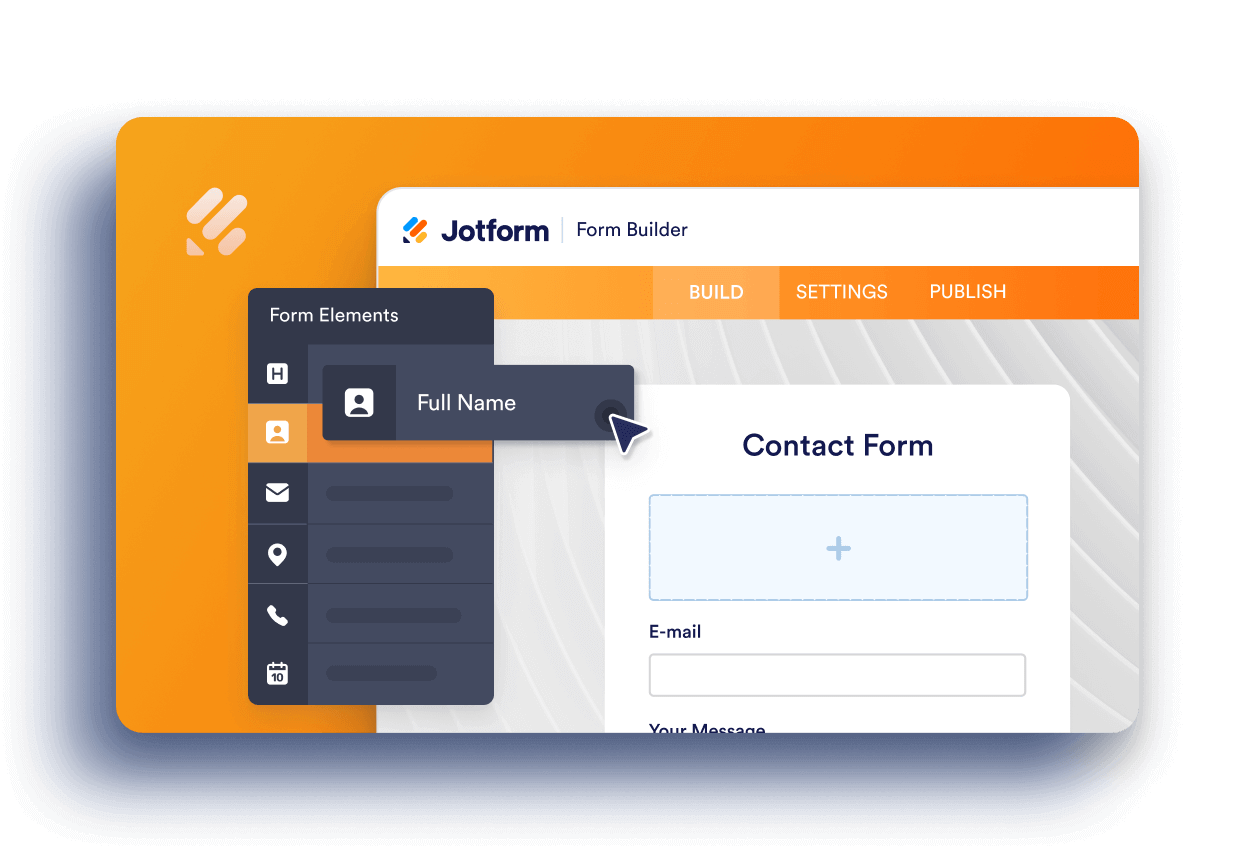
- In Form Builder, in the orange navigation bar at the top of the page, click on Settings.

- Then, in the menu on the left side of the page, click on Emails.
- Under the Emails tab on the right, hover your mouse over the Notification Email and click on Edit.

- Now, hover your mouse over the Recipients field, then on the right side of it, click on the Pencil icon.

- Next, on the right side of the old email address, click on the X to delete it.

- Now, in the Recipients Email field, click on Add.

- Then, in the To field, enter the new email address.

- Once you’re done, click on Save at the bottom of the page.

That’s it. Now, you’ve updated the recipient for your form’s Notification Email.

Notes
- Users with a Starter (Free) plan can only add one Notification Email template with one recipient for a form. Those with a Bronze, Silver, or Gold plan can add multiple email templates with multiple recipients, but we recommend only adding up to 10 recipients for each template. If you want to upgrade your account, check out our guide about How to Upgrade Your Account to see how to do that.
- To test your Notification Email after updating the recipient address, use the Preview Form button in Form Builder instead of the Test Email button in the Notification Email settings. The Test Email button always sends to the email address linked to your account, even if you’ve already changed the recipient. You can check our guide on How to Properly Add, Change, and Test a New Notification Email Recipient Address to learn more.


Send Comment:
108 Comments:
July 10, 2025
I have added multiple recipients for one of our sign forms. They are receiving the first email which shows the form filled out but not receiving the second email which contains the pdf version of the document like I am. How can I resolve this?
January 24, 2025
It was helpful and these steps was taken but email notification is still not coming to the second person. Email address is correct
January 8, 2025
getting error email already associated with jotform account
July 4, 2023
chenge new gmail
January 19, 2022
I need someone to contact me ASAP. There is no way i can resolve the email issue.
Thanks
September 21, 2021
thank you , that is what i was doing sending a test email thank you
September 13, 2021
Hi there, I have created a jot form but am currently on the free subscription
Can I allocate the jot form to another colleague who has paid subscription? I don’t want to change the link to the form.
March 12, 2021
It looks like the recipient email list edit finally worked this morning. Thank you
March 12, 2021
I have followed these directions and the CDVC "email" shows up even after I have deleted it and saved changes.
January 19, 2021
Hago eso pero el mail sigue sin direccionarlo a la cacilla que le ordeno, habra alguna otra forma?
October 22, 2020
Hi!
Is it possible to change the Notification email address based on a form field.
e.g. If form field dropdown equals "A" , send notification email to x@email.com.
If form field dropdown equals "B" , send notification email to y@email.com.
Thanks. - Derrick
October 20, 2020
Can you update this field for all forms at once?
September 28, 2020
My Form has the option to save the form, however, when the form is saved the notification is only sent to the person filling out. Is it possible to set it up in a way when the form is saved the notification is sent to not the only person filling out the form also the people in the notification list?
September 16, 2020
Thanks for such a speedy, informative response.
August 7, 2020
My Artist Application form was submitted 4 times today, but I didn't receive the emails for any of them even though my email is listed as recipient.
However, yesterday I had one submission for my New Artist form and I DID receive the email for that one.
Trying to figure out if the issue is on my end or not. Thanks for the help :)
August 2, 2020
Did not work for us.
We changed email with this steps and also going under setting.
July 15, 2020
Muchas gracias por este tutorial tan interesante. A través de este, pude solucionar algo con lo del correo.
Muchas gracias y bendiciones!!!
May 22, 2020
Thanks the email change worked. Lastly, when we do receive the emails, we cannot open the files that we’re uploaded into the created jotform. We have tested with jpeg, pdf, etc., and we keep receiving the jotform error code 404 (whoops). Can you please assist? Thank You
May 4, 2020
If I make changes to the form, does it automatically update where the form is located? Ie on our website. Do I need to upload a new version to my website of the form each time I update it?
May 4, 2020
How can I decide if I want to purchase your product if I cannot use it to try it from making the form to getting the survey responses???
May 4, 2020
Do mean that I can only send one at a time or only get replies for only on filler of the form?
January 31, 2020
Perfect, thank you for your help with this one, Timpi :)
January 29, 2020
Thank you appreciate the quick response!
January 23, 2020
This may work for online forms, but what about fillable pdf's? When I choose to edit the pdf, there is no "settings" tab.
January 6, 2020
This is not working for me. All the form fields have the correct address, but they are still coming to the wrong address. I have three forms. Some go to the correct address, some do not. It is very frustrating because I'm missing leads.