
ChatGPT is a great place to brainstorm ideas, create marketing copy, and edit your writing. With the Canva app in ChatGPT, you can take those ideas and text and turn them into a social media graphic, poster, or presentation, all without leaving your ChatGPT conversation. It’s a super powerful feature, so let’s look at how to get started.
To connect Canva to ChatGPT, open the Plugins tab in the sidebar, find Canva, click Install Plugin, and log in with your Canva account. It should be that easy. If you need a bit more guidance, read on for a full walkthrough. I’ll also look at a few prompts to get you started and ways to troubleshoot any issues.
1. Open Plugins in ChatGPT
Log in to ChatGPT and select the Plugins icon from the sidebar. I’m demoing this with the web app, but this also works in the desktop and mobile apps. It’s the icon that looks like a plug.
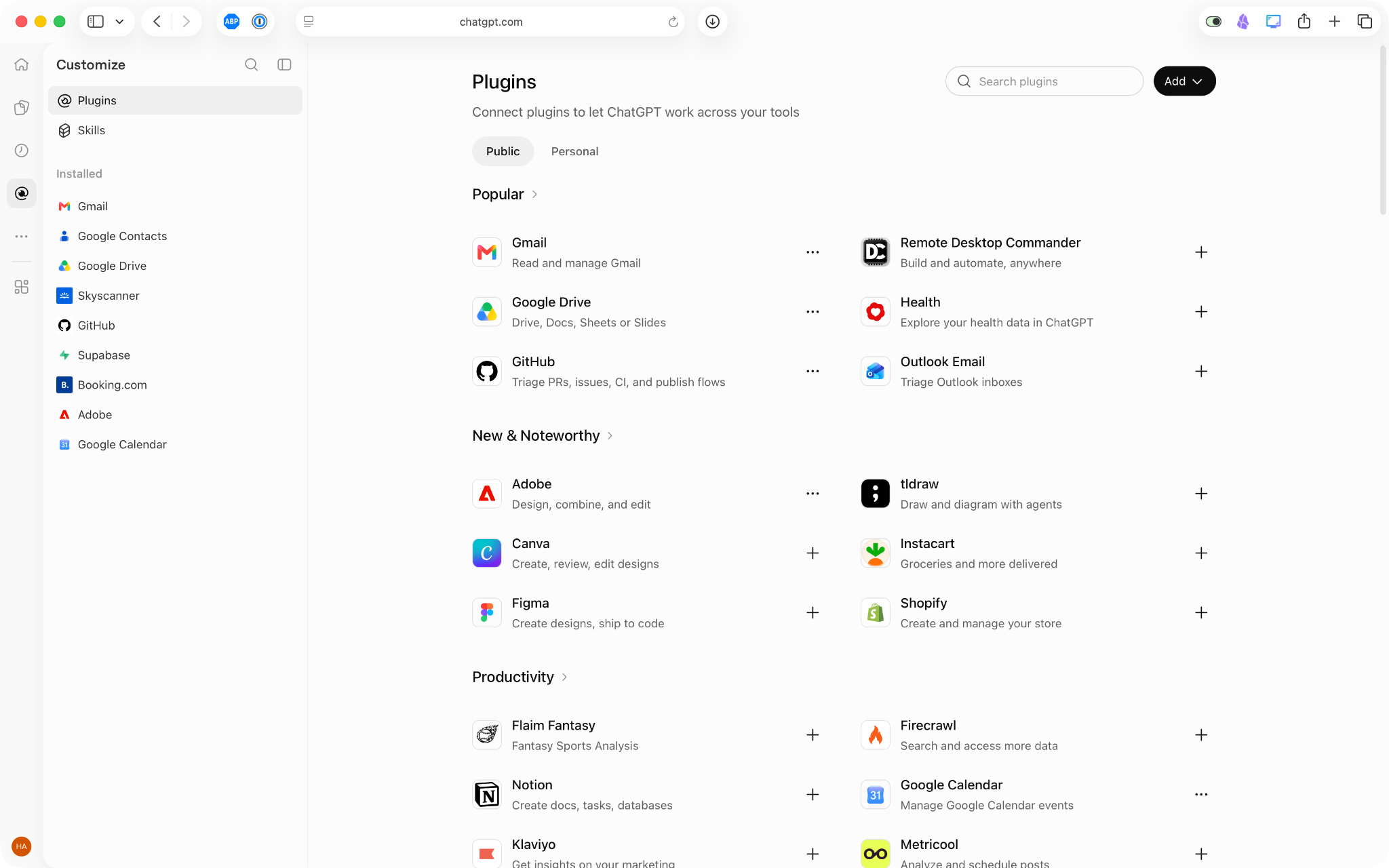
2. Find the Canva plug-in
Find the Canva plug-in. Right now, it’s listed under Small Business, but that might not be the case when you connect it to ChatGPT. Use the Search feature to find it if you need to.
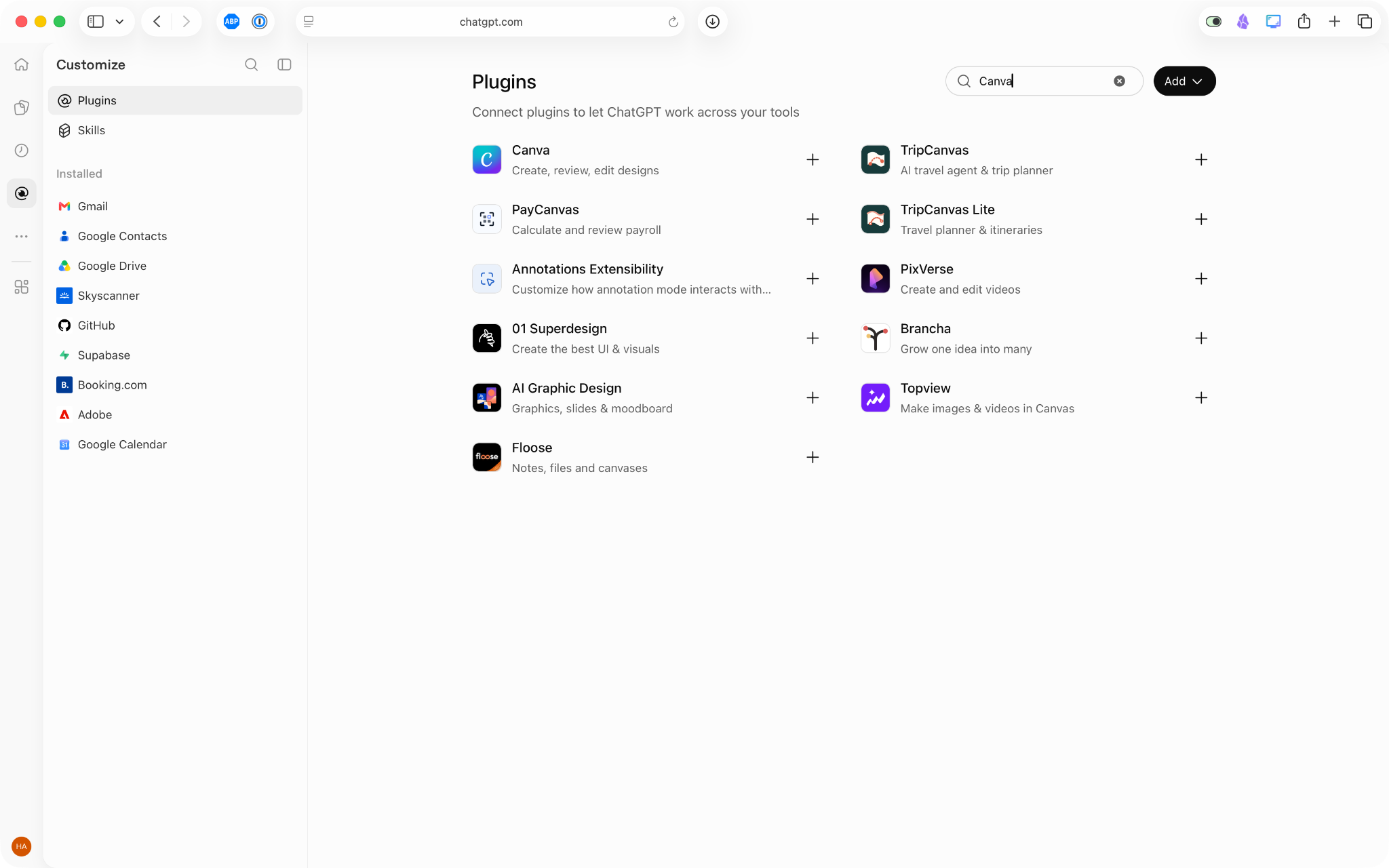
3. Connect Canva to ChatGPT
Click Install Plugin, then Continue with ChatGPT.
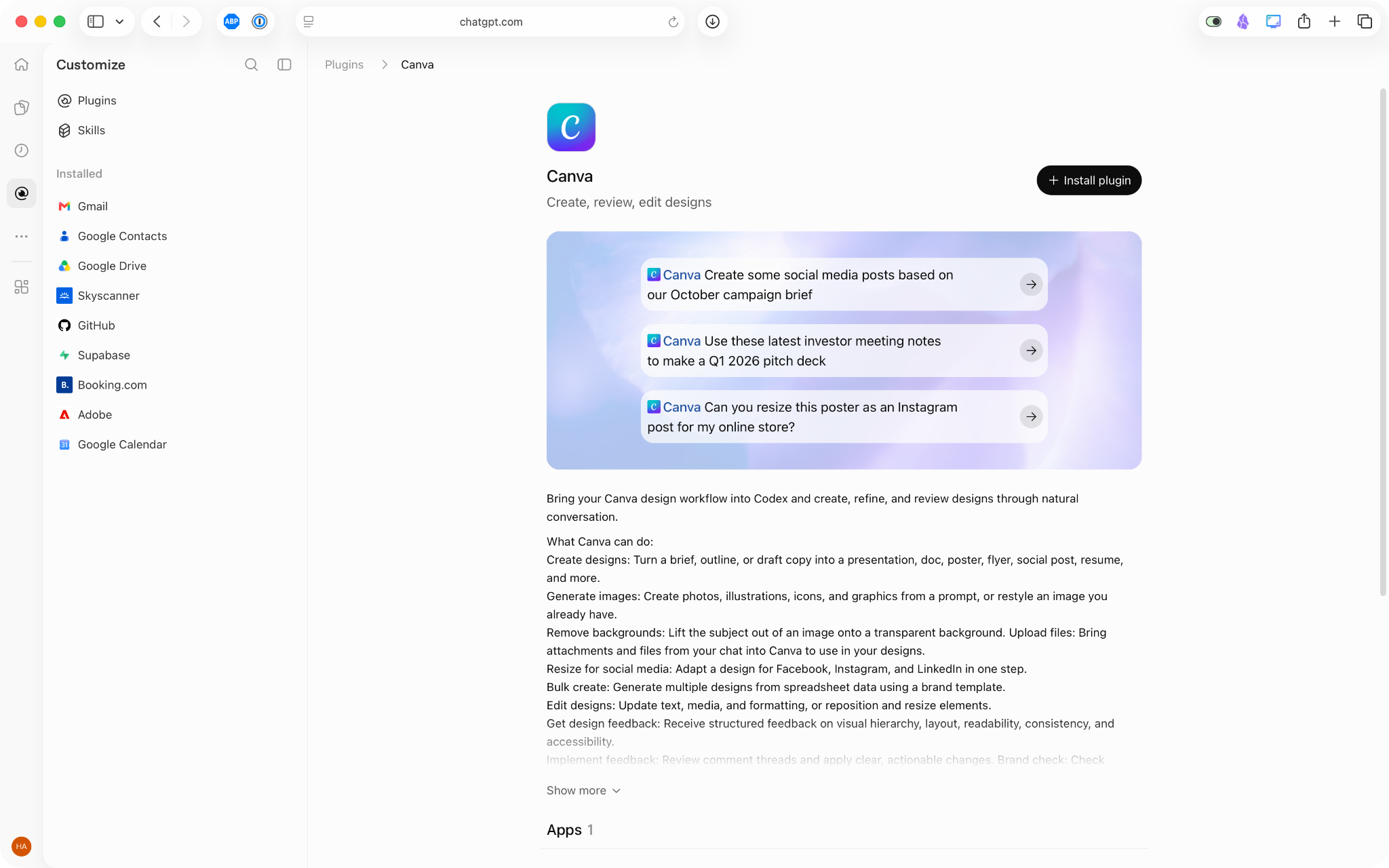
Log in to your Canva account and then click Allow to connect Canva to ChatGPT.
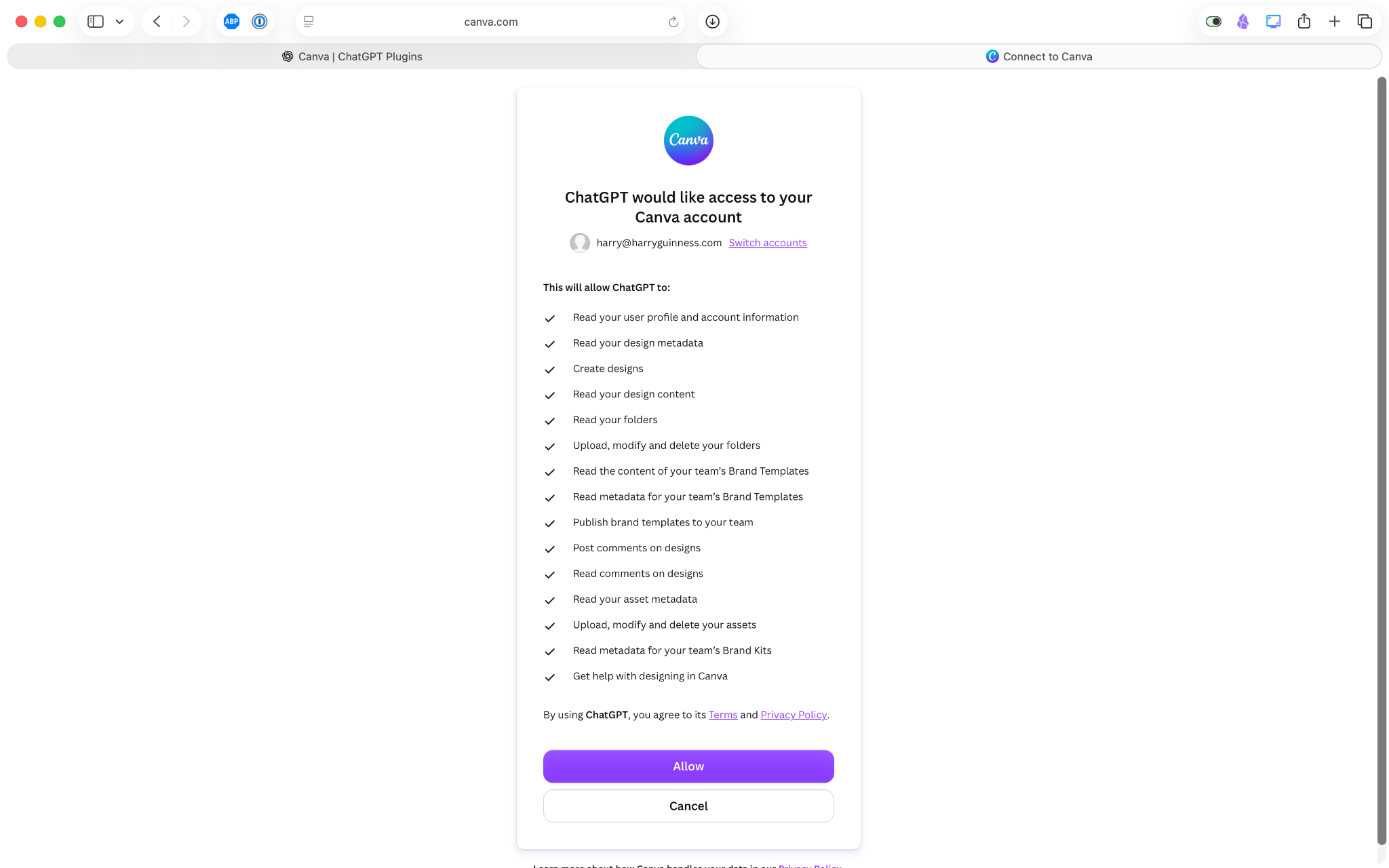
4. Start creating with Canva in ChatGPT
Now that you’ve got ChatGPT and Canva connected, it’s time to put it to use. You can invoke Canva from any conversation by tagging @Canva. You can also select the plug-in from the sidebar and work directly with it.
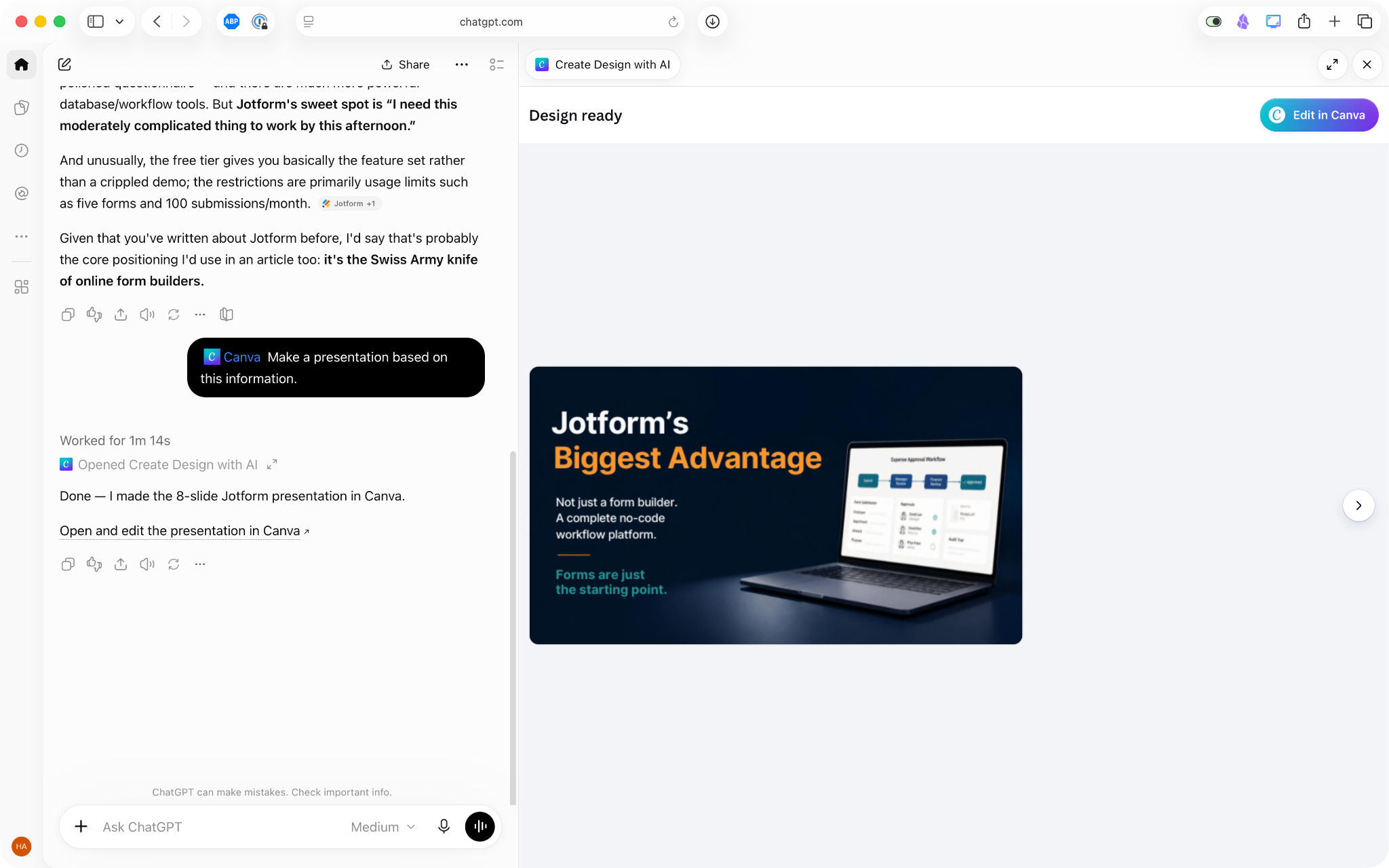
It will then generate a design based on your conversation. You can make changes by requesting them from Canva in ChatGPT.
5. Finish your design in Canva
If you want more direct control over your design or just the full range of export options, click Edit in Canva or Open in Canva (it depends on what screen you’re on) to open your design in Canva’s full app. There, you can use any of the Canva tools normally available to you to finalize your design.
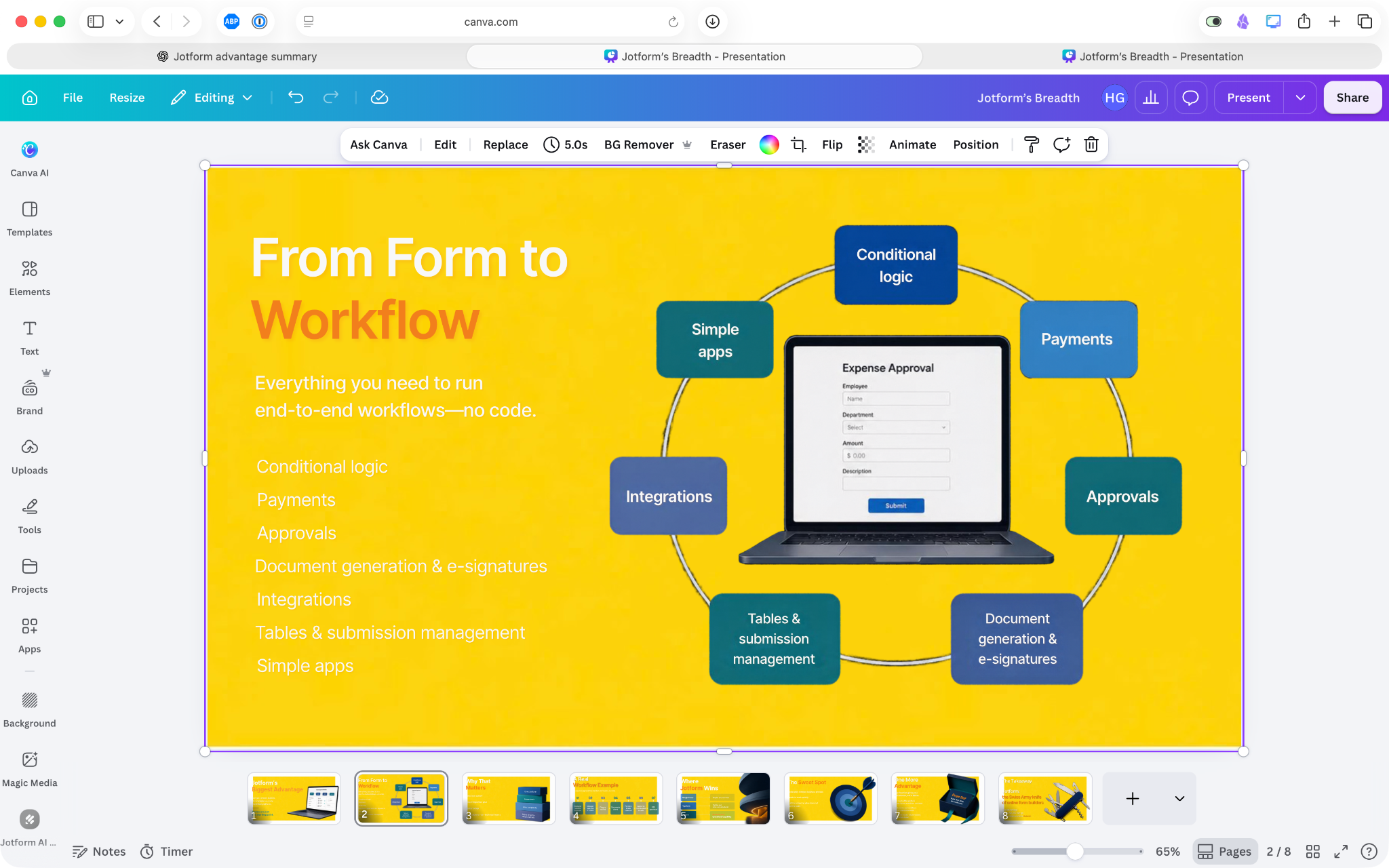
How to use Canva in ChatGPT
Here are a few Canva tricks to get you started. The more information you give Canva, the more likely it is to create what you need. You can specify your audience, the format you want, key messages to include, and your preferred visual style. You can also make edits and revisions using ChatGPT. For example, you can say things like:
- Turn this business plan into a 10-slide pitch deck for investors. The key message is that we grew 10x over the past 18 months. Keep it clean and minimal. Use our brand colors.
- Create three Instagram posts to celebrate the one-year anniversary of my restaurant, Harry’s House.
- Make the headline smaller and change the date to this Saturday.
Unfortunately, in my testing, the Canva for ChatGPT plug-in still has a few bugs. When I asked for a square Instagram post, it made something poster-shaped. Similarly, sometimes when I asked for edits, the preview wouldn’t fully load inside ChatGPT. I was able to work through most of these issues with ChatGPT, but hopefully these bugs will be ironed out over the coming months.
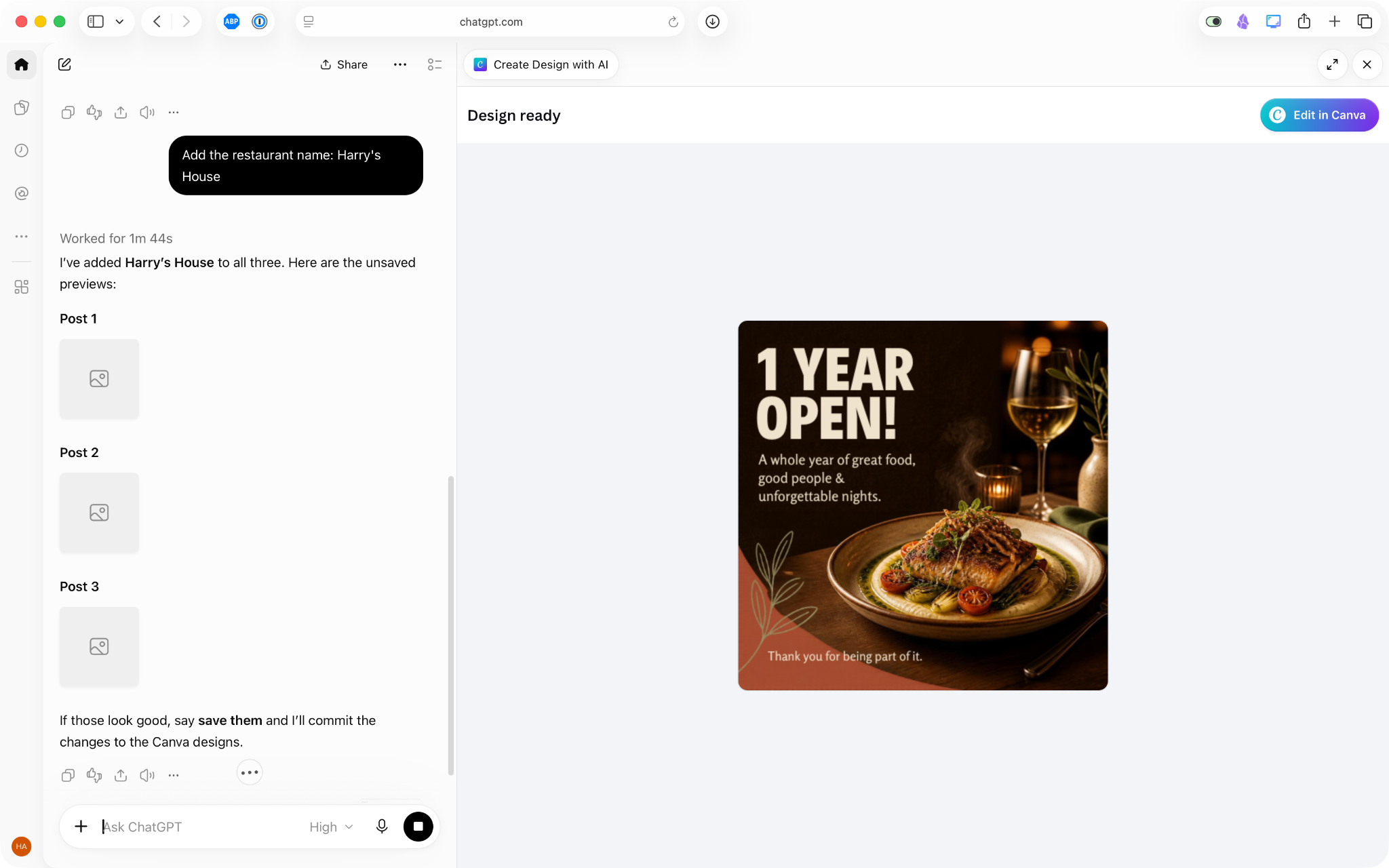
One thing to note: ChatGPT doesn’t give you access to paid Canva features. For example, if you’re a paid subscriber, you can use your brand templates through ChatGPT. If you try to use them and you’re on a free plan, you’ll get an error message and an upgrade notice.
Create and analyze forms inside ChatGPT with Jotform
Canva is great for creating promotional materials like social media posts and pitch decks, but how do you collect responses from event attendees, potential leads, and new customers? That’s where the Jotform ChatGPT App comes in. It’s one of the best ChatGPT form apps.
For example, if you’ve created an event graphic in Canva, the next logical task is building a registration form to gather information from your attendees, and the Jotform ChatGPT App has all the features you need. Here’s how to do just that.
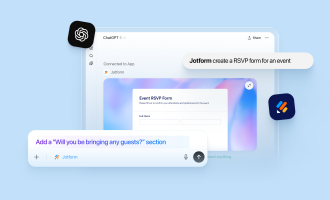
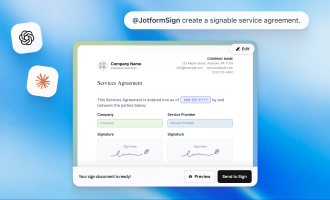
Go to the Plugins sidebar and find the Jotform ChatGPT App. Click Install Plugin and log in to your Jotform account. Now Jotform is available in your ChatGPT account. Just tag it with @Jotform.
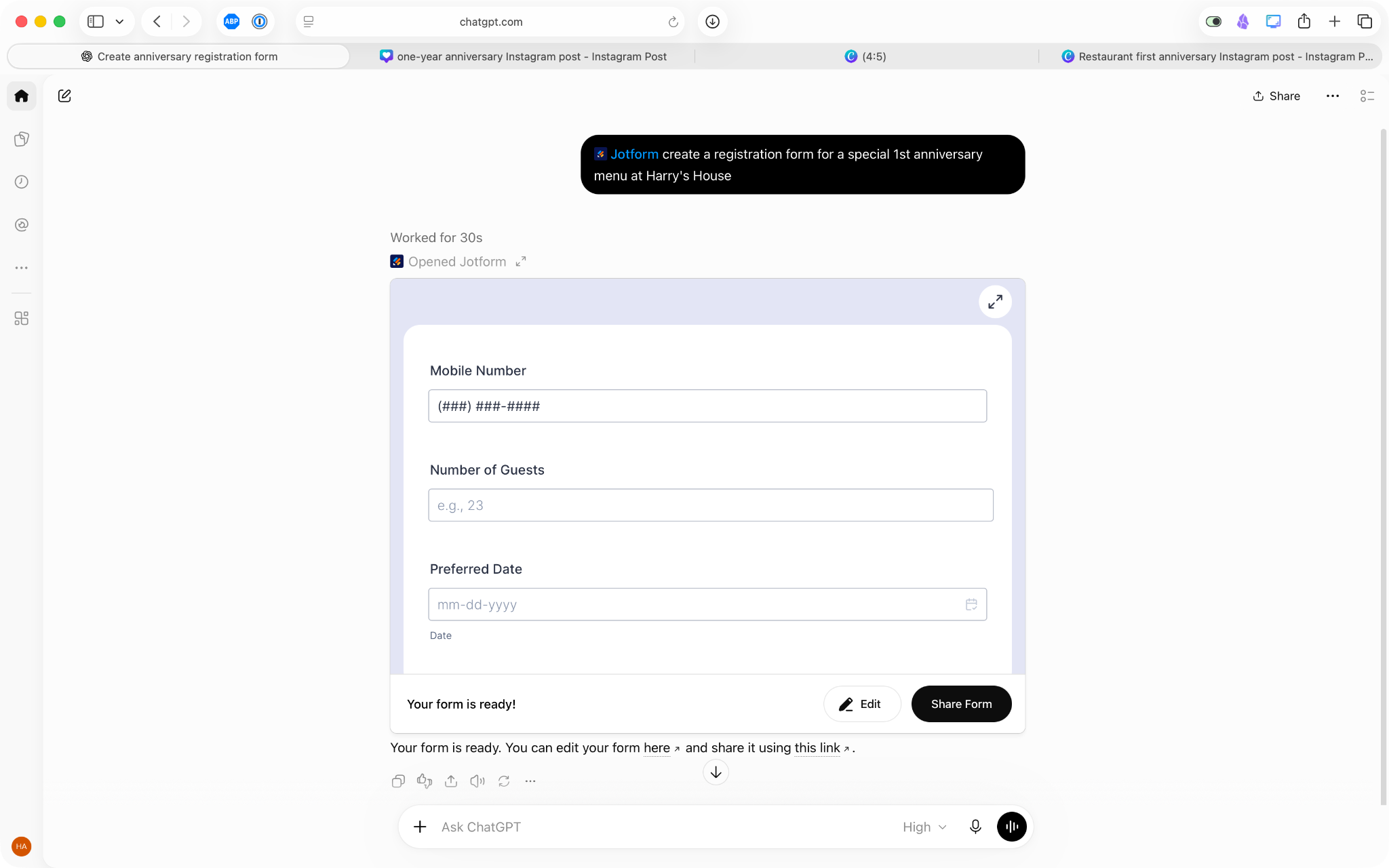
With the Jotform ChatGPT App, you can do things like:
- Create a form in ChatGPT: For example, a booking form for a special first anniversary dinner menu at my restaurant, Harry’s House.
- Edit the form: For example, add a special occasion question or remove a date and time option.
- Filter and analyze responses: For example, you can have Jotform and ChatGPT create a list of all the dietary requirements for the event or attendees who requested to be added to your mailing list.
Both Canva and Jotform offer powerful ChatGPT apps. By connecting Canva, you can create social media posts, posters, presentations, and other promotional materials. And by connecting Jotform, you can make an easy-to-use signup form that complements it. Using Canva with Jotform is better than using Canva alone, as anyone who’s checked out Jotform for Canva can attest.
It’s free to get started, so why not connect Jotform to ChatGPT today?
FAQ about connecting Canva to ChatGPT
There are a couple of reasons Canva might not work in ChatGPT. If you have a business or education account, your admin may have disabled third-party Canva connections. It’s also a good idea to check that you’re logged in to the same Canva account; if you have two, only one can be connected to ChatGPT at a time.
No, you don’t need a Canva Pro account to use the Canva ChatGPT app. You can create and edit designs in ChatGPT with a free Canva account. However, with a Pro or business account, you will have access to more Canva features, just as you do with the Canva app.
In my testing, I found Canva in ChatGPT to be a bit buggy. If it’s not working right now, refresh your browser (or restart the ChatGPT app) and see if that fixes things. Alternatively, try to use Canva in a new conversation. If all else fails, you can still access your designs in Canva.
You can make some edits to your Canva designs in ChatGPT, but you don’t have access to the full set of design tools. You can ask for simple changes, such as new copy, a color swap, or a different format, and preview the results. But for big edits, you’re better off using the Canva app.
This article is for marketers, small business owners, and content creators who use ChatGPT to develop ideas and copy and want to turn that content into Canva presentations, social media graphics, and promotional materials through conversation.

































































Send Comment: