

Key takeaways
- Dropbox Sign is ideal for simple, fast e-signatures, especially for teams that prioritize a quick setup and a straightforward signing experience for their clients.
- Adobe Sign is better suited for teams needing enterprise-grade workflows, advanced compliance for regulated industries, and deeper document management within the Microsoft or Adobe ecosystems.
- Both tools are secure and well established, but Adobe Sign is built for complex routing and oversight, while Dropbox Sign focuses on keeping things lightweight and easy to manage.
- Jotform Sign is a strong alternative, especially if your workflows are form-driven and you want signatures, automation, and data collection in one ecosystem.
It’s probably safe to say that few people truly enjoy contract creation. (If you’re one of the few, hats off to you.) But these days, there’s a tool out there for everything, including collecting electronic signatures.
E-signature tools save businesses from mountains of paperwork by handling housing contracts, waivers, and other key documents online. You can forget about complicated filing systems — these tools keep everything organized and searchable on your devices. I spent time exploring, testing, and comparing two popular e-signature tools, Dropbox Sign (formerly HelloSign) vs Adobe Sign (also known as Adobe Acrobat Sign or Acrobat Sign), so you don’t have to.
In this article, I’ll walk you through what each tool can do, how easy it is to use, and which tool to use based on real scenarios and business needs. I’ll also explore how Jotform Sign might fit the bill if neither Dropbox Sign nor Adobe Sign works for your team.
Dropbox Sign vs Adobe Sign: At a glance
 Jotform |  Dropbox Sign |  Adobe Sign | |
|---|---|---|---|
| Best for | Form-driven data collection and approvals | Simple and secure signing | Complex contract routing |
| Workflows and automation | Approval workflows, conditional logic, advanced response tracking | Basic document management automation | Complex document signature workflows with assigned roles |
| Integrations | Over 800 integrations, including Google Drive, Dropbox, Mailchimp, Salesforce, and more | Custom | Around 100 pre-built integrations, including Microsoft, Salesforce, Google Drive, and more |
| Document capabilities | Audit logs, custom document delegation, 2FA identity verification | Signer access codes, tamper-proof capabilities | Redaction, password protection, sharing editable docs with non-Adobe users |
| Pricing approach | Free for 100 or fewer signatures per month Paid plans start at $34/user/mo. | Starts at $15/mo. for one user or $25/user/mo. for small teams | Starts at $14.99/mo./license |
| Try It Now | Learn More |
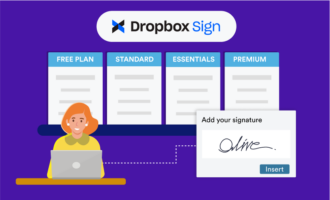
Dropbox Sign
Recommended for: Small to medium teams that need a simple tool without compromising basic security
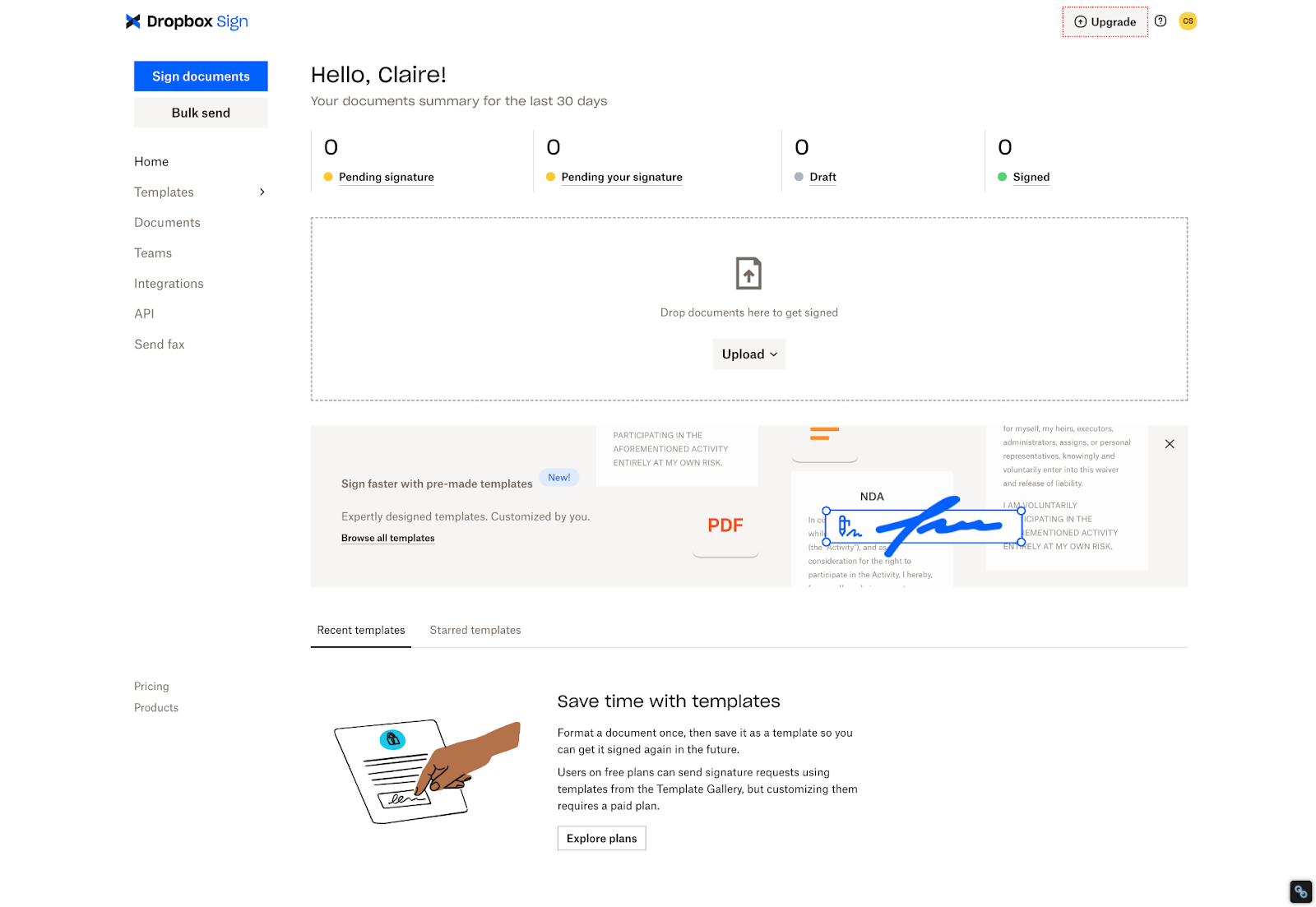
What I loved most about Dropbox Sign: I didn’t have to go looking to figure out what Dropbox Sign can do. Everything is laid out clearly in front of you, even for the most novice users.
- Key features:
- Unlimited signature requests on all paid plans
- Reusable document templates with field mapping
- Bulk send capability for high-volume signing
- API access for custom integrations
- Secure audit trails and document tracking
- Drag-and-drop signature fields
- Pros:
- Incredibly simple and easy-to-use layout
- Fast turnaround from creation to deployment
- Templates that guide users through document customization
- Cons:
- No PDF editing tools
- Few to no advanced security options like redaction
- Fewer compliance certifications
- Plans/Pricing:
- Essentials plan (for individuals): $20 per month or $15 per month when billed annually
- Standard plan (for small teams): $30 per user per month or $25 per user per month when billed annually
- Premium plan (for teams of 5 or more): Custom pricing
Free trial: Yes
I test a lot of tools that can feel overly complicated, so it’s always refreshing when one is dedicated to no-frills usefulness. Dropbox Sign may not have all the bells and whistles, but it has everything you need to create a document, get those signatures, and be on your way.
With Dropbox Sign, you can upload your own document or work from a Dropbox template, so your team can be up and running in no time. I especially like how easy it is to use the templates, which are easy to find directly from the home screen. After selecting the appropriate template, Dropbox asks you for all the information you’ll need, saving you the hassle of looking for fields you need to customize. This makes it perfect for teams that might not be the most tech-savvy.
For me, the biggest drawback of Dropbox Sign is its lack of PDF editing tools. If you’re starting from scratch, you might have to play around to figure out the correct spacing for signature lines before uploading your document to ensure a consistent, professional look.
Adobe Sign (also known as Acrobat Sign)
Recommended for: Enterprise teams requiring legalized e-signatures
What I loved most about Adobe Sign: My favorite thing about Adobe Sign is the advanced PDF editing and signing workflows, which allow you to tackle every document creation task in one place.
- Key features:
- Full PDF editing, redaction, and document assembly
- Enterprise admin console with granular permissions
- Extensive compliance certifications, including HIPAA, FERPA, and FDA 21 CFR Part 11
- Biometric and government ID verification
- Automatic addition of signature field for each uploaded document
- Pros:
- Advanced enterprise workflow builder with parallel and conditional routing
- Advanced reporting and analytics
- Direct integration with Adobe Acrobat for advanced PDF editing
- Good value that’s less expensive than Dropbox Sign pricing
- Cons:
- Learning curve is steep for casual users.
- Interface density can feel overwhelming for simple signing tasks.
- Implementation requires more technical configuration.
- Plans/Pricing:
- Acrobat Standard for teams: $14.99 per month per license
- Acrobat Pro for teams: $22.19 per month per license (up to 10 licenses)
- Acrobat Studio for teams: $27.74 per month per license (up to 10 licenses)
Free trial: Yes
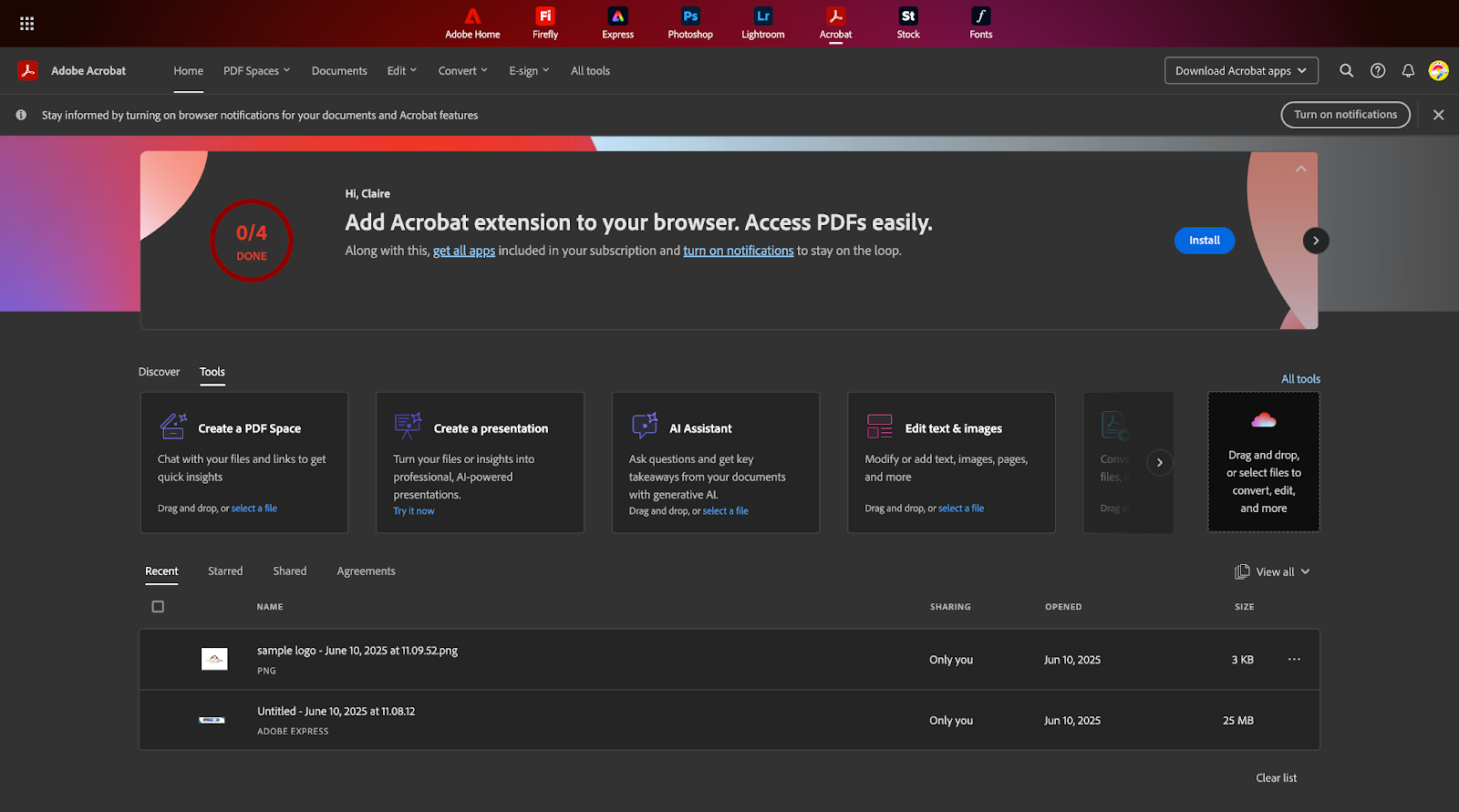
It’s clear from the start that Adobe Sign is a more complicated tool than Dropbox Sign for creating an e-signature, with a slightly steeper learning curve. I could be biased because I’m already familiar with other Adobe products, but I didn’t find it too difficult to use or navigate.
The one caveat I have about Adobe Sign’s usability is its lack of premade templates. It’s easy to create your own document template, but that means you’ll need to start from scratch each time — at least until you’ve created all the templates your team needs.
PDF editing capabilities are the biggest advantage I found when comparing Adobe Sign to Dropbox Sign. Because Adobe Sign works within the Adobe workspace, you can edit PDFs with Adobe Acrobat, then directly import them into Adobe Sign. I wish you could edit PDFs in the same window as when you’re creating a template or editing a contract, but it’s still nice to have the option within one application for document management.
Pro Tip
If Adobe Sign seems like overkill for your needs, our Adobe Sign alternatives article breaks down some less complicated options.
Dropbox Sign is simpler for everyday signing
Although Dropbox Sign and Adobe Sign offer the same core service, they excel in different areas. Dropbox Sign prioritizes ease of use, even supporting both wet and e-signatures, while Adobe Sign prioritizes more advanced use cases.
How Dropbox Sign handles usability
Dropbox Sign is a user-friendly tool, allowing you to work from one of several templates or create your own contract from scratch. The simple interface makes it easy to track down your document by status too, whether it’s awaiting your signature or someone else’s, ready to be sent, or already signed.
You can upload your own document to turn into a contract, or you can work from a template, where all you need to do is fill out some quick information before sending off the document for different types of e-signatures. All of this happens within Dropbox Sign.
How Adobe Sign handles usability
Adobe Sign offers one interface for all its tools, which means it can do a lot more than Dropbox Sign, but there’s a steeper learning curve. The biggest drawback is its lack of premade e-sign templates — you’ll need to build your own documents from scratch.
Which users benefit the most?
With its simple layout and excess of templates, Dropbox Sign is the clear winner for user-friendliness, making it perfect for freelancers and small businesses who need to get contracts and invoices out the door without too much friction.
However, it doesn’t have the extra document features, like redactions and advanced PDF editing, that are vital for roles in healthcare, legal, and other professions that handle sensitive information.
Adobe Sign manages complex routing, while Dropbox Sign focuses on one-way signing
Some forms are just waiting for that one signature, while others require complex back-and-forth as signers send their approvals, suggest contractual adjustments, or collaborate on final terms. Not every e-signature app is equipped to handle these collaborative workflows.
How Dropbox Sign handles workflows
Dropbox Sign is built for linear signature workflows, where the contract flows neatly from person A to person B. It’s great for situations where users are sending a large volume of contracts that are really just waiting for a handful of people to sign before they’re finalized.
How Adobe Sign handles workflows
Adobe Sign handles multistep routing beautifully, so it’s great when users need to have a little back-and-forth, whether they’re negotiating contract terms or asking questions about specific items. It also supports living documents with conditional logic, parallel signing groups, and internal approvals, so no contract adjustments make it to the final document without your knowledge.
Which users benefit the most?
If you need a tool that just brings a contract from person A to person B, then Dropbox Sign is the one for you. This makes it ideal for simple, high-volume signing, such as waivers for gym members.
But if you need support for more complex workflows, where person C asks to loop in person D and person B has some notes to share, then Adobe Sign can support fluid, more complex approval processes. It also makes more sense for situations like business-to-business (B2B) contracts, where multiple parties may review and request edits before signing the final agreement.
Dropbox Sign is better for quick implementation, while Adobe Sign is built for enterprise administration
Consider the implementation process for your new e-signature tool. Do you need something that’s up and running in a day, or can you invest the time to set up a more complex tool that can handle contracts that pass through many hands and editing rounds?
How Dropbox Sign handles administration
Dropbox Sign doesn’t allow for much administrative overhead. This makes it a much faster tool to learn, set up, and use. But that also means it might not be advanced enough to keep larger teams on the same page or scale with your business if contract negotiations become more complex down the line.
How Adobe Sign handles administration
Adobe Sign has a dedicated Admin Console that allows you to control who uses your Adobe Sign account and which features they can access. You can use it to manage thousands of users, customize permissions, and run billing, all in one place.
Which users benefit the most?
Teams that want a simpler tool without lengthy training sessions should choose Dropbox Sign. But if you need a tool that supports complex permissions and multiple user roles, Adobe Sign might be the better choice.
Adobe Sign provides specialized compliance for high-stakes industries
Certain industries require different compliance certifications, especially in legal, medical, science, or government organizations. Make sure you choose a tool with the right certifications and protections to avoid costly fines, data leaks, or other compliance issues.
How Dropbox Sign handles compliance
Dropbox Sign supports legalized signatures and complies with the following guidelines:
- ISO 20071
- eIDAS
- GDPR
- SOC 2 Type II
- UETA
It also supports two-factor authentication (2FA) to verify the identity of anyone accessing your account. While Dropbox Sign does have these compliance certifications, its security features are designed for everyday business needs rather than advanced audits.
How Adobe Sign handles compliance
Adobe Sign’s compliance certifications surpass those of Dropbox and include those listed here:
- HIPAA
- FERPA
- GLBA
- ISO 27001
- SOC 2 Type II
- SOC 3
Adobe Sign e-signatures also support identity verification through biometric and government ID channels, a much more advanced approach as compared to 2FA alone.
Which users benefit the most?
Dropbox Sign has sufficient certifications and protections for most standard, day-to-day business operations. But only Adobe Sign can meet the stricter legal requirements established for contracts in healthcare, government, legal, and financial services.
Dropbox Sign vs Adobe Sign: Which one wins?
If you’re still not sure whether Dropbox Sign, Adobe Sign, or Jotform Sign is the best choice for your organization, consider these checklists as a guide:
Choose Dropbox Sign if…
- You want a tool that requires zero training for admins or signers. The interface removes friction at every step, allowing new users to send their first document within minutes and recipients to complete signatures without confusion.
- You need unlimited signature requests without worrying about per-transaction fees. Predictable per-user pricing makes budgeting straightforward and eliminates concerns about usage spikes during busy periods.
- Your documents are simple, one-way agreements like NDAs or basic waivers. Dropbox Sign’s signing workflows handle most common business scenarios without the complexity of parallel approvals or conditional routing.
- You operate a small to medium-sized team that lacks dedicated IT resources. Plug-and-play deployment and minimal administrative overhead mean you can start using the tool quickly without an overly complicated onboarding process.
- Speed matters more than feature depth for your signature workflows. High-velocity signing processes benefit from Dropbox Sign’s streamlined approach to e-signatures.
Choose Adobe Sign if…
- You need to edit and redact PDFs directly within your signing workflow. Full Adobe Acrobat integration allows document modification without switching between tools, helping to streamline compliance-heavy processes.
- Your organization is deeply embedded in the Microsoft 365 or Salesforce ecosystems. Native integrations allow documents to flow seamlessly between Adobe Sign and your existing business systems.
- You operate in a highly regulated industry that demands compliance-friendly features. Specialized certifications and Business Associate Agreements make Adobe Sign suitable for scenarios where standard compliance isn’t enough.
- Your approval processes require conditional routing based on document content. Complex workflows, in which documents follow different paths depending on metadata or field values, need Adobe’s advanced workflow builder.
- You manage thousands of users across multiple departments or business units. Adobe Sign’s enterprise administration tools provide the centralized control and granular permissions that large organizations require.
Consider Jotform Sign if…
- You want signatures to trigger a multistep approval workflow or an automated business process. Built-in automation connects signature events to downstream actions without requiring separate workflow tools or custom integrations.
- You need to collect complex data alongside a signature, such as payments, file uploads, or detailed form responses. Form-driven workflows capture structured information and signatures in a single interaction, helping to streamline the data-collection process.
- You prefer an all-in-one ecosystem where signed documents automatically populate a database or generate custom reports. Native integration with Jotform Apps means data flows seamlessly between signature collection and other business operations.
- Your workflows start with forms rather than static documents. If you’re already using forms to collect information, adding signatures to those forms creates more efficient processes than maintaining separate form and signature tools.
For e-signatures that connect directly with your forms, try Jotform Sign
Both Dropbox Sign and Adobe Sign are strong contenders in the e-signature space, but what if you want to go beyond contracts? Maybe you’re looking to build out a strong onboarding process for patients or want to sort through client inquiries. If your workflows start with data collection rather than static documents, Jotform Sign offers a different approach to e-signatures that works smoothly on any device.
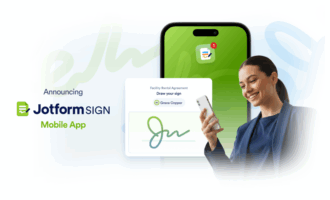
Jotform Sign integrates signature collection directly into your forms, allowing you to capture the data you need, collect payments, and gather signatures in a single interaction. Generate an e-signature, use a form template, upload your own documents, or generate documents from a simple prompt in minutes — with Jotform Sign, you can do it all, whether you’re working from your computer or creating an e-signature on your phone.
You can also connect existing forms to fill out contract templates, prefilling documents to remove friction at every step of the process for signers. And Jotform Sign connects directly with other Jotform Apps, allowing you to manage every part of signing workflows in one place. With Jotform, you can do it all, whether you’re using Jotform AI Agents to guide signers through contracts or triggering advanced workflows and automatic approvals every time someone clicks “submit.”Ready to explore how signature collection fits into your workflows? Start building with Jotform Sign today and discover a different approach to digital signatures.
This article is for SMBs comparing e-signature tools; sales and revenue teams sending contracts; operations and HR teams managing agreements, onboarding documents, and approval flows.































































Send Comment: