
If your team lives in Slack, you’ve probably experienced this: A bug gets reported in a thread, someone says “we should fix this,” and then… nothing happens. The message gets buried, the context is lost, and the issue never makes it into your tracking system. Over time, these missed action items can slow down your workflow and create gaps between conversations and execution.
That’s where the integration between Linear and Slack comes in. It bridges the gap between discussion and action, allowing you to turn Slack messages into trackable Linear issues in seconds.
In this blog post, you’ll learn a few ways to create Linear issues directly from Slack — from native integrations to automation tools and form-based workflows. Whether you’re managing bugs, feature requests, or support tickets, you’ll find a method that fits your team’s workflow.
How to create Linear issues from Slack (best methods explained)
In this section, we’ll walk through the most effective ways to create Linear issues directly from Slack.
Method 1: Native Linear Slack integration (manual setup)
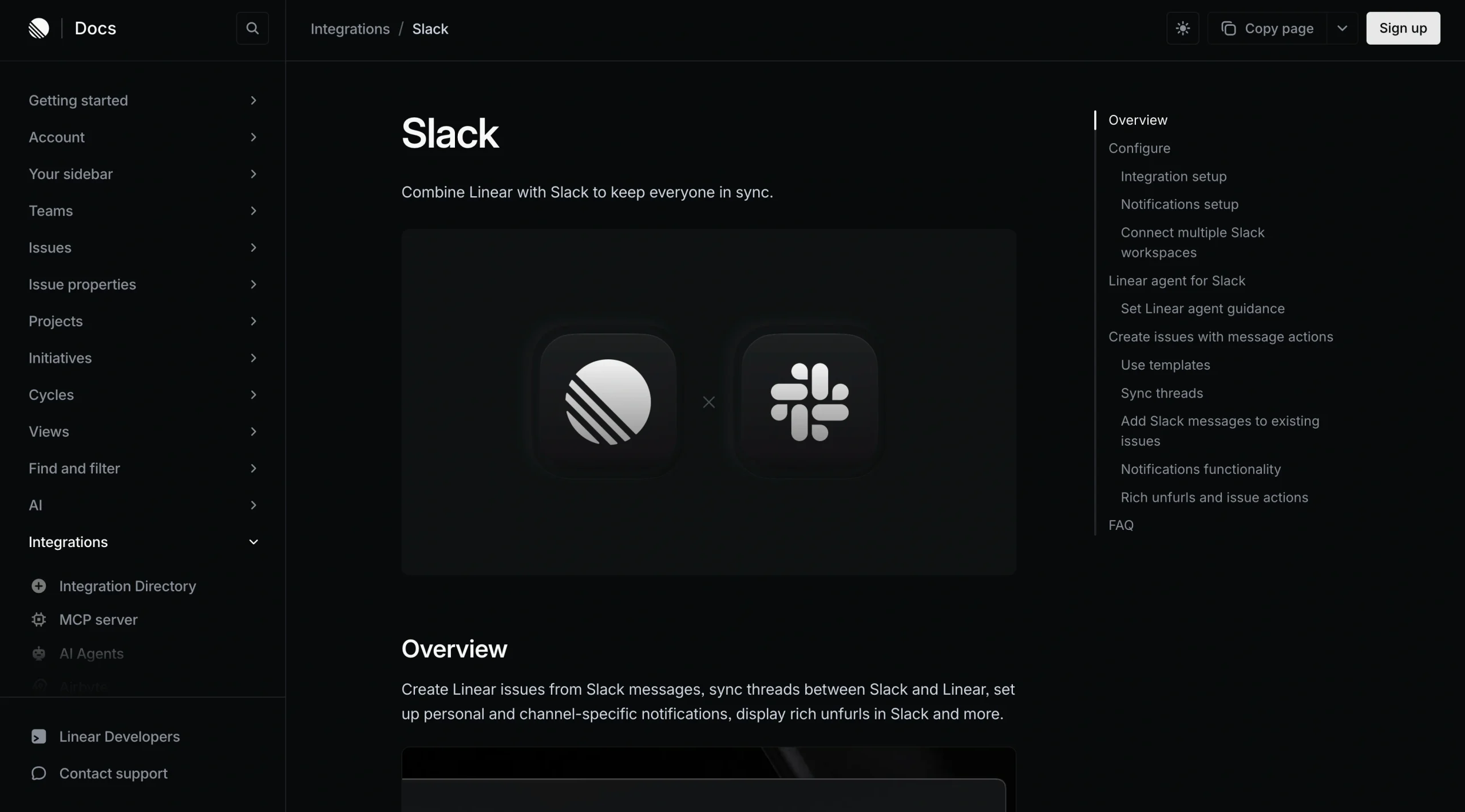
This is the most straightforward and commonly used method. If your team already uses both tools, setting this up takes just a few minutes.
How to set up the Linear Slack integration
To get started:
- In Linear, go to Settings > Integrations > Slack.
- Authenticate with Slack and select your workspace.
- Choose the channels you want to connect.
Once enabled, you’ll unlock several useful features:
- Create Linear issues directly from Slack messages.
- Use message actions to send context into Linear.
- View rich previews of Linear issues inside Slack.
How to create a Linear issue from a Slack message
One of the easiest ways to create an issue is directly from a Slack message.
Here’s how:
- Hover over any Slack message.
- Click the More actions (⋮) menu.
- Select Create Linear issue.
From there, you can
- Choose the team.
- Add a title and description.
- Assign an owner.
- Set the priority.
The best part? The Slack thread stays connected to the Linear issue. This means
- Updates sync between both tools.
- Team members without Linear accounts can still follow progress in Slack.
- Notifications are sent when the issue is completed or canceled.
Your team can stay informed directly in Slack without switching tools.
How to create Linear issues using @Linear (AI agent)
If you prefer a faster, more conversational approach, Linear also offers an AI-powered agent.
To use it, simply
- Invite the bot into your channel:
/invite @Linear- Mention it in plain language, for example:
@Linear create a bug: checkout flow breaks on mobileThe agent can
- Generate an issue from your message.
- Suggest the appropriate team, project, and status based on context.
- Apply default settings that you can review and adjust.
You can also customize how the agent behaves by going to Settings > Slack Integration > Custom Instructions.
Method 2: Create Linear issues from Slack with Linear Asks (for non-Linear users)
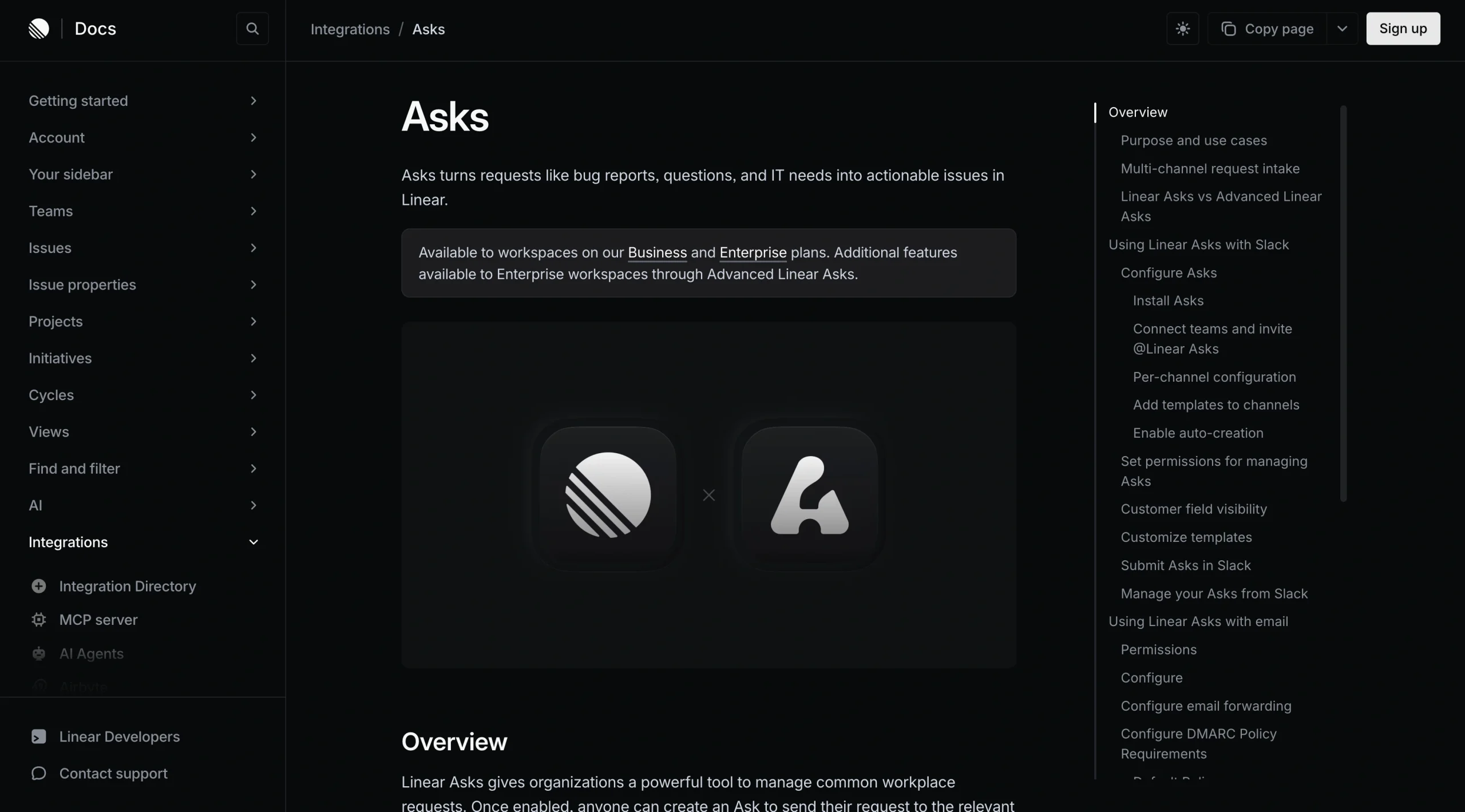
Not everyone in your Slack workspace may have access to Linear — and that’s okay. Linear Asks is designed for this exact scenario.
With Asks
- Any Slack user can submit a request.
- Requests are converted into actionable Linear issues.
- Product or engineering teams can triage issues centrally.
This is especially useful for
- Support teams collecting bug reports
- Operations teams submitting internal requests
- Cross-functional teams collaborating without full Linear access
If you have a Business or Enterprise plan, admins can enable this feature in Linear’s settings.
Method 3: Automatically create Linear issues from Slack (Zapier, n8n, Lindy)

For teams handling high volumes of messages, automation can take things further. Tools like Zapier, n8n, and Lindy allow you to automatically create Linear issues based on triggers.
Common examples include
- New messages in a specific Slack channel
- Emoji reactions triggering workflows
- Messages containing specific keywords
For example, you can set up a workflow where every new message posted in a “#bugs” channel is automatically converted into a Linear issue. This removes the need for manual triage and ensures that nothing slips through the cracks.
The tradeoff here is that automation tools require more initial setup and ongoing maintenance. However, for teams dealing with a high volume of requests or complex workflows, the efficiency gains can be significant.
Create Linear issues from form submissions with the Jotform and Linear integration

Customer bug reports, feature requests, and support tickets usually come from outside your team, and often through forms. Without a structured system, teams end up manually copying this information into their issue tracker, which slows things down and increases the risk of missing important details.
This is where Jotform comes in. With Jotform’s Linear integration, you can automatically turn every new form submission into a structured Linear issue. Instead of manually creating tickets, you can map form fields directly to Linear, so each submission becomes an actionable task the moment it’s received.
With this setup, you can
- Automatically create Linear issues from new form submissions.
- Map fields like title, description, priority, assignee, and labels.
- Standardize incoming requests across different sources.
What makes this especially useful is that it brings external inputs into the same workflow as your internal Slack conversations. Whether feedback comes from customers, stakeholders, or non-technical teams, everything ends up in Linear — organized, trackable, and ready for your team to act on.
Setting up the integration is simple and doesn’t require any coding. You just connect your Linear account inside Jotform, map your fields, and activate the workflow. From that point on, everything runs automatically in the background.
This approach works especially well for
- Product teams managing public bug report forms
- Agencies handling client requests
- Support teams routing incoming tickets to engineering
Jotform also integrates directly with Slack, which makes the workflow even more seamless. You can send submissions to Slack channels and as direct messages to teammates.
When you combine both integrations, you get a complete workflow: A form submission creates a Linear issue and notifies your team in Slack at the same time. This keeps everyone aligned while maintaining a single source of truth in Linear.
Turn Slack conversations into actionable workflows
Slack conversations move fast — but your work shouldn’t get lost in the process. By integrating Linear with Slack, you can turn everyday messages into structured, trackable issues without breaking your team’s flow.
Whether you choose the native integration, use the @Linear agent, or set up automation tools, each method helps you capture work the moment it happens. This not only reduces missed tasks but also keeps your team aligned across conversations and execution.
If your team also handles requests coming from outside Slack, extending your workflow with Jotform can make a big difference. By automatically converting form submissions into Linear issues — and optionally notifying your team in Slack — you create a fully connected system where nothing falls through the cracks.
Just getting started? The native Linear–Slack integration is the easiest place to begin. From there, you can layer in automation and form-based workflows as your needs grow.
This article is for product teams, developers, support and operations teams, and workflow automation specialists who want to streamline issue tracking by turning Slack conversations, form submissions, and automated triggers into actionable Linear issues.
































































































Send Comment: