
It’s rare to find a quiz, survey, or form that contains just a couple of questions. Most forms include multiple items — enough that copying and pasting them manually into Google Forms quickly becomes tedious. If you want a faster, cleaner, and more automated way to bring your questions into Google Forms, Jotform’s AI Form Builder add-on is the easiest solution.
This Google Workspace add-on opens in a sidebar inside Google Forms and allows you to import questions in bulk from Google Docs, Sheets, Slides, and Drive. It uses AI to analyze your files, detect question patterns, and convert them into form fields automatically.
Below, you’ll learn how to import questions from Docs and Sheets, plus how the same add-on lets you pull content from Slides and Drive.
Methods to import questions into Google Forms
Very often, the questions for quizzes, surveys, and forms live somewhere other than Google Forms, such as a document or spreadsheet. When it’s time to put them to use online, you need to transfer them into Google Forms. You can do that in a few ways:
- Manually copy and paste each question into Google Forms. This method is fine if your form has just a few questions.
- Use the AI Form Builder add-on. Jotform’s AI Form Builder is a Google Forms add-on that automatically imports questions from Google Docs, Sheets, Slides, and Drive. The AI reads your content, recognizes question patterns, and converts them into form fields — eliminating repetitive manual data entry. This is the best choice if you want a quick bulk import directly inside Google Forms.
- Use a third-party tool. There are third-party tools, like Jotform, that integrate with Google Forms and have more powerful features. Use this method if you’re revising an existing Google Form and you’d like more form functionality — like the ability to accept payments or create conversational forms that are more engaging.
In the next sections, we’ll explain how to import questions into Google Forms from Google Docs and Google Sheets using the AI Form Builder add-on.
What is AI Form Builder add-on?
AI Form Builder is an add-on for Google Forms that uses AI to import, export, and build forms directly inside your Google Workspace.
Key capabilities include
- Import from anywhere: Pull questions from Google Docs, Sheets, Slides, Drive files, or other Google Forms.
- Export anywhere: Send your form fields back into Google Forms, Docs, Sheets, Slides — or directly into Jotform.
- Advanced import settings: Choose where new questions should appear in the form, filter by question type, and set them as required or optional.
- Random selection & shuffling: Randomize questions and answer options to keep quizzes fair and dynamic.


How to import questions into Google Forms using add-ons: A step-by-step guide
How to create a Google Form from a question bank in Google Docs
If your question bank, quiz, or survey is stored in a Google Doc, you can turn it into a Google Form in just a few clicks. Here’s how:
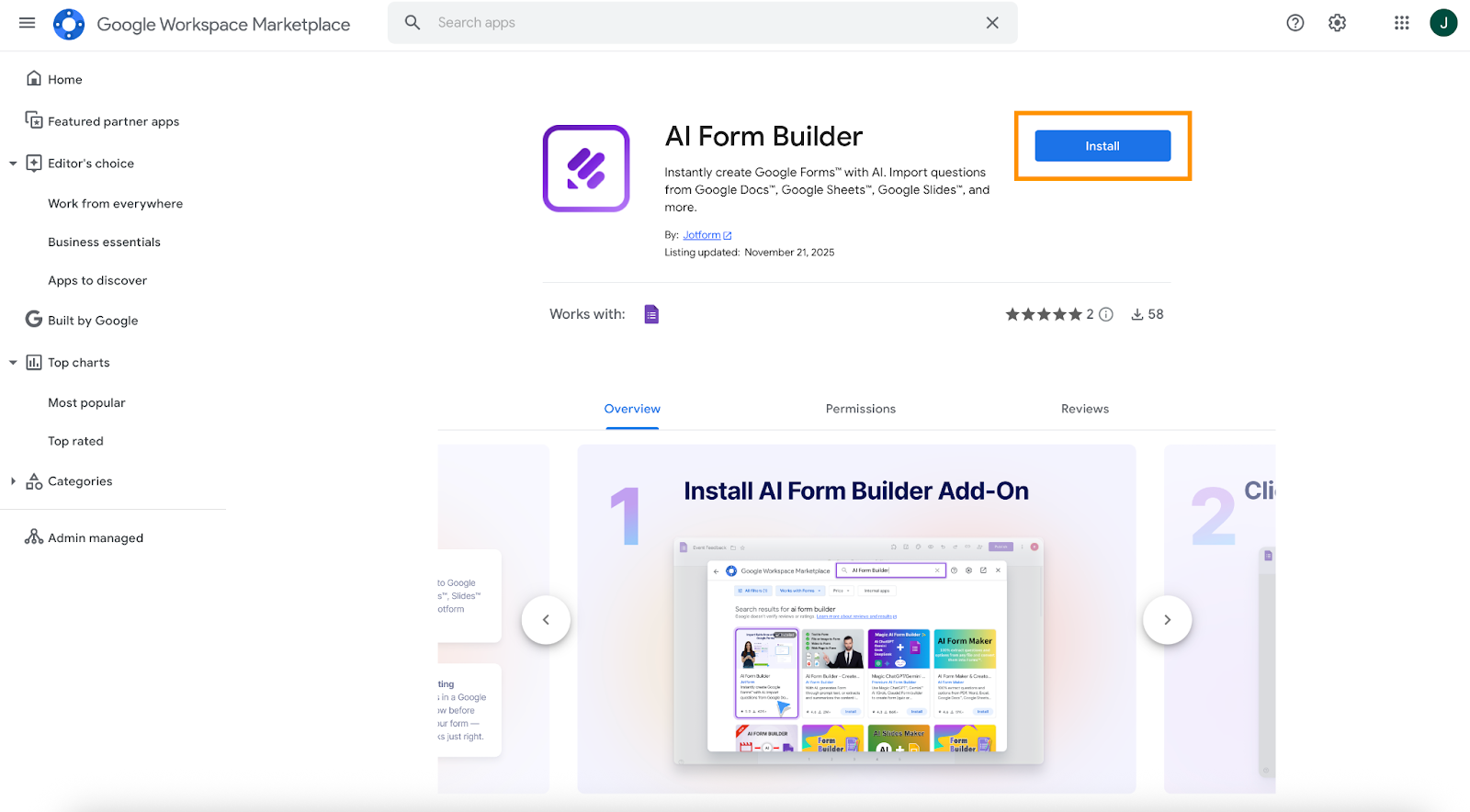
- Go to the Google Workspace Marketplace and search for the add-on AI Form Builder. Then, simply click on Install.
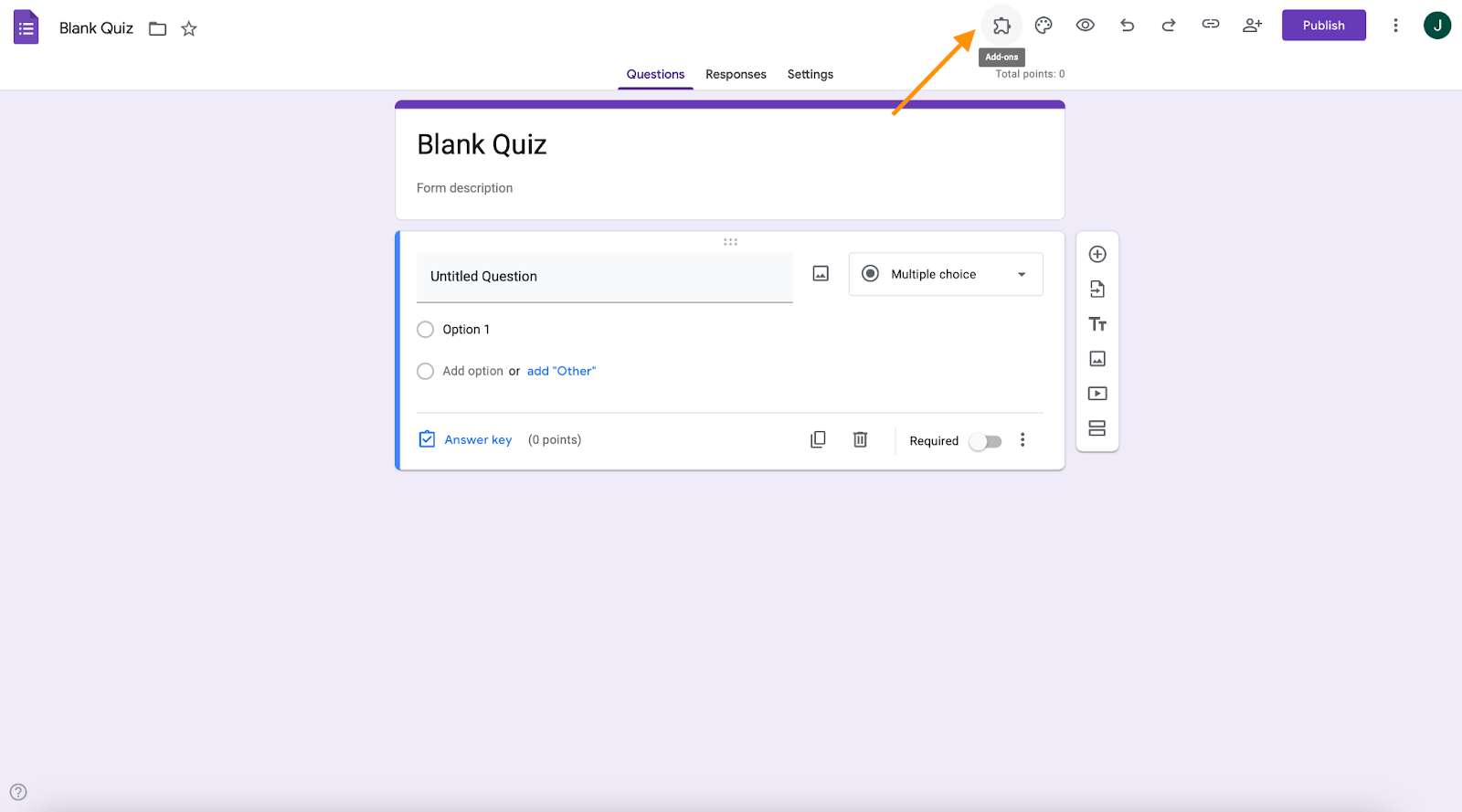
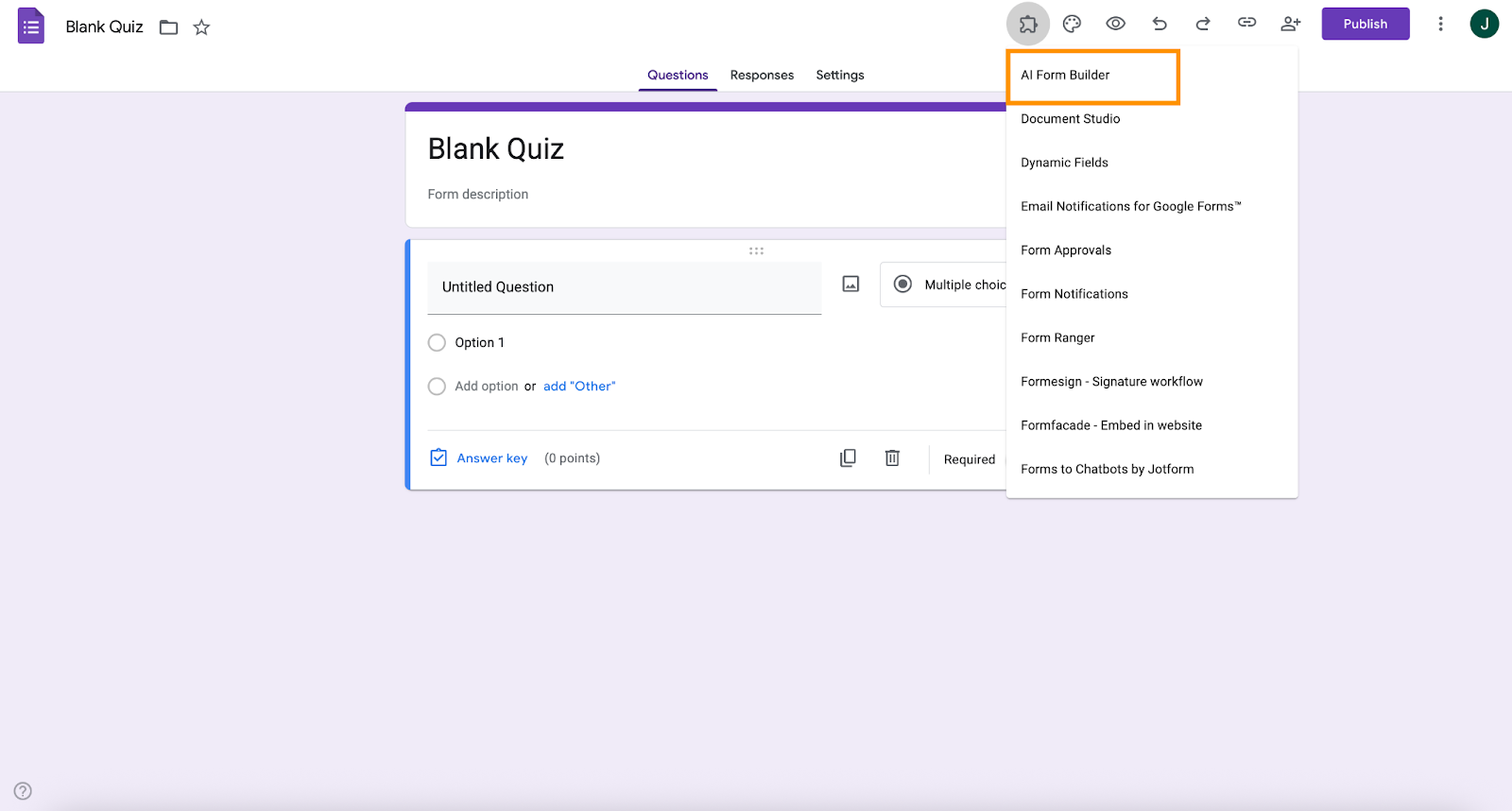
- In your document, go to Add-ons, then click AI Form Builder.
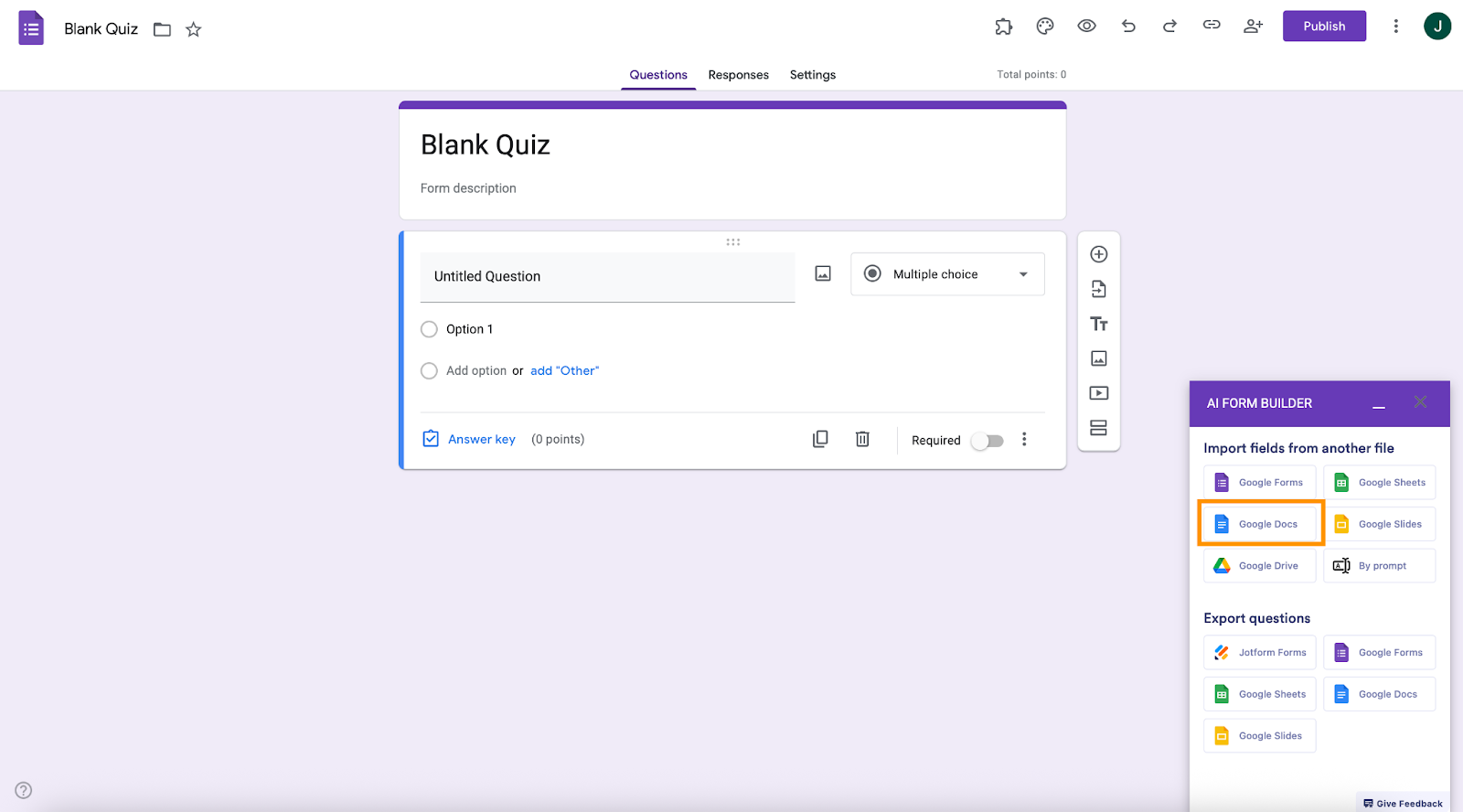
- Click Import. Select Google Docs.
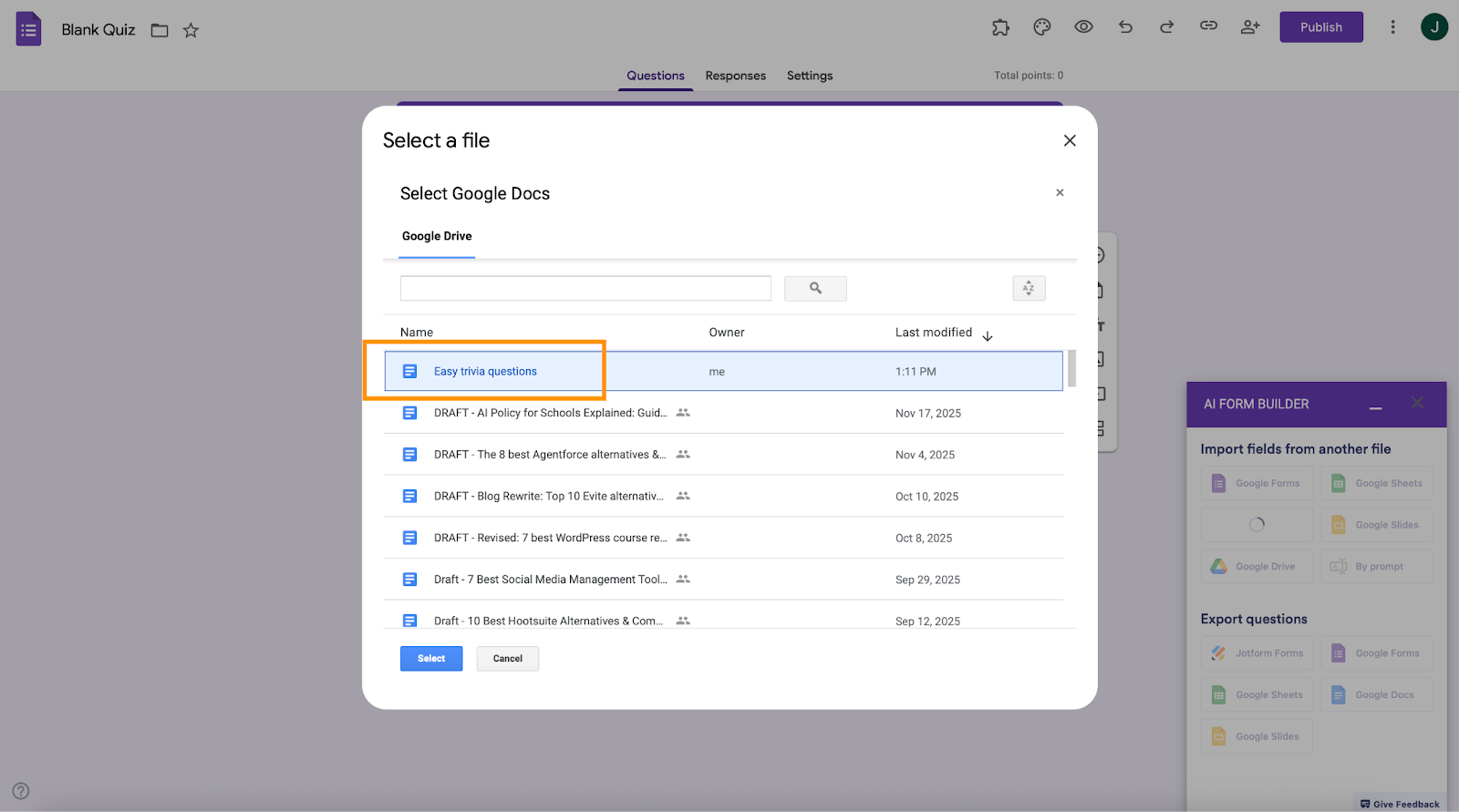
- Choose the document that contains your questions.
Choose between:
- Form (general surveys, feedback forms, contact forms, etc.)
- Quiz (forms that need points, right/wrong answers, grading)
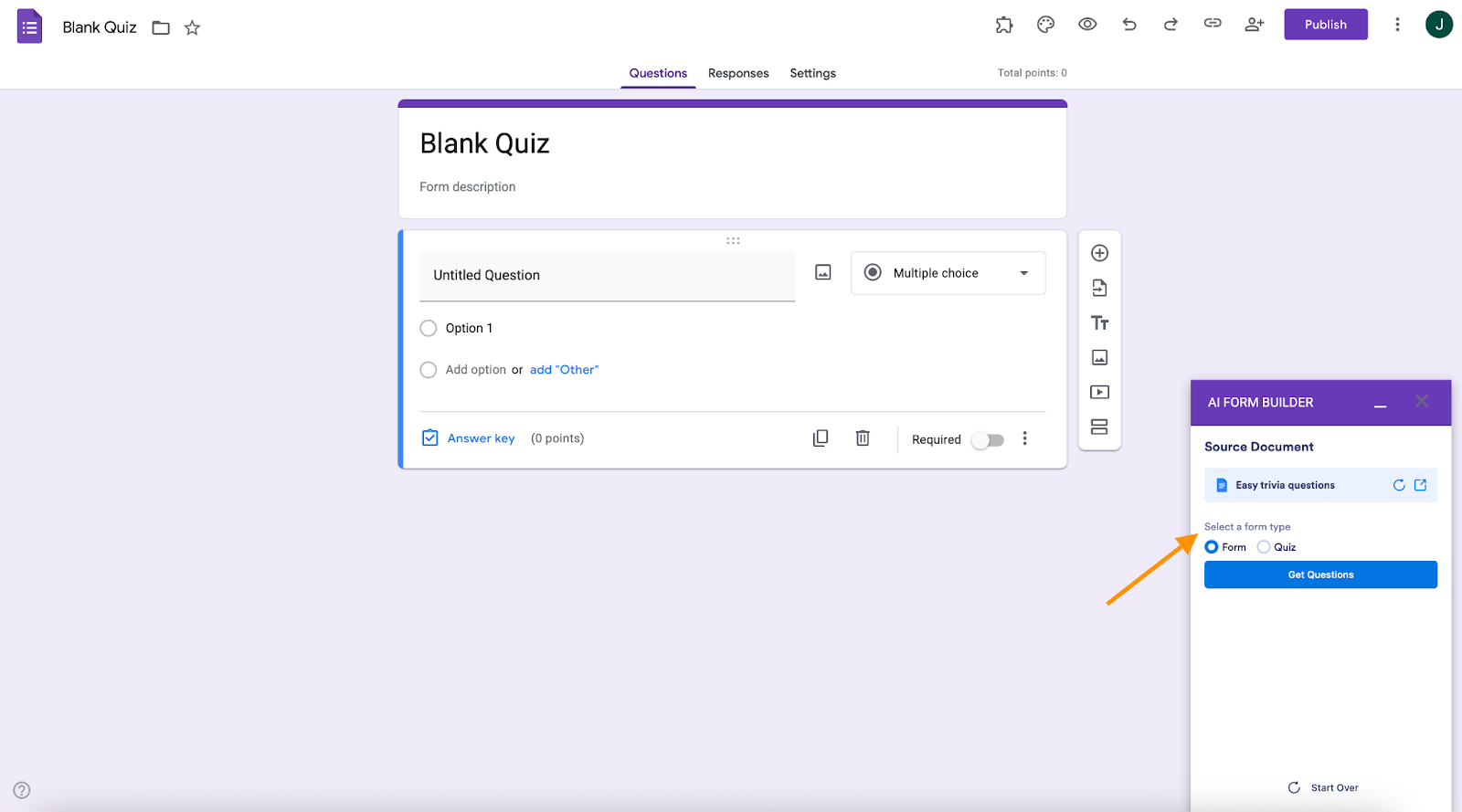
After you click Get Questions, the AI Form Builder sidebar will display a detailed preview of everything it extracted from your document.
In this view, you’ll see:
- See Questions
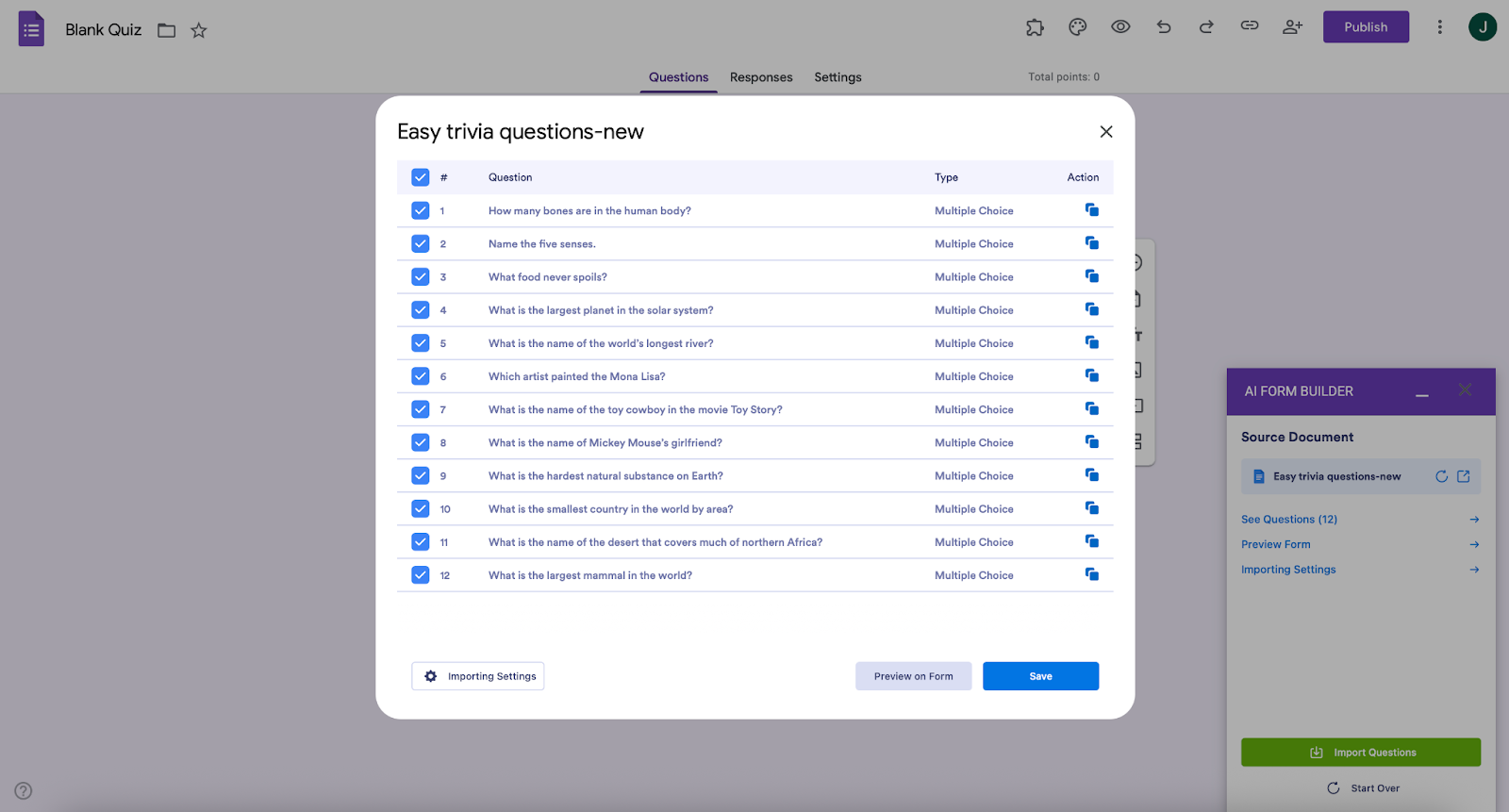
When you click See Questions, a pop-up opens showing all the questions detected by AI Form Builder.
Here, you can:
- Review question titles
- Check answer choices
- Confirm that formatting, bullet points, or numbering were interpreted correctly
- Remove any questions you don’t want to import
- Preview Form
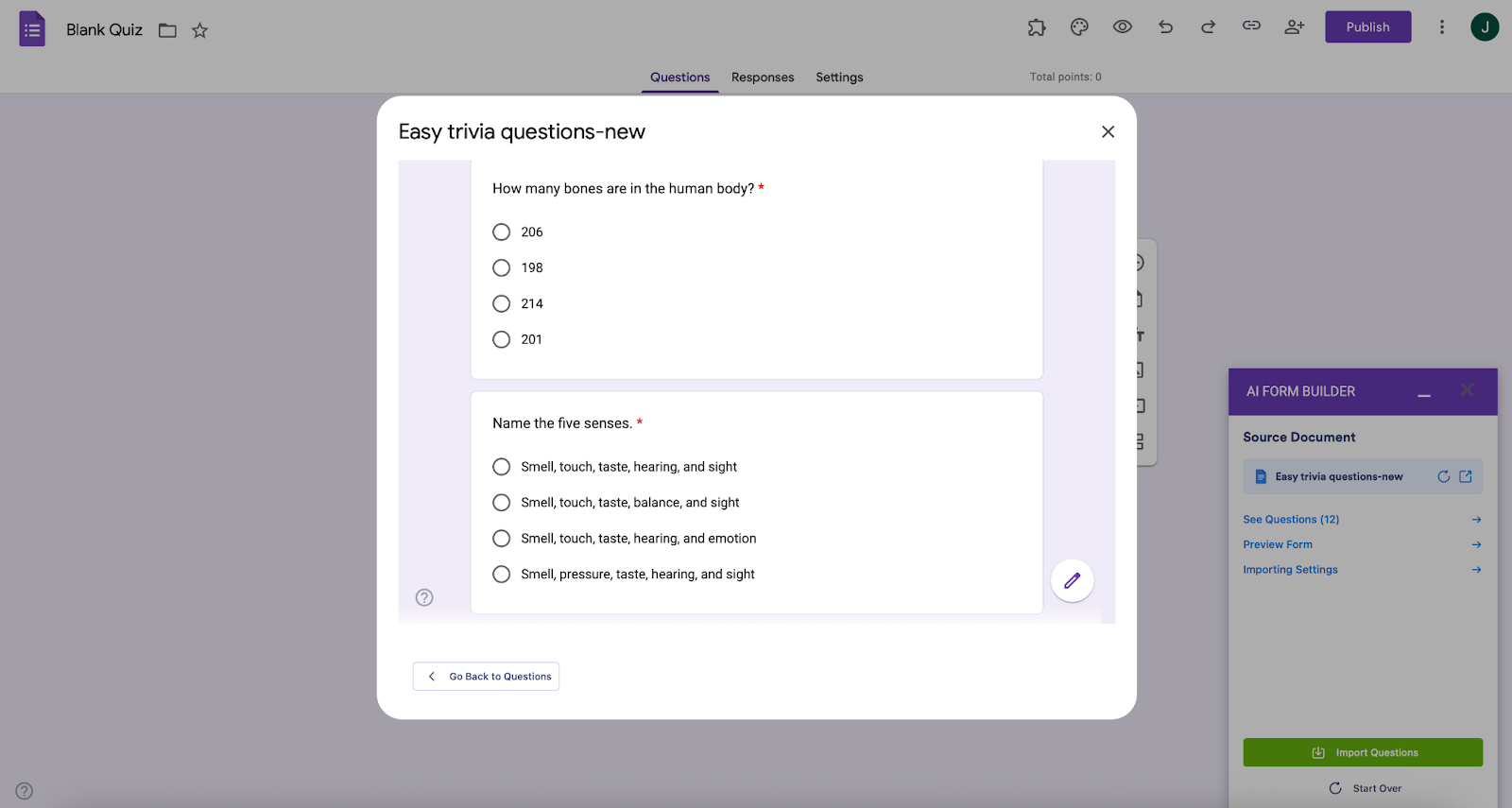
This option lets you see how your imported questions will look inside a Google Form layout before you’re done.
Use this preview to:
- Check field types (multiple choice, checkboxes, short answer, etc.)
- Verify question order
- Confirm quiz scoring (if you selected Quiz mode)
- Importing Settings
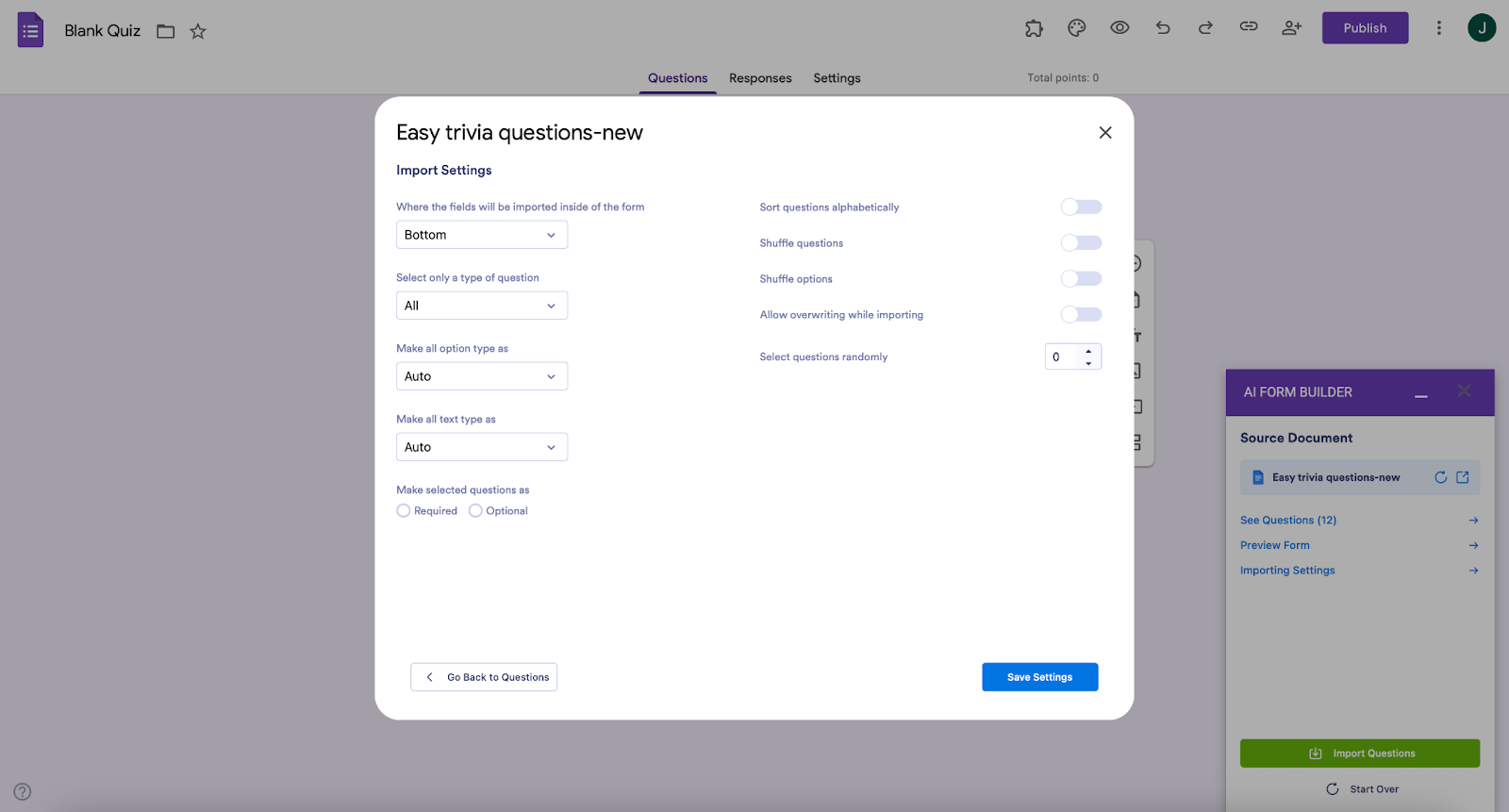
If you click Importing Settings, you’ll see options that let you fine-tune how your questions will be added to the form. For example, you can:
- Choose where the questions will be inserted (top or bottom of the form)
- Import only certain question types
- Shuffle question or answer order
- Make all questions required or optional
- Randomly select a smaller subset of questions
- Import Questions
Once everything looks correct, click Import Questions (the green button).
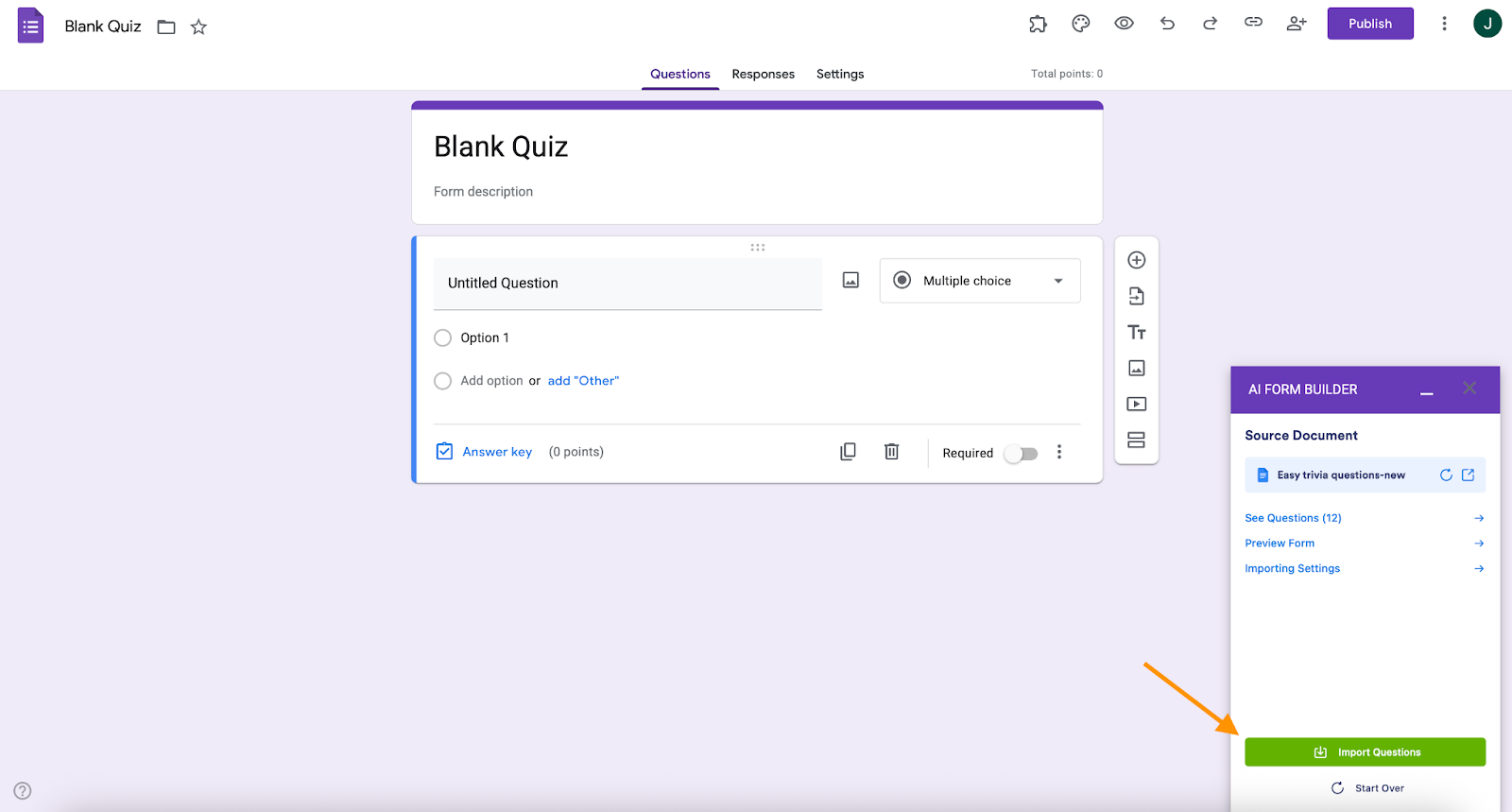
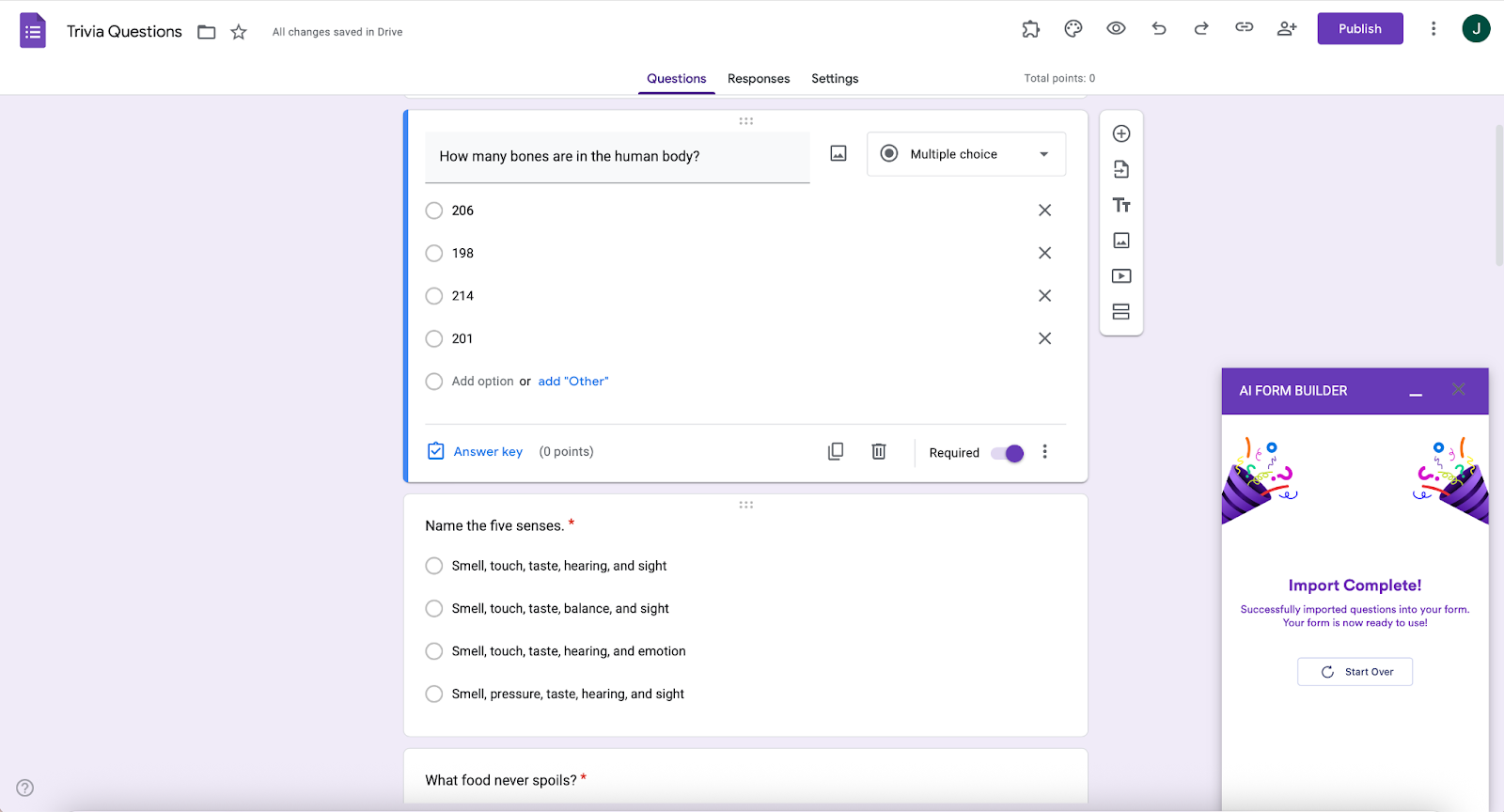
Your selected questions will be created instantly inside Google Forms — no manual typing, copying, or field setup required.
How to create a Google Form from Google Sheets
If your questions, answer options, or quiz tables live in a spreadsheet, AI Form Builder can turn those rows and columns into form questions. Here’s how to create a Google Form using AI Form Builder:
- Just like before, open your form and launch the add-on.
- Click Import. Then, choose Google Sheets.
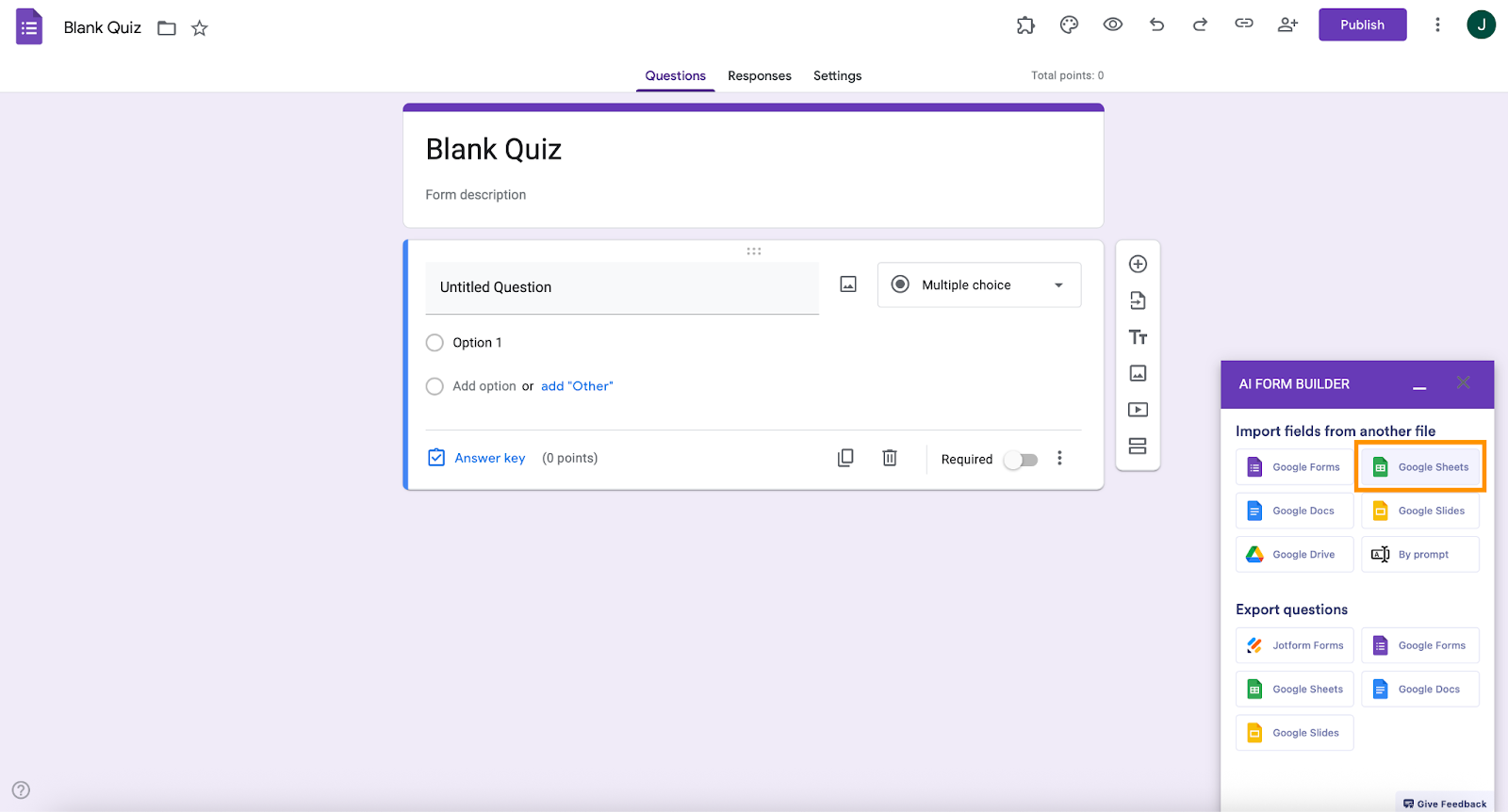
- Select your spreadsheet and sheet.
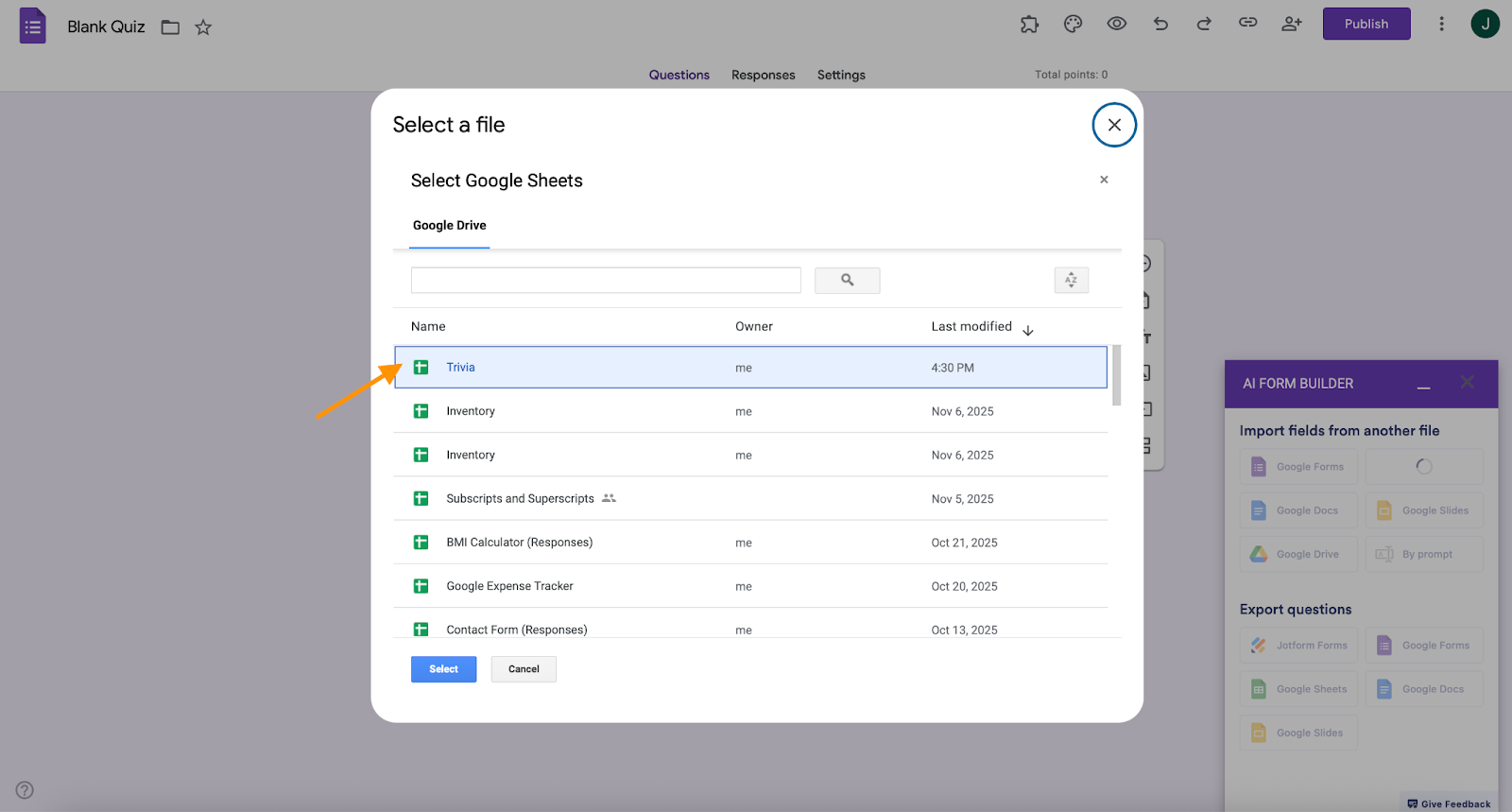
- After choosing your Google Sheets file, AI Form Builder will show a dropdown with all the sheets (tabs) inside the document. Here, simply:
- Select the sheet that contains your questions
- Choose whether you want to create a Form or a Quiz
- Click Get Questions to let the AI scan the sheet and extract your content
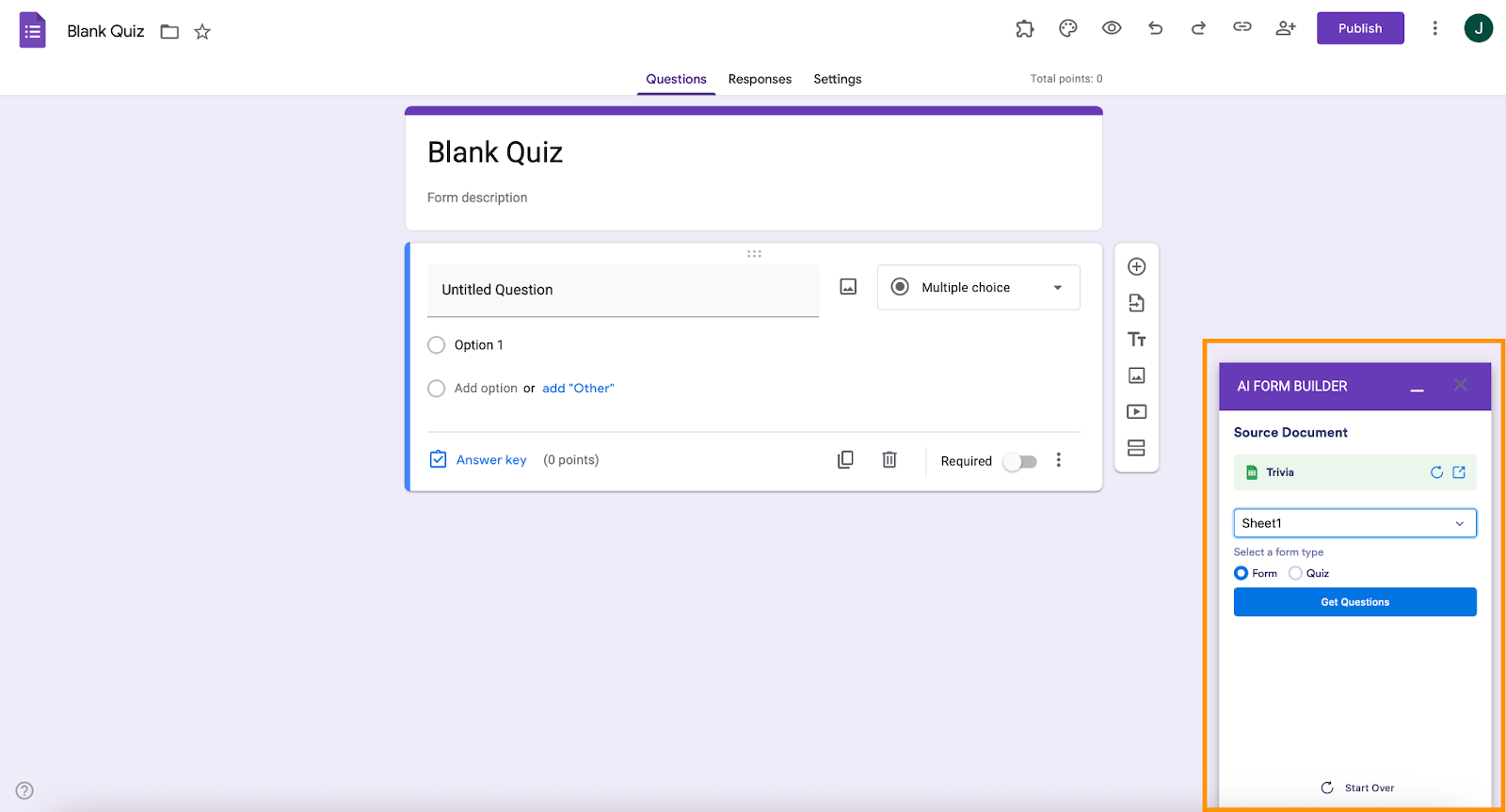
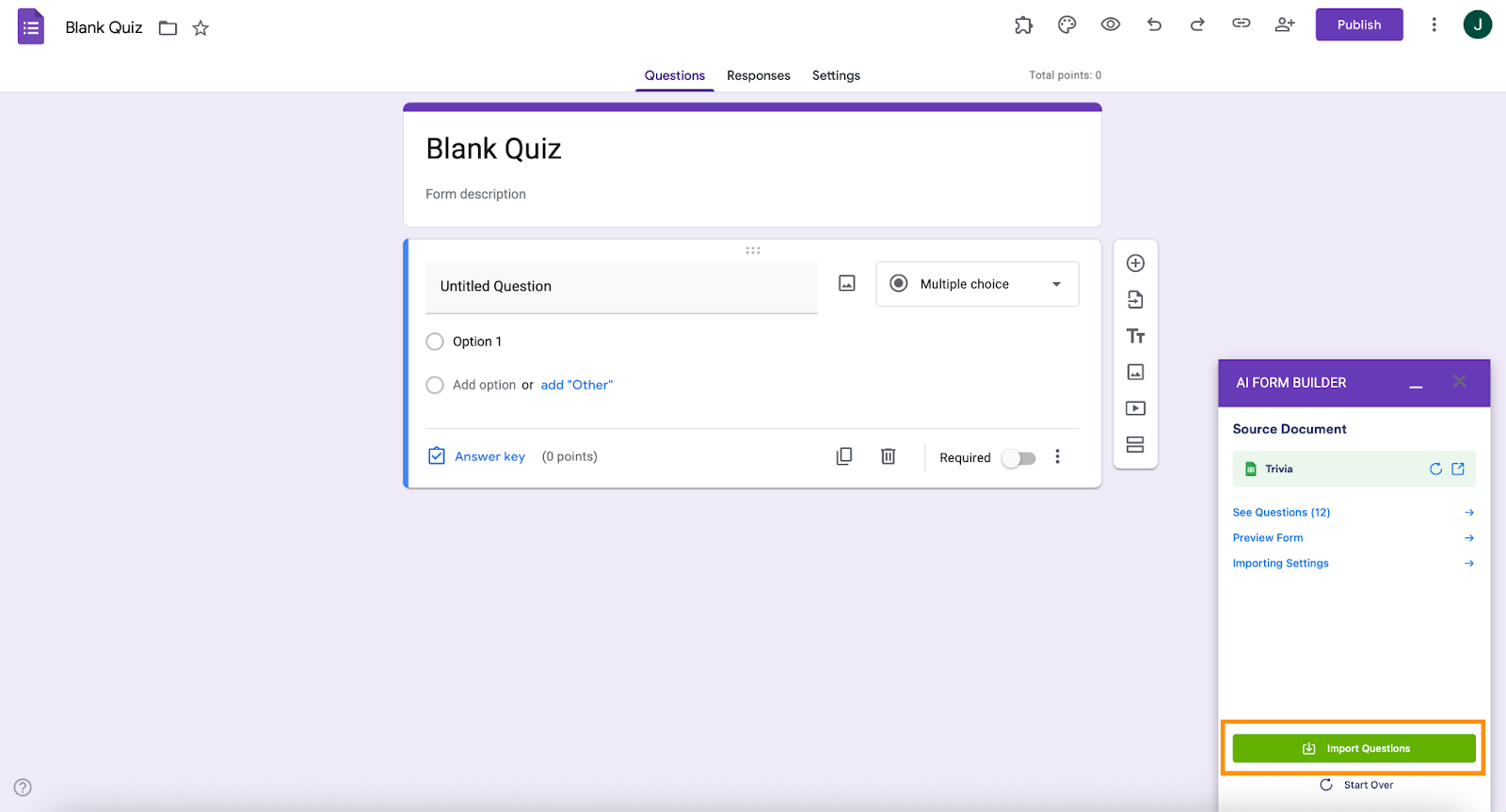
- After AI Form Builder extracts your questions from the document, you’ll see three quick review options in the sidebar:
- See Questions – Opens a list of all detected questions so you can review or deselect any items.
- Preview Form – Shows how your questions will look inside a Google Form before importing.
- Importing Settings – Lets you adjust placement, required/optional settings, shuffling, and other import preferences.
Once you’re satisfied, click Import Questions to add everything to your Google Form.
- Your questions are now imported, and your Google Form is ready to use.
How to import Google Slides and Drive content into Google Forms
While Docs and Sheets are the most common sources, the AI Form Builder add-on also enables importing form content from:
Google Slides
If your questions appear as slide bullet points (e.g., training quiz slides or classroom presentations), AI Form Builder can detect the bullet lists and turn them into form fields.
Google Drive files
You can browse and pull content from a variety of Drive files supported by the add-on, letting you streamline form creation even if your questions live across different formats.
The process is identical: open the sidebar → choose Import → select Slides or Drive → review → import.
Want more powerful forms? Migrate your Google Forms to Jotform
If you use Google Forms regularly and you’re simply revising an existing form, you may want to consider migrating your form questions to Jotform. You can get more advanced form-building features with Jotform, and it’s just as easy to use. (We always get high marks for simplicity from our customers!)

Jotform has more powerful functionality than Google Forms. You can choose from a wide range of question types and make use of conditional logic, answer piping, and more to make data collection more engaging. You might consider migrating Google Forms if, for instance
- You want (lots!) more templates to choose from
- You want to accept payments with your form
- You want to make your forms more conversational
- You want to create reports from your data
Plus, Jotform integrates seamlessly into your workflow because it connects with all the tools you already use.
Jotform has an import tool that makes it easy to migrate existing Google Forms without having to recreate anything from scratch. In just a few clicks, you can view your newly imported forms in Jotform and start editing them with our drag-and-drop form-building tool. Every form is highly customizable, secure, and mobile friendly.

Looking for the best alternative to Google Forms?
Jotform’s full-featured form-building solution is mobile-friendly and has the most integrations in the industry. Use it to collect payments, automate workflows, gather leads, and more.
Jotform is an excellent alternative to Google Forms — and it’s free to try! There’s simply no better way to build an attractive, dynamic online form of any kind.
Time to get started importing
By now, we hope you have a good understanding of how to import questions into Google Forms. Aside from manually copying and pasting your questions into the software — which is best for a minimal number of questions only — there are several add-ons available that make the process faster. Formatting is important when using add-ons, so you’ll likely need to review and edit your original document accordingly to make them run smoothly.
And if you’re interested in seeing what a more powerful form builder could do for you, take a minute to convert your Google Forms to Jotform. Then you can see for yourself why Jotform’s advanced features make for a better online form, for both you and your respondents.
FAQs: How to import questions into Google Forms
No, there is no direct way to do a Google Forms Excel import. Your best bet may be to input your questions into a new Google Sheet using the formatting provided by Form Maker or Form Builder for Google Sheets, which can then quickly generate a form.
You’ll need to first export the survey to a structured format such as CSV and upload that file to Google Sheets. You can then use an add‑on such as Form Builder for Google Sheets or Form Maker to convert the questions into a new Google Form.
This article is for website operators, content managers, educators, and anyone who wants to streamline quiz or survey creation by learning how to import questions into Google Forms quickly and efficiently.






































































































Send Comment: