
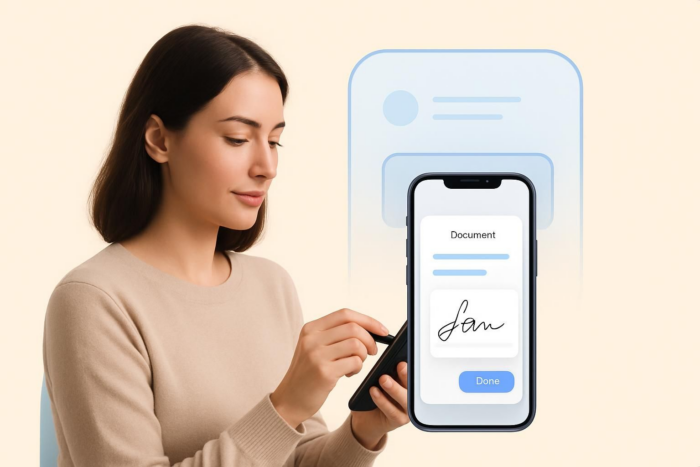
So you need to get a signature. You could print the document, sign it, scan it, email it, and then hope the recipient does the same. If that sentence tired you out, you’re not alone — which is precisely why most professionals prefer the digital signature route.
Digital signatures make it easy to approve documents on the go — if you’re new to them, here’s a quick explanation of how an e-signature works. Fortunately, your iPhone already includes built-in tools that let you sign, send, and collect signatures without touching a printer. It’s quick, convenient, and perfect for simple approvals.
Speed matters, especially in sales, client work, real estate, legal, and service-based industries where deals depend on timely signatures. Using an electronic signature on a phone removes friction and eliminates delays. But while iPhone’s native Markup tools are great for basic signing, they’re limited if you need tracking, compliance, multi-signer workflows, or HIPAA electronic signatures.
In this article, we’ll walk through how to add a signature on an iPhone using the Markup tool and how to use Jotform Sign Mobile to create complete mobile signature workflows.
How to create and add a signature on iPhone with the Markup tool
The iPhone’s Markup tool is simple and built right into iOS. It’s free, fast, and ideal for signing an occasional PDF or sending back a quick approval.
However, its simplicity also brings limitations. Markup works best for
- One-off documents
- Single signers
- Low-risk approvals
It doesn’t offer features like audit trails, compliance controls, signer tracking, templates, or workflow automation. If you’re a business owner or work in a regulated industry, you’ll likely need more than what Markup offers.
But for quick signatures, here’s how to use it:
- Open the file you want to sign in your Files app, Photos app, or email attachment. In the screenshot below, we’re opening a document in the Files app.

- Scroll to the appropriate spot in the document.

- Tap the Markup icon (the pen-tip icon).

- Tap the plus (+) icon and select Add Signature. Draw your signature with your finger or stylus if you don’t already have one created.
Pro Tip
It may be easier to create your first signature on an iPad or Mac trackpad, which will then appear on your iPhone.

- Finally, place it on the document and resize or reposition it as needed.

How Jotform Sign Mobile makes signature workflows smarter
While the Markup tool works for quick, one-off signatures, most professionals eventually need more — they need better security, reusable signatures, automated workflows, and a way to track document progress.
That’s where Jotform Sign Mobile stands out.
Jotform Sign Mobile is a dedicated mobile-first e-signature app built for people who regularly sign documents, collect signatures from others, or need compliant workflows. Instead of manually adding signatures to PDFs, you can create, send, track, and manage complete sign flows directly from your smartphone.
The app is secure, fully compliant (GDPR, SOC 2, and HIPAA-friendly when enabled), and eliminates the need for printing or desktop tools. Whether you’re finalizing contracts in the field or collecting in-person signatures at a client site, it streamlines the entire process.
Add a signature on iPhone with Jotform Sign Mobile
Here’s how to get started:

- Open the app and sign in to your Jotform account (or create one if you’re new).

- Set up your signature. Right after you sign in, the app will prompt you to create a signature by typing, drawing, or using a saved one.

- From your Sign Inbox, start the signing process by tapping Self Sign or Invite to Sign.

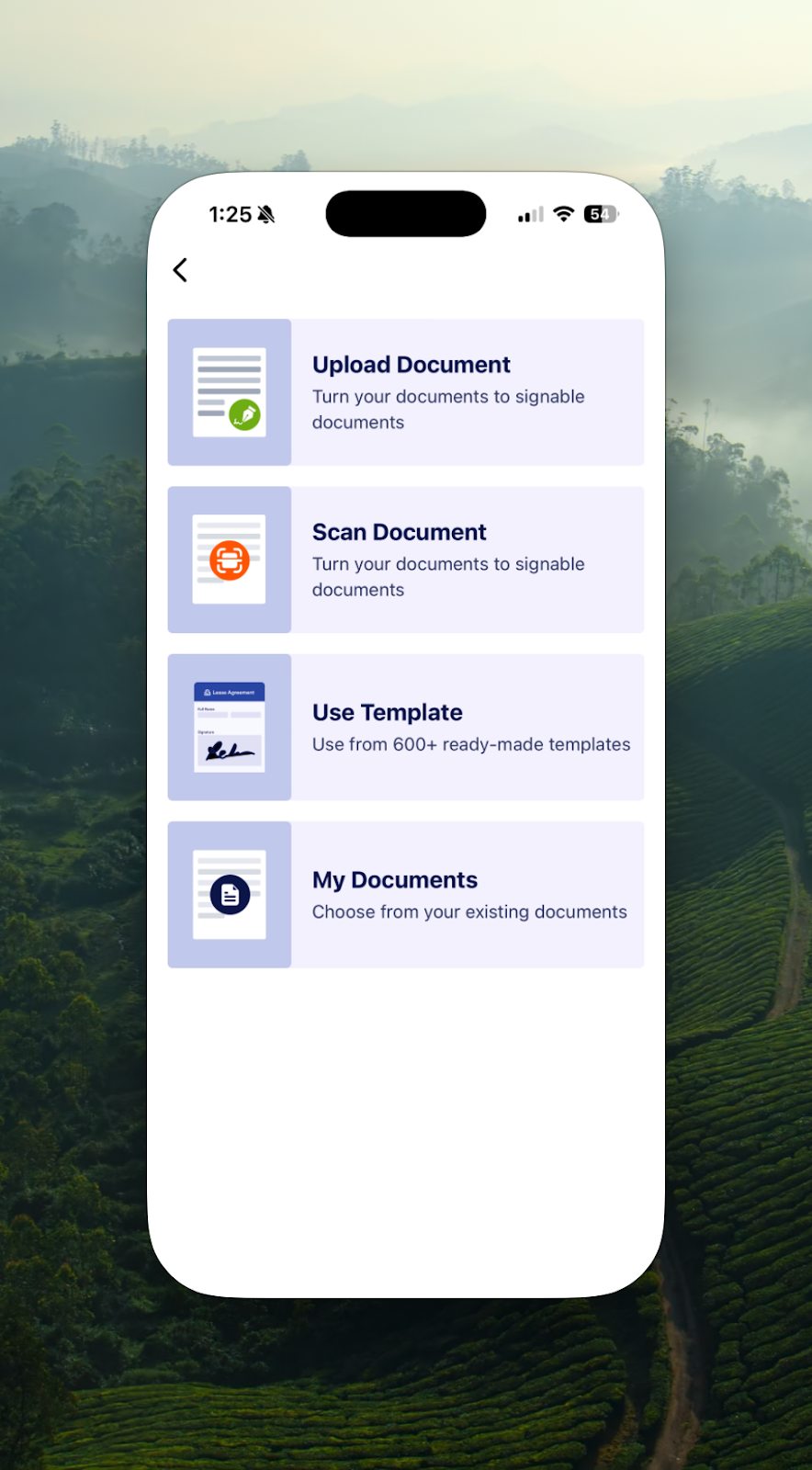
- Choose how you’d like to add your document:
- Upload Document
- Scan Document
- Use Template
- My Documents
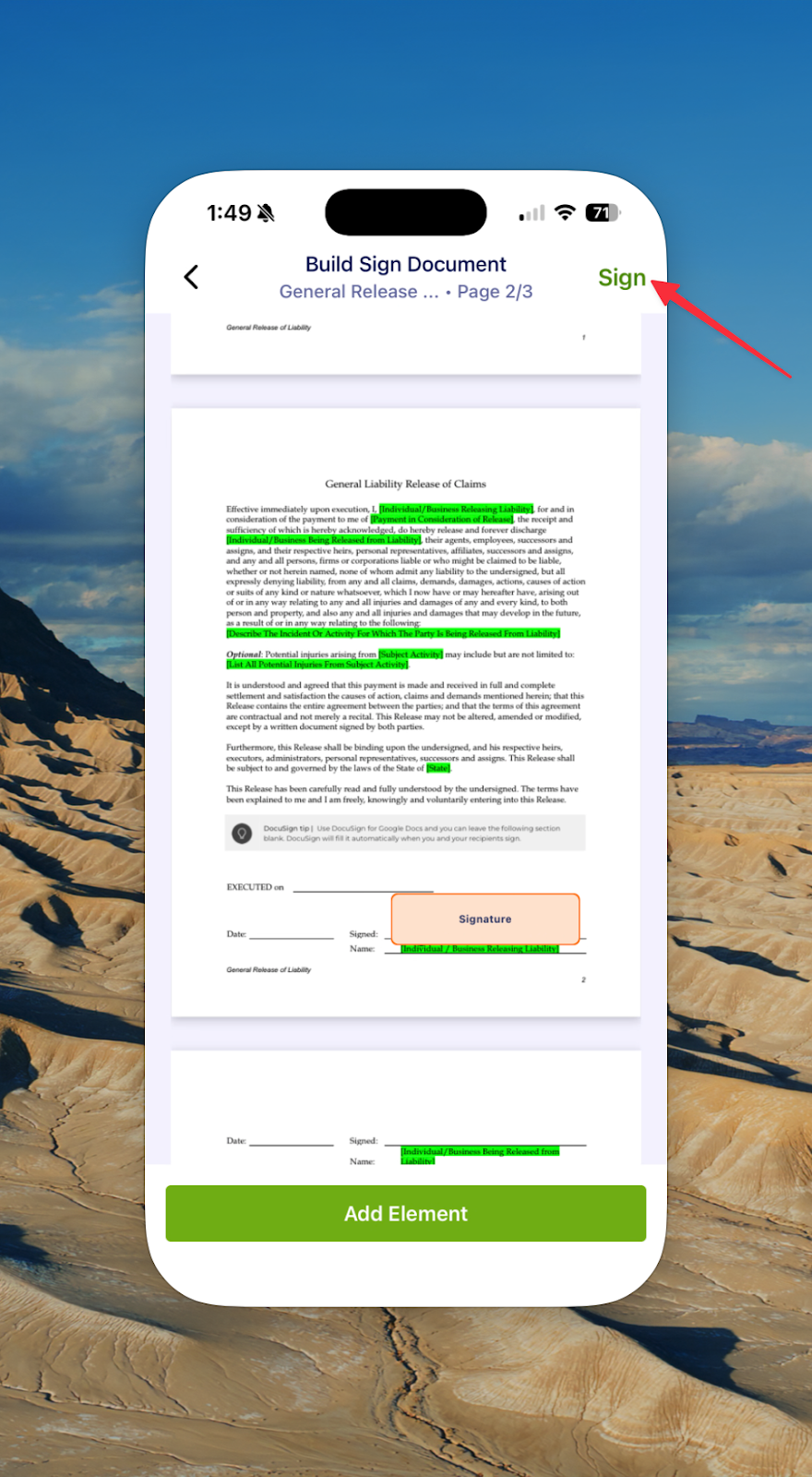
- Jotform Sign will automatically detect signature, date, and initial fields. Review these placements, and if anything is missing, simply add the remaining fields yourself.
- Once all fields are correct, tap Sign; then follow the prompts to apply your signature.
- After signing, you can share, download, or continue managing the document from your Sign Inbox. You can also collect signatures from others using email invitations or a shareable link.

Pro Tip
To learn more about the real-world impact of smarter signing tools, here are a few ways Jotform Sign saves teams time and money.
Scan, save, and reuse your signature
One of the biggest advantages of Jotform Sign Mobile is the ability to store your signature securely so you can reuse it across documents. No more redrawing your signature every time you need to sign something.
With Jotform Sign Mobile, you can:
- Scan physical documents with your camera, automatically cropping and enhancing them.
- Reuse your saved signature for consistent, professional signing.
- Invite others to sign documents via email or link.
- Track progress in real time through Sign Inbox and My Documents.
- Access everything on any device with Jotform’s cloud sync.
These features are ideal for real estate agents, HR teams, contractors, field service providers, and freelancers, as well as anyone else working on the go.
Ready to sign smarter on your iPhone?
Signing documents shouldn’t feel overwhelming. With the tools already built into your iPhone, you can add your signature to a document in just a few taps. And for most quick approvals, that’s all you really need.
If you regularly send or collect signatures, though, you might want something more organized. That’s where tools like Jotform Sign Mobile come in. These tools make it easier to keep track of documents, reuse your signature, and handle signing with other people without bouncing between apps.
Once your signature is set up, you’re free to sign and send documents from wherever you are. Try Jotform Sign Mobile to give your workflow more structure without adding complexity.
This article is for mobile professionals, small business owners, and anyone who wants to create, save digital signatures directly from their iPhone to streamline document workflows and eliminate the need for printing or scanning.





































































Send Comment: