
Key Takeaways
- You can change your signature during an active signing session by clicking your existing signature and selecting Change.
- To permanently change your signature for all future documents, you must navigate deep into your account profile’s Signatures tab.
- Try Jotform Sign for a more intuitive, mobile-friendly signing experience without buried settings menus.
Docusign has a few quirks. One of them is that you can’t change your signature whenever you like. Reddit and Docusign’s own community forums are filled with users asking, “Is there actually no way to edit your signature?” This tells you just how annoying the issue is. But don’t worry — this guide will tell you how to change your signature on Docusign, and you can change it in less than 60 seconds.
As a bonus, we’ll also look at Jotform Sign, an even more intuitive and mobile-friendly signing experience that lets you change your signature whenever you like.
1. How to change your default signature in your Docusign account
When you sign up to Docusign, it generates a stock signature based on your name. If you want to change it at some point in the future, here’s how. This will update your signature for all future documents.
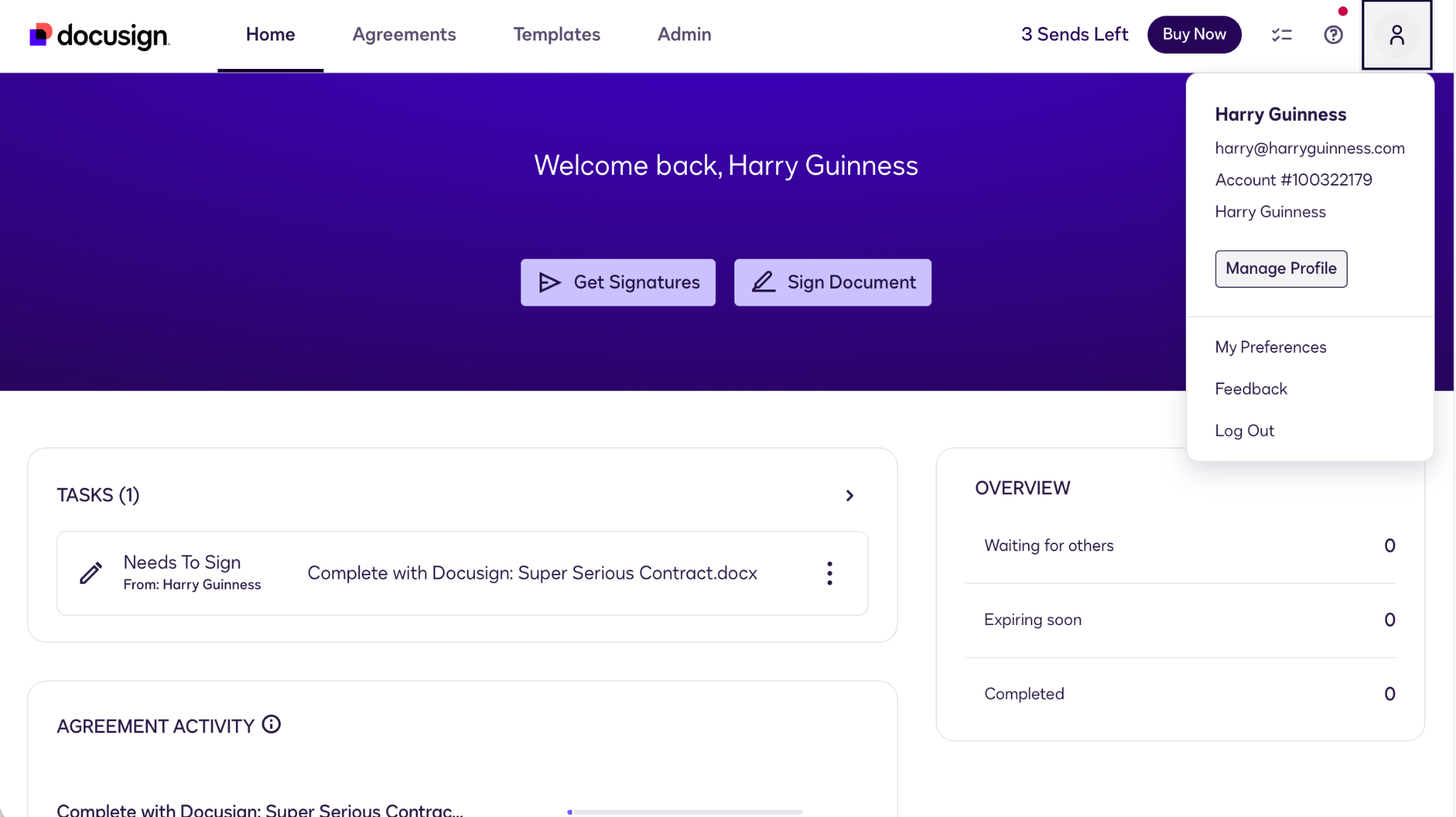
Step 1: Click the Profile icon on the top right of the home screen. Select Manage Profile.
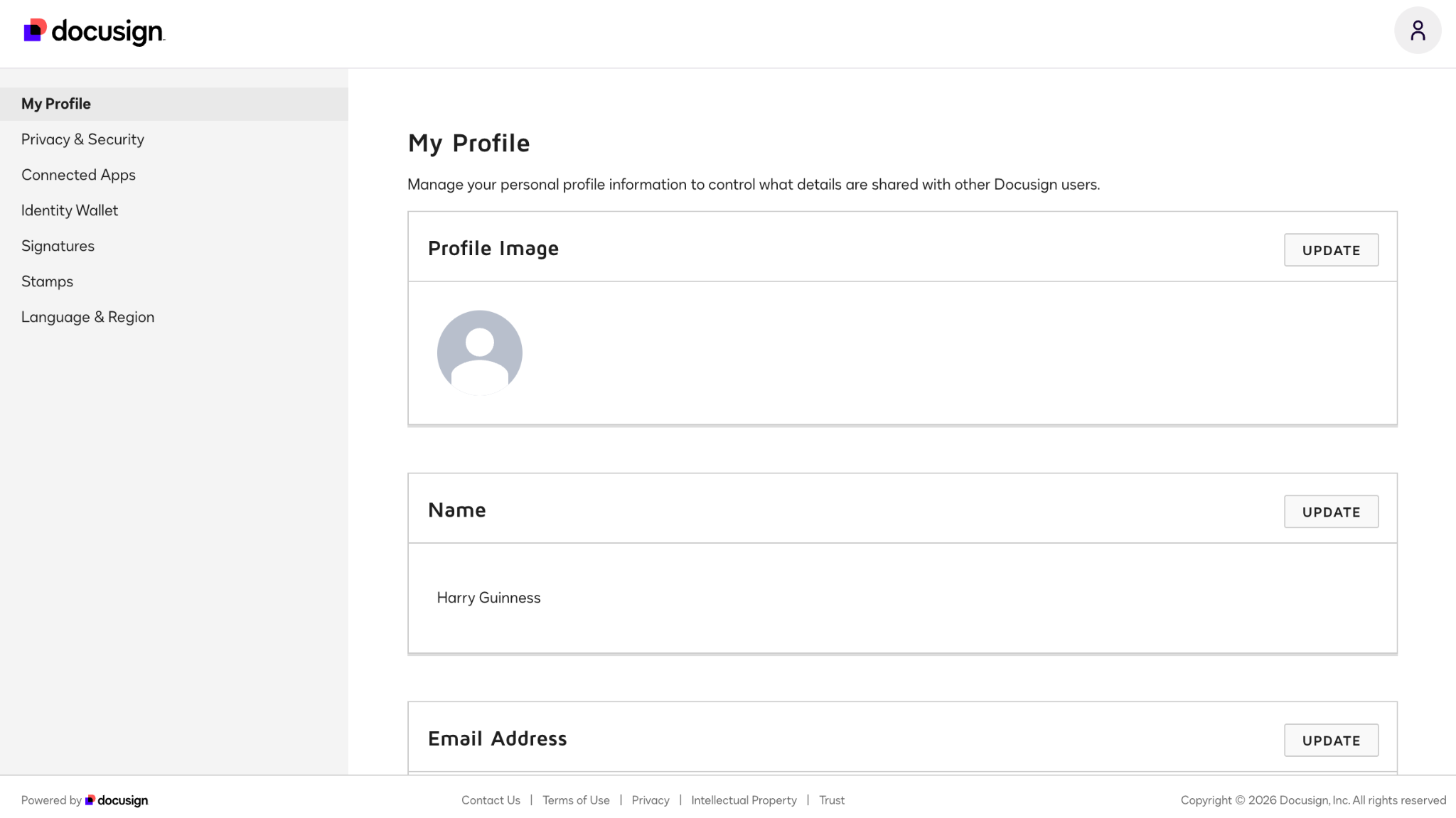
Step 2: In the sidebar, select Signatures.
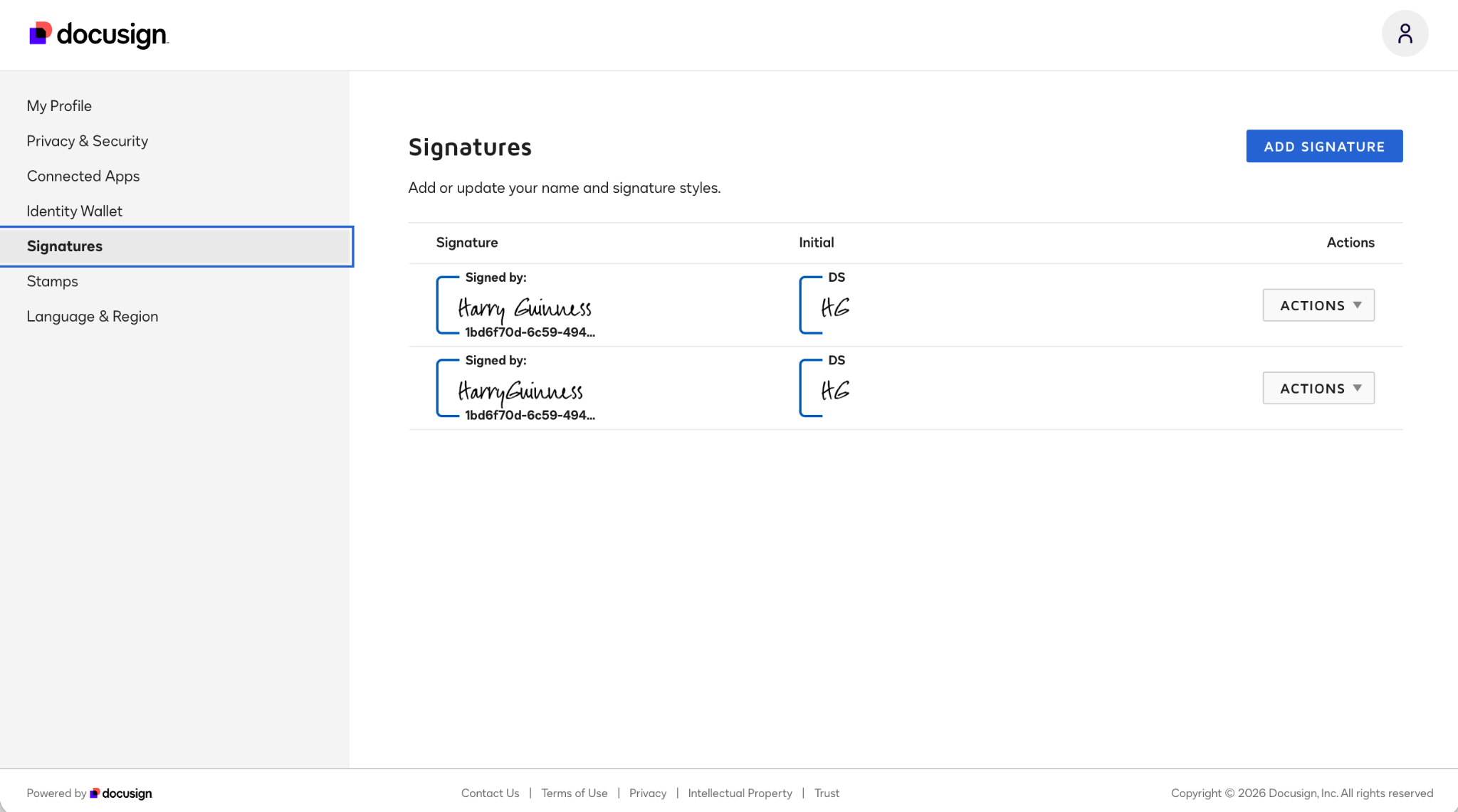
Step 3: To add a new signature, click Add Signature. To edit an existing signature, go to Actions > Edit. (You can delete an old signature by going to Actions > Delete.)
Step 4: Create your new signature. You can select from Docusign’s default options.
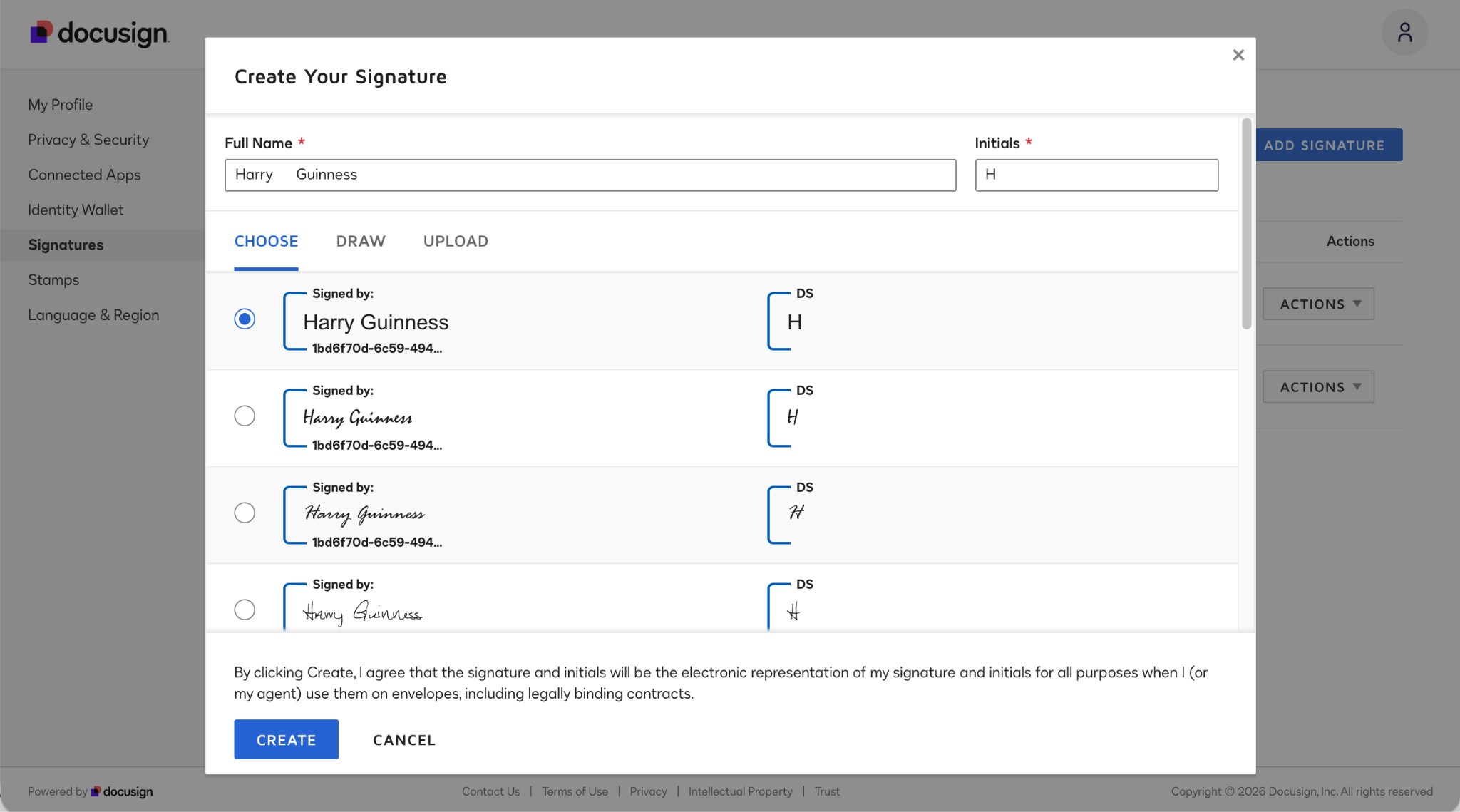
Alternatively, you can draw your real signature with your trackpad or upload a photo of it.
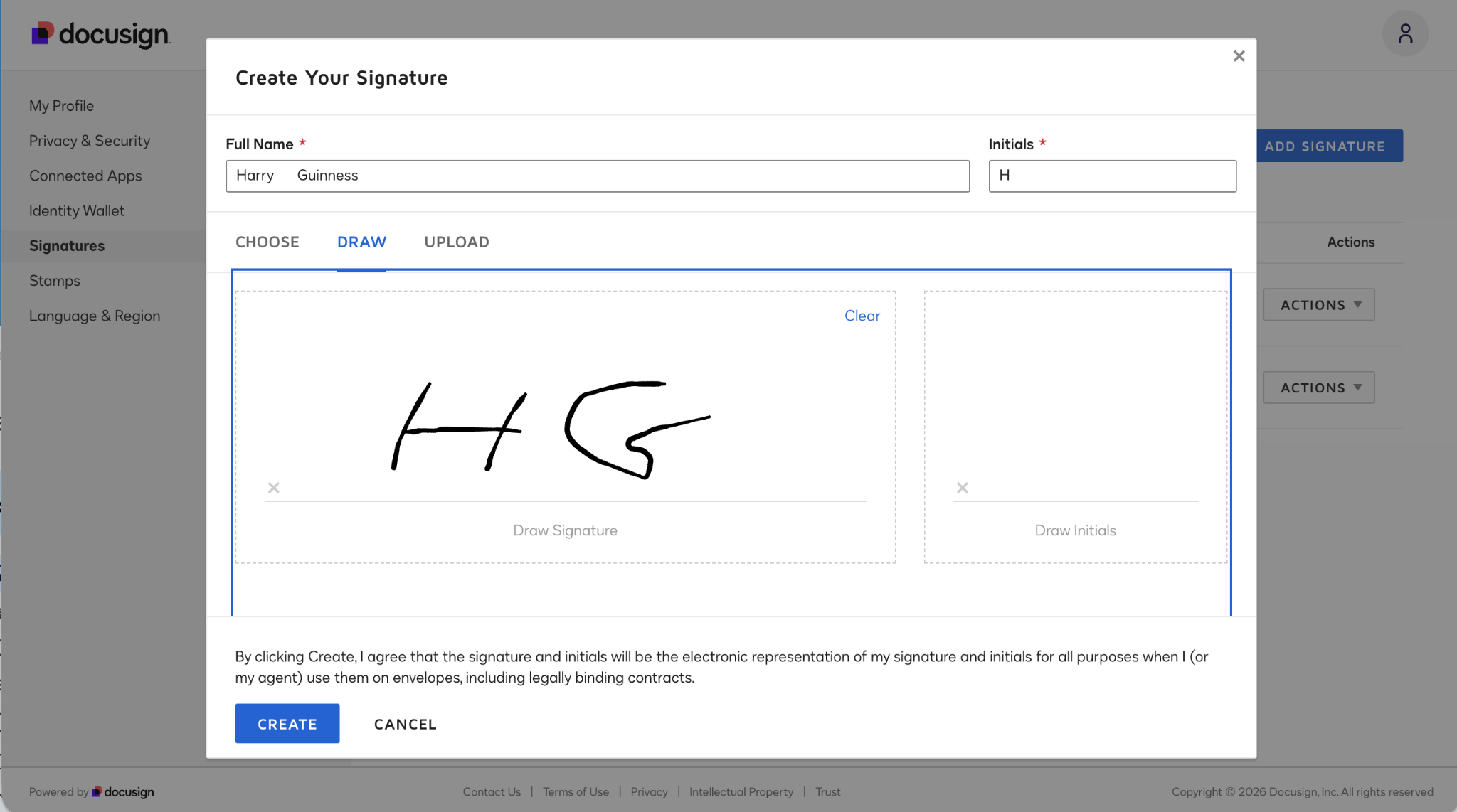
Step 5: When you’re done, click Create and you’ll be able to use your new signature to sign documents.
2. Can you change your signature while signing a document?
Short answer: No, you cannot. It’s inconvenient, but there is no easy way to change your Docusign signature when you’re signing a document despite what Docusign’s help documents claim.
In my testing, I wasn’t able to change my signature when signing a document. It might be possible in some situations, but I couldn’t get it to work when sending documents between my two test accounts — or even with my real Docusign account.
Among the reasons Docusign gives for not being able to change your signature are
- You don’t have a Docusign account.
- You are signing using the mobile app.
- You are signing with an In-Person Signing Session.
- You are signing with a more secure form of digital signature.
- You are using Sign and Return.
- The sender has locked the recipients’ names.
I suspect the last reason is the biggest one: If a contract is sent directly to you, there’s a good chance the sender has locked your name and email address in.
If you’re also wondering why Docusign makes changing your signature so hard — well, read on and we’ll look at an app that makes it much easier to manage your signatures. (If you’re not worried about changing your signature, here’s our guide on how to sign in Docusign.)
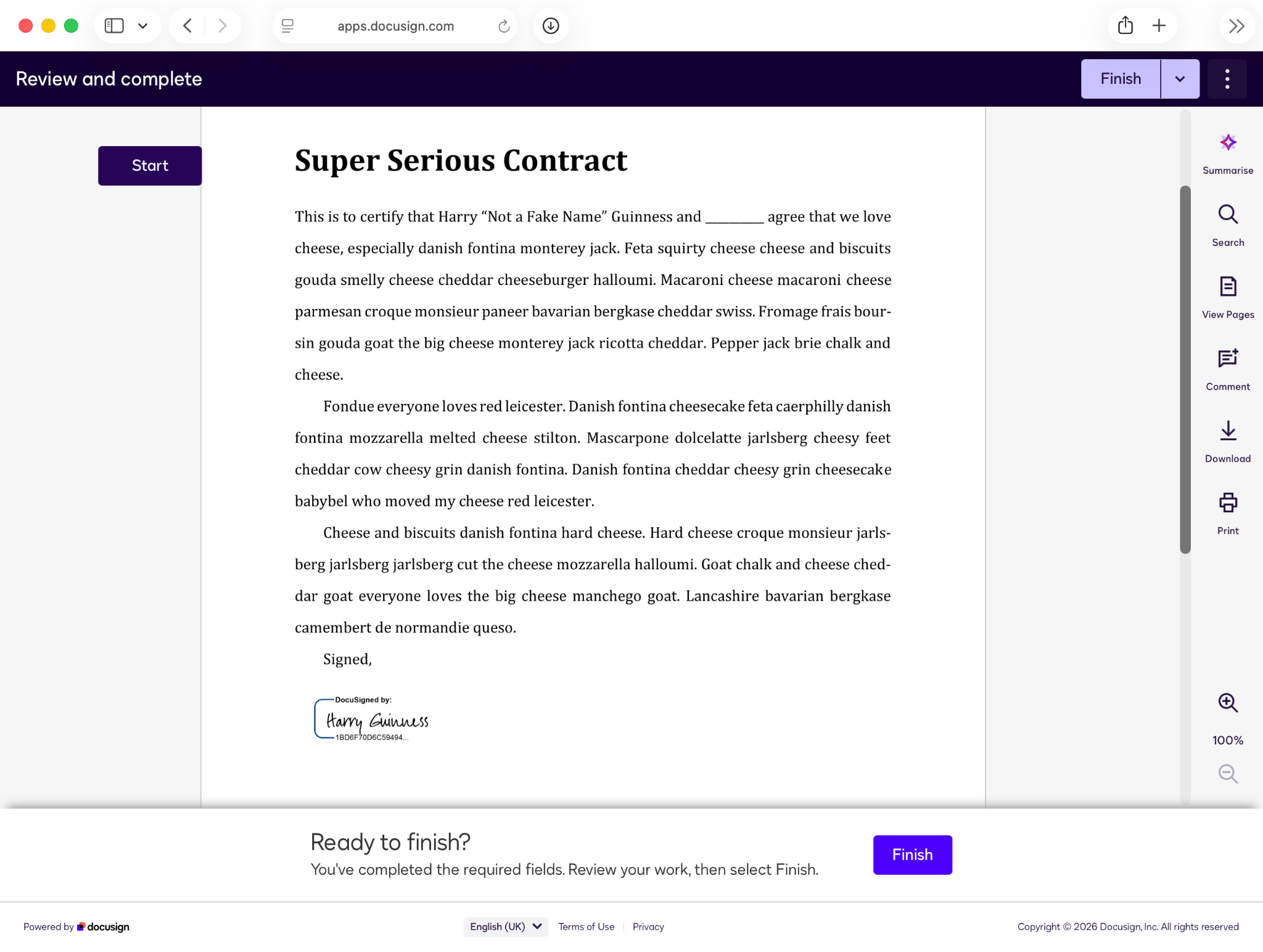
Try a smarter, frictionless alternative: Jotform Sign Mobile
There are many reasons you might want to change your e-signature: You might not like the default options offered, or you might feel that drawing one with a laptop trackpad or mouse looks messy and unprofessional. Or you might just like to change your signature from time to time without unnecessary complications. If that’s the case, then the Jotform Sign Mobile App might be the right tool for you.
The Jotform Sign Mobile app is a modern solution for on-the-go professionals. It lets you easily create and manage signatures. There are no buried menus or awkward situations where you can’t change your signature. It’s all effortless.
One of the big advantages of the Jotform Sign Mobile app is you can collect signatures in almost any circumstance. You can sign documents sent directly to you (or uploaded to Jotform Sign) and get seamless in-person signing. If the client is there with you, you can just hand them your phone or tablet and have them sign — no complicated Host admin setups or awkward email dance required.
Similarly, if you’ve got a physical contract, you can scan it with your smartphone’s camera directly into the Jotform Sign Mobile app, where it will instantly be converted into a dynamic, signable PDF.
The Jotform Sign Mobile app also gives you access to the full Jotform Sign workflow. You can track your documents from anywhere, receive push notifications as soon as a client signs, and manage your whole document pipeline no matter where you are or what you’re doing.
How to set up and manage signatures in Jotform Sign
Unlike Docusign, the Jotform Sign Mobile app makes it simple to set up and manage signatures — even when you’re signing a document.
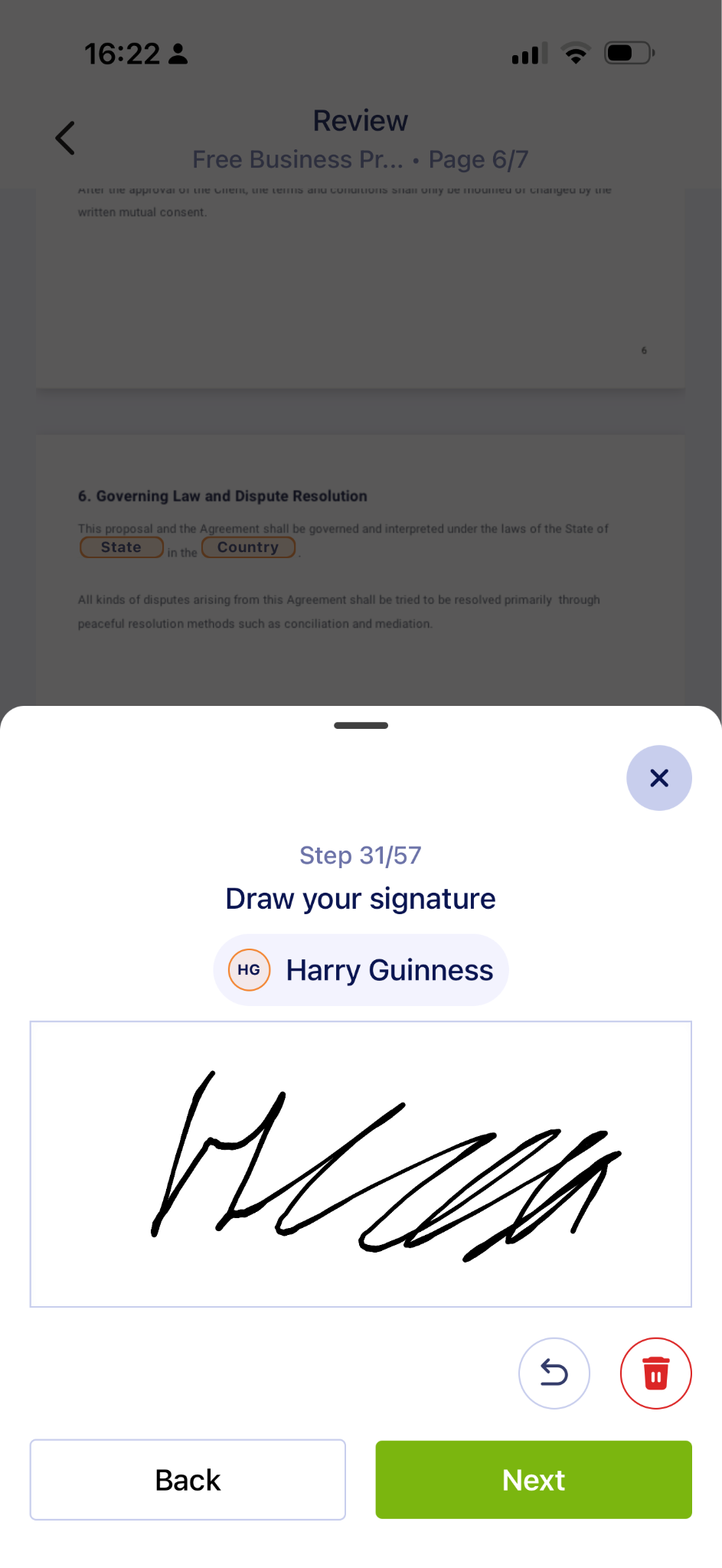
When you log into the app, you will be prompted to create a signature, either by signing on your phone screen or typing your name. Go with whatever feels most natural to you.
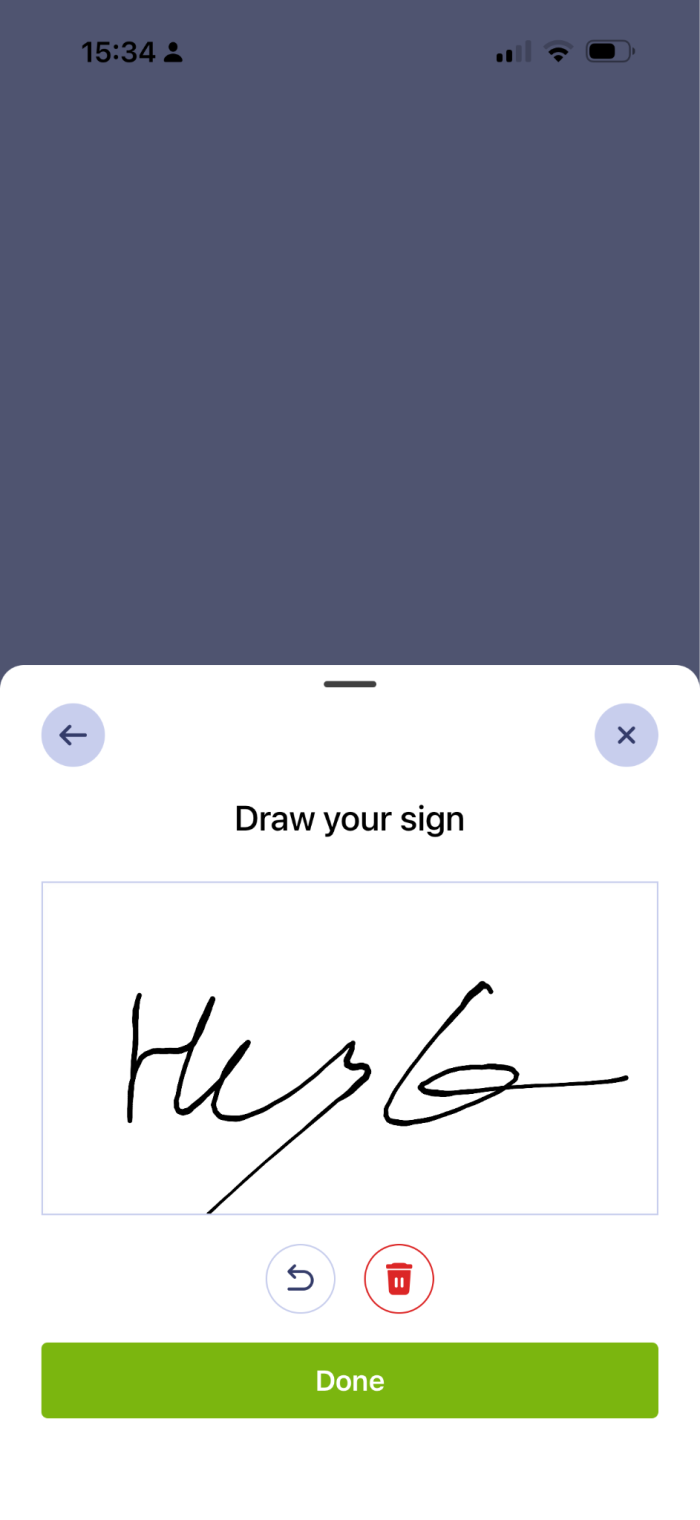
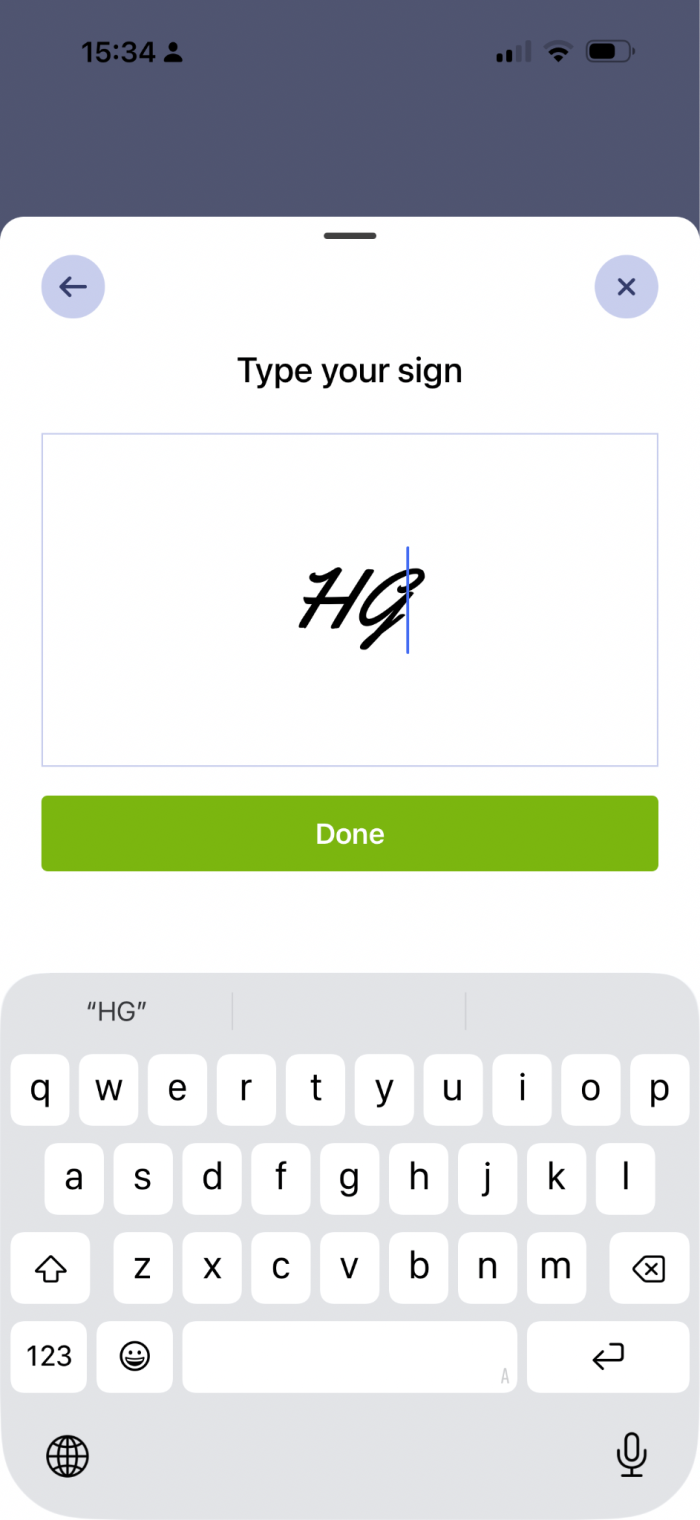
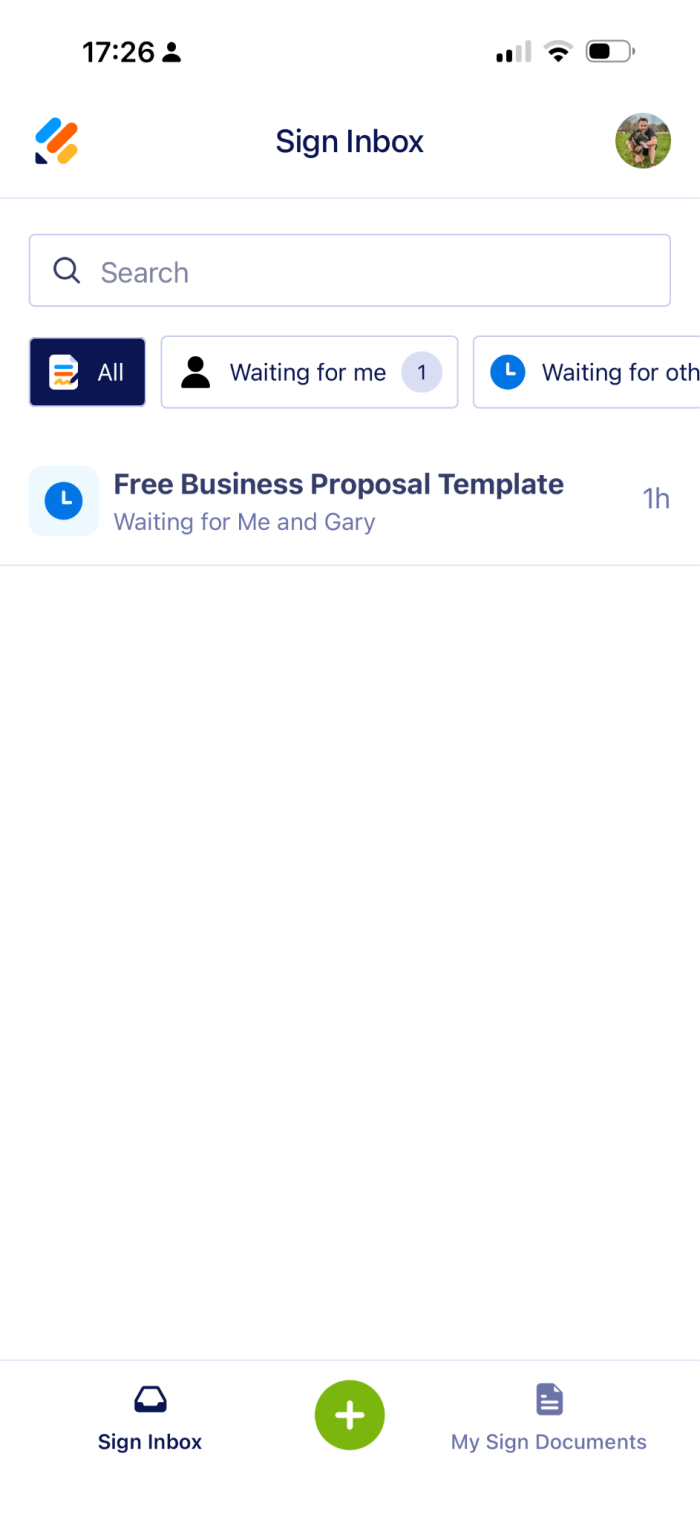
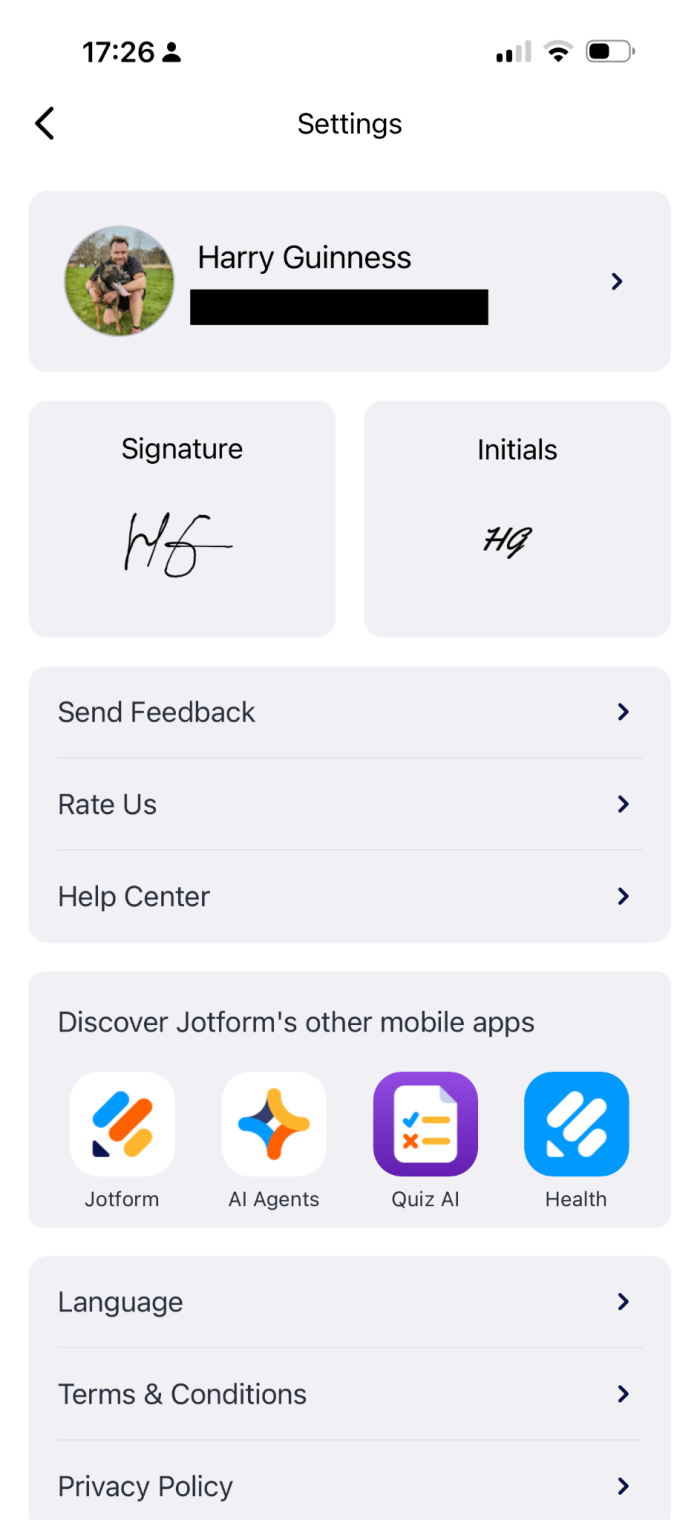
To change your default signature, tap your profile picture in the top right corner of the screen and select Signature. Draw your new signature and tap Done. This will now be your default signature.
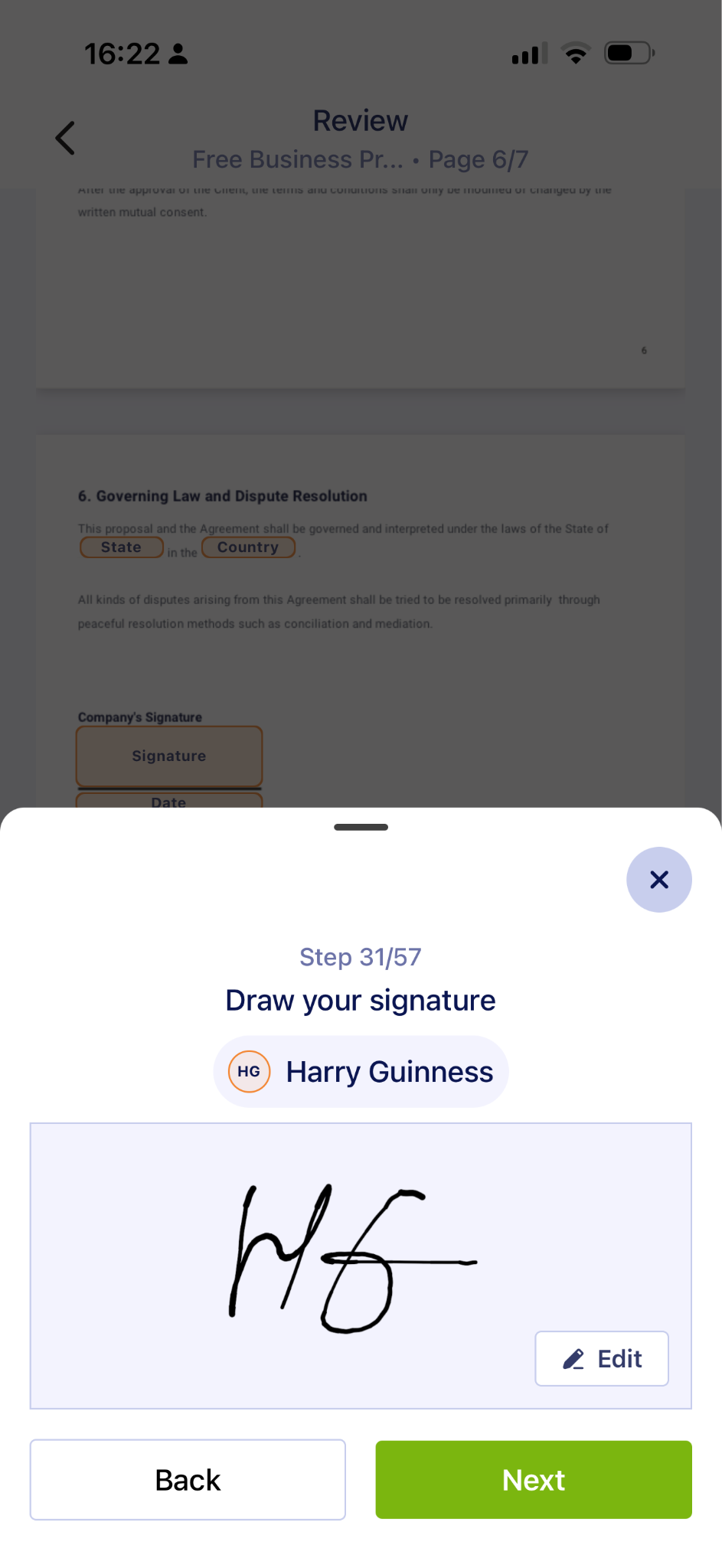
To change your signature when you’re signing a contract, tap Edit and create a new signature. That’s it! Then continue filling in the form.
Not only does the Jotform Sign Mobile app make it easy for you to change your signature, but also it’s a powerful professional tool — and free to get started. If you don’t want the hassle of hidden menus, the annoyance of being unable to change your signature, or any of the other issues that some other Docusign alternatives bring, check out the Jotform Sign Mobile app.
FAQ about Docusign signature changes
To edit a signature in Docusign, click the profile icon, then Manage Profile, then Signatures. Click the Actions menu on the signature you want to change and select Edit. Update your name, signature, or initials, and click Create. You can select a new signature from the default styles, by drawing your own, or by uploading an image of your handwritten signature.
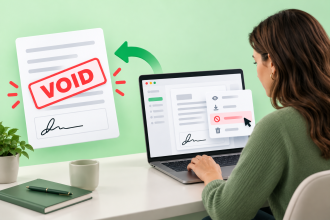
No, there’s no way to update your Docusign signature after you’ve completed a document. Once it’s sealed, no one can edit it — including the sender. If the document isn’t complete, ask the sender to void it and send a new version.
If the sender allows it, you can pass a contract on to someone else to sign it. While signing, click the arrow next to Finish and then Assign to Someone Else. Add the new signer’s name and email address. You can also provide a reason that you’re assigning the recipient.
Go to Manage Profile and then Signatures. Create or edit a signature and select Upload. The max file size is 200kb and it has to be a Jpeg, gif, PNG, or bitmap file. As well as your signature, you also have to upload an image of your initials.
This article is for professionals, freelancers, and SMB owners who are currently using Docusign but are experiencing UI friction, or those who feel nickel-and-dimed by legacy e-signature platforms.






































Send Comment: