
How to resend Docusign to one person: Quick tips
- Do NOT click the large “Resend” button at the top of an active envelope, as this sends a reminder to all pending recipients who are actively able to sign.
- To safely resend to just one person, go into Correct mode, click the Customize button next to the signer’s name, write them a private message, and click Next: Add Fields and then Correct at the top to resend.
- Alternatively, use Jotform Sign to easily track document status visually.
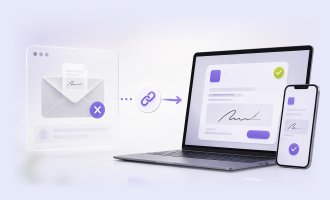
You’ve just received the message you’ve dreaded ever since you started using Docusign: Someone you recently sent a contract to accidentally deleted the email containing the link. Could you please resend?
The panic is real. How can you resend a Docusign email without spamming everyone involved in the contract-signing process?
Docusign is a popular tool, but that doesn’t mean it’s always easy to use. Unfortunately, the “Resend” button doesn’t allow you to be selective, and there’s no other obvious way to handle this situation.
But don’t worry — you’re in the right place. We’ll show you exactly how to resend Docusign to one person, step by step. At the end of this article, we’ll also give you a peek at a better, more intuitive tool you can try: Jotform Sign.
Pro Tip
If you need a primer on the basics of this tool, head over to our resource, What is Docusign?
Docusign: How to resend to one recipient
Follow the directions below if you’re sending Docusign to multiple signers and need to resend to just one party who has lost the original email or needs a gentle nudge, without bothering the rest of the signers.
Important note: If your envelope has a signing order and the intended recipient is NOT next up to sign, these instructions won’t work; Docusign won’t send a notification to someone who cannot yet sign. In that case, you’ll have to wait to execute this Docusign envelope resend process until their turn has arrived. However, if you did not set a particular signing order, the instructions below will work as expected.
Here’s how to send a reminder in Docusign to one person:
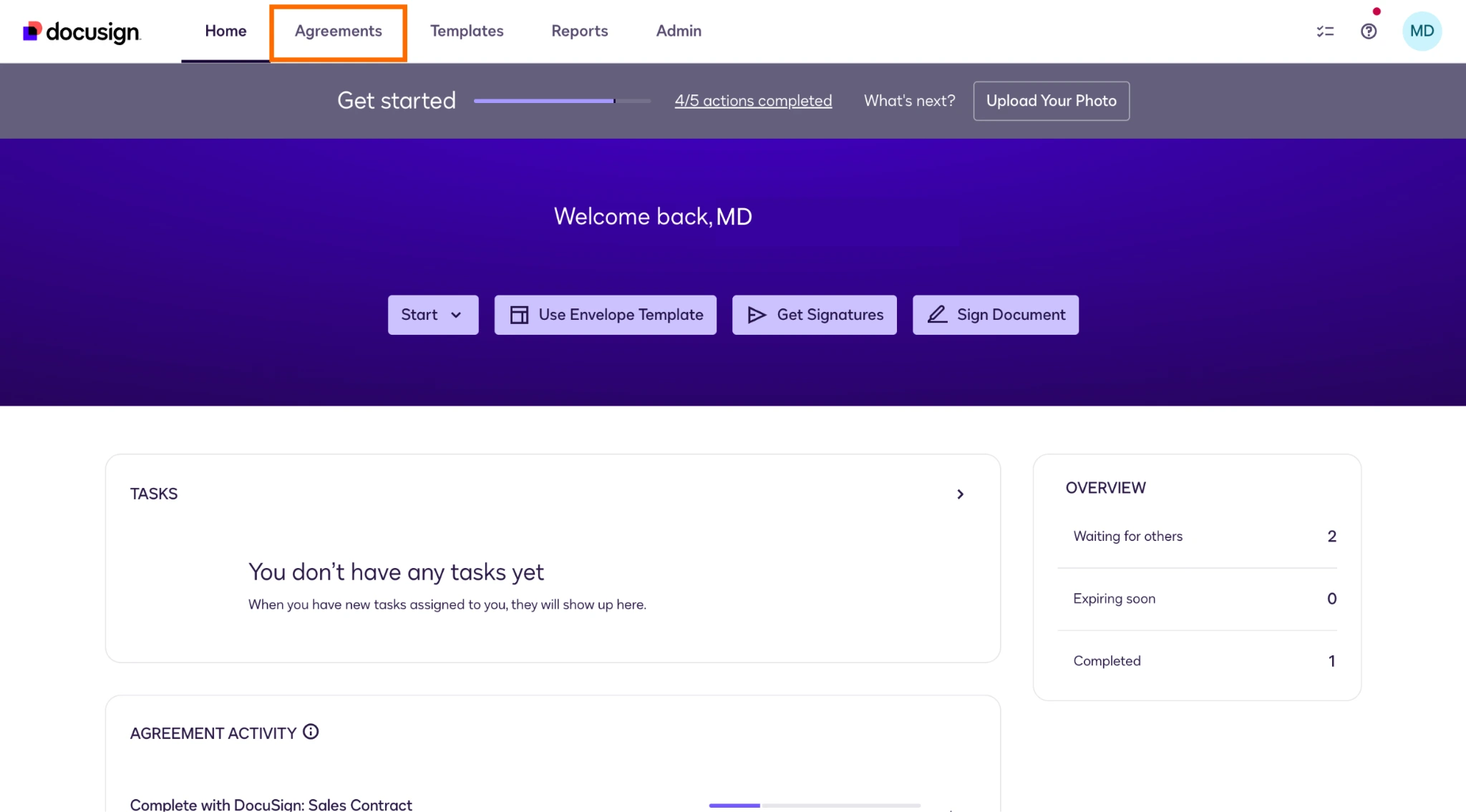
- Navigate to the Agreements page via the menu at the top.
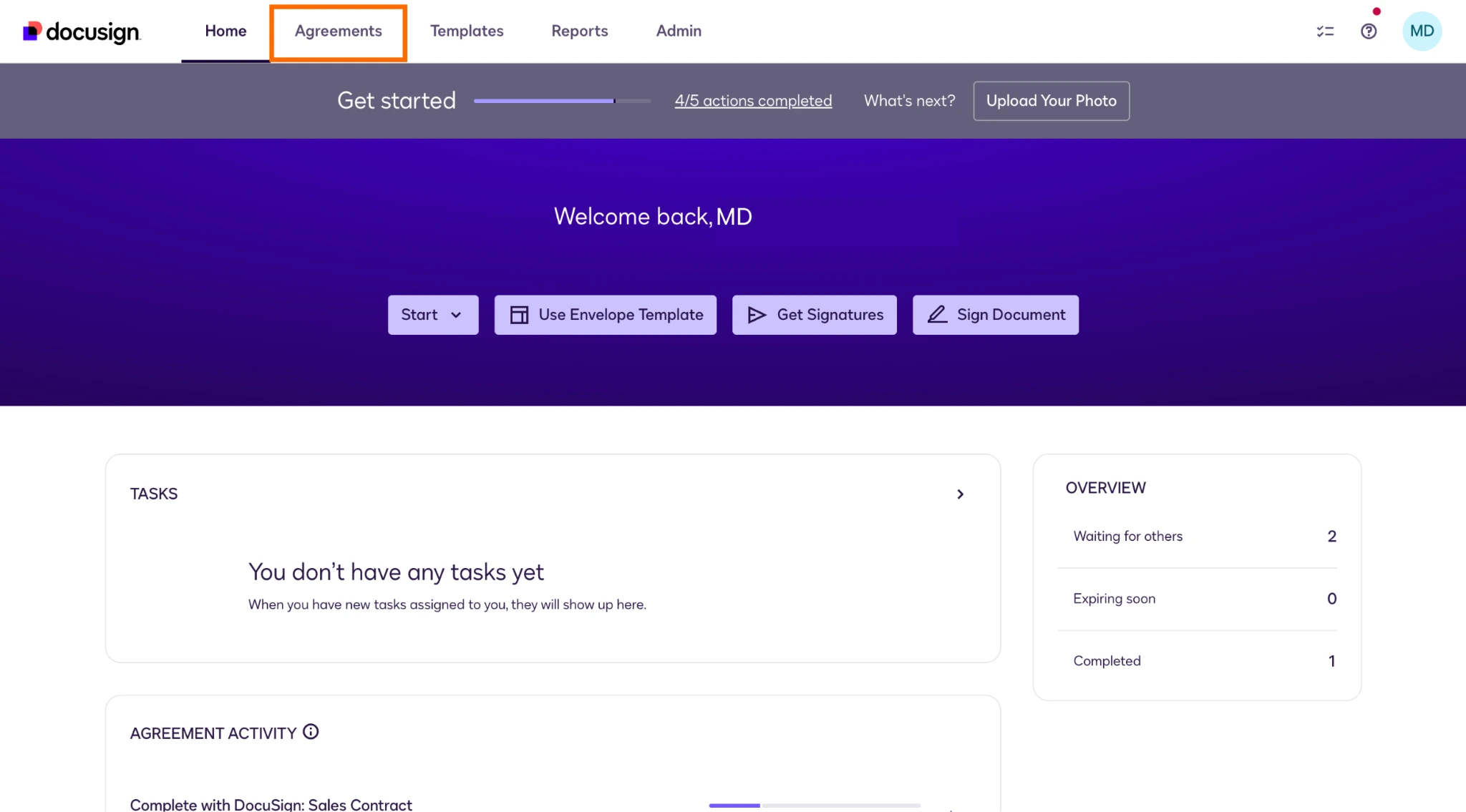
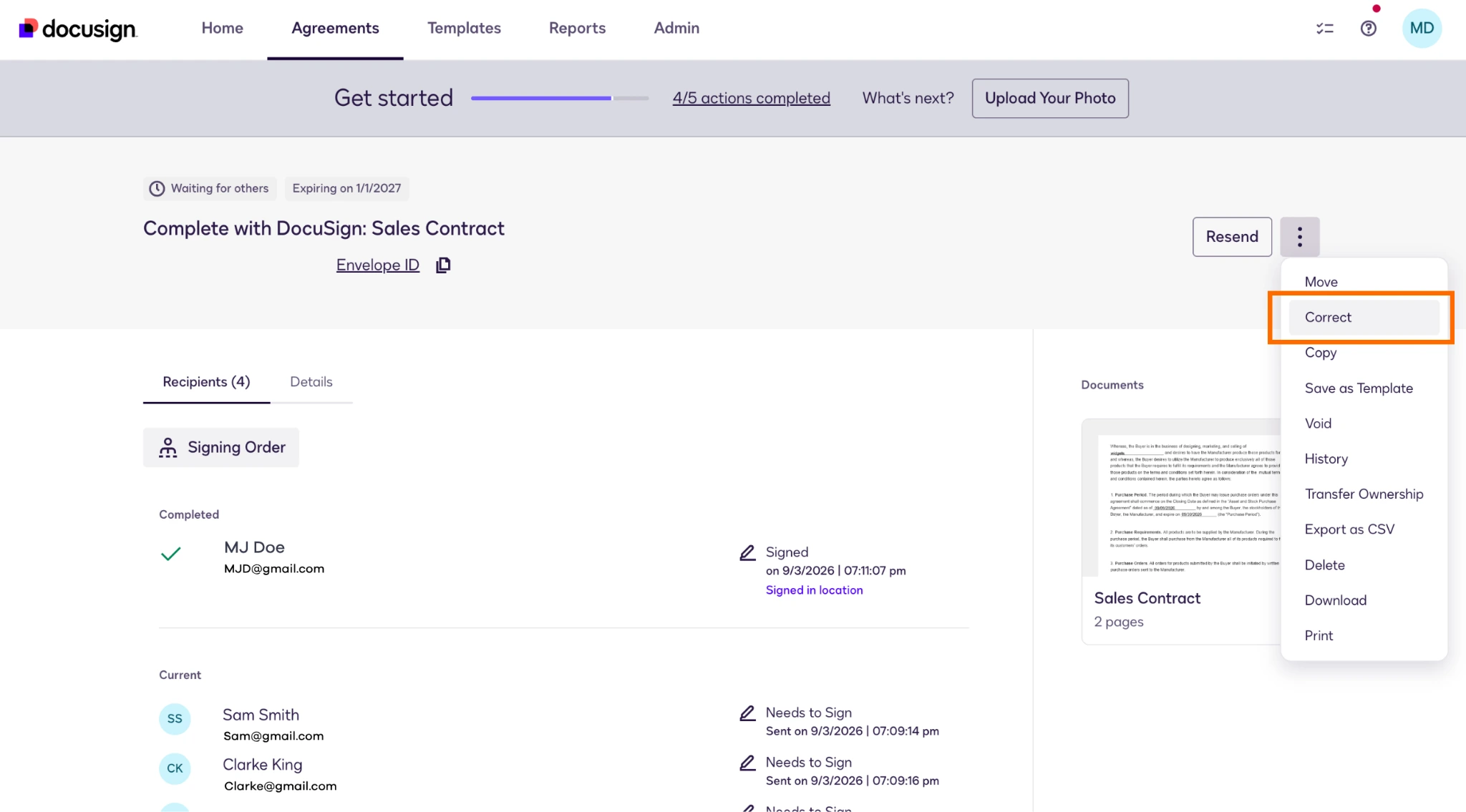
- For the agreement you need to resend, click the three vertical dots next to the Resend button and choose Correct from the dropdown menu.
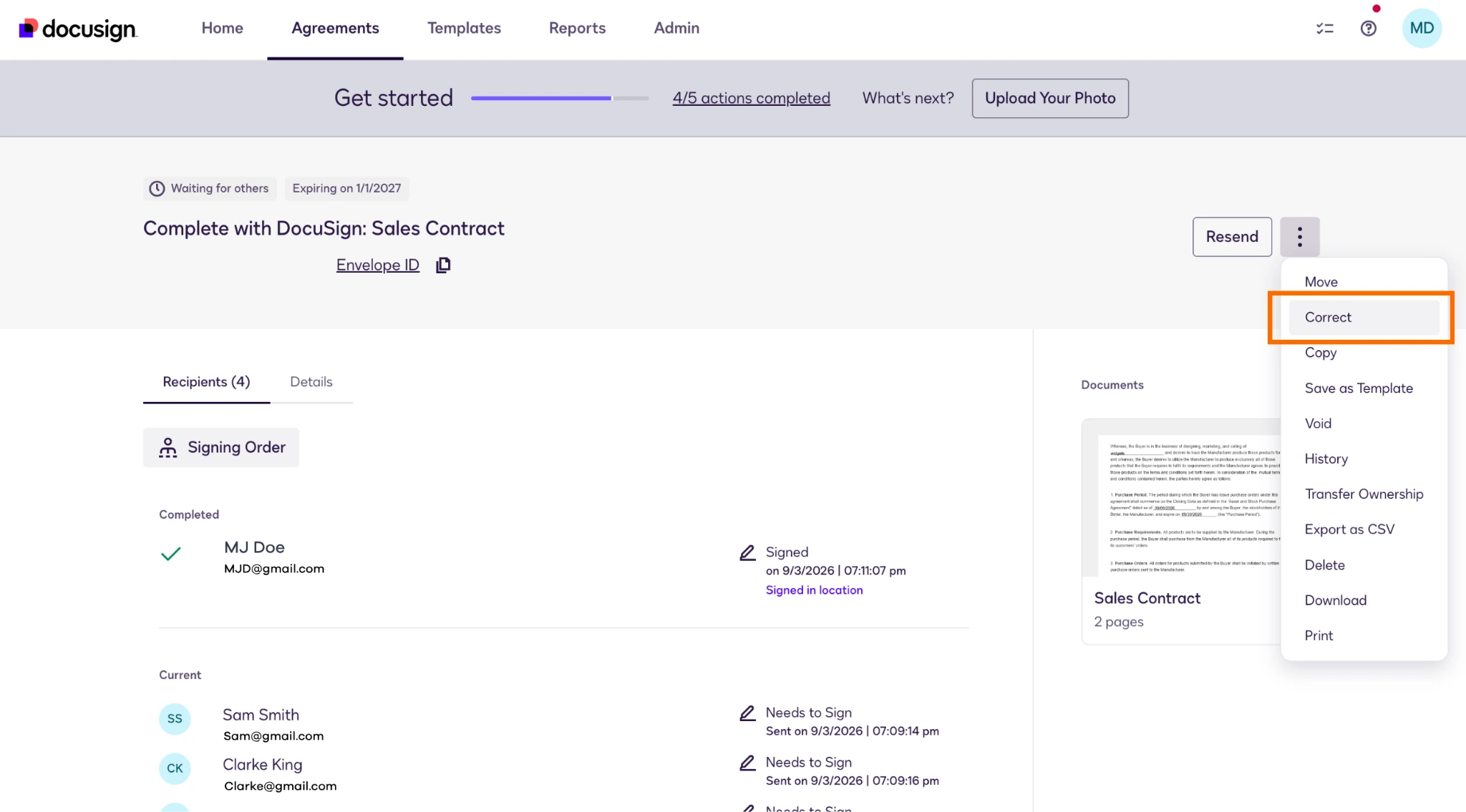
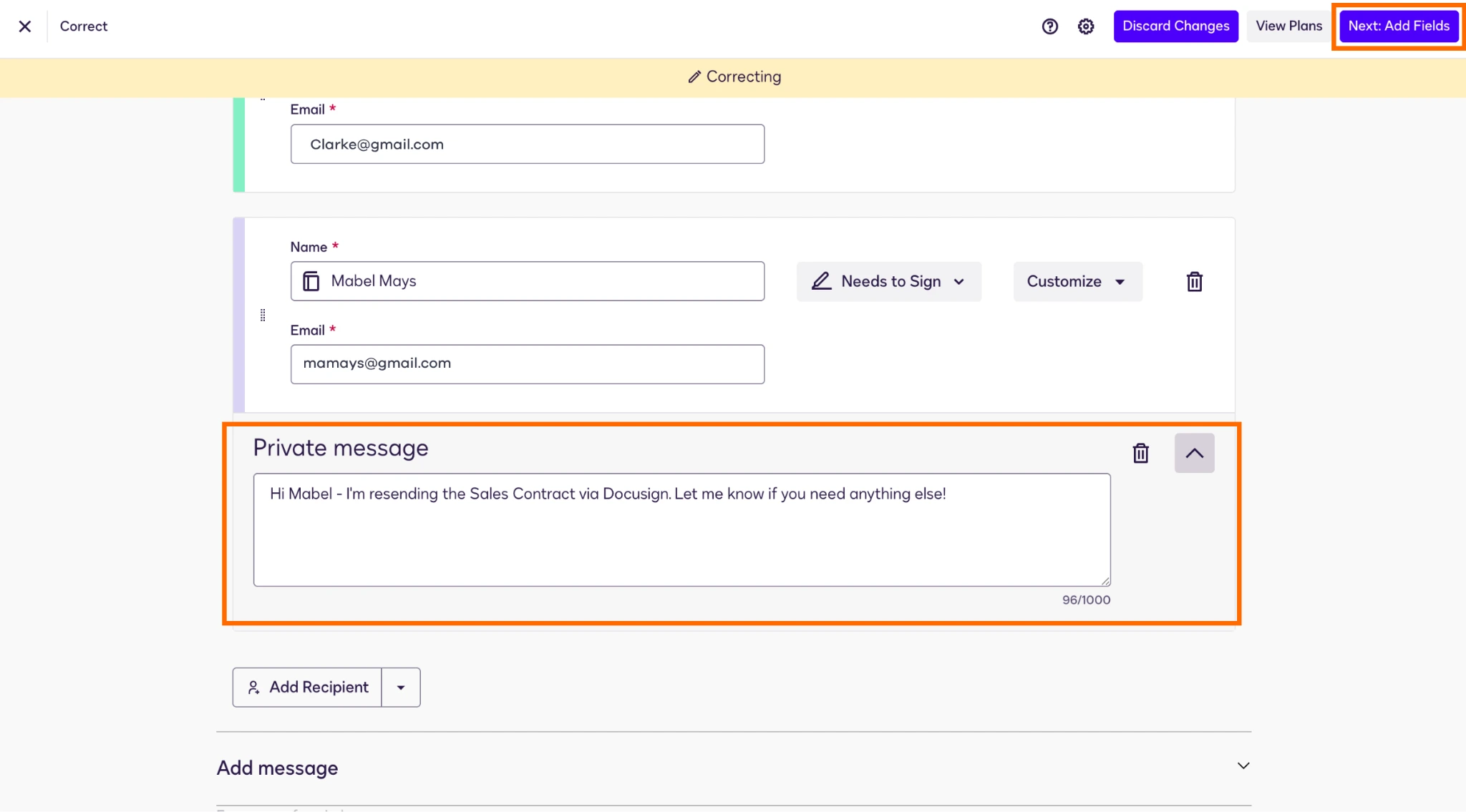
- Expand the Recipients section and scroll down to the person you want to resend to. Click the Customize button and, from the dropdown menu, select Add private message.
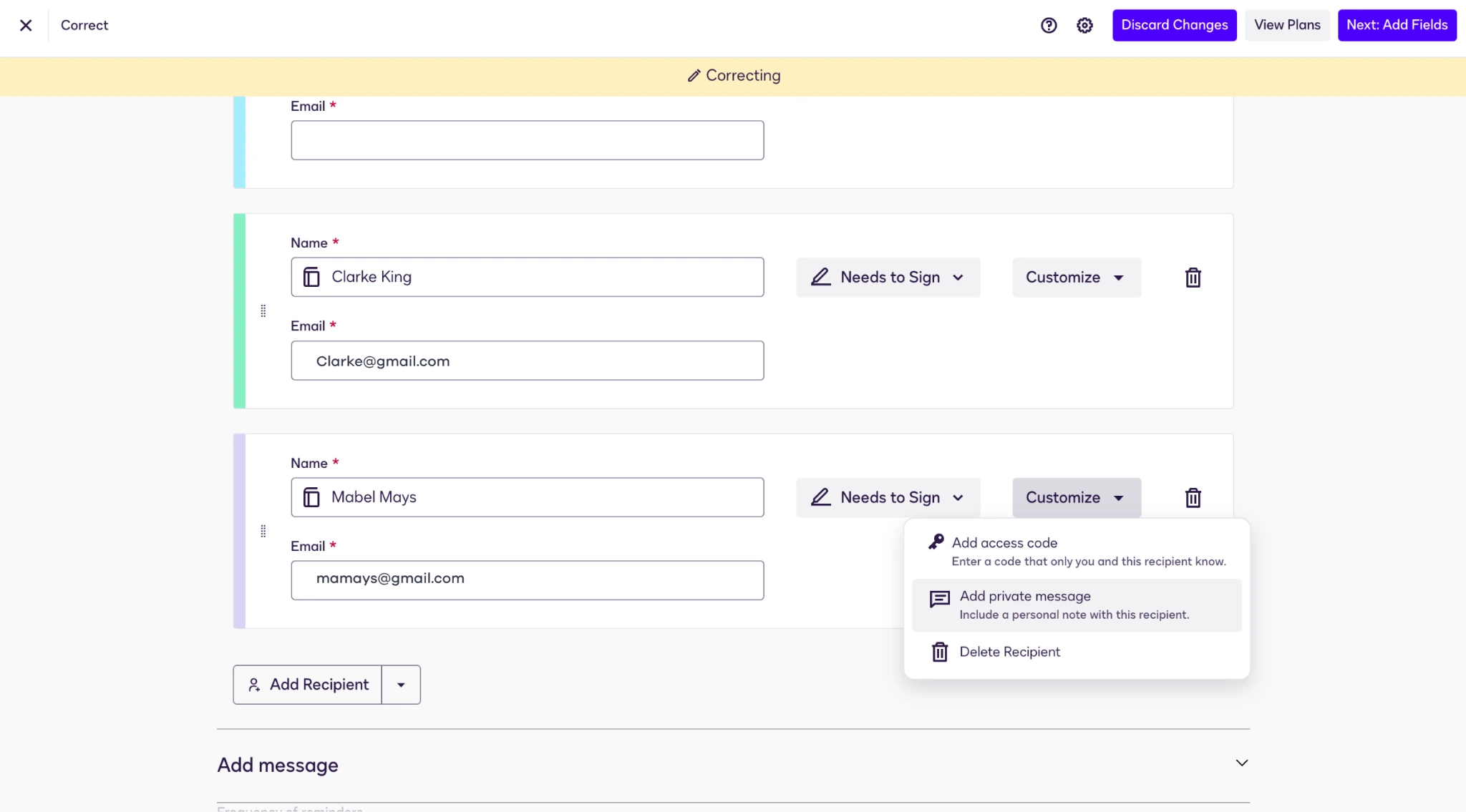
- Type your message in the box. Then click Next: Add Fields at the top.
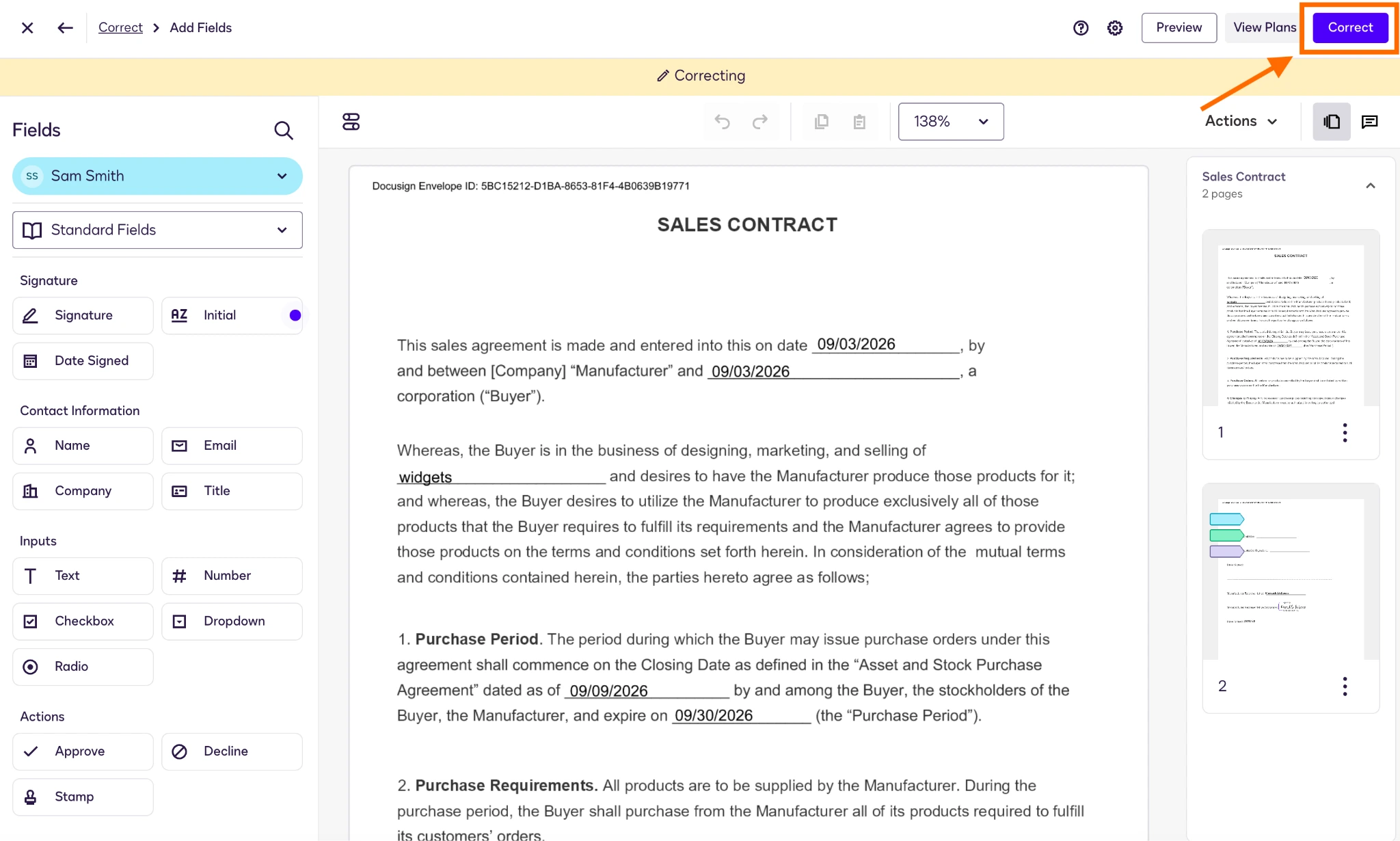
- Click Correct on the following page.
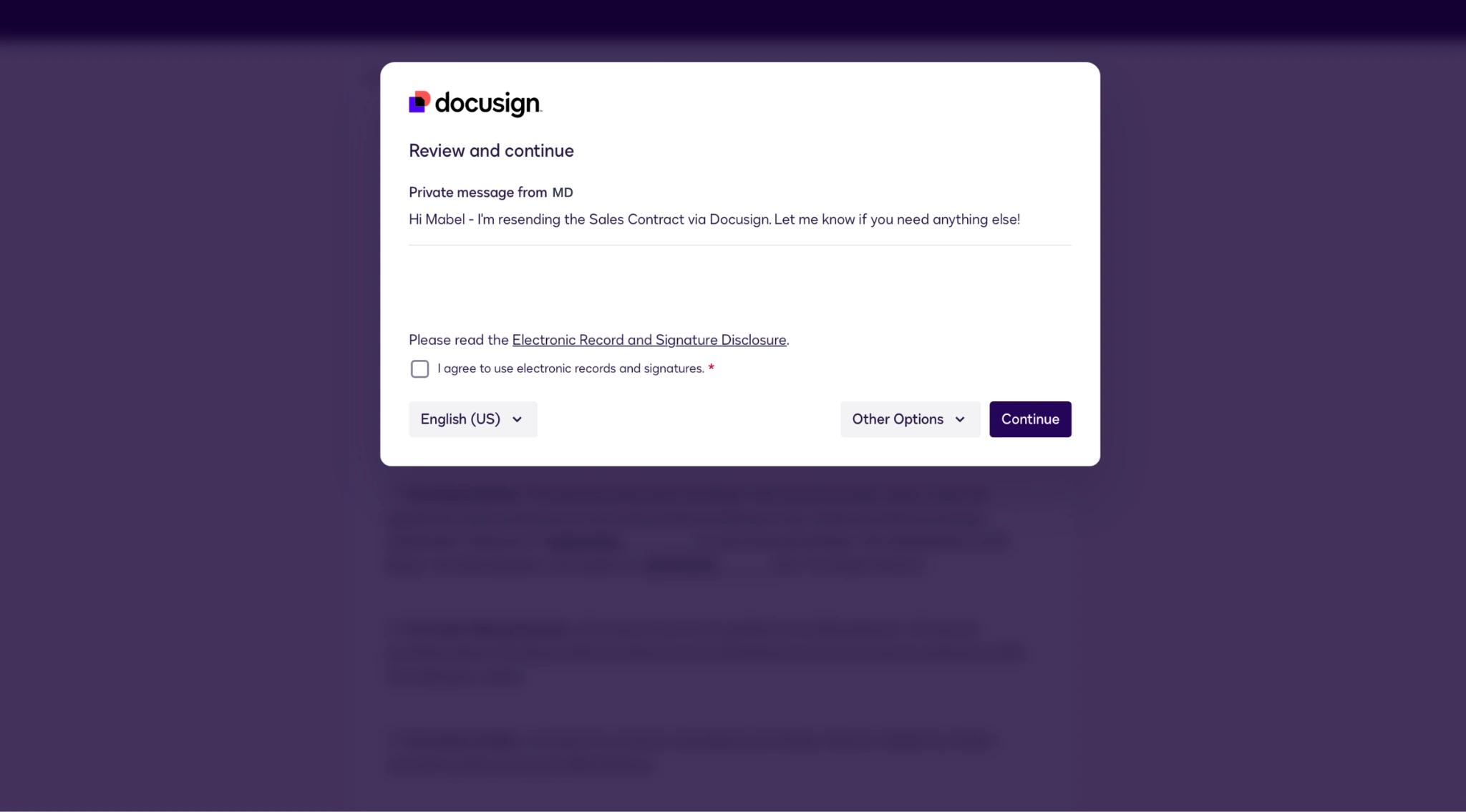
You’ll see a notification that the document will be resent, along with your note, to the one recipient as indicated. They will see your message along with a link to the document.
How to correct and resend to an email address if it bounced
- From the Home page, navigate to the Agreements page.
- Next to the relevant agreement, click the three vertical dots to the right of the Resend button and choose Correct from the dropdown menu.
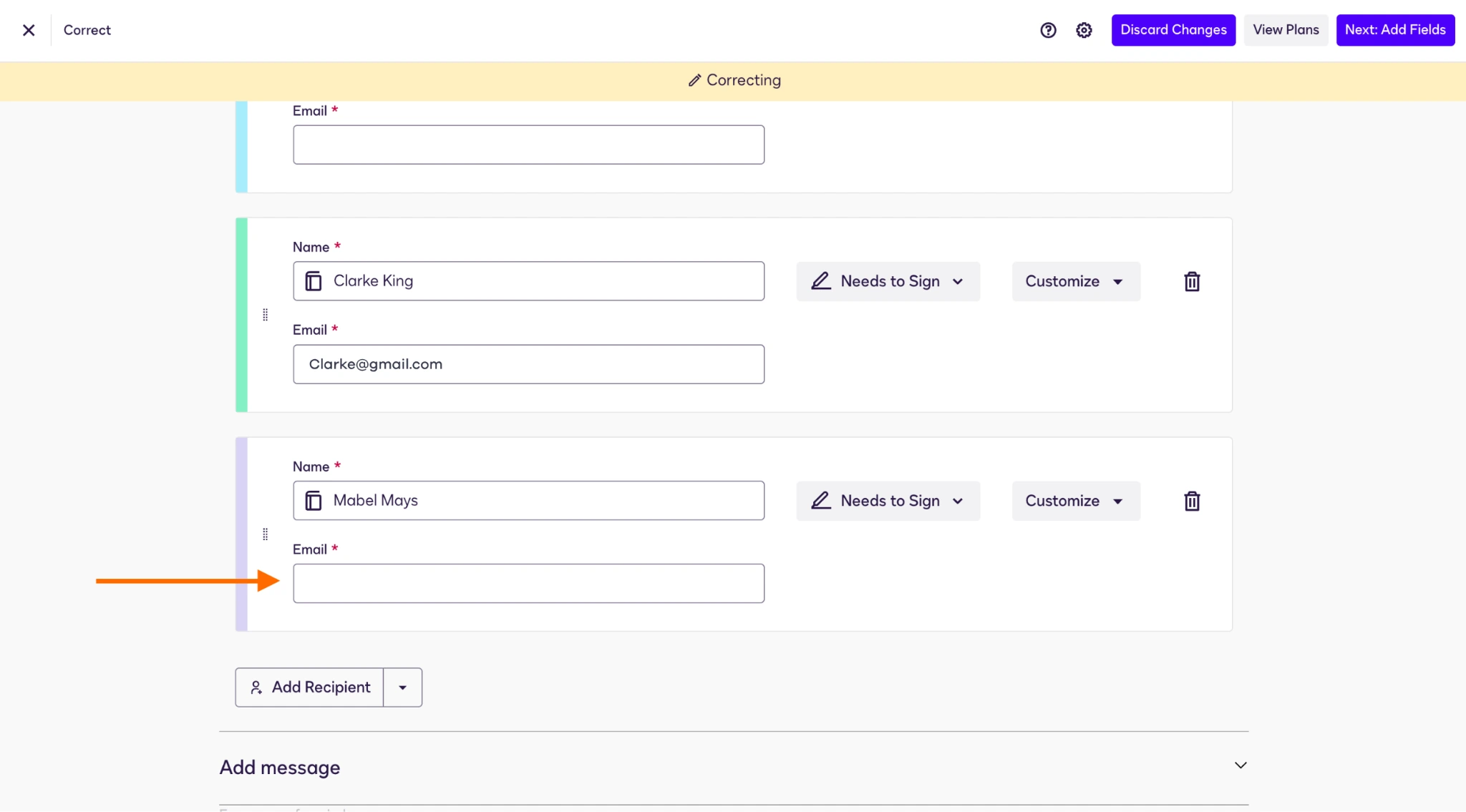
- Expand the Recipients section and scroll down to the person you want to resend to. Edit the email address as needed. Then, at the top, click Next: Add Fields.
- On the following page, click Correct at the top and, again, you’ll see a notification that the document will be resent only to the recipient associated with the corrected email.
If you’d prefer to provide a link rather than send an email, follow these instructions for sending a Docusign link. Alternatively, if your group will be meeting in person, here’s how in-person signing works with Docusign.
Try a smarter, frictionless alternative: Jotform Sign
Managing document tracking shouldn’t feel like you’re navigating a minefield. Some tools, like Docusign, have turned what should be simple actions into complex processes that take time or outside expertise to navigate. As a result, there’s always some level of anxiety attached to even basic tasks like follow-ups or resends.
But Docusign isn’t your only option. A more modern, simpler solution is Jotform Sign. One of the most popular Docusign alternatives, Jotform Sign was tailor-made for creating, tracking, and signing electronic documents. It makes navigating through tasks easy and intuitive, so you’ll never have to worry about learning confusing processes or disrupting the natural flow of signature-gathering.
Here are just a few reasons why you’ll love Jotform Sign:
- Clear visual tracking: You can see all your in-progress workflows at a glance with the Jotform Sign Inbox. It gives you a clear breakdown of who has signed and who is holding up the process, and you can filter and sort documents as needed.
- Automated reminders: You can set up automated reminder emails before sending documents to save time and keep signing on track. (Here’s a look at how to automate forms in both Docusign and Jotform for a comparison.)
- Sign preview: You can preview documents and each step of the workflow in advance of sending to ensure signing goes smoothly for everyone.
- Easy-to-use mobile app: Jotform Sign Mobile makes it easy to create, track, and sign documents from anywhere — and there’s no need for signers to download the app.
With Jotform Sign, you can have confidence in the e-signature process.
How to manage and remind signers in Jotform Sign
Reminding signers is a snap in Jotform Sign. Here’s how it’s done:
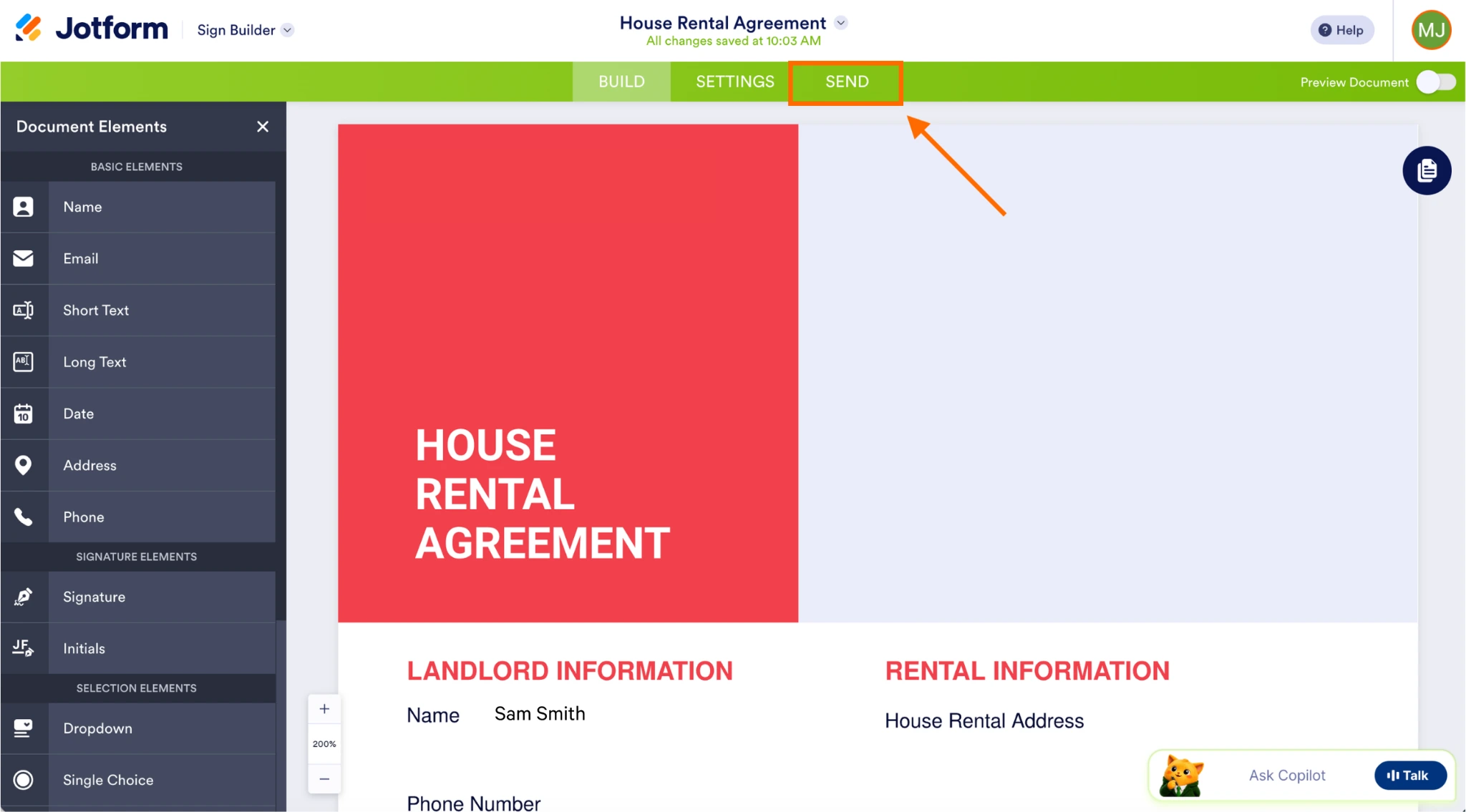
- In the Jotform Sign Builder, click Send at the top.
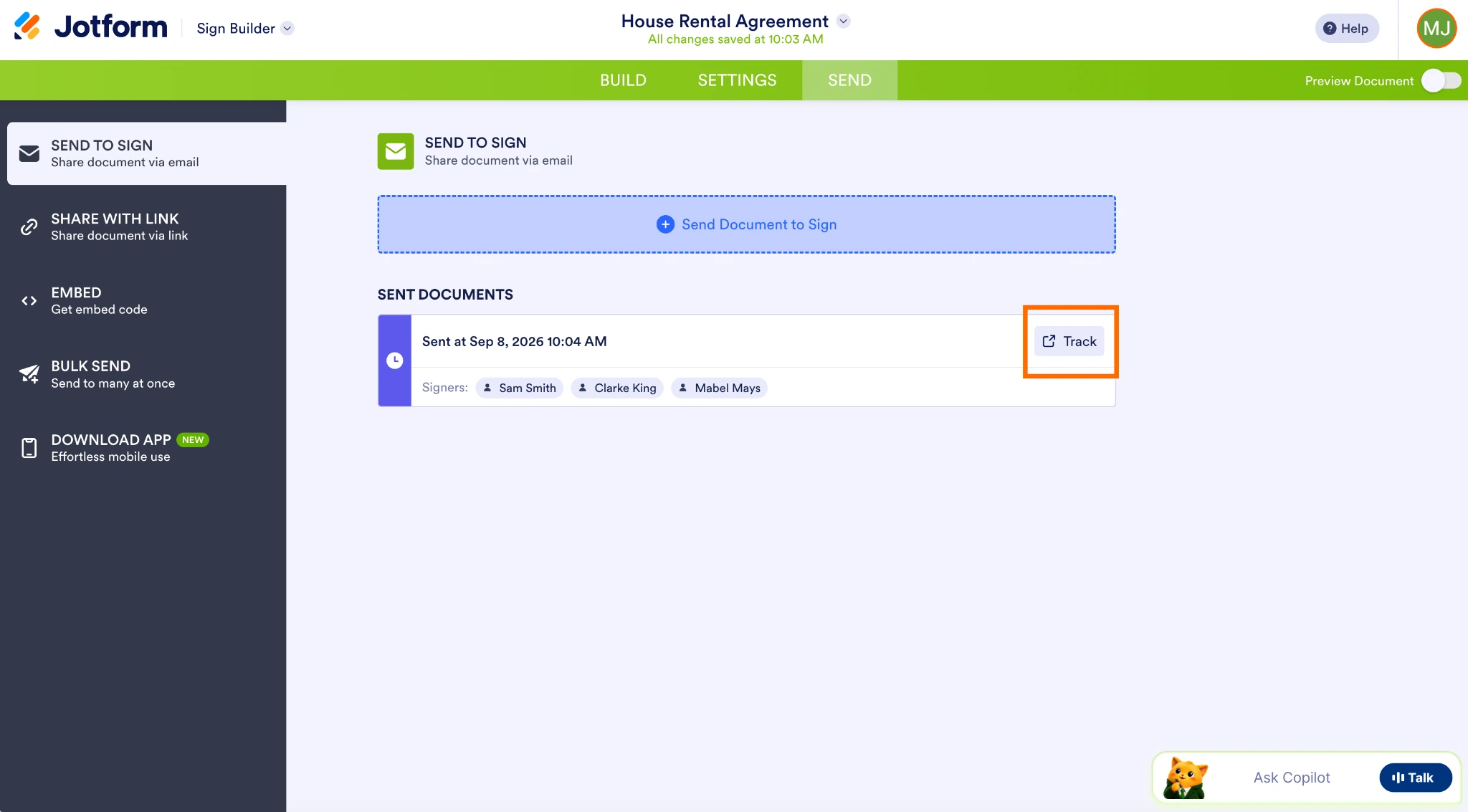
- Click the Track button in the Sent Documents box.
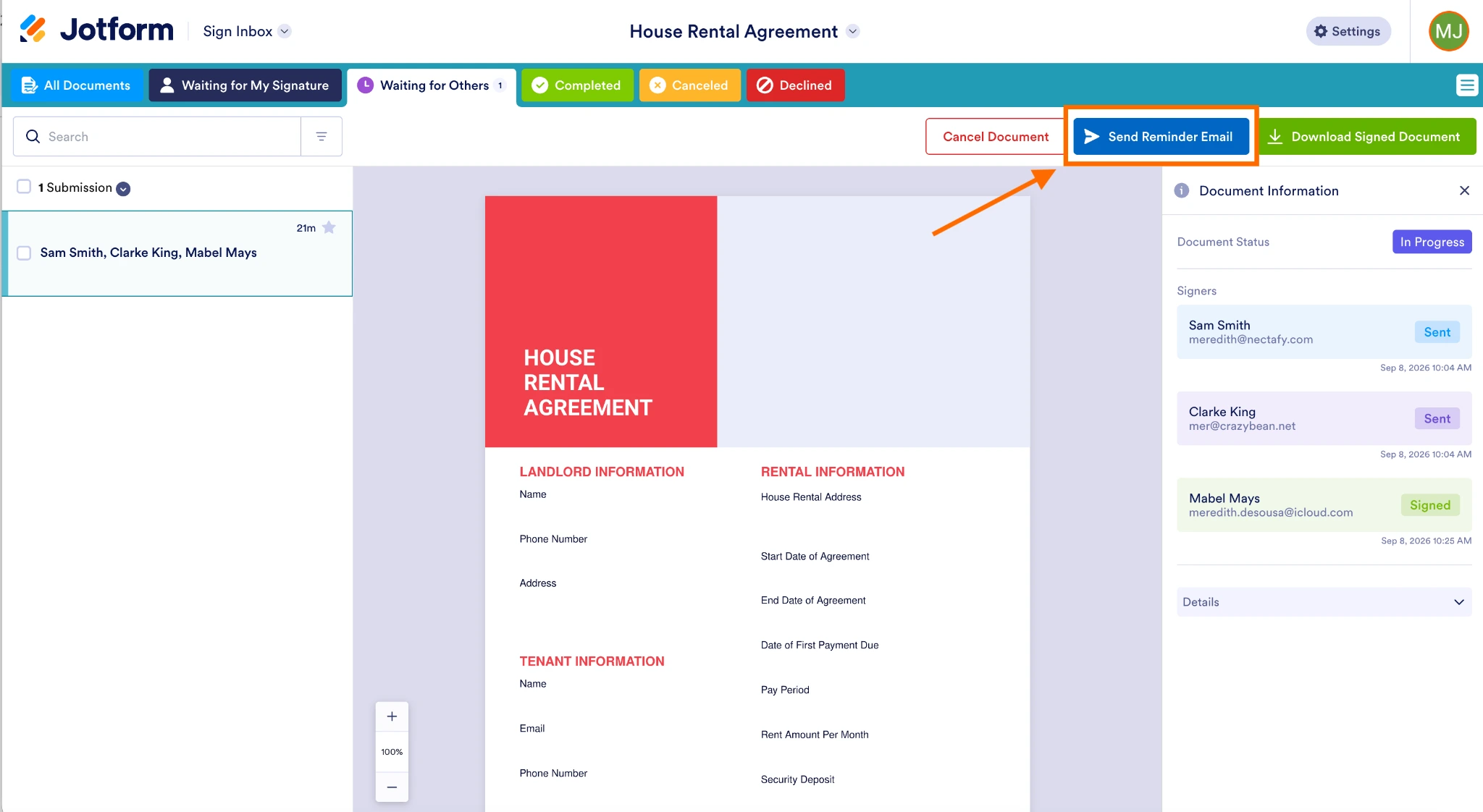
- In the Sign Inbox, click Send Reminder Email at the top.
- Click Send in the confirmation box.
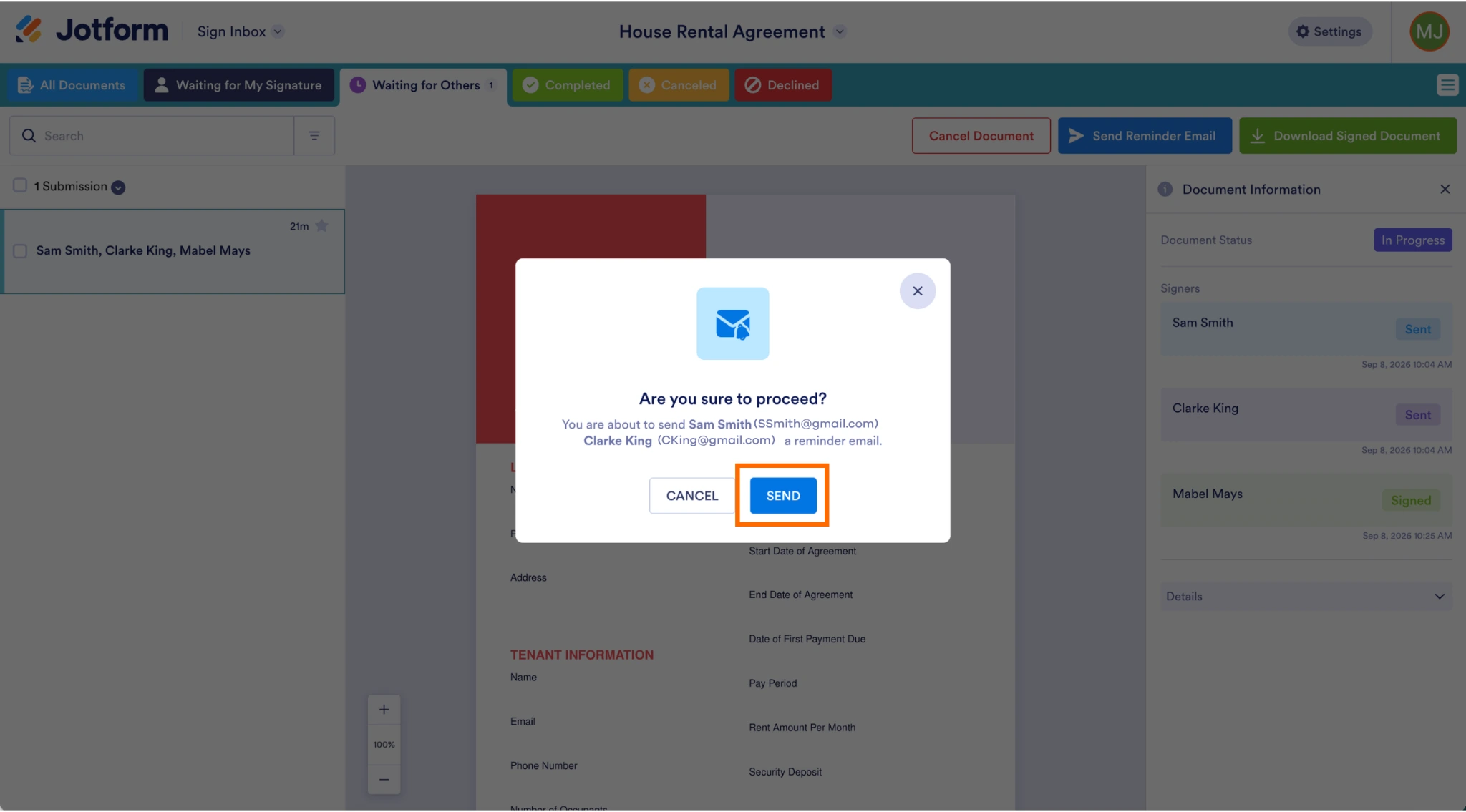
That’s it — the email will be resent to the recipients who haven’t yet signed the document.
Jotform Sign makes it easy to send, track, and resend signature requests without the unnecessary hoops. So why not start simplifying your e-signature processes today? You can get started with Jotform Sign for free right now. Once you’ve made the switch, you’ll never look back.
FAQs about resending Docusign envelopes
A grayed-out Resend button could indicate one of several things: the envelope is still in draft stage, there may be no more active recipients to notify, or the workflow for that document has been closed. It could also mean that you don’t have the authority to send or resend documents within Docusign.
Yes, you can set up automated reminders in Docusign to people who haven’t yet signed after a certain period of time. This includes setting a start date for the first reminder and the frequency of follow-ups. You can also set an automated notification for envelopes that are about to expire.
No. Resending an envelope sends recipients a new email notification with a new link to open the envelope, but links in previous notification emails should continue to work unless they have expired. Whether a recipient needs to verify their identity again depends on the sender’s authentication settings and may also vary by device or session.
AS ALWAYS, CONSULT AN ATTORNEY AND/OR OTHER APPLICABLE PROFESSIONALS BEFORE RELYING ON ANY INFORMATION ON THIS PAGE. THE CONTENT ABOVE IS FOR INFORMATIONAL PURPOSES ONLY. JOTFORM IS NOT PROVIDING LEGAL, TAX, FINANCIAL OR OTHER ADVICE.
This article is for sales reps, HR professionals, and project managers who are tired of Docusign’s confusing envelope management and terrified of spamming their clients with duplicate emails just to get a single signature.


































Send Comment: