
“Why is my Google Form not accepting responses?”
If you’re currently uttering this phrase in frustration, we get it. Once you’ve spent time creating a form — whether it’s a class quiz, event registration, customer feedback form, or anything else — you’re anxious to set it in motion. If there’s an issue, you’ll want to troubleshoot it fast so you don’t lose out on useful information from your audience.
Google Forms can reject new responses for a number of reasons, such as settings errors, account-level limits, and technical glitches. In this article, we’ll show you how to fix a Google Form that’s not accepting responses, ranging from a simple toggle to clever work-arounds.
Pro Tip
If you want to have more control over your form submissions, use Jotform Form Builder to set response limits, block duplicates, track submission statuses, and review everything in one organized workspace.
Check if the form is set to accept responses
Sometimes the best solution is the simplest one. It could be that all you need to do is make an adjustment in your settings to enable accepting responses in Google Forms.
If your form is set to Not accepting responses, it will welcome you with a banner that states that on top of the page.
Click on the Manage button on the banner to go to the Published Options menu.
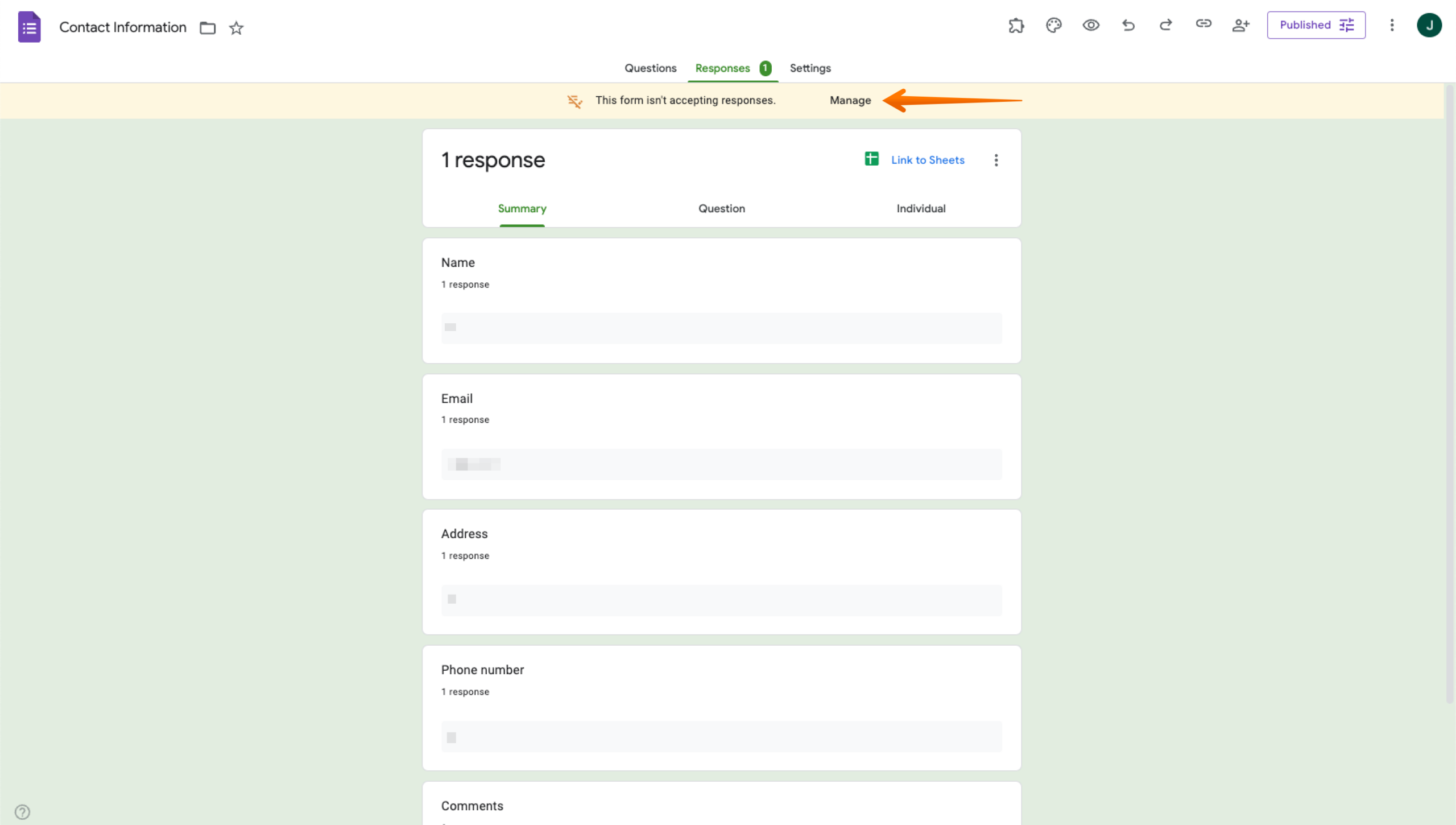
If the form is toggled to Not accepting responses, it will look like this:
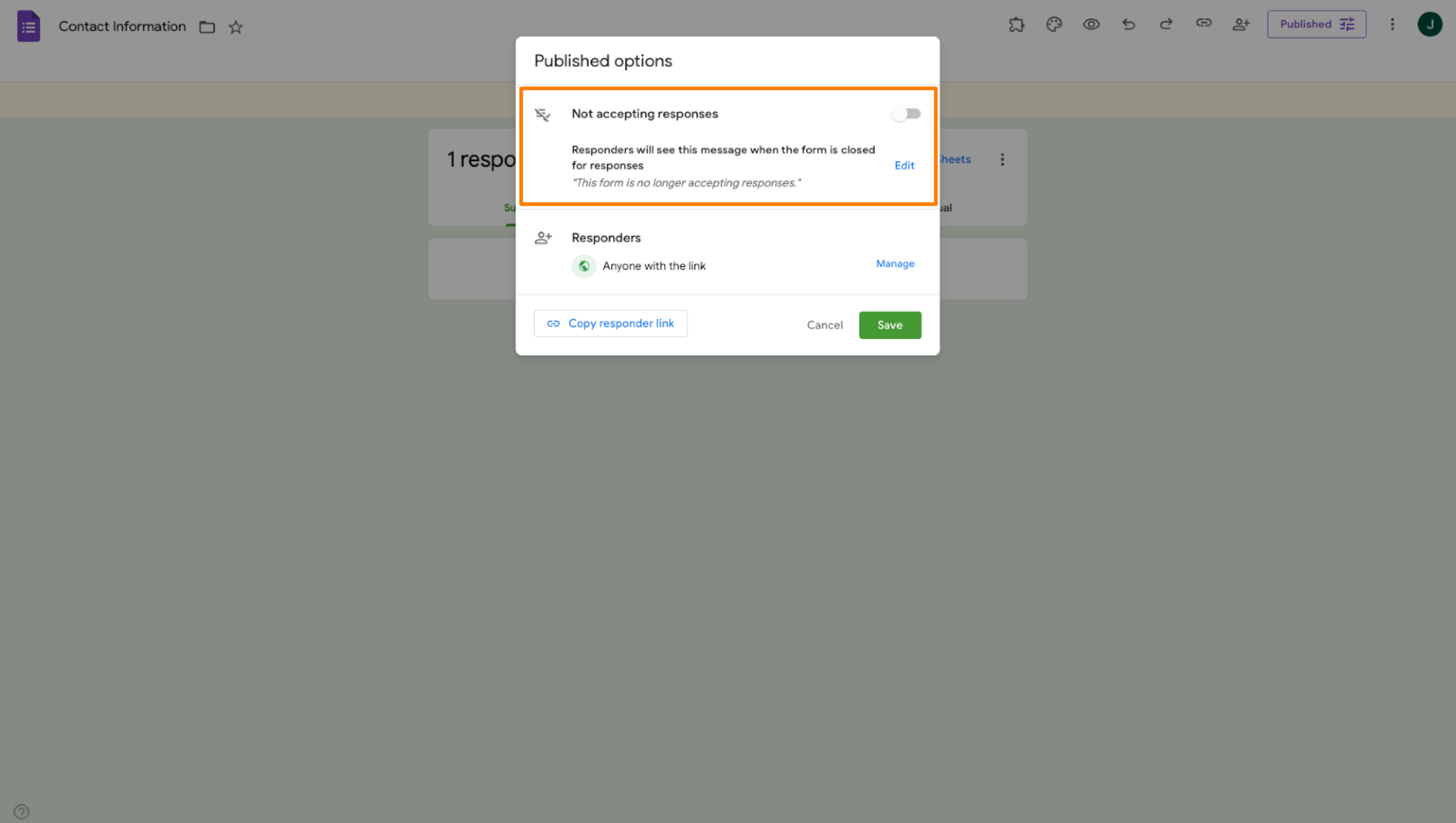
Simply toggle the slider back to Accepting responses. This should resolve the issue.
Pro Tip
If you ever do want to stop form responses, you have the option to edit the message that appears for anyone who might click on the inactive form.
By default, it will say “This form is no longer accepting responses,” but you can click on the Edit button below the slider and edit the message with your desired information. For example, you could add a more personalized message, such as the reason why you are no longer accepting responses.
Review your Google Forms settings
If you’re still not seeing any responses on Google Forms coming in, you may need to review your settings.
Navigate to the Settings tab in Google Forms and scroll down to the Responses section. Review the settings and make any changes based on the information you want to collect.
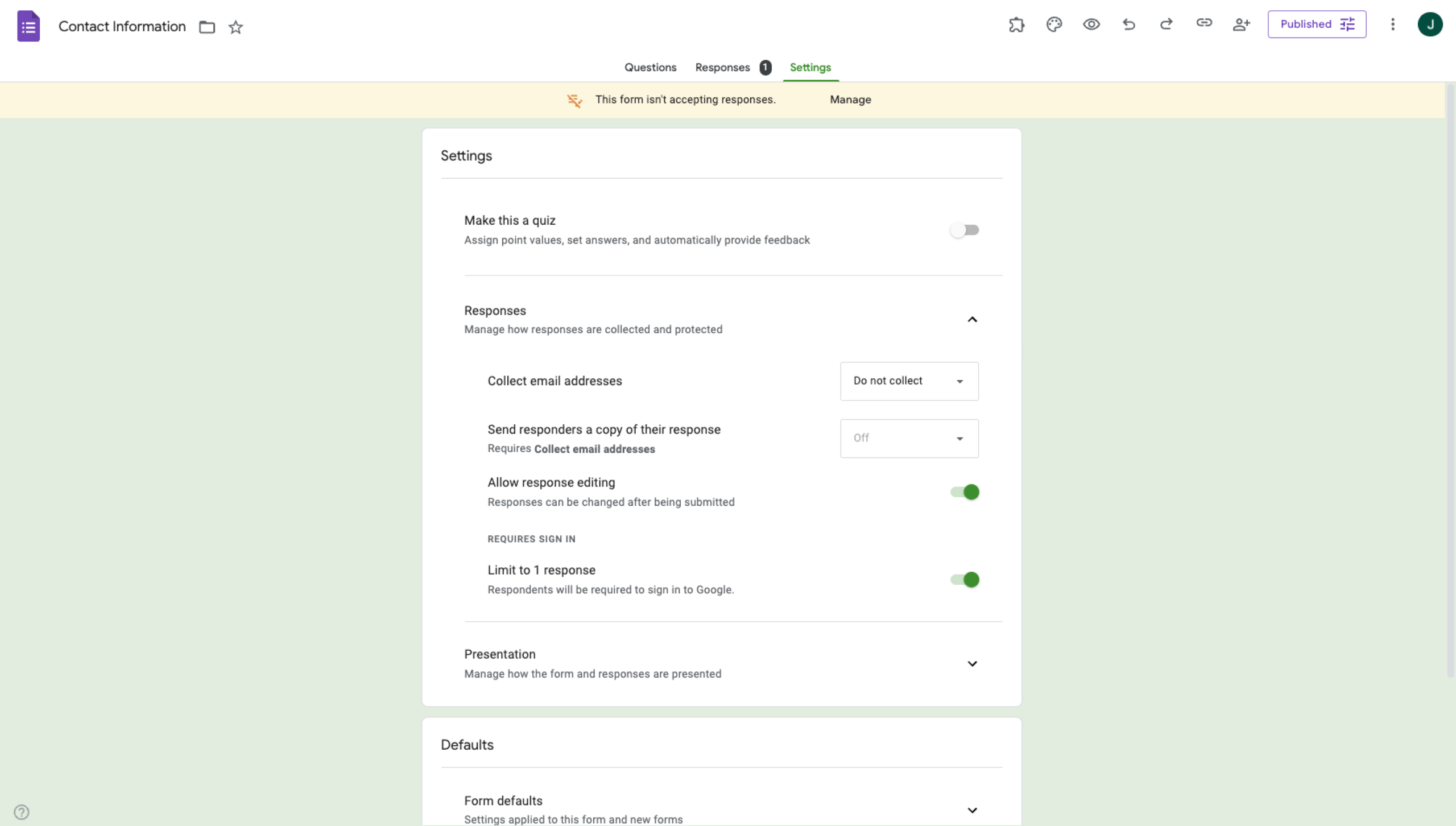
This tab includes response-related settings such as
- Collect email addresses
- Send responders a copy of their response
- Allow response editing
- Require sign in
- Limit to one response
- File upload size limits
Sometimes, the default settings on your Google Form can unintentionally restrict access for respondents. For example, if you want to allow respondents to send in more than one response but you’ve toggled off that setting, then you will not be able to collect the multiple responses you’re hoping for.
It’s best to check the settings whenever you create a Google Form. Note that your changes will be saved automatically.
Look for response limits
If Google Forms is still not collecting responses, it could be because you have reached a response limit.
Google Forms itself has no limit on how many responses it can collect. However, because Google Forms responses are automatically linked to Google Sheets, you are restricted by its limitation, which is five million cells.
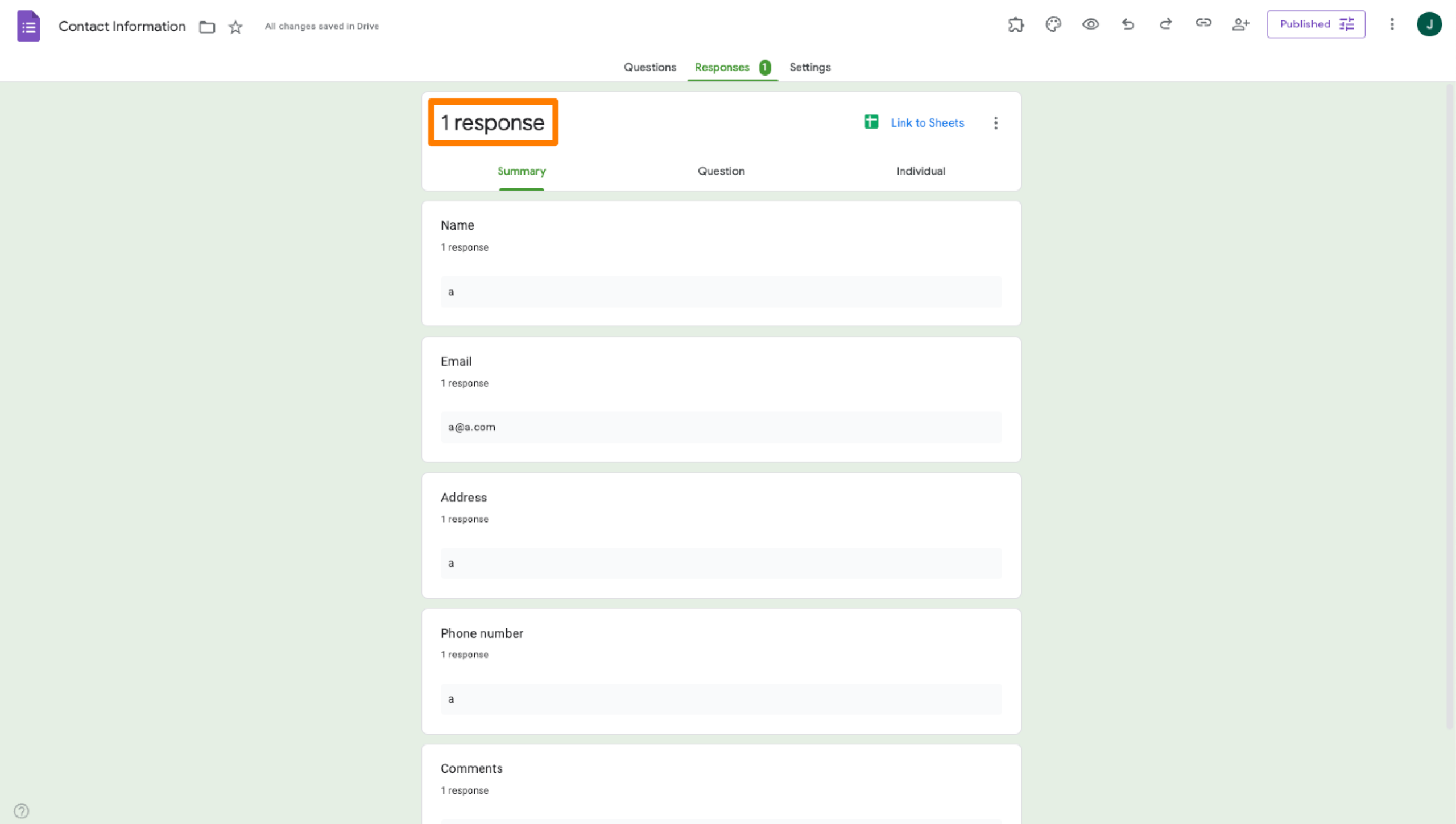
You can check how many responses you have collected so far by going to the Responses tab and looking at your total responses number. If the number is under five million, you can still collect responses in Google Forms. But if you’ve already reached five million, you’ll need to export and delete some responses so you can continue collecting more.
Pro Tip
While Google Forms doesn’t have a response limit, some third-party tools do let you set parameters. If your Google Form is not accepting responses and you’re still under five million, determine if you or a collaborator may have enabled a third-party tool to limit the number of responses you can collect. You may then need to change the response limitation settings on that tool to allow you to collect additional responses.
Troubleshoot end-user issues
If you’ve checked all the Google Forms settings for accepting responses and are still having trouble, then it’s time for some troubleshooting. Maybe the issue isn’t related to the form itself but to your specific situation. As you become more familiar with how to use Google Forms, you’ll likely be able to quickly pinpoint the problem.
Here are some tips to try if your Google Form is not accepting responses:
- Clear your browser cache and cookies: This removes any stored data and preferences from your browser, which could be impacting your form’s ability to collect responses.
- Try Incognito mode or a different browser: It’s possible that your browser is the issue. Switch up your browser or use Incognito mode for your Google Form to see if that fixes the problem.
- Confirm that the respondent has internet access: If the issue is with one user in particular, make sure they are connected to the internet. You can’t fill out a Google Form without an internet connection.
Use Google support resources
Sometimes, it’s hard to decipher why Google Forms is not accepting responses. If you’ve tried all the suggestions discussed so far but nothing has worked, it’s time to look at Google’s own resources.
Google offers a number of different support tools that may help you solve the form responses problem:
- Google Forms Help Center: Here you’ll find a number of online articles. One of them may describe a fix for your issue that you haven’t tried yet.
- Google Docs Editors Help Community:Read through user-generated posts asking for help on relevant issues. Some of the responses may be just what you’re looking for.
- Google System Services Release Notes: Search for recent known bugs or updates that may have impacted your ability to collect form responses.
Try Jotform: A better way to organize form responses
If you’re constantly battling the issue of a Google Form not accepting responses, it may be time to look for another form builder. Enter Jotform!
A leading alternative to Google Forms, Jotform is a full-featured form building solution that enables you to do more than just collect responses. Use it to build mobile apps, create visually stunning reports, collect electronic signatures, and so much more.
Jotform gives you more control over response collection than Google Forms:
- Robust status controls: Assign a status to each user’s form submission. For example, in a booking form, you can set the status of the response to Accepted or Declined.
- Form submission limits: You can automatically disable forms after you’ve reached the form deadline or received a certain number of responses. All it takes is one click in the Settings tab.
- Duplicate submission controls: Ensure that users don’t submit duplicate forms by allowing phone numbers or email addresses to be submitted only once. You can also manage duplicates coming from the same browser or IP address.
- Jotform Tables workspace: When you use Jotform to build forms, you also have access to Jotform Tables, where you can easily stay on top of form responses, view form submissions, and analyze your data.
If you’ve already started using Google Forms but want to switch to a more sophisticated form builder, it’s easy to migrate your Google Forms over to Jotform. Jotform’s import tool is simple and intuitive.
Jotform also makes it easy to understand your account usage and limits, so you’ll never be caught off guard about your form responses. This way, you can make strategic decisions about your workflows to maximize the platform’s advantages.
Regain control over your form responses
When Google Forms stops accepting responses for mysterious reasons, it can disrupt your workflow and cause you to lose out on valuable insights. If you’ve checked the settings and tried the other suggestions described in this article to no avail, it may be time to move on.
Compared to Google Forms, Jotform offers more robust form building features and greater transparency around your account usage and limits. Explore Jotform today and regain control over your form responses.
Frequently asked questions
It means that, for some reason, the software is blocking form responses from being submitted. This could be due to a form setting that has been unintentionally enabled or disabled.
If you are not receiving form responses in Google Forms, you may have accidentally disabled the ability to complete this action. Go to the Responses tab to make sure the Accepting responses setting is enabled.
If Google Forms is not working, visit the Google Forms Help Center or Google Docs Editors Help Community for suggestions. You’ll find helpful articles and user-generated content that can hopefully guide you in resolving the issue.
This article is for educators, survey creators, administrative staff, and anyone troubleshooting why their Google Form isn’t accepting responses — and who wants clear steps to fix it or switch to a more flexible tool like Jotform.






































































































Send Comment: