
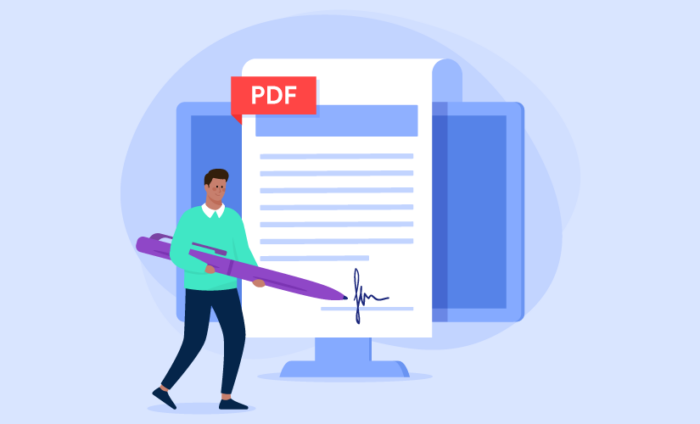

Top free PDF signing tools in 2026
- Jotform Sign is the best free e-signature workflow automation software
- Adobe Acrobat Sign is best for teams with volume signing needs
- DocHub is best for Google Drive and cloud integration
- Signaturely is best for users with light document signing needs
- Sejda is best for PDF editing and occasional signing
- PDF Candy is best for affordable billing
Printing a document, physically sending it for signature, and waiting to receive it back from recipients are among the outdated processes that slow business operations down. Thankfully, electronic signature apps have changed that. These tools make it easy to collect signatures online, keep your documents secure, and move things forward. Whether you’re signing PDF documents like contracts, onboarding forms, NDAs, or internal approvals, you can securely handle the entire process on your laptop or phone without delay.
But with so many PDF signing tools out there, including full-featured e-signature platforms and lightweight free apps, it’s not always obvious which ones are worth using. To help you make an informed decision, I tested a range of popular apps and narrowed them down to the six best free PDF signing tools in 2026. Below, I’ll introduce you to the platforms, including their key features, pros, and cons, and what to expect from their free plans. But before that, let’s quickly go over the key things to look for when choosing a free PDF signature app.


What to look for in a free PDF tool
The best free PDF signing tools aren’t just free — they also meet specific criteria that make them safe, reliable, and effective. Here’s what to keep in mind when choosing one:
- User-friendliness: Most tools follow a similar basic flow — upload your document, place fields, and sign or send for signature. The app you choose should feel intuitive from the start, with a clean layout and minimal learning curve.
- Strong security: PDFs often contain sensitive information such as contracts, onboarding forms, compliance documents, and NDAs. So, the best e-sign apps should offer solid protection. Look for those with encryption, access controls, authentication options, and compliance with recognized standards like GDPR, SOC 2, PCI DSS, and HIPAA.
- Mobile and offline accessibility: If you frequently work on the move, choose a tool with a mobile app or desktop app that lets you complete documents offline and sync them later.
- Integration capabilities: A PDF signing tool that connects seamlessly with the rest of your tech stack saves time and reduces manual uploads or downloads.
- Customization: Look for an app that lets you add branding elements, adjust colors, and even create reusable templates to maintain a consistent look across contracts, proposals, and forms.
- Flexible signing options: A solid PDF signing tool should support multiple ways to sign, like drawing your signature, typing initials, uploading a signature image, collecting witness signatures, handling multiple signers, or delegating a signature to someone else.
The best free PDF signing tools at a glance
 Jotform Sign |  Adobe Acrobat Sign |  DocHub |  Signaturely |  Sejda |  PDF Candy | |
|---|---|---|---|---|---|---|
| Number of templates | 800-plus | 13 | N/A | 40-plus | N/A | N/A |
| Document workflows | ||||||
| PDF tools | ||||||
| Customization options | ||||||
| Sharing options | ||||||
| Mobile app | ||||||
| Free plan available | ||||||
| Access to all key features | ||||||
| Maximum signed documents | 10 per month | N/A | 5 per month | 1 per month | 3 per day | Unlimited |
| Try It Now | ||||||
1. Jotform Sign


Jotform Sign is a comprehensive e-signature solution that allows you to create, share, sign, and store PDF documents in one place. One of its standout features is its form-to-document conversion, which converts form submissions into ready-to-sign PDFs with all fields automatically populated. It also includes PDF editing tools, reusable templates, and customization options so that you can prepare polished, on-brand documents with ease.
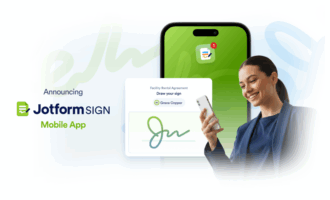
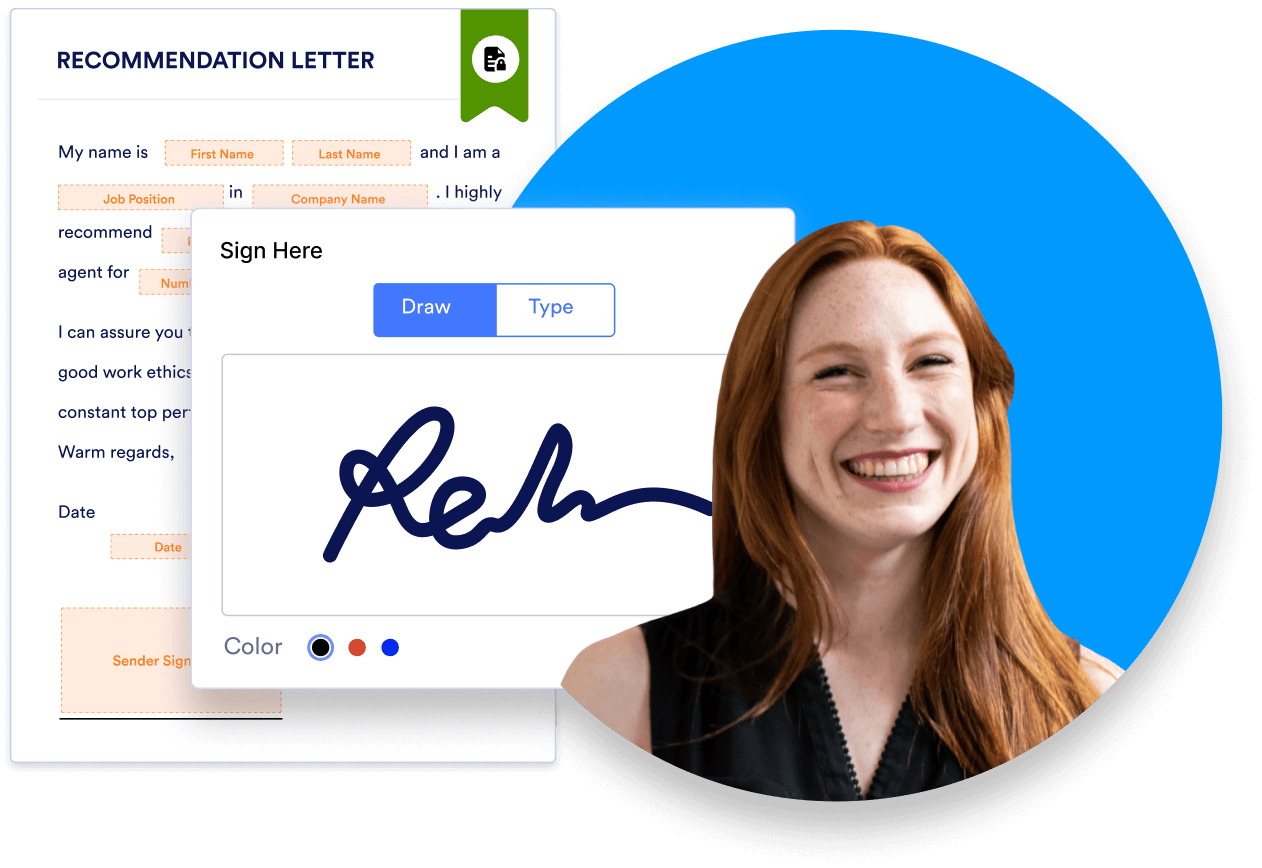
With the Jotform Sign Mobile app, you can manage your entire document signing process right from your smartphone. Simply prepare documents for signature, invite people to sign, track document status in your Sign inbox, and receive real-time notifications as recipients complete documents. The app is incredibly easy to use, supports stylus input (including Apple Pencil), and even lets you scan paper documents and turn them into signable PDFs instantly.
Beyond basic signing, Jotform Sign allows you to automate your document management process from start to finish. You can set up approval flows using conditional logic, add documents and signers, and automate the routing of appropriate documents in complex document workflows. After documents are finalized, automation can push them to your customer relationship management tool, cloud storage, or other internal systems.
Jotform Sign is perfect for anyone looking for fast, paperless workflows — from individual users to small teams, and across sectors such as real estate, healthcare, HR, government, education, and more. It provides detailed audit trails and can help you meet all global e-signature and security standards, including US UETA, E-Sign Act, EU eIDAS, SOC 2 Type II, and HIPAA.
- Best for: E-signing workflow automation
- Key features:
- All-in-one document workflow lets you create, send, sign, route, and store PDF documents without switching platforms
- Bank-level security with SOC 2 Type II, 256-bit encryption, audit trails, and granular access controls
- Multi-party signing allows you to set signing order and delegation; smart document generation from online form submissions eliminates manual entry and saves time
- Mobile app lets you e-sign on a phone
- Integrated document management with Jotform Sign Inbox lets you receive instant notifications, send reminder emails, and download signed documents from one location
- Multiple sharing options, including email, invite link, and website embed code; integrates with the broader Jotform ecosystem so you can manage data from your documents using Jotform Tables, and build professional reports with Jotform Report Builder
- Native integrations with popular business-critical apps, including customer relationship management systems, project management tools, and communication apps; connects with webhooks for custom integrations
- Pros:
- Generous free plan
- Intuitive drag-and-drop builder
- Hundreds of customizable PDF templates
- Automated document routing and tracking
- Cons:
- Limited storage space on lower-tier plans
- Plans/pricing:
- Free: Up to 10 monthly signed documents
- Bronze ($34 per month, billed annually): 100 monthly signed documents
- Silver ($39 per month, billed annually): 250 monthly signed documents
- Gold ($99 per month, billed annually): 1,000 monthly signed documents
- Enterprise (custom pricing): Unlimited signed documents
2. Adobe Acrobat Sign
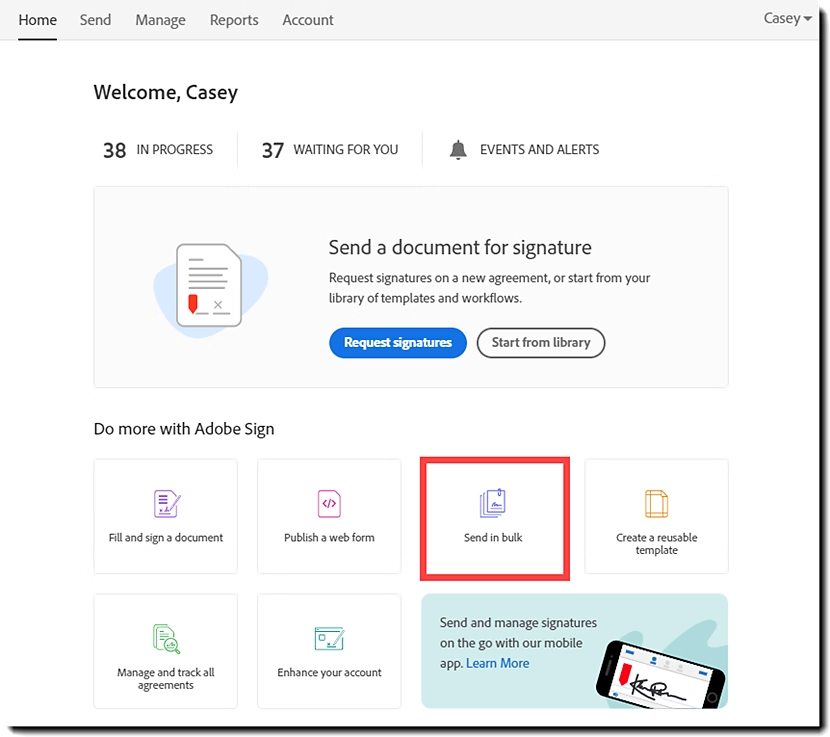
Adobe Acrobat Sign is a popular e-signature platform built into the Adobe Document Cloud ecosystem. It gives you tools to sign documents, send for signature, track progress, and manage a complete audit trail.
Because it operates within the broader Adobe suite, you can edit PDFs, collaborate with teammates, convert and compare files, and apply advanced security protections without switching tools. Teams can standardize their workflows by sharing templates, managing permissions, and reusing documents across departments. With features like bulk sending, signer authentication, audit logs, and enterprise-grade compliance, Acrobat Sign is well-suited for regulated industries and organizations that handle high-volume or sensitive signing workflows. While Adobe Acrobat Sign doesn’t offer a free account, it does offer a seven-day trial to test the waters.
- Best for: Teams with volume signing needs
- Key features:
- Native integrations with Microsoft 365, Salesforce, Workday, and other business tools
- Real-time status tracking, audit trail, and notifications when recipients open, sign, and complete docs
- Templates and reusable forms
- Bulk send signature requests for high-volume workflows
- Mobile app with offline signing that syncs when you’re back online
- Pros:
- Strong integration with the Adobe ecosystem
- Workflow automation capabilities
- Strong security and compliance features
- Cons:
- More expensive compared to other tools
- Less intuitive mobile signing experience
- Plans/pricing:
- Individual (from $12.99 per month, annual commitment): Seven-day trial available
- Business (from $14.99 per month per license, annual commitment): 14-day trial available
3. DocHub
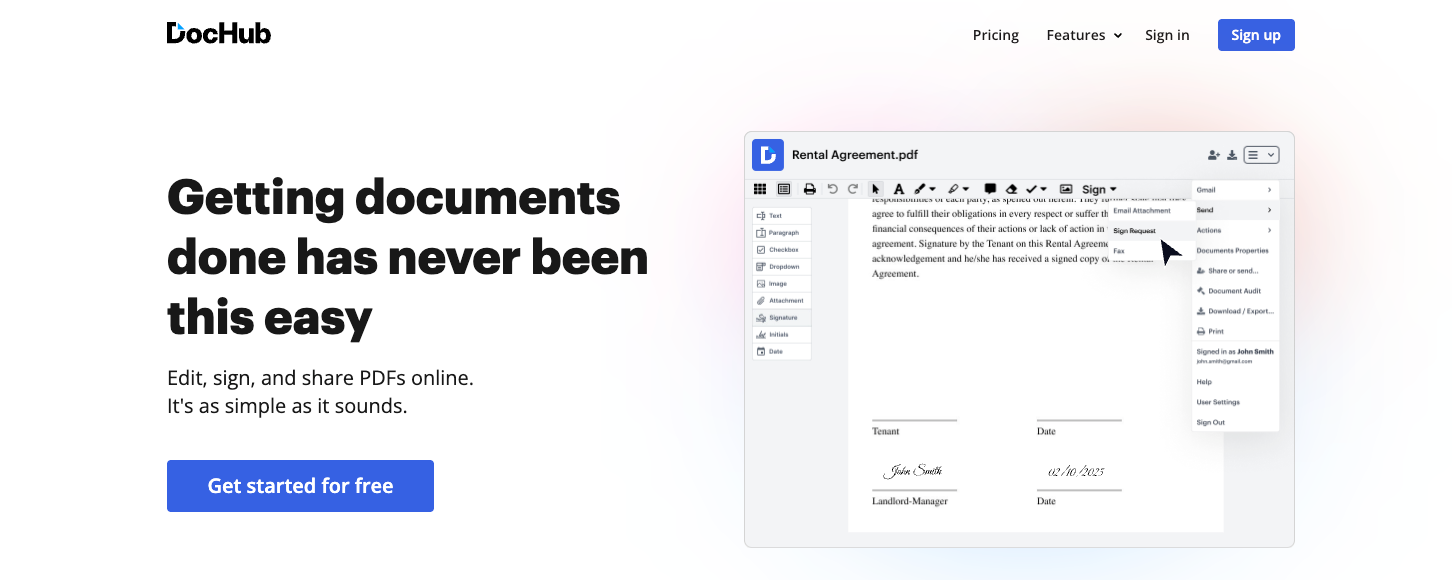
DocHub is a PDF editing and e-signing app with a strong emphasis on collaboration and Google Workspace integration. After uploading your PDF document, DocHub lets you edit it with built-in tools, send it for signature, and collaborate with signers directly in the doc using comments. You can also set user roles and permissions to manage how signers view, edit, and sign documents. And features like reusable templates, shared folders, and organizations make it easy for you to manage document workflows across teams and departments.
What’s more, DocHub integrates seamlessly with Google Workspace so that you can sign and edit PDFs directly within your work environment. The platform complies with industry-leading standards and includes password protection, signer authentication, an audit trail, and encrypted storage to ensure the safety of your documents.
- Best for: Google Drive and cloud integration
- Key features:
- Cloud storage integration for document import and export via Google Drive, Dropbox, OneDrive, Gmail, and Google Classroom
- Teamwork spaces, folders, document management, and collaboration tools
- PDF and page editing tools
- Built-in AI assistant for summarizing documents
- Pros:
- Intuitive and easy to adopt
- Good integration with cloud storage and the Google ecosystem
- iOS and Android apps for signing PDFs on the go
- Cons:
- Lacks automated document routing
- Potential performance issues when dealing with large documents and the mobile app
- Plans/pricing:
- Free: Up to three monthly signed PDFs and three signature requests
- Basic ($8 per month, billed annually): Five monthly signed documents and three signature requests
- Pro ($12 per month, billed annually): Unlimited signing and signature requests
- Site license (custom pricing)
4. Signaturely
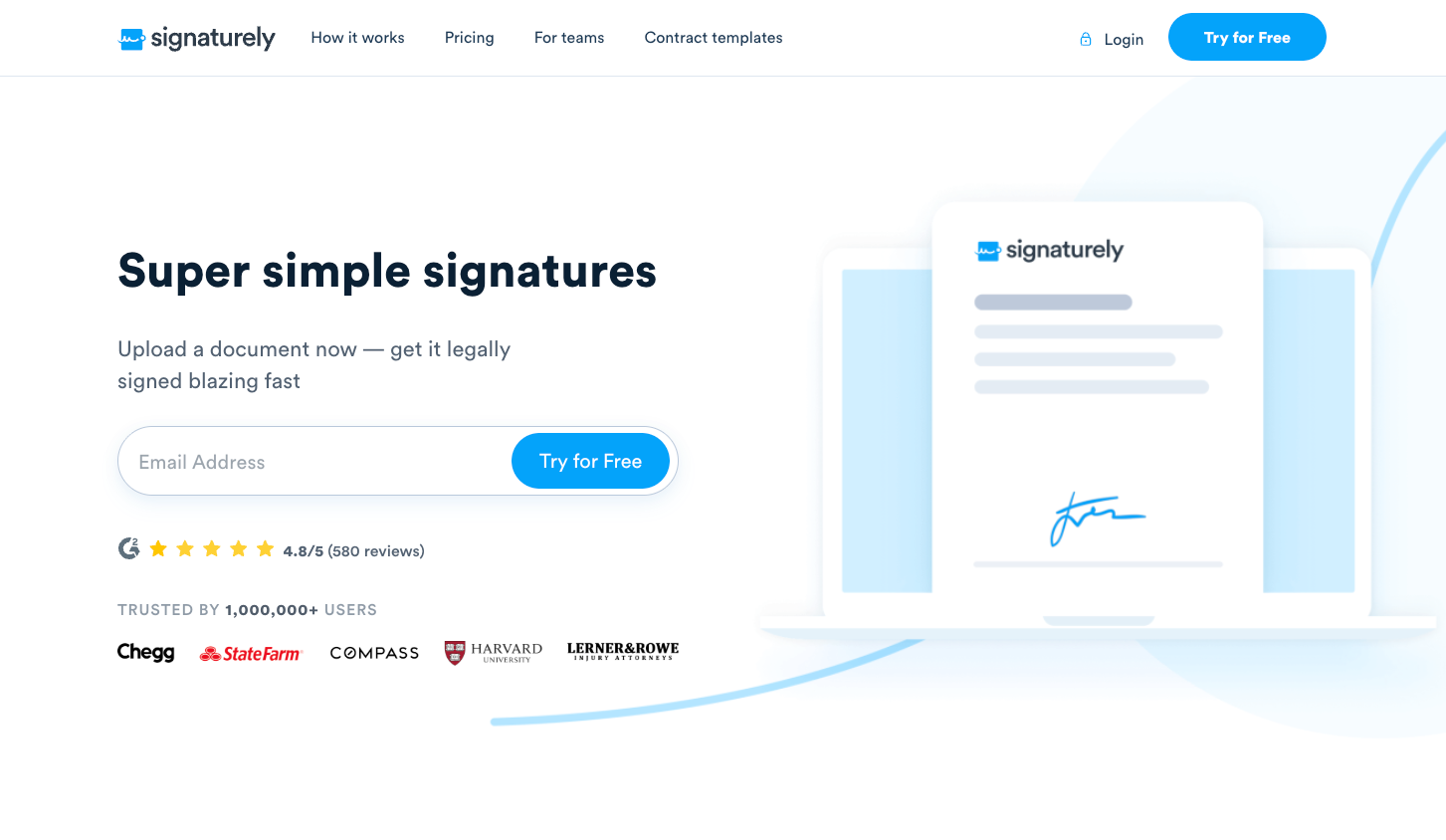
Signaturely is a super simple online signing tool with a three-step workflow: upload a document (or choose a template), add required fields, and then send it out to one or more signers who can sign from any device. It provides PDF templates, stores all your documents in one place, and gives you legally binding audit trails.
Once documents are sent, Signaturely automatically sends reminders to your signers and notifies you immediately when they’re done. It also integrates with cloud storage services like Google Drive, Dropbox, OneDrive, and Box.
- Best for: Users with light document signing needs
- Key features:
- Free contract templates reviewed by legal experts
- Multi-party signing and audit trail
- Custom branding
- Detailed document version history
- Pros:
- User friendly and easy to adopt
- Good document tracking and visibility
- Cons:
- Limited integrations
- Lacks document editing capabilities
- Very limited free plan (one signature monthly)
- Plans/pricing:
- Personal ($25 per month): Five monthly signatures
- Business ($50 per user per month): Unlimited signatures
5. Sejda
Sejda is primarily designed for completing PDF-related tasks like editing, merging, compressing file size, and converting PDFs to other document formats. But it also includes e-signature tools for users looking to sign documents while completing tasks.
Unlike other platforms that run only in the cloud, Sejda gives you the option to install a desktop app and run the software locally on your computer. Once installed, signing a PDF is as easy as uploading the doc, creating a signature, and placing it in the designated section of the document.
Sejda doesn’t offer the document management capabilities you’d find in other apps — such as routing, reminders, and an audit trail — but it offers a free-forever service that’s suitable for users with occasional signing needs.
- Best for: PDF editing and occasional signing
- Key features:
- Large library of PDF tools to merge, split, compress, convert, and edit PDF documents
- Browser access plus a desktop option for more flexibility
- Free usage tier with daily task limits
- Pros:
- User-friendly and approachable
- Desktop app allows for offline access
- Versatile and free PDF tools beyond e-signing
- Cons:
- Lacks essential e-signature features like audit trails
- Not suitable for high-volume signing and regulated workflows
- Plans/pricing:
- Free forever: Daily usage limits
- Web Week Pass ($5 for seven days, one-off payment)
- Personal Web Monthly ($7.50 per month)
- Personal Desktop + Web Annual ($63 per year)
- Volume discounts on team plans for two users and above
6. PDF Candy
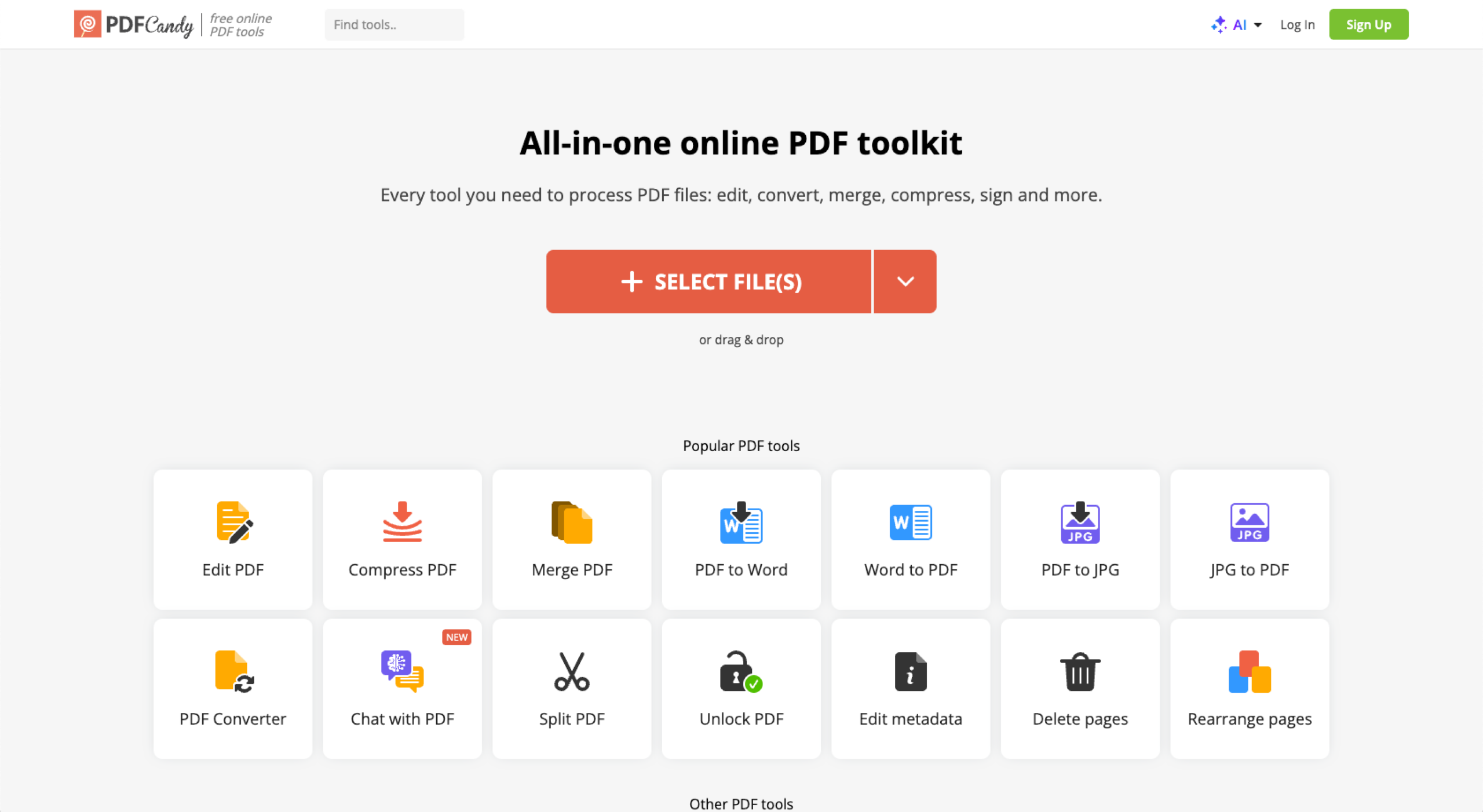
PDF Candy covers a wide array of PDF tasks, from signing to editing, converting, merging, splitting, compressing, and more. The tool works in any browser and provides a desktop client if you prefer to keep your files on your computer instead of uploading them online. Either way, signing a document electronically is straightforward: you simply upload your PDF and then add a signature by typing, drawing, or uploading an image of it.
Just like Sejda, PDF Candy lacks critical e-signature workflow features — making it more suitable for lightweight signing and simple contracts. That said, the tool is GDPR-compliant to ensure the privacy of all files processed on its servers.
- Best for: Affordable billing
- Key features: Extensive PDF editing and processing tools, web and desktop version (Windows) available, clear privacy and storage policy — uploaded files are kept for only two hours in line with GDPR
- Pros: Affordable paid options; free version available for both e-signing and other PDF tasks; no watermark in the final results, even on the free version
- Cons: Free tier has usage limits, the desktop version is limited to Windows
- Plans/pricing:
- Free forever: With usage limits
- Web Monthly ($6 per month)
- Desktop + Web Yearly ($4 per month)
- Desktop + Web Lifetime ($99)
Which tool is the best PDF signing tool?
At the end of the day, the best PDF signing app depends on your workflow, the volume of documents you handle, and whether you’re working solo or as part of a larger team. Every tool in this roundup offers a free plan or trial, but their capabilities differ — especially when it comes to automation, collaboration, and document management.
Jotform Sign stands out because it offers a complete set of features for all user groups. Its free plan gives occasional signers access to all essential e-signing and document management features, while its paid plans cater to teams with volume signing needs. Jotform also offers discounts for nonprofit and educational institutions, as well as a 30-day money-back guarantee.
To get started, you can choose a PDF template from the extensive library or upload your document into the intuitive Sign builder. Add your signers and fields, send for signatures, and then plug your documents into an automated workflow to let Jotform handle routing, notification, and next steps. Best of all, with the Jotform Sign Mobile app, you can set everything up from your phone — whether you’re on the go or away from your desk.
Get Jotform Sign Mobile on the App Store or Google Play Store today, or contact Jotform for more information.
For small teams and solo pros, this guide is for anyone seeking a free, secure, legally binding way to send, sign, and track PDFs end-to-end — from phone or desktop; with multi-signer/delegated flows, branded templates, offline access, audit trails, and integrations to your CRM and cloud storage
































































Send Comment:
5 Comments:
May 15, 2025
I'm looking for a Program to sign my own documents with my Signature Pad. not, uploading a Signature. I am not looking to rent the software.
November 23, 2020
Hi
thanks for providing the list of free tools for PDF signing. These tools will be very useful in the future to get the PDFs signed online.
June 10, 2019
Useless information. None are actually free. Null and void
June 6, 2019
no comments on the cost ?
most of them are pretty expensive -> useless
November 8, 2018
Initially this format was used for the benefit of digital document exchange, but now the PDF format is also widely used for the presentation of two-dimensional documents consisting of letters, text, vector graphics and imagery. I like to use this application to send data that should not be changed by anyone. So I sent it in PDF format to avoid changing a document. stiply.nl