

Zapier is a no-code automation platform connecting apps and moving data between them. You set up what are known as “Zaps” — simple “if this happens, then do that” workflows — to automate repetitive tasks like sending form submissions to a CRM, posting Slack alerts, or updating spreadsheets.
And I like Zapier. A lot.
But with tools like ChatGPT, Claude, and Gemini now able to “think” through workflows, is it worth paying for another expensive subscription?
On G2, Zapier holds a strong 4.5 out of 5 stars based on 1,768 reviews. But here’s the zoomed-in version:
- 9.2 percent of reviewers explicitly call Zapier too expensive.
- 7 percent mention broader pricing concerns.
- 7 percent flag increasing workflow complexity.
- 4.3 percent cite a steep learning curve.
That tension is exactly why many users start looking for Zapier alternatives — and likely why you’re here!
An overview of the 10 best Zapier alternatives
| Tool | Best for | Numebr of integrations | Pricing |
|---|---|---|---|
 Jotform |
Form-led workflows with approvals, signatures, and payments. |
150+ |
Free plan available; paid plans start at ~$34/month (billed annually). |
 Make |
Visual, logic-heavy multi-step automations. |
3,000+ |
Free plan available; paid plans start at ~$10/month (billed annually). |
 Integrately |
Simple automations you want live fast. |
1,500+ |
Free plan available; paid plans start at ~$19.99/month (billed annually). |
 Microsoft Power Automate |
Microsoft-first workflow automation. |
500+ (includes Microsoft connectors) |
Free tier available; paid plans start at ~$15/user/month (billed annually). |
 n8n |
Powerful workflows with self-hosting options. |
400+ (includes API/webhooks) |
Free self-hosted option; cloud plans start at ~$23/month. |
 Pipedream |
AI-driven automations without managing infrastructure. |
1,000+ |
Free tier available; paid plans start at ~$19/month (billed annually). |
 Activepieces |
Flexible, self-hosted automation with a visual canvas. |
200+ |
Free plan available; paid plans start at ~$25/month. |
 Tray.io |
Enterprise workflows with advanced logic and governance. |
600+ |
No public pricing; typically starts around ~$500/month. |
 Gumloop |
AI-first automation built with natural language. |
<100 |
Free tier available; paid plans start at ~$37/month and scale by credits. |
 LeadsBridge |
Syncing ad leads and marketing data between platforms. |
370+ |
Free plan available; paid plans start at ~$22–$29/month (billed annually). |
TL;DR: Which Zapier alternative is right for you?
I promise the deep dives are worth a read, but if you’re short on time, here’s a quick question-based decision model you can follow.
Do your workflows start with forms, approvals, or structured data?
Choose Jotform: Best if you’re automating onboarding, internal approvals, signatures, or anything that begins with a form.
Do you want quick automations live fast, without tinkering?
Choose Integrately: Best if you want one-click automations, common app pairs, and minimal setup.
Do you need more control than Zapier, especially for recurring or logic-heavy workflows?
Choose Make: Best if you’re comfortable with branching logic, schedules, and “set it-and forget it” automations.
Do you want to see and understand every step of your automation?
Choose n8n: Best if you like visual canvases, editable nodes, and learning how things work under the hood.
Do you want AI to help you build workflows without managing infrastructure?
Choose Pipedream: Best if you’re technically fluent, want AI-assisted workflows, and don’t want to think about servers.
Do you want AI-first automation that feels conversational and visual?
Choose Gumloop: Best if your workflows rely on AI reasoning, text processing, or content-heavy tasks.
Do you want visual automation with self-hosting as an option—but less intimidation than n8n?
Choose Activepieces: Best if you want flexibility, a clean canvas, and control without being pushed into AI or code.
Are you moving ad leads or marketing data between tools?
Choose LeadsBridge: Best if your main job is syncing leads and audiences between ad platforms and CRMs.
Are you building automations for a large team with complex systems and governance needs?
Choose Tray.io: Best if you’re operating at enterprise scale and need robust two-way data sync and controls.
Are you already deep in Microsoft 365?
Choose Microsoft Power Automate: Best if your workflows live inside Excel, Outlook, Teams, and SharePoint.
How I selected this list
I personally tested every tool on this list.
I’ve evaluated these automation tools the way a business would, inspired by the constraints of time and money.
I kept coming back to a handful of qualifying questions: broad enough to keep the scope open, but specific enough to rule things out quickly.
Here’s what I looked for:
- Can it connect to the tools you already use? This one’s non-negotiable; the tool needs to slot into your existing setup.
- Does it feel good to work in? Automation is something you come back to again and again; so is it fun to be inside the workspace?
- Does the pricing grow with you? I looked at the total cost of ownership six months down the line — what happens once automation becomes part of your day-to-day work and usage naturally increases?
And with that lens, I present to you…
The 10 best Zapier alternatives for workflow automation
1. Jotform: Best for form-led workflows with approvals, signatures, and payments
At its core, Jotform turns form responses into action: approvals, notifications, tasks, signatures, payment requests, and more, all without writing code. The form → inbox → manual work loop that eats your day? Jotform Workflows flips it around so your tools handle it for you.
A big part of that is integrations. Jotform has 150-plus built-in connections across CRMs, project tools, cloud storage, communication apps, and automation platforms like Google Sheets, Slack, Airtable, and Salesforce.
Key features:
- Form-to-workflow builder with drag-and-drop logic, approvals, branching, and conditionals.
- Direct automation from form submissions into multi-step processes (tasks, emails, approvals, payments).
- Add approval gates, request signatures, and trigger payment forms directly inside the workflow


There are 200-plus workflow templates to choose from, so for this test, I picked a Client Onboarding workflow. If you want a blank slate instead, you can head to the Workflows tab and create one manually.
You can add if/else conditions, conditional branches, split and merge paths, pauses, and native integrations with tools like Slack, Google Calendar, Zoom, and HubSpot.
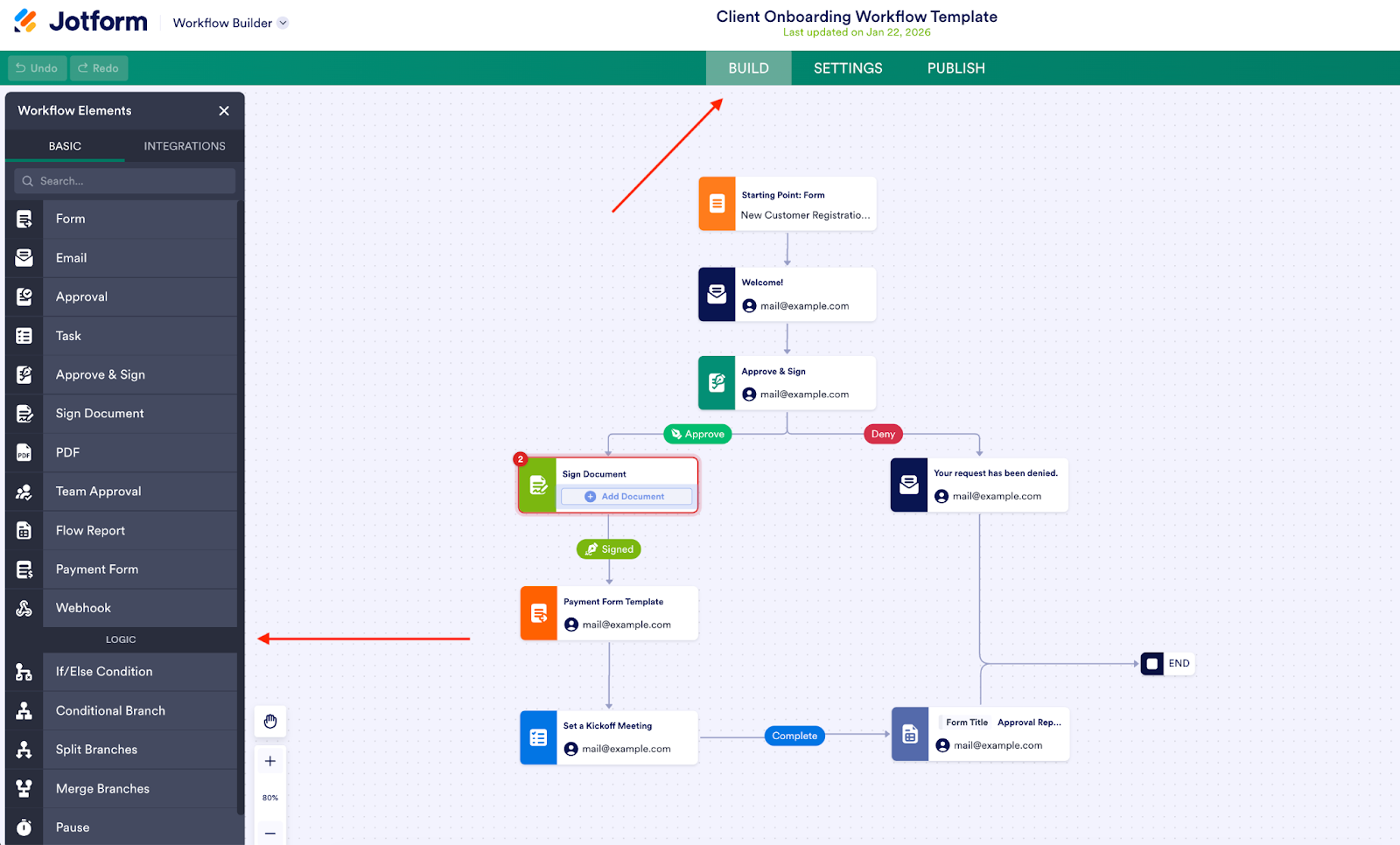
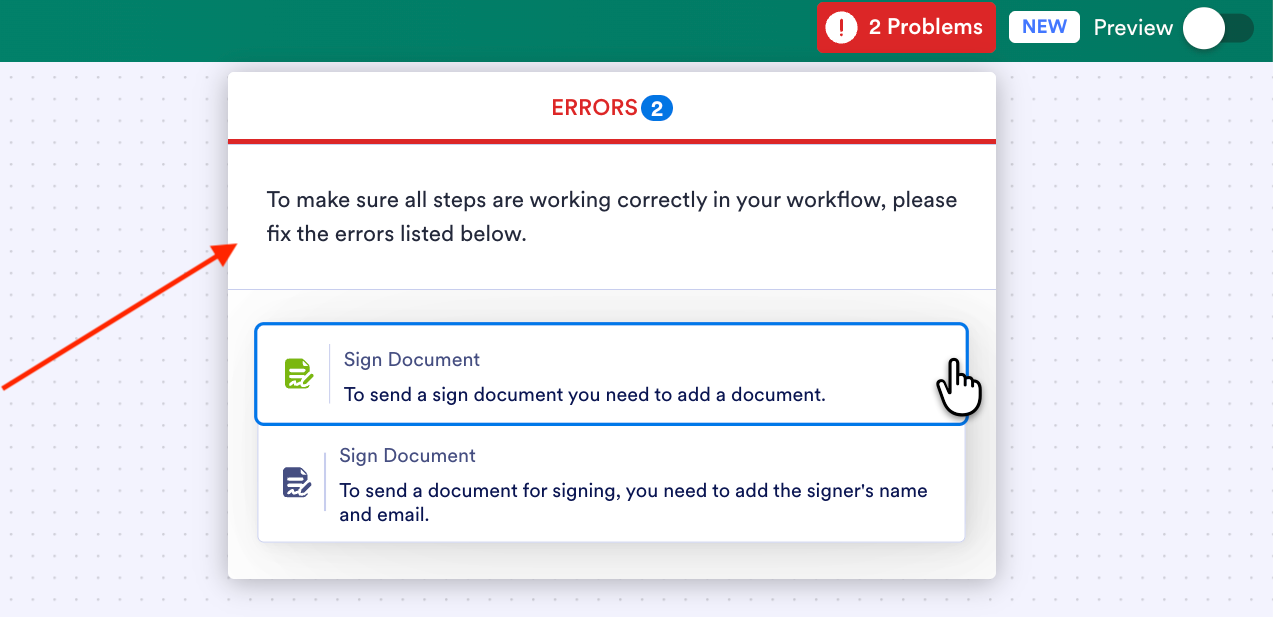
I really love the real-time error feedback feature. If a step is incomplete — for example, you forget to attach a document or assign a signer — Jotform flags it immediately and tells you what’s missing.
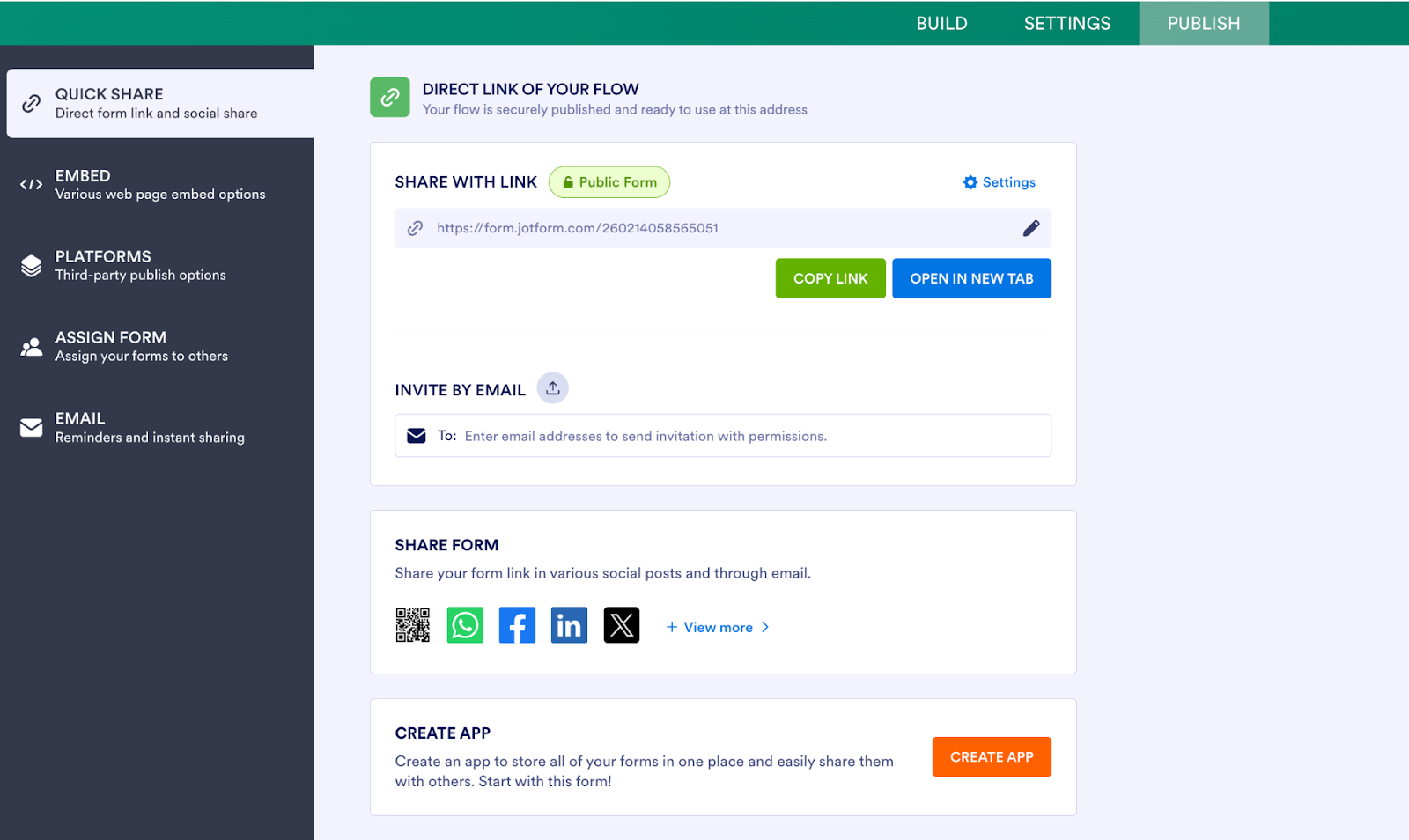
From the Publish tab, you can generate a direct link to your flow, share it via email, or embed it wherever the form needs to live.
What I like here is the lack of ceremony — there’s no separate deployment step or environment to manage. Once you publish, the workflow is live and Jotform makes it obvious where it’s being used and how it’s shared.
Or if you’re leaning even more AI-heavy, generate your entire workflow with AI.
Pro Tip
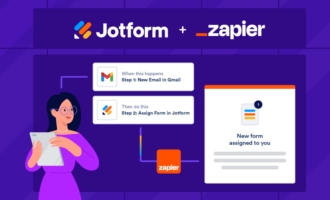
Use Jotform’s Zapier integration to push form responses wherever they need to go. You can automatically send new leads straight to your CRM, turn contact form submissions into help desk tickets, sync bookings to your calendar, or create tasks in your project management tool.
- Pros:
- Automation relies heavily on visual cues, and Jotform does this well; everything you need stays in view, so you’re not digging through menus.
- Most basic automation and form logic features are available on the free plan, so I could prototype without committing to a paid tier right away.
- Cons:
- If your automation doesn’t naturally start with a form submission, Jotform feels less flexible than general-purpose automation tools.
- As workflows get larger, the canvas feels dense.
- Plans/Pricing:
- Jotform has a free Starter plan with limits on forms, submissions, and storage. Paid plans start around $34 per month (Bronze) when billed annually and scale up through Silver and Gold tiers.
2. Make: Best for visual, custom multi-step automations
Make is a visual, no-code automation platform that connects apps and services so you can build and automate workflows.
Key features:
- Visual drag-and-drop workflow builder for designing and connecting automation scenarios without coding.
- 3,000-plus pre-built app integrations so you can link tools across your stack quickly.
- Data transformation and manipulation functions to format, enrich, or shape data between steps.
Workflows are called scenarios, and they’re designed to give you fine-grained control over how data moves.
In my testing, I used Make for two very specific jobs: automating byline collection for my published pieces, and sending myself a recurring Slack alert on the 26th of every month to prepare invoices.
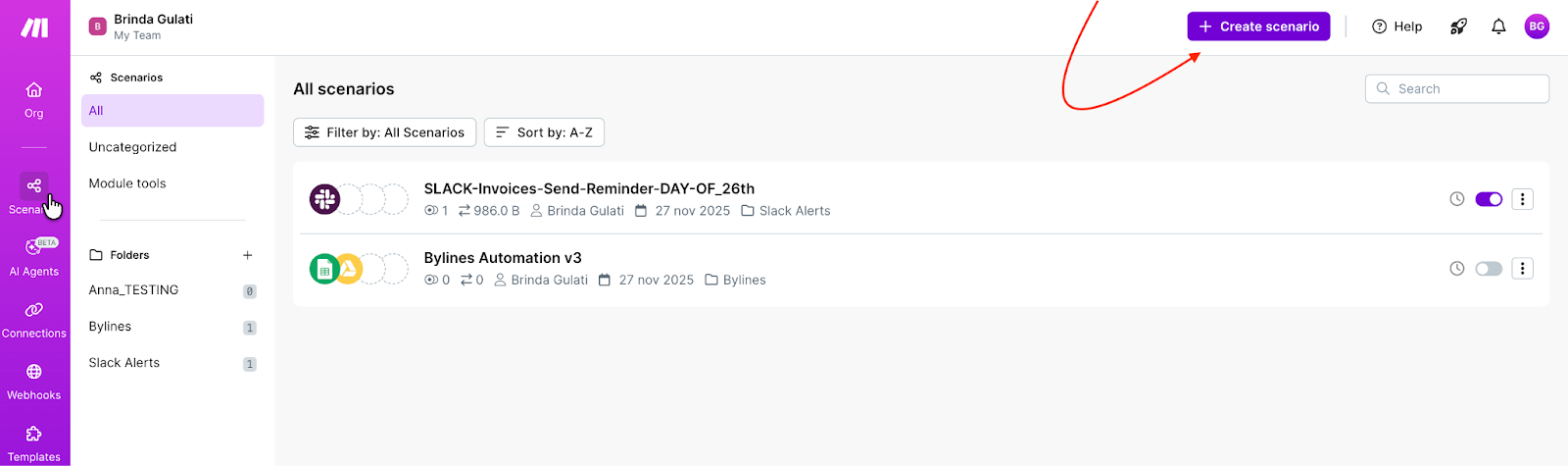
The biggest friction point was setting up integrations (what Make calls “connections”). Even though there’s a long list available, I found myself re-authorizing connections repeatedly and being nudged toward the resource center when all I wanted was a simple, visible way to add a connection.
That said, the visual interface itself is genuinely appealing. Make looks modern and is enjoyable to work in once you’re inside a scenario.
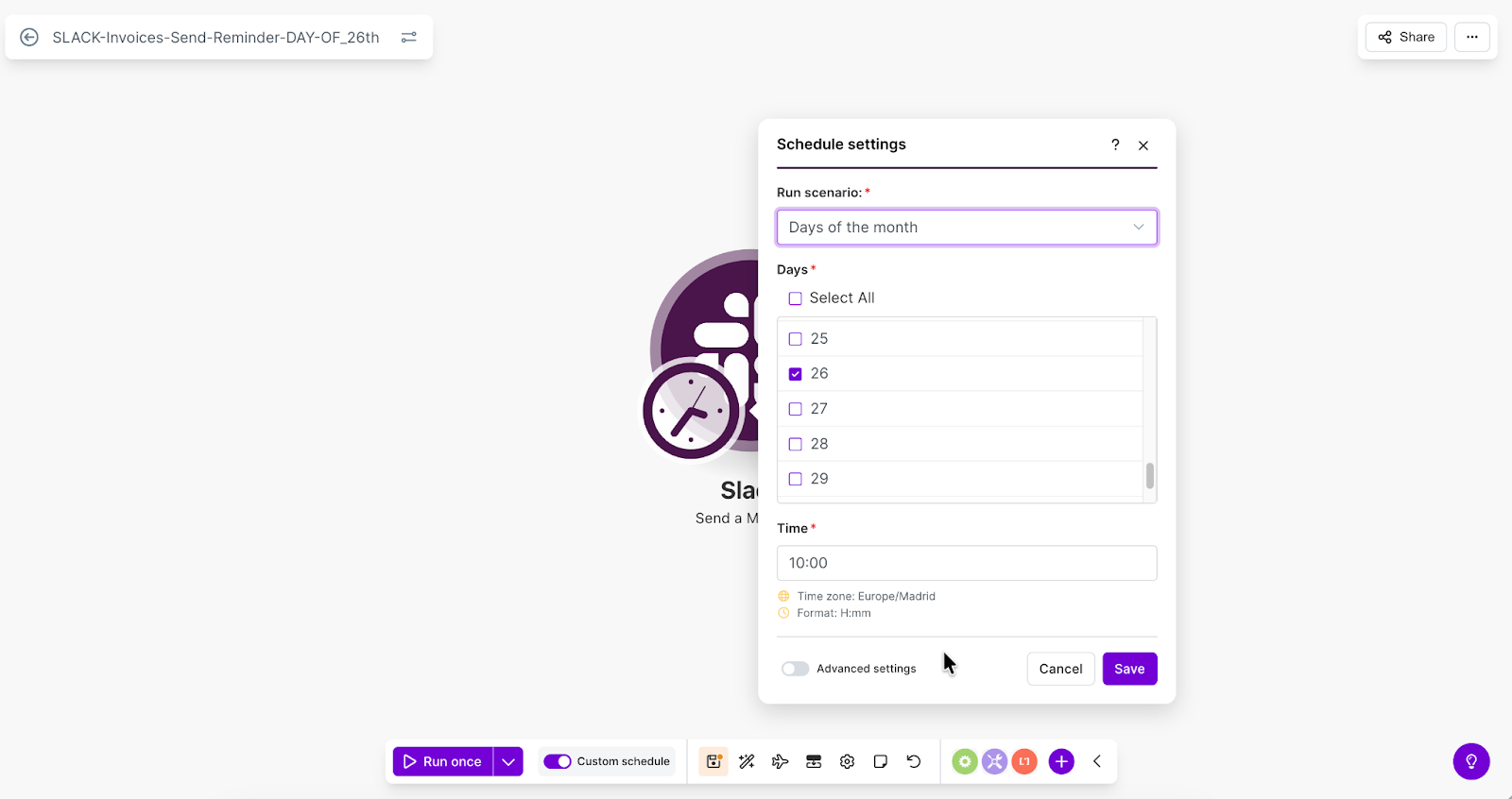
The Slack automation I set up — sending myself a reminder on the 26th of every month for invoice preparation — worked exactly as expected.
- Pros:
- Scheduling scenarios (like running something on a specific day of the month) feels precise and predictable, which is great for recurring operational tasks.
- Make is well-suited for “set it and forget it” automations; once a scenario is live, it runs in the background without needing constant attention.
- Cons:
- I couldn’t connect a personal Gmail account and had to use a company Google Workspace account instead.
- If you want to connect Make to OpenAI, you’ll need to generate and manage an API key yourself — a noticeable hurdle if you’re newer to automation.
- Plans/Pricing:
- Make has a free plan with limits on execution operations and premium features. Paid plans begin with the Core tier, which starts at around $10 per month when billed annually.
Pro Tip
Pair Jotform with Make to move form data wherever it needs to go. Make lets you send information between Jotform and thousands of apps using a visual, no-code builder that’s easy to reason about and quick to deploy.
3. Integrately: Best for simple automations you want live fast
Integrately is a no-code automation platform built around the idea of one-click automations: ready-made workflows you can activate instantly without building everything from scratch.
Key features:
- Millions of ready-to-use automation recipes covering common workflows, so you don’t start from zero.
- Connects with over 1,200-plus apps and services, including common business tools like Google Sheets, Slack, HubSpot, and more.
- Add multiple apps to a single automation, apply filters or conditional logic, and route actions based on criteria.
You can start in a few different ways: Give a voice command or text prompt describing what you want to automate, and it will suggest workflows for you. You can also manually select apps and search through its library of ready-made automations.
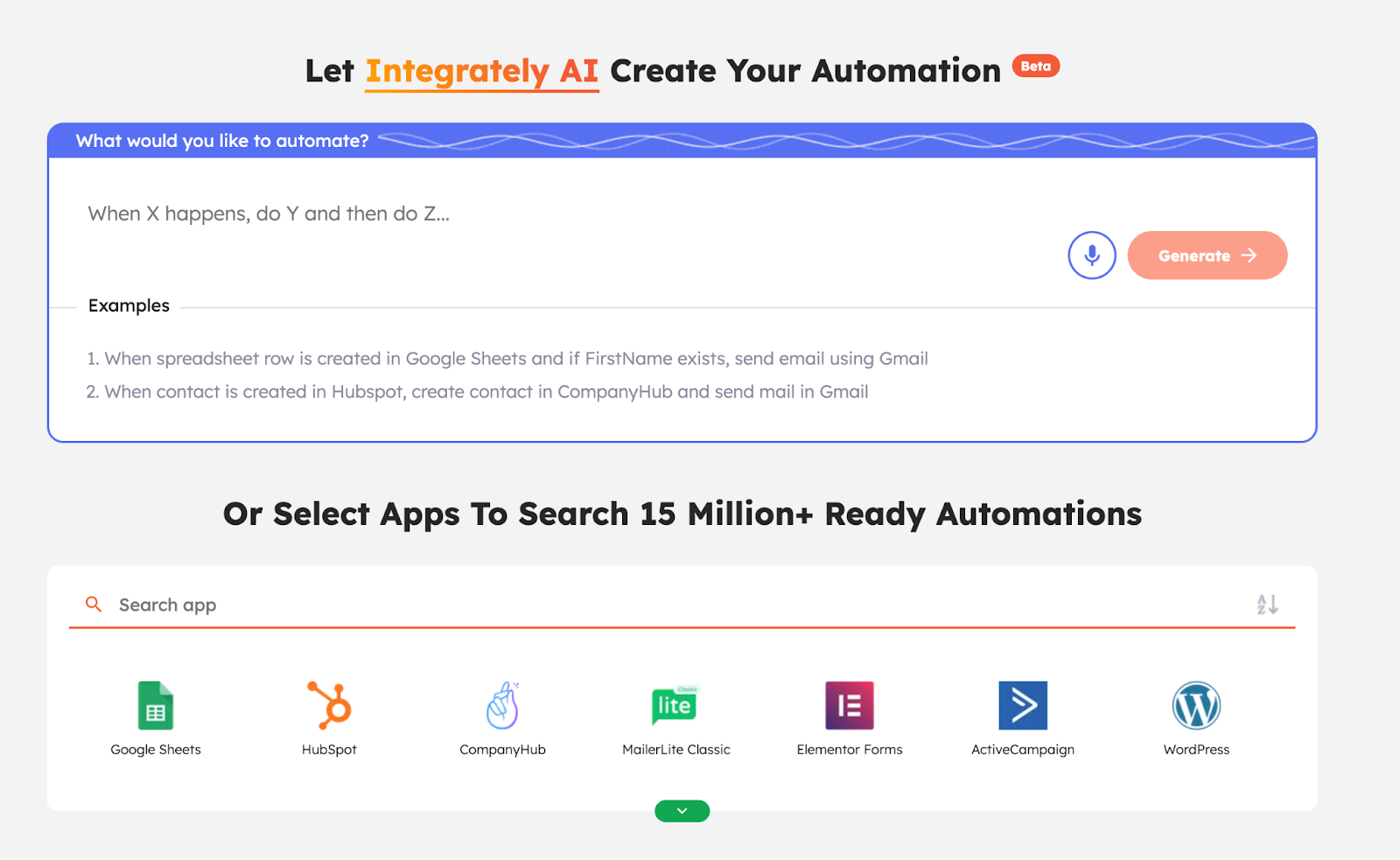
That library is massive. Integrately advertises 15 million-plus ready-made automations, and once you start browsing, you feel the scale immediately. There’s also a dedicated section for one-click automations — and it’s virtually endless.
I quite like this: You pick two tools — for example, Google Sheets and Slack — and Integrately surfaces relevant workflows you can activate with a single click.
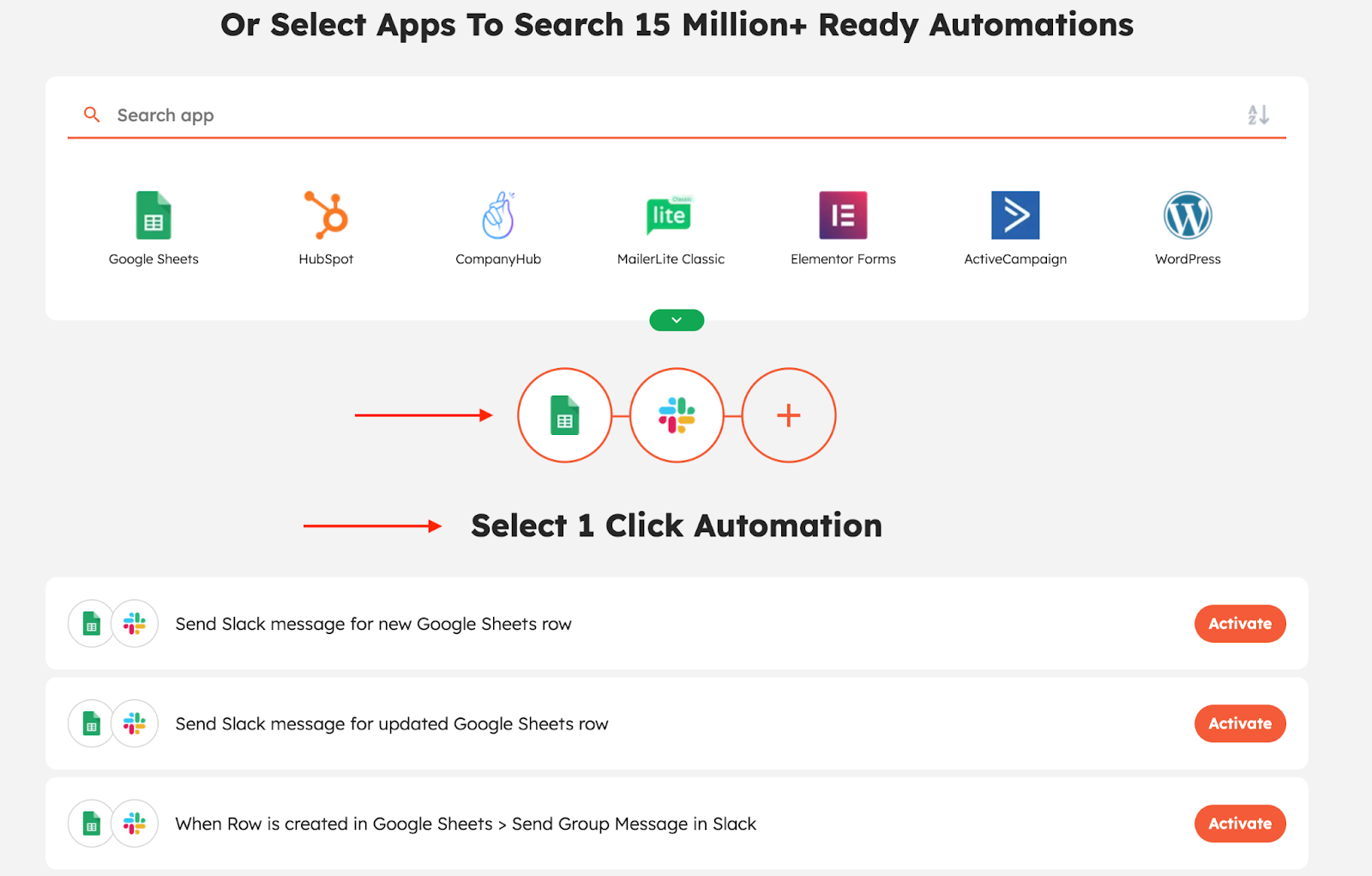
From there, setup is straightforward. You’re prompted to connect your accounts and grant permissions, and once that’s done, the automation is ready to run.
Integrately feels best suited to a solopreneur like me, or a former e-commerce store owner like me. The ecosystem it surfaces leans heavily toward tools like HubSpot, Elementor, ActiveCampaign, and WordPress.
That mix tells you who the product is really designed for.
- Pros:
- Between the voice and text prompt and one-click automation catalog, I could stand up common workflows in minutes with very little setup.
- There’s 24-5 live chat available even on the free plan, which makes it easier to unstick small issues without hunting for answers.
- Cons:
- The sheer volume of suggested automations is like drinking from a firehose.
- Some automations require premium access or extra steps to connect accounts and grant permissions, which breaks the one-click promise in practice.
- Plans/Pricing:
- Integrately has a free plan including basic usage with limited tasks and automations, giving you about 100 tasks per month and support. Paid plans start with Starter at around $19.99 per month (billed annually) for 2,000 tasks.
4. Microsoft Power Automate: Best for Microsoft-first workflow automation
Microsoft Power Automate is a workflow automation tool built for teams already operating inside the Microsoft ecosystem. The platform automates repetitive tasks across Microsoft apps (like Excel, Outlook, Teams, and SharePoint) as well as third-party tools, using triggers, actions, and logic.
Key features:
- Support for event-based automation, time-based automation, and even desktop/RPA workflows for legacy systems.
- Works natively with Power Apps, Power BI, and Dataverse, making it easier to build end-to-end internal tools.
- Role-based access, data loss prevention (DLP) policies, and admin oversight, especially relevant for larger organizations.
I spent about three to five minutes just getting through authentication and verifying my business email. There’s no lightweight SSO here, so you’re very much entering the Microsoft ecosystem on its terms.
Recommended reading
You can check out our article to see the top 5 Microsoft Power Automate alternatives for 2026
Once you’re in, the experience improves.
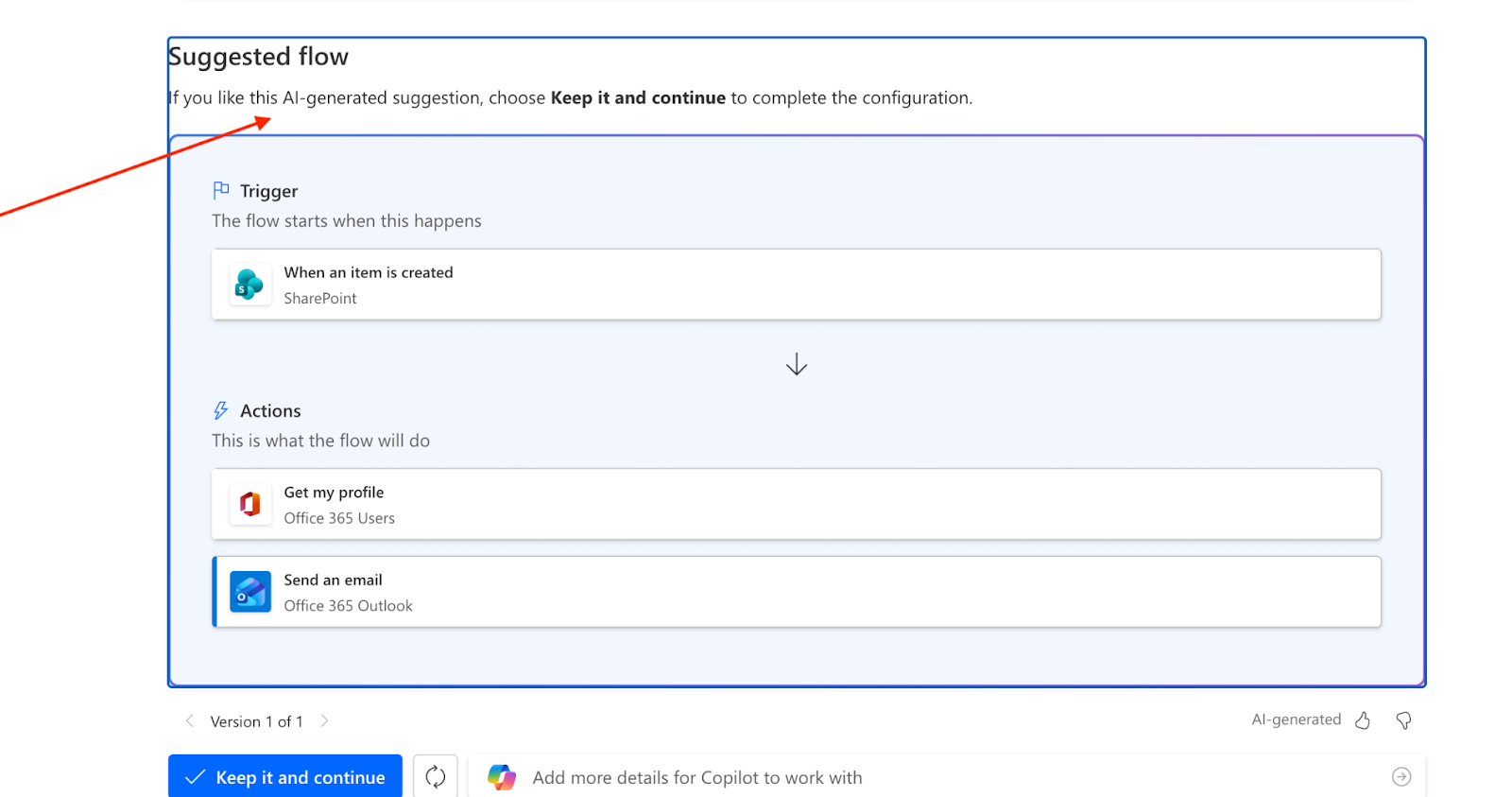
Power Automate does a good job of suggesting automations right away, and for this test, I went with one of the recommended flows.
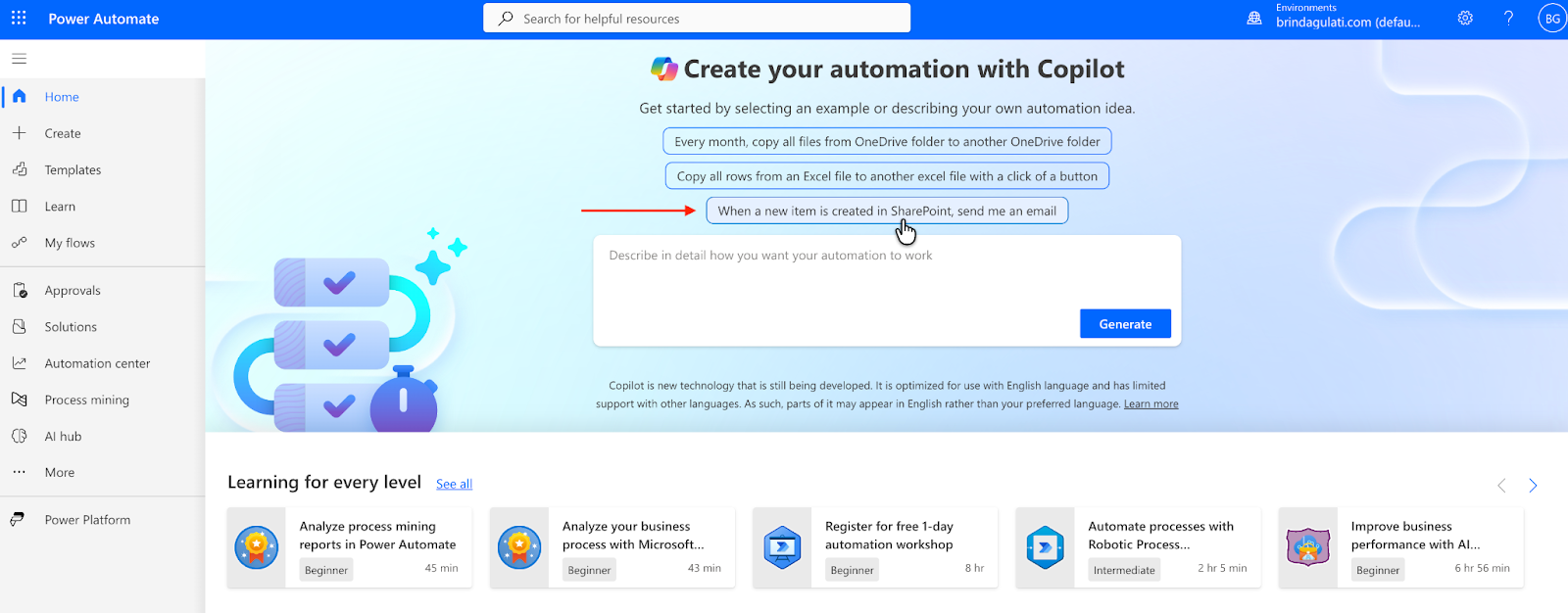
From there, you either describe what you want to automate in plain language or build it manually. Copilot generated an AI-suggested workflow and you can keep it and continue configuring, or tweak it before moving on.
I chose to keep it.
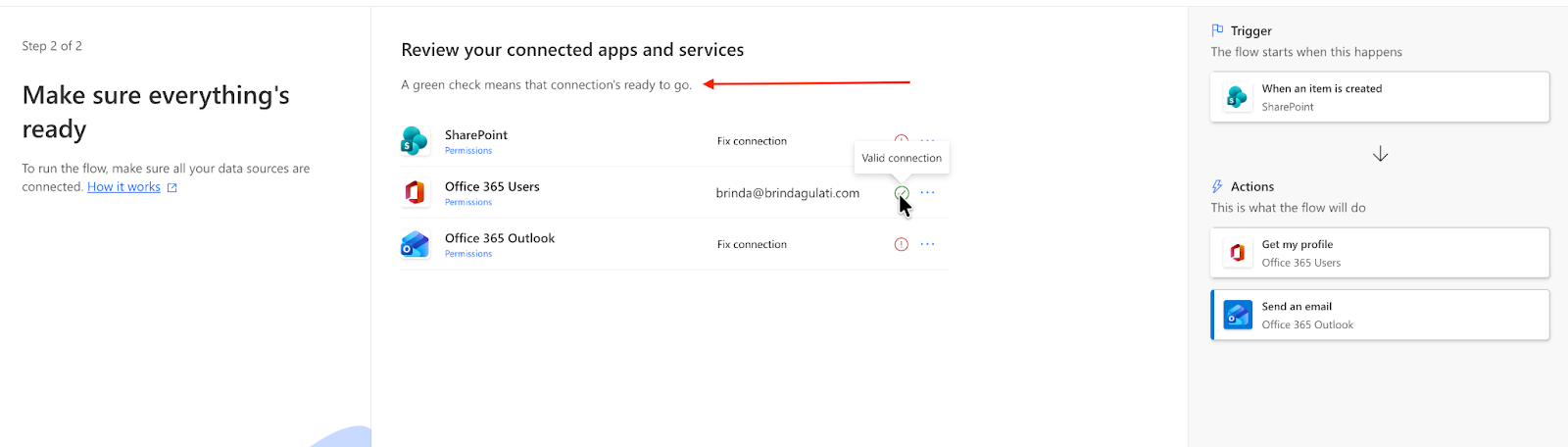
If a connection is valid, it shows up as ready. If something’s missing, you’ll see an exclamation mark prompting you to re-verify the connection. Once everything checks out, the automation runs as expected.
- Pros:
- If your work already lives in Teams, SharePoint, Outlook, or Excel, Power Automate feels like a natural extension.
- Copilot suggestions are genuinely helpful; being able to describe a workflow in plain language and get an AI-generated starting point shortens the setup time.
- Cons:
- There’s no quick SSO option, and authenticating with non-Microsoft accounts feels slower and more involved.
- Premium connectors, desktop flows, and higher usage limits all sit behind different plans, priced per user or per bot, so you have to think about licensing sooner, not later.
- Plans/Pricing:
- Power Automate offers a free tier letting you explore core functionality and build basic flows. Beyond that, paid plans start around $15 per user per month (Premium) when paid yearly. Higher tiers include Power Automate Process (about $150 per bot per month) and Power Automate Hosted Process (about $215 per bot per month) for enterprise-scale automation.
Pro Tip
Use Microsoft Power Automate with Jotform to automatically push form submissions into the Microsoft tools you already use.
5. n8n: Best for powerful workflows with self-hosting options
n8n is a workflow automation platform that connects apps, APIs, and services to create custom automations using a visual, node-based editor, while still giving you the option to drop into code when needed.
Key features:
- Build automations by connecting nodes that represent triggers, actions, logic, and transformations.
- Run n8n on your own infrastructure for full data control, or use n8n Cloud if you don’t want to manage hosting.
- Hundreds of native integrations plus generic HTTP and webhook nodes that let you connect almost anything.
The platform knows it’s more advanced, and that self-awareness is pretty endearing. Before you even get into building, it surfaces learning resources and quick-start guidance right upfront.
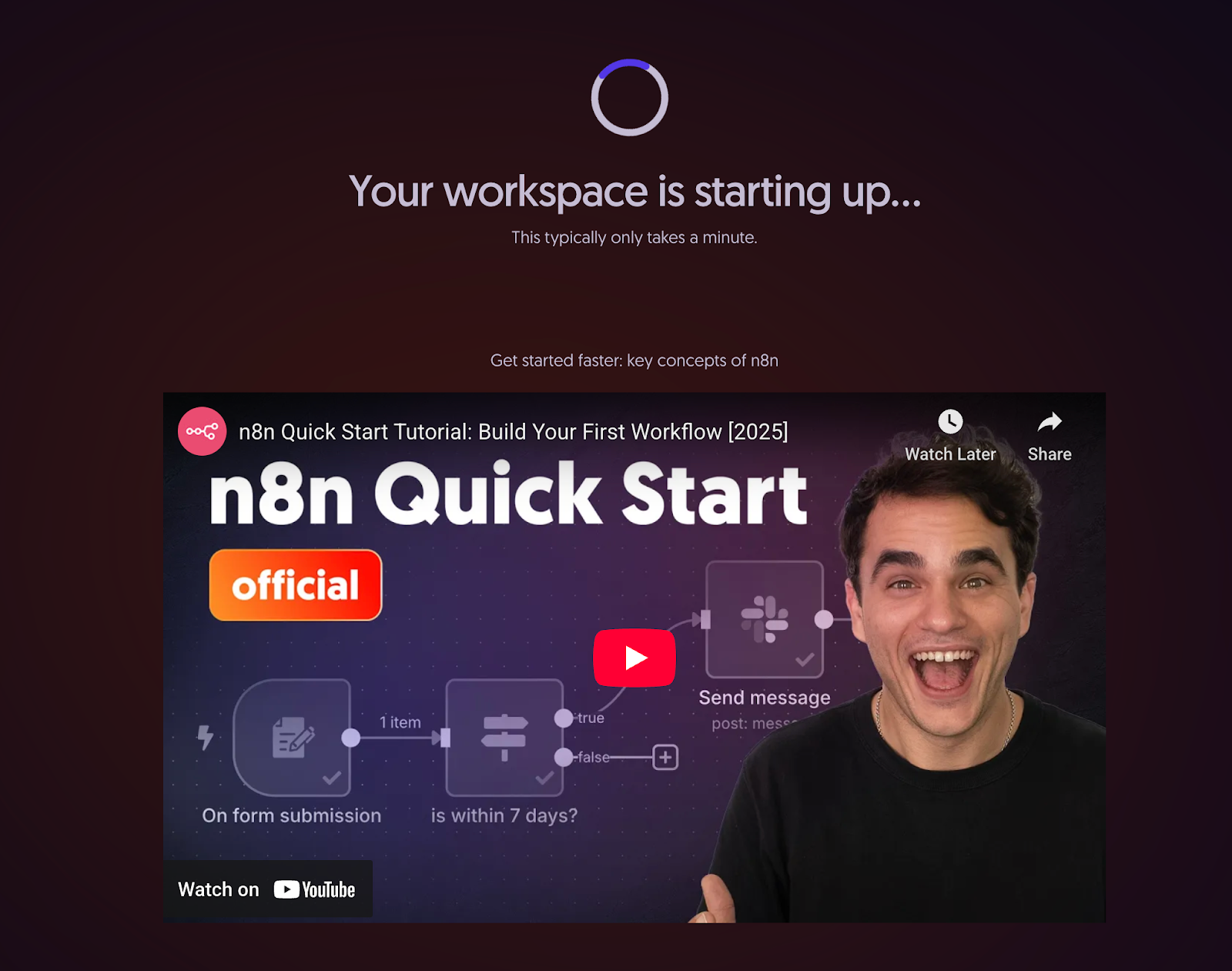
Once you’re inside, you’re given three clear paths: Start from scratch, use a template, or try an AI workflow.
Naturally, I went with the AI workflow first. That dropped me straight into an AI News agent setup, complete with a prebuilt flow and free OpenAI credits.
I like the intent here, but the execution felt a bit off. I was expecting the AI workflow to ask what I wanted to build.
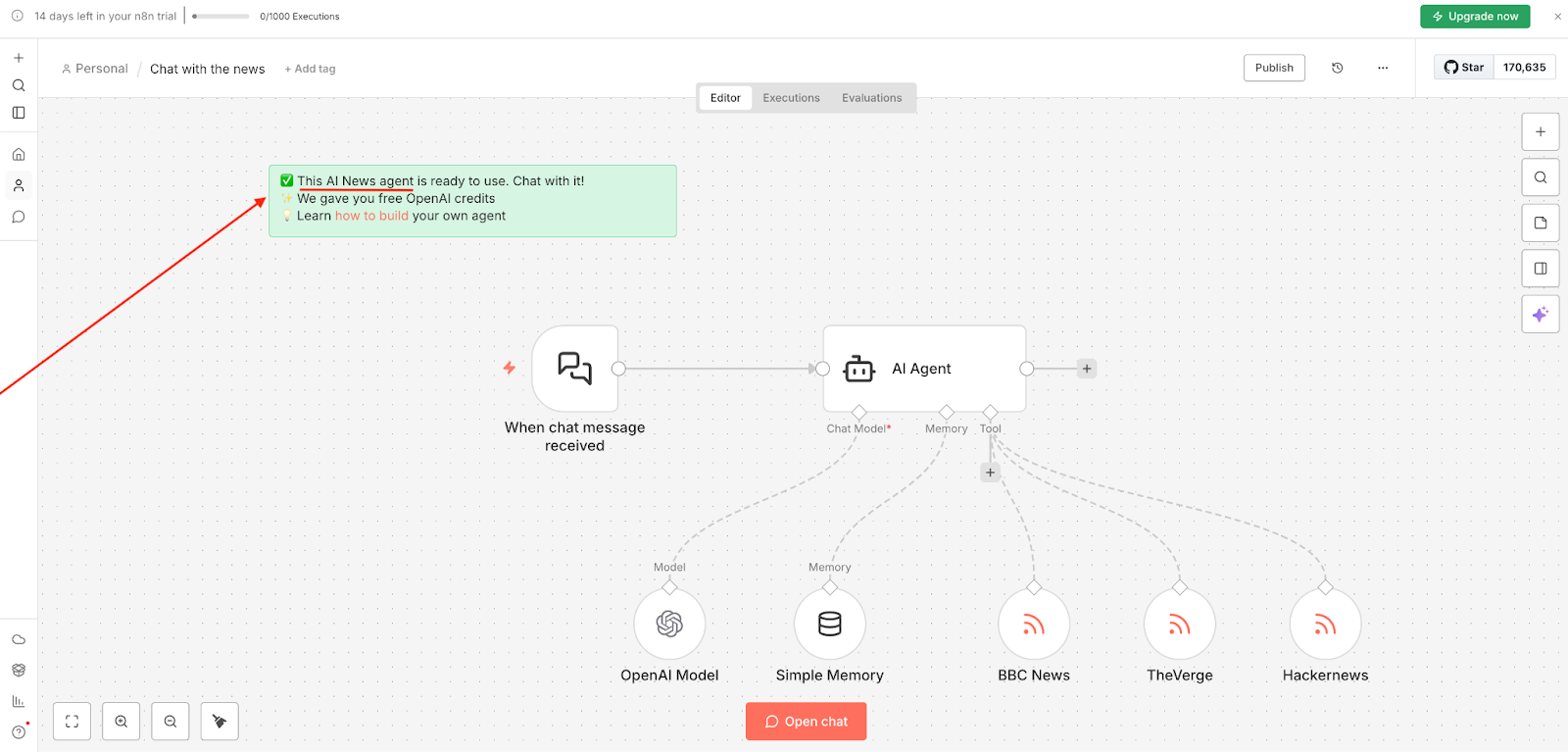
So I backed out and went with a template instead.
I went with the LinkedIn lead generation template, and n8n dropped me into a fully built workflow. All the triggers and nodes were already in place; my job was to wire up the credentials.
n8n shows you what it runs, and it shows you why. Each node comes with clear, inline explanations, so you can follow the reasoning behind the logic instead of treating it like a black box.
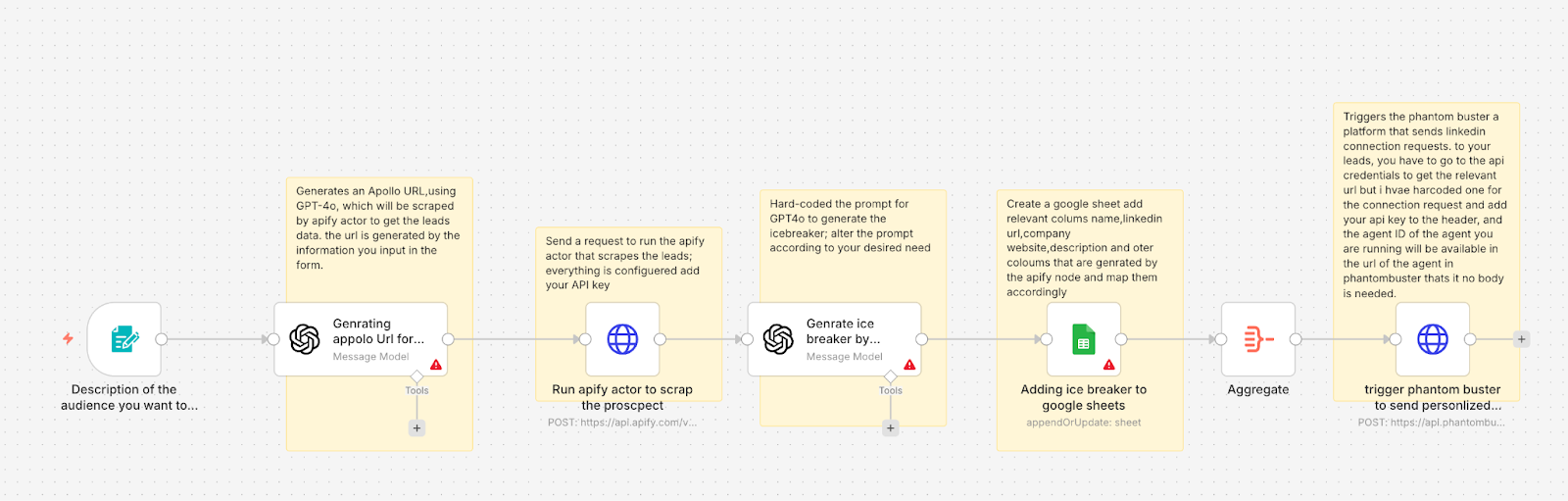
The workspace itself feels very Figma-like if you’re used to that kind of visual canvas. Everything is editable: Every node can be opened, adjusted, deleted, or rewired entirely without friction.
- Pros:
- The Figma-like canvas, editable nodes, and visible logic make it easy to understand, tweak, and rewire workflows.
- Once you’re inside the workflow, time-to-execution is genuinely good; I was able to tweak the logic, update credentials, and go live in under three minutes.
- Cons:
- The AI workflow onboarding could be smarter; being dropped into a prebuilt agent without being asked what you want to build first felt slightly misaligned with the promise.
- Even with templates and guidance, n8n expects you to engage with logic, credentials, and data flow more directly than simpler automation tools.
- Plans/Pricing:
- n8n offers a free, self-hosted option with full functionality if you’re comfortable managing your own infrastructure. The cloud plans start at around $23 per month (Starter) and scale up to higher tiers like Pro as execution limits and features increase.
Pro Tip
Use Jotform with n8n to push form submission data straight into n8n and trigger workflows across 1,000-plus tools, no code required.
6. Pipedream: Best for AI-driven automations without managing infrastructure
Pipedream is a workflow automation platform built for developers and technically fluent builders who want to connect APIs and write custom logic, without setting up infrastructure. Pipedream lets you create event-driven workflows that run on demand, on a schedule, or in response to app events, with JavaScript, Python, Node.js, or no-code steps mixed together in the same flow.
Key features:
- Run workflows via HTTP requests, webhooks, app events, cron schedules, or manual triggers.
- Store environment variables, API keys, and state without managing servers or external infrastructure.
- Write JavaScript, Python, or Node.js directly inside workflows, or combine code with prebuilt actions.
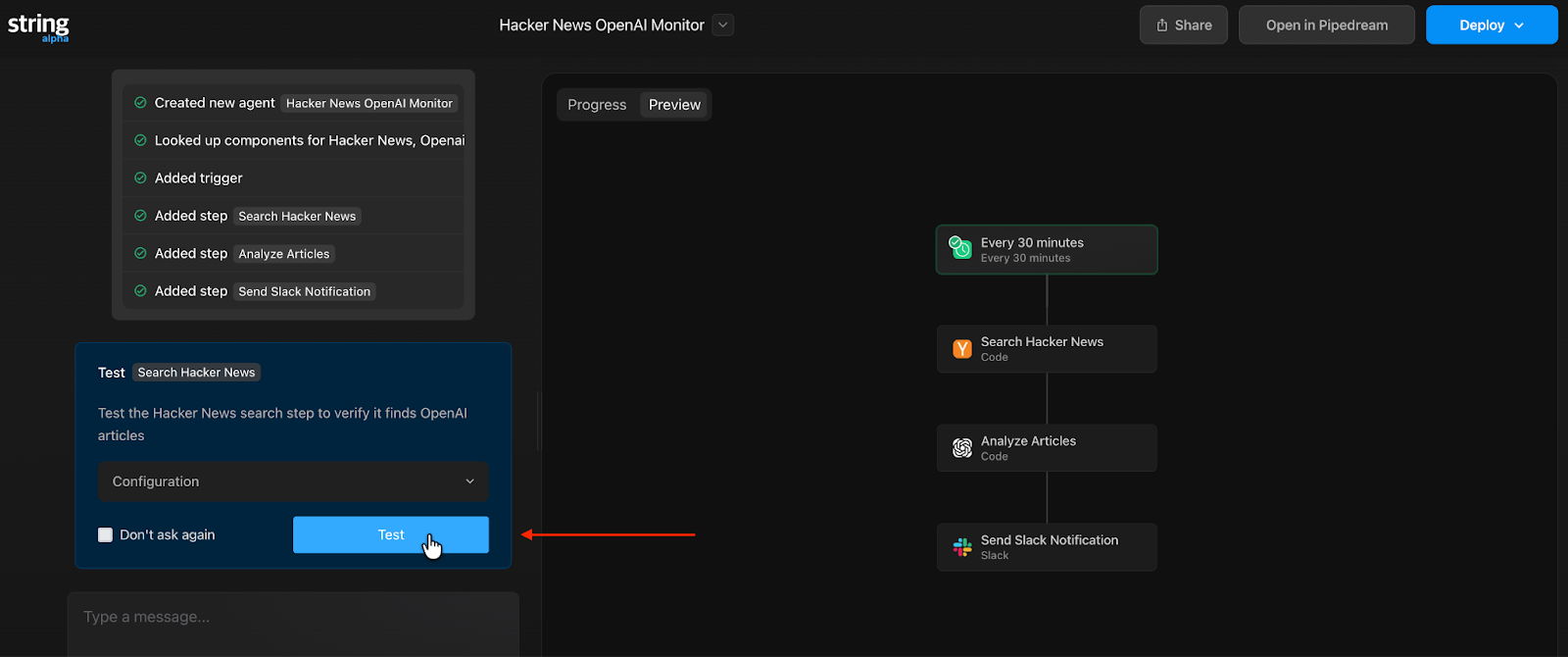
You click Build an automation, and the workspace surfaces suggestions. I went with brand monitoring. Pipedream immediately generated a text prompt for me, which I could edit freely. For example, if I didn’t want to monitor Hacker News, I could switch it out for Reddit or another source entirely before submitting.
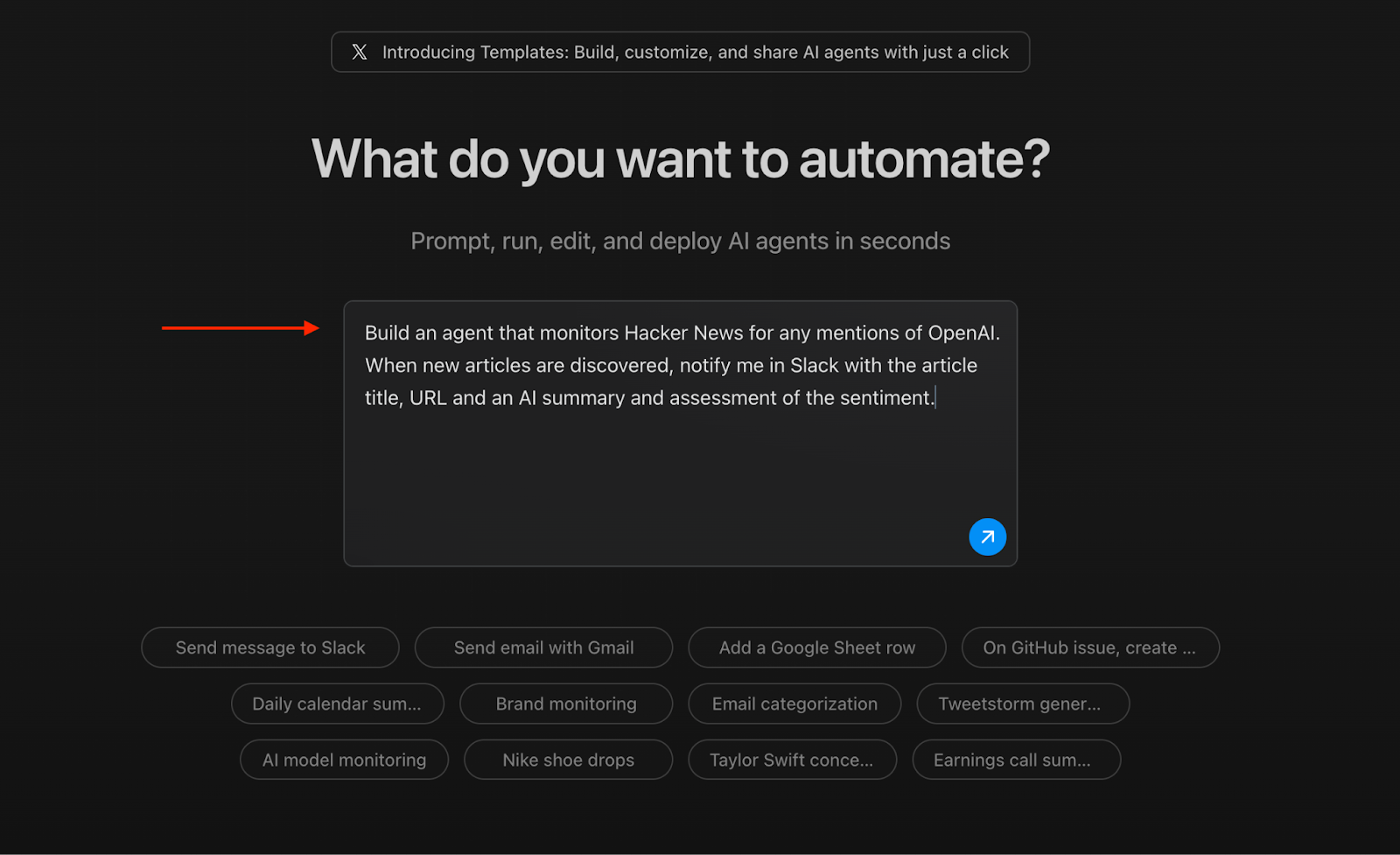
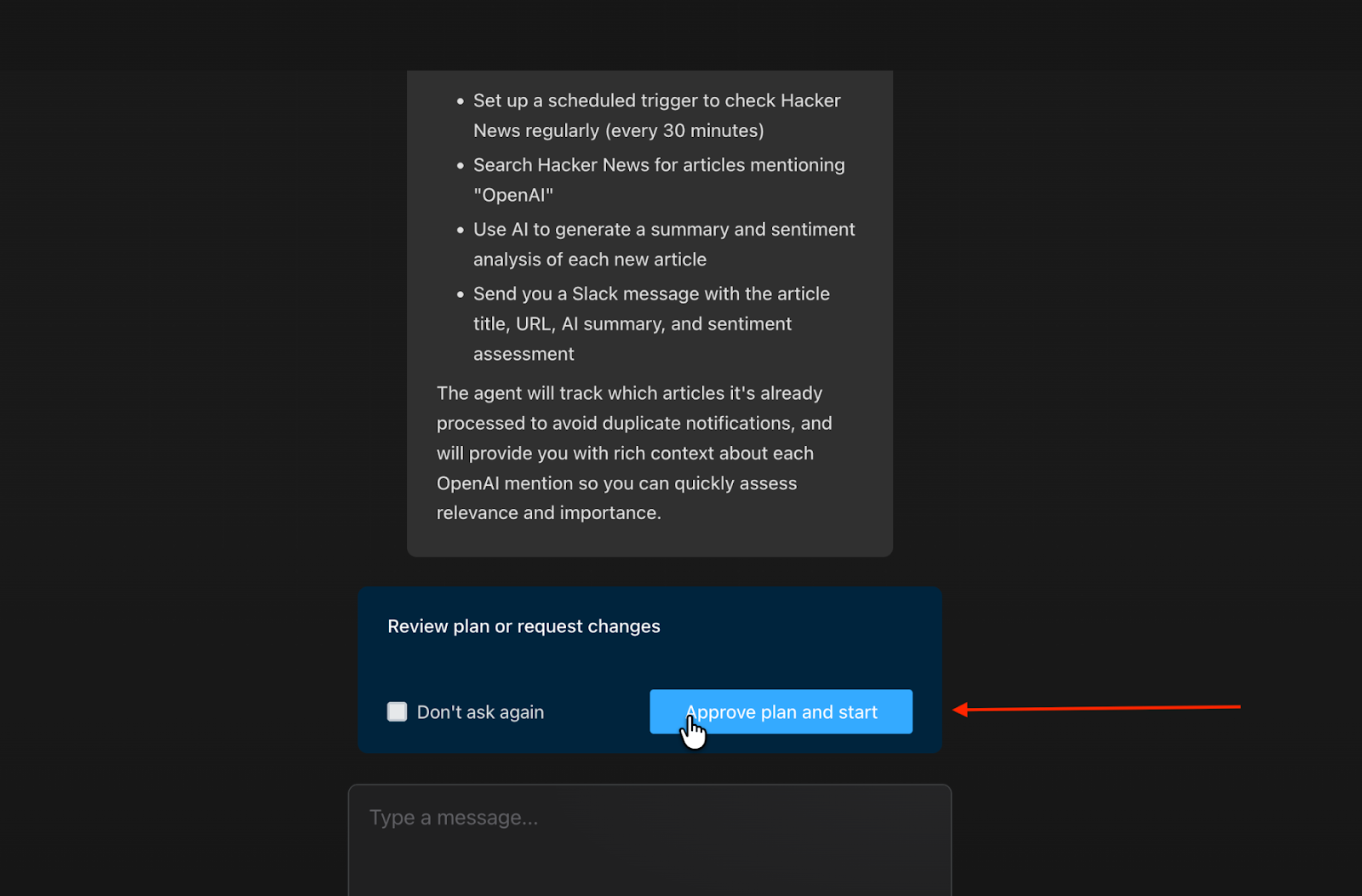
From there, everything happens inside a chat-like interface. Pipedream explains what it’s doing step by step, almost as if you’re talking to a large language model. At each stage, it pauses and asks you to approve the plan and start, or skip future confirmations.
Once approved, the workspace splits naturally. On the left, you see steps being added in real time. On the right, you get a live view into progress and the system’s reasoning. When code is required, Pipedream writes it automatically. I didn’t have to touch it at all.
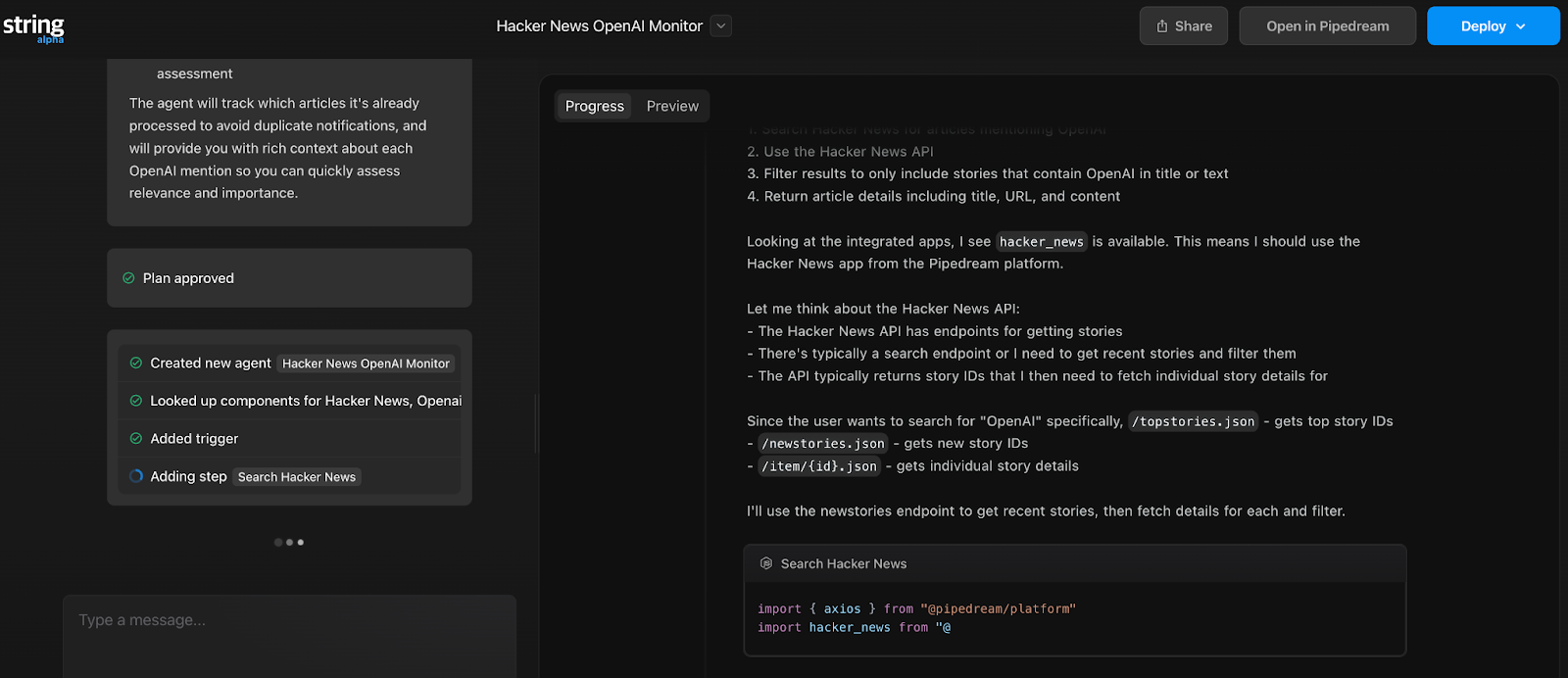
Before deploying, Pipedream prompts you to test individual steps. I tested the Search Hacker News step to make sure it was actually pulling in articles that mentioned OpenAI, and it worked as expected.
- Pros:
- You can describe what you want to automate in plain language, and Pipedream turns it into a structured plan with clear steps.
- Before you go live, you can test individual pieces of the flow (like my Hacker News fetch), which assures you the automation actually works.
- Cons:
- Even though you don’t have to write code, the interface and live code steps feel less gentle than no-code tools; it’s closer to developer-friendly than non-technical by default.
- The interface prioritizes power over comfort; once workflows get longer, the canvas and execution view can feel dense.
- Plans/Pricing:
- Pipedream offers a free tier that includes a generous number of invocations and basic features. Paid plans begin at around $19 per month (Hobby) when billed annually, with higher tiers like Pro and Team that increase event execution limits, advanced features, and enterprise controls.
7. Activepieces: Best for flexible, self-hosted automation with a visual canvas
Activepieces is an open-source automation platform built for visual workflow design and self-hosting flexibility. You can connect apps and services using a drag-and-drop builder, or you have the option to deploy and run automations on your own infrastructure.
Think of it as a privacy-forward alternative to hosted automation tools.
Key features:
- Fully open-source platform you can self-host or use in the cloud, with complete control over data and deployment.
- Build multi-step workflows with conditions, loops, retries, and human-in-the-loop actions
- Native support for AI pieces and agents, enabling intelligent automation and AI-enhanced decision-making.
You start inside a workspace where you can create a new flow or import an existing one, which is a nice touch if you’re migrating workflows or reusing logic.
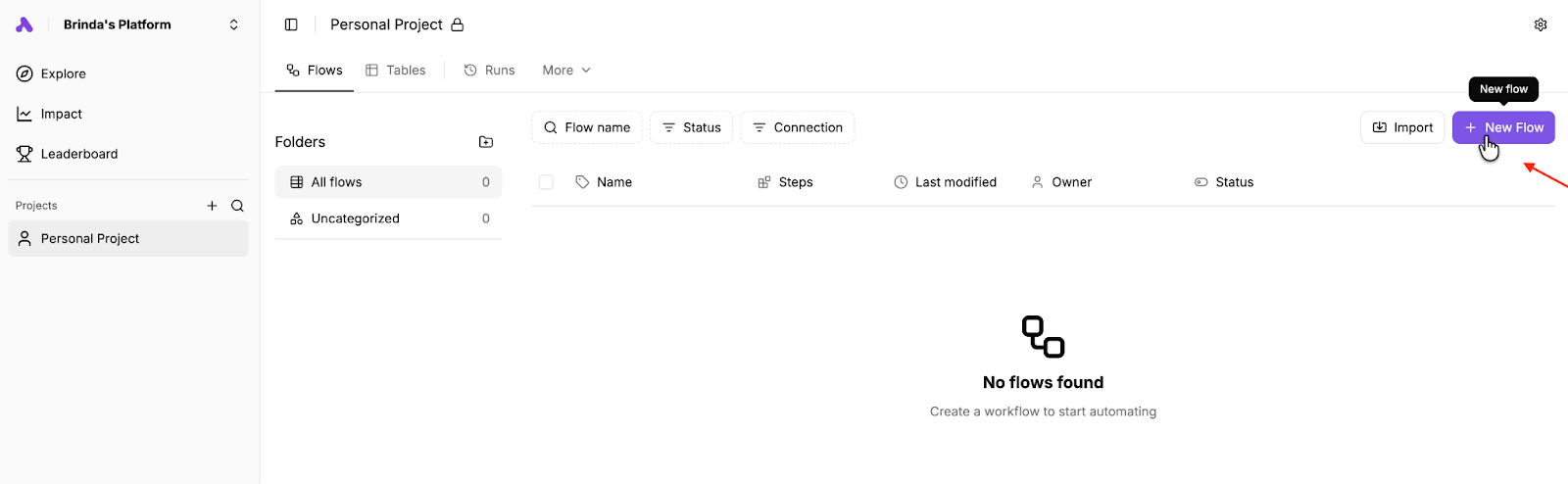
Once you do that, you’re dropped straight into a free-form canvas that feels similar to n8n. From there, you select a trigger. You can explore triggers by app or choose by utility, which lets you start with something simple like a manual trigger or a webhook.
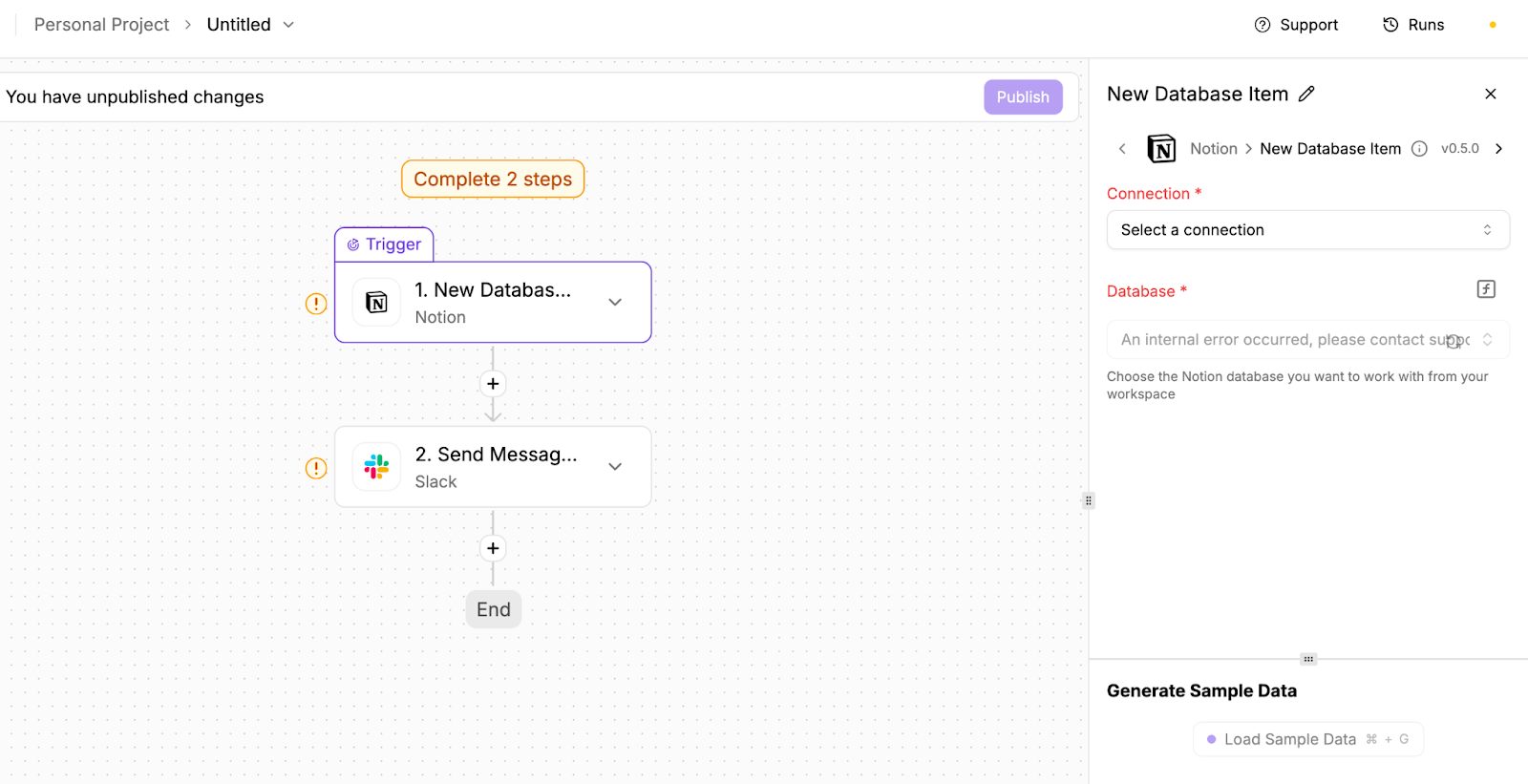
I picked Notion and selected New database item as the trigger. From there, you keep building forward based on what you want to happen next.
As you build, there’s a small sidebar on the right side of the workspace that continuously tells you what’s missing and what you need to complete before you test each step. That guidance is always visible, making it easier to move forward without breaking your flow.
Activepieces also gives a leaderboard. If you care about tracking and analytics, it shows top performers based on flows created and time saved. That framing gives you a tangible sense of the impact your automations have on your operations.

- Pros:
- The intuitive visual builder and simple canvas makes automation approachable even if you’re not a developer.
- The flat-rate model (with a free tier and straightforward paid plans) means you don’t get surprised by usage spikes or task costs like on Zapier.
- Cons:
- Self-hosting and customization are powerful, but they demand more hands-on involvement and occasionally expose rough edges that proprietary competitors have already smoothed.
- When a flow fails, you often have to click node by node to understand what broke.
- Plans/Pricing:
- Activepieces offers a free cloud plan including 1,000 tasks per month, two active flows, and 200 AI credits, plus a Plus plan at approximately $25 per month with unlimited tasks and more active flows, and a Business plan around $150 per month for higher usage and multi-user support. There’s also a free self-hosted Community Edition with no task limits if you run it yourself.
8. Tray.io: Best for enterprise workflows with advanced logic
Tray.io is a cloud-based low-code automation and integration platform (iPaaS) designed to help teams connect applications, orchestrate workflows, and automate complex business processes without heavy engineering.
Key features:
- Conditional branches, data mapping, and custom JavaScript support to tailor workflows to specific business needs.
- Drag and drop to create integrations and automations across tools without heavy coding.
- Integrates with hundreds of popular business apps and APIs so data and actions flow across systems.
Tray.io is clearly built with enterprise users in mind, so it earns its place on this list, but it doesn’t offer a free trial. Instead, Tray.io gives you an interactive demo.
You can see how workflows are structured, how logic is applied, and whether the product is something you’d realistically want to invest time — or budget — in before committing to a full demo with sales.
For this walkthrough, I went with a design workflow. The structure will feel familiar if you’ve used tools like Activepieces, Make, or n8n. You start with a trigger; then you add steps, map data between those steps, and layer in logic as needed.
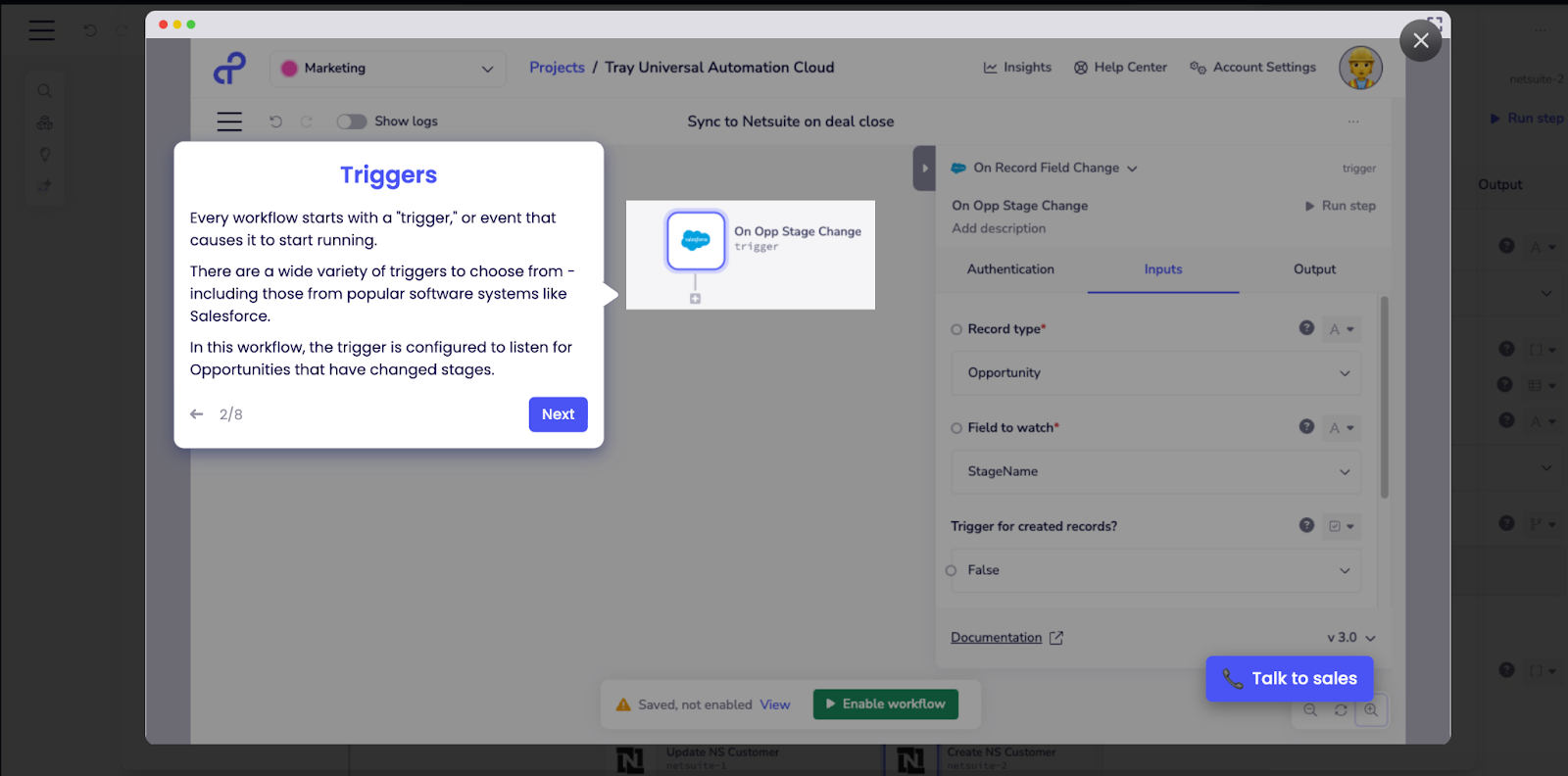
From there, you can introduce more advanced logic and even set up two-way data sync, which is one of Tray.io’s standout capabilities.
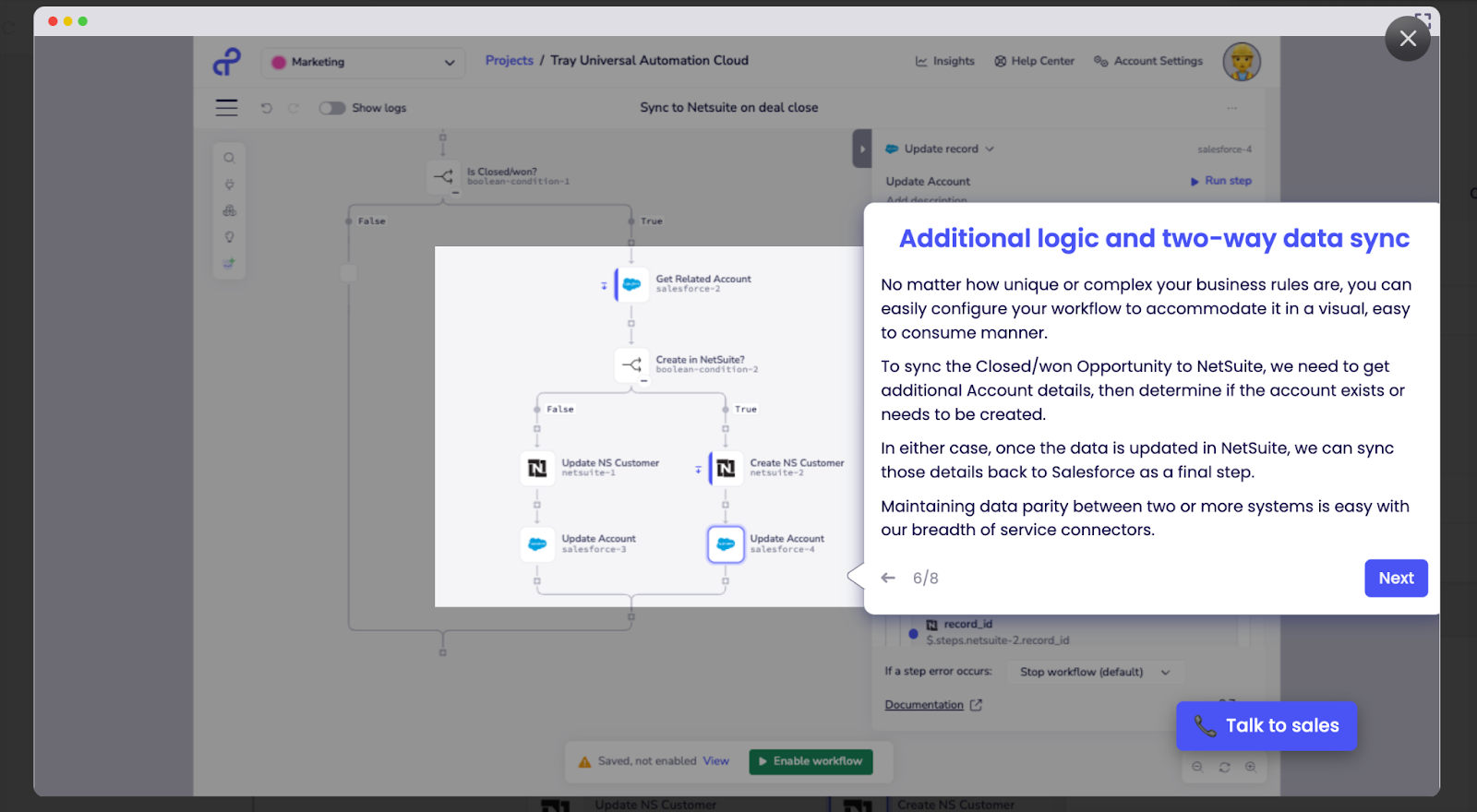
This isn’t radically different from what we’ve seen in other tools, but it feels more deliberate and enterprise-grade.
- Pros:
- Tray.io gives you enterprise-grade integration power; it handles complex workflows across disparate systems and supports deep connectivity with third-party tools.
- Visual workflow building combined with low-code options and conditional logic makes it possible to design sophisticated automations without starting from raw code.
- Cons:
- Tray.io doesn’t publish straightforward, entry-level pricing.
- The platform is powerful, yes, but its depth and enterprise focus makes it harder to get up and running without guidance or support.
- Plans/Pricing:
- You can request a free trial, but access is gated through the sales team. Based on third-party listings, plans typically start around $500 per month. Final pricing is quote-based and tailored to each customer.
Pro Tip
Connect Jotform to Tray.io to automatically sync form submissions to your other accounts, including CRM platforms, project management tools, and cloud storage, sans manual follow-ups.
9. Gumloop: Best for AI-first workflow automation with natural language building
Gumloop lets you create AI-infused automation flows by dragging nodes onto a canvas, connecting them visually, and using AI to make decisions, extract data, or analyze content as part of the execution.
You don’t have to manage your own LLM API keys unless you want to; the platform handles access to LLMs for you, making it easier to get started.
Key features:
- Use Gut-like prompts or “ask Gummie what you want to automate” to scaffold flows without complex setup.
- Automate tasks like web scraping, document summarization, CRM updates, lead enrichment, and more using AI-augmented steps.
- Includes compliance controls, access management, audit logging, and organizational workspaces for teams.
When you start with Gumloop, you’re given a few clear paths: schedule a flow, explore templates, or build your first workflow. I went with Build your first flow, which drops you into a chat-like interface that immediately feels closer to Pipedream.
From here, you describe what you want in plain text, start from a suggested template, pick an integration, or begin with a trigger. I chose to start with an integration and selected Ask AI, which is one of Gumloop’s core building blocks.
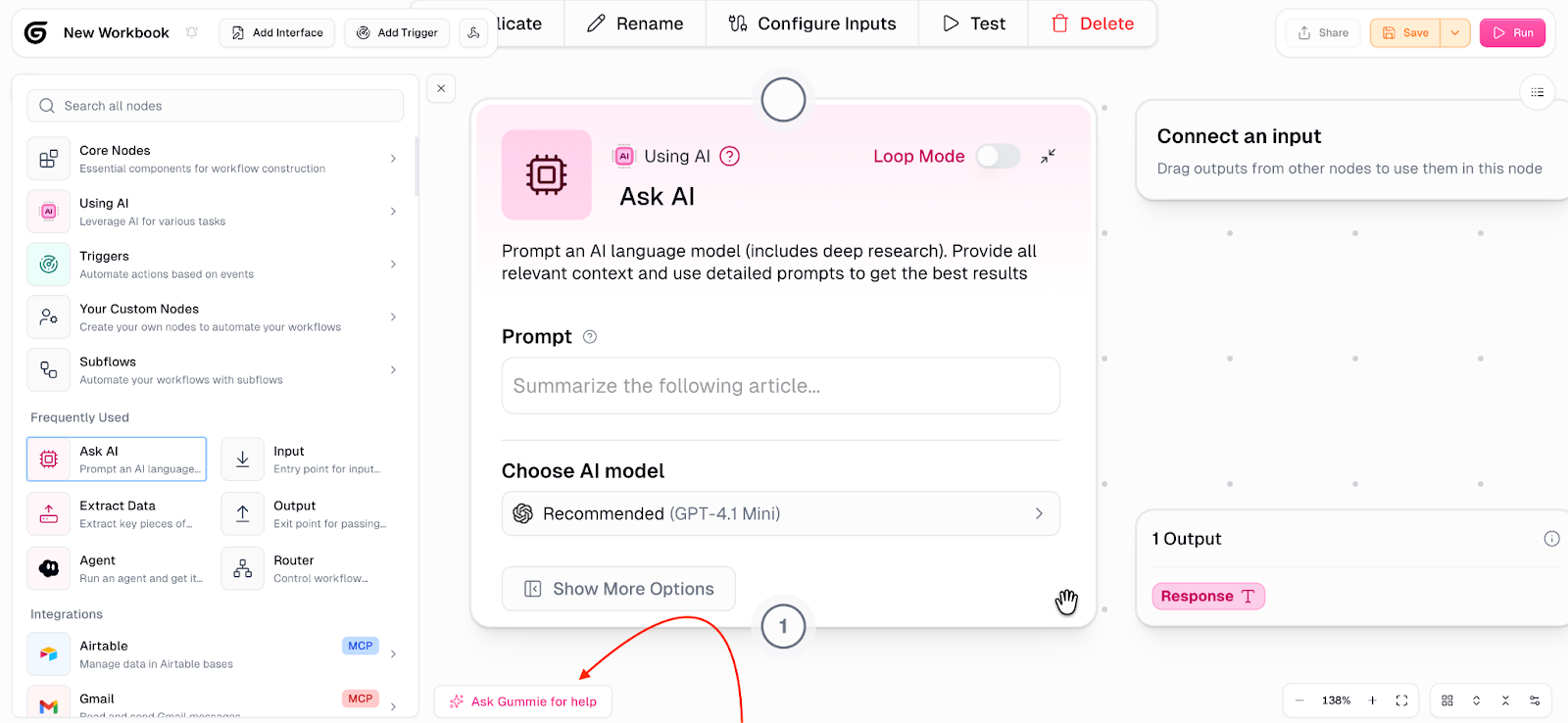
There’s also a persistent Ask Gummie for help option, letting you consult a built-in assistant that’s always available if you get stuck mid-build.
This is worth calling out: Gumloop currently supports fewer than 100 integrations, which is noticeably smaller than tools like Zapier or Make. That said, it covered everything I needed — Gmail, Google Sheets, LinkedIn, Notion, Discord, and Canva.
Once your accounts are connected, you can run steps at any point to test them.

- Pros:
- Gumloop is quite pleasant to be inside; the interface leans into soft gradients and calm tones.
- The built-in AI nodes (like Ask AI) and the Gummie helper make it feel like you’re building with context.
- Cons:
- Because pricing is credit-based, complex or AI-heavy workflows eat credits quickly, and it can be hard to predict your monthly cost without running real workloads.
- Gumloop supports fewer than approximately 100 integrations compared with tools like Make or Zapier. If your stack includes niche or industry-specific apps, you might hit limits.
- Plans/Pricing:
- Gumloop’s pricing starts with a free tier that gives you about 2,000 credits per month. Above that, paid plans begin at around $37 per month for the Solo tier with more credits and capabilities, scale up to the Team plan at about $244 per month with expanded seats and usage, and then go into Enterprise-level pricing.
10. LeadsBridge: Best for automating lead syncing for performance marketers
LeadsBridge, true to its name, acts as a bridge between lead sources (like Meta, Google Ads, LinkedIn, TikTok, and more) and your marketing or sales stack, automating real-time lead data flows so nothing falls through the cracks.
Key features:
- Connect advertising platforms (Facebook Lead Ads, Google Ads, LinkedIn Lead Gen Forms, TikTok) with CRMs, email tools, and data systems through 370-plus prebuilt bridges.
- Build a marketing ecosystem where audiences, custom segments, and conversion events flow between systems for consistent targeting and retargeting.
- Map fields and logic between almost any source and destination using tailored bridges to fit your stack and workflow needs.
LeadsBridge starts by asking about your budget, the platforms you’re using, and your primary goal (and even a secondary one). I filled that out, and from there everything funnels into the core concept — building a bridge.
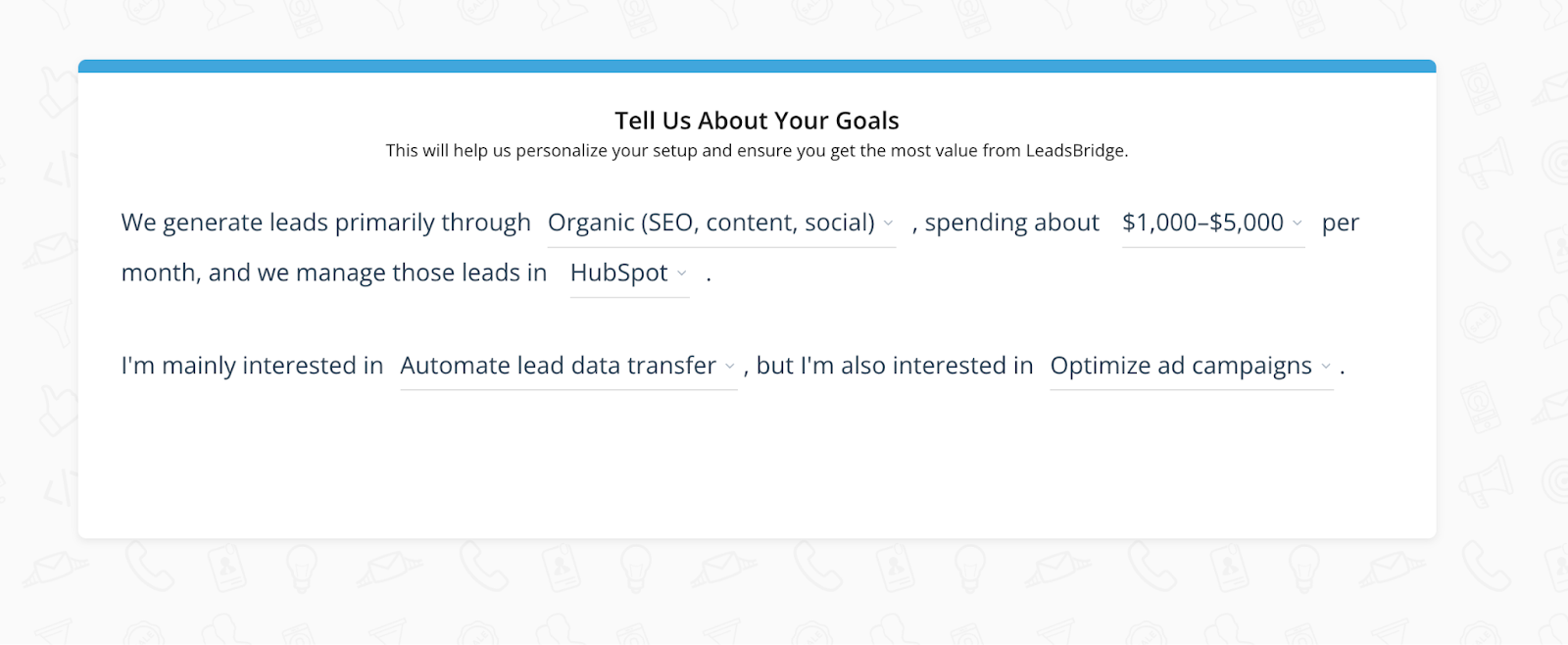
You choose a source (where leads come from) and a destination (where leads should go), map the fields once, and LeadsBridge keeps the data flowing automatically.
For this test, I picked Jotform as the source and HubSpot as the destination. You name the bridge, authorize the destination, and then you’re taken straight into field mapping.
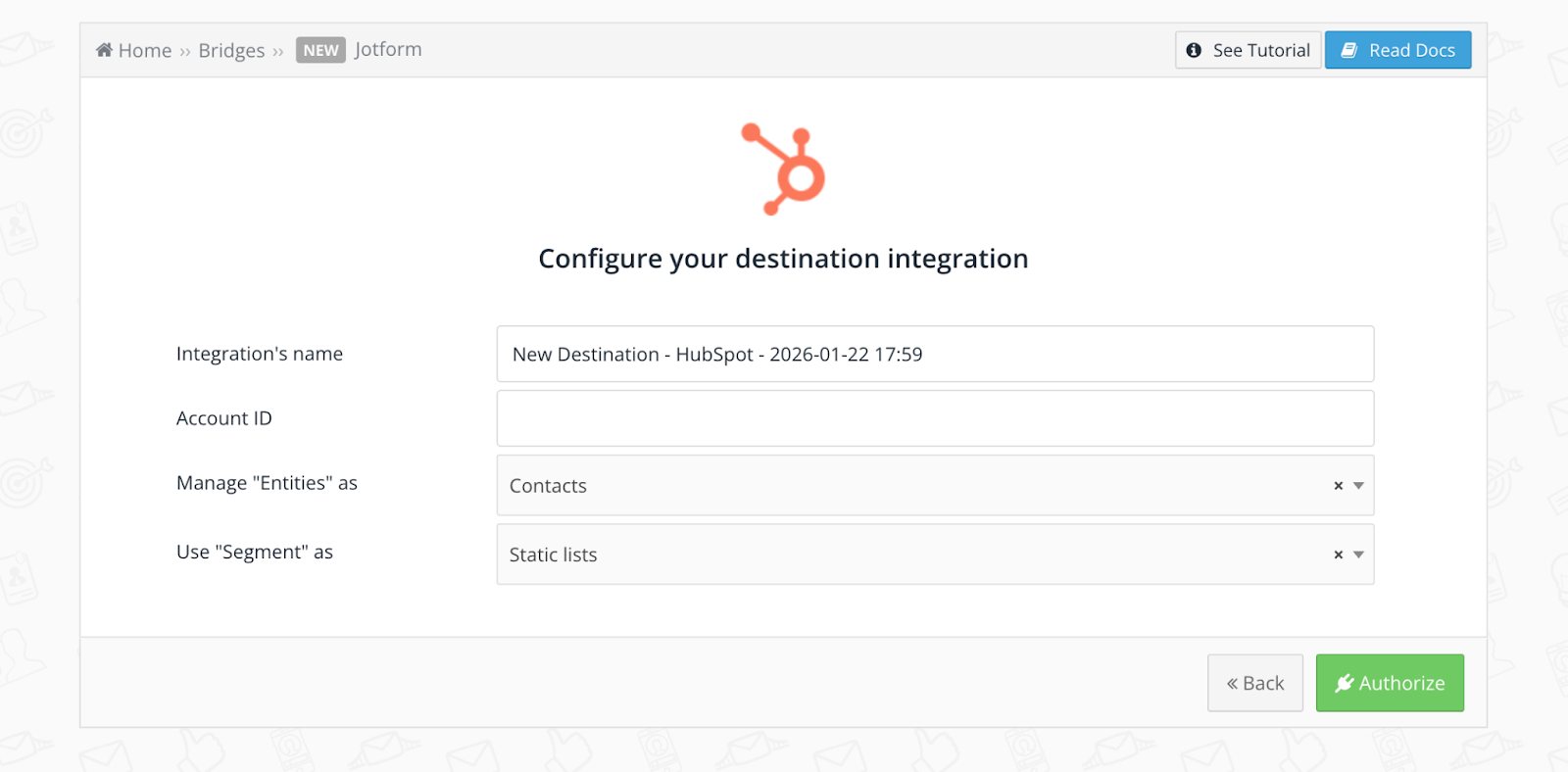
The pain it solves for marketers is very real — move data from point A to point B reliably. But the interface doesn’t quite keep up; it kind of feels like legacy software with harsh lines and that unmistakable gray-blue palette.
- Pros:
- The goal-oriented onboarding helps frame your problem; it makes you think in terms of marketing outcomes (budget, platforms, goals) before you start.
- LeadsBridge doesn’t try to be everything; it just syncs lead data where it needs to go.
- Cons:
- When a bridge didn’t deliver leads the way I expected, the error messages were vague, and I had to dig through logs and support docs to figure out what was wrong.
- When I tried syncing custom fields from my form to my CRM, the field chooser didn’t always make it clear which field was which.
- Plans/Pricing:
- LeadsBridge offers a free plan that includes up to approximately 100 leads per month and one active bridge at no cost. Paid plans start from $22-$29 per month, billed annually.
Where does this list leave us?
If I’ve realized one thing after tens of hours inside these tools, it’s this: If you’re not building logic-heavy workflows, many everyday automations are just about moving information from one place to another.
And if you’re mostly looking to replace certain Zaps, especially the ones that start with a form, an approval, or a simple request, Jotform does that job without the overhead.
Frequently asked questions about Zapier alternatives
Common alternatives include Jotform, Make, n8n, Power Automate, Integrately, Pipedream, Gumloop, Activepieces, LeadsBridge — each with its own strengths in areas.
Yes, millions of people and thousands of teams still use Zapier to automate workflows. But the gap is closing. Many newer tools now match Zapier on core automation use cases. And in some areas — such as pricing transparency, visual workflow design, AI-assisted building, or form-led automation — they’re starting to pull ahead.
There’s no single “best” AI automation tool in the abstract. It really depends on what you’re automating. But if your workflows start with collecting information, routing it, or getting decisions made, start with Jotform.
The tool uses AI in practical ways: to understand form inputs, route requests, trigger approvals, and pass data to the right tools.
This guide is for founders, ops leads, marketers, support teams, no-code builders, and IT/RevOps pros who like Zapier but feel the pinch on price, task limits, or complexity and want the right alternative for their stack and skills.





























































































Send Comment: