
If you run a dropshipping business on Shopify, you might use TikTok or Facebook ads to send potential customers directly to a product page. Shoppers clicking those ads have likely never heard of your brand, so building trust quickly determines whether they buy. Genuine customer reviews build that trust better than anything else on the page —especially reviews with real photos — and your AliExpress supplier’s listing usually has hundreds of them already.
But getting reviews onto your product pages is the harder part, because Shopify has no native way to sync data from AliExpress. Since it discontinued its own product reviews feature in 2024, there’s no built-in review system to import them into either.
You can get these reviews onto your product pages in three ways:
- A free hosted widget you embed with a code snippet
- A custom integration through the AliExpress Open Platform API
- Manually typing reviews into your Shopify theme editor
If you’re selling on Shopify and want supplier photo reviews on your product pages without paying a monthly app fee, this guide covers all three methods, starting with the widget option.
Dropshipper’s playbook for curating AliExpress reviews
When importing reviews from an overseas supplier, you must carefully curate the feed to protect your brand’s credibility and maintain the dropshipping illusion:
- Be upfront about where reviews come from: Labeling them as reviews from the supplier’s listing keeps you clear of the FTC’s rules on review hijacking, and it costs you less credibility than a shopper discovering it themselves.
- Don’t filter by sentiment: Removing negative delivery reviews is the specific practice the FTC calls out. A few honest three-star reviews make the five-star ones more believable.
- Prioritize photo reviews: A shopper can ignore a text review, but a photo of the product on a real kitchen counter is harder to deny, and it’s the closest they’ll get to seeing the item in person.
Option 1: Use a free reviews widget (recommended)
A hosted widget imports your supplier’s reviews to your Shopify product pages without a monthly app subscription or theme code you’d have to maintain. You paste your AliExpress product link into a builder, style the feed to match your store, and copy an embed code.
Jotform’s AliExpress Reviews Widget is free to create and embed. You choose from carousel, slider, grid, list, masonry, or badge layouts. Then you adjust colors, width, dark mode, titles, buttons, and which review fields appear, so the feed looks like part of your store rather than something bolted on.
Here’s how to import AliExpress reviews to Shopify with the Jotform widget:
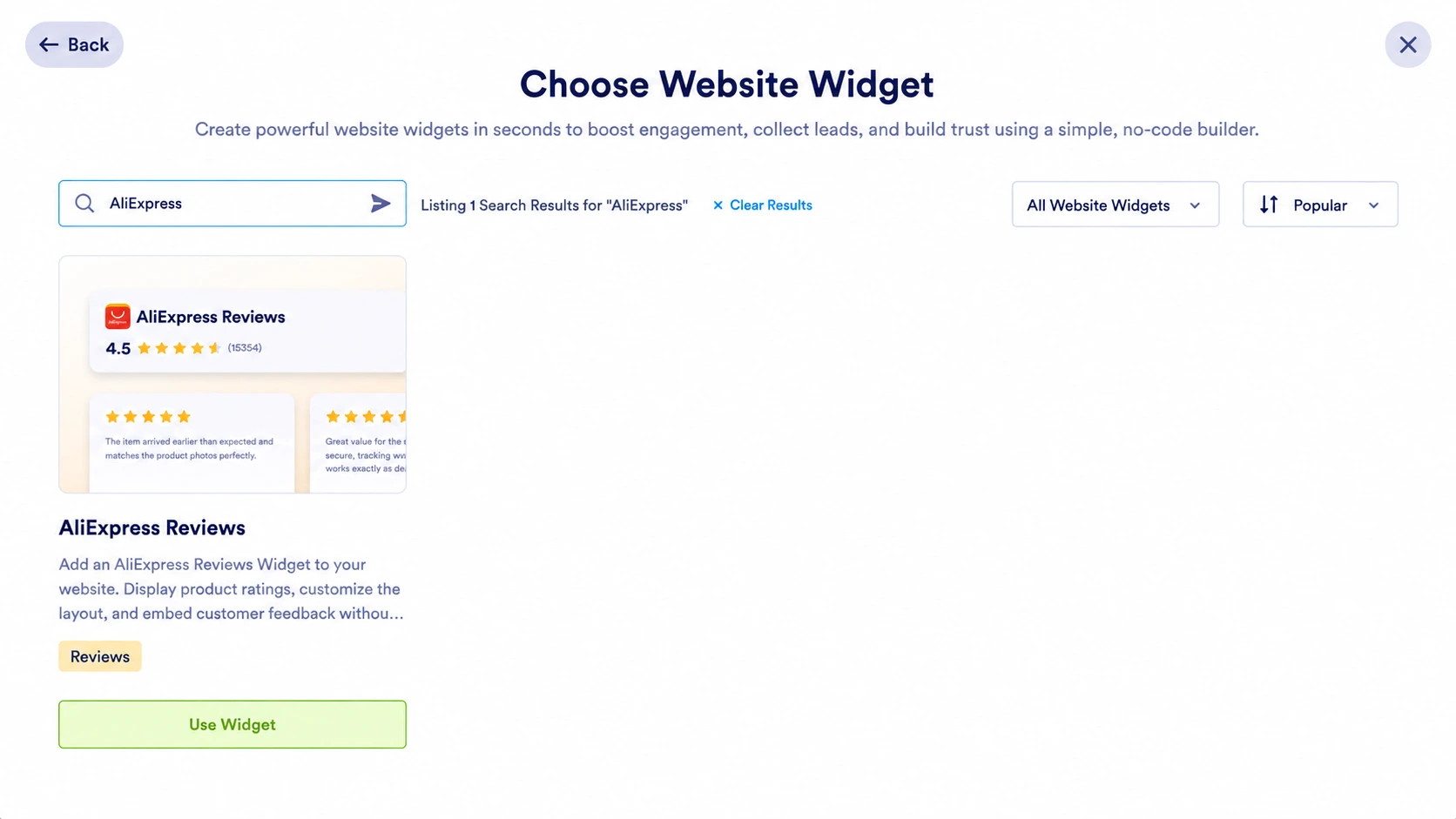
- Create the widget: On your Jotform Workspace page, click Create, select Website Widget, search for AliExpress Reviews, and click Use Widget.
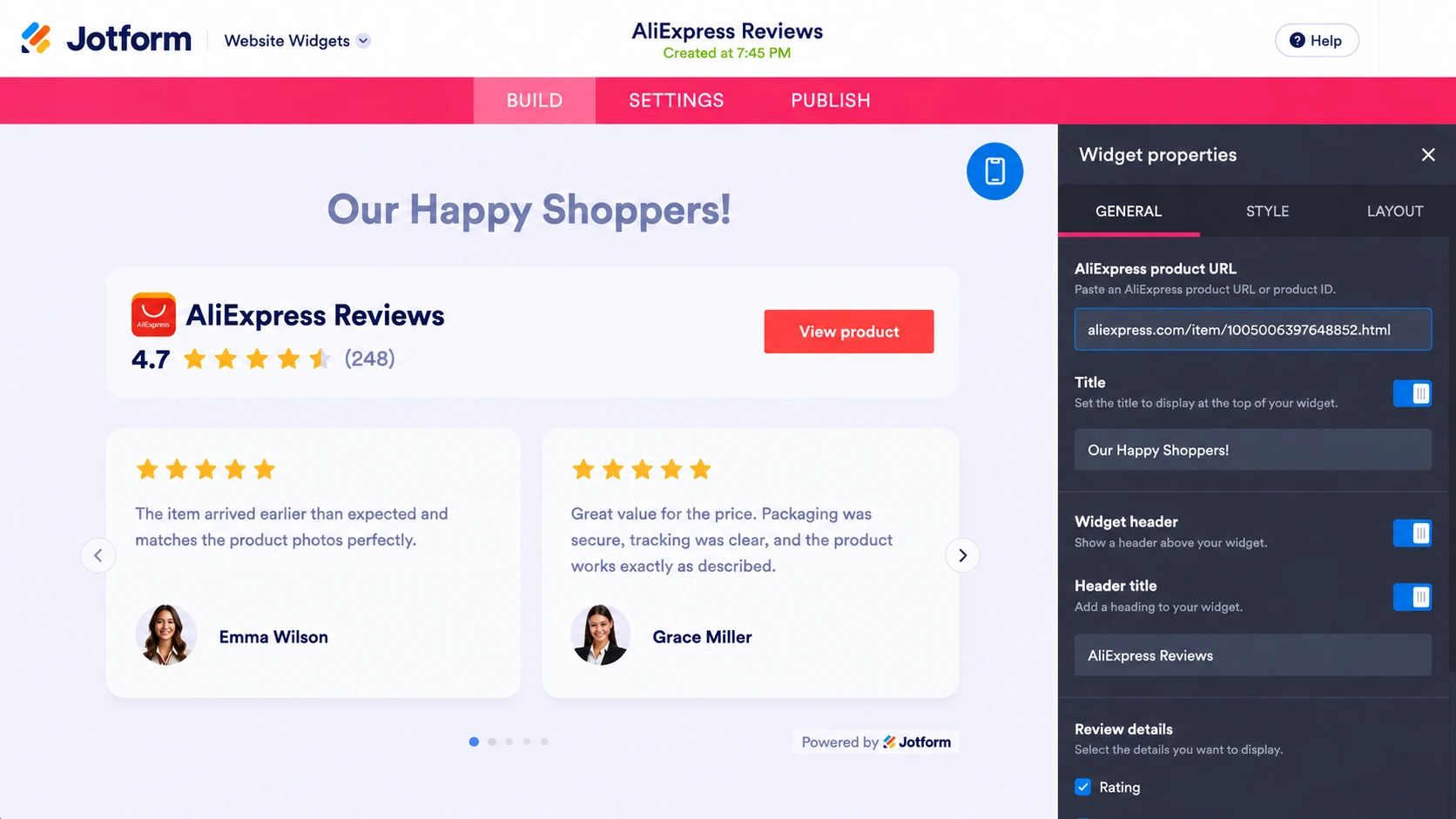
- Set it up: Paste your supplier’s AliExpress product URL or product ID so the widget pulls that product’s reviews; then pick a layout and style it to match your store. To display AliExpress photo reviews, you can choose between masonry and grid layouts. Carousel and slider work well in tight spaces, and the badge layout gives you a compact rating that expands to the full display. You can also set colors, width, and dark mode, and choose which review fields appear.
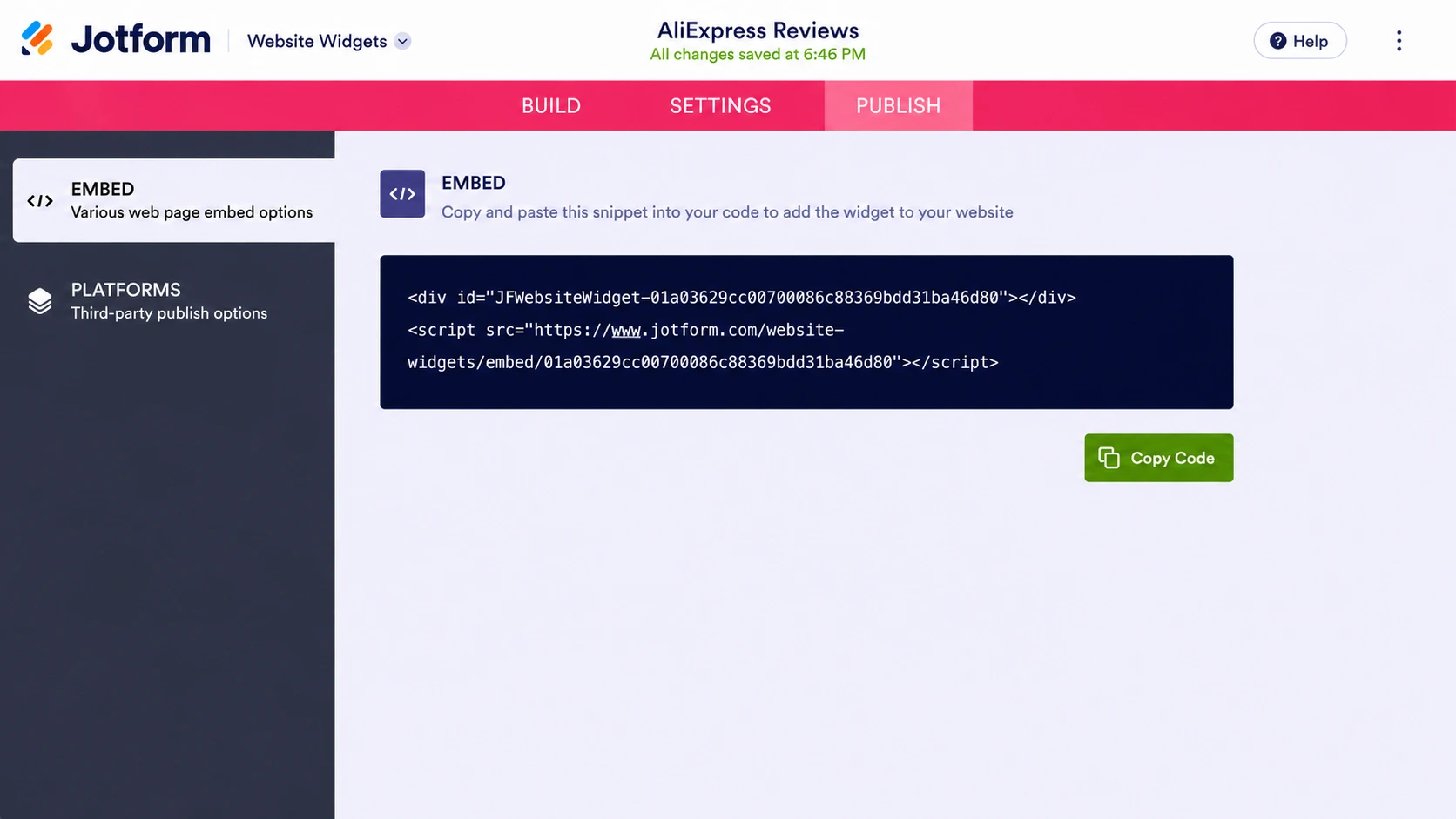
- Embed it in Shopify: Click the Publish tab and copy the embed code. The Platforms section also includes Shopify-specific instructions if you’d prefer to follow those. In your Shopify admin, go to Online Store, open your theme editor, navigate to the product page where you want the reviews, click Add section, choose Custom Liquid, paste the code, and save.
The advantage over a free AliExpress review app on Shopify is that there is nothing installed on your store and there’s no developer account to apply for. Changing a layout or color means editing the widget, not upgrading to a plan tier that unlocks customization. You can also turn off the widget header if you’d rather not show the rating and review count.
Option 2: Build a custom AliExpress API integration
Developers often assume this is a quick job, since getting reviews from AliExpress and sending them to Shopify sounds simple enough, but it’s harder than it looks on both ends. AliExpress won’t provide the data without an approved developer account, and Shopify has no place to store your API credentials or to execute the code that would pull the reviews.
The first obstacle is access, since the AliExpress Open Platform isn’t a public endpoint you can query with a key you generate yourself. You need an AliExpress Seller Account first, and seller registration is limited to a set list of countries. This limitation rules out many dropshippers before they even start. From there, you agree to the Open Platform Agreement, submit developer and company details, create an app in the console, and wait for Alibaba Group to review it, usually within a couple of business days.
Here’s what it takes to add AliExpress reviews to Shopify through the API:
- Apply for API access: Register on the AliExpress Open Platform, agree to the terms, submit your details, and create an app to receive your App Key and secret key.
- Build a backend service: Write code that authenticates with AliExpress, generates the signed requests the API expects, pulls the review data, and translates it into a format Shopify accepts.
- Push the data into Shopify: Store the reviews as product metafields via Shopify’s Admin API; then render them in your product template with Liquid.
Step 2 is what stops most people, because Shopify gives you nowhere to execute the code. Liquid renders on Shopify’s servers but can’t make requests to outside APIs, and any JavaScript in your theme executes in the shopper’s browser, where your secret key would be visible to anyone who views the page source. That leaves provisioning your own server on AWS or Google Cloud, paying for it monthly, and maintaining it, all so a product page can display reviews.
There’s also the question of what the API returns, since it’s oriented toward order and product management rather than review data. That’s why most tutorials on this route point you toward third-party scraping services instead. Such services bring their own problem, since pulling review data that way tends to conflict with AliExpress’s terms of use.
Option 3: Manually build native Shopify blocks
If you’d rather not embed anything from a third party, there’s a third option: Shopify’s theme editor can display reviews using blocks the platform already gives you. It’s the only option here with no external code at all, but it’s also the most work.
Adding a Rich Text or Multi-column block to your product template and typing reviews into it has one problem you should know before you start. A product template applies to every product using it, so whatever you type appears on all of them; a catalog of 10 products would show the same 10 reviews.
To show different reviews on different products, use metafields, which store content per product and connect to your template through the theme editor. Here’s how to add AliExpress reviews to Shopify manually:
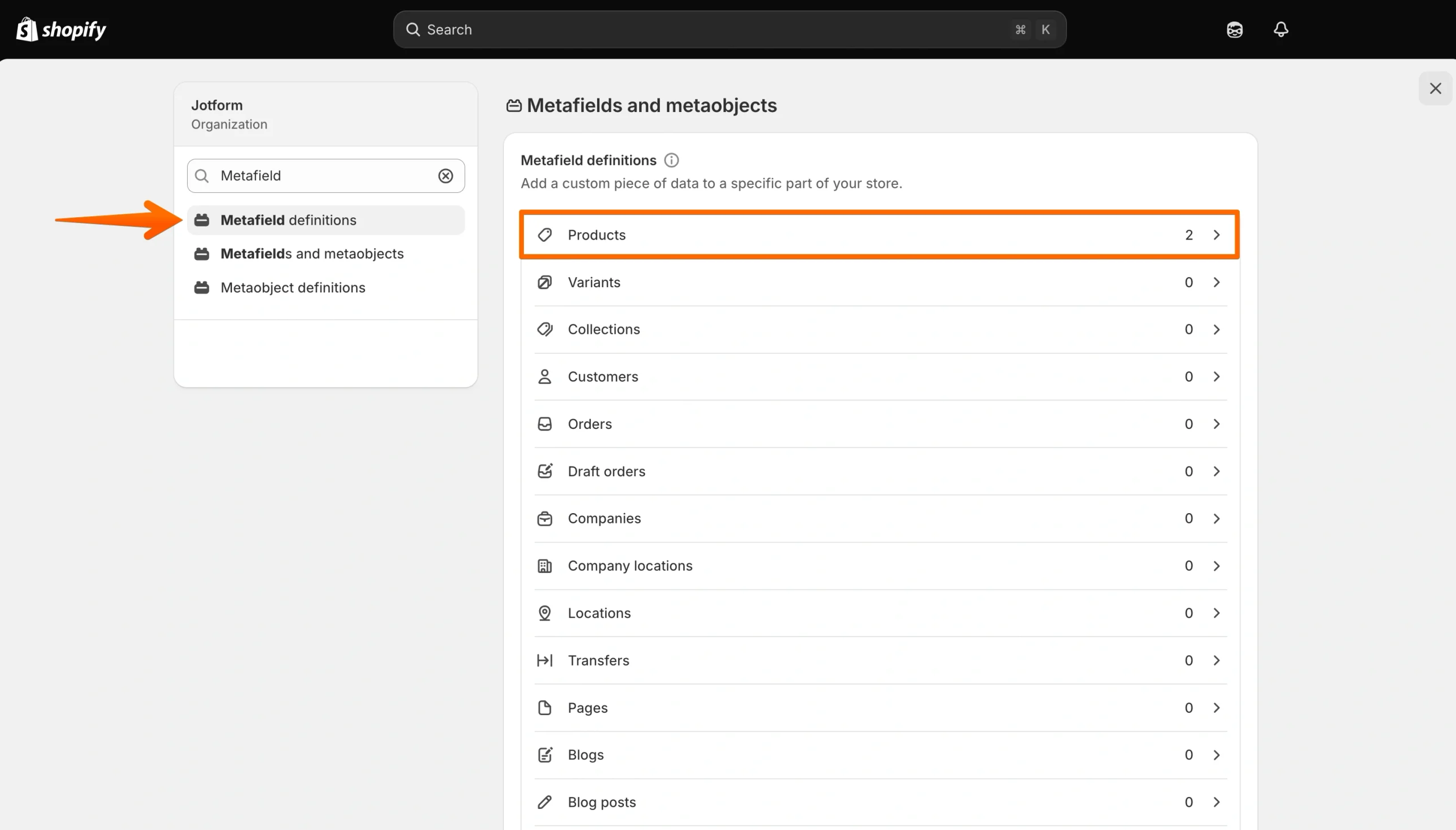
- In your Shopify admin, go to Settings, search for and select Metafield definitions, and click Products.
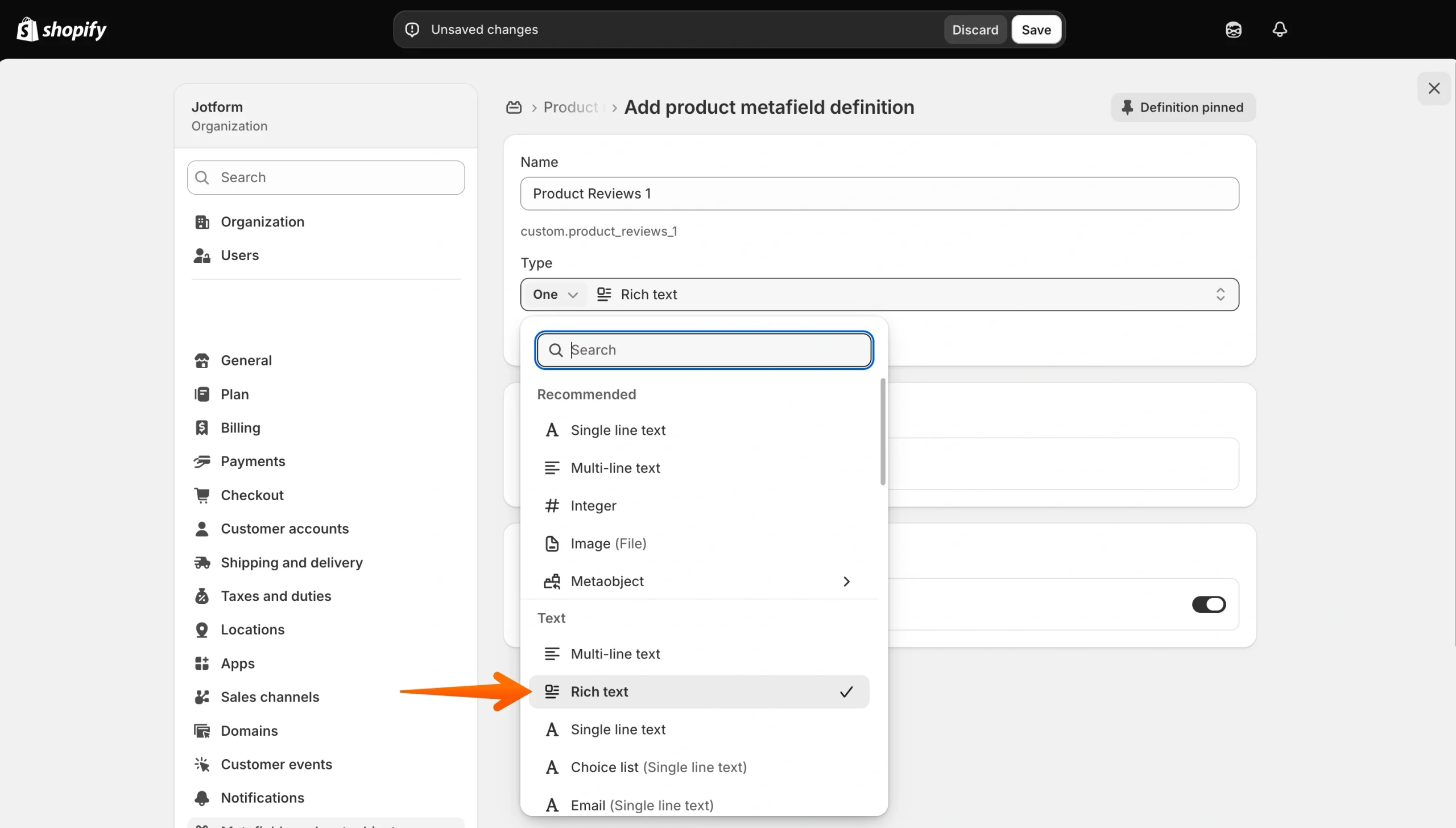
- Click Add definition, name it something like Product reviews, and set the content type to Rich text.
- In Home, click Products in the left sidebar and open a product from your catalog. Scroll down to Product metafields, and type or paste the reviews you want on that product’s page. Click Save, and repeat for every product you want reviews on.
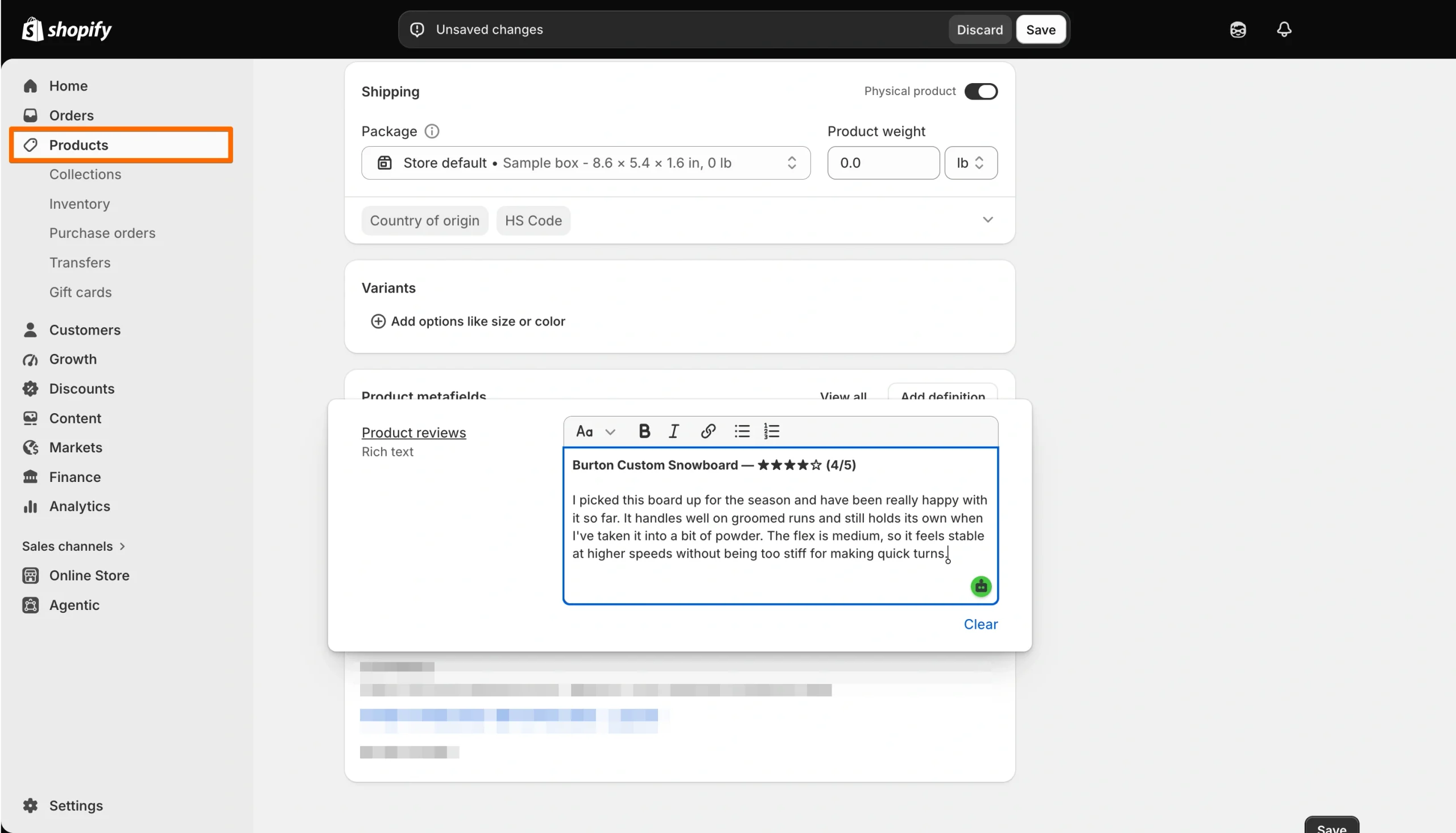
The reviews are now saved to each product, but they won’t appear on your storefront until you connect the metafield to your product template. You only need to make this connection once; after that, each product can display its own review content automatically. Here’s how:
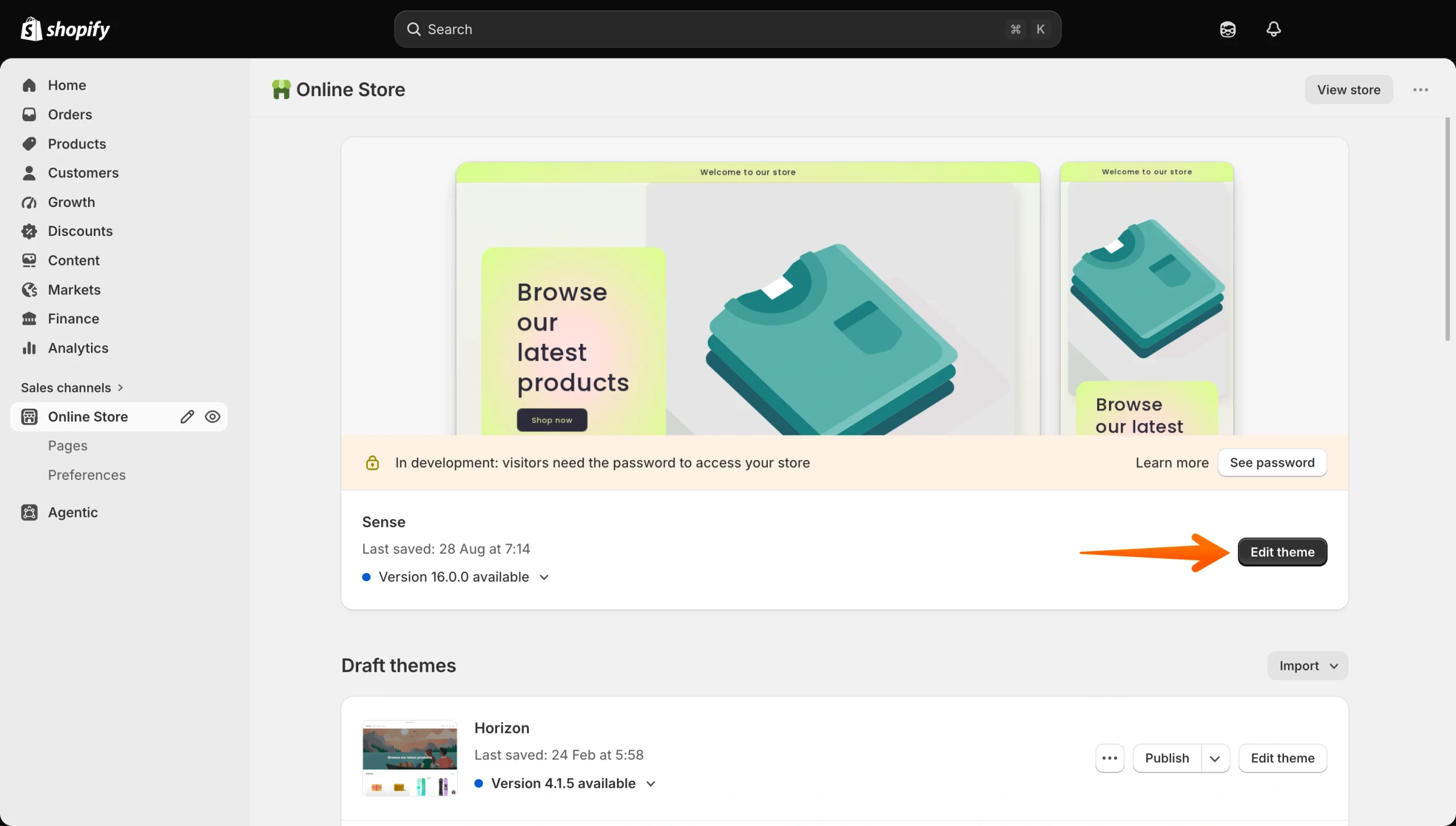
- In your Shopify admin, go to Online Store and click Edit theme on your active theme.
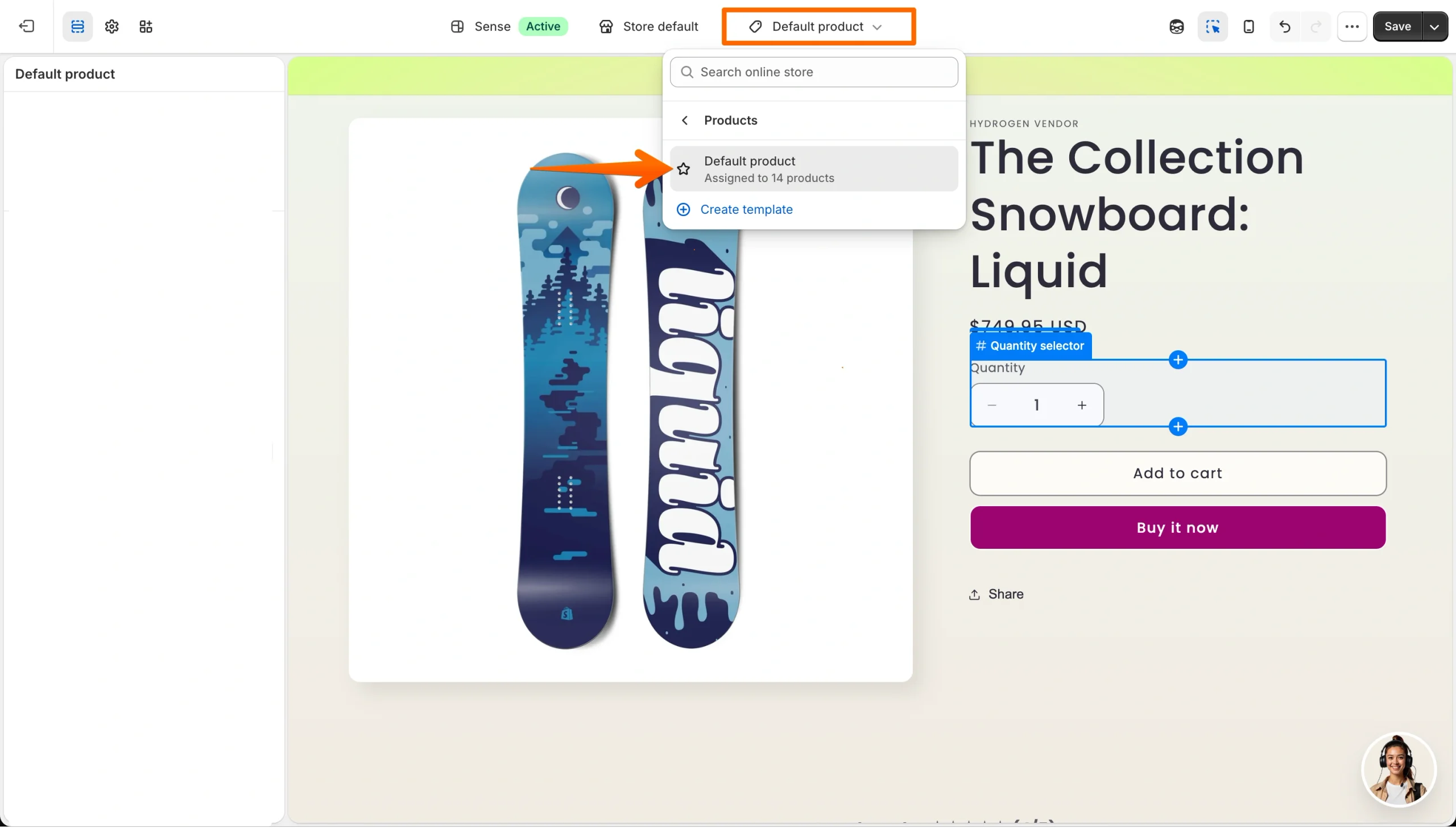
- In the theme editor, open the template menu at the top, select Products, then Default product.
- Add a Rich text section where you want the reviews to appear.
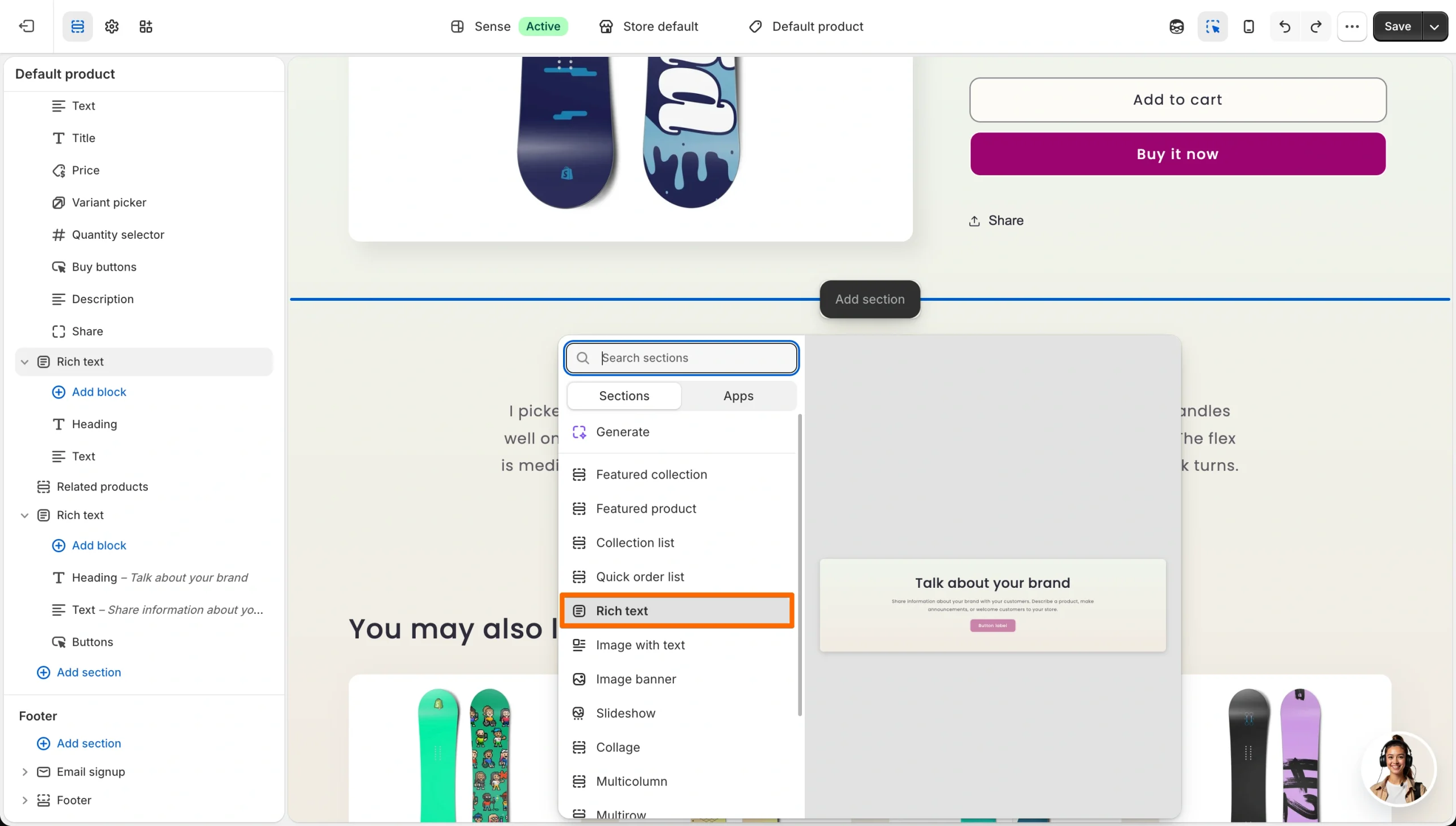
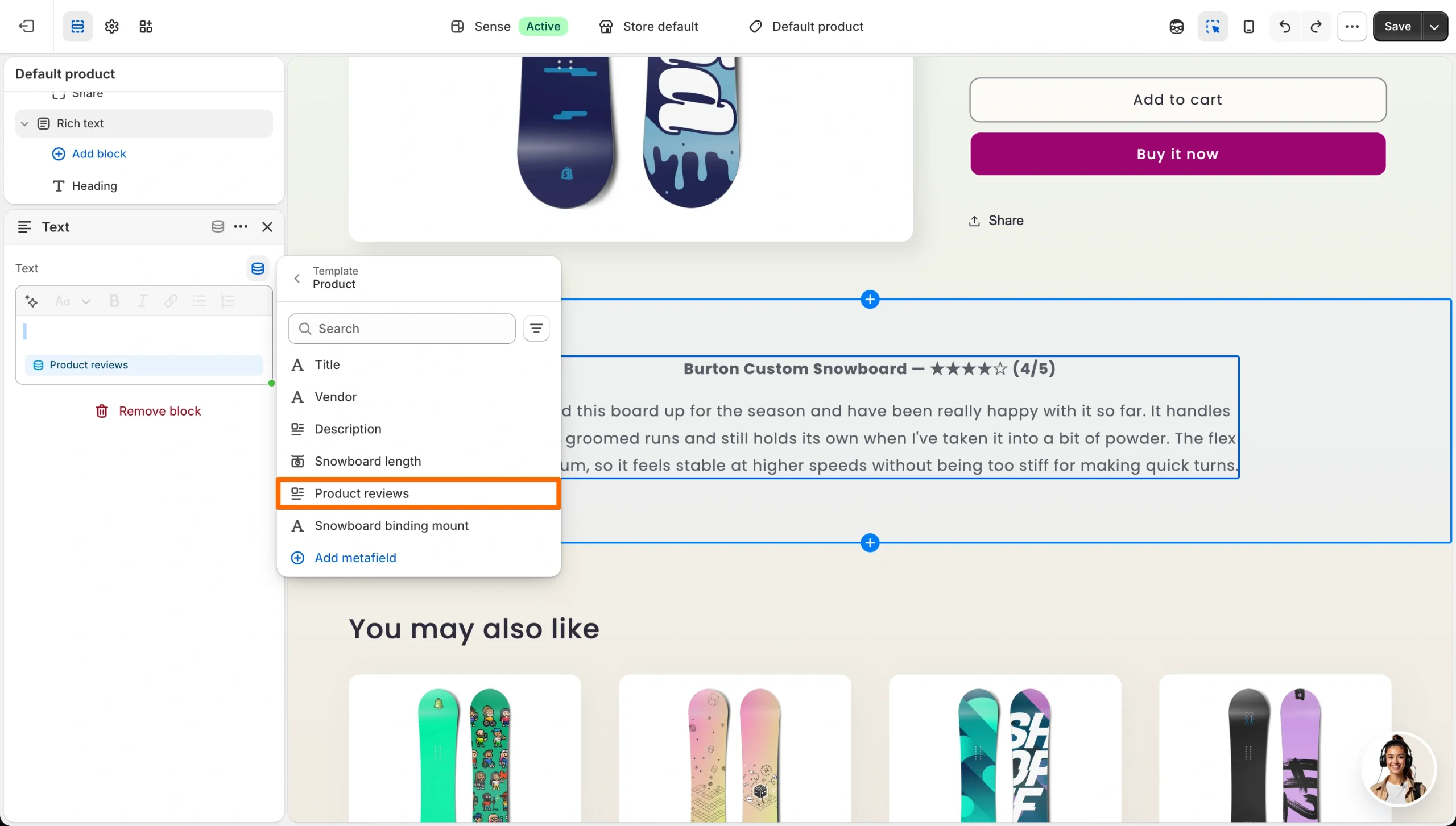
- Click the Text block inside that section, then click the connect dynamic source icon next to the content field. Select your Product reviews metafield and click Save in the top right.
And you’re done! Your product reviews will now appear on the storefront.
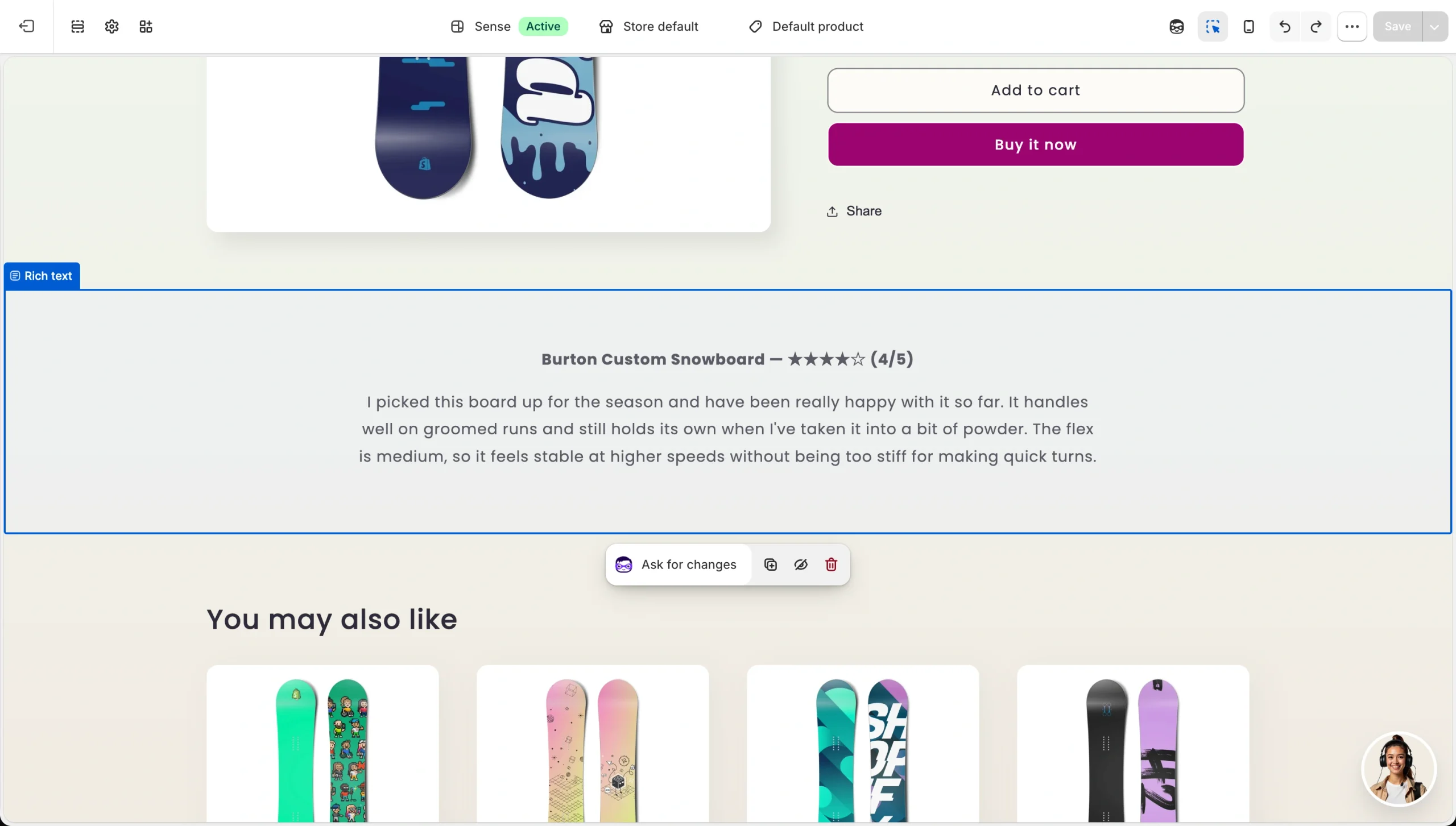
The result is entirely static because nothing updates when your supplier’s listing receives new reviews. Refreshing them means opening each product and editing the metafield again, and photos are even harder, because you’d have to host the images yourself rather than point to AliExpress.
Volume is the other problem, since a store with 50 products means 50 rounds of copying reviews over, and every product you add later is another round. For three products, it’s manageable. For a full catalog, it’s a job you might stop doing after the first month.
Supercharge your Shopify dropshipping store with smart widgets
If you’re starting a dropshipping business or already have one, you can add a Shopify dropshipping reviews widget to a product page without another monthly app fee eating into your margins. Shopify is one of the best e-commerce website builders for a store like yours, and Jotform’s free website widgets directory adds more than 150 options on top of it, including:
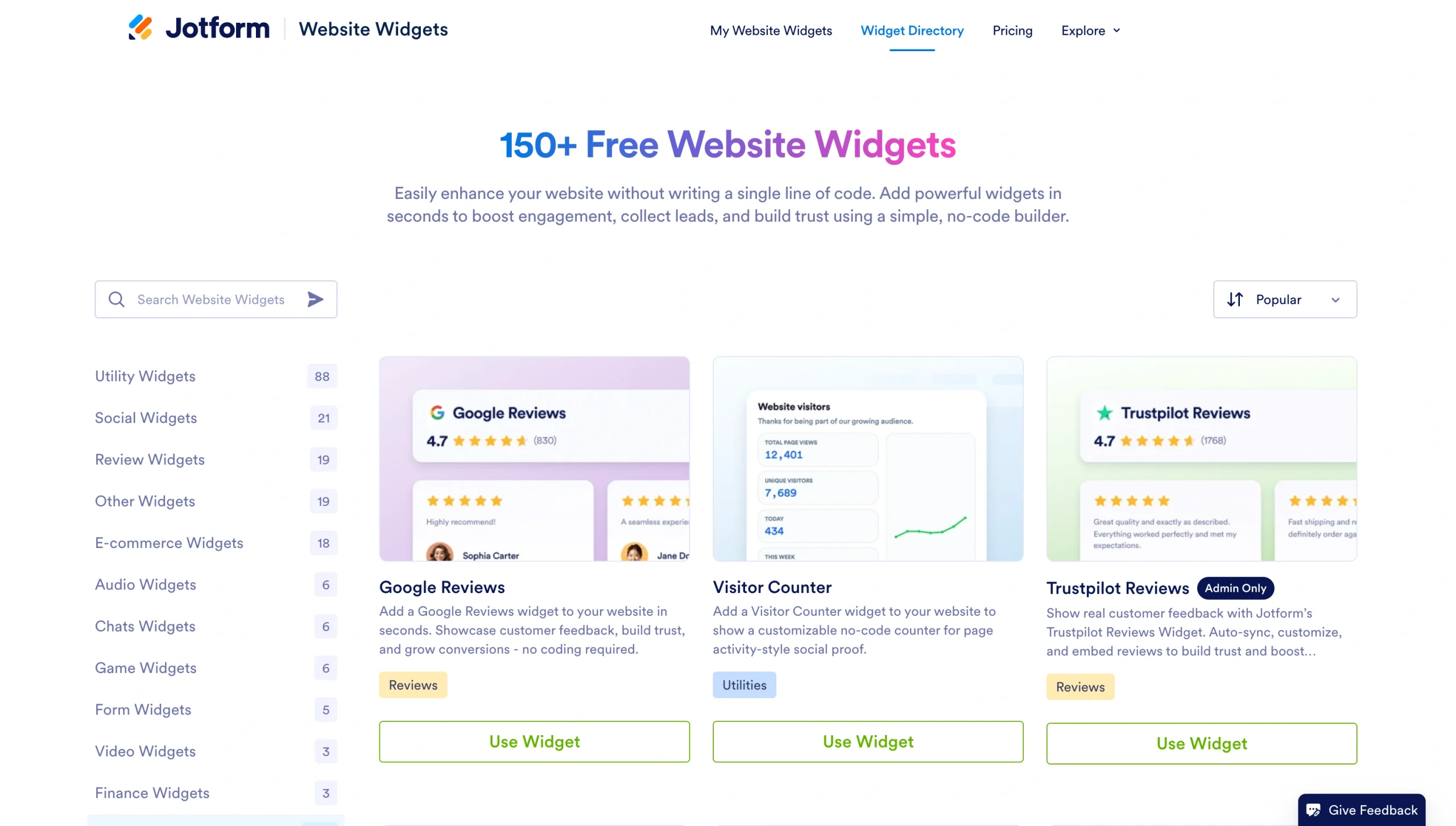
- Countdown Timer Widget for a sale deadline, which is the kind of urgency that turns ad clicks into orders rather than saved tabs.
- Announcement Bar Widget for your free shipping threshold, so shoppers see it before they reach checkout.
- WhatsApp Chat Widget for the sizing and delivery questions that stop a sale, answered in an app your customers already use.
Each one embeds via a Custom Liquid block, just like the reviews widget, so you aren’t adding an app subscription every time you want a simple feature on your store.
As a dropshipper, your budget should go to ad campaigns and product testing, not to middleware servers or a monthly App Store fee to display customer feedback. The AliExpress Reviews widget gives you social proof on your product pages at no cost, and the Jotform-Shopify integration handles the form side if you’re collecting customer information, too.
This article is for dropshippers and independent e-commerce merchants using Shopify who want to import supplier photo reviews to build trust with cold ad traffic, without paying expensive monthly app fees or slowing down their theme.

















































Send Comment: