
When you connect your brand’s social media accounts to your Shopify store, you can display a live feed of your social posts — user-generated content (UGC), unboxing videos, product photos, and more — right within your e-commerce site.
That means you can provide social proof to potential customers without redirecting them to other platforms where they might get distracted and abandon their cart. Keeping people on your Shopify store rather than sending them to Instagram or TikTok also increases the time they spend on your site, which can improve user engagement.
But how do you go about it? While Shopify is one of the best e-commerce website builders, it doesn’t come with built-in functionality for auto-updating social media feeds. To use this feature on your online store, you’ll need to learn how to add social media feeds to Shopify by either installing a premium third-party tool from the Shopify App Store or embedding a free social feed widget. We explore both methods below.
Option 1: Install a dedicated Shopify App Store integration
If you’re selling on Shopify, the standard way to display a social feed on your store is to open the Shopify App Store, search for a third-party feed aggregator such as Instafeed, and install it in your theme editor. From there, you can connect your social media accounts to your store without leaving your Shopify dashboard.
Here’s how it works:
- Log into your Shopify account and click Add under Apps.
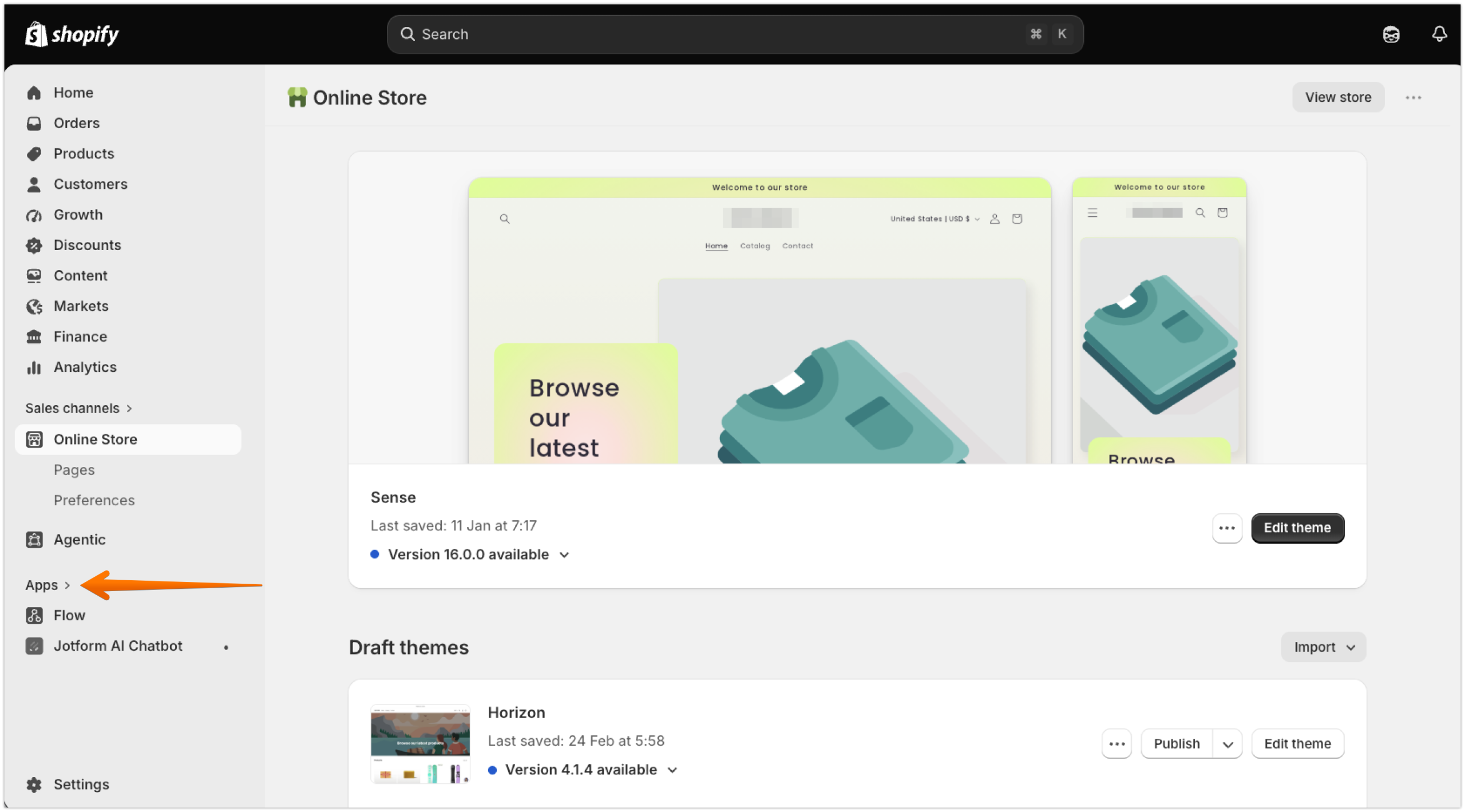
- Click Shopify App Store at the bottom of the window that appears.
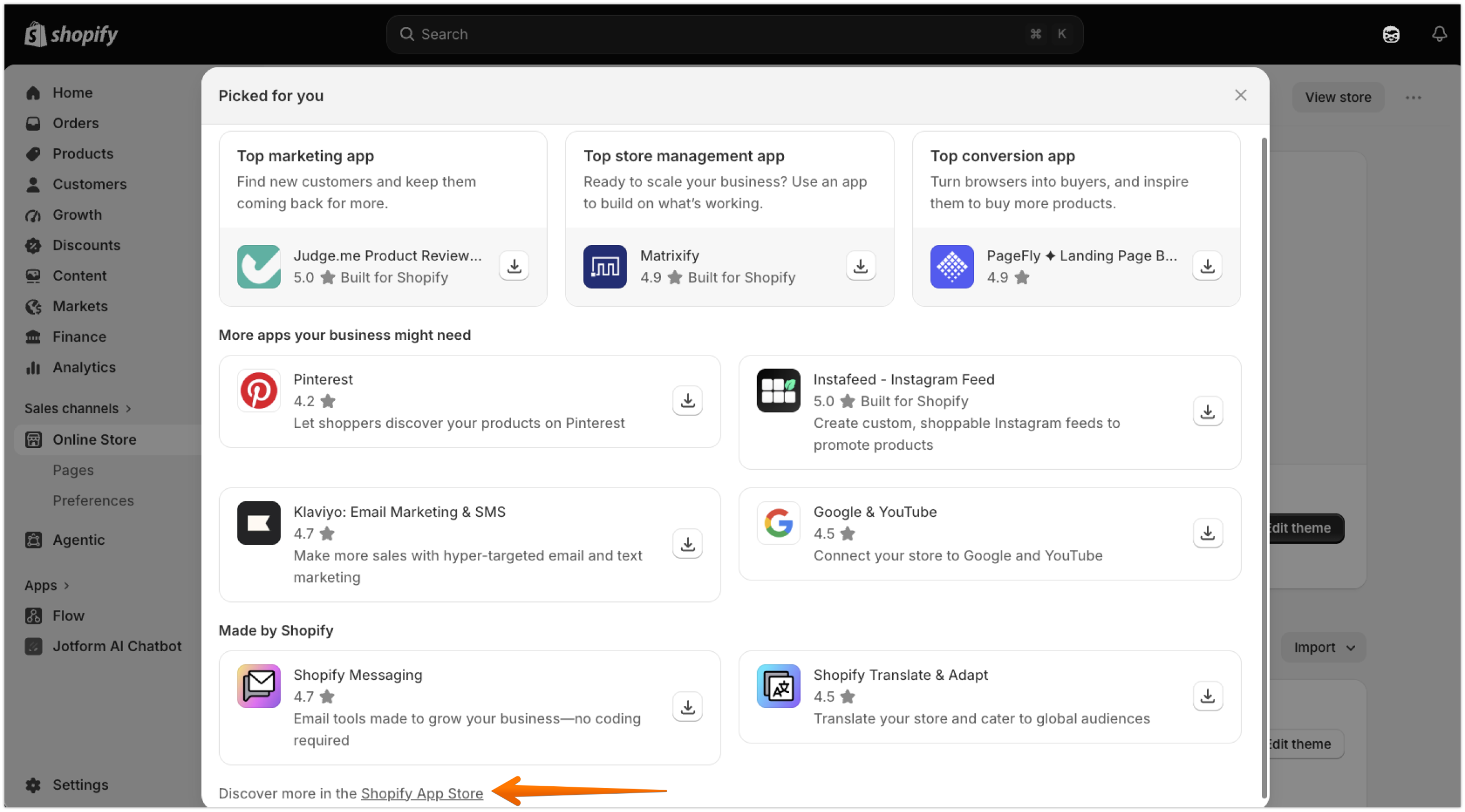
- Search for your favorite social media feed tool, then click Install.

- Click Install at the bottom of the popup window that explains what the app will access.
- Follow the app’s instructions to connect your social accounts and add a feed to your Shopify store.
While feed aggregators on the Shopify App Store can auto-update the social posts that are displayed on your store, most of them have two main drawbacks:
- Cost: Many social feed apps offer a free plan. However, some limit you to just one or two social media platforms and require a paid subscription to combine feeds from multiple platforms. Others display the app’s branding, which you can only remove by upgrading to a paid plan.
- Bloat: When you install a feed aggregator on your Shopify store, it adds JavaScript to your storefront. The more JavaScript code your site has to process, the more likely it is to load slowly, which can delay checkout and reduce conversions.


Option 2: Add a free, off-server social feed widget (recommended)
If you want a dynamic, multiplatform social feed on your Shopify store without paying monthly software subscriptions or increasing your site’s load time with bloated code, it’s worth checking out the Jotform Social Feed Widget. It’s a free Instafeed alternative that’s incredibly easy to use.
You simply customize the widget with your social feed details, copy the automatically generated embed code, and paste it into your Shopify store:
- Go to the Jotform Social Feed Widget page.
- Click Add first source on the left side of the screen.

- Select one or more social platforms you want to pull feeds from, provide links to your brand profiles, and then click Connect. You’ll need to log into your Jotform account (sign up if you don’t have one already) to connect the widget to your social media profiles.

- Click Back, then customize the title, description, and other social feed details before clicking Continue.

- Tailor the appearance of your social feed widget, including theme, shape, and font. Then click Continue.

- Choose a layout for your social feed, then click Try it on your website for free.

- Click Copy Code to get a free social feed embed code for Shopify.

After copying the code, paste it into your Shopify store. It’s easy to do, even if you aren’t technically minded:
- Log into your Shopify account and go to Online Store in your admin dashboard.
- Click Edit theme.
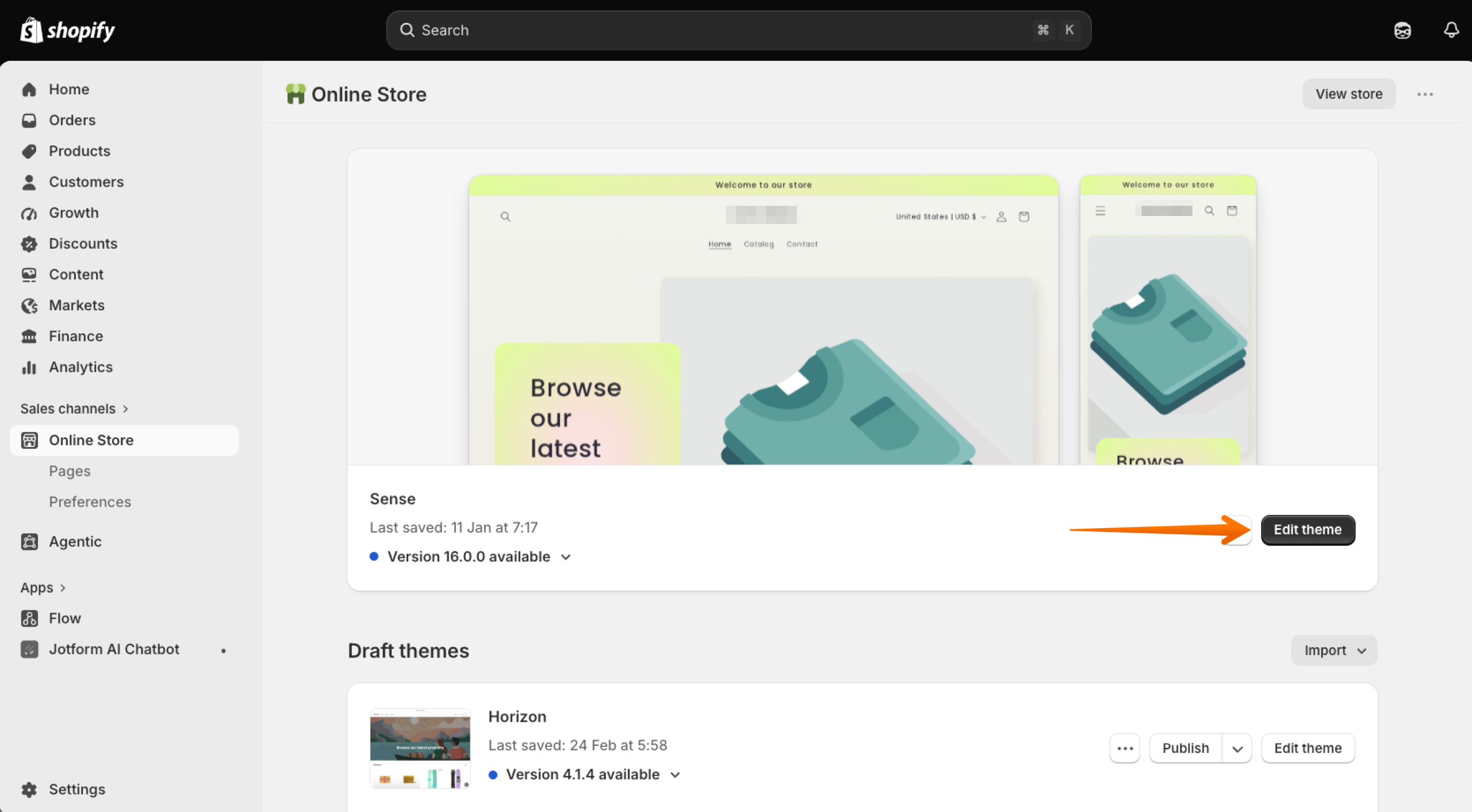
- Select the page on which you want to display social feeds.
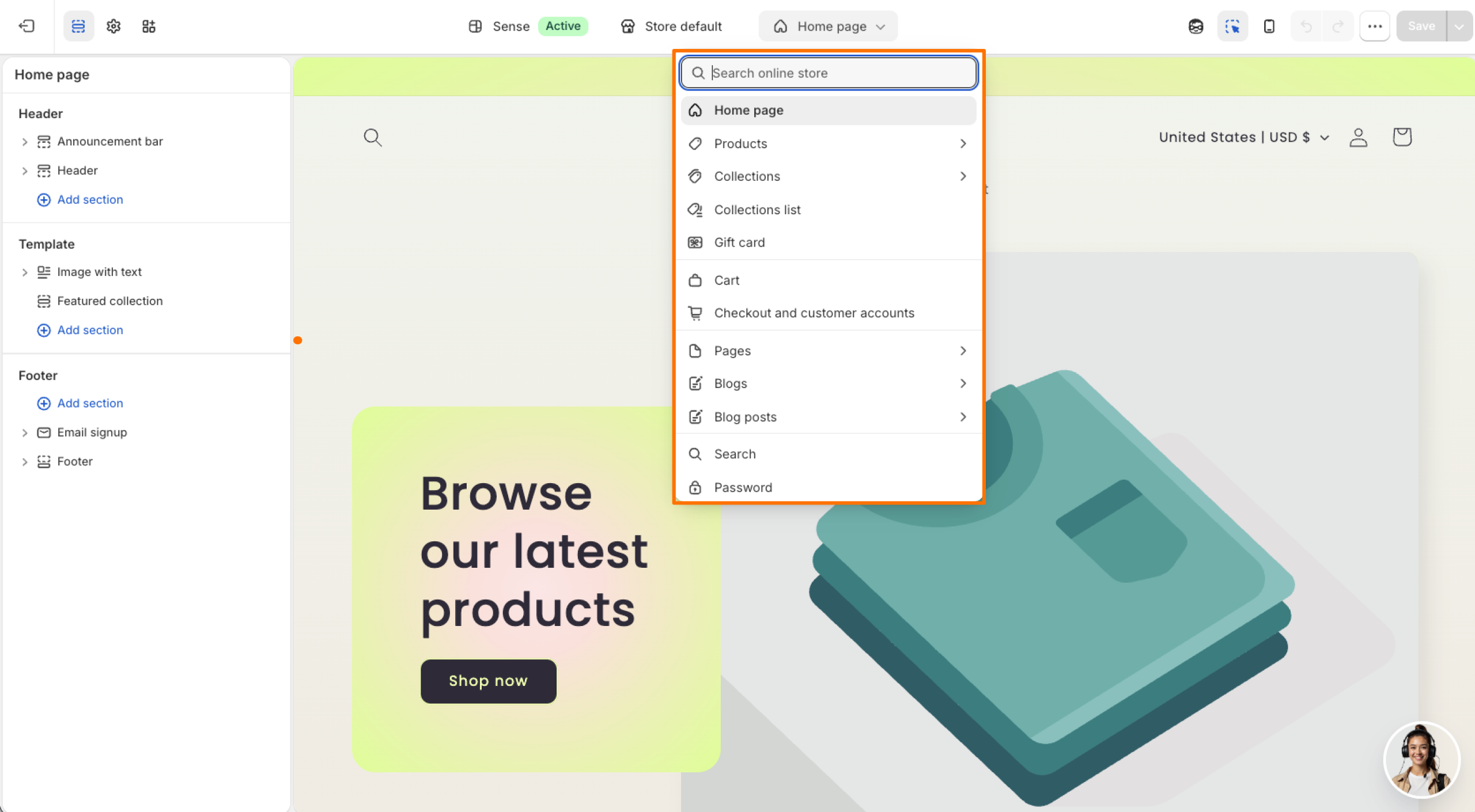
- Choose where you want to paste the code (header, body, or footer), then click Add section.
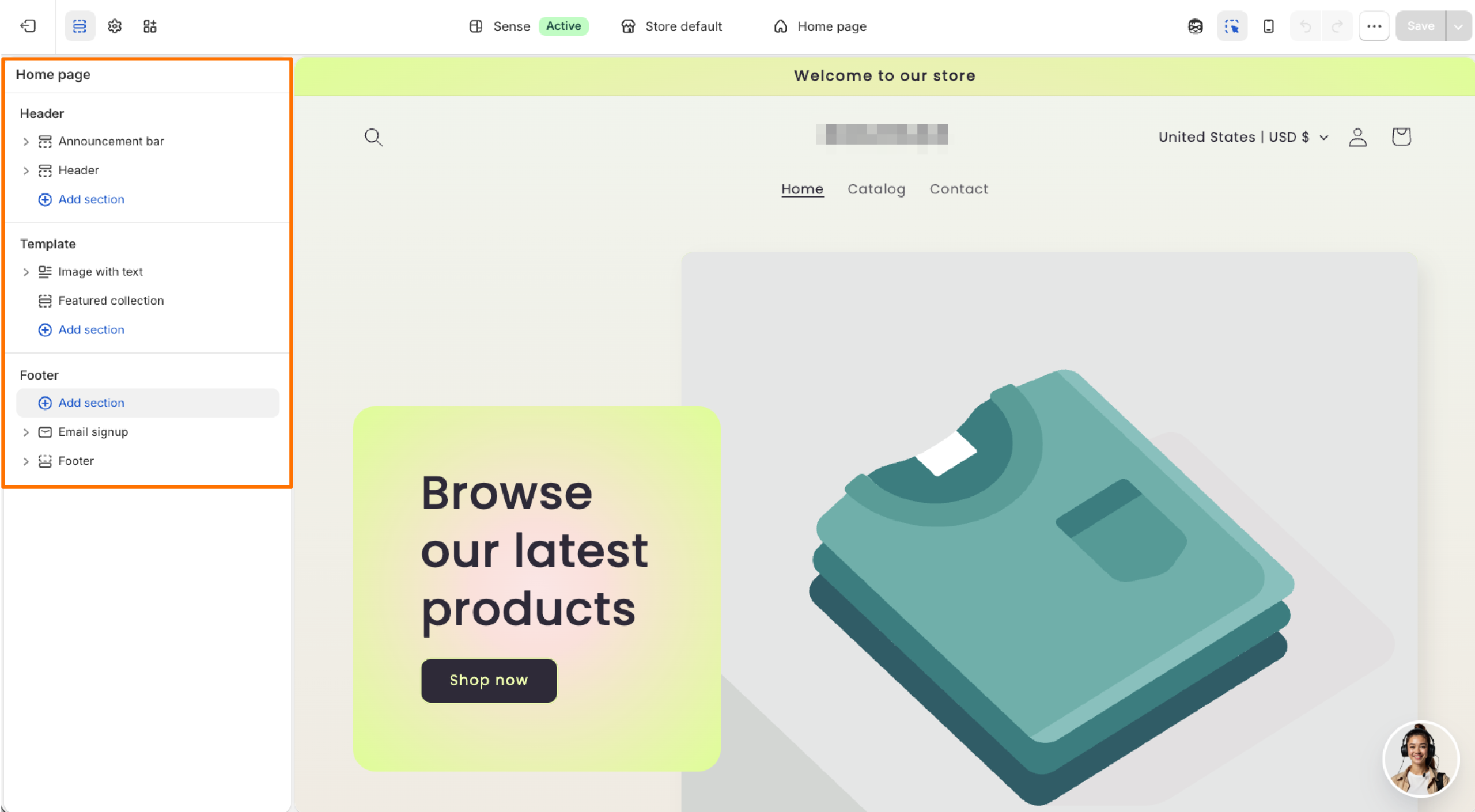
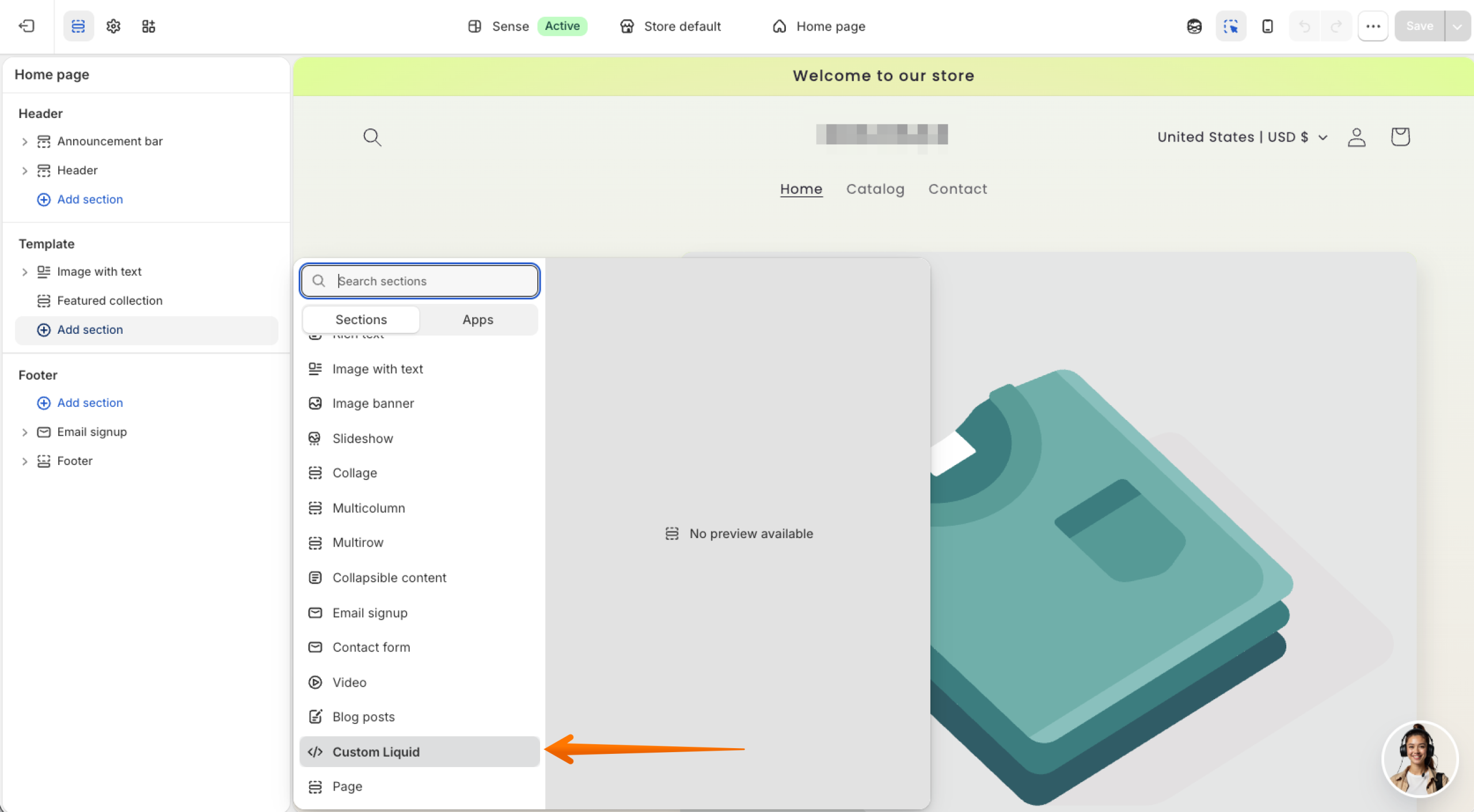
- Go to Custom Liquid.
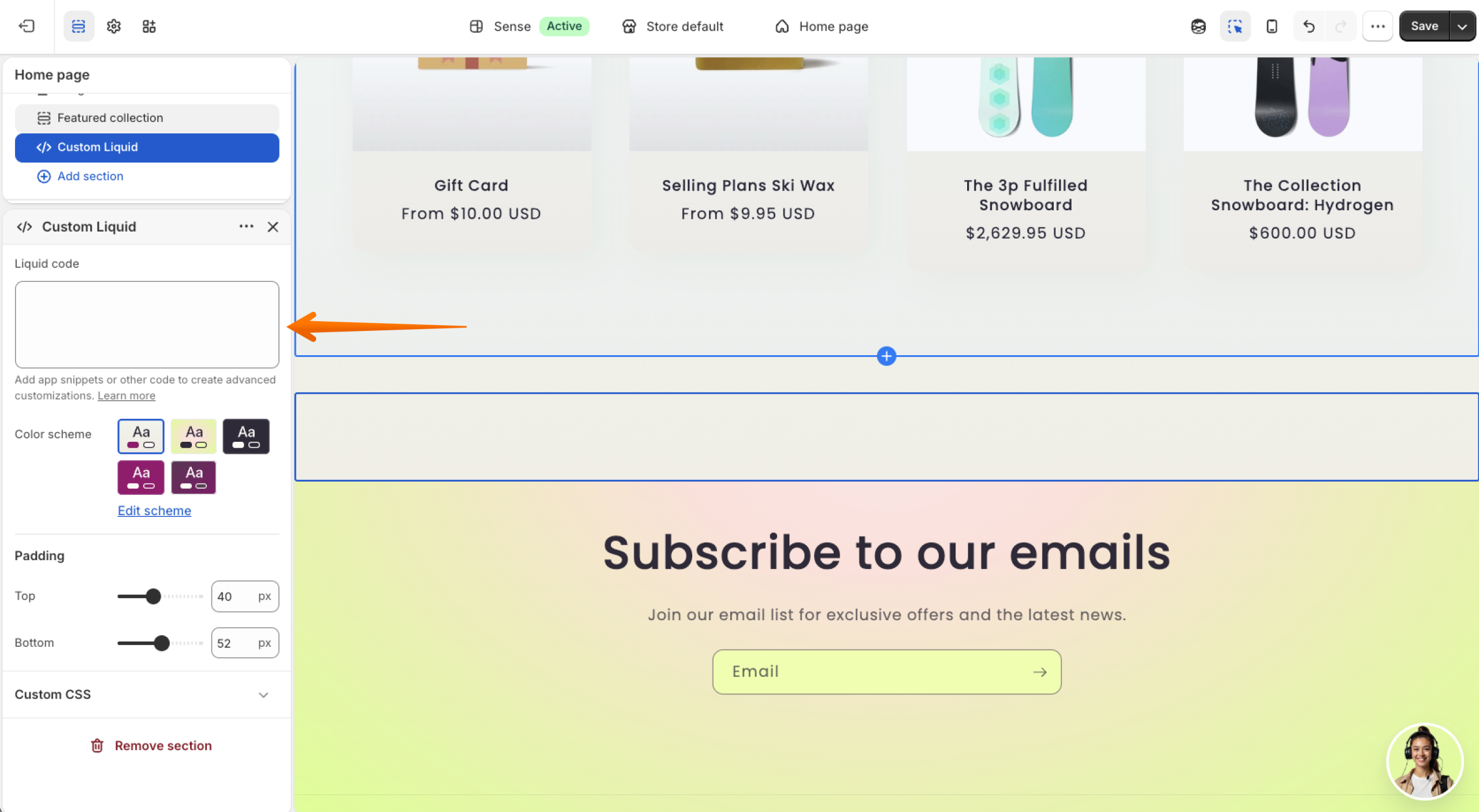
- Paste the embed code under Liquid code and save the changes.
With Jotform’s Shopify social media widget, you can merge social feeds from multiple platforms, auto-update them, and customize their appearance without paying a dime. What’s more, the widget combines social feeds on Jotform’s servers rather than your store’s servers, so it’s less likely to affect your site’s loading speed. And because the Jotform-Shopify integration is free, you don’t have to worry about API token fees disrupting your social feed or your storefront’s layout.
Supercharge your Shopify store with smart, serverless widgets
Besides the Social Feed Widget, Jotform offers other free website widgets you can use to maximize profit margins, maintain high ad-to-cart conversion rates, and avoid unnecessary software subscriptions. Examples include the
- Banner Widget for promoting offers and other important updates on your Shopify store
- Popup Widget for enhancing lead capture and floating discounts that can persuade prospects to buy from you
- Google Reviews Widget for displaying fresh Google testimonials automatically on your e-commerce site
As an e-commerce merchant, you should allocate your budget to running profitable ad campaigns and sourcing great products, not to paying expensive monthly app fees just for combining multiple social feeds on Shopify.
Jotform Social Feed Widget is a suitable alternative, whether you want to embed an Instagram feed on Shopify or merge feeds from multiple sources. Try it for free today.
Pro Tip
Social feeds help attract attention, add Jotform AI Chatbot to your Shopify store. It answers product and policy questions in real time, recommends relevant products, and supports customer communication through Instagram, Messenger, WhatsApp, and on-store chat.
Shopify store owners, dropshippers, and e-commerce agencies who want to provide visual social proof and increase dwell time without installing expensive, code-heavy apps that damage their store’s load speed.




















































Send Comment: