
Quick guide
- Open the Jotform Accessibility Widget page, then click Get Started Now in the top-right corner.
- Set your style, language, and layout from the panel on the right.
- When your widget is ready, click Publish and Copy Code.
- Paste the code into a new Custom Liquid block in Shopify.
When selling on Shopify, you don’t want potential customers to feel unwelcome on your site. That can damage both your bottom line and your brand reputation. But without accessibility tools, you may be unintentionally isolating users with disabilities.
Accessibility tools are essential to making your Shopify store a space where anyone can shop, and their importance goes beyond mere social responsibility. If you’re trying to reach US consumers, your store may also be legally required to comply with certain accessibility guidelines according to Title III of the Americans with Disabilities Act.
But despite being one of the best e-commerce website builders, Shopify doesn’t offer a native, user-facing accessibility menu. This means you may need to look elsewhere for third-party accessibility tools that users can apply to customize their experience on your site.
To give shoppers control over their user experience without paying high monthly fees or dealing with code-heavy add-ons, your best option is to rely on a free, serverless utility embed, like Jotform Accessibility Widget. Installing this widget on your Shopify site only takes minutes. Follow along to learn how to get started.
Add a free, easy accessibility widget in 4 steps
Different disabilities require different accessibility features for a website to be truly inclusive. You can’t account for every user’s needs with general, sweeping accessibility changes like improved contrast and larger text sizes. That’s why you need an option that allows users to control which accessibility features they turn on.
Jotform Accessibility Widget is a lightweight, no-code toggle menu that fits directly into your Shopify interface. Using dedicated toggle buttons, users can easily control accessibility features such as:
- Resizing text
- Inverting colors for high contrast
- Highlighting links
- Using a dyslexia-friendly font
- Managing keyboard focus
This widget also allows users to turn on clusters of accessibility options based on their needs. For example, a user with epilepsy or motion sensitivity could toggle on a seizure-safe experience that disables potentially harmful animations and flashing effects. Users can easily do all of this with the click of a button and without slowing down your Shopify site’s load time.
Getting this widget on your Shopify site takes only a few quick clicks:
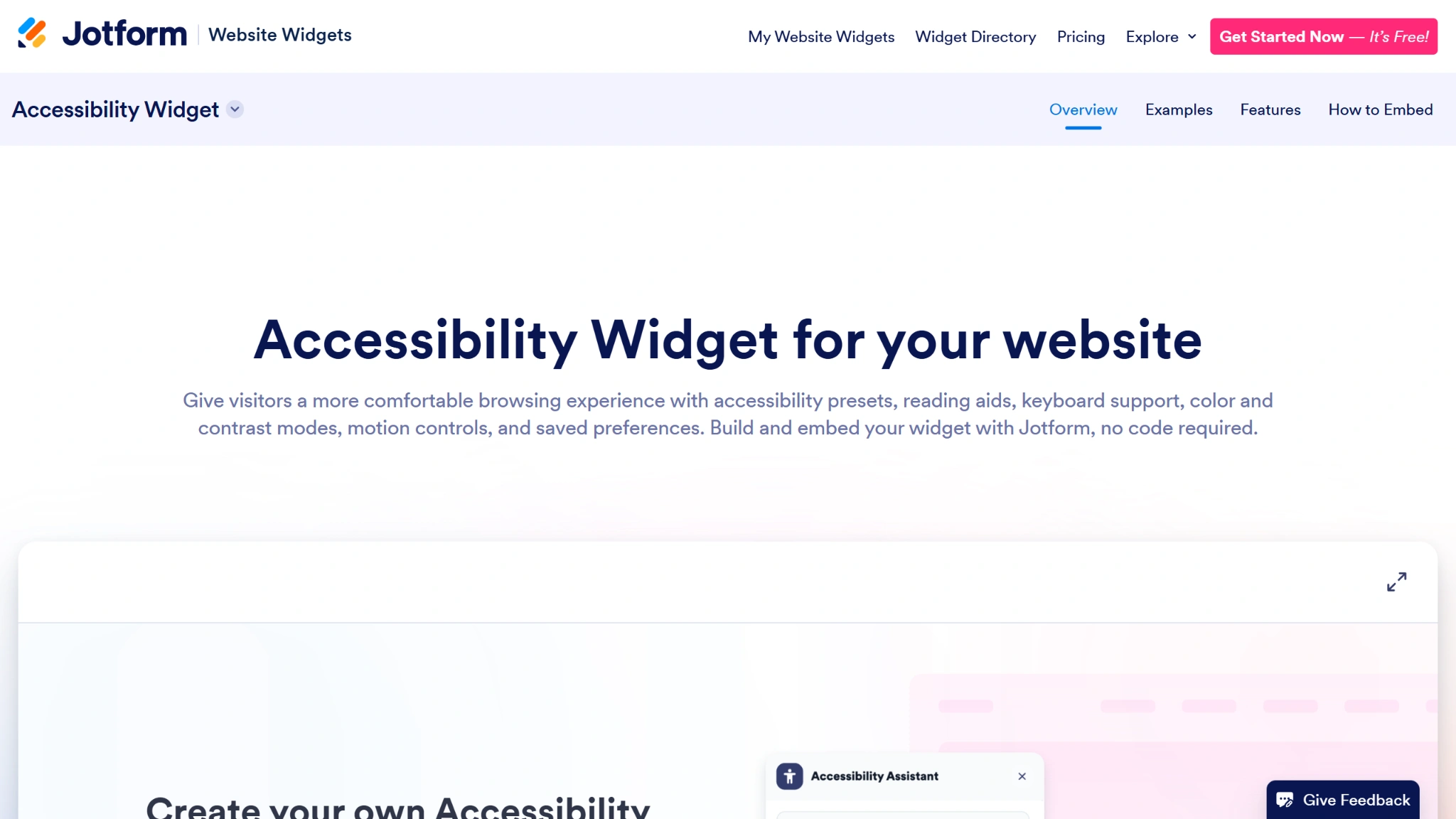
- Open Jotform and visit Jotform Accessibility Widget page, then click Get Started Now in the top-right corner.
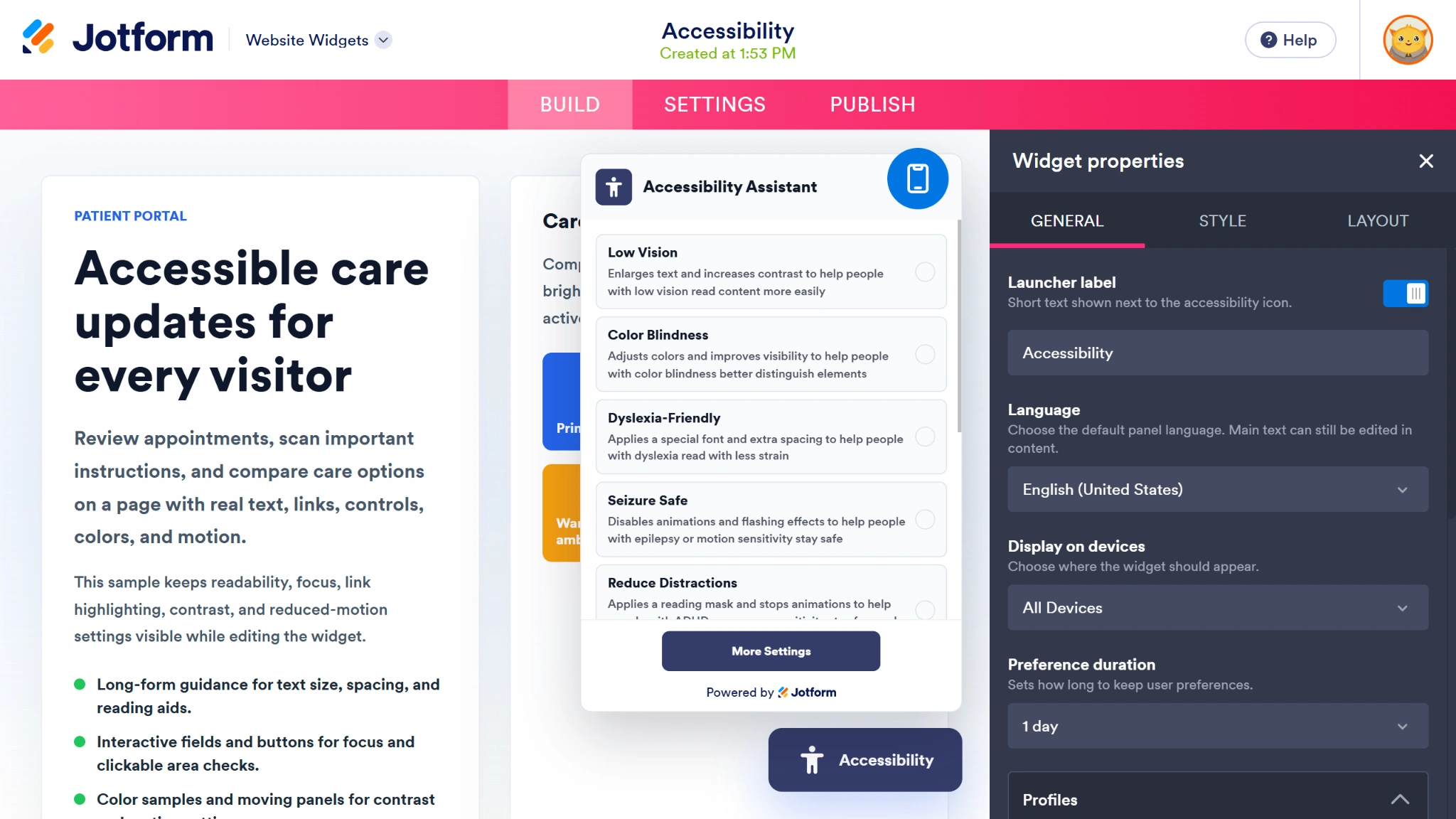
- Update your settings in the right-hand Widget Properties menu, including tools, style, language, and layout.
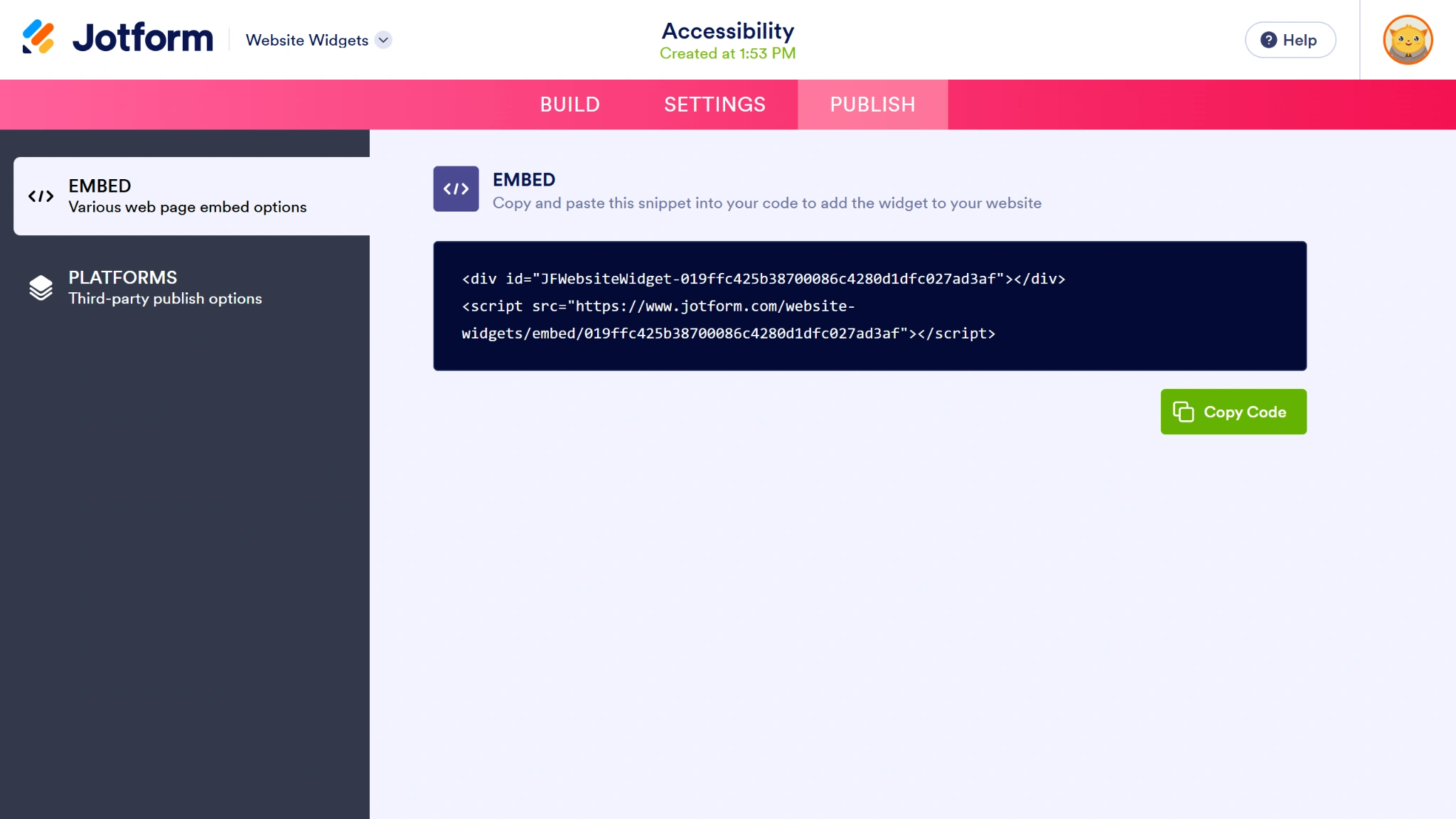
- When your widget is ready, click the Publish button. Then click the Copy Code button to get your widget’s embed code.
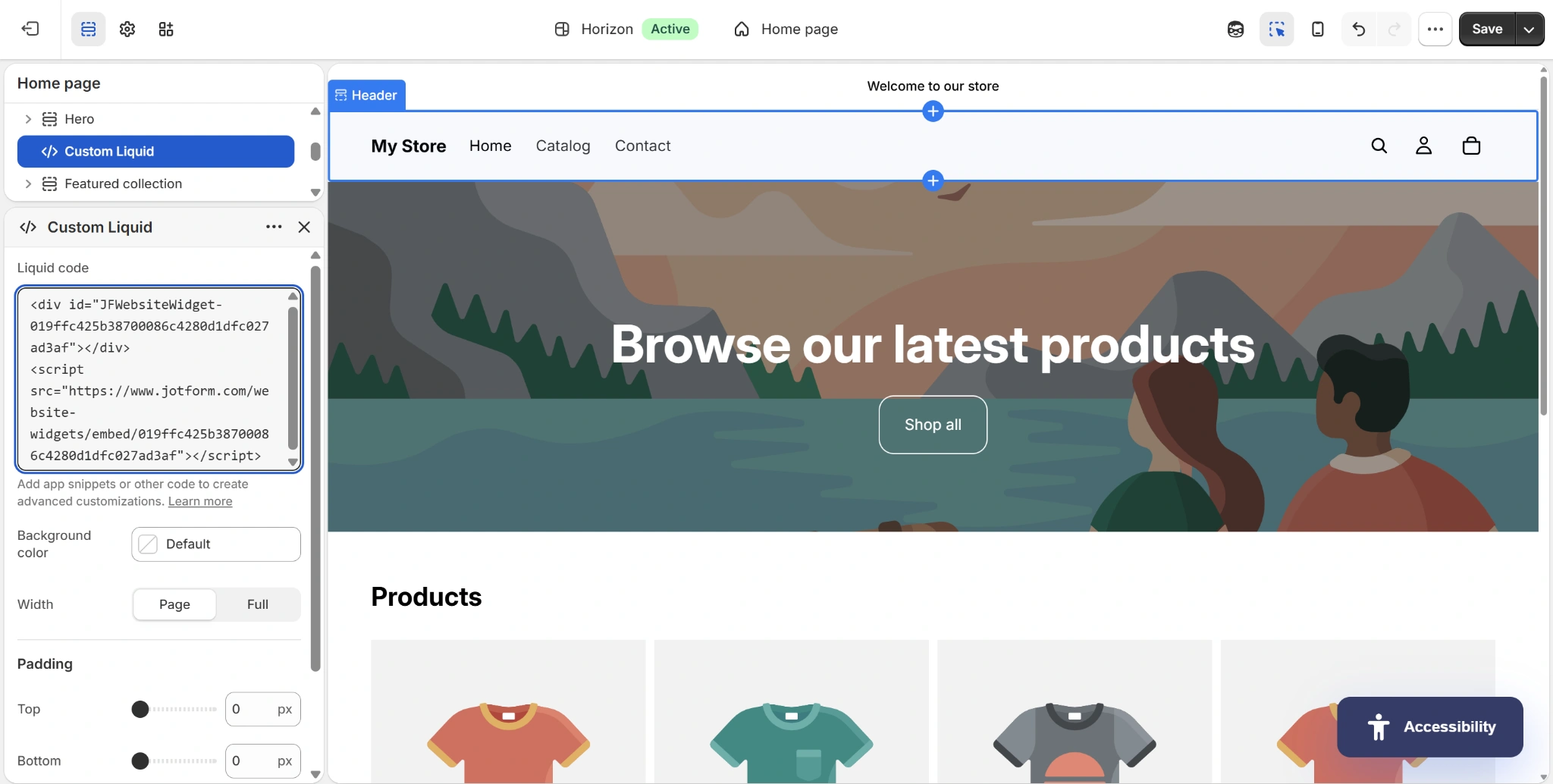
- Create a new Custom Liquid block on your Shopify site and paste the code into your new block. Click Save in the top-right corner to finalize your change.
You can configure this widget in the builder based on the features your site visitors need. You can even adjust the colors and theme to match your website’s brand identity.
Once your widget is ready, use Jotform’s free Website Accessibility Checker to explore further improvements to your Shopify shopping experience. Enter the public URL of a product or collection page to review potential accessibility issues, findings organized by severity, and practical guidance. Use the report to prioritize page updates alongside the display and navigation controls your widget provides. Combine the findings with hands-on testing of product selection and cart interactions, then scan again after making changes to check your progress.
Even better: Jotform’s extensive library of free website widgets offers more than just accessibility tools, making it easy to boost your Shopify site’s profit margins and conversion rates without monthly SaaS subscriptions.
Pro Tip
Create a seamless connection between your online forms and your e-commerce site with the Jotform Shopify integration. Collect orders, payments, and more without manual data transfer and management.
Supercharge your Shopify store with smart, serverless widgets
Looking for ways to enhance your Shopify experience even more? Look no further than Jotform’s Website Widgets library. With more than 150 smart widgets, you can easily add useful features to your user interface without expert coding knowledge.
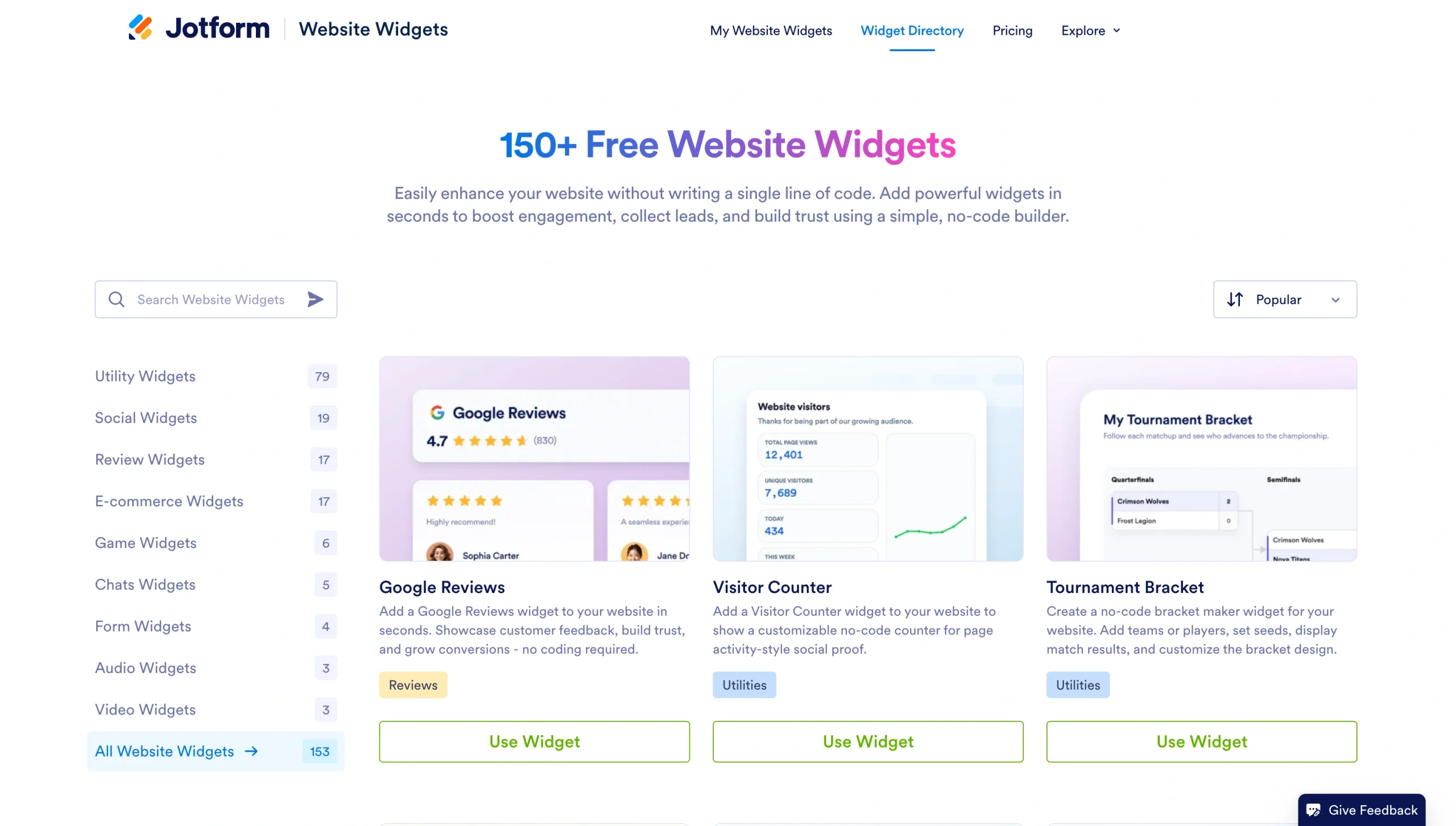
For example, you can add user-facing visual elements like:
- Google Reviews Widget to show customer satisfaction and support
- Back to Top Widget for smoother user interactions
- QR Code Widget for easy access to menus, documents, and more
- Countdown Widget for upcoming events or product drops
- FAQ Widget for quick answers to common customer questions
Don’t burn your monthly budget on expensive widget subscriptions. Instead, use Jotform’s free website widgets for a premium, inclusive user experience.
This article is for Shopify store owners, dropshippers, and e-commerce agencies who want to provide an inclusive shopping experience and boost their SEO without installing heavy, expensive apps that slow down their store’s load time.











































Send Comment: