A well-organized custom FAQ Shopify section can help you remove friction before customers reach the checkout page of your Shopify store. It can be used to answer common questions about shipping, returns, products, payments, sizing, and order policies — reducing repetitive support requests by giving shoppers a way to find answers on their own.
Shopify themes offer sections and blocks that you can customize through the theme editor to achieve a dedicated frequently asked questions section — a free FAQ accordion Shopify theme can be useful for laying out questions and answers, for example. But Shopify doesn’t provide a universal native FAQ system with searchable questions and rich embedded content. To create a more advanced FAQ, you’ll need an FAQ app or widget.
Here’s how to add custom FAQ Shopify sections to your store to support selling on Shopify using those two methods.

Option 1: Install a dedicated Shopify FAQ app
A common way to add collapsible FAQ Shopify content is to install an FAQ app. The Shopify App Store offers several tools that can add advanced FAQ features to your storefront. Apps such as HelpCenter and HelpLab FAQ Page are common options, but there are plenty of others to choose from.
The steps below will walk you through how to add an FAQ page on Shopify using a dedicated app.
Step 1: Open the Shopify app store
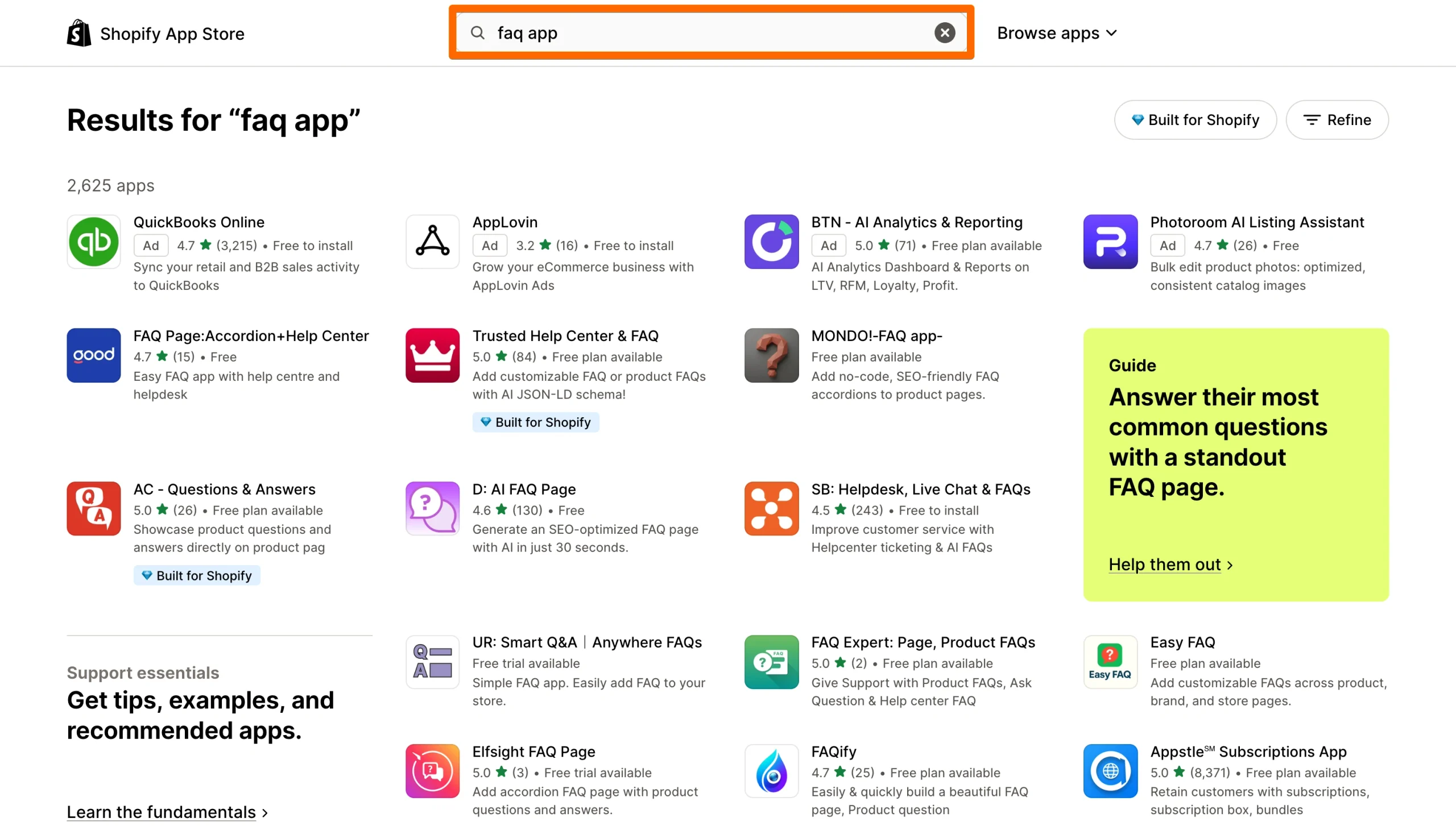
Go to your Shopify admin screen and open the Shopify App Store. Search for “FAQ app” and browse through the results. Read user reviews and compare the available options until you find one that seems to be a good fit for your store. You can stick with a free app or go with a paid version to unlock additional features.
Step 2: Install and configure the app
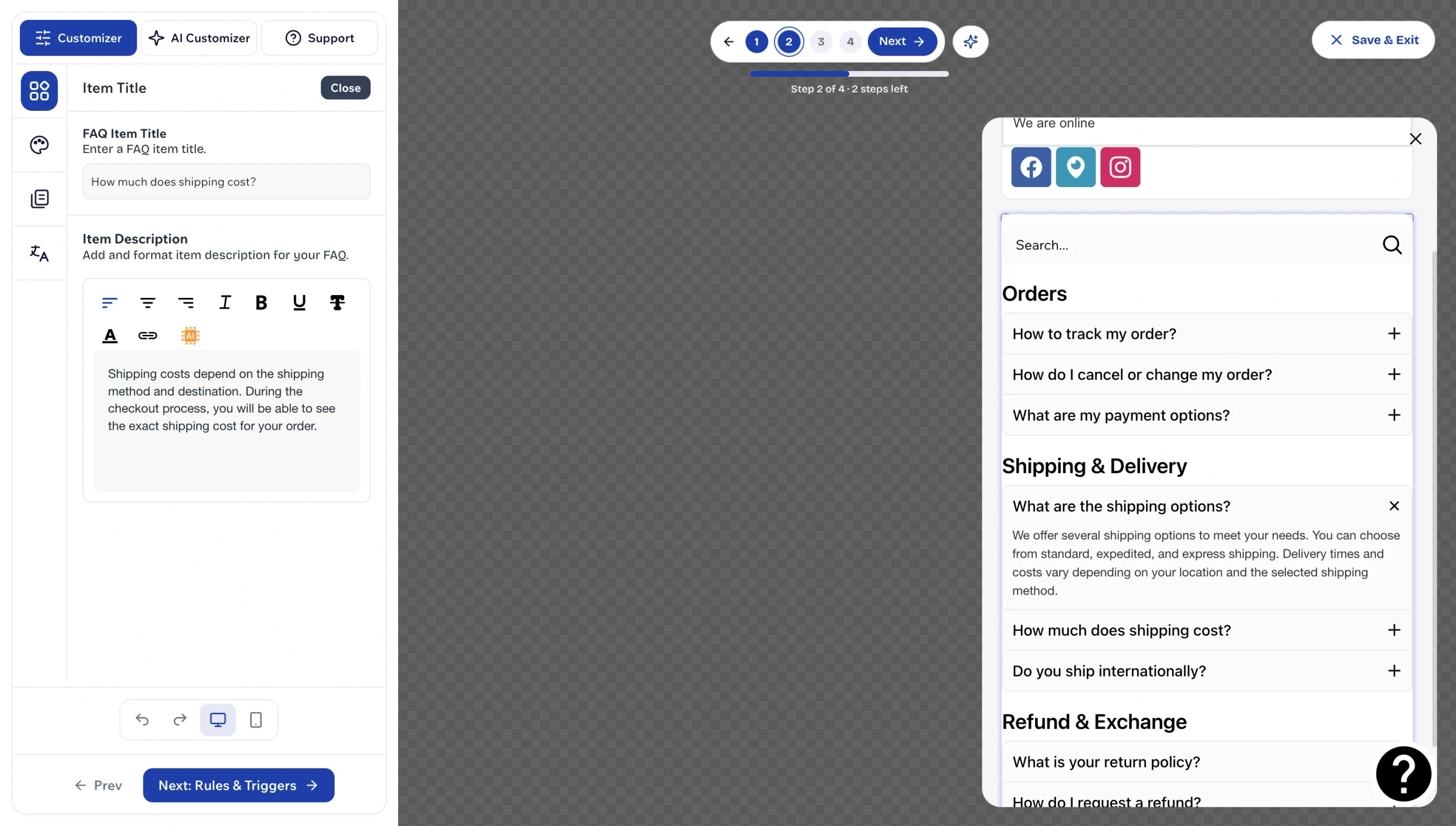
Once you decide on an app, install it. Follow the app’s setup process to add content and rich media. Many FAQ apps provide visual editors that let you create accordion sections, search bars, category filters, and product-specific FAQs. Some also support images and videos within answers. Adding rich media can enhance the user experience, so make sure to choose an app that supports a variety of content.
Step 3: Add the FAQ to your store
The app will give you a step-by-step breakdown of how to add it to your store. Check the page on desktop and mobile before you publish it.
Step 4: Add questions and answers
Finally, add questions and answers to your store using the app. Include any rich media that you want as well, such as videos or images.
Adding an FAQ app sounds simple enough, but there are a few major issues with this approach. FAQ apps inject heavy JavaScript onto your storefront to power the live search bars and accordion content. If you’re running other script-heavy apps, you’ll experience bloat, which can drag down your Core Web Vitals.
The other problem is a classic bait and switch. Many “free” apps on the Shopify App Store lure users in and then limit what features they can access. Some keep the app branding on your storefront unless you upgrade to a paid subscription, some limit you to around 15 questions, and some only allow multilingual support on higher pricing tiers.
Option 2: Add a free, customizable FAQ widget
Jotform FAQ Widget is an excellent Shopify FAQ app alternative. You can create questions and rich-text answers, add links and media, select a layout, customize the design, and generate an embed code without building the FAQ infrastructure yourself.
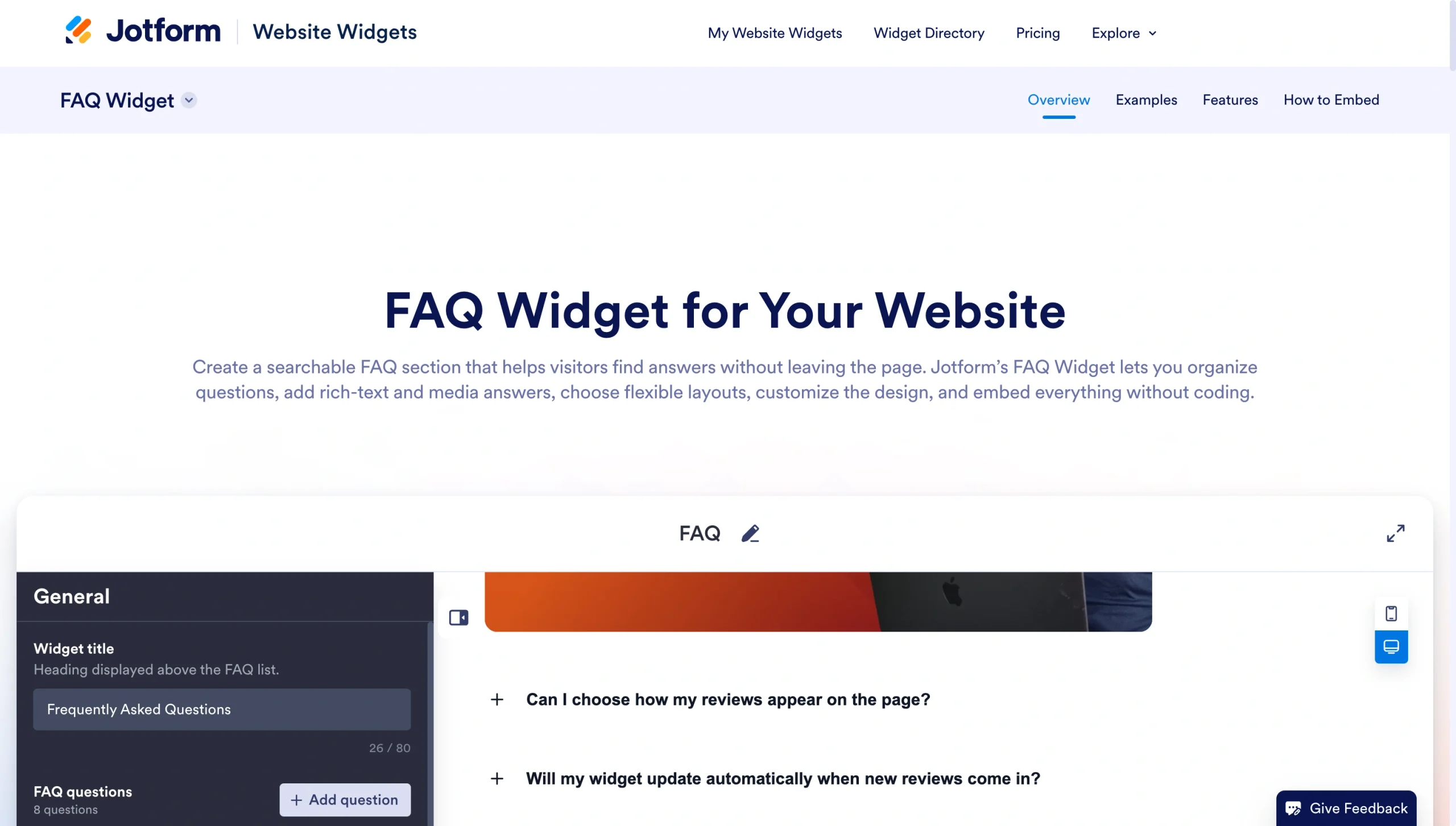
The widget supports a multicolumn layout, lists, or an accordion. You can also add a search bar.
Here’s how to add the Jotform FAQ Widget.
Step 1: Create your FAQ widget
Open the Jotform FAQ Widget and add your questions and answers. Tackle the questions your customers ask most often so that you can cut down on support requests and deliver a smoother shopping experience.
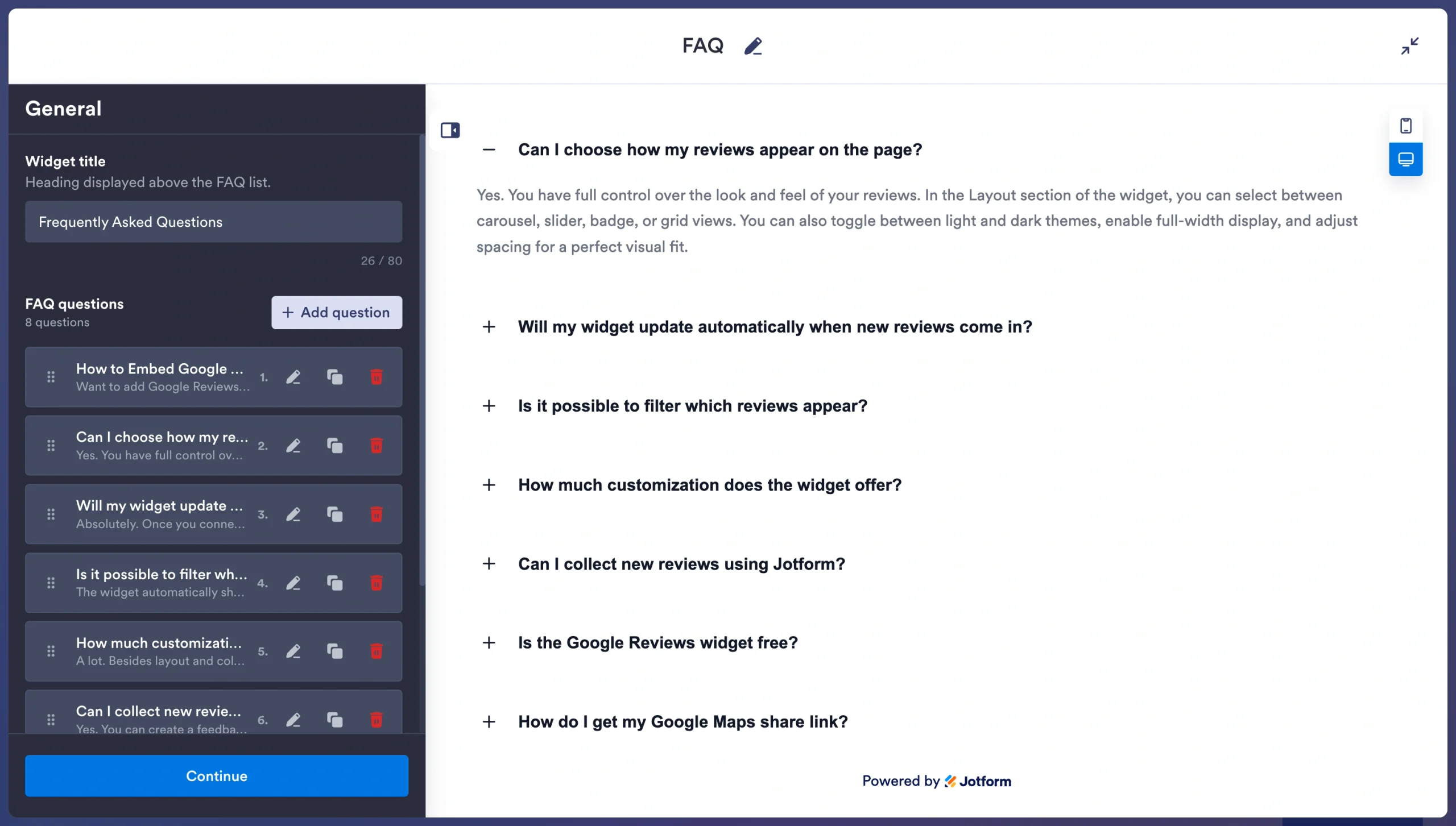
Step 2: Customize the design
Jotform makes it easy to customize the design and layout of the FAQ section to fit your theme. An accordion can conserve space, while a list or multicolumn layout makes your FAQs easier to scan. You can customize elements such as colors, spacing, icons, search settings, and question behavior. You can also add images and video URLs.
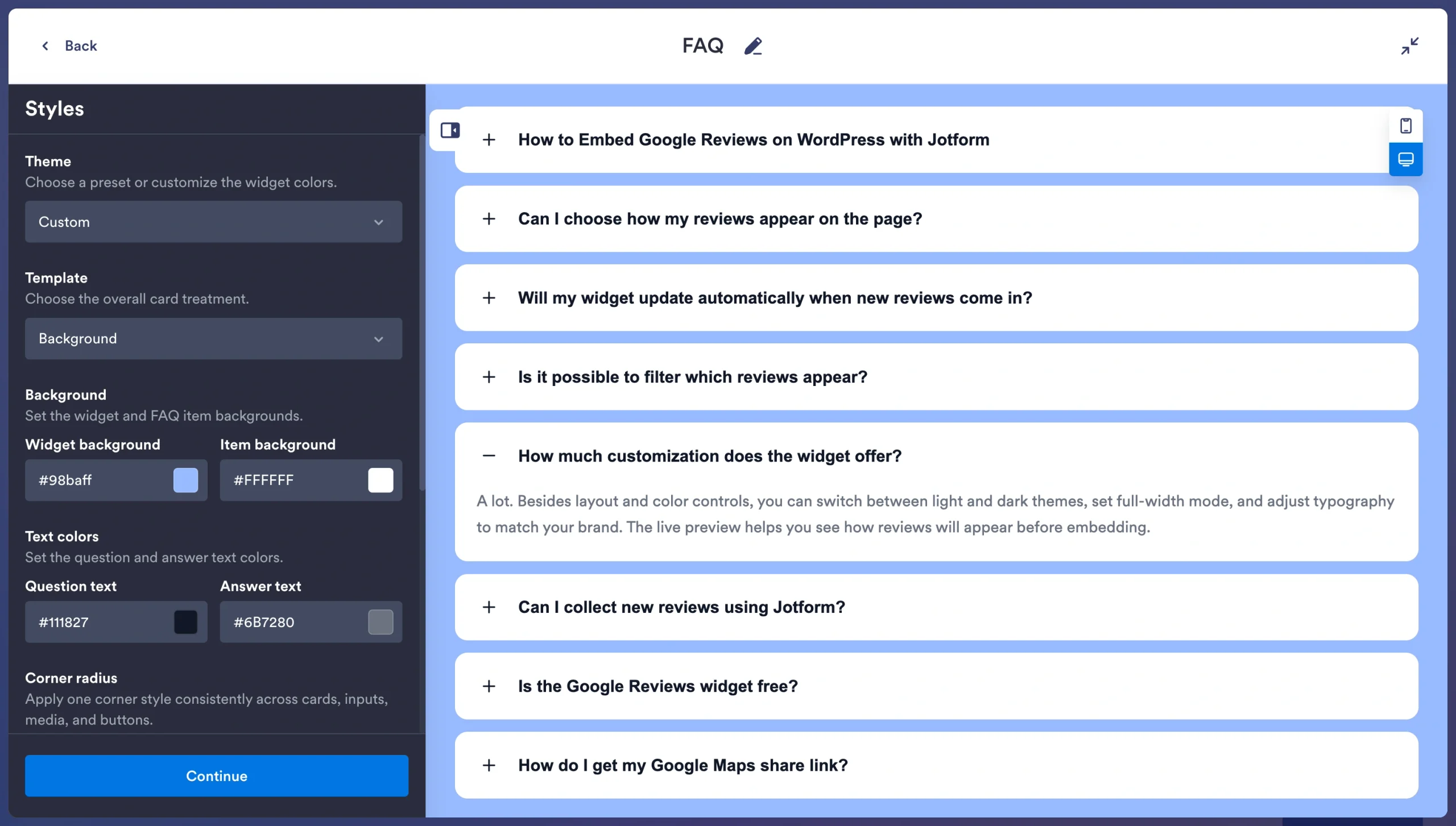
Step 3: Embed the FAQs in Shopify
Finally, you need to embed the FAQ widget. Shopify allows you to do this by pasting custom widget code in a Custom Liquid block or using your theme’s built-in collapsible content block.
Preview the page before publishing it. Check the FAQs on desktop and mobile to make sure all content displays correctly.
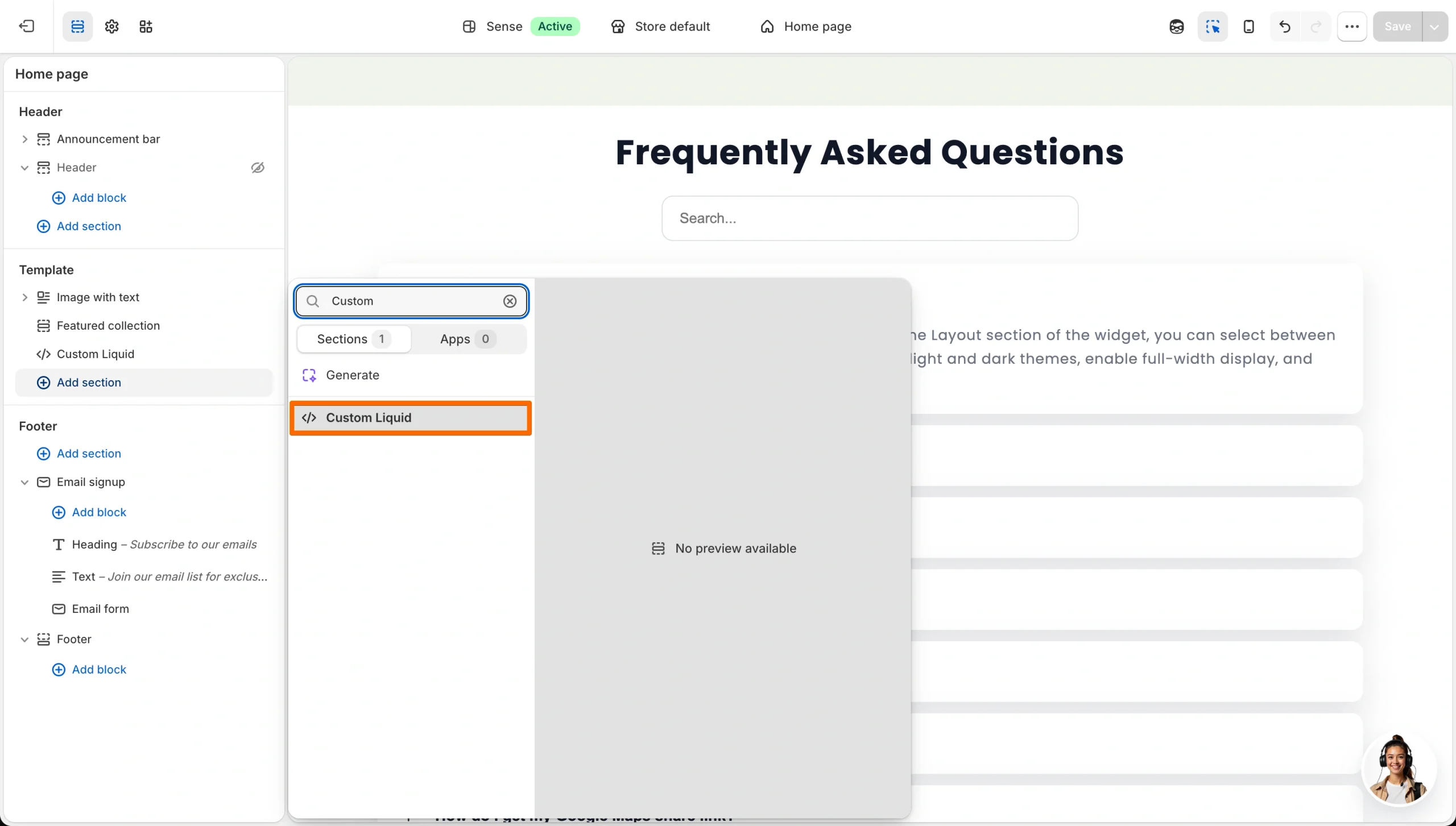
This method is quick and easy. Jotform hosts the widget, while Shopify displays it through the embed. That means you avoid the bloat of adding another app to your Shopify account.
Supercharge your Shopify store with smart, serverless widgets
A frequently asked questions section is just one way to improve your Shopify storefront. Jotform offers a dedicated Jotform-Shopify integration for your form-based workflows as well as over 150 free website widgets, many of which can be a great addition to your Shopify store.
For instance, our Google Reviews Widget makes it easy to obtain reviews about your products or brand. The Accessibility Widget gives visitors more comfortable browsing options, and the Countdown Timer Widget creates a sense of urgency regarding sales or limited-time offers.
Your Shopify budget should support activities that grow your business, such as sourcing products, advertising, and acquiring new customers. A free FAQ widget gives you the benefits of an FAQ app without the added cost or bloat. Explore Jotform’s widgets and level up your Shopify store today.
This article is for Shopify store owners, dropshippers, and e-commerce managers who want to display a searchable, beautifully styled FAQ accordion to reduce customer support tickets without slowing down page speeds or paying recurring App Store fees.














































Send Comment: