
5 steps of creating a QR code for email
When you create a QR code for email, someone can scan it and open a new email draft addressed to your business. You can even prefill the subject line and message, so they can just review the text and tap Send.
Such QR codes are a low-friction way to capture inquiries while you’re doing other things, such as attending an event or standing in a checkout line. They’re convenient and capitalize on the growing use of email (email interactions increased from 6.5 percent in 2020 to 11 percent in 2024).
Setting up an email QR code is a straightforward process: You create a mail-to link where the QR code goes, and most email QR code generators handle the rest. Some, like Jotform’s QR code generator, autocreate the mail-to link as well, so you simply have to add your email address.
Create QR Codes in Minutes
How to create a QR code for email (step-by-step)
Creating a QR code to send emails takes just a few minutes, and here’s how you do it.
1. Decide what email details to prefill.
What should appear when someone scans your code? Linking the QR code to an email address is just the start. For example, you can create a templated message with fields for customers to fill in. For a customer support ticket, those fields could include
- An order number
- An issue description
- A preferred contact method
- A photo
If the customer uses your QR code, you won’t have to chase down basic info in follow-up emails.
You can also create multiple QR codes and have them all go to the same email address. For example, if you exhibit at multiple events, you can generate separate QR codes with event-specific subject lines, and they can all go to events@business.com.
Using multiple codes keeps responses from different target audiences organized, without the need to manage multiple email addresses.
2. Create a mail-to link for your email.
Once you know what information you want to prefill, it’s time to build the mail-to link. This specially formatted URL tells someone’s device to open the email app. The URL looks like this:
mailto:recipient@yourbusiness.com?subject=Your%20Subject&body=Your%20message%20template
To create your own
- Type “mailto:” followed by your email address.
- Type “?subject=” to add a subject line, and “&body=” to add the message body.
- Use “%20” anywhere you would usually have a space.
- Type “%0A” to indicate line breaks in the body.
You can also use a free generator, like the Mailto Link Generator, if you don’t want to format your mail-to link manually. Some QR code generators, like Jotform, handle this process behind the scenes, so you can skip it entirely.
3. Paste your email address or link into the Jotform QR code generator.
Once you have a mail-to link, turn it into a scannable QR code. Go to any free QR code generator, and paste your mail-to link into the URL field.
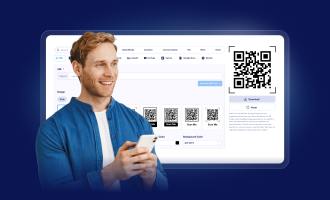
If you’re using Jotform QR Code Generator, you have a direct Email option. Just enter your email address, and the tool creates a scannable QR code in seconds.
4. Customize your QR code design.
Before you download your QR code, you can adjust how it looks. Jotform’s built-in design tools, for example, let you change background colors, add supporting text, and even include your logo.
Just keep accessibility in mind. A high contrast between the QR code and the background helps with scanning. And if you’re adding a logo, keep it small to avoid interfering with the code’s function.
5. Download and test your email QR code.
Once you’re happy with the design, download and test your QR code. Scan the code with your phone to make sure it opens your email app correctly and that all the prefilled details show up as expected.
If you can, scan it on a few different devices, like an iPhone, an Android, and maybe even a tablet. If something looks off, go back and adjust your mail-to link or QR code design, and then test it again.
Common use cases for QR codes for email
Email QR codes come in handy whenever you want to make exchanging information as frictionless as possible. Here are some of the most practical ways businesses can use QR codes:
- Business cards and email signatures: Add a QR code to your business card or email signature so people can reach you without having to type your address.
- Customer support and help desks: Place a QR code on product packaging, receipts, or in-store signage so customers can report issues or ask questions.
- Events, conferences, and booths: Put QR codes on booth displays, presentation slides, or handouts so attendees can follow up with you later.
- Feedback and surveys: Use a QR code to collect customer feedback or administer marketing surveys by email to make it easier for people to share their thoughts. You can use prefilled questions in the email body, such as “What did you think of your experience?” (If you need to gather more structured data, using a QR code generator for online forms may be a better fit.)
- Retail and in-store signage: Add QR codes near checkout counters or on product displays so shoppers can easily reach out.
Email QR code examples
Depending on your goal, you might need to include only your email address in your QR code, or you might want to prefill the entire message. The level of information you include affects how much control you have over the incoming email.
QR code with email address only
When someone scans this code, their email app opens with just your address in the To field. Everything else is blank. This setup works if people may reach out for different reasons. For example, if you run a beauty shop, inquiries could be about store hours, wholesale options, or product questions.
But with this code, you also have no control over what information the person sends, so you might get emails that are vague or don’t have the context you need.
QR code with a prefilled subject
Here, both your email address and the subject line are prefilled. A standardized subject line can help you prioritize emails and categorize them.
For example, a real estate agent might place a QR code on a for-sale sign, and the link might open to an email with the subject line “Property Inquiry: 123 Main St.” That way, the agent can segment emails by listing.
QR code with subject and message
With this option, scanning the code opens an email with everything prefilled: your address, a subject line, and a message template with blanks for people to fill in. Use this code when you need specific information and going back and forth will slow things down.
For example, a bakery that takes custom orders might need the event date, head count, and design ideas before giving a quote.
Simplify email with a QR code
More people respond to a QR code for email because it removes the steps between someone wanting to contact you and actually doing it. And more engagement is good for business.
If you’re experimenting with QR codes, try starting with the free Jotform QR Code Generator or the Jotform’s QR Code Widget.
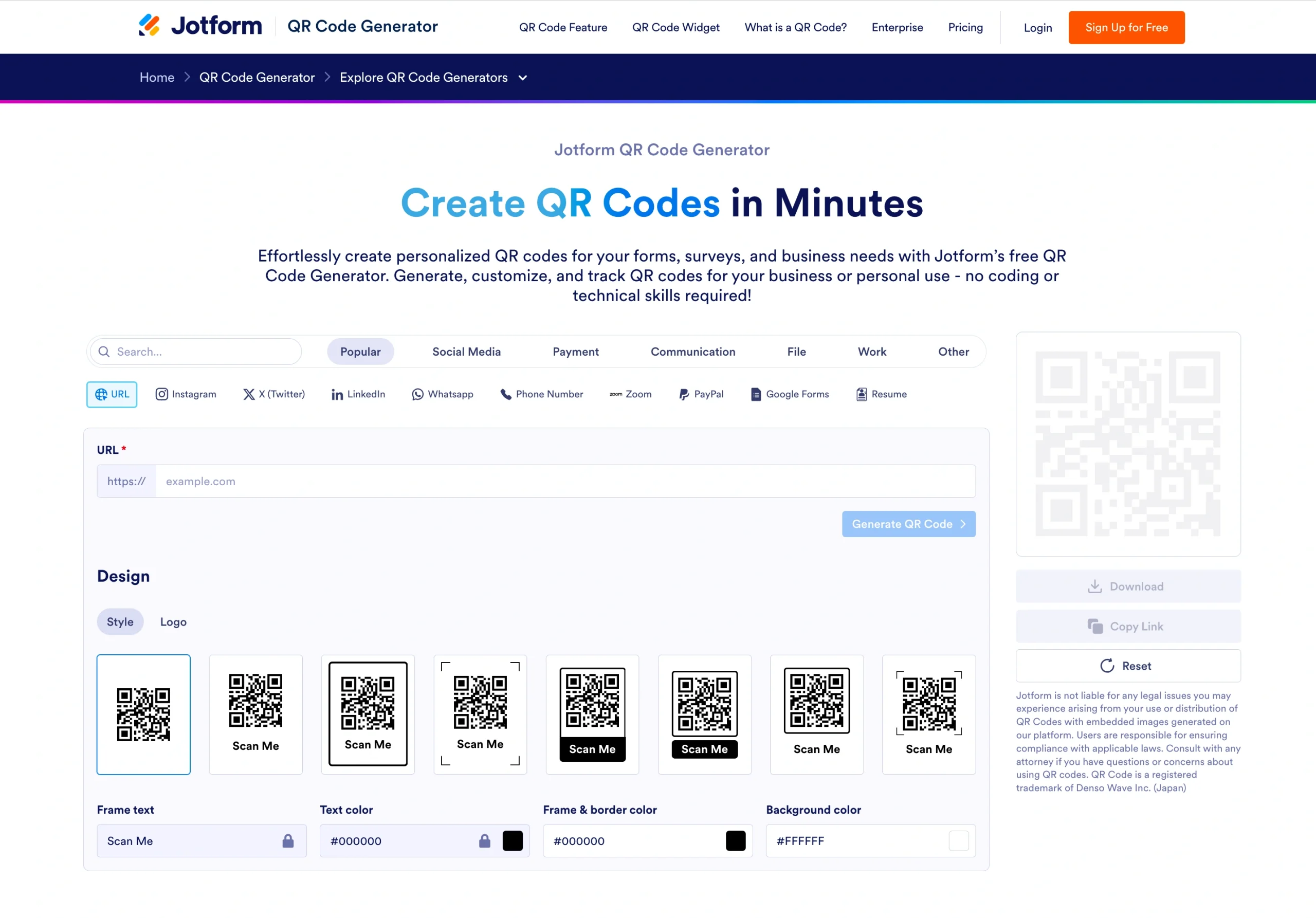
These tools automatically handle mail-to formatting, let you brand the QR code, and don’t require an account to get started.
FAQs about QR codes in email
QR codes give readers a quick way to act without tapping links. They can scan it to open a landing page, download an app, or complete a signup form for your newsletter. A QR code is especially useful when someone is on their desktop but wants to open links on their phone.
The easiest way to display a QR code in an email is to insert it as an image. Generate the code using a tool like Jotform’s QR code generator, download it as a PNG or JPEG, and embed it directly into the body of the email.
The fastest way to get a Gmail QR code is to use a free QR code generator like Jotform’s, which can create a mail-to QR code that links to your Gmail address. You just have to embed it.
Create a mail-to QR code with your Outlook email address as the recipient. Then use a QR code generator to embed that link in your QR code.
This article is for small business owners, marketers, customer support teams, event organizers, and professionals who want an easy way for users to contact them via email.













































Send Comment: