

Steps to add a Google Form to a Canva website
- Open Google Forms.
- Create a Blank form or select a template.
- Edit the form.
- Publish the form by clicking on Published.
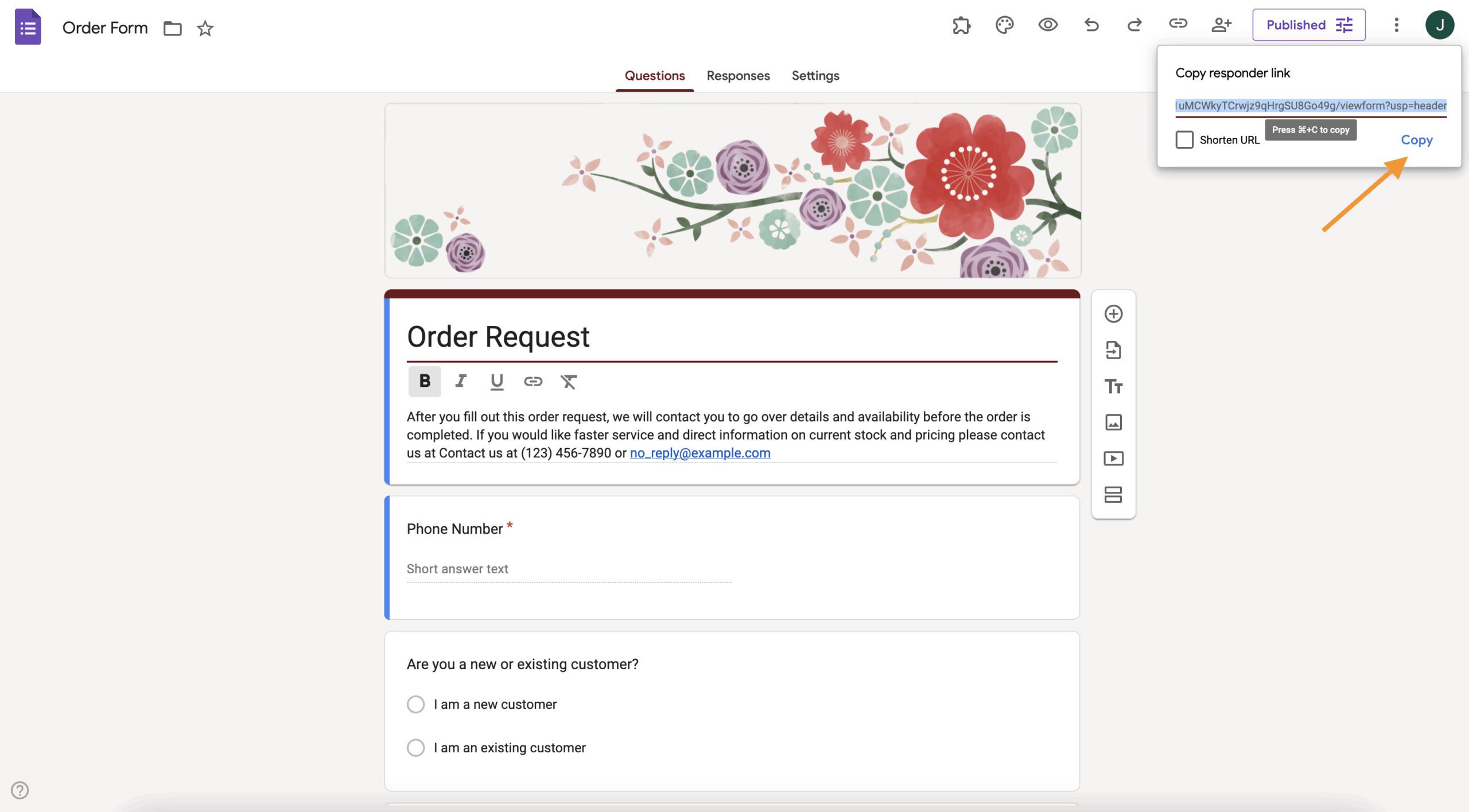
- Click the Copy responder link icon.
- Shorten the link by ticking the Shorten URL checkbox.
- Click Copy to automatically copy the link.
- Go to your Canva website.
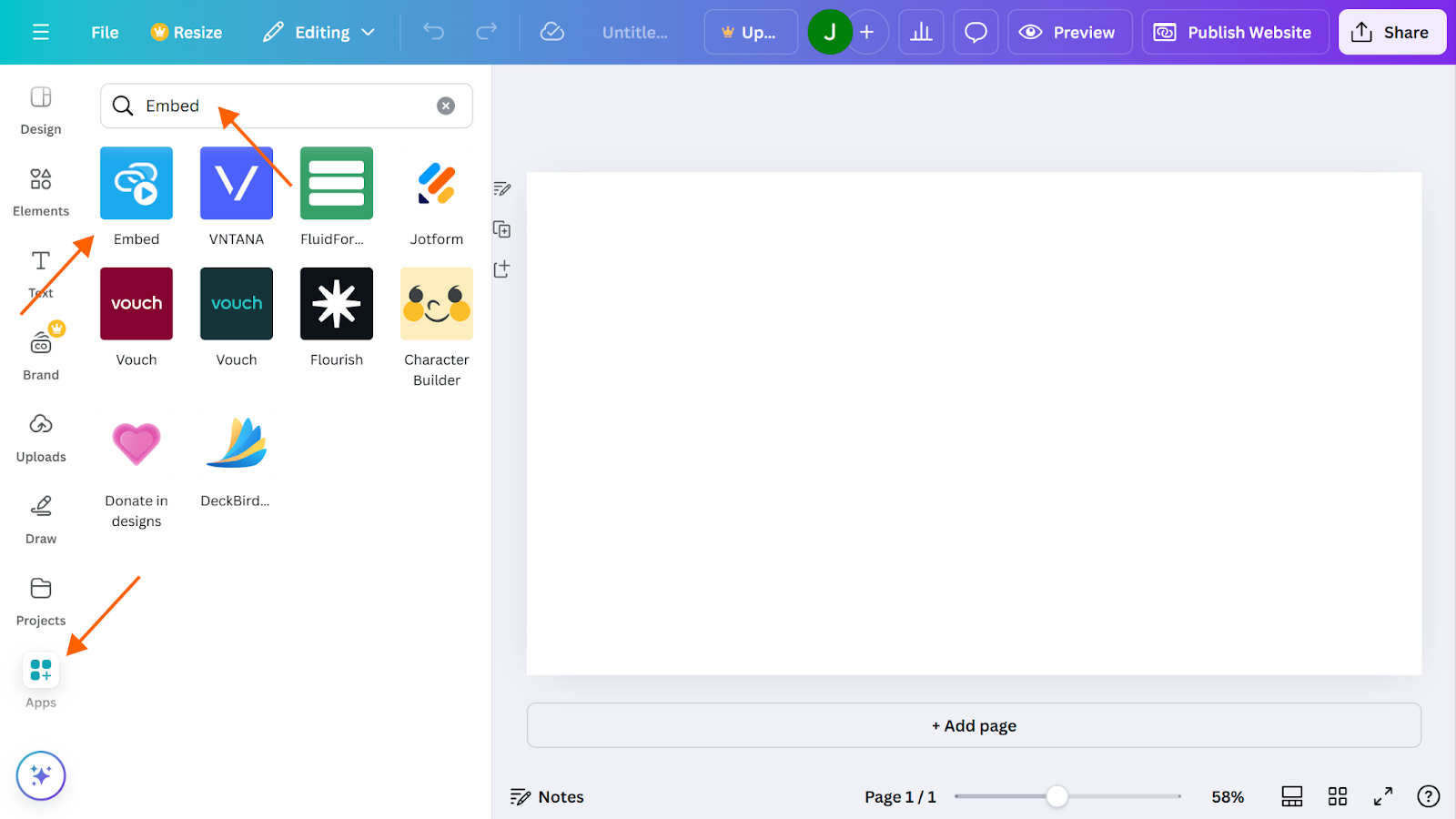
- Click Apps and search for Embed.
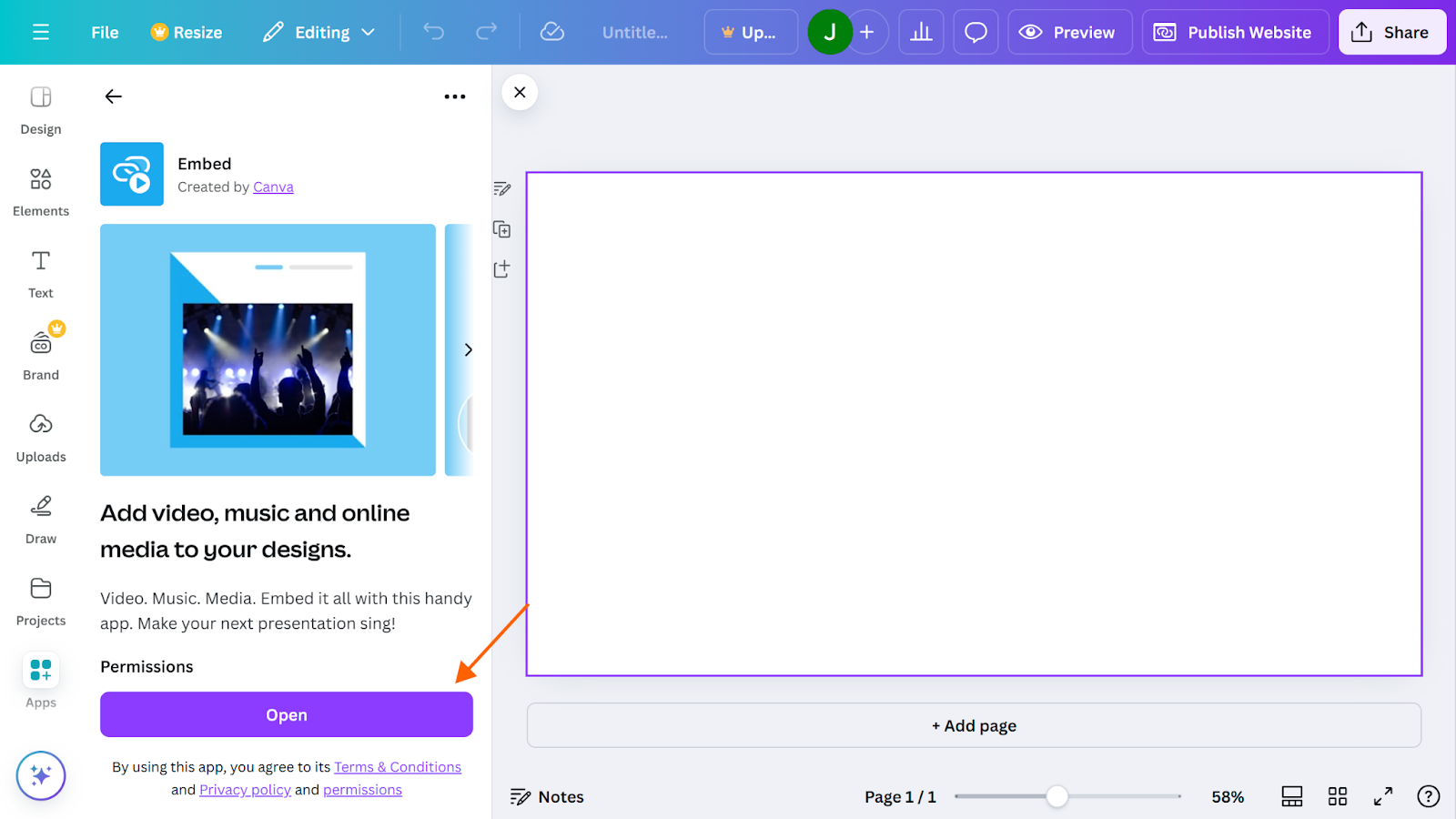
- Click the Embed app icon.
- Click the Open button.
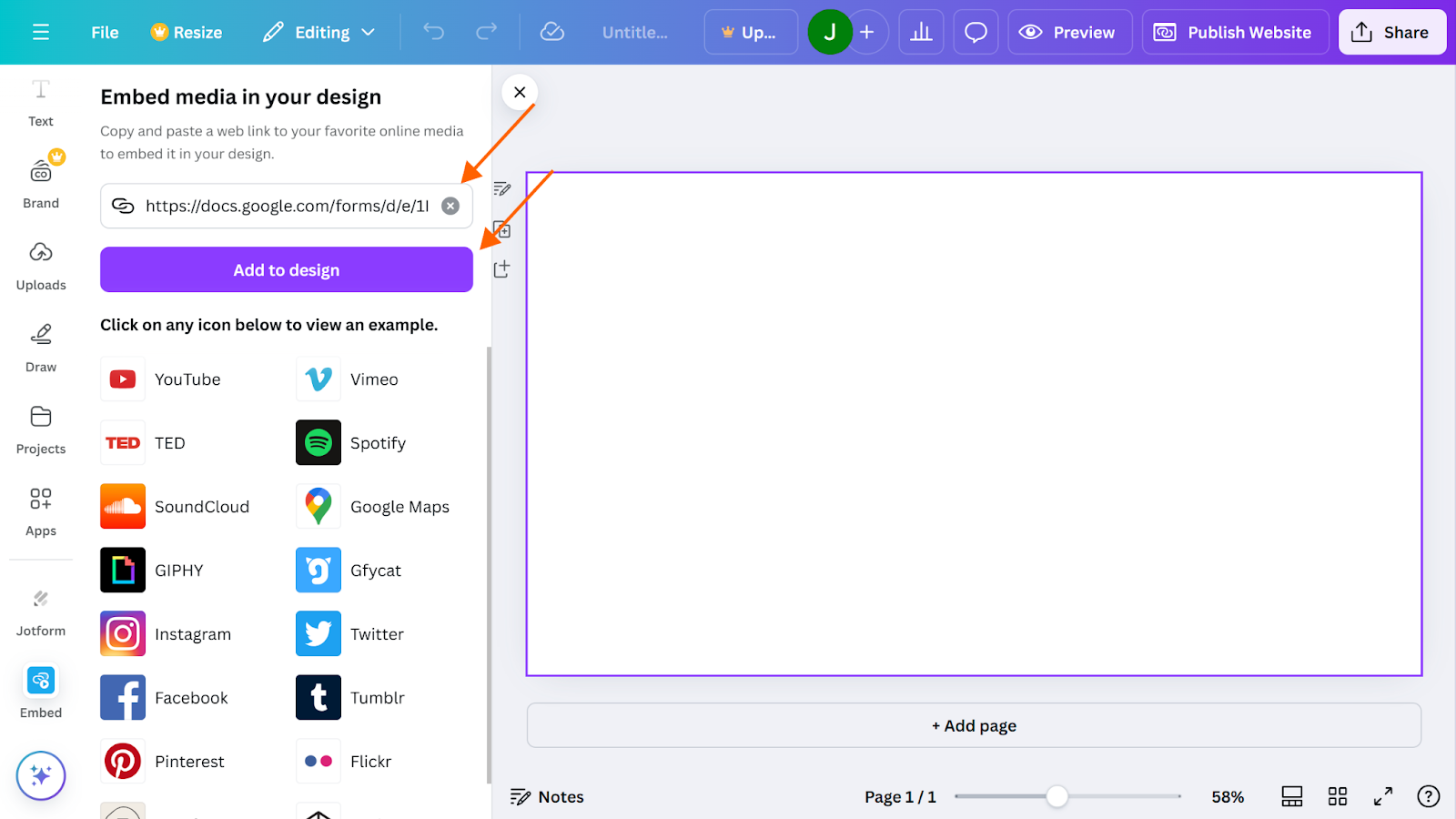
- Paste your embed link and click Add to design.
Online forms are an essential tool in your sales team’s arsenal, enabling them to catch leads and follow up with potential customers. These could appear as sign-up forms to a regular newsletter, email-exclusive discount links, or product query forms.
Knowing how to add the right online form during the website creation process is vital — with Google Forms being the go-to builder for many users. And if you’re using Canva to design your website, adding a Google Form takes just a few clicks.
Read on to learn how to add Google Forms to your Canva website — as well as an even more powerful alternative you may want to consider.
How to add a Google Form to a Canva website
If you’re familiar with Google Workspace, you already know that creating a Google Form is relatively simple. Luckily, adding Google Forms to your Canva website is just as easy — requiring only a few clicks:
- Open Google Forms.
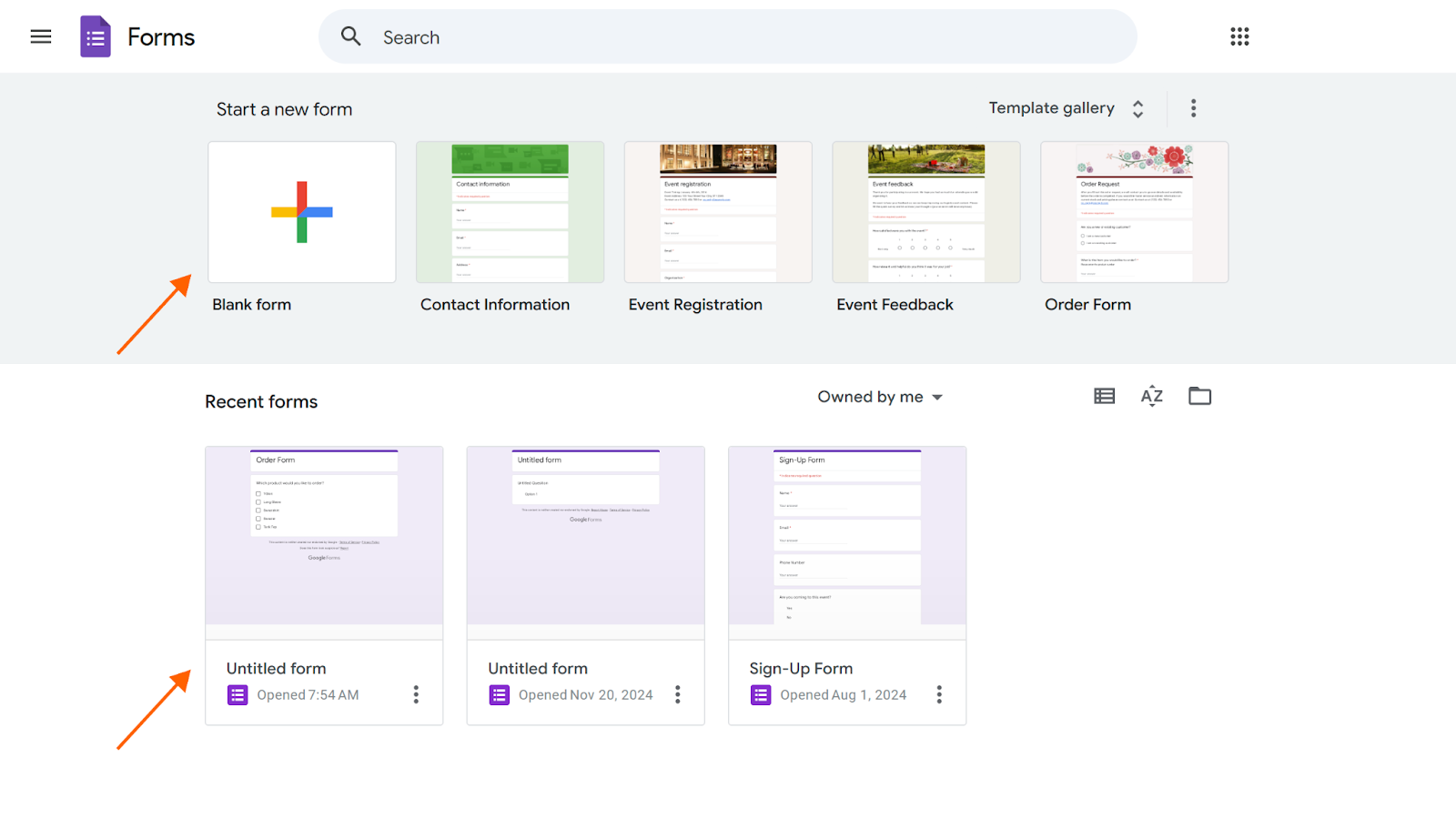
- Start a new form by selecting either the Blank form button or a template. Alternatively, select one of your existing Recent forms.
- Edit the form based on your content requirements.
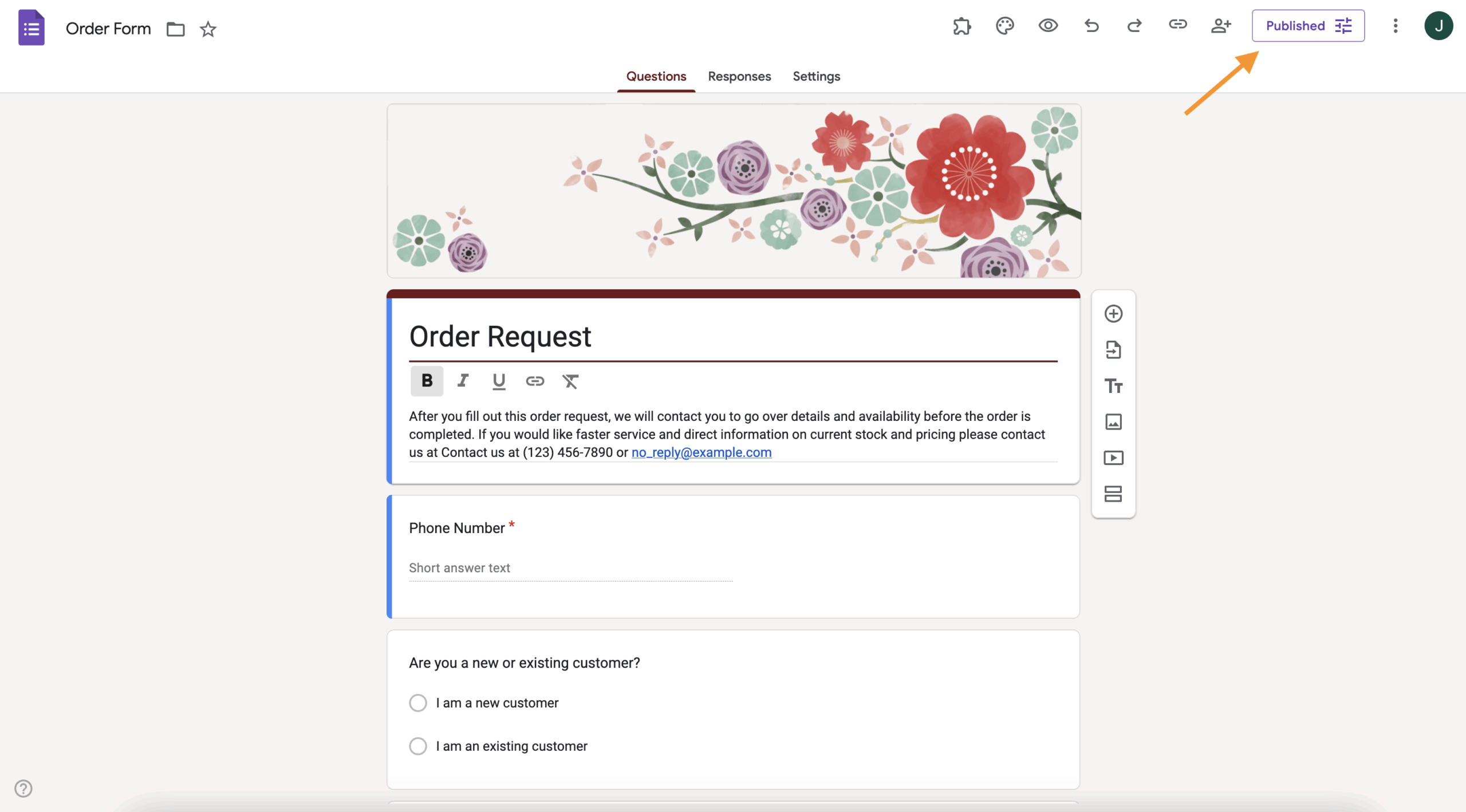
- Once your Google Form is ready to send, click the Published button in the top-right menu.
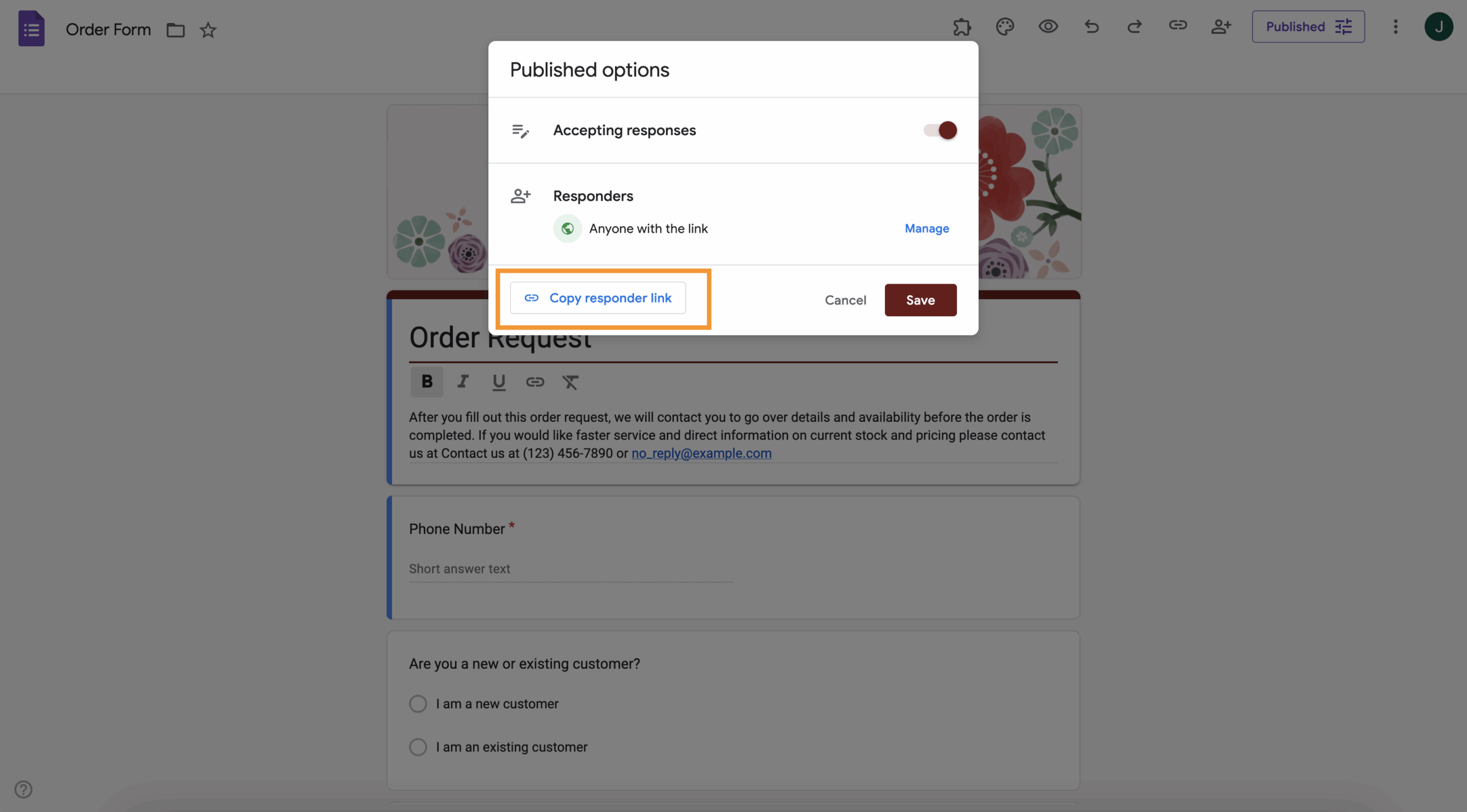
- Then, click the Copy responder link icon.
- Optionally, you can shorten the link by ticking the Shorten URL checkbox.
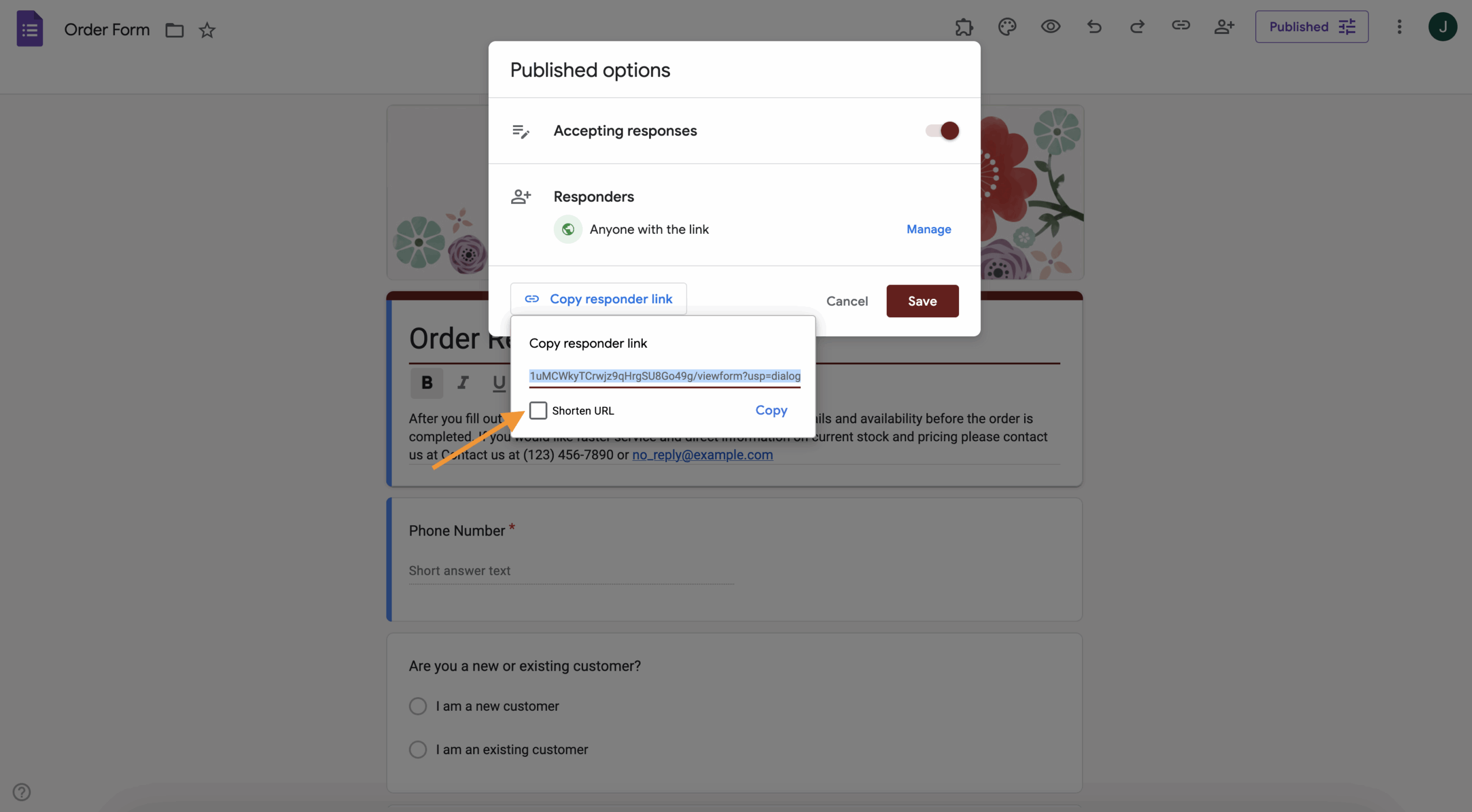
- To share your embed link, click the Copy button to automatically copy the link to your clipboard.
- Go to your Canva website.
- Click the Apps button on the left-side menu and search for Embed.
- Click on the Embed app icon.
- Click the Open button in the Embed app.
- Once the Embed app is opened, simply paste your embed link into the text box and click the Add to design button.
Depending on your form, you may need to adjust some settings to ensure it works to your desired effect. For example, to embed certain forms, Canva may require that you disable email address collection and sign-in. However, these settings are often automatically turned off by default.
Pro Tip
Embed Jotform AI Chatbot for Canva on your Canva website to turn form interactions into real-time conversations that answer questions and drive action instantly.
Why choose Jotform over Google Forms?
While the process for adding Google Forms to a Canva website is relatively simple, it may not be the most flexible or powerful form-building option for you. The truth is, it doesn’t offer nearly the same capabilities as some other form-building software on the market.
Jotform is an excellent Google Forms alternative with a variety of embed options and even its own native Canva application for an even more streamlined process. This allows users to easily connect, create, and share forms directly from Jotform to their Canva website.
How to add a Jotform to a Canva website
Once you create your form, either from scratch using the Jotform Form Builder or by using one of Jotform’s 20,000-plus free form templates, you just need to follow a few simple steps to add it to your Canva website:
- When your form is ready to be shared, go to your Canva account and open your website in the designer.
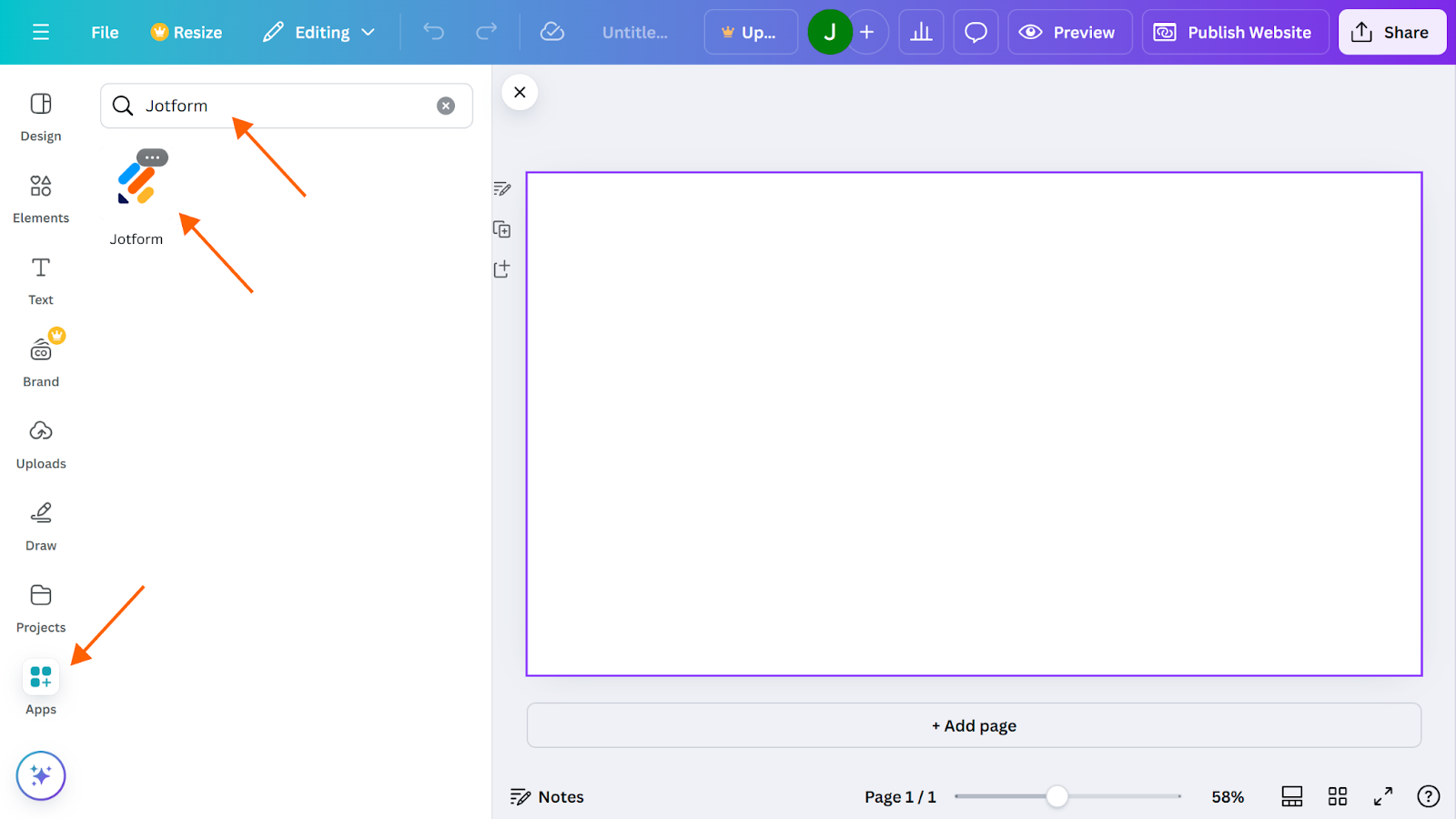
- Click the Apps button on the left of the design screen.
- Search for Jotform and click the Jotform icon to open the application window.
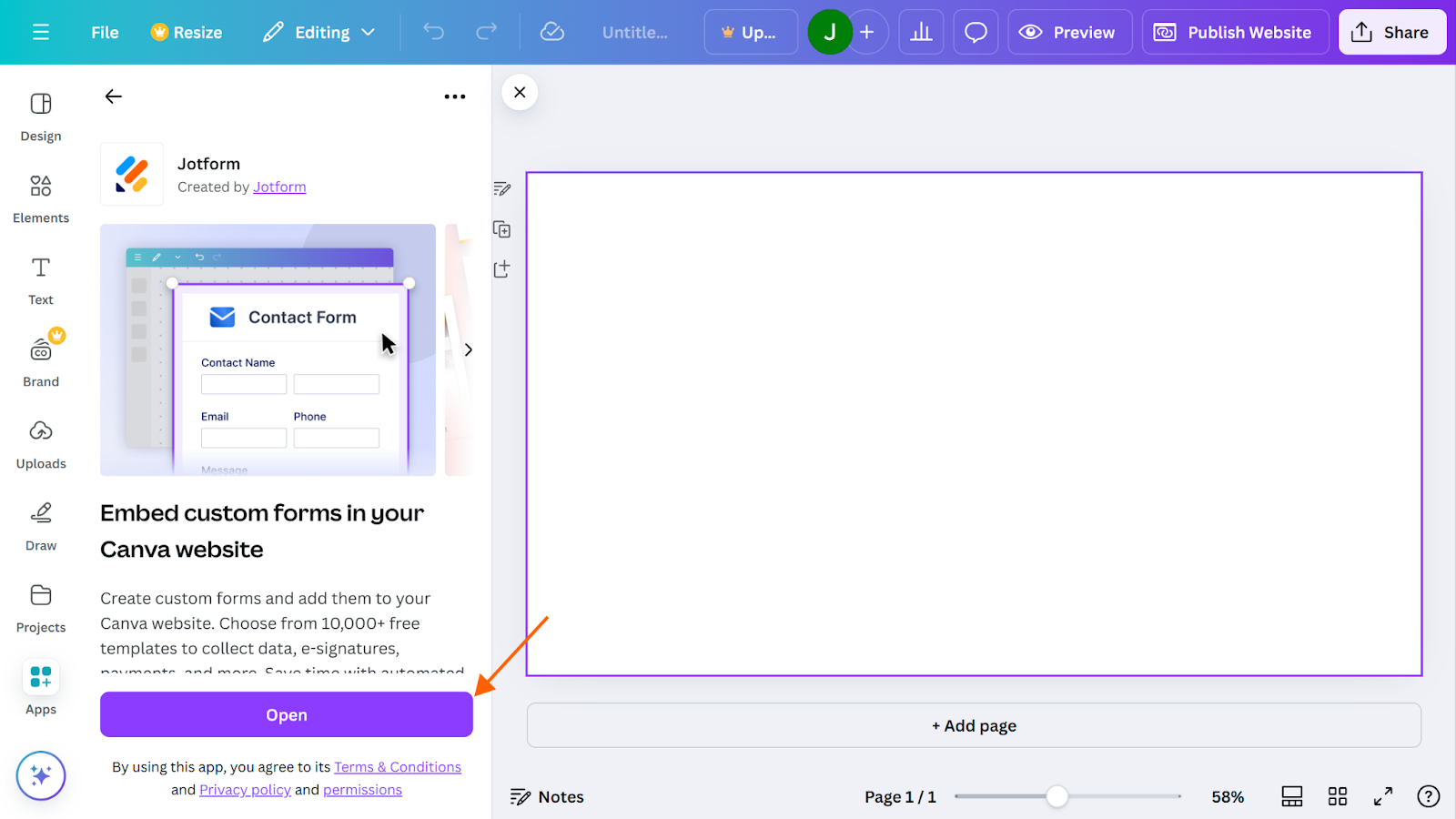
- To connect your Jotform application to Canva, click the Open button.
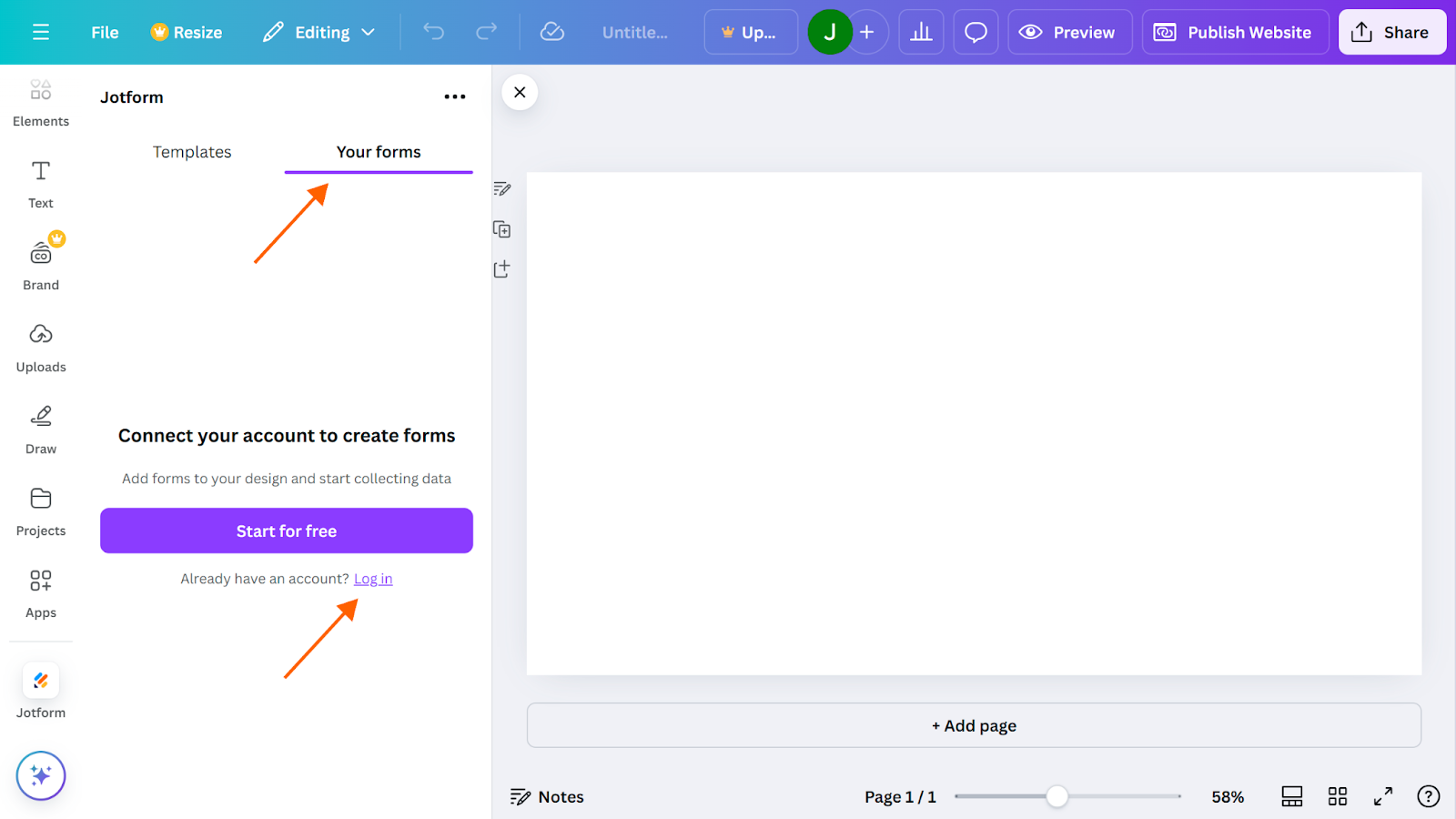
- Once the app has opened, click the Your forms tab and select Log in to connect your account.
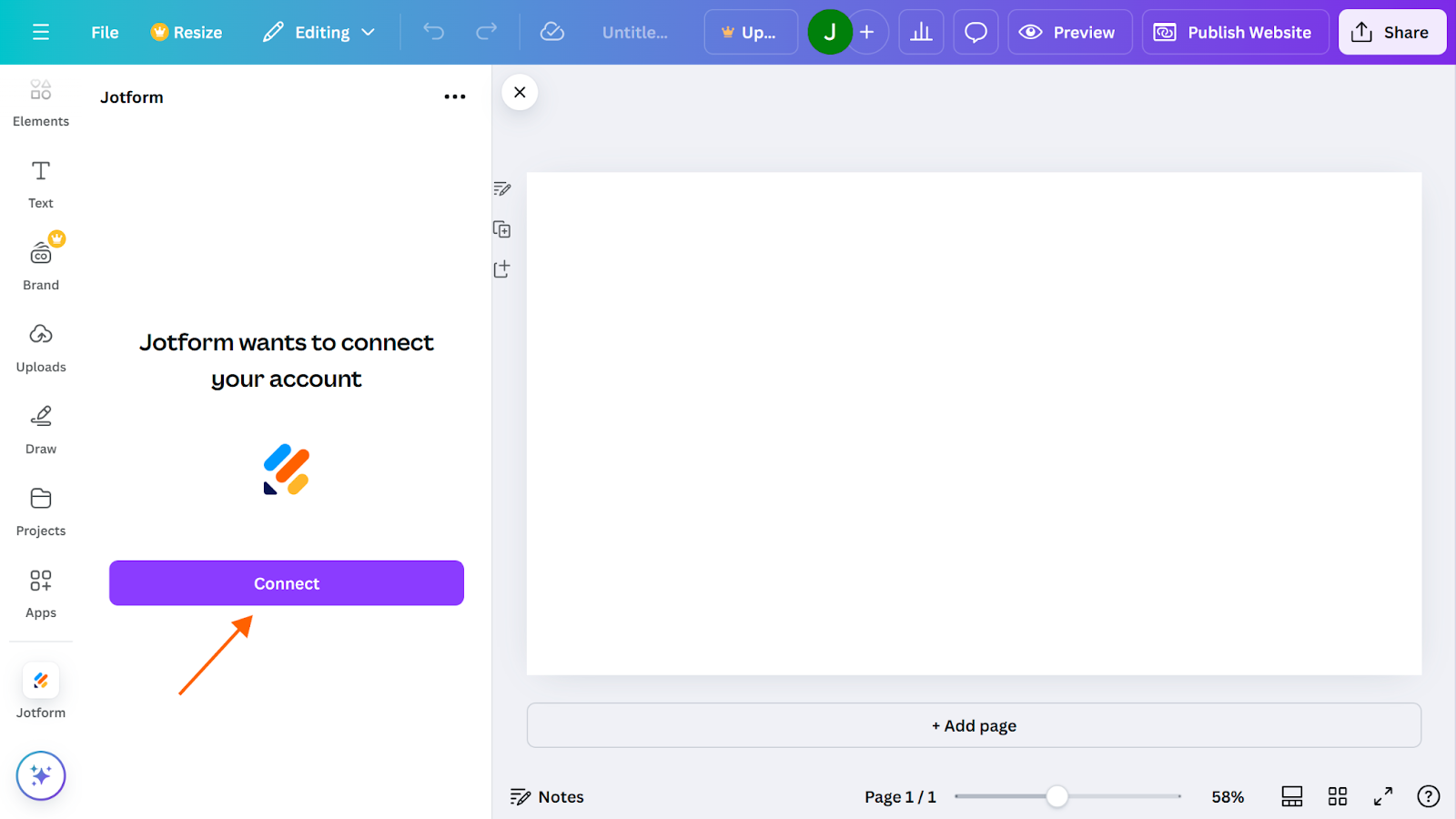
- Synchronize Jotform and your Canva account by clicking the Connect button.
- After you’ve connected your Jotform account to Canva, choose the form you want to add to your website by clicking on your form in the menu.
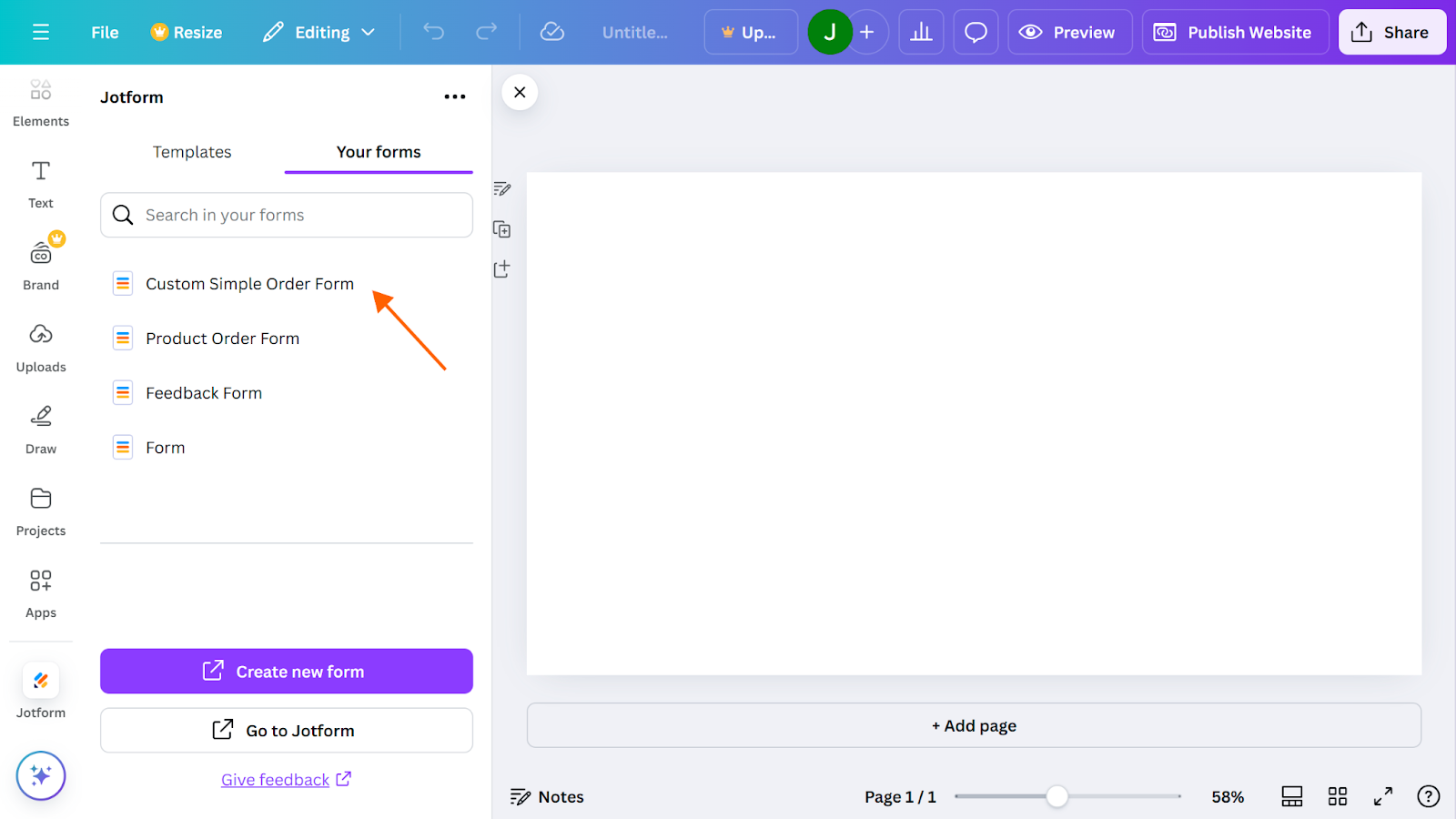
You can also create new forms in Jotform directly from the Canva application by clicking the Create new form button below your existing forms.
Once you’ve uploaded your form to your Canva website, you’ll automatically start collecting submission data. Jotform will funnel and organize that data into a dedicated collaborative spreadsheet in Jotform Tables.
Create more powerful forms with Jotform
Beyond making form creation simple and flexible, Jotform features a dynamic suite of solutions to empower your team to do more with their data:
- Online e-signature collection with Jotform Sign
- Automated form workflows with Jotform Workflows
- Online payments through more than 40 payment processor integrations
- Advanced data analysis through Jotform Report Builder
So before you commit to adding Google Forms to your Canva website, explore Jotform’s more powerful collection of features. Consider whether it can help you build a more versatile, effective website — after all, Jotforms can be added to your Canva site just as easily.
Photo by Photo By: Kaboompics.com







































































































Send Comment: