

Mistakes happen.
Whether you’re a form creator or a respondent, you may find yourself wishing you could simply undo or redo an action — or withdraw a form submission altogether — to correct an error. If you’re using Google Forms, there are a couple of ways you can get yourself back on track.
In this article, we’ll explain the process of how to redo a Google Form action, whether you’re a form creator or a respondent. Plus, we’ll introduce you to a sophisticated form builder that offers advanced version history functionality: Jotform.
Can you redo or undo a Google Form?
Yes, but the functionality for redoing or undoing actions for form creators and form respondents is limited. Here’s what you need to know:
Redoing and undoing actions as a form creator
Google Forms does allow you to redo and undo actions while you are editing the form. However, once you complete editing the form and close it, you no longer have the ability to access previous versions of the form.
Withdrawing or resubmitting forms as a form respondent
You cannot cancel or delete a form submission — once the form is submitted, there is no way to retract it. However, you can edit your responses if the form creator has enabled these permissions.
In the case of Google Classroom quizzes, respondents can withdraw the assignment, edit it, and then resubmit it. Again, this is only possible if the form creator has enabled these permissions within Google Classroom.
How to undo or redo in Google Forms
Whether you’re a form creator or form respondent, follow the tips below to undo an action in Google Forms. (If you’re looking for additional details on how to use Google Forms, how to create a Google Form, or whether you can recover deleted responses in Google Forms, check out our guides.)
Form creators: How to undo in Google Forms
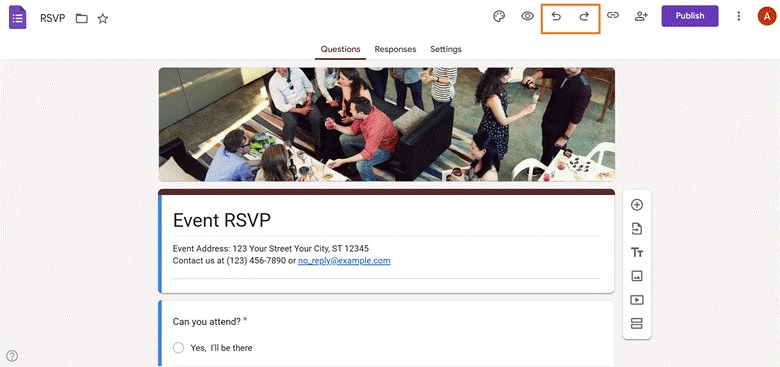
While you are editing in Google Forms, you can use the Undo and Redo arrow icons from the top toolbar to undo or redo actions. Keep in mind that you cannot check Google Forms history like you can with other Google applications.
Form respondents: How to edit a response in Google Forms after you have submitted it
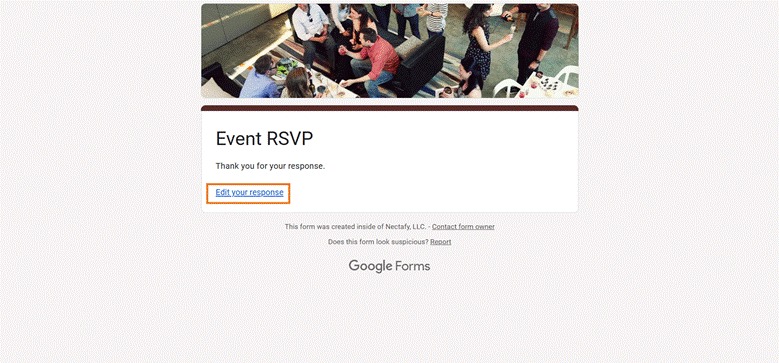
Once you’ve submitted a form, it’s only possible to edit a response if the form creator has enabled this feature in the settings.
If that setting has been enabled, you will see a link to Edit your response upon form submission. Click on the link and provide your edits. Then, click Submit to update your response.
Form respondents: How to redo a Google Form quiz as a student
If you’re a student using Google Classroom, you may withdraw your quiz submission if your instructor has enabled these permissions. To do this, go to the assignment in Google Classroom and click Unsubmit. You can then resubmit the assignment in Google Classroom when you’re ready.
Wondering how to unsubmit a Google Form as a regular respondent? Unfortunately, this isn’t possible!
Jotform: An easy way to redo or undo form actions
If you’ve learned how to undo an action in Google Forms but are frustrated by its limited functionality, it’s time to explore Jotform.
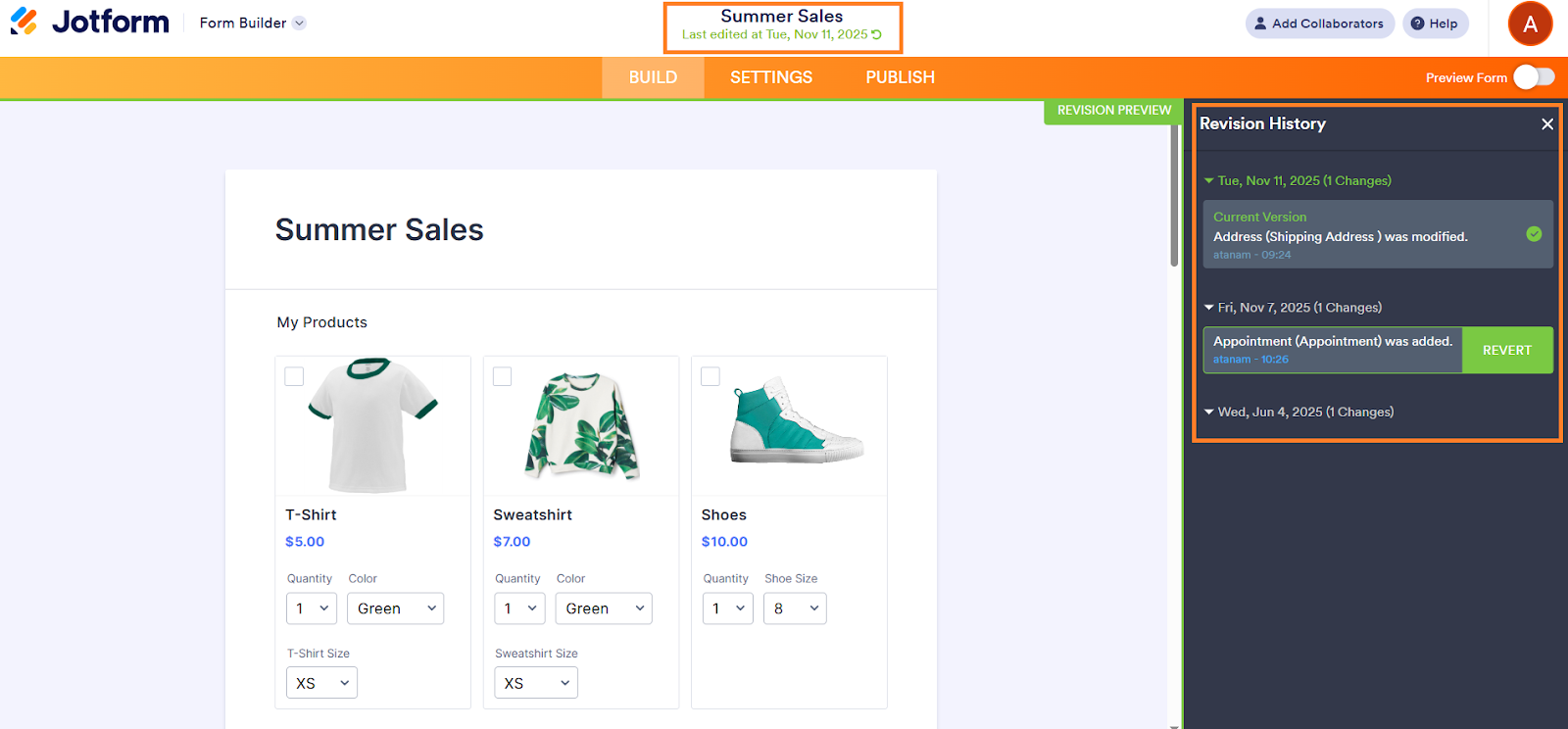
An excellent Google Forms alternative, Jotform offers advanced version history functionality, allowing you to see and restore previous versions of your form. Plus, you have more flexible control over the settings for editing submissions and accepting multiple responses.
You can view your form revision history in Jotform at any time — even after closing the application — by clicking on the Circular arrow icon at the top of the form. This pulls up your revision history in a sidebar, where you can see and revert to any previous version of the form.
Jotform is a comprehensive, mobile-friendly form builder with over 20,000 templates for surveys, quizzes or tests, polls, application forms, registration forms, and so much more. You can easily customize any form with the drag-and-drop form builder tool, taking advantage of a wide variety of question types, from open-ended and multiple-choice to Likert scale, ranking, and matrix.
While Jotform is a leading form builder, that’s not all it can do. It can edit PDFs, build mobile apps, customize AI agents, generate reports, and collect e-signatures too — ensuring that many of your business needs are supported in one platform. It also has the widest range of integrations in the industry, supporting payment collection, workflow automation, lead generation, and more.
Explore Jotform today and see why this form builder is the ideal choice for your needs.
FAQs
You can retake a Google Form as long as the form creator has not limited responses to one per person. Keep in mind, however, that your first submission will not be deleted — you will simply be adding another submission.
If you want to redo actions within your Google Form, use the Redo arrow icon at the top of the form.
You can only edit a Google Forms response if the form creator has turned on this setting. If so, when you submit the form, the submission screen will provide a link to Edit your response.
This article is for students, survey participants, educators, and form creators who want to know how to undo or redo actions in Google Forms, whether that means editing a submission, resetting a form, or allowing retakes for quizzes.






































































































Send Comment: