

Collecting electronic signatures is always simple at first. They are faster and more secure than offline signatures, and meeting the requirements for legally binding e-signatures isn’t particularly onerous. It gets a lot more complicated, though, when you dig into how you’re going to send, collect, retain, and archive agreements on a recurring basis. For that you’ll need a platform that’s built for business.
Two platforms that stand out are Xodo Sign and Dropbox Sign. Based on my time reviewing each app, the fact that both Xodo Sign and Dropbox Sign are products of recent acquisitions is all upside. Both offer mature, compliance-ready features and security, and both got an injection of fresh talent and new perspectives from their new owners.
For the team at Dropbox Sign (formerly HelloSign), the focus is on simple and secure e-signatures. With Xodo Sign (previously Eversign), there’s more emphasis on document editing and annotating, with audit trails and document retention features that offer a different approach than Dropbox Sign. Even if they’re among the best e-signature apps around, there are still tradeoffs to both platforms.
It can take days to get a feel for a new app, tweaking the settings and exploring the menus until you fully wrap your head around it. That’s fine when you have the time, but costly when you’re bumping against the limits of a jury-rigged e-signature process and need something more reliable and professional, quickly. I’ve documented the best and worst features of Dropbox Sign and Xodo Sign, comparing their features, pricing, and security so you can pick the best fit, or possibly a third alternative, based on your use case.
Key takeaways
Both these platforms cover the e-signature basics and are compliant with relevant regulations in the United States and EU. Their pricing plans are similar, as are their G2 ratings, and both can be integrated into your backend infrastructure via their APIs. The biggest difference comes down to what you need to do with your contracts and agreements before sending them to signers.
- Xodo Sign is better for editing, annotating, and redacting e-signature documents.
- Dropbox Sign is a smoother, more enjoyable user experience and interface.
- Xodo Sign’s cheapest paid plan offers more than Dropbox Sign’s, including custom branding, in-person signing, and long-term validation.
- Dropbox Sign has a better library of premade e-signature templates.
- Dropbox Sign’s API is cheaper and has better documentation than Xodo Sign’s API.
What both Dropbox Sign and Xodo Sign lack is automatic field detection for uploaded documents. For that, as well as far more automation options, I recommend trying Jotform Sign. It has more native integrations than both Dropbox Sign and Xodo Sign and can be connected to signer-facing AI Agents that answer questions about agreements and gather necessary details via free-form conversations. Sign up for Jotform’s free-forever plan today to take it for a spin.
Xodo Sign (formerly Eversign)
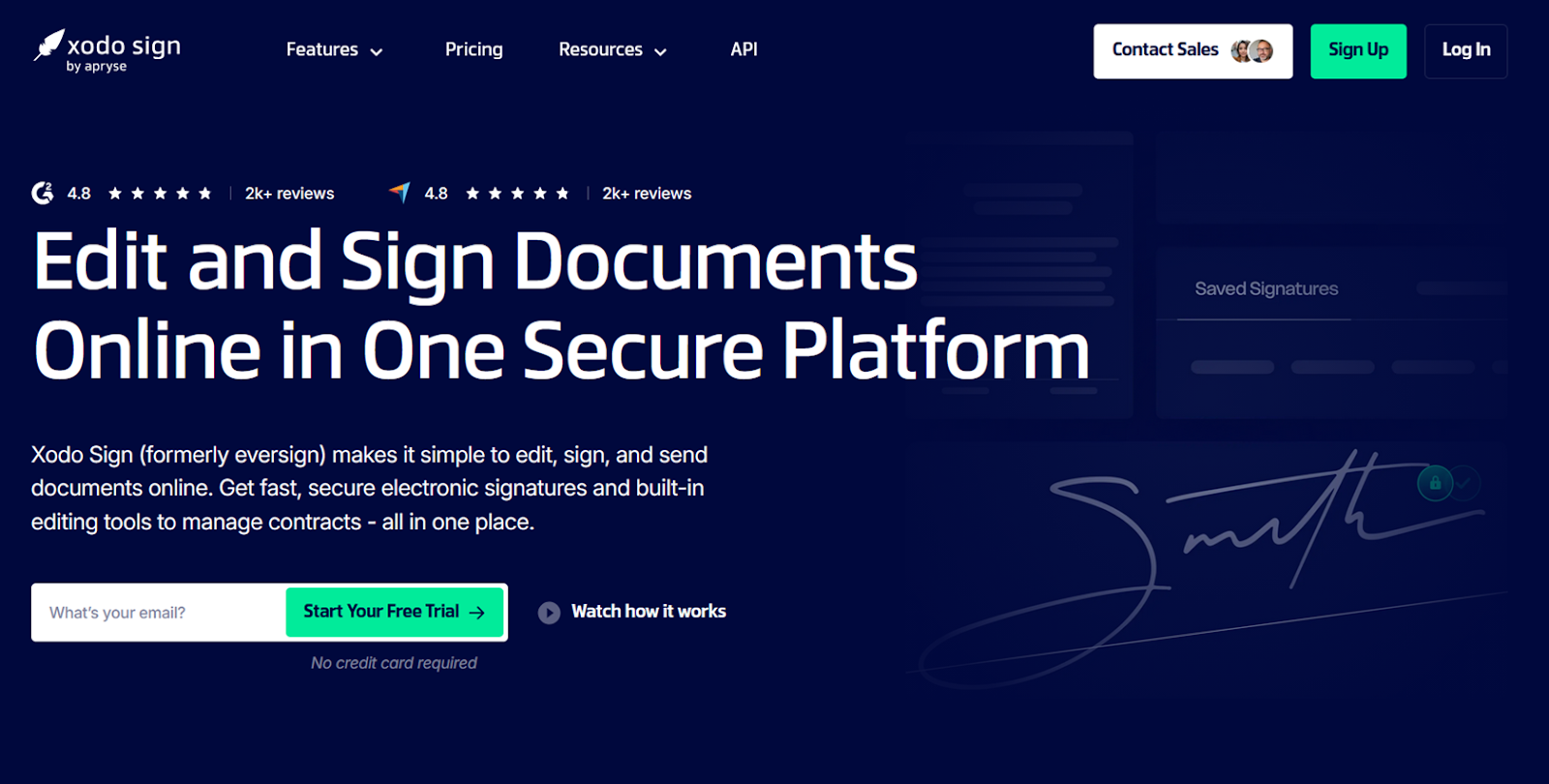
Recommended for: Teams that need to annotate, revise, and redact documents
What I loved about Xodo Sign the most: Few Dropbox Sign and Docusign alternatives have as many document editing features as Xodo Sign does. Even if the editor was fairly slow during my testing, it’s still a huge time saver for legal, sales, and real estate teams that negotiate contracts and agreements with external parties, ping ponging them back and forth across multiple rounds of revisions.
- Key features:
- Full-featured document editor
- Summarize documents with AI
- Long-term validation on by default for every document
- Xodo Sign branding is always optional
- Pros:
- Audit trails are intuitive and easy to use
- Lots of customization options
- In-person signing is included in all plans
- Cons:
- Integrations are limited and unreliable
- It doesn’t have a library of premade templates
- Plans/Pricing:
- The Basic plan ($20 per month) will let you collect unlimited online and in-person signatures, create audit trails for all documents, accept signer attachments, and create up to three templates.
- The Professional plan ($32 per month) unlocks all file editing features and lets you authenticate up to 10 signers via SMS, bulk send up to 10 documents, and interact with up to 10 documents via the API.
- The Enterprise plan (custom quote) removes all the limits from the Professional plan.
Does Xodo Sign have a free trial?
Yes, Xodo Sign offers seven-day free trials for its Basic and Professional plans. There is also no requirement to provide a credit card to begin a trial.
How to use Xodo Sign
Despite the somewhat cluttered interface, everything in Xodo Sign boils down to documents and contacts. And, to start creating an electronic signature, you can upload an existing file in either the Documents or Templates sidebars (but not Import Templates — that’s for JSON files), which feels like an unnecessary distinction since both options drop you into the same interface for dragging and dropping fields onto the document.
After adding fields to your document, click the Send button, and all signers will receive email invitations. You can tweak invitations and automated reminders from the Business Settings sidebar, customizing the intervals and adding your branding to notifications.
Contacts are the other main component of Xodo Sign and can be similarly confusing. Any time you add a name and email to the Signers field of a document upload, those details will be automatically added to your Contacts tab. If you want that person listed in the Team tab, however, you’ll also have to add them there manually.
The main reason to use Xodo Sign over Dropbox Sign is the file editor. Opening it from the sidebar gives you yet another way to upload a document, followed by an interface for editing and redacting text, adding shapes and stamps, removing or rotating pages, and summarizing the text with AI. When you’re ready to add signer’s fields, click the Prepare for Signature button, and that will move the edited document into Xodo Sign’s separate drag-and-drop editor for placing signer fields on the document. You can always check the status of sent documents and their audit trails from the Documents tab.
Dropbox Sign (formerly HelloSign)
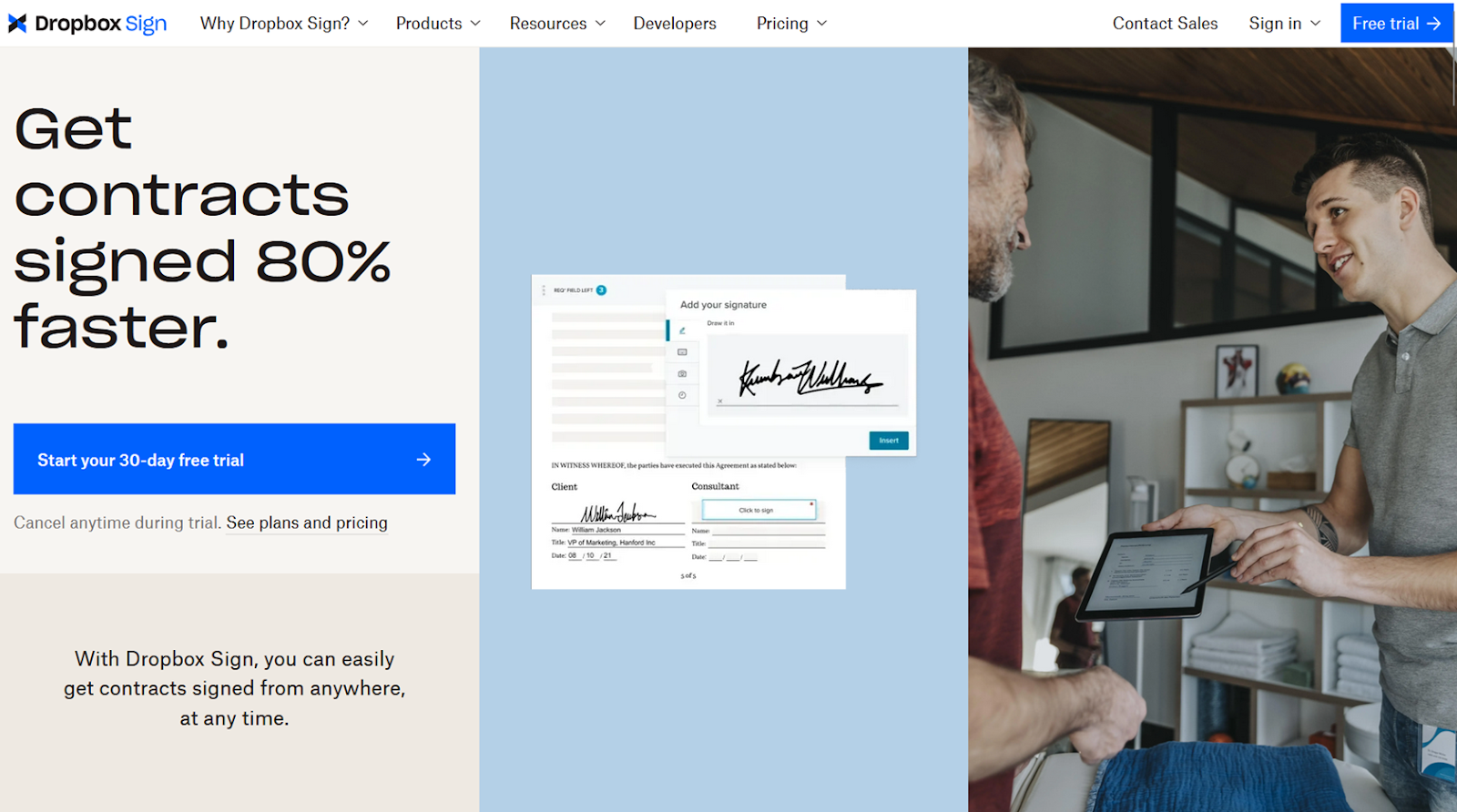
Recommended for: Technical and compliance-focused workflows
What I loved about Dropbox Sign the most: I’ve tested a lot of Dropbox Sign alternatives, and it is still, without a doubt, the simplest and most minimalist enterprise-level e-signature tool available. Your account dashboard shows how many documents need signatures and how many have been signed, above an upload window, and a list of recently used templates — that’s it. On the left are four tabs: Templates, Documents, Integrations, and Send fax. It is incredibly easy to jump into and get started while still offering plenty of power-user features as you explore the platform.
- Key features:
- More than enough ready-made templates
- Compatible with qualified electronic signatures
- Bulk send single-signer documents
- App localization in 22 languages
- Pros:
- Super easy onboarding process
- Offers eIDAS and ESIGN compliance features (among others) out of the box
- Flexible and well-documented e-signature API
- Cons:
- Integration with other Dropbox services can be confusing
- There’s no way to create documents from scratch
- Plans/Pricing:
- The Essentials plan ($20 per month) includes a single user, unlimited signature requests, up to five custom templates, and audit trails for all documents.
- The Standard plan ($30 per month) adds another user to your account and up to 15 custom templates. It lets you automate collection of attachments from signers, gather in-person signatures, brand documents and notifications, and bulk send signature requests.
- The Premium plan (custom quote) gives you five account users, unlimited custom templates, and advanced signer fields and tools, as well as data residency options.
Does Dropbox Sign have a free trial?
Yes, Dropbox Sign has 30-day free trials for its Essentials and Standard plans. You must provide a credit card to get access to these trials.
How to use Dropbox Sign
Requesting an e-signature through Dropbox Sign is incredibly straightforward. There’s an Upload dropdown menu on your dashboard, with quick access to Dropbox, Google Drive, Box, and OneDrive storage, or a list of previously uploaded files under the Documents tab. After that, you’ll add signers’ details and start placing fields on the document.
Even if it doesn’t have the editing tools that Xodo Sign does, Dropbox Sign’s drag-and-drop interface has a few of its own tricks. Autofill fields, for example, mean that signers who have already set up a Dropbox account don’t need to constantly reenter things like their title or the date signed. Even better, the Enable form view toggle lets signers switch between viewing the full document and only the fillable fields, for faster and more mobile-friendly signing. Finally, the Review and send page lets you CC recipients, set expiration dates, write emails to signers, and save the document as a template.
Speaking of templates, there are more than 40 on the Gallery page, spanning tax forms, construction contracts, HR agreements, and real estate documents. You can click Save template, using the existing fields or placing your own, add sending details, then click Bulk send from anywhere in the app to upload a spreadsheet of signers for things like SOP updates or policy change notifications.
Dropbox Sign’s Integrations tab is also much better than Xodo Sign’s. Whereas I struggled to ever get Xodo Sign connected to Google Drive, Dropbox Sign had me transferring files over in a couple of clicks, almost as fast as it was to connect to me “regular” Dropbox storage (fair warning, though: there is an option to initiate a signature request from inside the non-Dropbox Sign interface that was difficult to later find in Dropbox Sign). Setting up the Slack integration for e-signature notifications is easy too, with HubSpot, Microsoft Word, and Salesforce requiring a few extra hoops to jump through.
You’ll find the branding options under your Admin Console, but they aren’t quite as customizable as they are in Xodo Sign. Also in the Admin Console are Dropbox Sign’s email notifications, which I found completely overwhelming by default. They might be required for compliance in some cases, but I’d scale them way back, if possible, to avoid flooding your signers’ inboxes.
Xodo Sign gives you more functionality for your money
How each app handles pricing: Both platforms charge $20 per month for their base plan and $30 to $32 per month for their premium plan. Xodo Sign offers a 50 percent discount on annual plans, however, with Dropbox Sign pricing giving 25 percent and 17 percent off its Essentials and Standard plans, respectively.
What each app includes in its plans: Xodo Sign includes signer attachments, in-person signing, team management, and custom branding on its base plan, while Dropbox Sign gates all those behind its higher-tier Standard plan. Dropbox Sign does offer one more seat than Xodo Sign on its Standard tier, but Xodo Sign still wins with its document editor and unlimited templates (vs Dropbox Sign’s 15-template limit on Standard).
How each app scales up: All Xodo Sign’s plans offer the same per-user per-month price point, regardless of how many users you add. Dropbox Sign is less explicit, promising “two or more” users on the Standard plan (adding, “For five-plus users, contact us”) and “five or more” on the Premium plan, which requires a sales call.
Dropbox Sign is easier to learn and use
What each app’s onboarding experience is like: Dropbox Sign’s tips and overlays were occasionally annoying when explaining how each page and button works, but there weren’t too many. I think I only had to Google one or two features while poking around and felt completely comfortable with the app within an hour.
Xodo Sign was a different story. There isn’t much in the way of guidance after you first sign up, and it’s not always clear how or why to use certain features and settings. I had to do a fair amount of experimenting and running into dead ends before I figured out how everything worked.
How it feels to live with each app: Xodo Sign often feels overstuffed. Most pages have redundant buttons and unnecessary steps that make e-signature workflows take longer. And the platform itself was quite laggy when I was using it, sometimes to the point that I had to close the tab and log in again. Dropbox Sign, on the other hand, is streamlined and crisp. It doesn’t cram much onto the page, and it always feels intuitive to find what you’re looking for.
Xodo Sign is better for teams
What team management features each app offers: Dropbox Sign has four user roles. Members can send and receive signature requests, Managers can oversee and control team activity, Admins have access to everything, and Developers can create API apps. There’s not much going on here beyond determining what documents team members can see and creating activity reports. Team roles feel a bit more useful in Xodo Sign, since collaboration and annotation are core focuses of the document editor.
What limits teams might run into when using each app: If several people are requesting signatures in Dropbox Sign, the only thing you’ll want to keep tabs on is templates, which are spread across the team and limited to five on the Essentials plan and 15 on the Standard plan. Xodo Sign makes things much easier to manage by enforcing limits at the user level rather than the team level. Each person is allotted three templates on the Basic plan and unlimited templates on the Professional plan, which then limits users to 10 SMS authentications, 10 bulk sends, and 10 API documents.
Use cases that benefit most from team features: Collaborating in Xodo Sign’s document editor is the only measurable difference in team features between these two apps. And that’s a somewhat niche use case reserved for iterative contracts with multiple internal approvers, such as high-level recruitment and procurement that often requires annotations from legal, HR, finance, and team managers.
Dropbox Sign is better for API and technical workflows
How each app handles e-signature automation: Neither app offers much in the way of no-code workflow automation. Xodo Sign has Zapier and Make integrations but little else, while Dropbox Sign can automatically sync signed documents to “regular” Dropbox, Google Drive, Box, OneDrive, and HubSpot Timelines and Contacts. Both apps have APIs for more technical automation, but Dropbox Sign’s can accommodate much more advanced scopes and deployments.
Teams that benefit most from automating e-signatures: Bulk sending has a lot of overlap with e-signature automation. Where APIs and more technical infrastructure becomes necessary is when product teams need to embed signing into proprietary interfaces or large, enterprise-level teams need to programmatically trigger one-off events that meet specific criteria, such as new business associate and vendor agreements.
Xodo Sign vs Dropbox Sign: Which one wins?
In most software reviews, the answer is “it depends.” But for this particular matchup, Dropbox Sign comes out ahead in most common business use cases.
Choose Dropbox Sign if…
The successor to HelloSign is better for technical and nontechnical teams and for both bulk sending and infrequent signature requests. It’s easier to use, more polished, streamlined, and customizable (except when it comes to branding your contract emails).
Choose Xodo Sign if…
The app that was formerly Eversign will align more closely with teams that make significant revisions and amendments to contracts they receive. Xodo Sign also has a slight edge for price-sensitive teams, offering more bang for your buck on the cheapest plan as well as unlimited templates on the middle-tier plan.
Choose Jotform Sign if…
Teams that will be best off here want to create signable documents quickly and automate what happens before and after the signature. It allows documents to be built in minutes, prefilled directly from form submissions, routed through approval chains, and shared for signing on any device, without requiring custom code or external workflow tools. It even helps with creating e-signatures from a phone.
Want an e-signature tool that connects your forms, workflows, and documents?
If your signing needs start before the signature itself — with structured data, approvals, and conditional logic — then Dropbox Sign and Xodo Sign will feel too limited. Jotform Sign combines document creation, signature collection, and workflow automation in one place. You can build signable documents in minutes from templates or uploaded PDFs, automate reminders and routing, and prefill documents with data collected from forms.
Signed documents can be shared via link, emailed, or accessed from any device, working alongside form logic, approval flows, and cloud storage, so everything flows smoothly from one step to the next, minimizing turnaround times and manual handoffs. Sign up for the free forever plan today to see if it will work for your team.
This guide is for ops leaders, legal/HR admins, sales and contract managers, and IT/compliance owners at SMBs and mid-market teams who send recurring agreements and need a business-ready e-signature stack.
AS ALWAYS, CONSULT AN ATTORNEY BEFORE RELYING ON ANY INFORMATION ON THIS PAGE. THE CONTENT ABOVE IS FOR INFORMATIONAL PURPOSES ONLY. JOTFORM IS NOT PROVIDING LEGAL, FINANCIAL OR OTHER ADVICE.



































































Send Comment: