

Signing PDF documents shouldn’t mean printing, scanning, and emailing files back and forth. Whether you’re approving a contract, signing an NDA, or finalizing a client’s agreement, you need a fast way to add your signature to a PDF so you can move on with your day.
Thankfully, you have options to sign PDFs for free: working through a browser, using built-in tools on your phone, or relying on a dedicated PDF signature app. In this article, I’ll walk you through the most practical ways to sign PDF files so you can choose what works best for your workflow.


Sign a PDF online (fastest method, no install)
For most people, signing a PDF online is the quickest and most flexible option. And with Jotform Sign, you can upload a document, add your signature, and download or share the signed file in mere minutes — without installing any software or buying a subscription.
Here’s how to sign a PDF online with Jotform Sign:
- On desktop or mobile, go to Jotform Sign and click Choose a document.
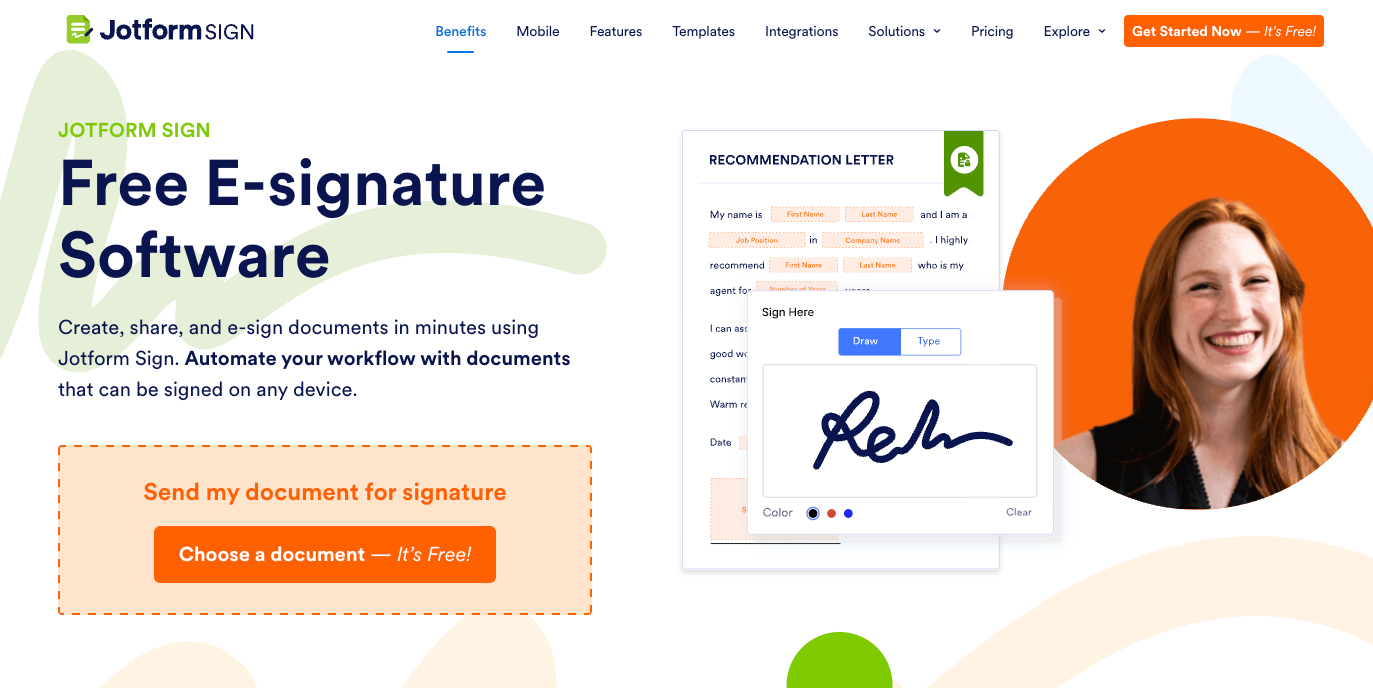
- In the next screen, upload the PDF from your device.
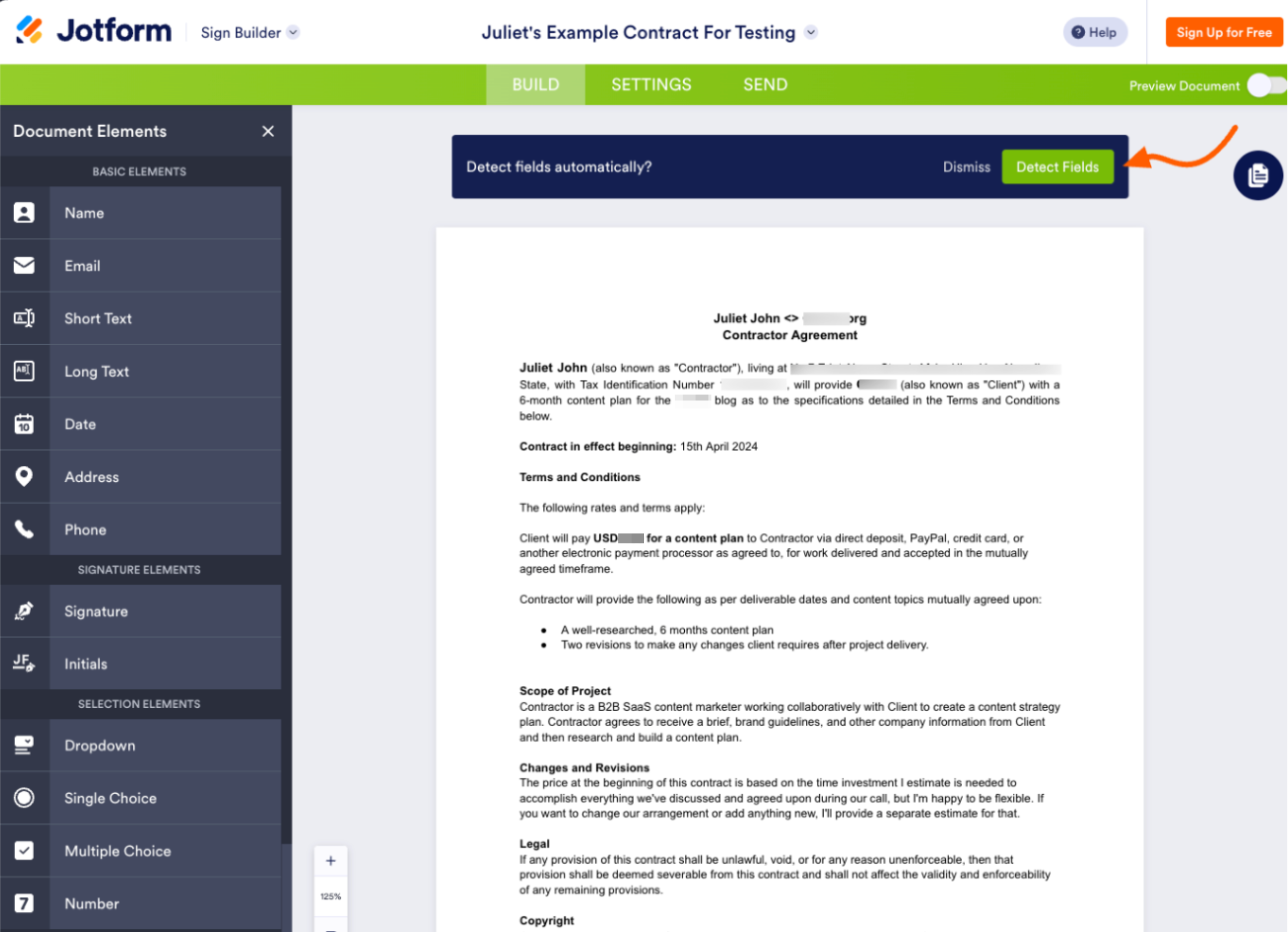
- Once the document loads, it’ll open the Sign Builder, where you can prepare the PDF for signing. In the left side panel, you’ll find multiple document elements, such as Signature, Name, and Date. Drag and drop an element into the required field on your doc. Or click Detect Fields, and Jotform will automatically detect all the signable fields on your document.
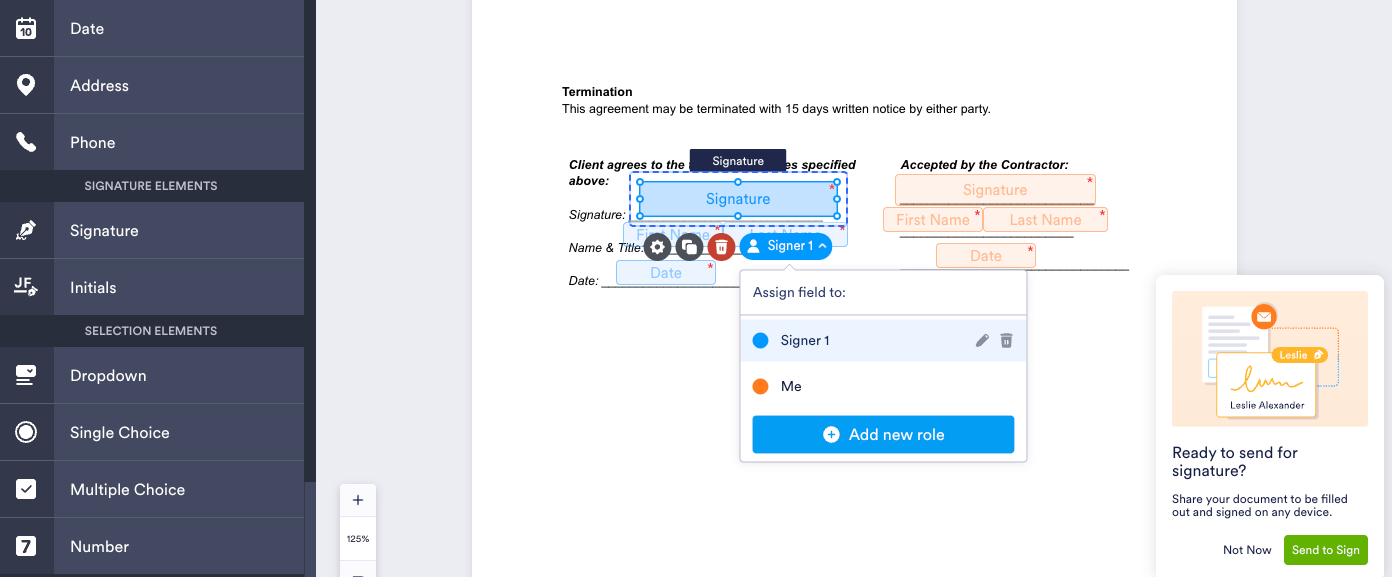
- Go down to the signature field and click on it to assign roles to signers. For example, if it’s only you signing, assign Me. If there are multiple signers, assign Signer 1, Signer 2, and so on, as needed.
- Click Settings from the green navigation menu to customize the document name and email for all signers.
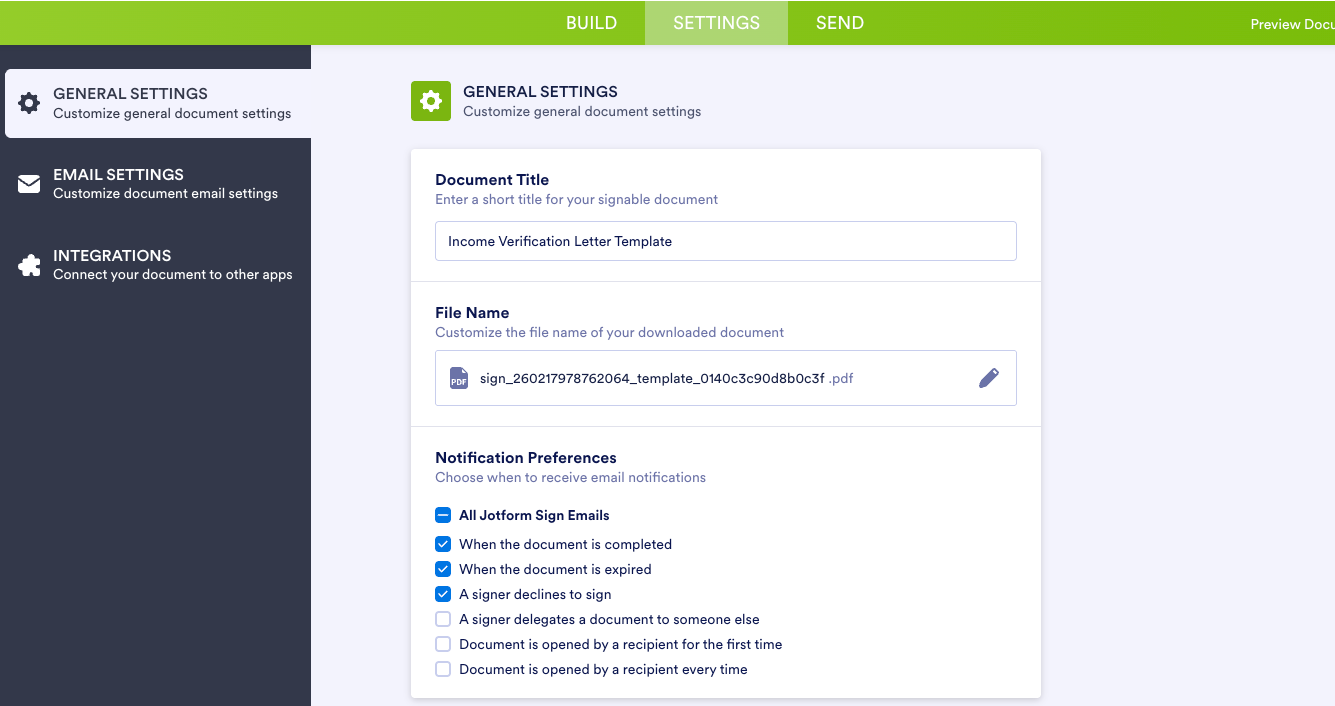
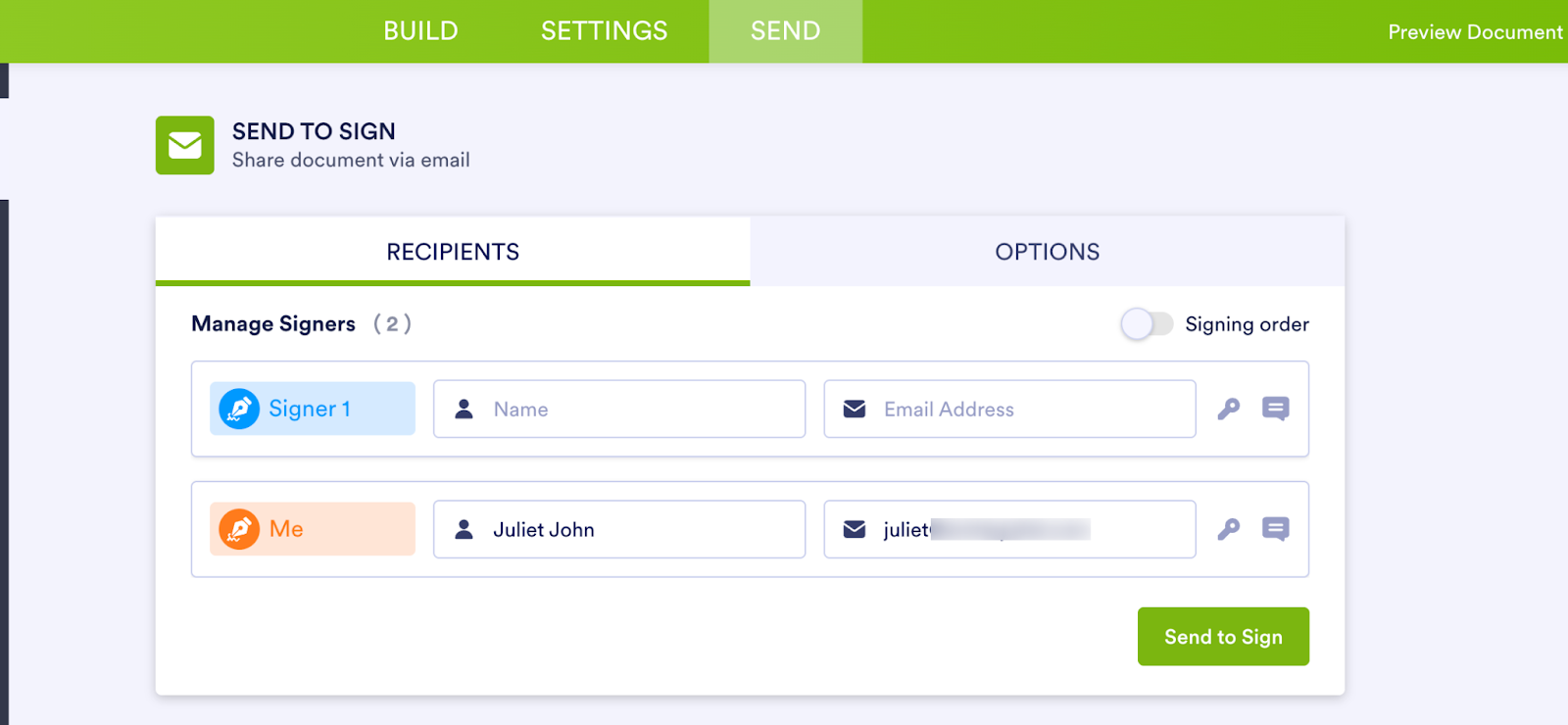
- Once everything looks good, click the Send tab and hit Send to Sign to send the doc for signing. If you have multiple signers, you can specify how everyone signs by setting a signing order.
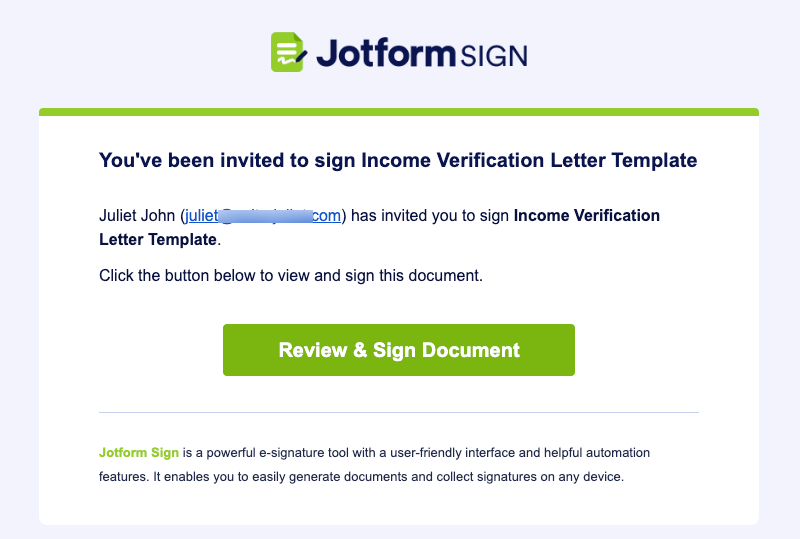
- Jump into your inbox to view and sign the document by clicking Review & Sign Document.
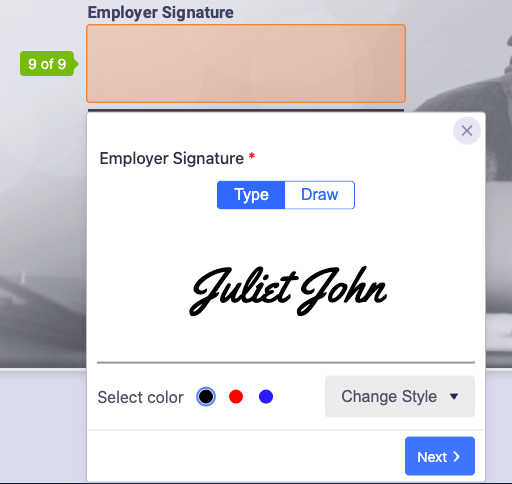
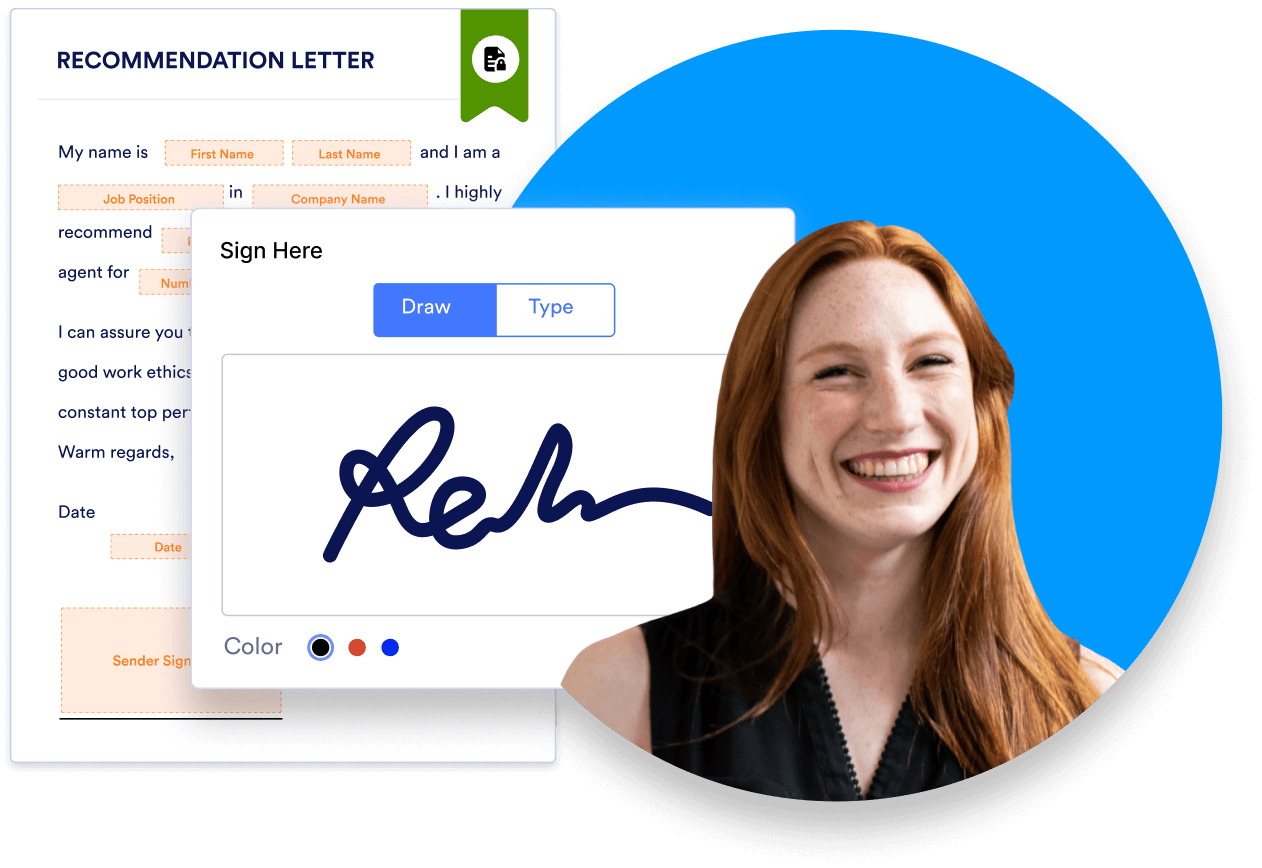
- Add your signature to the PDF by typing or drawing it.
Every PDF you sign or send with Jotform Sign contains an audit trail with a unique document ID and timeline of actions. This audit trail ensures that your signed documents are traceable, and compliant with global e-signature legislation such as ESIGN, UETA, and eIDAS.
If you’re exploring the best free PDF signing tools, features like audit trails, document sharing, reusable templates, and automated workflows can make a big difference.
Beyond the ability to add signatures to PDFs, Jotform Sign also offers reusable PDF templates across HR, legal, real estate, education, and other professions, with built-in editing and customization tools. Jotform Sign allows you to collect different types of electronic signatures, automate e-signing, and streamline document workflows using conditional logic and approval flows. You can automatically route documents to multiple signers, receive real-time notifications as documents are signed, and push completed PDFs into your internal storage or customer relationship management (CRM) system. And with the Jotform Sign Mobile app, you can prepare documents for signature, invite others to sign, track document flows, and manage signing requests, all from your smartphone.
Sign a PDF using Adobe Acrobat Reader
One of the best e-signature apps for signing PDFs is Adobe Acrobat Reader. If you have the application installed on your desktop, you can add a digital signature to any PDF without an internet connection. Here’s how to sign a PDF in Adobe Acrobat Reader:
- Open your PDF file in Adobe Acrobat Reader to launch the program.
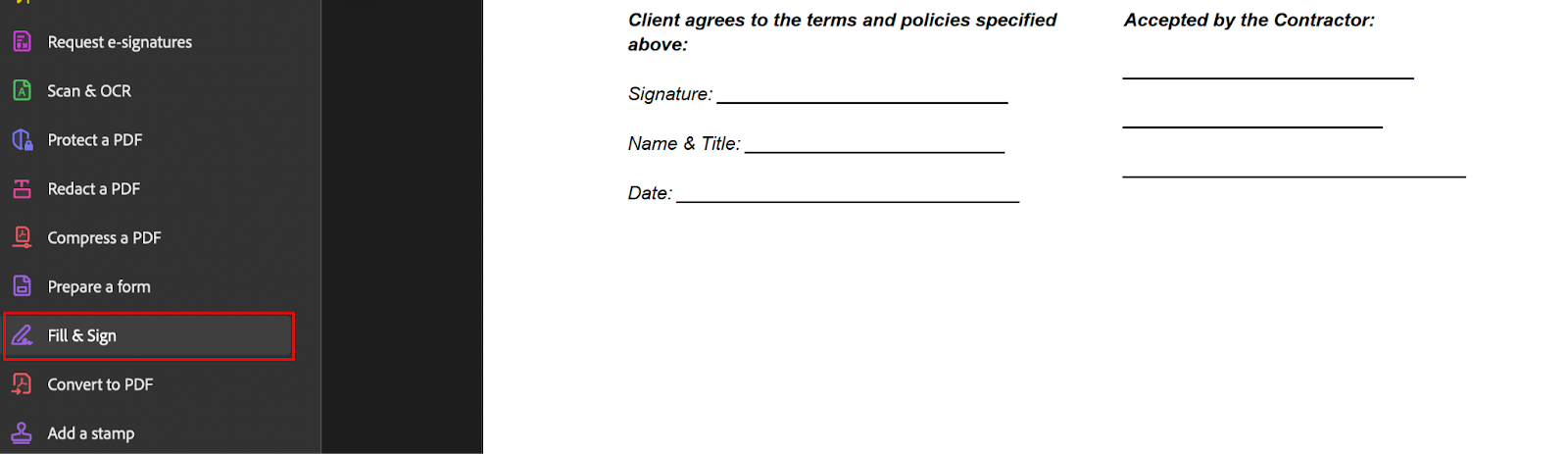
- Click on Fill & Sign from the tools panel on the left.
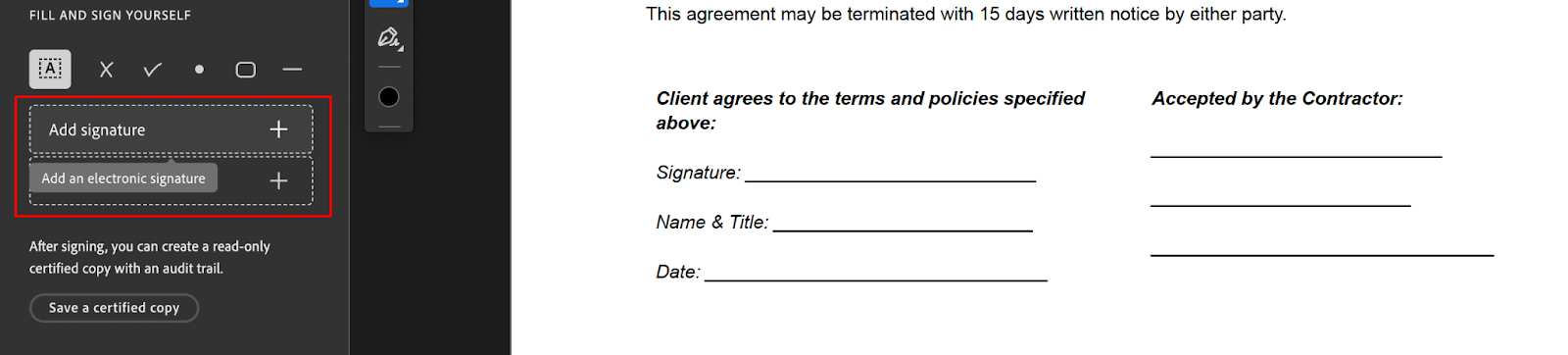
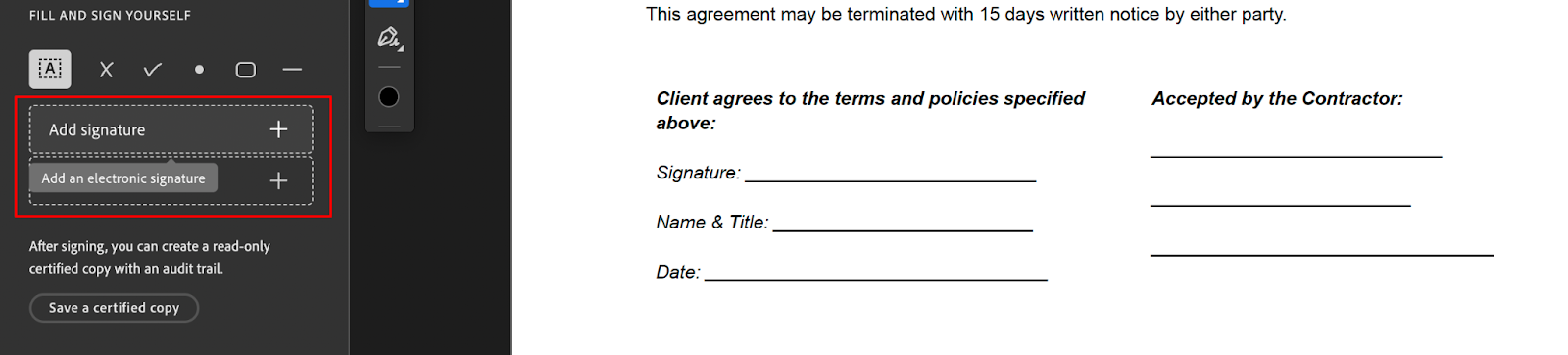
- A toolbar will open on the left side of your screen. Click Add signature > Add an electronic signature.
- A pop-up will appear with three options: Type, Draw, and Image. Choose an option, add the signature, and click Apply when you’re done.
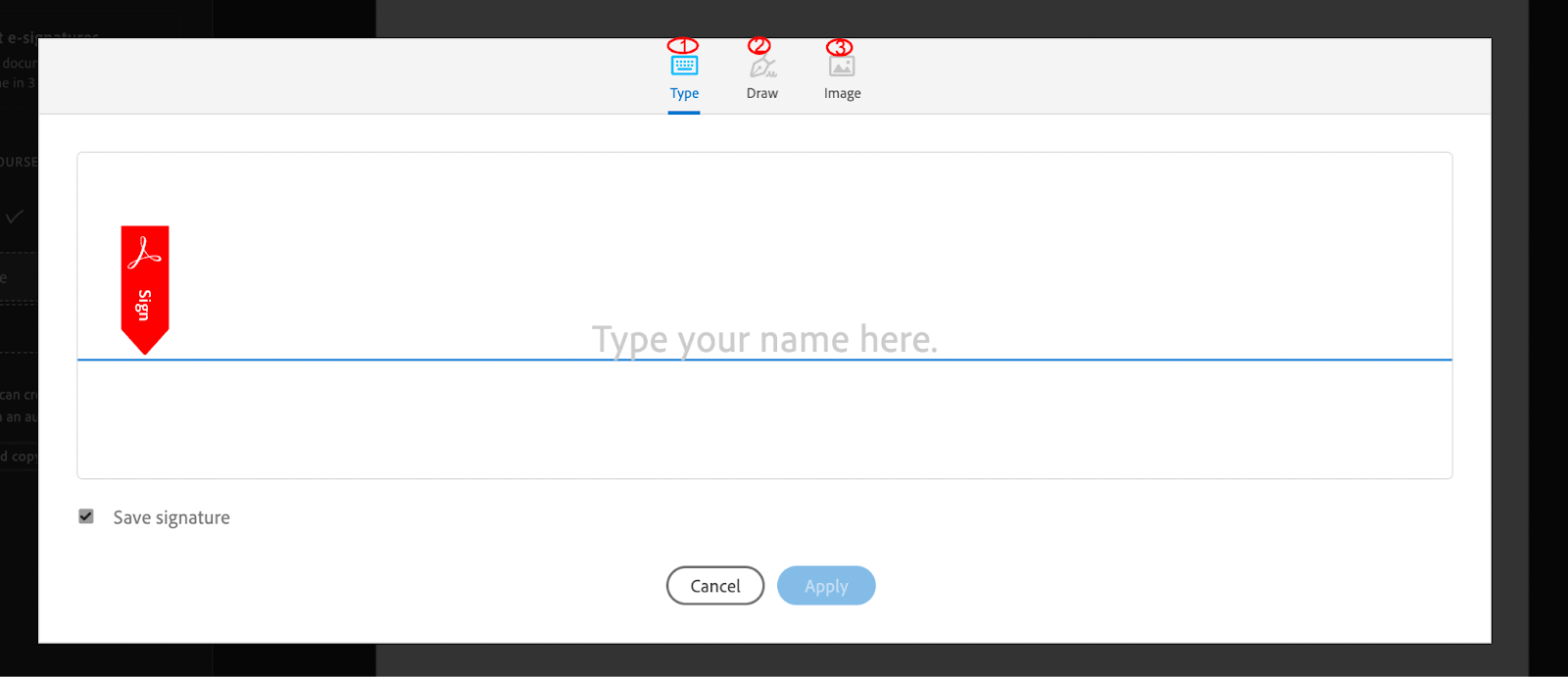
Type allows you to type your name in cursive format, and you are free to change the signature style. Draw allows you to draw the signature using your mouse, touchpad, or stylus if you’re using a touchscreen device. Image lets you add a picture of your signature to the PDF.
- Drag, resize, and position the signature in the signature field of your PDF file. Then, Save your file.
Compared to some browser-based PDF tools, Adobe Acrobat Reader offers more control and options for creating an electronic signature PDF — especially if you want to complete other fields before signing. But it does require you to download the program on your computer, and the free version doesn’t support features like sending documents to third-party signers.
Add a signature to Adobe Acrobat Reader using an image of your signature
If you prefer using handwritten signatures, you can create an image of your own signature and insert it into a PDF using Adobe Acrobat Reader. This method works well if you want a consistent, polished signature across multiple documents. Here’s how to add a signature image in Adobe Acrobat Reader:
- Sign your name on a blank white piece of paper, then take a clear photo or scan it.
- Crop the image to remove excess white space and save it as a PNG file.
- Open your PDF in Adobe Acrobat Reader.
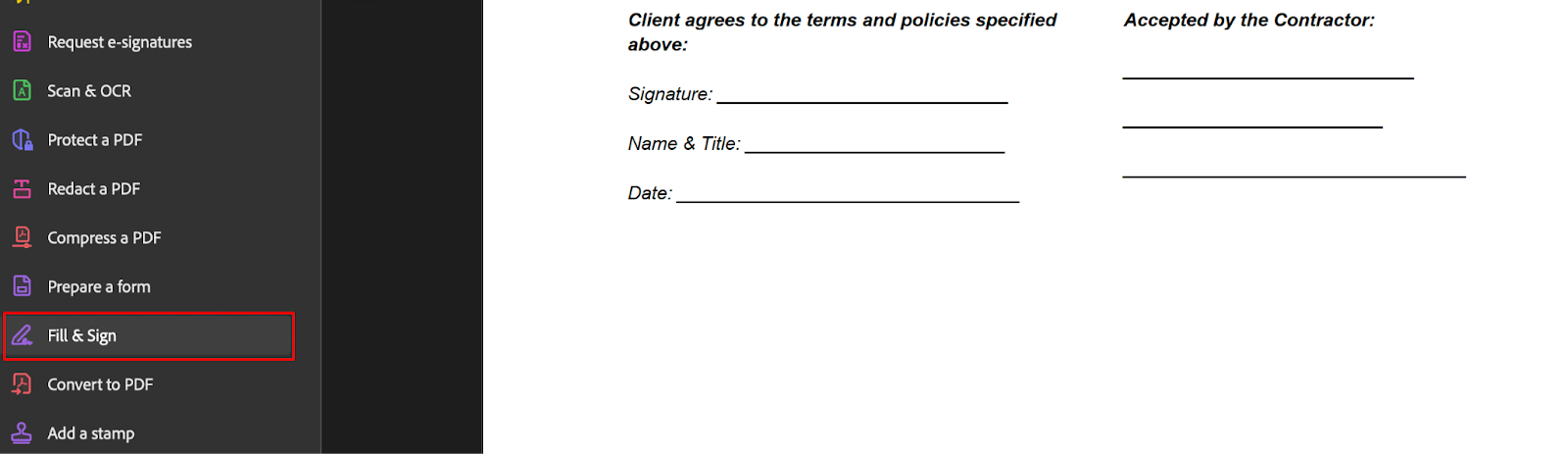
- Click Fill & Sign in the left-hand panel.
- In the toolbar that opens, click Add signature > Add an electronic signature.
- Choose Image in the signature signing modal that pops up, then hit Select Image to upload your signature file.
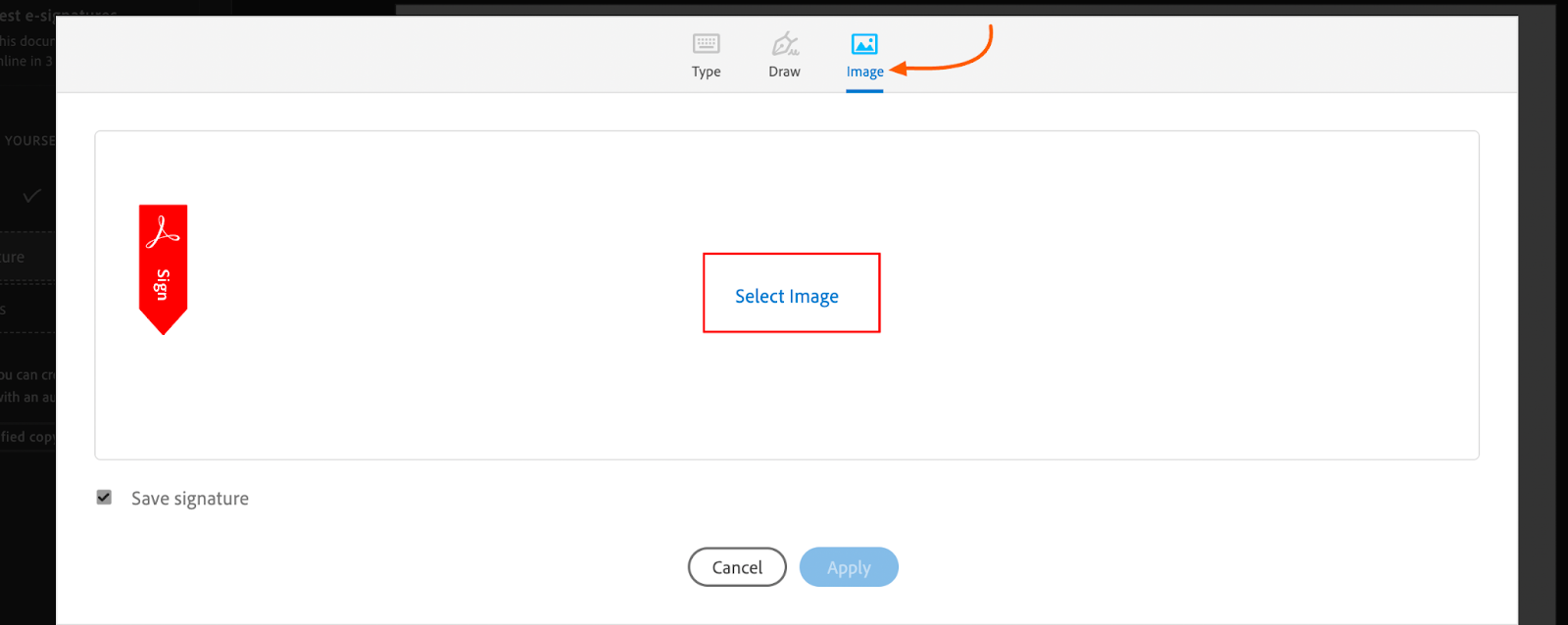
- Click Apply to save the signature, then place it, resize, or move it into the signature field as needed.
This method gives you an electronic signature that looks handwritten and consistent. However, it involves multiple steps, requires the desktop version of Adobe Acrobat. If you’re looking for a simpler way to upload and reuse signature images, Jotform Sign lets you create your electronic signature once and apply it to multiple documents in minutes.
Sign a PDF on iPhone or iPad
If you are an Apple user, your iPhone or iPad includes a built-in tool called Markup that lets you sign PDFs directly from the Files app or Mail. It’s a quick option for creating an e-sign from a phone without downloading additional software. Here’s how to insert signatures in PDFs on an iPhone or iPad:
- Open the PDF in the Files app, Mail, or any other app that supports Markup.
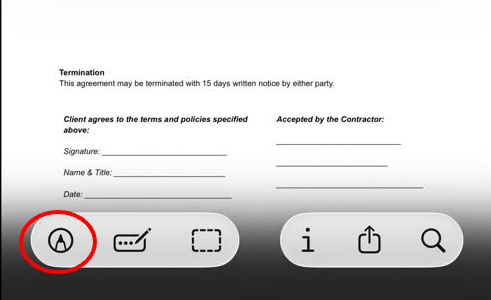
- Tap the PDF to view it, then tap the Markup icon at the bottom of your screen. (It looks like a pen tip inside a circle.)
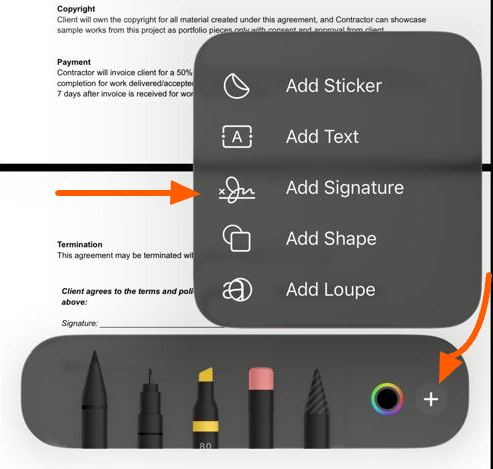
- In the Markup toolbar, tap the + icon in the bottom-right corner, then tap Add Signature.
- Sign your name on-screen using your finger or an Apple Pencil and tap the blue Done at the top of your screen when you’re finished.
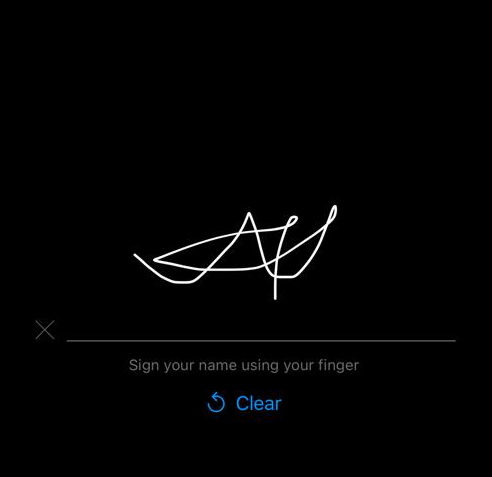
- Move the signature into the required field, resize it as needed, or adjust its line color, and then save the PDF or share it.
While this approach is convenient, the signature is only an annotation. It won’t meet the ESIGN Act requirements for contracts and other recognized documents. To validly sign documents and collect signatures from others, Jotform Sign Mobile offers a better solution. Available on the App Store, the app integrates with the entire Jotform ecosystem, allowing you to access templates on your phone, send documents for signing, and manage e-signing workflows on the go. Download Jotform Sign Mobile from the App Store today.
Sign a PDF using Google Drive
If you’re working with an Android device or a Chromebook, Google Drive also provides an easy way to add a signature to a PDF. While it’s not a dedicated e-signature tool, it works well for quick annotations. Here’s how to sign a PDF in Google Drive:
- Upload your PDF to Google Drive.
- At the top of your screen, click Open with Google Docs.

- Once the PDF converts to a Google Doc, go to Insert > Drawing > New in the toolbar.
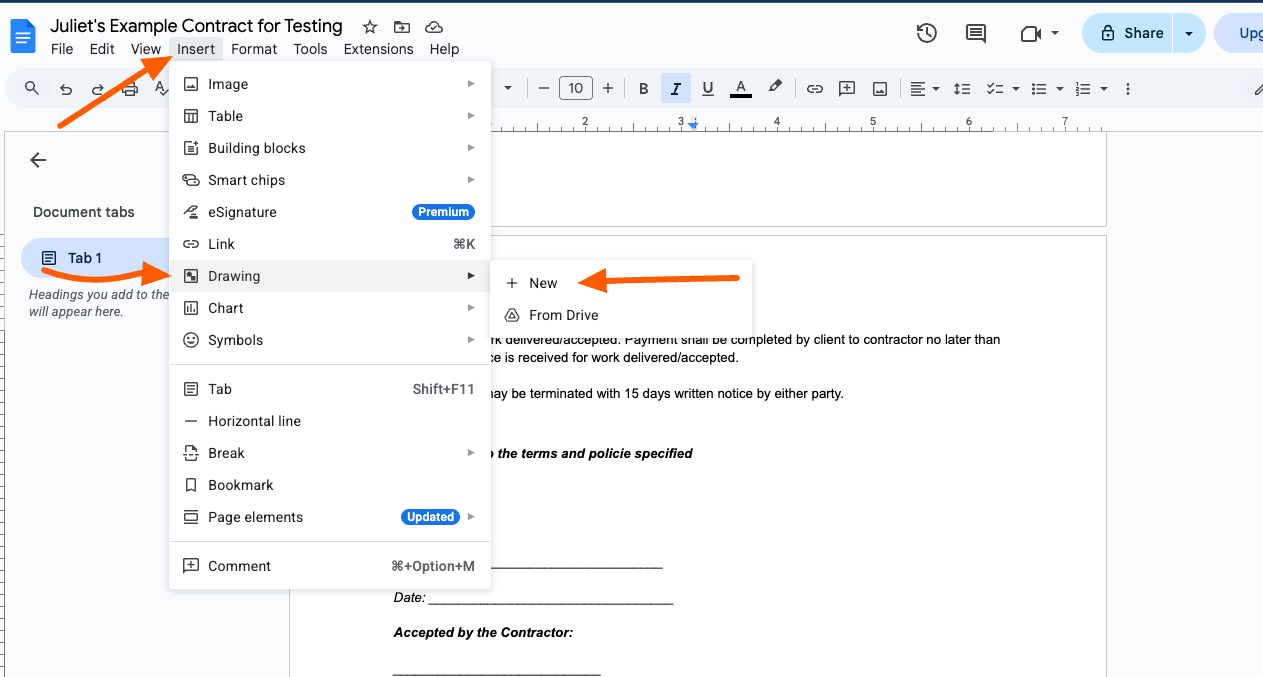
- In the toolbar on the next screen, click the dropdown beside Line and select the Scribble tool.
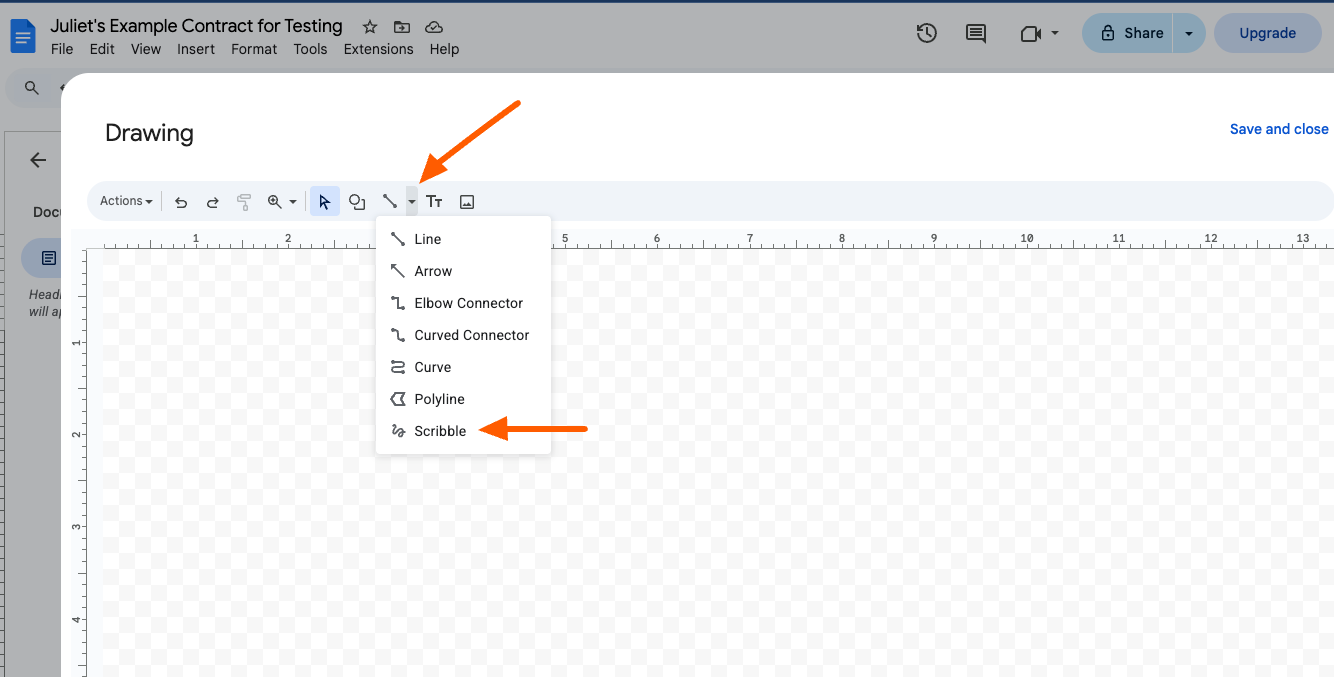
- Draw your signature in the drawing window using your mouse, trackpad, or stylus. Then click Save and close to insert the signature into the document.
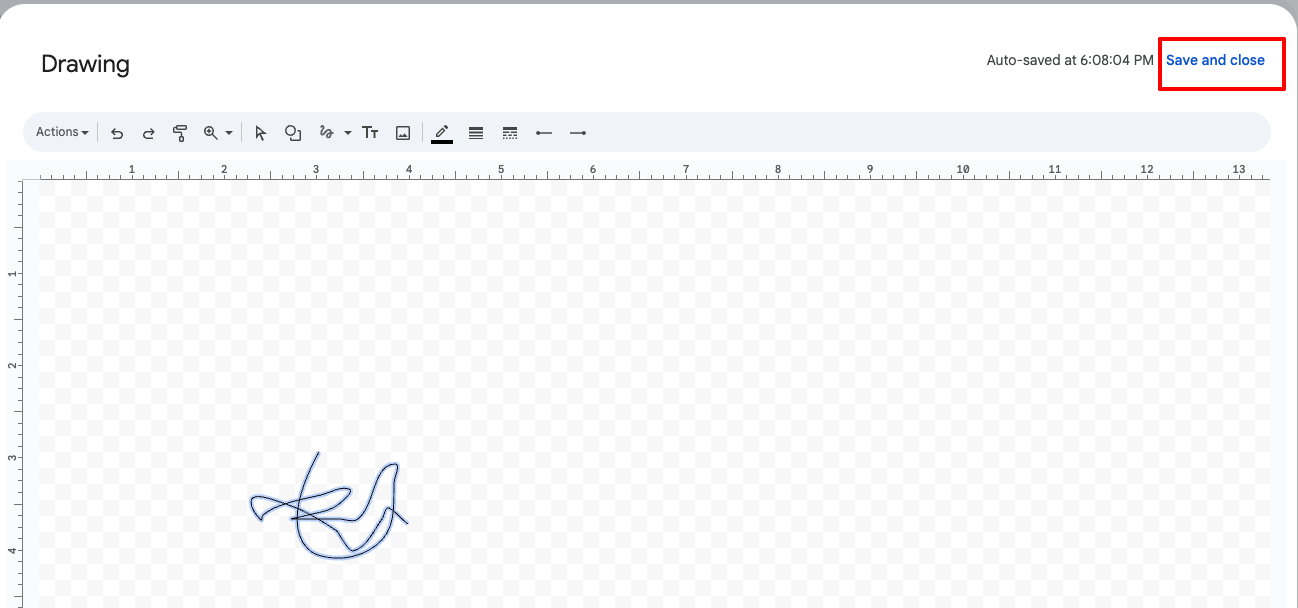
- Move, resize, or reposition the signature in the appropriate field as needed.
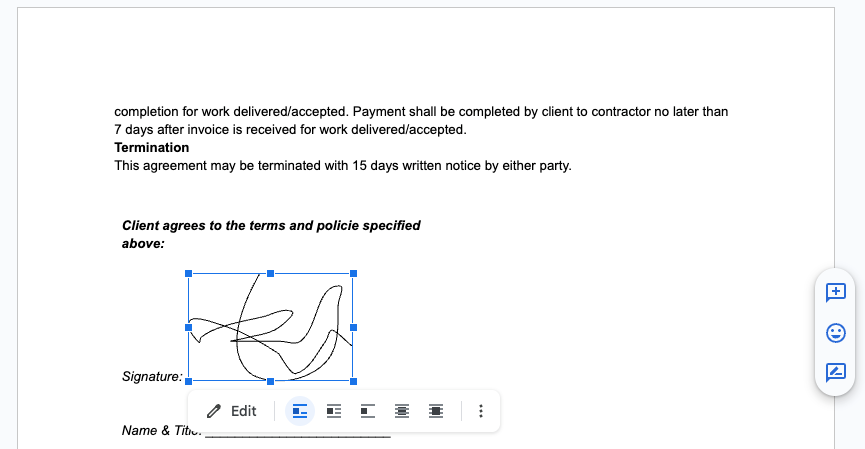
This method is useful for signing documents when you’re in a pinch, but it doesn’t offer the security, tracking, or multi-signer features you’d get from a dedicated e-signature platform. For a more professional approach, download the Jotform Sign Mobile app from the Google Play store. It works across mobile and tablet devices.
Stop printing PDFs just to add a signature
When you’re in the middle of a workday or business transaction, signing a PDF shouldn’t slow you down. Built-in tools like Apple Markup and desktop software like Adobe Acrobat are suitable for quick annotations, but they don’t offer the security and efficiency you need for professional document workflows.
If you sign documents regularly or need to collect signatures from others, a dedicated e-signature PDF tool makes the process more reliable. Jotform Sign is one of the best e-signature apps for uploading PDFs, adding your signature, and sending documents for signing in minutes. You’ll get e-signatures with real-time tracking, and an automated workflow — all without printing a single page. Ready to simplify your PDF signing process? Try Jotform Sign today.
Frequently asked questions about adding a signature to a PDF
Yes, you can copy and paste an image of your signature into some PDF signature tools like Adobe Acrobat Reader, but the pasted signature is visual only. It doesn’t provide the same legal validity as a certified digital signature created with an e-signature software.
Windows users can sign PDFs using Adobe Acrobat Reader or an online tool such as Jotform Sign. Adobe Acrobat lets you add a signature through the Fill & Sign tool, while Jotform gives you a faster, more feature-rich way of creating an electronic signature — no software installation required.
Signing a PDF on a Mac is easy using the built-in Preview app or an online tool like Jotform Sign. In Preview, open the PDF, click the Markup icon, and select the signature tool to create or place your signature. For advanced features like document tracking or multi-party signing, Jotform Sign is a better option.
Android users can sign PDFs using Google Drive or a dedicated e-signature app like Jotform Sign Mobile. Available on the Google Play store, Jotform Sign Mobile offers templates, legally binding e-signatures, and document tracking on the go.
iOS users can sign PDFs using the built-in Markup tool in the Files app or Mail. While that works for quick annotations, Jotform Sign Mobile offers a more effective solution for managing professional signing workflows directly from your iPhone or iPad.





































































Send Comment:
13 Comments:
September 30, 2022
Where is the form?
July 27, 2022
What format does the file have to be when using the Image option?
April 28, 2022
Worked perfectly after I switched from MS Edge page to Acrobat PDF document where I was able to see the Tools bar. TY!!!
April 8, 2022
I just want to sign a document. I don't want to read a Ph.D. dissertation about how to do it.
September 17, 2021
Seems simple enough.
July 8, 2021
Excellent but I just need to practice with confidence.
June 21, 2021
it a good article
November 23, 2020
A very good article to read and get the complete information. Electronic signing or digital signing is used in different ways to establish authenticity and non-repudiation. It is performed using long-term and short-term signature certificates with the help of hardware security modules.
November 23, 2020
Hi.
Thanks for such a good blog. A digital signature is a mathematical technique used to validate the authenticity and integrity of a message, software or digital document.
November 10, 2020
how to get started????????????????
April 8, 2020
Need please to add my Digital Signature into one of my Adobe Documents and I need help to do so...help will be muchappreciate
January 22, 2020
How can I add an applicants signature to a pdf that is uploaded in my jotform.
I've created a jotform with questions that need to be answered. When the applicant clicks the submit button it takes them to a pdf that needs to be signed (a signature) for release of the information. Once signed the applicant clicks the submit button and a signed pdf document will be emailed to the client.
July 12, 2019
CHEERS