

From job applications to event registrations and contracts to official government documents, signable PDFs are everywhere. And for good reason.
Unlike regular PDFs, a signable PDF is interactive — with editable fields that let you collect names, addresses, e-signatures, and more. Better still, signable PDFs leave the time-consuming, manual paperwork behind. No more printing, writing by hand, scanning, and emailing. With an e-sign form, everything happens online — saving you and your stakeholders time, energy, and a whole lot of headaches.
In this article, we’ll show you how to create a signable form with Jotform. Whether you’re starting a document from scratch or already have a PDF or Word document ready to go, we’ll provide step-by-step instructions for creating a signable document in no time.
Key requirements of a signable form
Before we explain how to create a signable PDF form, let’s first clarify what makes these types of forms an acceptable alternative to paper documents. What characteristics make a signable PDF valid for use in agreements, healthcare forms, and more?
- It must be fillable, with structured fields: A fillable PDF form has interactive fields for names, emails, dates, signatures, and other important information which can be filled in on any device — no special PDF editing software needed. All you have to do is click on the field and type.
- It should support secure e-signatures: Many document processes require signatures, which is why signable forms can cater for multiple types of electronic signatures that are authenticated and have an audit trail. (For more information on how e-signatures work, check out our guide.)
- It should be mobile and desktop friendly: An e-sign form should be usable on a range of devices, from desktops to tablets to mobile phones. This flexibility is key for keeping up with the pace of business.
- It should have the option to collect multiple signatures: Often, e-sign forms need to be signed by several parties. Signable PDFs allow multiple users to review and sign the form in a specific order. Many electronic signature software tools like Jotform Sign let you track the status of the document when it’s routed for signing, so you can see who needs to sign and who is holding up the queue.
- It should be exportable: Once the PDF has been filled out and signed, you’ll need the ability to export it as a static PDF — fixing the fields and stopping them from being changed. You can then save and archive the completed PDF for your records.
How to create a signable form: Two methods
Ready to create a signable document? We’re going to show you two ways to build a signable PDF form with Jotform.
When you have an existing PDF: Use Jotform Sign
Already have a PDF or document, like a job application form or contract, that you want to turn into a signable PDF? The best tool for the job is Jotform Sign, the free electronic signature software from Jotform.
Here’s how to use Jotform Sign:
- Visit Jotform Sign and click Get Started Now.
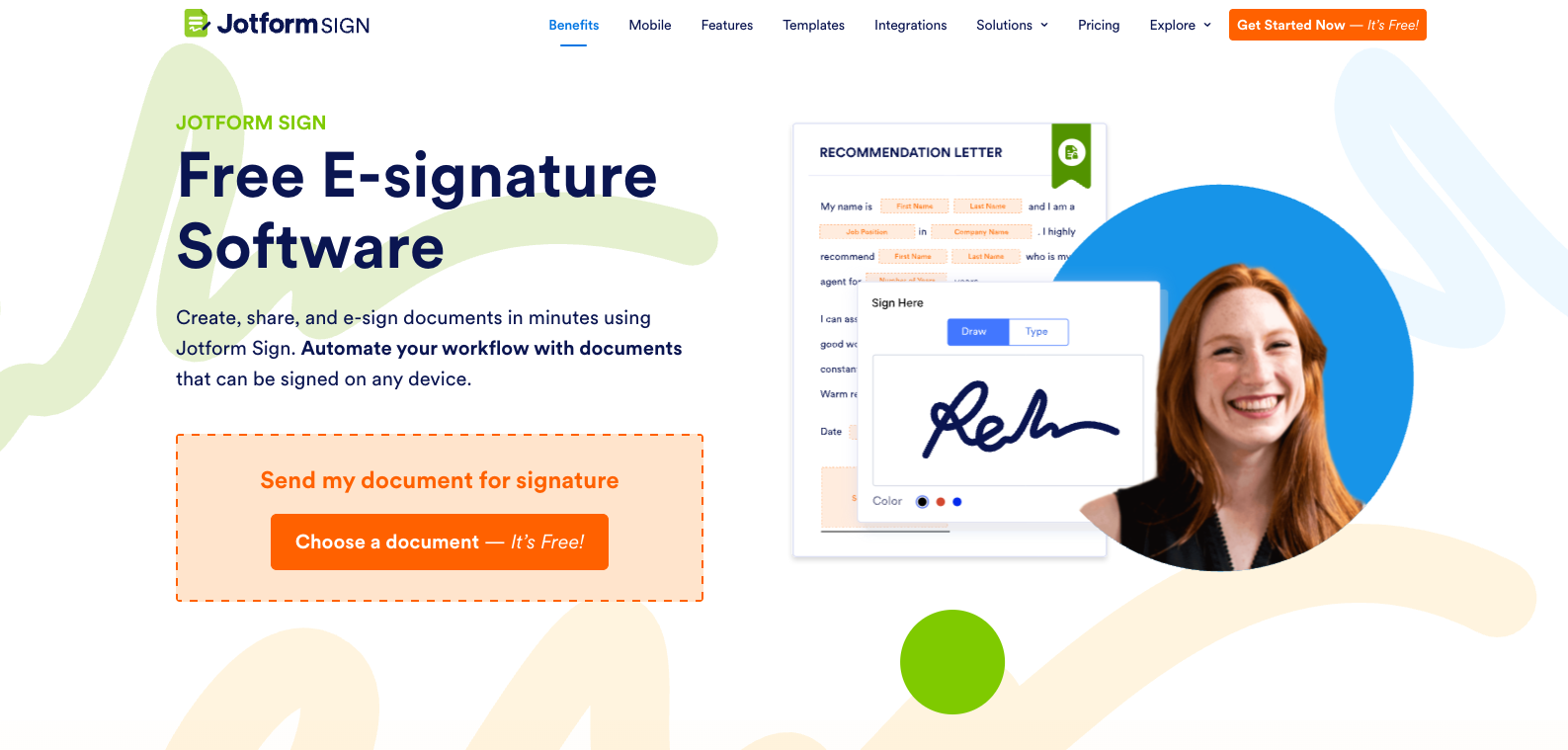
2. Click Upload document.
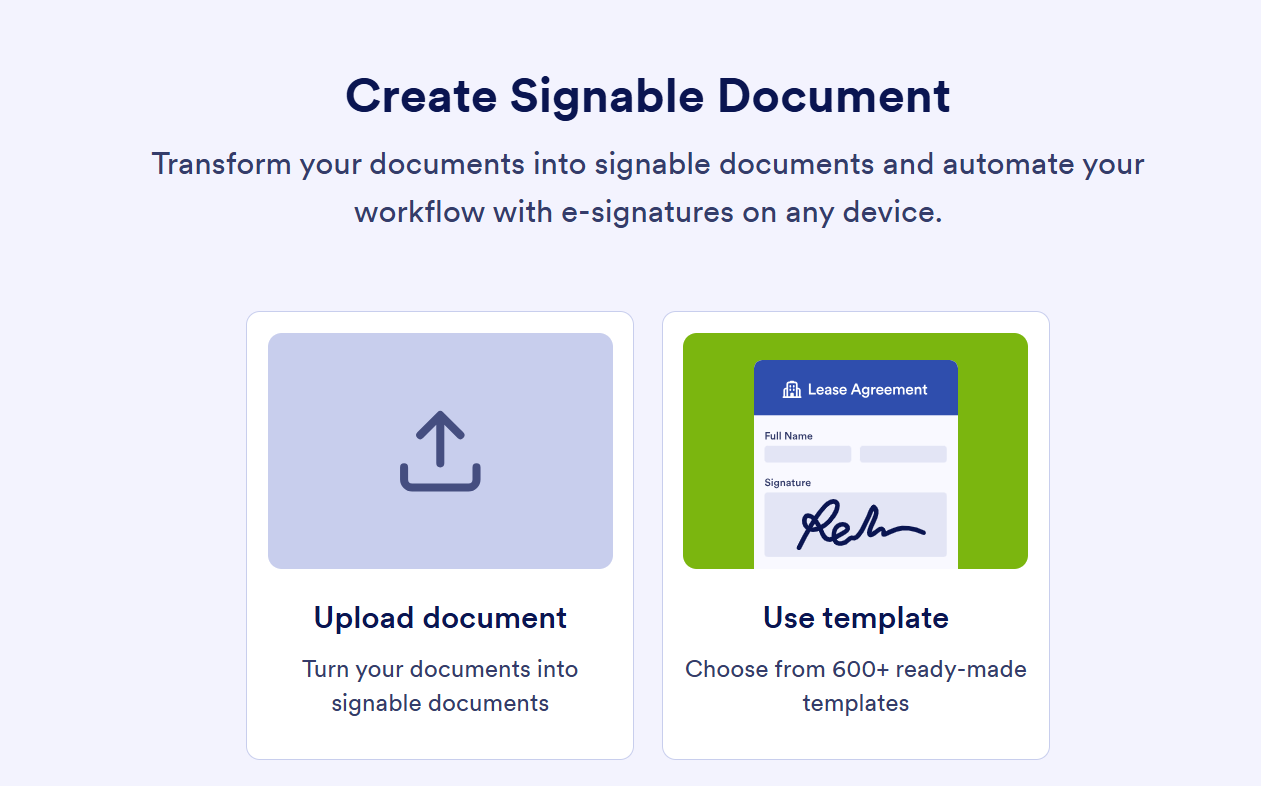
3. Upload your document by dragging and dropping it into the field or clicking Upload Document.
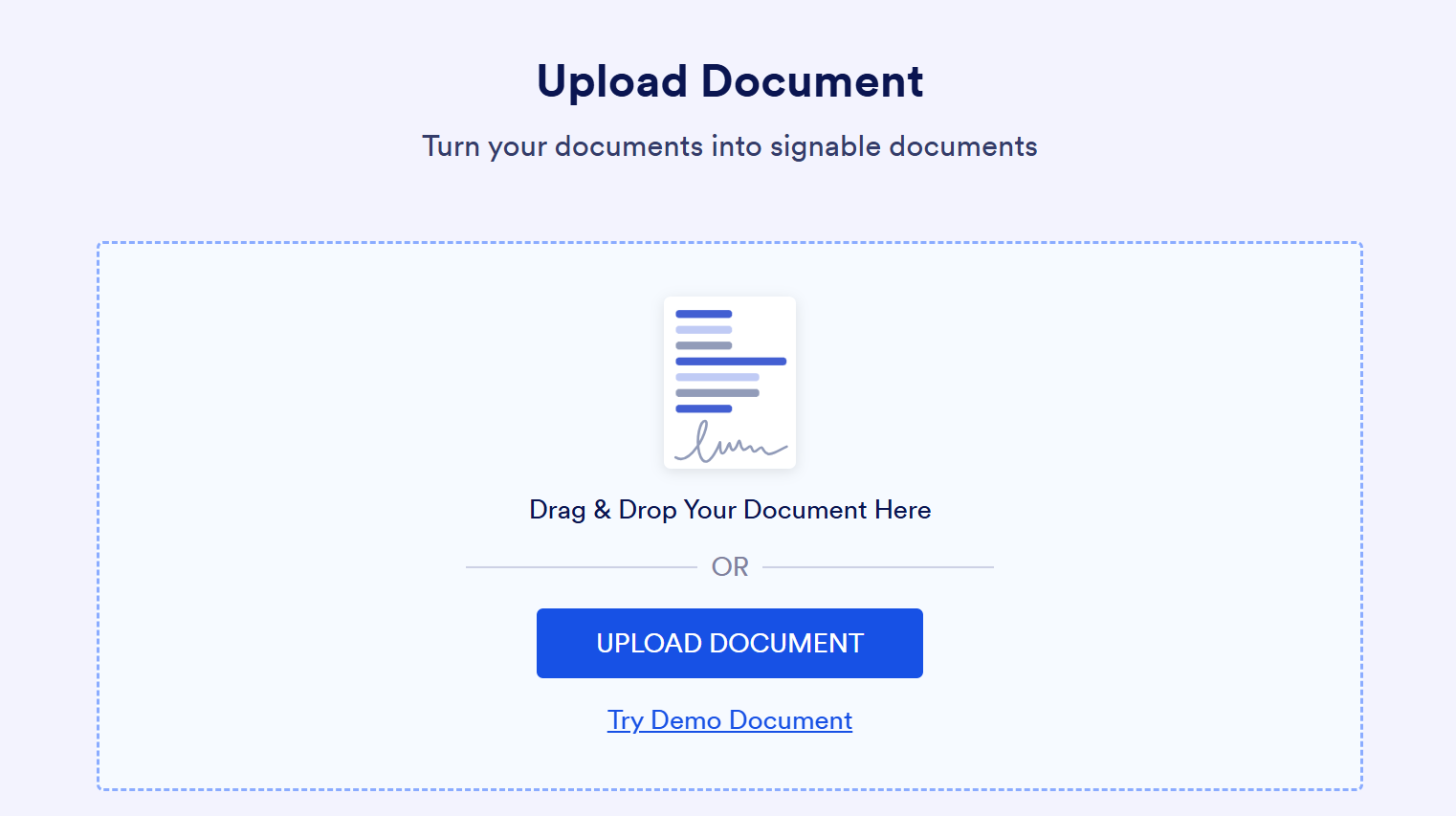
4. Click Create Signable Document.
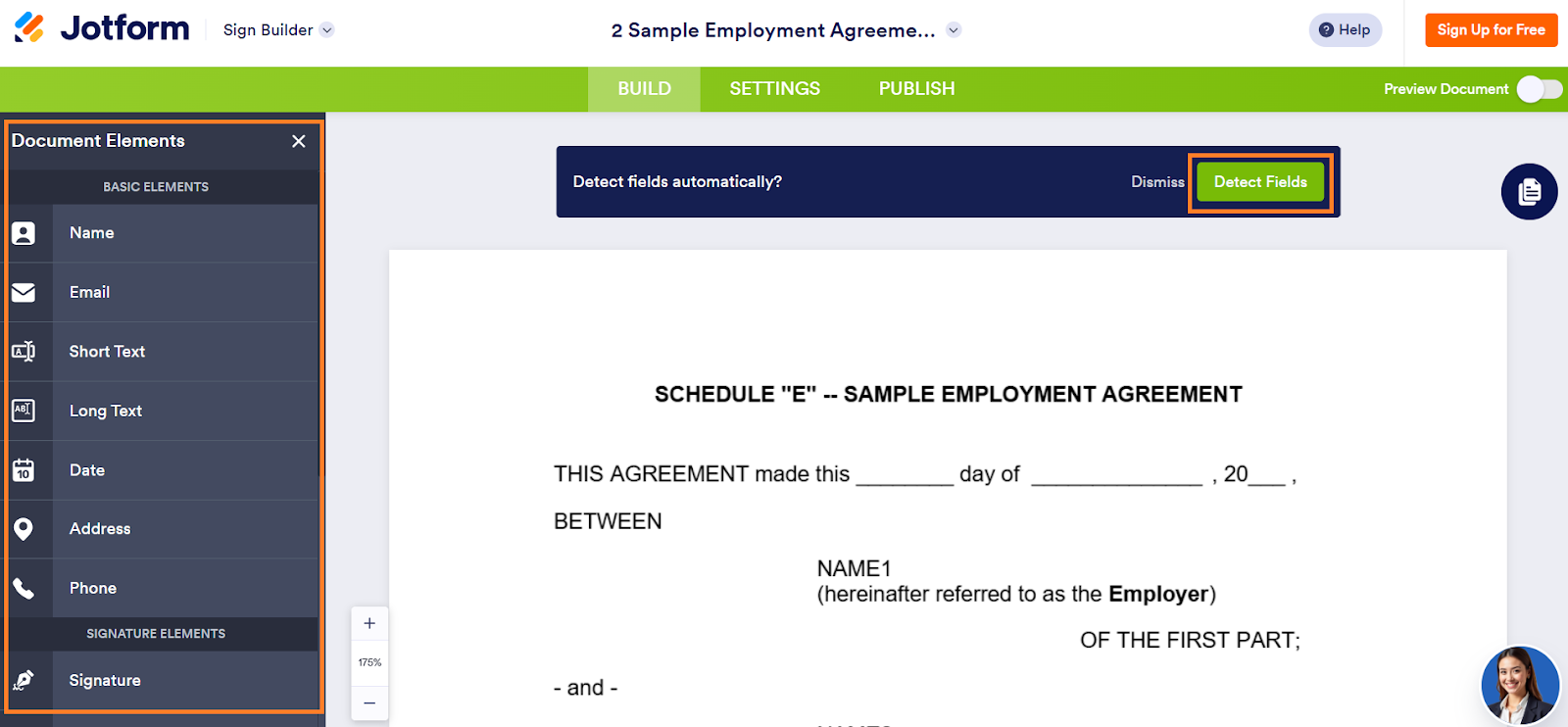
5. Click Detect Fields to enable Jotform Sign to find and make fields fillable on your PDF.
Pro Tip
Jotform Sign will automatically detect fillable fields. But if it has missed any, click on the Document Elements menu to add them in. You can drag and drop them into the right place on your document.
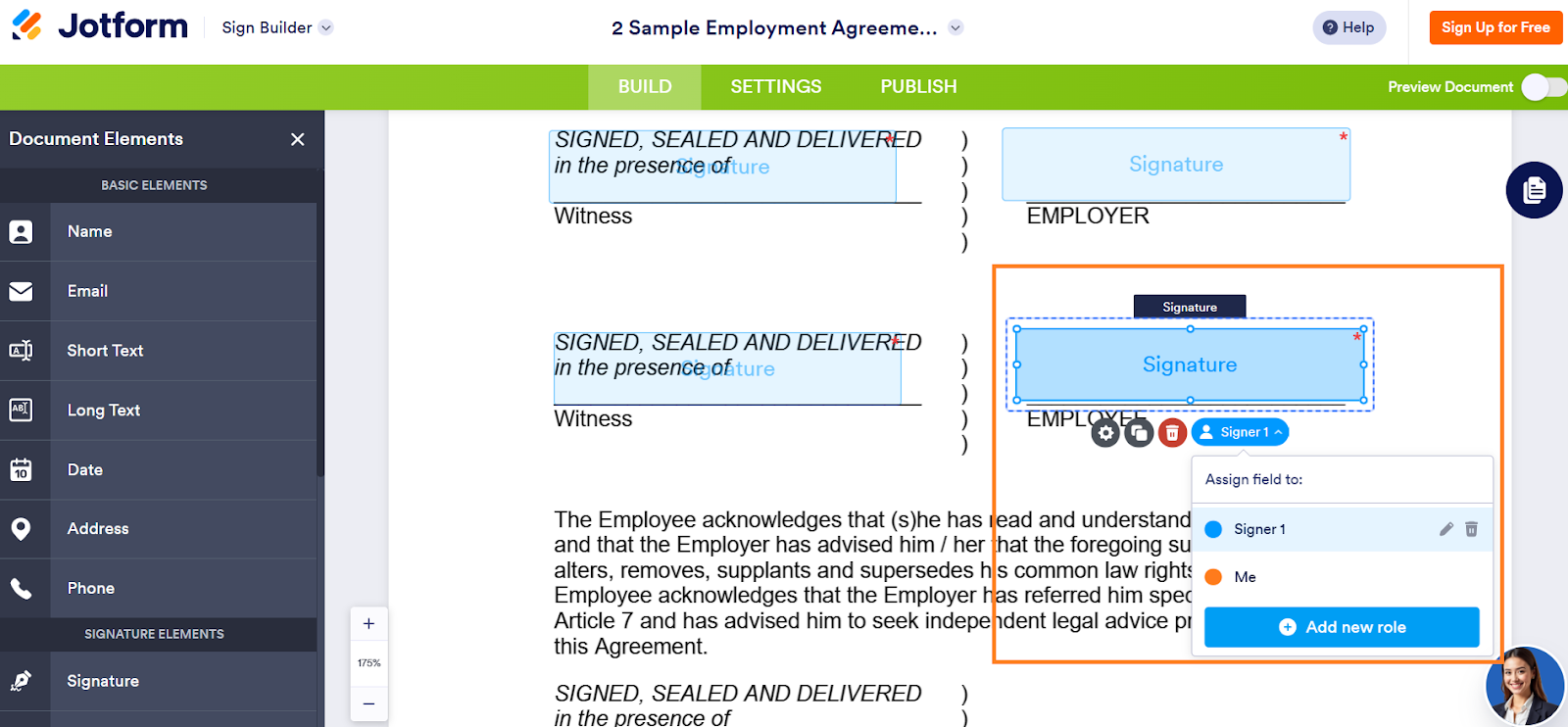
6. For the signature fields, click on the dropdown menu and assign the signer. You can also click Add new role and add another signer for the document.
7. Once your signable PDF form is ready to send, click the Publish tab. Fill out the name and email addresses of the signers. Click Send to Sign.
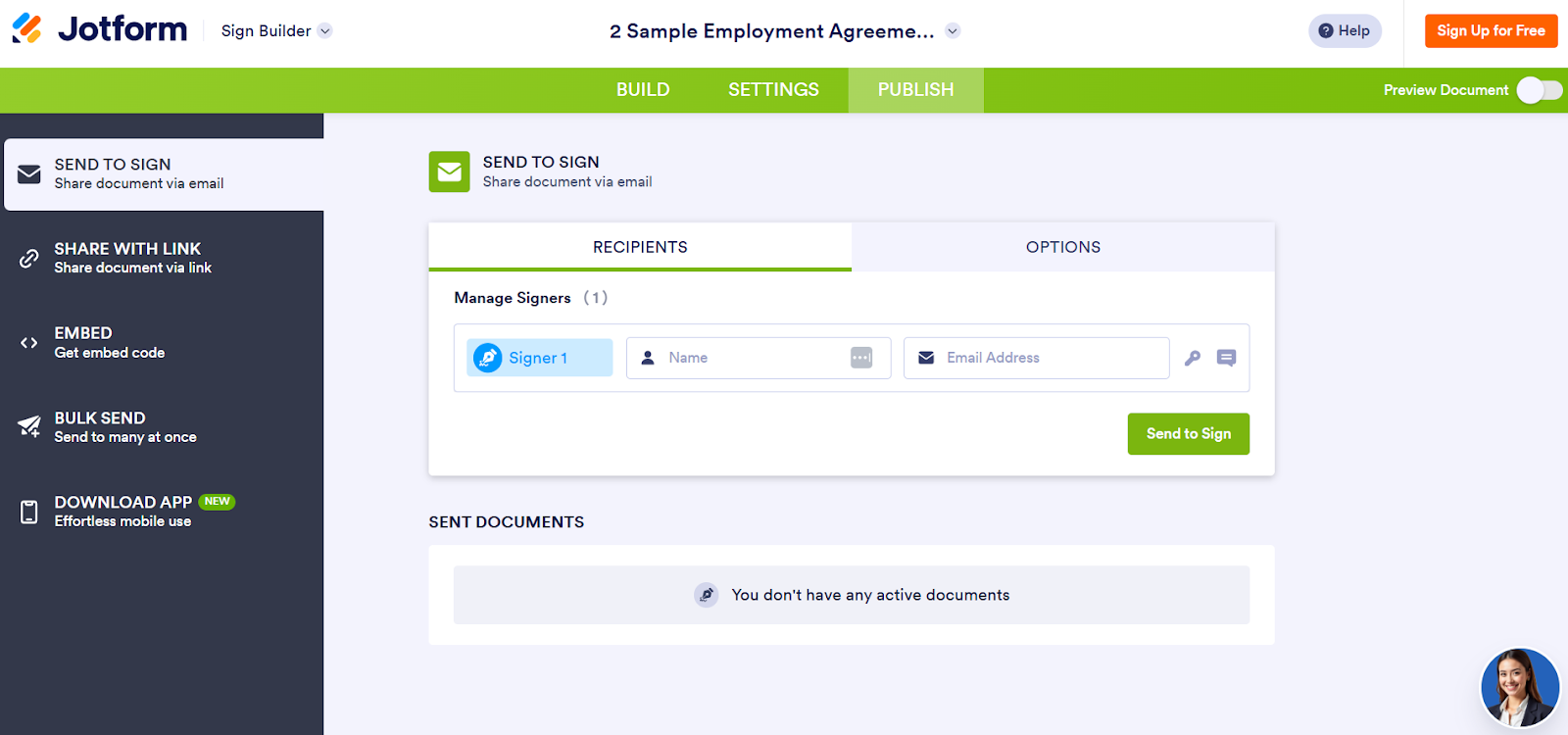
Once you’ve sent your document to be signed, Jotform Sign enables you to track its progress. You can see which signer has the document and whether they have signed it.
Pro Tip
Wondering if you can use this electronic signature software on the move? Meet Jotform Sign Mobile. This e-sign software comes with the full functionality of Jotform Sign so you can complete electronic signatures on your phone. It’s perfect for when you’re travelling or meeting with a stakeholder in person.
When you don’t have a PDF form: Use Jotform Form Builder
If you need to create your digital signature form from the ground up, Jotform Form Builder is here for you. This tool not only enables you to create a fillable PDF from scratch, but it also enables you to add electronic signature fields to turn it into a signable document.
Here’s how to do it:
1. Log into Jotform Form Builder. In the Workspace, click Create.
2. Click Form.
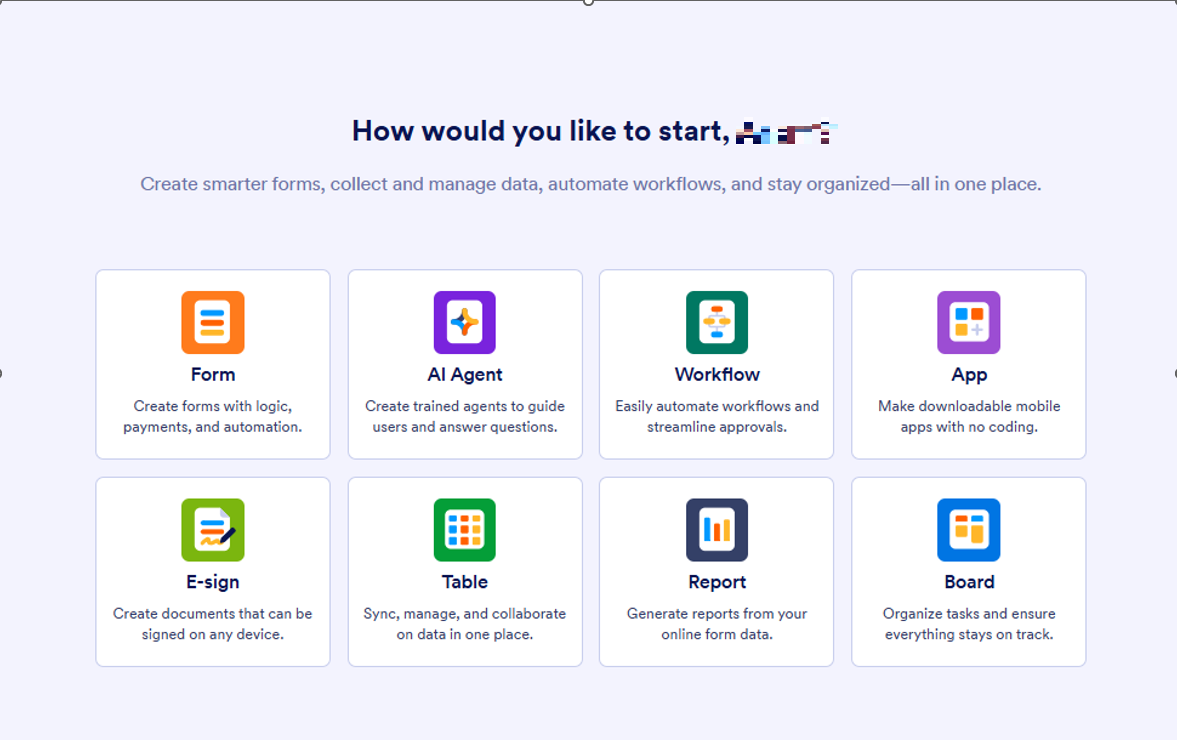
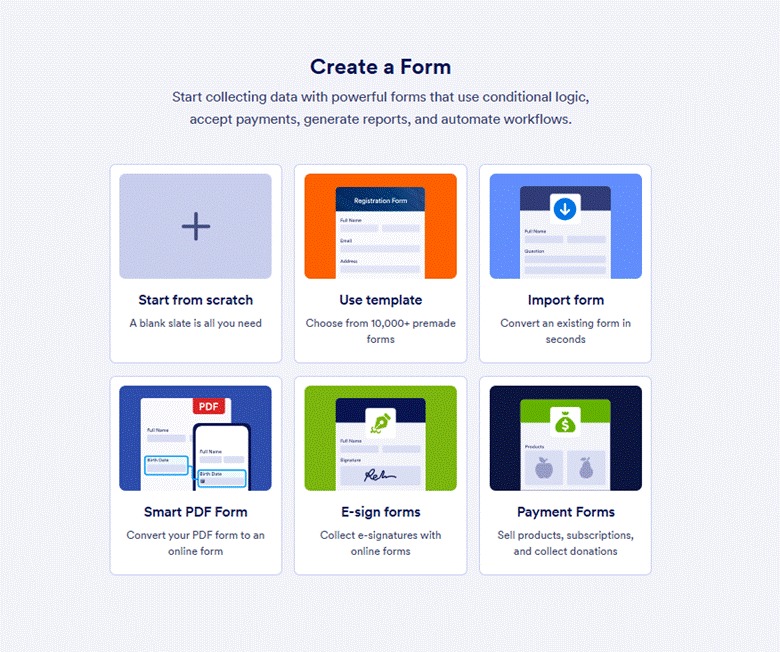
3. Click Start from scratch.
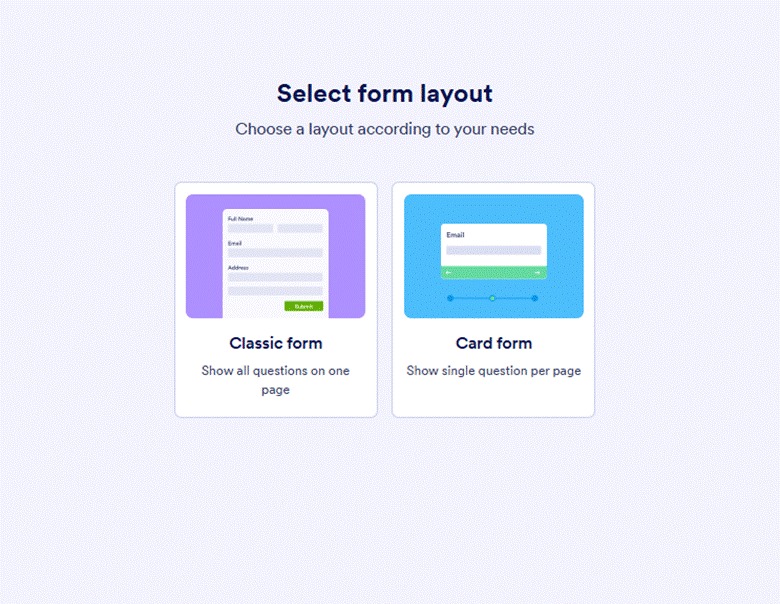
4. Choose the type of form you need. A classic form follows a traditional form layout with all questions on the same page while a card form presents one question per page.
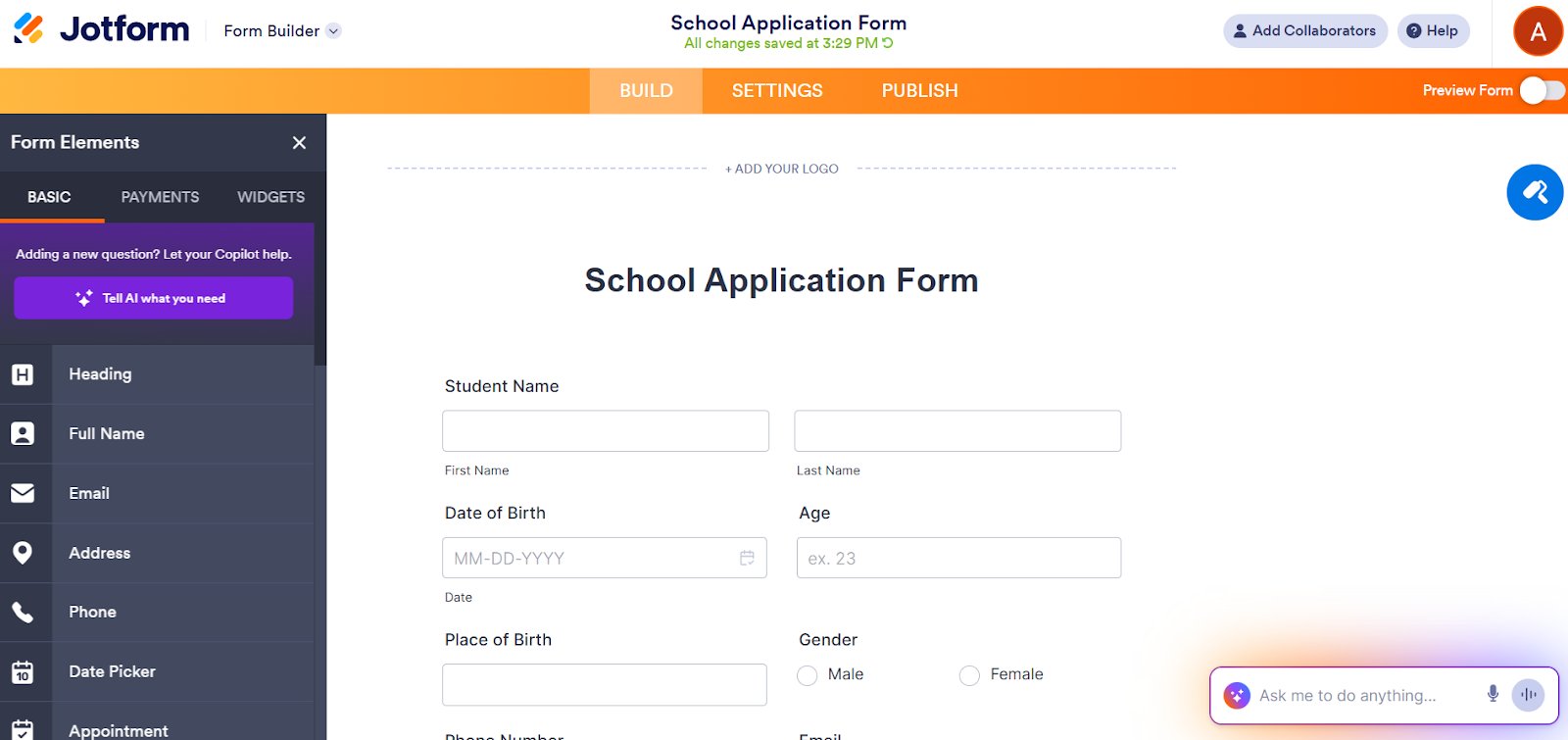
5. Build your document by clicking Add element. Then select elements from the Form Elements menu on the left-hand side.
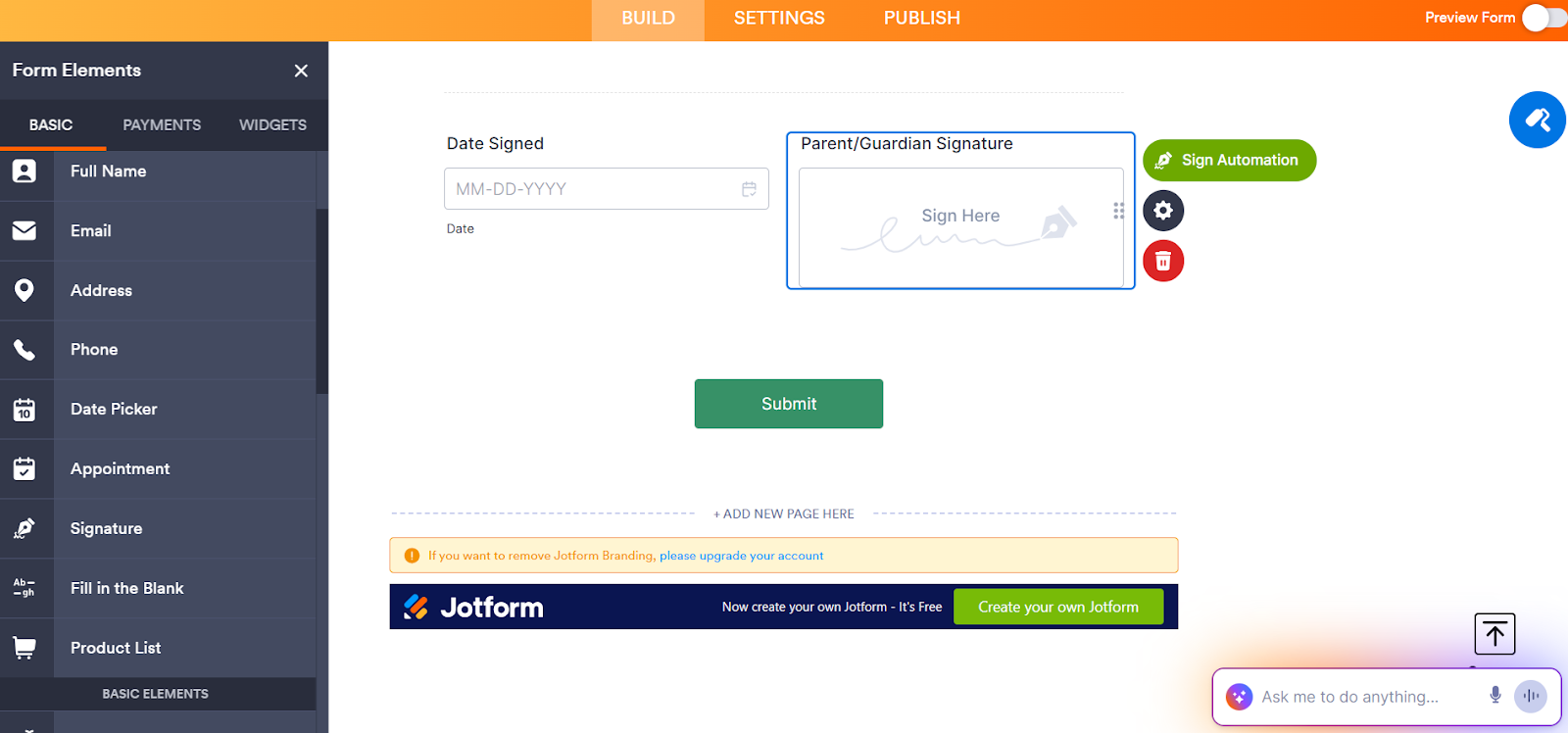
6. To add a signature field, click Signature. Drag and drop the signature field where you’d like it to appear on the document.
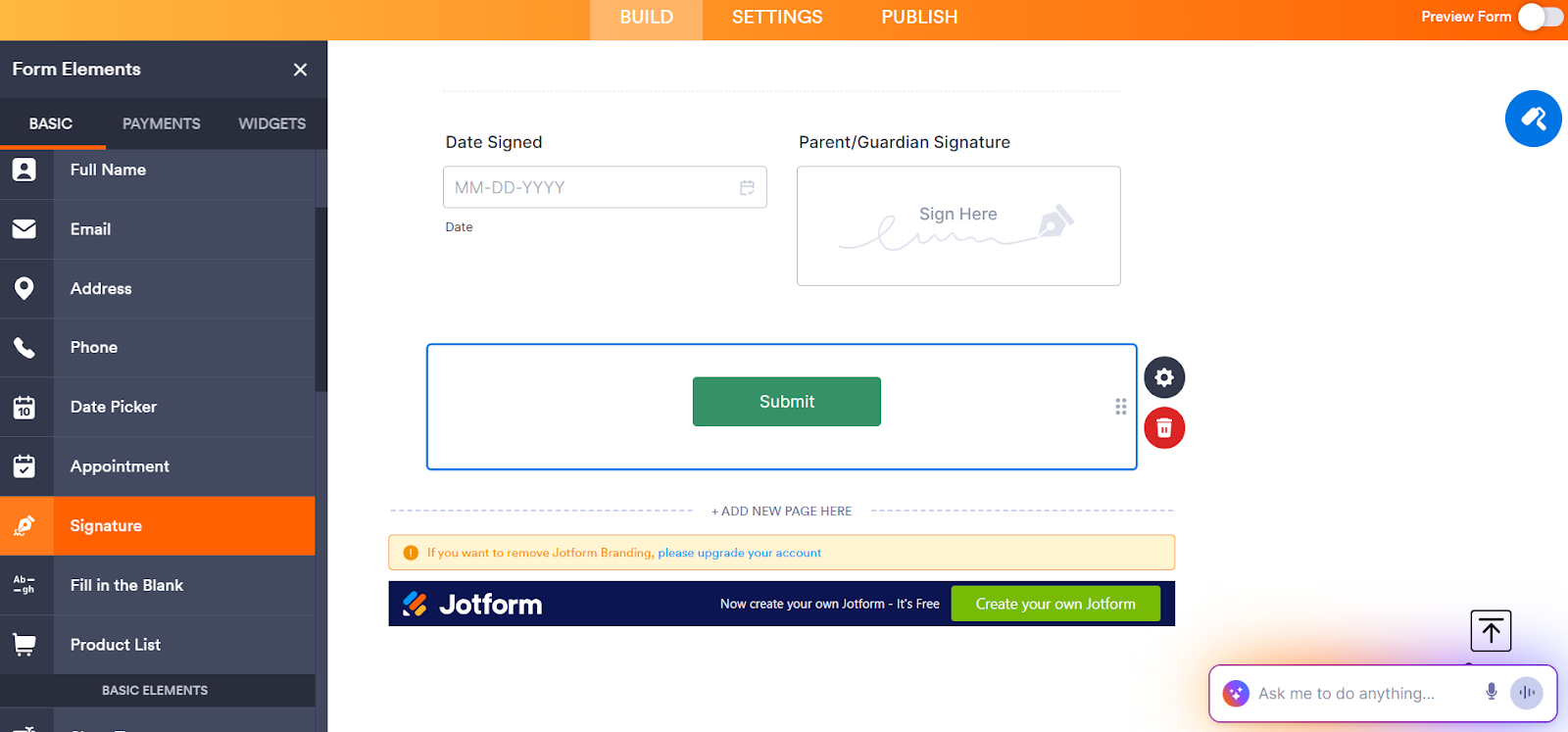
7. To enable Jotform Sign on your document, click the green signature pen icon on the Signature field.
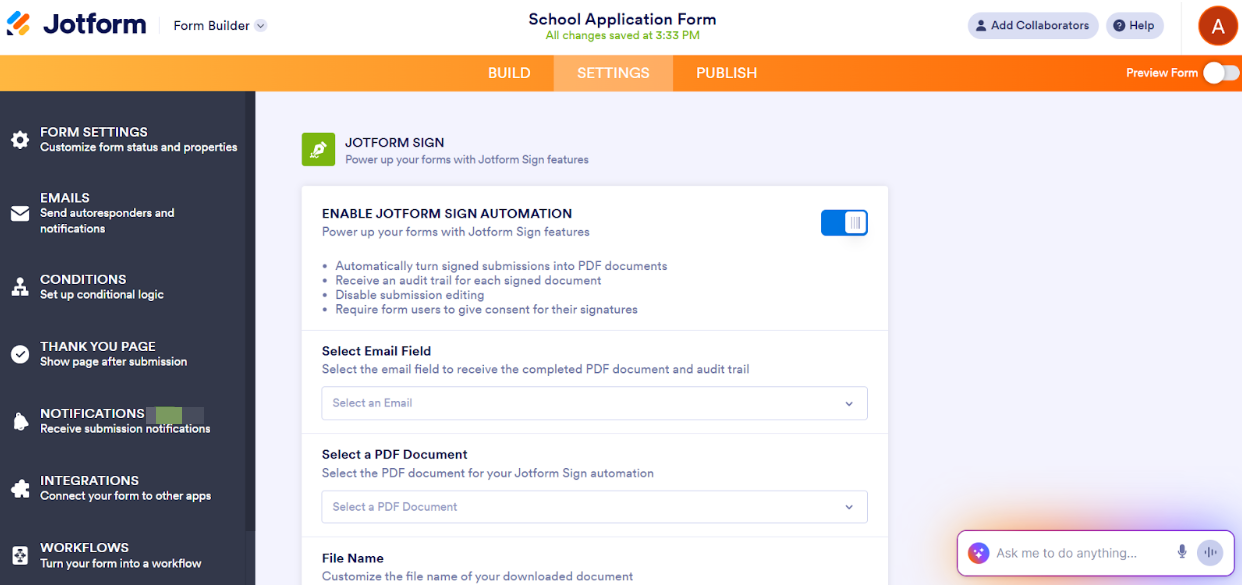
8. Toggle Enable Jotform Sign Automation to On. Configure the settings you require for your document, such as email fields and audit trails. You can now collect digital signatures on your document when you send it to your recipients.
Pro Tip
We’ve shown you how to create a signable form with two methods, but there’s actually a third method you can try. Sign PDF add-on for Google Workspace is a user-friendly tool that helps you automate your document workflows. Thanks to the powerful features of Jotform Sign, you can use Sign PDF add-on to turn the PDFs in your Google Drive into signable documents.
Jotform: The best way to create a signable PDF form
Signable PDF forms come in handy for all kinds of tasks — onboarding new employees, collecting permissions, sharing business proposals, and more.
Traditional document workflows, on the other hand, are slow and outdated. Printing, filling out, signing, scanning, and emailing forms back and forth? That’s a lot of steps for something that should be simple.
With Jotform, you can digitize the entire signature process:
- If you have an existing form that requires signatures, use Jotform Sign or Jotform Sign Mobile. Simply upload your document, use automatic detection to identify fillable fields, and route the document for signature.
- If you want to create a document from scratch, choose Jotform Form Builder. This flexible workspace lets you create any kind of document you need and add signature fields. You can enable Jotform Sign on the document once you’re ready to send it to your recipients.
These are just some of the ways Jotform Sign saves time and money.
Now that you know how to sign a document electronically, what are you waiting for? Jotform comes with a free plan, so there’s nothing standing in your way. Try Jotform or Jotform Sign today and see just how easy it is to create a signable PDF form.
This article is for small business owners, HR professionals, legal teams, freelancers, and anyone who wants to streamline document workflows by learning how to create secure, signable forms with digital signatures.
AS ALWAYS, CONSULT AN ATTORNEY BEFORE RELYING ON ANY INFORMATION ON THIS PAGE. THE CONTENT ABOVE IS FOR INFORMATIONAL PURPOSES ONLY. JOTFORM IS NOT PROVIDING LEGAL, FINANCIAL OR OTHER ADVICE.











































































Send Comment: