
Our incredible community of Jotform Enterprise users often inspire new features by asking about ways to use the platform. Our success is grounded in your success, so we’re constantly seeking better ways to streamline processes, enhance communication, and manage data. Let’s celebrate our shared success by looking at five favorite features of Jotform Enterprise users.
1. The Admin Console
The Admin Console is perhaps the most powerful feature on the platform. Admins can use it to manage their entire organizational instance, including users, forms, submissions, teams, mobile use, activity reporting, customizations, and support requests.
In addition to giving admins detailed information about their organization, the Admin Console supports compliance reporting by showing submission data from specific form fillers.
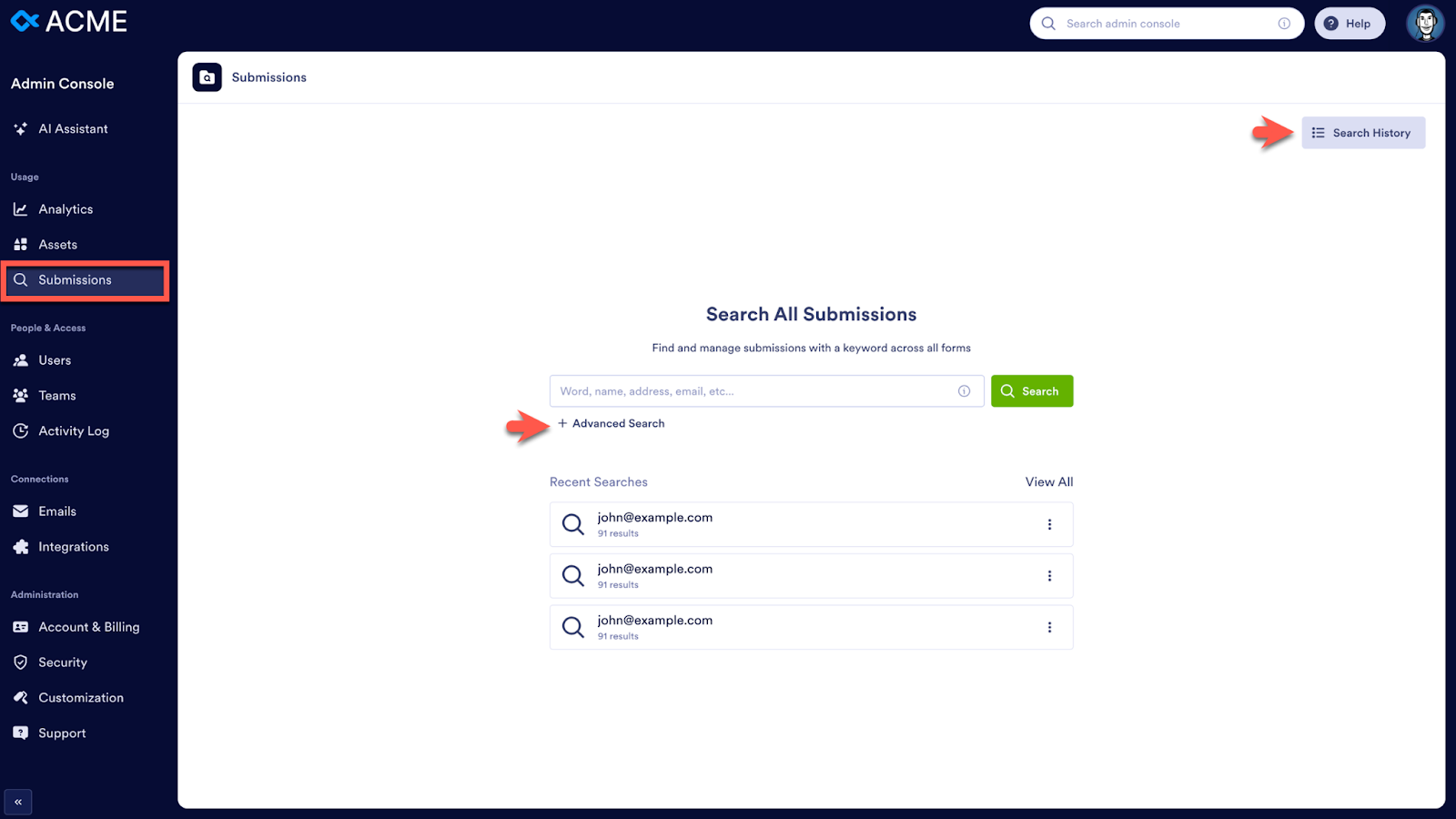
To see this data, click on Submissions in the left menu. On the next page, you can search for submissions by user name and more. Recent submission reports are listed below the search bar. Access past searches with the Search History button. Use the Advanced Search feature for more options, such as sending a report via email.
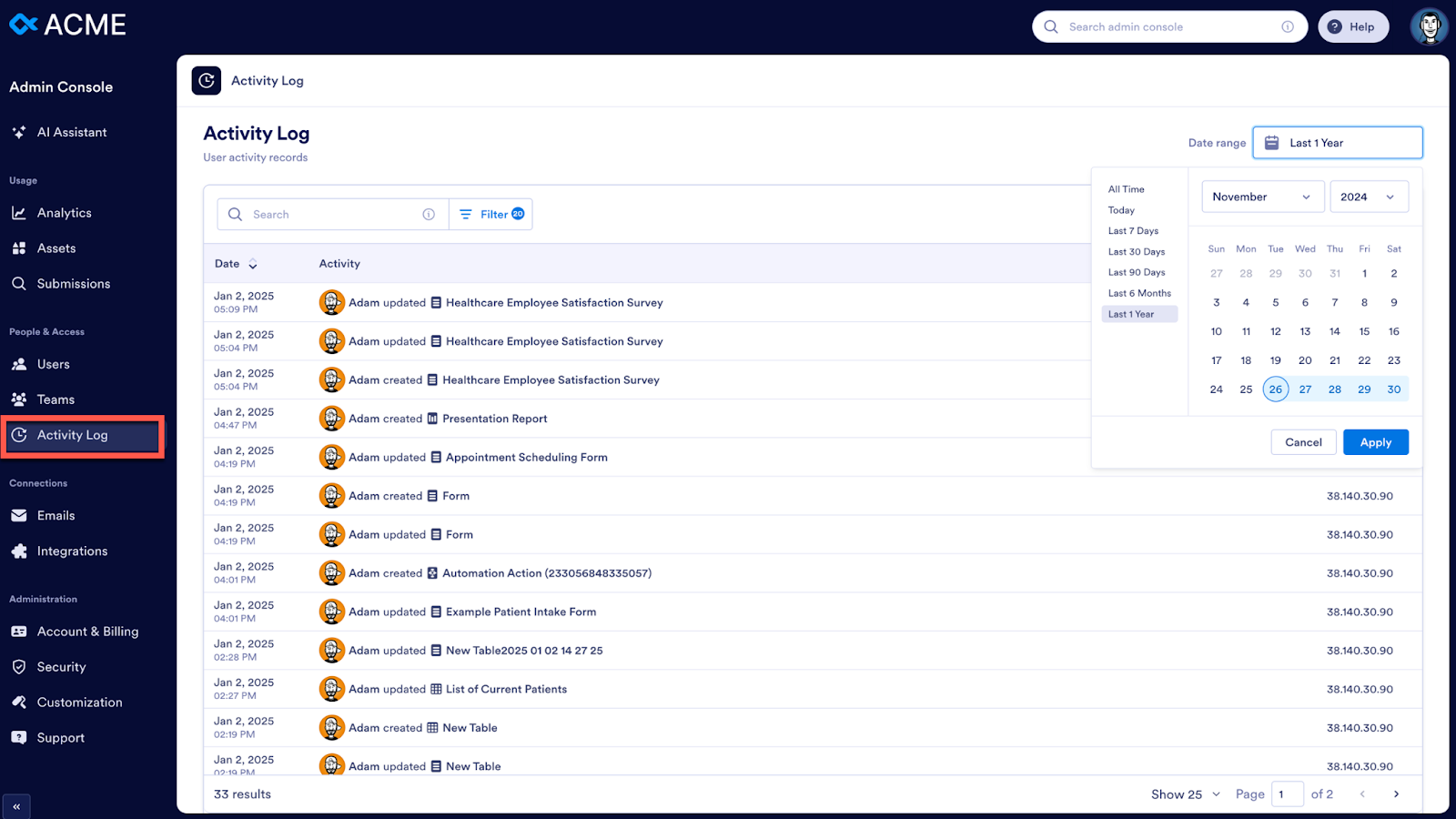
Admins can also run detailed reports on platform usage with the Activity Log. Select the desired time frame, a single user or all users, and the activity you want to track. For example, you can see how many assets have been created by each user over time to track platform adoption and identify power users within your organization.
2. Jotform Teams for role-based access controls
Organizations were quick to adopt the shared online workspaces provided by Jotform Teams. The feature that created the most excitement was role-based access control.
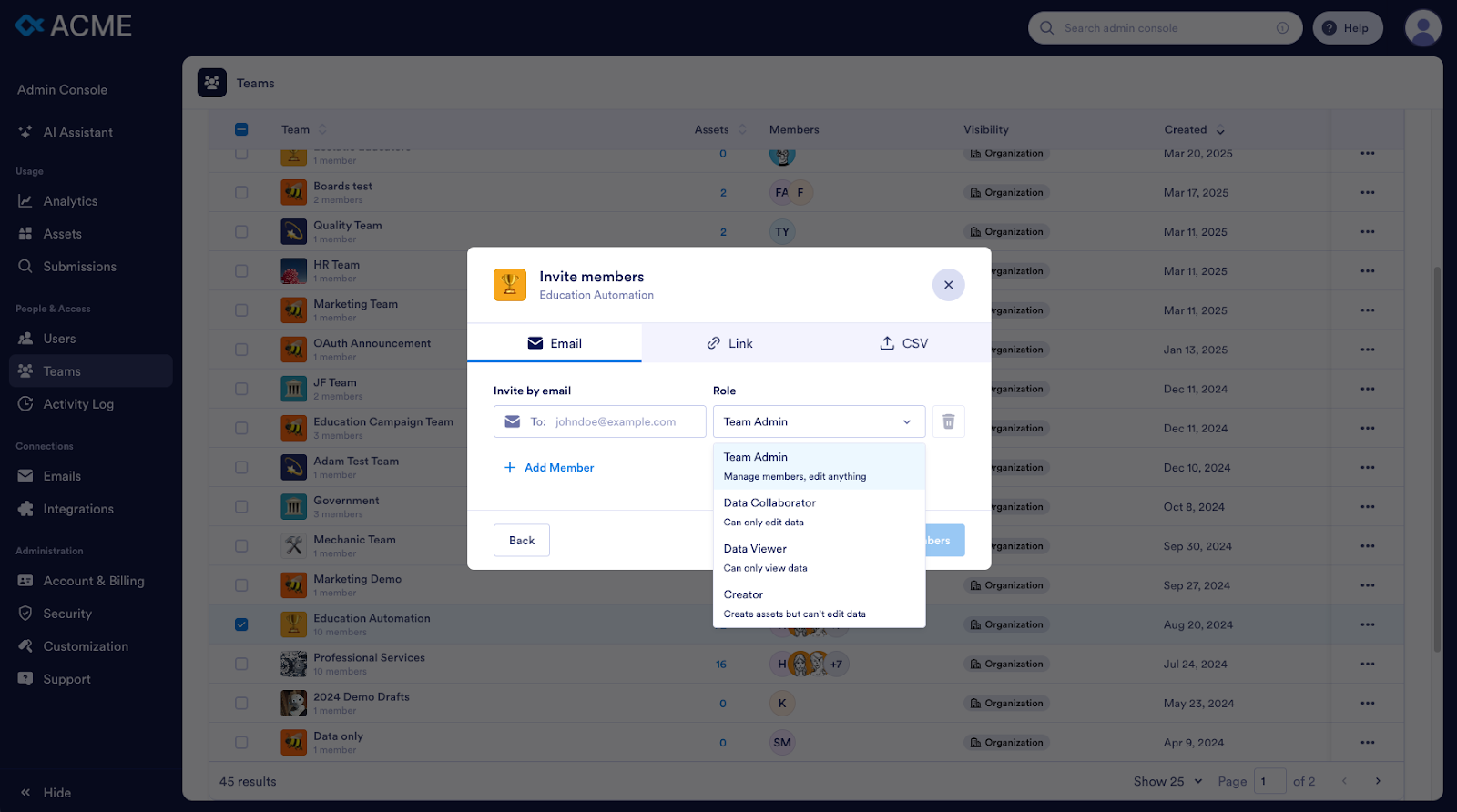
Organizations are using the new Creator role to protect their submission data when they engage external design agencies or web developers to design their forms. Similarly, HR teams can use the Creator role to request forms from their internal marketing and design teams without sharing private and sensitive employee information.
Another helpful feature is the Team Admin role. Department heads can manage team members and (re)assign roles and forms as needed to adjust for staffing changes and vacations, and to optimize team resources. The flexibility of the new roles combined with the shared workspaces and detailed information in the Team Activity Log will help teams be more efficient and effective than ever before.
With Jotform Teams, I was able to add all of our website forms to a team workspace and invite our website vendor to that team, so they can edit the forms without any risk of them seeing protected health information contained in the form submission data.
Kyle Krownapple, The Village Network
3. Jotform Sign
A favorite feature of HR and sales teams is Jotform Sign, which makes it easy to collect e-signatures and automate the signature collection process. You can view, track, and report on document status using Jotform Sign Inbox, Tables, and Insights. Plus, there are no limits on the number of signed documents Jotform Enterprise customers can have, which reduces costs and complexity for chief financial officers and IT admins.
The use cases for Jotform Sign are vast and growing all the time. If you use Jotform Sign or are considering adding it to your forms, check out the more than 30 Jotform Sign integrations available to support a range of workflows.
Now I can collect e-signatures for free with Jotform Enterprise. It’s amazing!
Ayyoub Ajmi, founder, CiviLaw.Tech
4. Wonderful widgets
Many organizations are surprised to learn how adaptable the Jotform Enterprise platform can be. Organizations have saved thousands of dollars on marketing and customer relationship management software by employing imagination and widgets.
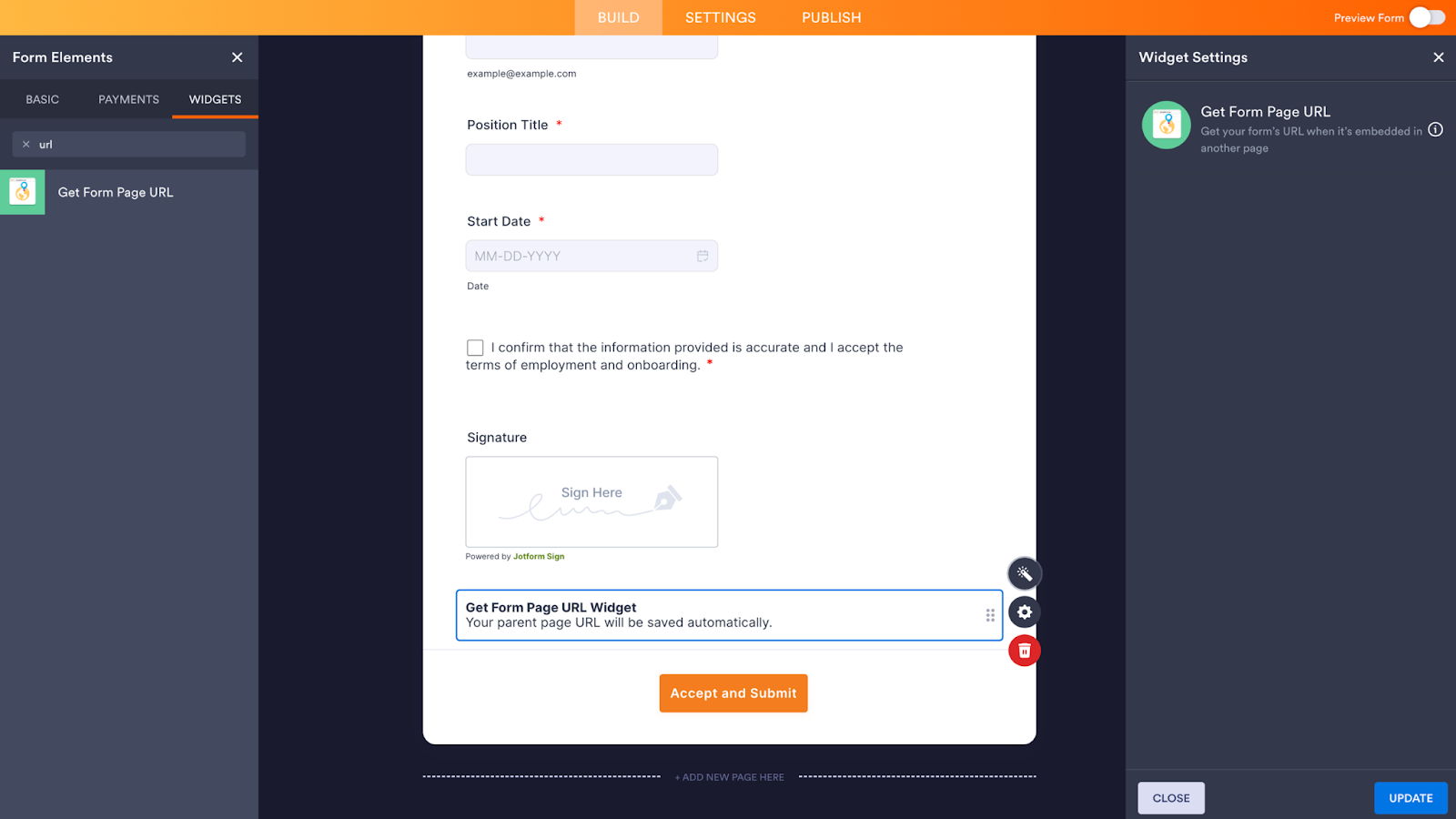
For example, if you’re running a campaign and have embedded your form on a web page, you can use the Get Form Page URL widget to understand where your customers are filling out your forms.
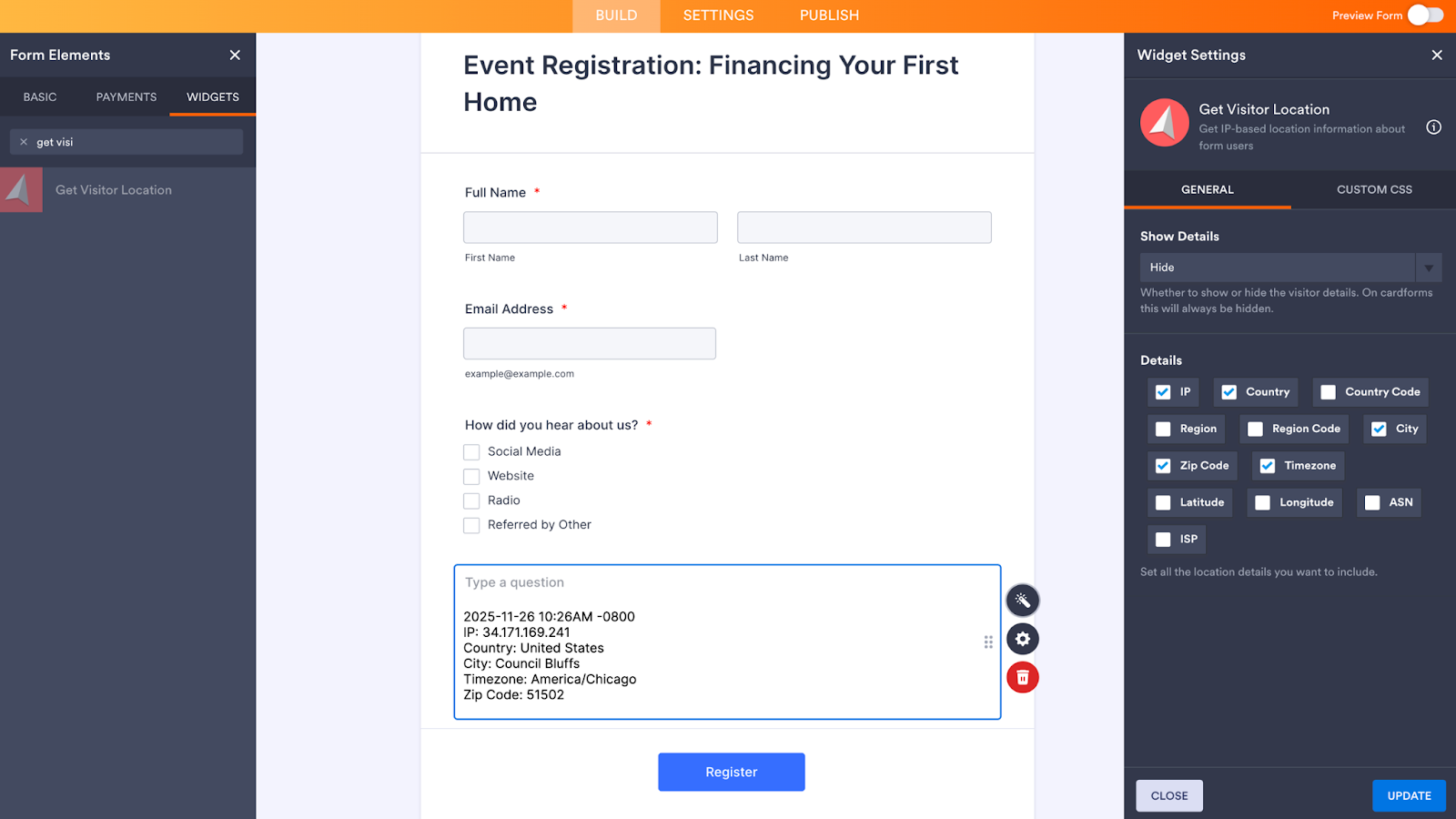
Another great way to capture data about your customers is the Get Visitor Location widget. If you’re hosting informational events across multiple locations, this widget lets you gather IP-based location information about form users, including their country, zip code, time zone, and more. The additional information can help you tailor messages and plan event location space while speeding up the form submission process for your users.
This widget is also helpful for organizations that need to track and report on workers in the field or anywhere you need fast access to location-based information. Use the form field settings to hide or show this field to users as they’re filling out your form.
Bonus Tip
If you’re gathering information from various countries and locales, use Translations to enable your audience to read your form in their preferred language.
There are hundreds of widgets available on the Jotform Enterprise platform. Get creative and see what you can build, then let us know which widget is your favorite.
We couldn’t create these custom options before, but we were able to figure it out with the widgets available through Jotform Enterprise. We’ve been able to do everything we need to do.
Renee Hol, webmaster, Amsterdam University of Applied Sciences
5. Jotform PDF Editor
One of the first things Jotform Enterprise users do is create forms. Many people are familiar with using the PDF Editor to convert their existing paper forms to online forms. But you can also use the PDF Editor to auto-populate submission data into designed PDFs.
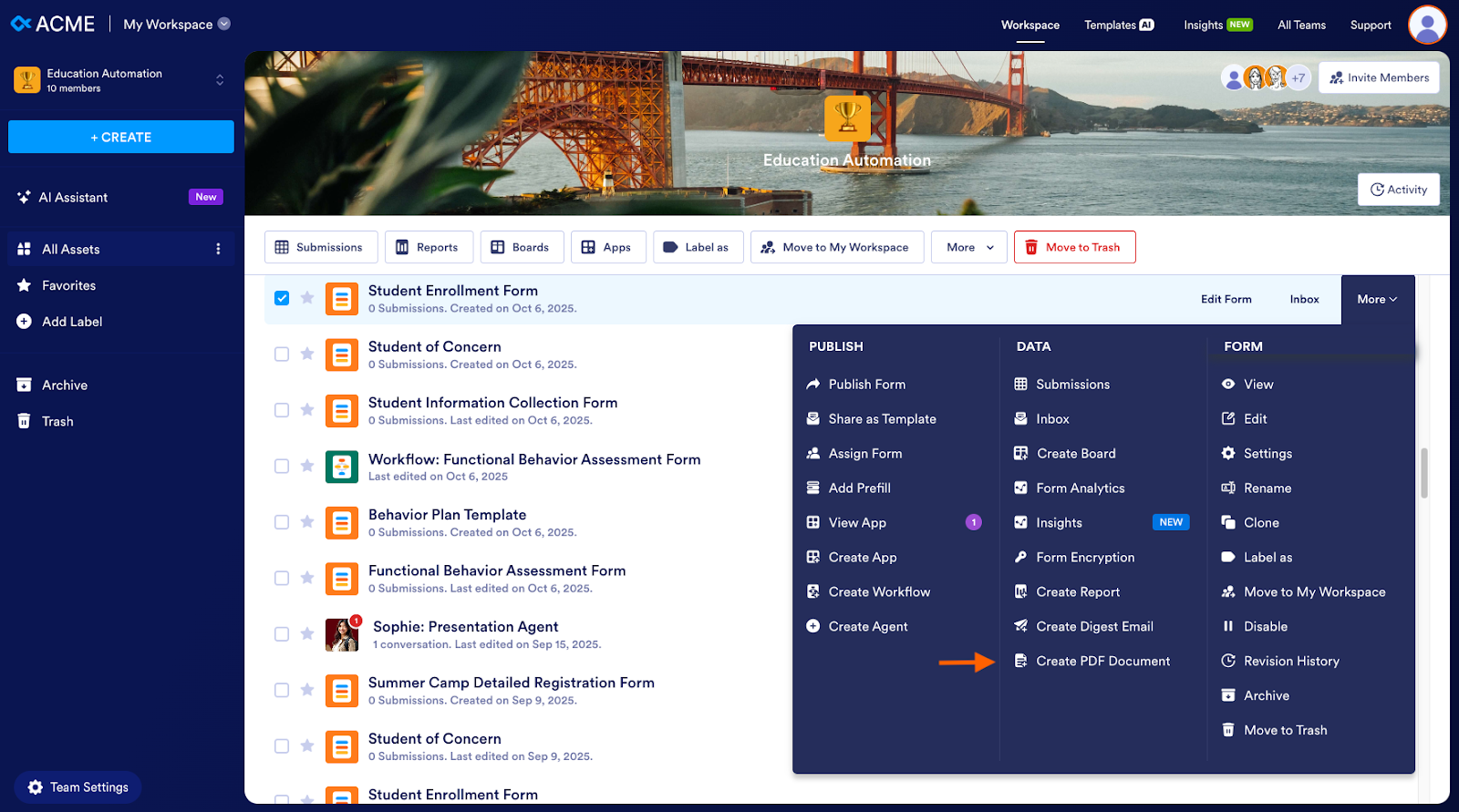
Educational institutions, governments, and legal and financial organizations often need to provide information to government entities and regulatory bodies in a specific format. Using the PDF Editor, you can replicate the necessary form as a PDF. Then, each form submission will auto-populate into the PDF, which you can share via email or link. You can also attach the PDF as part of an approval workflow. If you need to request information that you don’t want to appear in your PDF form, you can opt to hide those fields — or consider using Prefill options.
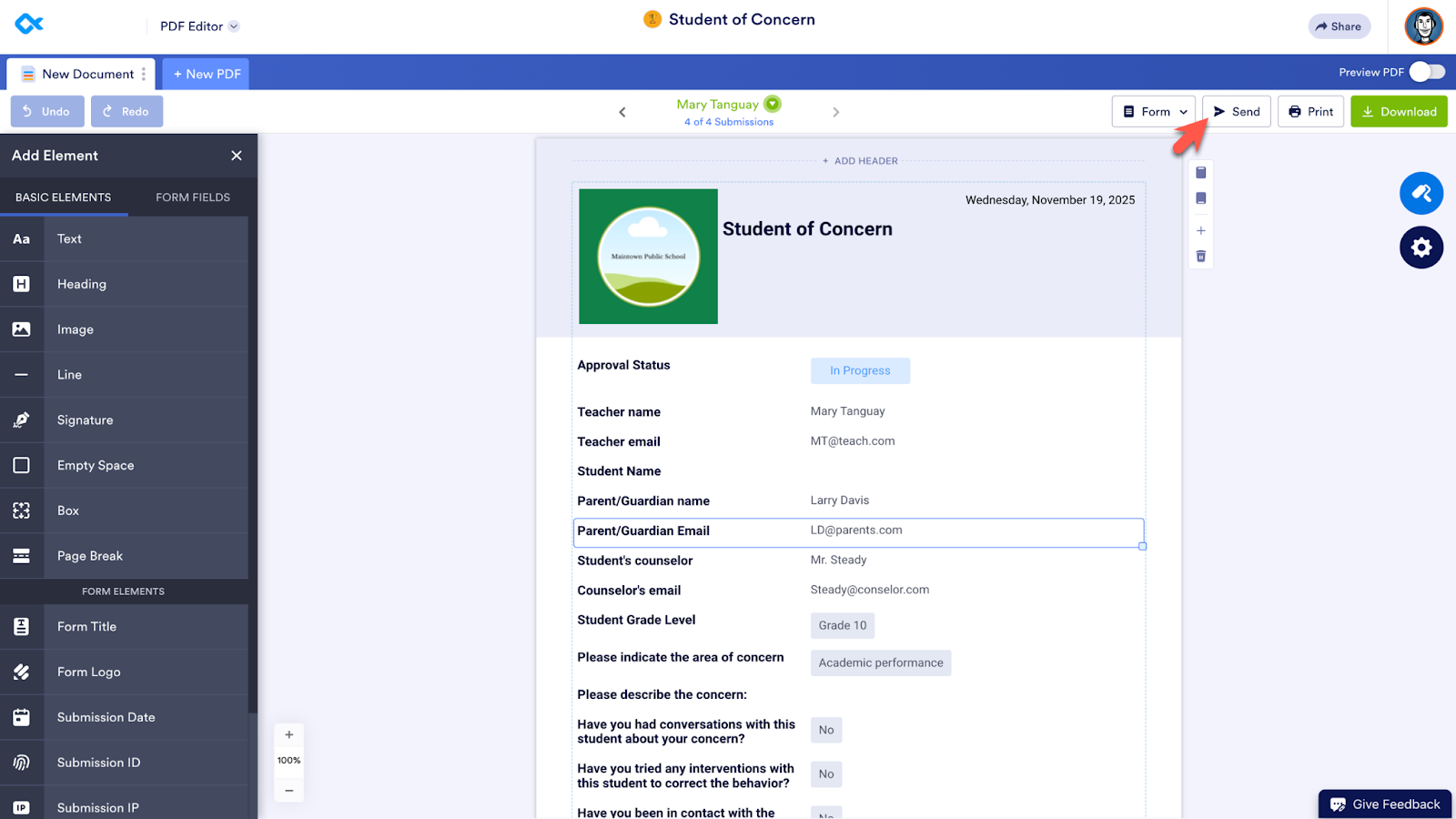
Because Jotform Enterprise is secure and its PDFs are professional-looking and traceable, the Department of Education accepts our professional development training certificates, enabling teachers attending our programs to earn four continuing education units toward their master’s degree.
Robbie Braciszewski, Executive Director, South Carolina Independent School Association
If you enjoyed this post, check out our Jotform Enterprise Help Guides or YouTube playlist to discover even more tips and tricks. Or contact the Enterprise support team anytime. While they don’t qualify as a Jotform Enterprise feature, per se, they are some of our favorite people.


























































































Send Comment: